
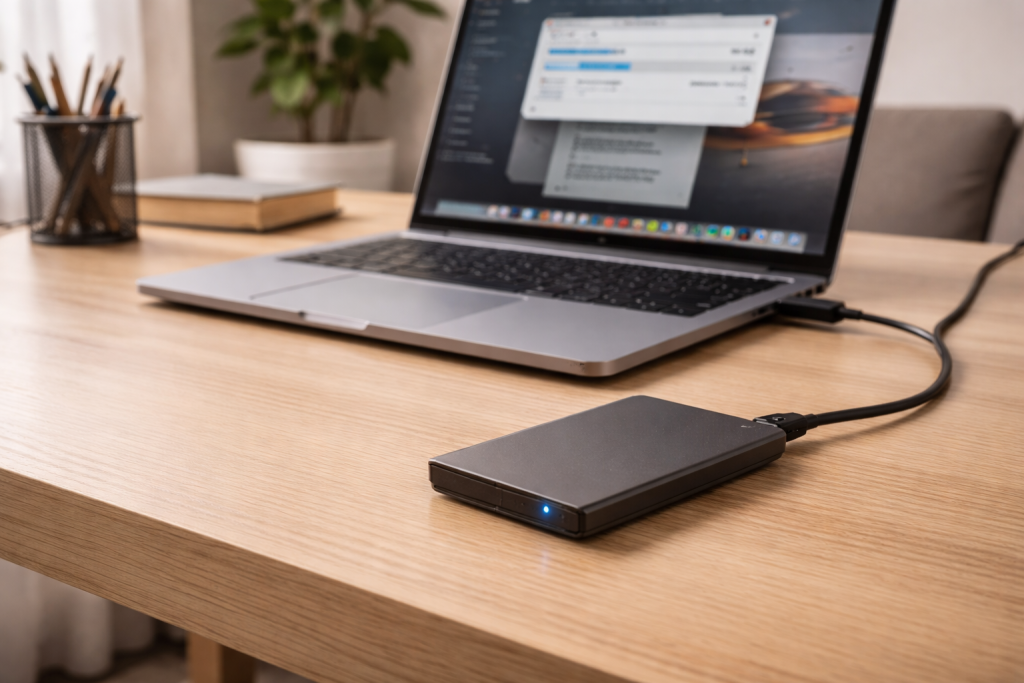
An external SSD that starts off quick and then crawls is usually doing exactly what it was designed to do: protect itself. The frustrating bit is that it looks like a fault. You copy a few gigabytes at 800MB/s, then it drops to 60–150MB/s, sometimes even lower, and stays there until you unplug it or leave it alone.
I see this a lot with compact, bus-powered USB-C SSDs used for video projects, Steam libraries, Time Machine, or as a “working drive” for Lightroom. People assume the drive is dying. More often it’s heat, a small write cache running out, a USB link negotiating down, or the host OS doing background work you didn’t ask for.
The trick is to work out which slowdown you’re seeing: a predictable drop after a certain amount of writing, random stutters, or a permanent “it’s slow now” feeling. Each points to a different fix.
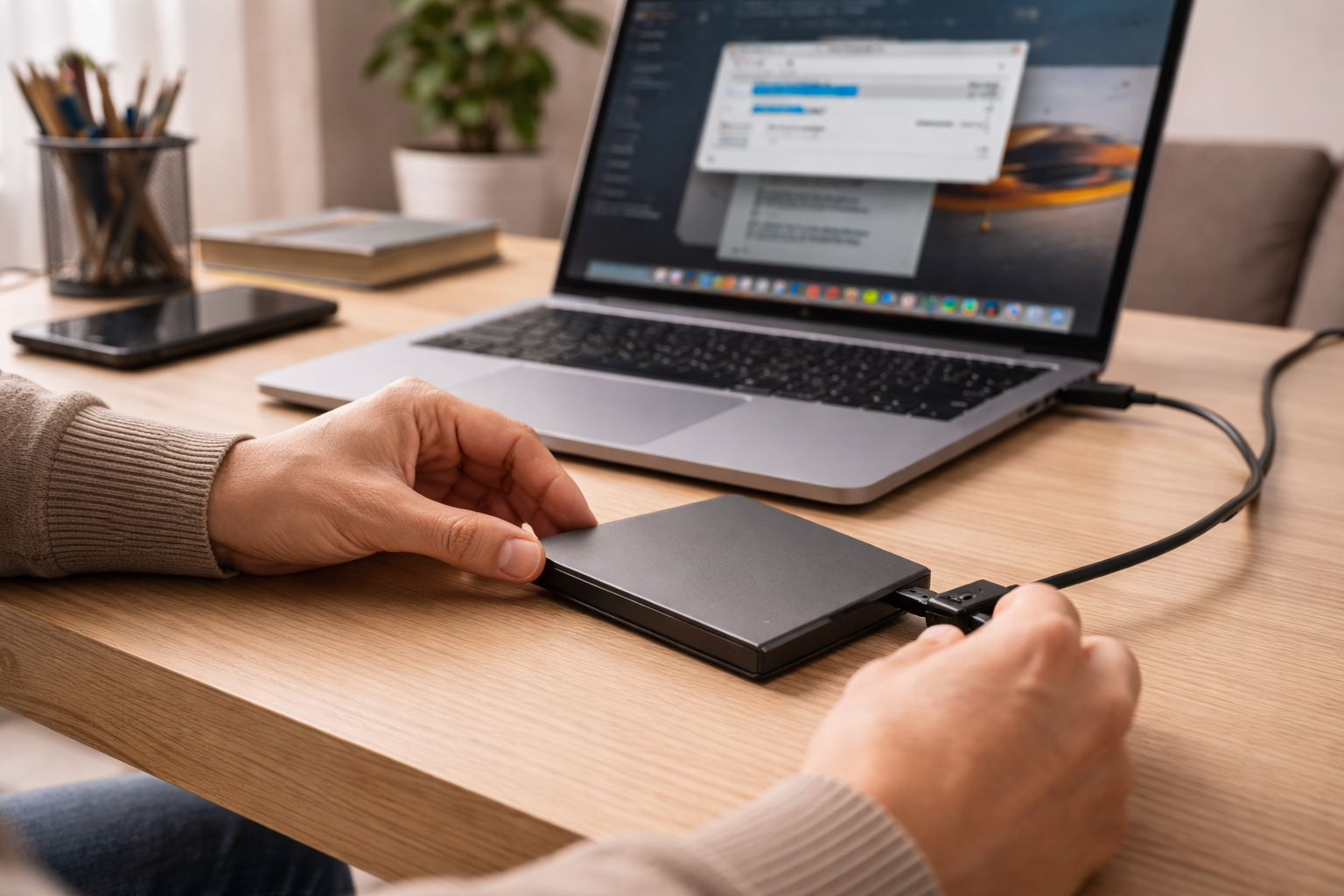
What actually causes an external SSD to slow down
External SSD performance is a chain: the NAND flash, the SSD controller, the bridge chip in the enclosure, the cable, the USB port, the OS driver stack, and the file system. A weak link anywhere drags the whole thing down.
The most common patterns I run into on UK laptops sold before 2024 are:
- SLC cache exhaustion: many consumer SSDs write fast into a small “pseudo-SLC” area, then drop sharply once it fills.
- Thermal throttling: tiny aluminium shells get hot quickly; the controller slows to avoid damage.
- USB link fallback: the drive connects at USB 2.0 or 5Gbps instead of 10/20Gbps due to cable/port/hub issues.
- Nearly-full drive behaviour: as free space shrinks, garbage collection and wear levelling get heavier.
- File system overhead: exFAT on macOS, NTFS on macOS via third-party drivers, or a fragmented directory structure can cause stalls.
- Background tasks: Windows Defender scanning, Spotlight indexing, Time Machine snapshots, cloud sync clients, or photo catalogues hammering metadata.
One important reality: an external SSD can be “healthy” and still slow down under sustained writes. That’s not a defect; it’s a design trade-off in many portable drives.
Diagnose the slowdown before changing anything
Start by reproducing the issue in a controlled way. If you only test with a single folder of mixed small files, you’ll get misleading results because small-file performance is dominated by metadata and directory operations.
- Test 1: large sequential write (best for cache/thermal): copy a single 20–50GB file (or a few large files) to the SSD and watch the transfer rate.
- Test 2: small-file copy (best for file system/AV/indexing): copy a folder with thousands of photos/documents and note whether it stutters.
- Test 3: read-back: copy the same large file back to the internal drive. If reads stay fast but writes collapse, suspect cache/heat/free space.
Also note when it slows down. If it drops after 10–30GB every time, that’s classic cache exhaustion. If it drops after 2–5 minutes regardless of size, heat is more likely.
Step-by-step fixes that actually move the needle
1) Eliminate the USB bottleneck first (port, cable, hub)
USB is the silent killer here. A flaky cable can still “work” while negotiating a slower mode. I’ve watched a drive bounce between 10Gbps and 5Gbps on a slightly loose USB-C connector, with the user convinced the SSD was failing.
- Plug the SSD directly into the laptop/PC. Avoid monitors, docks, and front-panel ports for testing.
- Try a different port on the machine. Some ports share bandwidth internally.
- Swap the cable. Use a short, known-good USB-C cable rated for USB 3.2 (not a charge-only lead).
- If you’re using USB-A, avoid cheap USB-A to USB-C adaptors; they’re a common cause of USB 2.0 fallbacks.
If you’re on Windows, check the device link speed in Device Manager (USB controllers) or with a reputable USB device viewer. On macOS, System Information can show whether the device is connected at the expected speed. If you need Apple’s official steps for checking connected USB devices, use Apple’s Mac System Information USB checks.
2) Stop the drive cooking itself (thermal throttling)
Portable SSDs throttle hard. The controller is often the first to hit its limit, not the NAND. If the shell is uncomfortable to hold, performance is already being sacrificed.
- Move the SSD off soft surfaces. Beds, sofas, and laptop sleeves trap heat.
- Don’t stack it on top of a warm laptop exhaust area.
- For sustained transfers, place it on a cool desk and give it airflow.
- If it’s an enclosure, consider a thermal pad between the SSD and the case (only if you’re comfortable opening it).
In practice, simply moving a small USB-C SSD off a fabric surface fixes the “fast then slow” complaint in about half of cases I’m shown.
3) Check free space and overprovisioning behaviour
SSDs hate being nearly full. Once you drop below roughly 10–15% free space, write amplification climbs and sustained writes can crater.
- Keep at least 15–20% free space on the external SSD.
- If the drive is used for scratch/video cache, don’t let it sit at 95% full for weeks.
- Empty the bin/trash on the external drive too (macOS can keep deleted files in Trash on that volume).
If you’re using the SSD for backups and it’s constantly near full, that’s a different problem: the backup system will churn. Fix backup failing due to low storage is relevant if you’re seeing repeated backup retries and slowdowns.
4) Confirm the file system matches the job
File system choice affects both speed and reliability.
- Windows-only use: NTFS is usually the sensible choice.
- Mac-only use: APFS is typically best for SSDs.
- Cross-platform: exFAT is convenient but can be fragile after unsafe ejects and can perform poorly with lots of small files.
If you’re moving large video files between Mac and Windows, exFAT is common. The failure mode I see is: a few unsafe unplug events, then directory operations get slow and copies stutter. At that point, backing up the data and reformatting often restores normal behaviour.
Reformatting is destructive. If you can’t back up the data elsewhere first, stop here and stabilise the connection/heat issues before you risk corruption.
5) Disable the “invisible” background work (temporarily)
Sometimes the SSD is fine and the host is the problem. The slowdown appears “over time” because the OS starts indexing and scanning after the initial copy begins.
- Windows: during a big copy, Windows Defender can scan each file as it lands. Try copying again with real-time protection temporarily disabled (only if you trust the source files). You can also add the external drive to exclusions if it’s a dedicated media/work drive.
- macOS: Spotlight indexing can hammer a newly connected drive. If the drive is purely for media or backups, consider excluding it from Spotlight indexing.
- Cloud sync: OneDrive/Dropbox/Google Drive clients can re-scan and hash files, causing sustained random reads/writes.
For Windows guidance on Defender exclusions and real-time protection behaviour, use Microsoft’s Windows Security documentation.
6) Look for power management and sleep-related stalls
External SSDs that “slow down” can actually be pausing due to USB selective suspend or aggressive power saving, then resuming. Users describe it as a stutter: fast, then nothing, then fast again.
- Windows: disable USB selective suspend in Power Options for testing. Also check Device Manager power management options for USB Root Hub entries.
- Laptops on battery: test while plugged in. Some machines reduce USB power budget on battery.
If you also see disconnects, not just slowdowns, treat it as a stability issue first. Fix USB devices randomly disconnecting pairs well with this situation.
7) Update firmware and controller drivers (when it’s actually relevant)
Firmware updates can fix edge-case throttling and compatibility bugs, but they’re not a magic speed button. Apply them when you have a repeatable issue and the vendor notes match your symptoms.
- Check the SSD vendor’s utility for firmware updates (Samsung, Crucial, WD, SanDisk, etc.).
- On Windows, update chipset drivers from the laptop manufacturer if USB performance is erratic.
- Avoid random third-party “driver updater” tools. They cause more problems than they solve.
I’ve seen firmware fix sudden drops on a handful of popular portable SSDs, but only where the drive was misreporting temperature and throttling early.
Situations that change the diagnosis
Editing video directly from the external SSD
Video editing workloads look like “sustained write + sustained read + lots of small metadata updates”. That’s brutal for small portable SSDs. If the drive is also powering from the same USB-C port as a display or dock, bandwidth and power can get messy.
When I test this on a MacBook with a USB-C hub, the timeline feels fine for five minutes, then scrubbing starts lagging. Plugging the SSD directly into the laptop often restores consistent performance, even if peak speed looks similar on paper.
Using the SSD as a games library
Games are a mix of large reads and many small reads. If the drive is exFAT for “compatibility”, you can get odd stutters as the file system handles lots of small assets. NTFS (Windows) or APFS (Mac) tends to behave better.
Also watch for the drive entering a low-power state mid-session. That shows up as a brief freeze when a new area loads.
Time Machine or continuous backup drives
Backups create constant background I/O. The drive can feel “slow over time” because it’s never idle enough to flush and cool down. If you’re writing other data to the same disk while backups run, expect contention.
If the SSD is intermittently not showing up on macOS, fix detection first. Fix external SSD not detected on macOS covers the stability side that often sits underneath performance complaints.
Copying lots of small files (photos, email archives, code projects)
This is where people get misled by advertised MB/s figures. Small-file performance is limited by IOPS, not headline throughput. A drive that does 1,000MB/s sequential can still feel sluggish when copying 80,000 JPEGs.
If the slowdown is mostly with small files, focus on indexing/antivirus, file system choice, and whether the drive is connected through a hub that adds latency.
Common mistakes that keep the SSD slow
- Assuming “USB-C” means fast: USB-C is a connector, not a speed guarantee. Plenty of USB-C ports are only 5Gbps, and some are worse through docks.
- Using the cable that happened to be in the drawer: charge-first cables are everywhere now. They’ll happily cap you at USB 2.0 speeds.
- Filling the drive to the brim: it works until it doesn’t, then sustained writes collapse and never recover until space is freed.
- Unplugging without ejecting: exFAT volumes are especially prone to directory damage after unsafe removal, which later shows up as “random” slowdowns.
- Testing with one copy and calling it done: the first copy can be fast due to cache; the second reveals the sustained rate.
A small but real one: people often test speed right after plugging in, when the drive is cool. Ten minutes later it’s hot and throttling, and they think something “changed”. Nothing changed; the temperature did.
Hardware and software factors that matter more than brand
Two external SSDs with the same capacity can behave completely differently under sustained writes. The label on the shell doesn’t tell you what NAND type or controller strategy is inside.
- DRAM-less designs: many portable SSDs rely on Host Memory Buffer or clever mapping. They can slow down more sharply with random writes.
- QLC NAND: often fine for reads and burst writes, but sustained writes after cache can drop dramatically.
- Enclosure bridge chips: NVMe-to-USB bridges vary. Some run hot, some negotiate poorly with certain chipsets.
- USB 3.2 Gen 2×2 vs Gen 2: a 20Gbps SSD plugged into a 10Gbps port won’t reach its advertised speeds. That’s normal, not a fault.
- TRIM support over USB: some OS/enclosure combinations don’t pass TRIM/UNMAP reliably. Over time, that can contribute to slower writes because the SSD has less information about which blocks are free.
On Windows, you can check whether the OS thinks optimisation/TRIM is enabled for the drive, but don’t obsess over it. If the enclosure doesn’t support it properly, the practical fix is keeping more free space and avoiding constant near-full operation.
Conclusion
External SSD slowdowns are usually predictable once you match the symptom to the cause. A sharp drop after a fixed amount of writing points to cache behaviour. A drop after a few minutes points to heat. Random stutters point to power management, hubs, or background scanning.
Start with the boring physical layer: direct connection, known-good cable, correct port speed. Then deal with heat and free space. Only after that is it worth reformatting, changing file systems, or chasing firmware updates.
If you need the drive to stay fast under heavy, sustained writes, the uncomfortable answer is that some portable SSDs simply aren’t built for that workload. A larger capacity model (more NAND dies to spread writes) or a better-cooled enclosure often behaves more consistently than any software tweak.
FAQ
Why does my external SSD copy at full speed for 10 minutes then drop to 80MB/s on Windows 11?
That pattern usually means the SSD’s fast write cache has filled and it’s now writing directly to slower NAND, often while doing background cleanup. Check free space (keep 15–20% free), keep the drive cool, and retest with a single large file while connected directly to a USB 3.x port with a proper data cable.
Why is my external SSD fast on my desktop but painfully slow through my USB-C dock on a laptop?
Docks can force a lower USB mode, share bandwidth with displays, or introduce power-saving quirks. Test the SSD plugged straight into the laptop, swap the cable, and try a different port. If direct connection fixes it, the dock/hub path is the bottleneck rather than the SSD.
Why does my external SSD slow down after I nearly fill it with video files and then delete some?
Deletes don’t instantly restore SSD performance because the drive still needs to erase blocks internally and rebuild free space maps. Leave more free space, avoid running it near full, and give it idle time connected so it can finish garbage collection. If it’s exFAT and has had unsafe ejects, back up and reformat can be the clean reset.
Does an external SSD still run at full speed if I use a longer USB-C cable across my desk?
Not always. Longer or lower-quality USB-C cables can negotiate down to slower speeds or become error-prone, which forces retries and kills throughput. For high sustained speeds, use a short, certified USB 3.2 cable and avoid adaptors where possible.
Why does my external SSD feel slow on a Mac after I plug it in, but it speeds up later?
macOS can index a newly connected drive (Spotlight) and that background activity competes with your transfers, especially with lots of small files. Excluding the drive from Spotlight indexing (if appropriate) and ensuring the drive is formatted sensibly for your use (APFS for Mac-only) usually stabilises performance.
Recommended gear on Amazon UK
- A proper 10Gbps-rated cable prevents the common failure where an external SSD silently falls back to USB 2.0/5Gbps and stays slow despite the drive being fine. Relevant examples
- A decent adaptor avoids the cheap-adaptor problem where the SSD connects but negotiates at a slower mode, causing the ‘fast then slow’ behaviour to look like a drive issue. Comparable items
- Better enclosures shed heat and reduce thermal throttling, which is a frequent reason compact external SSDs slow down after a few minutes of sustained writes. See suitable options
- Keeping the SSD and laptop off soft surfaces reduces heat soak around USB-C ports and the drive shell, improving sustained transfer consistency during long copies. See suitable options







