
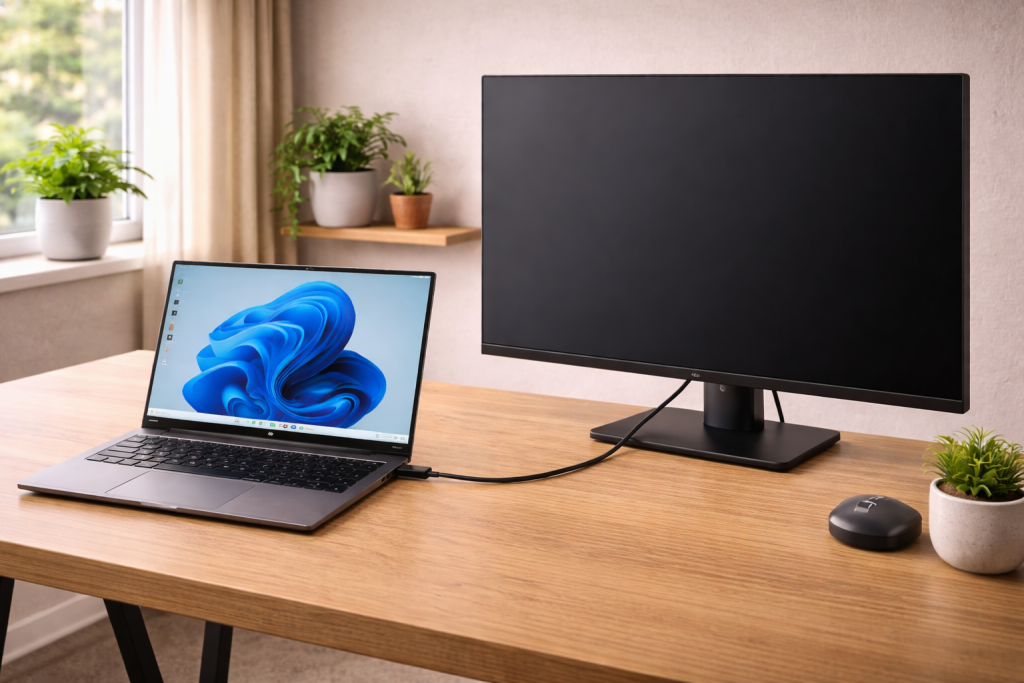
You plug a monitor into a laptop’s USB-C port, the monitor wakes up, maybe even charges the laptop, and then… nothing. No picture, no new display in settings, sometimes not even a “no signal” message that makes sense. USB-C makes this failure feel personal because the connector fits, power flows, and yet video simply doesn’t exist.
The awkward truth is that USB-C is a connector, not a promise. One port can do charging only, another can do data, another can do DisplayPort Alt Mode, and a Thunderbolt port can do all of the above but still fail if the cable or dock is wrong. I’ve had machines on my bench where the “USB-C” ports look identical, but only the left one carries video.
If your external monitor isn’t detected via USB-C, treat it like a chain with several weak links: port capability, cable type, negotiation (Alt Mode/Thunderbolt), adapter/dock behaviour, and OS/driver state. The fastest fix comes from proving which link is failing, not from randomly reinstalling everything.
What’s actually happening when USB-C video works (and when it doesn’t)
For a monitor to show video over USB-C, one of these needs to be true:
- DisplayPort Alt Mode is supported by the laptop/phone/tablet port and enabled by the hardware path. The USB-C cable carries DisplayPort lanes to the monitor’s USB-C input.
- Thunderbolt 3/4 is supported end-to-end (host port, cable, and monitor/dock). Thunderbolt can tunnel DisplayPort, but it still relies on correct negotiation.
- USB graphics (DisplayLink) is used via a dock/adapter that compresses video over USB data. This is not “native USB-C video” and needs drivers.
When it fails, it usually fails in one of four ways:
- Power but no video: the port is providing USB Power Delivery, but the device never enters DP Alt Mode/Thunderbolt display tunnelling.
- Intermittent detection: the link negotiates, then collapses under bandwidth limits, poor cable shielding, or a dock that can’t hold a stable DP link.
- Detected but blank: the OS sees a display, but the output is disabled, mirrored to a non-existent mode, or stuck on an unsupported refresh rate/colour depth.
- Nothing detected at all: wrong port capability, wrong cable (charge-only), dead adapter, or a firmware/driver stack that’s wedged.
This is the most common issue I see on UK laptops sold before 2024: a USB-C port that charges and does data, but does not support DP Alt Mode, paired with a “USB-C to USB-C” cable that was only ever meant for charging.
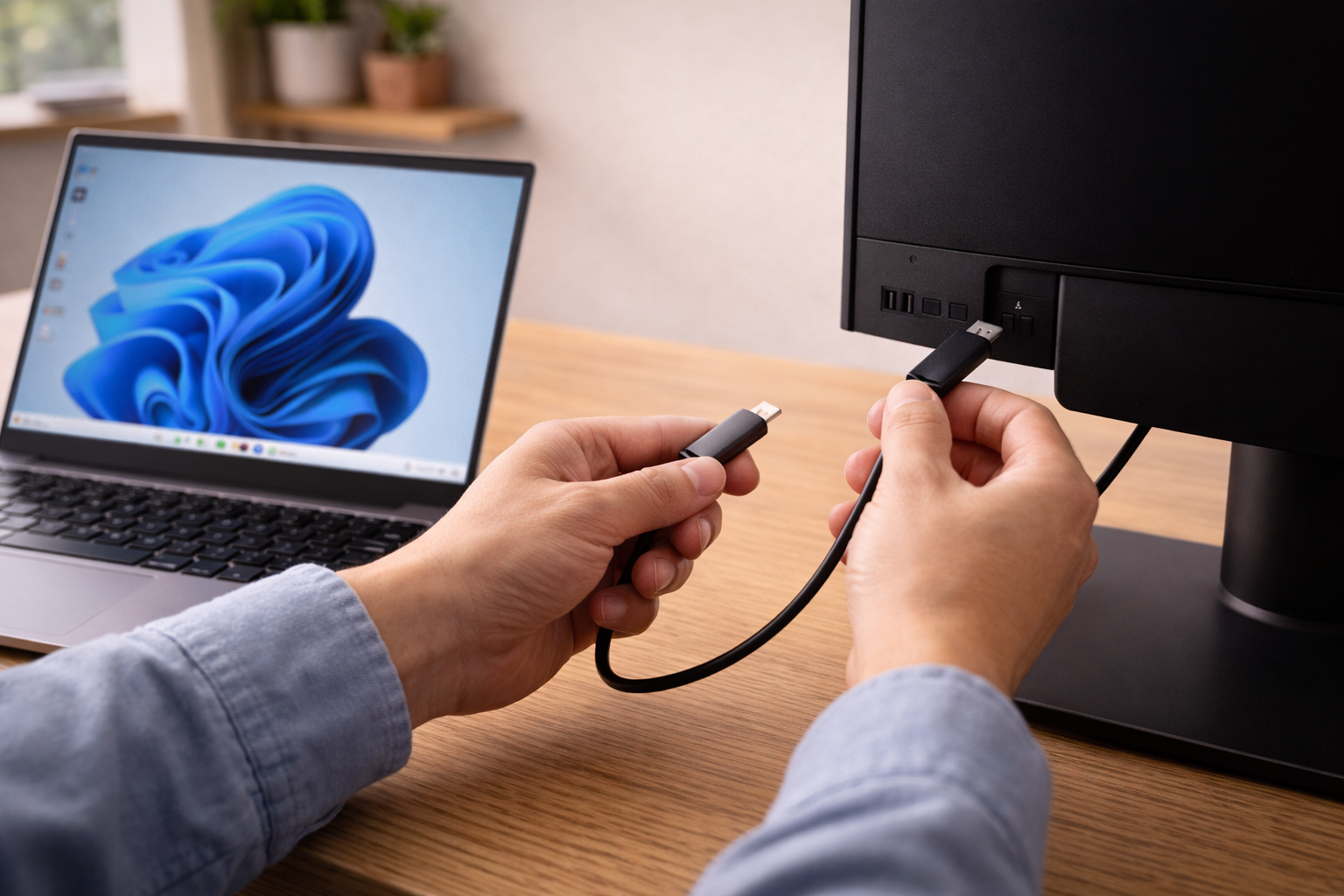
Prove the basics quickly (before you touch drivers)
Start by forcing the setup into a known-good, minimal state. You’re trying to answer one question: is this a capability/cable problem, or a software/negotiation problem?
- Power-cycle everything properly: shut the laptop down (not sleep), unplug power, disconnect the USB-C monitor cable, turn the monitor off at the mains for 20 seconds, then boot the laptop and reconnect.
- Remove the dock/hub: connect the monitor directly to the laptop’s USB-C port. Docks hide problems by adding their own firmware and bandwidth rules.
- Use the monitor’s on-screen input selector: set it explicitly to USB-C (or “Type-C”). Auto input switching is unreliable on some LG and Samsung panels.
- Try a different USB-C port on the laptop: if one works and the other doesn’t, you’ve learned more in 10 seconds than an hour of driver reinstalling.
If you get a picture after a hard power cycle, you’ve likely hit a negotiation hang (Alt Mode/Thunderbolt state machine stuck). That points you towards firmware, drivers, and dock behaviour rather than “broken monitor”.
Step-by-step fault isolation that doesn’t waste your evening
Work through these in order. Each step is designed to rule out a whole class of faults.
1) Confirm the USB-C port can output video
Look for a DP icon (a “D” with a “P”), a Thunderbolt lightning bolt, or documentation that explicitly mentions DisplayPort over USB-C. If you’re on Windows, the manufacturer spec sheet is often clearer than Windows itself.
- If the port is USB-C data/charging only: it will never output video directly. You’ll need HDMI/DisplayPort, or a DisplayLink dock/adapter.
- If it’s Thunderbolt: it should output video, but cable and security settings can still block it.
Seen most often on HP, Dell and Lenovo laptops: one USB-C port is Thunderbolt/video, the other is “plain” USB-C for data. They’re visually identical.
2) Swap the cable for a known video-capable one
USB-C cables are the silent saboteur. A charge-only or USB 2.0 cable can happily deliver power and still be useless for video.
- Best test: use the cable that came with the USB-C monitor (if it shipped with one).
- Look for markings: “40Gbps” (Thunderbolt/USB4) or “10Gbps” (USB 3.2) is a good sign. “60W/100W” alone tells you nothing about video.
- Keep it short: long USB-C cables are more likely to fail at high DP link rates, especially at 4K.
In practice, this step fixes the problem in about half of cases when someone has grabbed a random USB-C cable from a drawer.
3) Force detection in the OS (Windows and macOS)
Sometimes the display is there but not being activated.
- Windows 11: Settings > System > Display > Multiple displays > Detect. Then set “Extend” rather than “Duplicate” if you suspect a mode mismatch.
- macOS: System Settings > Displays. Hold Option to reveal “Detect Displays” on some versions, then check arrangement and resolution.
If the monitor appears briefly and disappears, you’re dealing with link instability (cable, dock, bandwidth, or GPU driver).
4) Eliminate bandwidth and mode negotiation problems
USB-C video often fails at the edge: high resolution, high refresh, HDR, and USB data all competing for lanes.
- Drop refresh rate: try 60Hz instead of 120/144Hz.
- Drop resolution: test 1080p first, then step up.
- Disable HDR temporarily: HDR can push the link into a mode the cable/dock can’t hold.
- Turn off USB hub features on the monitor: some USB-C monitors let you prioritise USB data vs video bandwidth.
A common failure pattern: a 4K monitor at 144Hz over USB-C works for a minute, then goes black. That’s usually a marginal cable or a dock trying to do too much over a single link.
5) If you’re using a dock, test the dock’s limits (and its power)
Docks complicate things because they translate and split signals. They also have their own firmware, and some behave differently depending on whether the laptop is on mains power.
- Connect monitor directly: if direct works but dock doesn’t, the dock is the problem (or its configuration).
- Check the dock’s supported display modes: many USB-C docks only support one 4K display at 60Hz, or two displays at lower resolutions.
- Use the dock’s own power supply: bus-powered docks can brown out under load, especially with external drives attached.
- Try a different port on the dock: some docks have one “primary” display output with better compatibility.
If your laptop also refuses to charge reliably through the same dock, that’s a strong hint the dock is unstable. The charging side and the display side share negotiation and power constraints. Fix laptop not charging via a USB-C dock
6) Windows: reset the graphics stack and update the right drivers
On Windows, USB-C display output is tightly coupled to GPU drivers, USB-C controller firmware, and sometimes Thunderbolt software.
- Restart the graphics driver: press Win + Ctrl + Shift + B. The screen will flicker; then reconnect the monitor.
- Update GPU drivers: use the laptop maker’s package first for business machines, then consider vendor drivers (Intel/NVIDIA/AMD) if you’re stuck.
- Update chipset/USB-C controller drivers: these are often separate from GPU drivers and matter more than people expect.
- Thunderbolt Control Center: if present, check whether new devices need approval (security level can block display tunnelling on some setups).
Microsoft’s display troubleshooting steps can help confirm whether Windows is seeing the device at all. Windows external display troubleshooting
7) macOS: check privacy/security prompts and cable expectations
macOS is usually better at display negotiation, but it’s not immune to USB-C weirdness.
- Check for accessory prompts: after connecting, macOS may ask to allow an accessory to connect, especially on newer versions with stricter USB accessory handling.
- Try a different USB-C port: on some MacBooks, one side can behave differently if there’s debris or wear in a port.
- Reset power/USB state: a full shutdown (not restart) and 30 seconds off can clear a stuck USB-C controller state.
If you’re on Apple silicon and using a dock, be aware that some multi-display docks rely on DisplayLink. That can work, but it’s a different path than native USB-C video and it changes the troubleshooting.
Apple’s notes on connecting displays are worth checking when you suspect a limitation rather than a fault. Connect an external display to a Mac
Situations that look like “not detected” but aren’t
These are the ones that waste time because the monitor is technically working, just not in the way you expect.
The monitor is detected, but it’s outputting to the wrong place
- Windows projection mode: press Win + P and choose “Extend”. “Second screen only” can black out the laptop panel and make you think the monitor failed if the monitor isn’t actually receiving a signal.
- Closed-lid behaviour: some laptops disable external outputs when the lid is closed unless on mains power.
- Wrong input on the monitor: USB-C monitors sometimes default back to HDMI after a power cut.
I’ve seen this after Windows updates: the system flips to “Duplicate” at an unsupported refresh rate, so the external panel stays black while Windows insists it’s connected.
The monitor works on HDMI but not on USB-C
This usually means the monitor is fine and the USB-C video path is the issue. Common causes:
- USB-C port lacks DP Alt Mode on the laptop.
- Cable is charge/data only (no high-speed lanes for video).
- Monitor’s USB-C input expects DP Alt Mode but you’re using a USB-C to HDMI adapter chain that doesn’t negotiate correctly.
It only fails when other USB devices are connected
USB-C has to share bandwidth. If you’re using a single USB-C cable to a monitor that also acts as a hub (Ethernet, webcam, SSD), the link may drop video when the USB side gets busy.
- Test with everything unplugged from the monitor’s USB ports.
- Try a lower display mode (1080p/60) and see if stability returns.
- Move high-bandwidth devices (external SSDs) to a different port on the laptop.
If you’re also seeing random disconnects on other USB devices, you may be dealing with a broader USB stability issue rather than a monitor-specific fault. Fix USB devices randomly disconnecting
Common mistakes that keep the problem alive
- Assuming “USB-C” equals video: it doesn’t. You need DP Alt Mode or Thunderbolt, or a DisplayLink solution.
- Using a phone/tablet charging cable for a monitor: many are USB 2.0 internally. They’ll charge and do nothing else.
- Chaining adapters: USB-C to HDMI adapter into an HDMI-to-something converter is a compatibility lottery.
- Ignoring the monitor’s USB-C power requirements: some portable monitors need more power than a laptop port will provide while also trying to run video.
- Leaving HDR/VRR on while testing: start simple, then add features back.
- Updating only the GPU driver: USB-C display issues can sit in chipset, Thunderbolt, or dock firmware.
One I still catch myself on: testing with the laptop on battery, then wondering why the external display behaves differently. Some systems reduce USB-C output capability on battery to save power.
Hardware and software details that actually matter
When the quick steps don’t solve it, these are the constraints that decide what’s possible.
DisplayPort Alt Mode versions and cable quality
Higher resolutions and refresh rates need higher DP link rates. A cable that’s “fine” at 1080p can fail at 4K/120. If your monitor supports USB-C with DP 1.4 features (like DSC), but your laptop only outputs DP 1.2 over USB-C, you may hit limits that look like detection failures.
Thunderbolt security and enterprise laptop policies
On managed laptops (common in UK workplaces), Thunderbolt can be locked down. The port still charges, still does USB, but blocks display tunnelling until the device is approved. If you see a Thunderbolt app but no prompt appears, IT policy may be suppressing it.
DisplayLink docks: different technology, different failure modes
If your dock advertises “dual 4K over USB-C” on a laptop that only supports one native display output, it’s often using DisplayLink. That can be perfectly usable for office work, but it depends on drivers and can break after OS updates.
- Symptom: monitor not detected after an update, but HDMI direct works.
- Fix path: reinstall/update DisplayLink drivers, check permissions on macOS, and avoid mixing old and new driver versions.
Firmware updates (monitor and dock)
Some USB-C monitors and most serious docks have firmware updates. They’re not optional when you’re chasing negotiation bugs. If your monitor has a USB service port or a vendor utility, check for updates, especially if the issue started after you changed laptops.
I’ve had a Dell dock that refused to output to a particular LG USB-C monitor until its firmware was updated; the same dock worked fine on HDMI, which made it look like a monitor fault.
Conclusion
When a USB-C monitor isn’t detected, the fastest route is to stop treating it like a single problem. Prove port capability, prove the cable, then simplify the chain until you get a stable picture. Only after that should you spend time on drivers, firmware, and dock-specific limits.
If direct USB-C works with a known-good cable but fails through a dock, you’ve already found the culprit. If HDMI works but USB-C never does, you’re usually looking at a port capability mismatch or the wrong cable type. Once you frame it that way, the fixes stop being random.
FAQ
Why does my USB-C monitor charge my laptop but the display is not detected on Windows 11?
Charging uses USB Power Delivery and can work even when the port/cable can’t carry video. The usual causes are a USB-C port without DisplayPort Alt Mode, a charge-only/USB 2.0 cable, or a dock that isn’t negotiating DP Alt Mode correctly. Test with a known video-capable USB-C cable and connect the monitor directly to the laptop to separate port/cable issues from dock issues.
Why does my external monitor work over USB-C at 1080p but goes blank at 4K 120Hz after a few minutes?
That pattern points to a marginal high-bandwidth link: cable quality/length, dock bandwidth limits, or a mode (HDR/VRR/10-bit colour) pushing the DP link beyond what the chain can sustain. Drop to 60Hz, disable HDR temporarily, and try a shorter certified cable. If stability returns, you’ve confirmed a bandwidth problem rather than a dead port.
Why did my USB-C display stop being detected after a Windows update even though it worked yesterday?
Updates can change GPU drivers, USB-C controller behaviour, or power management defaults. First do a full shutdown and power cycle to clear a stuck negotiation state, then restart the graphics driver (Win + Ctrl + Shift + B). If you use a DisplayLink dock, check whether its driver needs reinstalling, because those setups are more sensitive to OS changes.
Does USB-C video still work if I plug Ethernet and an external SSD into the monitor’s USB hub at the same time?
Sometimes, but it depends on how the monitor allocates USB-C bandwidth between video and USB data. Heavy USB traffic can force the link into a lower video mode or destabilise it, especially on single-cable setups. For troubleshooting, unplug everything from the monitor’s USB ports and confirm the display is stable first, then add devices back one at a time.
Why does my MacBook detect the USB-C monitor only when the lid is open and the charger is connected?
Power and sleep policies can change USB-C behaviour. Some laptops reduce external display capability on battery, and clamshell mode typically expects stable power. Test with the MacBook on mains power, set the monitor input to USB-C manually, and do a full shutdown if the USB-C controller state seems stuck.
Recommended gear on Amazon UK
- A certified high-bandwidth cable removes the most common cause of “charges but no display”, and it’s also the quickest way to stabilise 4K modes that keep dropping out. See suitable options
- If your monitor has DisplayPort, this bypasses flaky USB-C monitor inputs and many dock quirks while still using the laptop’s native DP Alt Mode output. Relevant examples
- A properly powered dock that uses native DP Alt Mode avoids the driver dependency of USB graphics solutions and reduces dropouts caused by bus-powered hubs. Comparable items
- When the USB-C port can’t output video natively, a DisplayLink dock is the practical workaround, but it only behaves if the correct drivers are installed and kept current. Comparable items







