
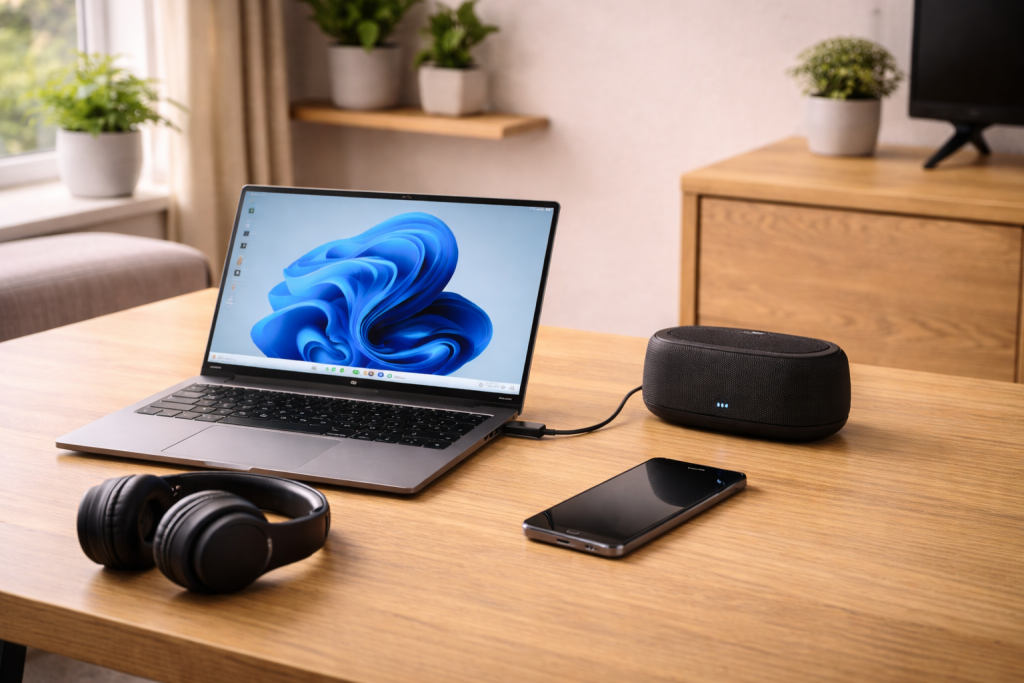
Your Bluetooth headphones say “Connected”. The volume slider moves. The track timer advances. Yet the sound keeps coming from your laptop speakers, or worse, nothing comes out at all. This fault wastes time because it looks like pairing worked, so you end up chasing the wrong thing.
Most “connected but no sound” cases aren’t a broken headset. They’re routing problems: the device is connected for calls but not media, the wrong output is selected, or the OS has latched onto a hands-free profile with a muted mic/speaker path. I see it a lot after Windows updates, after switching between Teams/Zoom and music, and when a headset has been paired to multiple devices in the same room.
Before you reset everything, treat it like a signal path issue. You need to confirm which Bluetooth profile is active, which output device the OS is actually using, and whether an app has taken exclusive control. Once you do that, the fix is usually quick.
What’s really happening when Bluetooth is “connected” but silent
Bluetooth audio isn’t one simple connection. Your headphones can connect over multiple profiles at the same time, and each profile behaves differently:
- A2DP is the stereo music profile. This is what you want for Spotify, YouTube, games and films.
- HFP/HSP is the hands-free profile for calls. It often forces mono audio and a different audio device in the OS.
- LE Audio (on newer phones/earbuds) can add another layer: different codecs and separate “media” vs “call” endpoints.
The failure mode is usually one of these:
- The headset connected using hands-free only, so media audio has nowhere to go.
- The OS is outputting to a different device (HDMI monitor, dock, virtual audio, or “Headset (Hands-Free)” instead of “Headphones (Stereo)”).
- An app has grabbed the audio device exclusively and left it in a bad state.
- The Bluetooth stack is connected, but the audio service is stuck (common after sleep/hibernation on laptops).
- Codec negotiation failed, so playback starts but produces silence until the link renegotiates.
One practical tell: if your headphone name appears twice in Windows (one “Headphones” and one “Headset”), you’re dealing with profile switching. When it goes wrong, you get “connected” with no usable media path.

A fault-finding order that avoids pointless resets
Start with routing and profile checks. Only then move to resets and drivers. This order prevents you from wiping pairings when the issue is simply “wrong output selected”.
Step-by-step: get sound back on Windows 11 and Windows 10
Windows is the most common place for this problem because it exposes multiple endpoints and lets apps override defaults.
1) Confirm Windows is sending audio to the right output
- Click the volume icon in the taskbar.
- Open the output device selector (the small arrow/chevron next to the volume slider on Windows 11).
- Select the device that looks like Headphones or Stereo, not Headset or Hands-Free.
If you only see a hands-free option, Windows isn’t exposing the A2DP endpoint. That usually means the headset is connected in call mode only, or the Bluetooth service is stuck.
2) Check per-app audio routing (it catches the “one app is silent” cases)
- Go to Settings > System > Sound > Volume mixer.
- Find the app that’s playing audio (browser, Spotify, game).
- Set its Output device to your Bluetooth headphones.
I’ve watched Chrome keep outputting to an HDMI monitor that isn’t even powered on. Windows looks fine globally, but the app is pinned to the wrong endpoint.
3) Disable the hands-free endpoint (useful when Windows keeps flipping to call mode)
This is a blunt fix, but it works when you don’t need the headset mic on the PC.
- Open Control Panel > Hardware and Sound > Sound.
- On the Playback tab, right-click the device that includes Hands-Free and choose Disable.
- Set the Stereo device as Default.
Seen most often on HP, Dell and Lenovo laptops where Teams is installed and the headset keeps being pulled into HFP mode.
4) Restart the Bluetooth audio services (faster than rebooting)
- Press Win + R, type services.msc, press Enter.
- Restart Bluetooth Support Service.
- If present, restart Windows Audio and Windows Audio Endpoint Builder.
If sound returns immediately after restarting services, the headset wasn’t the problem. The OS audio stack was.
5) Remove the device properly, then re-pair (only after routing checks)
- Settings > Bluetooth & devices.
- Select your headphones > Remove device.
- Put the headphones into pairing mode (not just power on).
- Pair again and test media playback.
When this fails, it’s often because the headphones are still connected to a phone in your pocket. Many sets will “accept” Windows but keep media locked to the phone.
6) Driver and stack fixes (when Windows keeps exposing the wrong profile)
- Update Bluetooth and audio drivers via your laptop maker first (not just Windows Update). Generic drivers can behave oddly with certain chipsets.
- Device Manager > Bluetooth: uninstall the Bluetooth adapter (tick “delete driver” only if you have a known-good installer), then reboot.
- If you use an external USB Bluetooth dongle, try a different port (front-panel ports on desktops can be noisy).
If you need Microsoft’s official steps for removing and re-adding Bluetooth devices and checking audio output, use Microsoft’s Bluetooth and sound troubleshooting steps.
Step-by-step: iPhone and iPad when Bluetooth is connected but silent
On iOS, the usual issue is that audio is routed somewhere else (AirPlay, CarPlay, another Bluetooth device), or the headset is connected for calls but media is stuck.
1) Force the audio route to the headphones
- Open Control Centre.
- Long-press the audio tile.
- Tap the AirPlay icon and select your Bluetooth headphones.
This catches the “it’s still sending to Apple TV / HomePod” situation, which is more common than people think in UK living rooms with an Apple TV on standby.
2) Toggle Bluetooth off/on, then reconnect
- Settings > Bluetooth > toggle off, wait 10 seconds, toggle on.
- Tap your device to reconnect.
If it reconnects but stays silent, move on. iOS can keep a stale route until you force a re-handshake.
3) Forget device and re-pair (especially after iOS updates)
- Settings > Bluetooth.
- Tap the i next to the device > Forget This Device.
- Re-pair from scratch.
In practice, this step fixes the problem in about half of cases after a major iOS update, particularly with older earbuds that don’t handle codec renegotiation cleanly.
4) Check for call-mode traps
If you’re on a call app (WhatsApp, Teams, FaceTime) and then switch to media, iOS may keep the headset in a call-oriented mode. End the call fully, close the app, then start media again. If the headset has a “voice assistant” or “call” button, avoid pressing it while testing.
Apple’s own Bluetooth audio and connection steps are worth following when a device refuses to behave after re-pairing: Apple Support guidance for Bluetooth accessories.
Step-by-step: Android phones and tablets
Android adds one more variable: per-device toggles for media audio, calls and contact sharing. It’s easy to connect a headset but leave Media audio disabled.
1) Check the device’s Bluetooth toggles (Media vs Calls)
- Settings > Connected devices (or Bluetooth).
- Tap the cog/settings icon next to your headphones.
- Ensure Media audio is enabled.
If only “Calls” is enabled, you’ll get exactly the symptom: connected, no music.
2) Disable “HD audio” / change codec (when playback starts but is silent or stutters)
Some combinations of phone + earbuds negotiate a codec that technically connects but fails in use. I’ve seen this with certain Snapdragon phones and budget ANC earbuds.
- In the Bluetooth device settings, toggle HD audio off (wording varies).
- If you use Developer Options, try switching the Bluetooth audio codec (AAC/SBC/aptX) and retest.
3) Clear Bluetooth cache (Samsung/Pixel variations)
- Settings > Apps > show system apps.
- Find Bluetooth or Bluetooth MIDI Service (names vary).
- Clear Cache (avoid clearing storage unless you’re ready to re-pair everything).
4) Re-pair, but stop the headphones reconnecting to something else
Put the other device out of range or disable its Bluetooth temporarily. Multipoint earbuds are notorious for “helpfully” grabbing the last active device. If your phone is connected to the car and the earbuds at the same time, Android may route media to the car even when the earbuds show connected.
Real-world situations that produce “connected, no sound”
Teams/Zoom has hijacked the headset
The headset connects, but Windows flips to the hands-free endpoint as soon as a call app opens. Then you exit the call and media stays on the wrong device. The fix is usually disabling the hands-free playback device or setting the call app to use a different mic.
Multipoint earbuds are connected to two devices, and the wrong one owns media
Earbuds that support multipoint can keep a “call” link to one device and a “media” link to another. I’ve had a pair on the bench showing connected to a laptop, while the phone in my pocket quietly held the A2DP stream. Turning Bluetooth off on the phone instantly restored laptop audio.
A TV or set-top box is still paired and stealing the route
Some TVs keep Bluetooth audio devices paired and reconnect aggressively. If you paired your headphones to a TV once, it may reconnect when you walk into the room. Your phone still shows connected, but audio goes nowhere useful because the headphones are busy negotiating with the TV.
Windows wakes from sleep with a “ghost” audio endpoint
The Bluetooth link is up, but the audio endpoint is stuck. Restarting Bluetooth Support Service or toggling Bluetooth fixes it faster than a full reboot. This is the most common issue I see on UK devices sold before 2024 that spend a lot of time in Modern Standby.
Common mistakes that keep the problem alive
- Only changing the volume and assuming routing is correct. Volume can be fine while the output device is wrong.
- Testing with one app. Some apps pin output devices. Always test with a second source (system sounds, YouTube, a local file).
- Re-pairing repeatedly without removing the device. If the OS has a corrupted profile entry, reconnecting won’t rebuild it.
- Leaving the headset connected to another device during troubleshooting. You end up “fixing” the wrong device.
- Using the hands-free device for music on Windows. It can work, but it’s low quality and more fragile. If you see two endpoints, pick Stereo for media.
Hardware and software factors that matter more than people expect
Bluetooth chipsets and driver quality
Intel Bluetooth adapters tend to behave well on Windows when the OEM driver package is current. Realtek and older Qualcomm-based laptop modules can be fine too, but they’re more sensitive to Windows updates and power management. If the issue started after an update, a driver refresh from the laptop manufacturer often stabilises it.
USB Bluetooth dongles and interference
Cheap dongles can connect reliably but struggle with sustained audio, especially on USB 3.0 ports next to Wi‑Fi adapters or external drives. If the dongle is right behind a metal PC case, the link budget is poor. A short USB extension cable can move the radio into open air and stop the “connected but silent” behaviour that’s really repeated link renegotiation.
Codec support mismatches
If your headphones prefer AAC and your Windows setup falls back oddly, you can get situations where the stream starts but the headset never properly opens the audio path. On Android, forcing SBC temporarily is a good diagnostic. If SBC works and AAC/aptX doesn’t, you’ve found a codec negotiation problem rather than a routing problem.
Power saving and Modern Standby quirks
Laptops that sleep aggressively can drop parts of the Bluetooth stack while keeping the UI state as “connected”. If it happens repeatedly, check Windows power settings and consider disabling “Allow the computer to turn off this device to save power” on the Bluetooth adapter in Device Manager. It’s not elegant, but it stops the silent reconnection loop on some machines.
When it’s not Bluetooth at all
If you’re using a soundbar, TV, or receiver and you’re mixing Bluetooth with HDMI eARC/ARC, the “no sound” symptom can be caused by the TV switching audio outputs. If your setup includes a soundbar, it’s worth checking Fix soundbar no audio via HDMI eARC because the TV may be routing audio away from Bluetooth unexpectedly.
If you’re dealing with multiple Bluetooth devices in the same space (keyboard, mouse, controller, headphones), interference and bandwidth contention can present as silence or repeated dropouts. The pattern is usually “connected, play starts, then nothing”. In that case, Fix multiple Bluetooth devices causing interference is the more relevant path.
Conclusion
“Connected but no sound” is nearly always a routing or profile problem, not a dead headset. On Windows, pick the Stereo endpoint, check per-app output, and don’t ignore the hands-free device sitting next to it. On phones, force the audio route and confirm media audio is enabled for that Bluetooth device.
If you only do one disciplined thing: stop other devices from connecting to the headphones while you test. It removes the most misleading variable and makes every other step more reliable.
FAQ
Why are my Bluetooth headphones connected to Windows 11 but sound still comes from laptop speakers after a Teams call?
Teams often switches Windows to the hands-free endpoint during a call, then Windows doesn’t switch back cleanly. Set the output device back to the Stereo/Headphones endpoint in the taskbar sound selector, or disable the hands-free playback device in Control Panel if you don’t need the headset mic on the PC.
Why does my iPhone show AirPods connected but there’s no sound when I’m in bed and my Apple TV is on standby?
iOS can keep routing audio to the last AirPlay target, and Apple TV can wake just enough to hold the route. Open Control Centre, long-press the audio tile, and explicitly select the AirPods as the output. If it keeps happening, forget and re-pair the AirPods and check Apple TV Bluetooth settings.
Why does Bluetooth audio work for calls but not for Spotify on my Android phone after a system update?
After updates, Android sometimes leaves the device connected with “Calls” enabled but “Media audio” disabled. Open the Bluetooth device settings (cog next to the headphones) and toggle Media audio on. If it’s already on, re-pair and test with HD audio disabled to rule out a codec issue.
Why does my Bluetooth headset say connected on my laptop but only the “Headset (Hands-Free)” option appears and it’s silent?
That usually means the A2DP stereo profile isn’t available to Windows at that moment. Remove the device and re-pair with other devices’ Bluetooth turned off, then restart Bluetooth Support Service. If it persists, update the laptop’s Bluetooth driver from the manufacturer rather than relying on Windows Update.
Why does Bluetooth audio stop working in my car only when I start Google Maps navigation, even though it stays connected?
Navigation prompts can change the audio focus and route (media vs call vs notification channel), especially if the car kit exposes multiple profiles. Check the car’s Bluetooth settings for “media audio” support, disable call audio temporarily to test, and on Android try turning off HD audio for that connection to stabilise routing.
Recommended gear on Amazon UK
- A higher-quality adapter with an external antenna improves link stability on desktops where the built-in Bluetooth is weak or shielded by the PC case, which can present as “connected” but silent audio. Relevant examples
- Moving a Bluetooth dongle away from USB 3.0 noise and metal chassis often stops repeated renegotiation that looks like a connection but produces no usable audio. Relevant examples
- If the TV’s Bluetooth implementation is unreliable, an external transmitter provides a cleaner, more predictable audio path and avoids the TV switching outputs mid-session. Comparable items
- Worn pads can reduce perceived volume so far that users think audio is missing; fresh pads restore seal and bass, making low-level output obvious during troubleshooting. Relevant examples







