
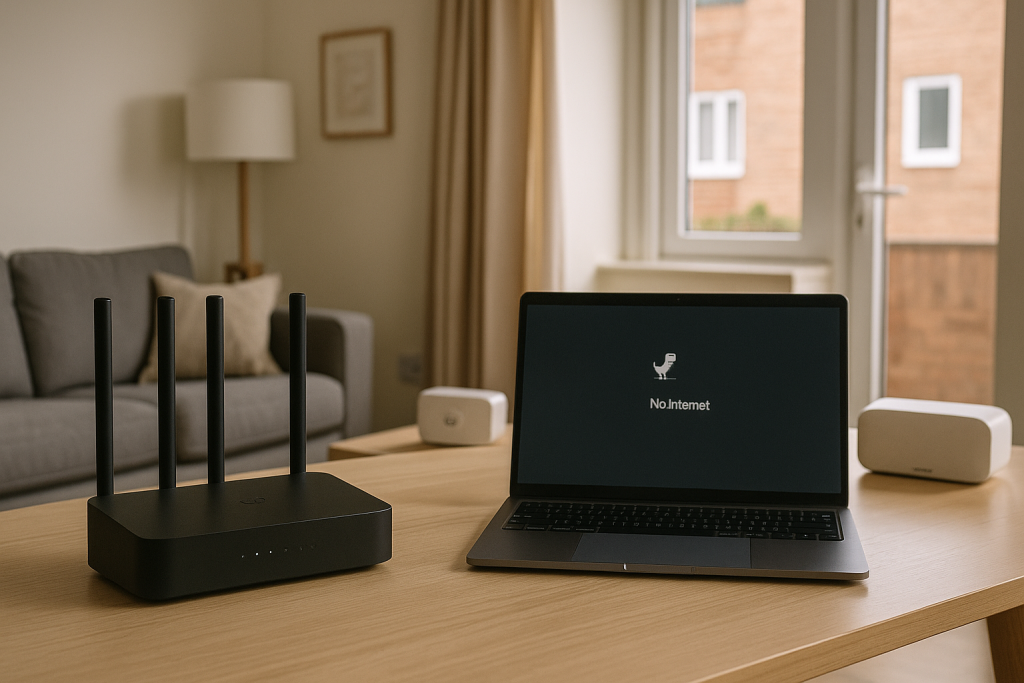
Home internet in the UK can feel completely random. One room streams 4K Netflix without a single buffer, while the bedroom two walls away can’t even load BBC iPlayer. Neighbours swear “it’s the the ISP”, router support blames your devices, and you end up rebooting everything several times a week with no idea what actually fixed anything.
This guide is your full, practical blueprint for fixing that. It explains how UK home networks really behave in 2026 – from Openreach FTTP and FTTC lines, through Virgin HFC segments, all the way to overcrowded 2.4 GHz channels in flats and mesh systems that collapse under weak backhaul. Instead of guessing, you’ll learn to isolate the real bottleneck step by step.
We’ll separate Wi-Fi issues from pure internet (WAN) issues, show you how interference actually works in dense UK streets, and walk through real-world UK scenarios: Victorian terraces, new-builds with thick insulation, flats blasted by dozens of neighbour routers, and homes overloaded with smart devices. You’ll see exactly what to change – placement, channels, firmware, device settings – and when it’s finally time to blame the ISP instead of your router.
Throughout the guide you’ll find references to deeper troubleshooting articles for specific problems such as 6 GHz networks not appearing on laptops, iPhones randomly dropping Wi-Fi, VPNs killing connectivity, mesh networks running slowly, or Windows 11 showing “Ethernet connected but no internet”. Use those focused guides when you want a step-by-step fix for that one exact issue, while this pilar keeps your big-picture understanding clear.
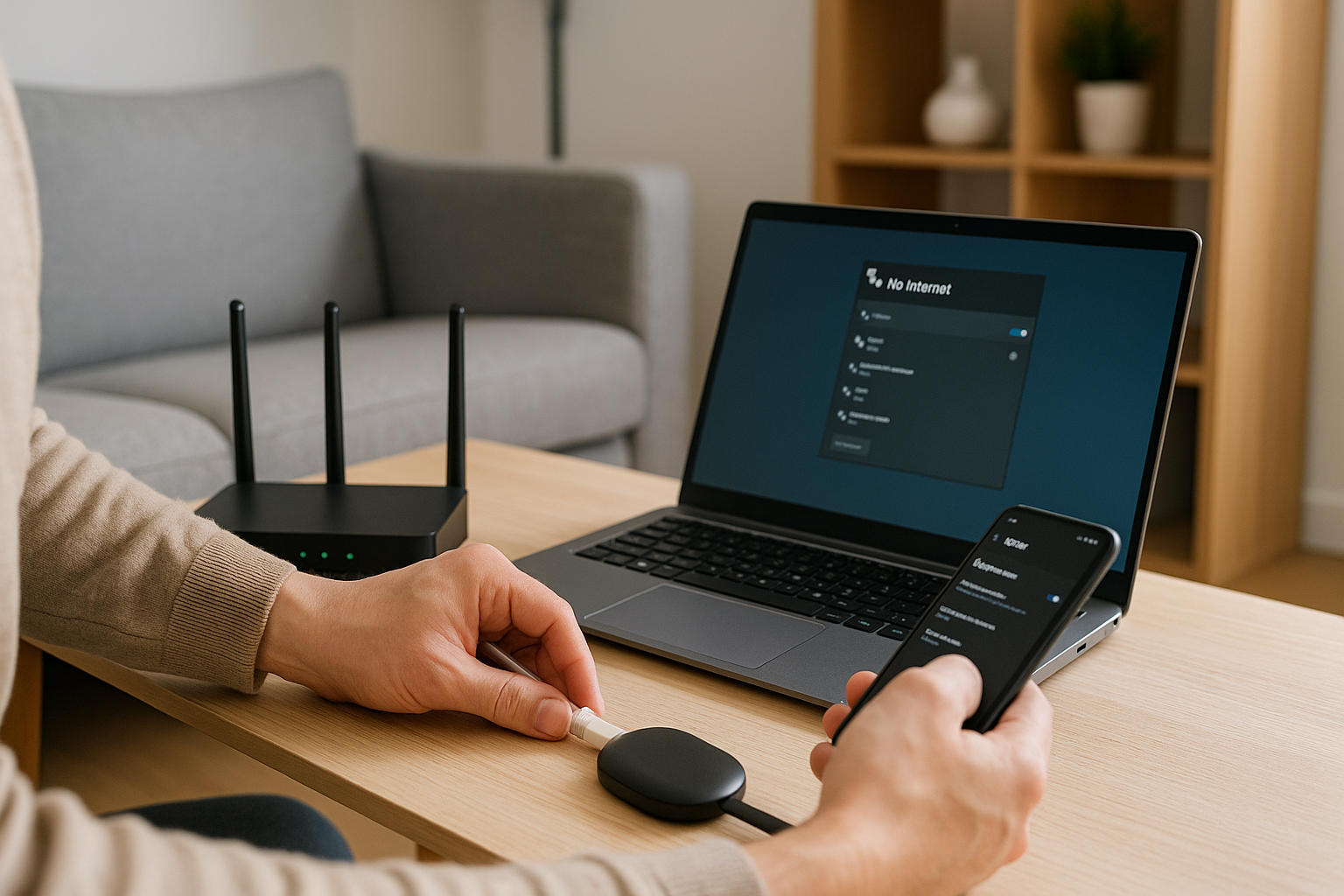
By the end, you’ll have a repeatable method: test the WAN, then the router, then Wi-Fi, then devices, then DNS and routing. Once you stop treating “the internet is slow” as one single problem and start treating it as a layered system, most issues in UK homes become predictable and solvable.
How Home Networking Actually Works in UK Homes
Before you can fix anything, you need to stop thinking of your “Wi-Fi” as one thing. A UK home network is really three independent layers working together: the broadband line coming into your property, the router or hub that manages your local network, and the Wi-Fi / Ethernet environment that your devices sit in. When you blur these layers together, diagnosis becomes guesswork. When you separate them, problems become obvious.
Layer 1 – WAN: The Line Coming from the ISP
This is the physical and logical connection between your home and your provider. In the UK that usually means:
- Openreach FTTP – fibre to the premises, with an ONT on your wall.
- Openreach FTTC – fibre to the cabinet, then VDSL over copper to your house.
- Virgin Media HFC / fibre – coaxial or fibre from a local node.
- Altnet fibre – CityFibre and other providers with their own infrastructure.
Typical WAN-side faults include line noise, damaged copper, light-level issues on fibre, cabinet or node congestion, faulty splitters, or DHCP/PPPoE failures on the ISP side. When this layer fails, your router may still broadcast a strong Wi-Fi signal, but you’ll see “No internet” or WAN disconnected in the admin page and nothing external will load.
Layer 2 – Router / Hub: The Brain of the Local Network
This is your BT Smart Hub, Sky Hub, Virgin Hub, TalkTalk Wi-Fi Hub or a third-party router. It handles NAT, DHCP, firewall rules, Wi-Fi radios and often basic QoS. Problems at this layer look like:
- Random reboots or freezes under load.
- Slow or unresponsive admin interface.
- Devices getting stuck at “Wi-Fi connected, no internet”.
- IP conflicts or devices not getting an IP at all.
- Routers overheating when hidden in cupboards or TV units.
Even if your broadband line is perfect, a struggling hub can make the whole network feel broken. UK ISP-supplied hubs are designed for simplicity, not for dozens of smart devices, cloud backups and multiple 4K streams at once.
Layer 3 – Local Network: Wi-Fi, Ethernet and Mesh
This is the actual environment inside your home: walls, floors, wireless interference, mesh backhaul, Ethernet runs and smart devices. Problems here are about radio physics, not ISP faults. Thick brick or blockwork, chimney breasts, foil-backed insulation, neighbour routers blasting on the same channel, baby monitors, microwaves and cheap smart plugs all fight for the same limited airspace.
Once you learn to ask “Which layer is failing?” instead of “Why is the internet rubbish?”, you instantly cut your troubleshooting time. The rest of this guide is built around that mindset.
Why Interference Dominates UK Wi-Fi Performance
Wi-Fi is just radio trying to survive in a noisy environment. Nowhere is that more obvious than in tightly packed UK streets and flats where dozens of routers, access points and smart devices overlap on the same small set of frequencies. Even if your speed test shows 500 Mbps next to the router, interference can make it feel like dial-up one room away.
To understand why, you need to know how the main bands behave:
2.4 GHz – Long Reach, Heavy Congestion
2.4 GHz has better range and wall penetration, which is why cheap IoT devices and old kit love it. The downside: in real UK neighbourhoods it’s usually saturated. There are only three non-overlapping channels (1, 6 and 11), but many routers on “Auto” blast across the whole band, stomping on each other. Symptoms include:
- Full bars but terrible throughput.
- Random pauses in video calls.
- Devices occasionally dropping and re-joining.
In flats, terraced houses and semi-detached properties, it’s normal to see 20+ networks contending for the same 2.4 GHz channels at peak time. You can’t eliminate that noise, but you can minimise how much of it you suffer.
5 GHz – Faster but Blocked by Brickwork
5 GHz provides much higher throughput and cleaner air, but brick walls, chimneys and concrete floors in UK homes kill it quickly. You can have 500–900 Mbps on 5 GHz in the same room, yet only 20–30 Mbps one or two rooms away, especially if the router is hidden behind a TV or stuffed under the stairs.
DFS channels (used to avoid radar) can also cause micro-outages. When the router detects radar, it must move channels, which creates brief pauses that feel like random disconnects. That’s why many people see “perfect” speed tests near the router but maddening lag spikes elsewhere.
6 GHz (Wi-Fi 6E/7) – Super Clean but Very Short Range
6 GHz is the new fast lane: clean spectrum, wide channels, very high throughput. The catch is brutal range. In UK brick homes, a 6 GHz SSID can almost vanish one room away. Many users also don’t see the 6 GHz network at all because their laptops or phones simply don’t support it yet.
If your 6 GHz network appears on your phone but not on your newer laptop, you’re likely facing exactly that problem. For a deep dive, see the dedicated guide Fix 6 GHz Wi-Fi Not Appearing on New Laptops (2026).
Once you accept that interference and physics, not “bad Wi-Fi”, dominate UK performance, the solutions become logical: optimise channels, improve placement, reduce pointless wireless load and put heavy devices on Ethernet.
ISP Realities: Congestion, Firmware Pushes and Hidden Limitations
Many UK “slow internet” complaints are not faults at all – they’re congestion. If your speeds drop every evening regardless of how strong your Wi-Fi signal looks, you’re most likely hitting a busy cabinet or node, not a bad router.
Evening Congestion on FTTC and Virgin
On FTTC lines, Openreach cabinets can become oversubscribed, especially in areas where full fibre isn’t widely deployed yet. On Virgin Media, HFC segments share capacity between many homes. When everyone streams, games and backs up at once after 7 p.m., per-household speeds drop.
Signs of congestion include:
- Good sync speed in the router but much lower speed tests in the evening.
- Latency and jitter spiking sharply during peak hours, but fine overnight.
- Multiple houses on the same street reporting similar slowdowns.
Firmware Pushes and Nightly Reboots
ISPs routinely push firmware updates to their hubs. Some improve stability or security; others introduce new bugs or nightly reboot schedules. If your hub drops the connection at almost the same time every night, log in and check the uptime counter.
If uptime always resets after, for example, 2 a.m., you may be dealing with a buggy firmware or scheduled reboot. That’s where the specialised article Fix Router Restarting Every Night becomes useful.
Hardware Limits of ISP Hubs
ISP hubs are built to be cheap and simple, not to power a full smart home with CCTV, cloud gaming, remote work and 4K streaming. Common limits include:
- Weak CPUs that max out under heavy NAT loads.
- Limited memory leading to crashes when too many connections are open.
- Poor Wi-Fi radios with low gain antennas and basic band-steering logic.
If you’re pushing your home hard – multiple consoles, NAS backups, remote work, cameras, VPN tunnels – an upgrade to a better router behind the ISP box (in modem mode or DMZ) can transform your network.
Wi-Fi Problems: Full Breakdown of Causes and Fixes
Most people lump every issue under “Wi-Fi is rubbish”. In reality, Wi-Fi problems fall into recognisable patterns. Here are the most common patterns in UK homes and how to fix them.
1. SSID Not Visible
When your network name doesn’t show up on some or all devices, check:
- Are both 2.4 GHz and 5 GHz radios enabled in the router?
- Is SSID broadcasting turned off (“hidden network”)?
- Is security mode set to WPA3-only, which older devices may not support?
- Is the SSID bound only to 5 GHz or 6 GHz when some devices only support 2.4 GHz?
On dual-band and tri-band setups, it’s easy to accidentally disable the band older kit needs. Re-enable 2.4 GHz broadcast, ensure WPA2/WPA3 compatibility and avoid experimental settings unless you understand their impact.
2. Weak Signal in Specific Rooms
This is the single most common UK Wi-Fi complaint. The router lives in the hallway, under the stairs or behind the TV, and bedrooms are behind two or three internal walls plus a chimney breast. The signal that reaches them is barely usable.
Fixes, in order of impact:
- Move the router. Eye-level, out in the open, away from thick masonry and metal appliances.
- Avoid cupboards. Don’t hide hubs in media units, shoe cupboards or under the stairs.
- Use mesh properly. Place mesh nodes where they have clear line-of-sight or strong backhaul, not where the signal is already weak.
- Wire where possible. Use Ethernet or powerline (as a last resort) for TVs, consoles and PCs.
If you already run mesh and it’s still slow, the bottleneck is often the backhaul, not the Wi-Fi link to the device. For a dedicated optimisation walkthrough, see Fix Slow Wi-Fi on Mesh Systems in UK Homes.
3. Wi-Fi Connected but No Internet
This classic “full bars, nothing loads” situation is usually a layer-mixing problem. The Wi-Fi link is fine; the router or WAN are not. To isolate:
- Open the router admin page. If it loads instantly, Wi-Fi is working.
- If admin is up but websites fail, check WAN status and DNS settings.
- Test another device (preferably wired). If Ethernet also fails, suspect the ISP or router WAN.
For a detailed, UK-specific step-by-step process, refer to Fix Wi-Fi Connected but No Internet (UK).
4. Random Disconnects and Short Drops
Short, frequent drops – especially on phones – are usually about roaming, interference or aggressive power-saving. Common causes include:
- Devices clinging to a weak mesh node instead of roaming.
- Battery optimisation features putting Wi-Fi to sleep when the screen is off.
- DFS channel changes causing brief pauses.
iPhones are notorious for this thanks to private Wi-Fi addresses, VPN profiles and iCloud Private Relay interacting badly with some hubs. The article Fix iPhone Wi-Fi Randomly Disconnecting at Home walks through targeted fixes.
5. Slow Wi-Fi at Peak Times
When speeds plummet only in the evening, ask two questions:
- Does Ethernet also slow down? If yes, the ISP segment is likely congested.
- Is only 2.4 GHz slow while 5 GHz remains fine? Then 2.4 GHz interference is the real issue.
Changing channels, reducing channel width on 2.4 GHz and prioritising 5 GHz for critical devices can help. If Ethernet is also badly affected, document speed tests over several evenings and raise it with your ISP.
Router Problems: ISP Hubs, Band-Steering, Firmware and More
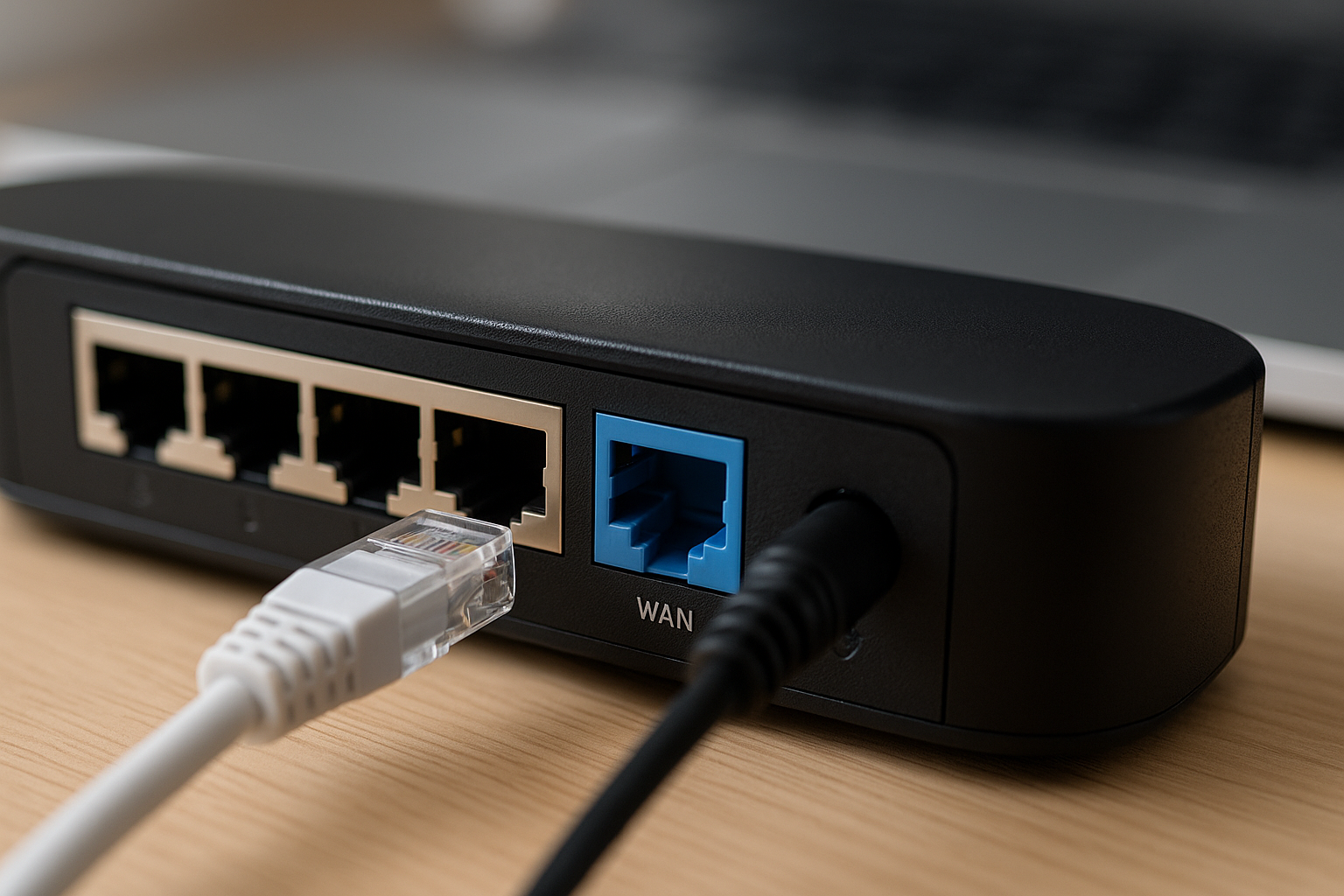
Once you’ve ruled out pure WAN faults, your router or hub is the next suspect. In busy UK homes, ISP hubs often become the weakest link.
Band-Steering That Keeps Devices Stuck on 2.4 GHz
Many BT, Sky and Virgin hubs present a single SSID and quietly decide which band each device should use. In theory this simplifies things; in practice it often leaves phones and laptops stuck on 2.4 GHz far longer than they should be, especially as you move around the house.
If you see strong signal but poor throughput and your router hides band controls, try:
- Splitting SSIDs into “Home-2G” and “Home-5G” and manually connecting modern devices to 5 GHz.
- Disabling band-steering features if the firmware allows it.
- Testing performance difference room-by-room on 2.4 vs 5 GHz.
Channel, Width and DFS Issues
Incorrect channel choice or overly aggressive channel width can ruin stability. Safe defaults for most UK homes are:
- 2.4 GHz: Channel 1, 6 or 11 only. Use 20 MHz width.
- 5 GHz: Channels 36–48 for stability. 80 MHz width for modern devices, drop to 40 MHz in very noisy environments.
If you’re forced onto DFS channels (52+), watch for random pauses that line up with radar detection events. In that case, staying on non-DFS channels, even with slightly more interference, can be a better trade-off.
Firmware Bugs, Memory Leaks and Hard Crashes
When a router reboots under heavy traffic, freezes until power-cycled, or resets at near-identical times each night, suspect firmware. Check:
- Uptime in the admin interface.
- Any log entries around the time of drops.
- ISP release notes or forum threads about your hub model.
If your hub is crashing regularly and your ISP won’t or can’t roll back firmware, using a better third-party router (with the hub in modem mode or bridge/DMZ configuration) is often the most effective fix.
MLO, Mesh Backhaul and Wireless Saturation
Wi-Fi 7 introduces Multi-Link Operation (MLO), which can combine multiple bands for higher throughput. Early implementations are still immature and can crash, mis-balance traffic or cause strange roaming behaviour. If you notice the network becoming unstable after enabling MLO, turn it off and test again.
Mesh systems are easily crippled by poor backhaul. A node that connects through two brick walls to the main router becomes a bottleneck for every device attached to it. Always prioritise:
- Ethernet backhaul between nodes wherever possible.
- Clearer line-of-sight for wirelessly linked mesh points.
- Placing nodes midway between router and dead spots, not right on the edge of coverage.
Device Problems: Windows, macOS, iPhone and Android
Sometimes the network is fine and the problem lives entirely on a single device. Understanding typical device-side failures saves you from pointless ISP calls and router swaps.
Windows 11 Issues
Windows 11 is prone to a few recurring networking issues:
- Wi-Fi adapters dropping into low-power mode and throttling throughput.
- DNS overrides that ignore router-level DNS changes.
- The infamous “Ethernet connected but no internet” state.
Essential checks include:
- Disabling power-saving on network adapters in Device Manager.
- Preferring 5 GHz / 6 GHz bands in advanced adapter settings where supported.
- Resetting the TCP/IP stack with
netsh int ip reset. - Flushing DNS with
ipconfig /flushdns.
For Ethernet-specific problems, see Fix Ethernet Connected but No Internet on Windows 11.
macOS Problems
On macOS, issues often appear when networks reuse old names, when WPA3-only mode is enabled, or when the Mac has accumulated years of stale Wi-Fi profiles. Typical fixes include:
- Removing old SSIDs and recreating the connection.
- Switching router security to WPA2/WPA3 mixed mode.
- Resetting system network settings when behaviour becomes unpredictable.
iPhone Quirks
iPhones aggressively conserve battery, which can disable or throttle Wi-Fi when the screen is off. Add in private addresses, VPN profiles, and iCloud Private Relay and it’s no surprise they behave oddly on some home networks.
When an iPhone refuses to stay connected, drops certain networks, or only misbehaves on your home Wi-Fi, work through the steps in Fix iPhone Wi-Fi Randomly Disconnecting at Home.
Android Fragmentation
Android isn’t one platform – it’s dozens of manufacturers each with their own battery optimisation, Wi-Fi tweaks and background restrictions. Common fixes are:
- Disabling battery optimisation for critical apps (VPN clients, VoIP, etc.).
- Forcing 5 GHz where possible in Wi-Fi settings.
- Turning off vendor-specific “smart network switch” features that jump between Wi-Fi and mobile data.
Ethernet and WAN Failures
Ethernet removes RF interference from the equation, which makes it perfect for testing. If Ethernet is rock-solid but Wi-Fi is flaky, you know the problem is purely wireless. If Ethernet is also broken, the fault is at the router or WAN.
Typical Ethernet/WAN issues include:
- Damaged or cheap cables causing intermittent drops.
- Ports on the router or switch beginning to fail.
- Incorrect VLAN or gateway settings on more advanced setups.
- DHCP lease or PPPoE session issues at the ISP.
When a Windows PC shows “Ethernet connected but no internet”, don’t immediately reinstall Windows. Follow the dedicated guide Fix Ethernet Connected but No Internet on Windows 11 to check routing, DNS and gateway configuration first.
Devices like Chromecasts, consoles and streaming boxes are excellent “canaries”. They rely on correct multicast, IGMP and often IPv6 settings. If casting breaks or apps constantly buffer while PCs are fine, look at router isolation options and any “AP isolation” or guest network features that might be segmenting traffic. For casting-specific issues, see Fix Chromecast Wi-Fi Issues.
Advanced Diagnostics: How to Troubleshoot Like a Network Engineer
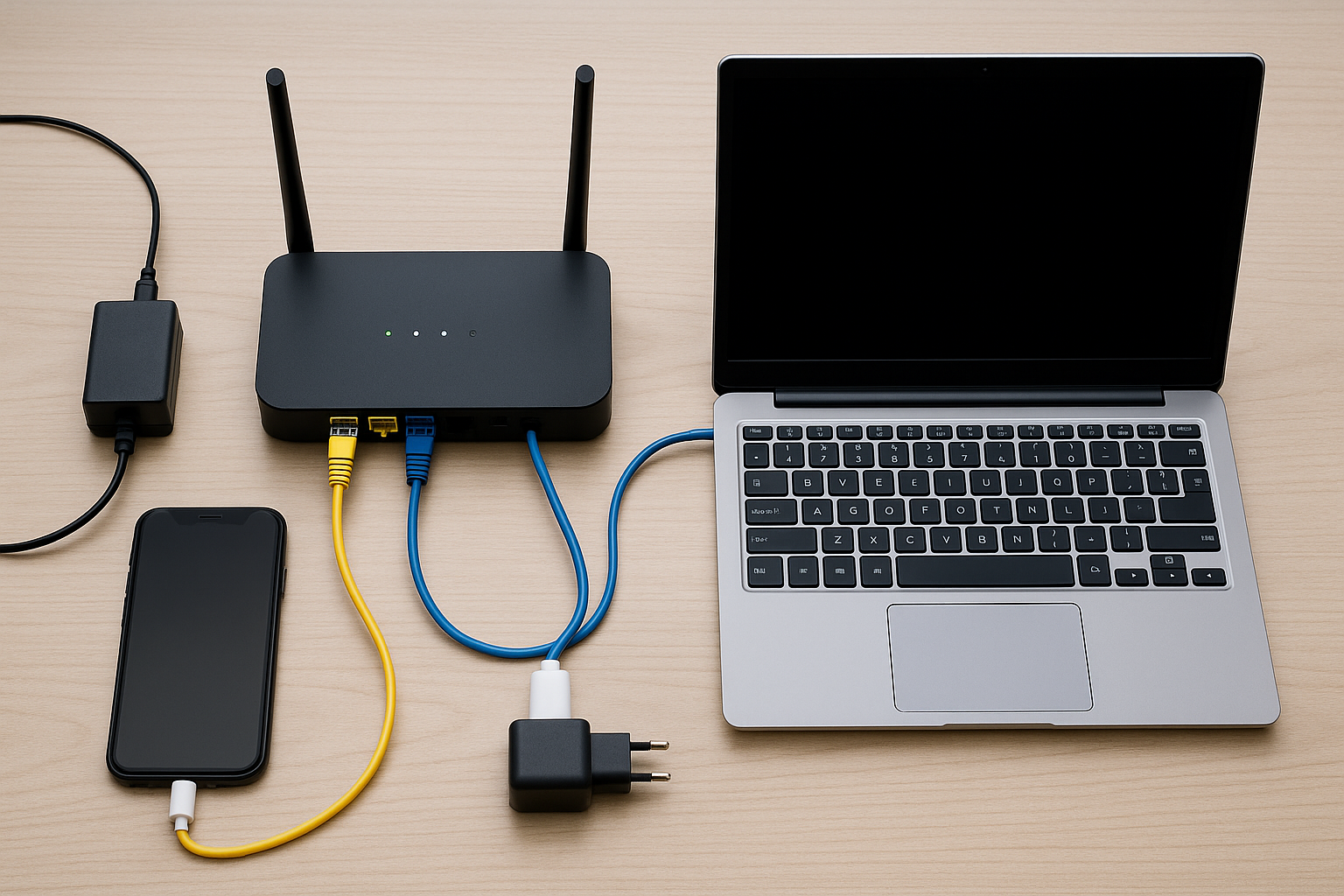
Most people reboot the router and hope. Network engineers isolate layers, test each independently and use measurements instead of hunches. You don’t need specialist gear – just a method.
1. Check WAN Status First
Log into your router admin page and look at the WAN section:
- Does the router have a valid IP address?
- Is the PPPoE connection up and authenticated (for FTTC/FTTP using it)?
- Are DNS servers shown and reachable?
- Are the modem/ONT lights solid and green?
If WAN is clearly down – no IP, red light on the ONT, PPPoE disconnected – there’s no point fiddling with Wi-Fi. Connect a laptop directly to the ONT or modem (if your ISP allows it), authenticate, and test again. If that also fails, it’s an ISP issue.
2. Test Multiple Devices, Wired and Wireless
Never trust the behaviour of a single device. Test at least:
- One wired device (PC, console, laptop with Ethernet dongle).
- One wireless device in the same room as the router.
- One wireless device in a problem room.
If only one device fails, you have a device problem. If all devices struggle, the router or WAN is responsible. If wired is fine but Wi-Fi is terrible, you have a wireless problem, not an ISP one.
3. Ping Testing – Where Does It Break?
Pings show where connectivity collapses. From a PC, run:
ping 192.168.1.1(or your router IP) – tests the local network.ping 8.8.8.8– tests external connectivity without DNS.ping google.com– adds DNS resolution into the mix.
If step 1 fails, the local network or Wi-Fi is broken. If step 1 works and step 2 fails, WAN or routing is failing. If step 2 works but step 3 fails, DNS is the problem.
4. Traceroute – Which Hop Fails?
Traceroute shows the path your traffic takes. On Windows, run tracert google.com; on macOS or Linux, traceroute google.com. Look for:
- Immediate failure at the first hop after your router – local ISP problem.
- Failures several hops out – wider routing changes or remote issues.
- Instant failure inside a VPN tunnel – misconfigured VPN. See Fix VPN Breaking Internet Connection on Windows 11 UK.
5. DNS Testing and Swaps
DNS failures often masquerade as “slow internet”. Pages partly load or hang at “resolving host”. To test:
- Switch your device or router to Cloudflare (1.1.1.1) or Google DNS (8.8.8.8).
- Flush DNS cache on the device.
- Check if some sites become instantly more responsive.
6. MTU and Fragmentation Issues
Some broadband types and VPNs require smaller MTU values. When MTU is wrong, weird patterns appear: some sites load, others don’t; some apps work, others stall. Gradually reduce MTU from 1500 down to 1450 or lower on the WAN interface and test which value removes your symptoms.
7. Scan for Interference and Roaming Issues
Use any Wi-Fi analyser app to see which channels neighbours are using. On 2.4 GHz, stick to channels 1, 6 or 11. On 5 GHz, avoid dog-piled channels; if everyone is on 36/40, try 44/48 and re-test.
Check mesh behaviour as well. If devices cling to a far-away, weak node, adjust roaming thresholds or temporarily turn off that node and see how devices behave. Ideally, mesh backhaul should be wired or have very strong signal.
Six Real-World UK Scenarios and Their Exact Fixes
Abstract advice is fine, but real houses make things messy. Here are six common UK scenarios with clear fixes.
Scenario 1 – Bedrooms Lose Wi-Fi Every Evening
You have a fast FTTP line and a decent hub in the hallway. Downstairs works perfectly, but upstairs bedrooms crawl in the evening and sometimes drop completely.
Likely causes: 5 GHz blocked by walls, 2.4 GHz crushed by neighbour interference, and band-steering keeping devices on 2.4 GHz.
Fix:
- Move the hub as centrally as possible, out of cupboards.
- Split SSIDs so modern devices use 5 GHz explicitly.
- Install a mesh node on the landing, wired backhaul if possible.
- Lock 2.4 GHz to channels 1, 6 or 11 and drop width to 20 MHz.
Scenario 2 – New Gaming PC on Ethernet Has “No Internet”
A new desktop on Ethernet shows “connected, no internet” while Wi-Fi on phones and laptops is fine. The router shows WAN up, and other devices work normally.
Likely causes: Bad Ethernet cable, wrong gateway/DNS settings, Windows 11 network stack issues.
Fix:
- Swap the Ethernet cable and try another router port.
- Run the commands from Fix Ethernet Connected but No Internet on Windows 11.
- Ensure the adapter gets IP, gateway and DNS via DHCP from the router.
Scenario 3 – Chromecast Won’t Stay Connected
Your Chromecast keeps dropping off the network or refusing to cast, while phones and laptops seem fine.
Likely causes: Multicast blocked by isolation settings, 2.4/5 GHz band mismatch, unstable Wi-Fi where the TV sits.
Fix:
- Disable AP isolation / client isolation on the router.
- Connect the Chromecast and the controlling phone to the same band.
- Use Ethernet (via adapter) if possible, or move the router/mesh node closer.
- Follow the steps in Fix Chromecast Wi-Fi Issues.
Scenario 4 – VPN Kills the Internet on Windows 11
As soon as you connect your work VPN, all other traffic dies. Disconnect VPN and everything goes back to normal.
Likely causes: Broken split tunnelling, wrong routes, MTU mismatch, DNS leaks being blocked by corporate policy.
Fix:
- Check routes and DNS behaviour using the steps in Fix VPN Breaking Internet Connection on Windows 11 UK.
- Lower MTU on the VPN adapter.
- Disable conflicting VPN clients or security software.
Scenario 5 – Public Wi-Fi Login Page Never Appears on iPhone
In hotels or cafés, other people connect fine but your iPhone never gets the login splash page. It sits on “no internet” with an exclamation mark.
Likely causes: Captive portal blocked by privacy features, custom DNS, VPNs, or iCloud Private Relay.
Fix:
- Disable VPN and Private Relay temporarily.
- Forget and re-join the network.
- Open any non-HTTPS site (like
neverssl.com) to trigger the portal. - Follow the full checklist in Fix Public Wi-Fi Login Pages.
Scenario 6 – Mesh System Looks Great on Paper but Feels Worse than ISP Hub
You upgraded to a shiny mesh kit, yet some rooms feel slower and less stable than before. Speed tests near satellites are erratic.
Likely causes: Satellites connected via weak wireless backhaul, nodes placed too far apart, wrong band for backhaul.
Fix:
- Move satellites closer together to strengthen backhaul.
- Use Ethernet backhaul where possible.
- Force dedicated backhaul bands if your kit supports it.
- Re-run optimisation steps from Fix Slow Wi-Fi on Mesh Systems in UK Homes.
Common Mistakes That Make UK Wi-Fi Worse
A few small habits cause a huge percentage of UK Wi-Fi problems. Avoid these and you’re already ahead:
- Hiding the hub in a cupboard or behind a TV.
- Leaving channels on “Auto” in very dense flats.
- Using ISP hubs as the only router in busy smart homes.
- Running mesh nodes on the edge of coverage instead of mid-way.
- Assuming every slowdown is “the ISP” and never testing Ethernet.
- Ignoring firmware updates for third-party routers and access points.
Hardware Recommendations (General Guidance Only)
This guide focuses on diagnosis, not brand worship. But in broad terms:
- Stay on ISP hubs if your usage is light, your home is small, and you’re not pushing dozens of devices.
- Add a quality router behind the ISP hub if you work from home, have multiple gamers, or run CCTV, NAS and smart home tech. Put the ISP hub into modem or bridge mode if supported.
- Use Ethernet for static, heavy-use devices: TVs, consoles, gaming PCs and desktop setups.
- Use mesh with Ethernet backhaul in larger homes or those with thick walls, making sure nodes are placed for strong backhaul first, client coverage second.
Think in layers. A solid WAN, a capable router and a well-planned Wi-Fi/Ethernet layout together will always beat any “magic” all-in-one box.
Conclusion: Build a Network That Works Every Day, Not Just on a Good Day
UK home networks are messy by default: old copper mixed with new fibre, overloaded Virgin nodes, thick walls in Victorian terraces, crowded 2.4 GHz in flats and ISP hubs trying to juggle far more devices than they were designed for. But that doesn’t mean you have to live with random dropouts and slow evenings forever.
Once you separate WAN, router and local Wi-Fi, simple tests tell you where the fault lives. A quick Ethernet speed test shows whether the ISP is the bottleneck. Ping and traceroute reveal whether the problem is LAN, WAN, routing or DNS. Wi-Fi analyser apps show if the air around you is simply too crowded on specific channels. And your own devices – especially Chromecasts, consoles and work laptops with VPNs – often reveal configuration issues.
Use this guide as your map and the linked deep-dive articles as your tools. Fix one layer at a time instead of rebooting everything and hoping. The result is a home network that feels boringly reliable – even on busy winter evenings when everyone is streaming, gaming and backing up at once.
FAQ: Fixing UK Home Wi-Fi and Internet Problems
Why is my Wi-Fi slow only in the evening?
Because evening is when everyone in your area uses the network at once. On FTTC and Virgin, that can mean cabinet or node congestion; on Wi-Fi, it means more neighbour routers blasting on the same channels. Test Ethernet first. If wired speeds also drop at night, you’re seeing ISP congestion. If Ethernet is fine but Wi-Fi dies, you’re suffering from RF competition – change channels, move the router and rely on 5 GHz wherever possible.
How do I know if the problem is my ISP or my Wi-Fi?
Run three tests in order: speed test on Ethernet, ping/traceroute to external IPs, then Wi-Fi tests in the same room as the router. If Ethernet is slow or fails, it’s a WAN/ISP issue. If Ethernet is fine but Wi-Fi is bad, it’s local radio/placement. If both are fine but only one device misbehaves, that device is the problem.
Do I really need a mesh system, or is one router enough?
In small flats or open-plan new-builds, a single good router is often enough. In multi-storey houses, older brick properties and homes with thick internal walls, mesh (preferably with Ethernet backhaul) is usually the cleanest fix. If you’re constantly fighting dead spots in bedrooms or loft offices, a well-placed mesh system will almost always outperform a single hub, even an expensive one.
Why does my iPhone disconnect from Wi-Fi at home but work everywhere else?
Because home networks are where you accumulate the most custom settings, VPNs and odd router features. Public networks are usually simple captive portals, while home setups use private addresses, custom DNS, split SSIDs, guest networks and more. If your iPhone is fine elsewhere but flaky at home, work through router channel changes, disable experimental features, and follow the focused guide in Fix iPhone Wi-Fi Randomly Disconnecting at Home.
Is it worth replacing my ISP hub?
If you have a small household with light usage, probably not. But if you’re constantly dealing with random crashes, poor Wi-Fi performance, too many devices and complex use (VPNs, remote work, cloud backups, multiple 4K streams), then yes – a quality third-party router and, where needed, a mesh system with Ethernet backhaul can transform your experience. Think of it as upgrading from a budget all-in-one PC to a proper workstation for your whole home network.








10 thoughts on “The Complete 2026 Guide to Fixing Wi-Fi, Internet & Network Issues in UK Homes”