
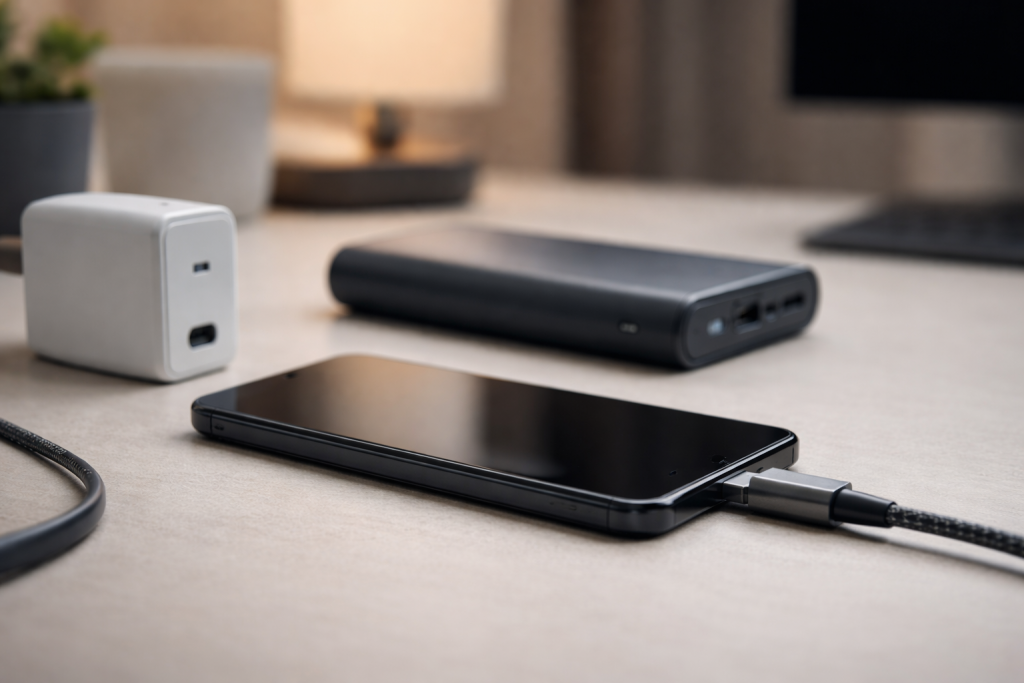
When one part of that chain misbehaves, you get the classic symptoms: slow charging, “charging but not increasing”, power banks that work on everything except your iPhone, or a laptop that simply refuses to charge through a USB-C dock.
This pillar guide gives you a practical, step-by-step way to diagnose the most common charging and USB-C power failures in 2026 — and then routes you to the exact FixGearTech article that matches your symptom.
If you want the quickest outcome, don’t guess. Identify the symptom, confirm the cause with a couple of fast checks, then apply the correct fix.
Start here: what your symptom actually means
Most charging problems fall into one of five buckets. Each bucket has a different “most likely” cause, so the fastest fix is the one that matches your bucket.
1) “Charging is slow” (especially after an update)
Usually a software power-management change, a charger/cable limit (wattage, PD profile, e-marker), heat throttling, or a background process keeping the phone warm.
If the timing lines up with a recent iOS update, start with this fix:
Fix iPhone Charging Slowly After iOS Update.
2) “Charging icon shows, but battery % barely moves (or freezes)”
Often a battery gauge/estimation problem, a power negotiation issue (phone is drawing very low wattage), or a USB data/power handshake glitch.
Go straight to:
Fix Phone Charging but Battery Percentage Not Increasing.
3) “My power bank charges other devices, but not my iPhone”
This is extremely common with modern USB-C banks. The bank may be waiting for PD negotiation, may be defaulting to a mode your phone rejects, or the cable may be missing the correct e-marker/CC wiring.
Start with:
Fix Power Bank Charges Other Devices but Not iPhone.
4) “iPhone won’t charge from certain power banks (USB-C)”
Similar to the above, but typically tied to specific USB-C PD behaviours, “trickle” states, or banks that require a wake/handshake sequence.
Use:
Fix iPhone USB-C Not Charging From Power Banks.
5) “Laptop won’t charge via USB-C dock”
This tends to be a dock PD limit, wrong port selection, BIOS/firmware behaviour, Windows/driver power policy, or cable/port confusion (USB-C data vs USB-C charging vs Thunderbolt).
Go to:
Fix Laptop Not Charging via USB-C Dock (UK Models).
How modern charging really works (simple, useful explanation)
USB-C made charging easier on the surface and more complicated underneath. The connector looks the same, but what happens behind the scenes depends on:
the charger’s capabilities, the cable’s rating, the device’s charging controller, and (increasingly) software rules designed to protect the battery.
USB-C is a connector, not a promise
Two USB-C cables can look identical and behave completely differently. One might be a basic 3A cable with no e-marker. Another might be a 5A e-marked cable that supports higher wattage.
Some cables are charge-only. Some carry USB 2.0 data. Some support USB 3/4 and Thunderbolt. The result: you can swap a cable and “magically” fix a charging problem — not because the old one was broken,
but because it didn’t support the power profile your device was trying to negotiate.
Power Delivery (PD) is a negotiation
USB-C PD isn’t “push power and hope”. It’s a handshake. The charger advertises supported voltages and currents (called PDOs). The device requests a profile.
If they don’t agree, they fall back to something slower — or sometimes refuse entirely.
Power banks complicate this because they can be both “source” and “sink”, can switch roles, can enter low-power sleep, and can require a wake event.
Software is now part of charging
iOS and Android increasingly manage charging behaviour to extend battery health: optimised charging, temperature throttling, background activity limits, accessory checks, and “dirty power” detection.
After an OS update, these rules can change. That’s why “it was fine yesterday” is a real clue — and why slow charging after updates is so common.
If that’s your case, start here:
Fix iPhone Charging Slowly After iOS Update.
The fast diagnostic routine (do this before you waste an hour)
Do these checks in order. Each one answers a specific question. You’re trying to isolate whether the problem is:
(1) the power source, (2) the cable, (3) the port, (4) the device software, or (5) the battery/charging hardware.
Step 1: Confirm the power source is actually capable
- Wall charger: check wattage and whether it supports USB-C PD (or fast charge standard your phone expects).
- Power bank: check output port (USB-C vs USB-A), PD support, and max output (e.g., 18W, 20W, 30W, 45W).
- Dock: check its PD pass-through rating (common limits: 60W, 85W, 90W, 100W).
If a laptop expects 65W+ and your dock only negotiates 45W, you’ll see “plugged in, not charging” or a slow drain even while connected.
For laptop+dock issues, go straight to:
Fix Laptop Not Charging via USB-C Dock (UK Models).
Step 2: Swap the cable (but do it correctly)
Don’t swap to a random cable from a drawer. Use a known good cable that you have personally seen fast-charge a modern phone or charge a laptop reliably.
If the symptom changes immediately (slow becomes normal, or “won’t charge” becomes “charges”), your problem is very likely cable capability, not the phone.
Step 3: Try a different port / different direction
With USB-C, direction should not matter, but in the real world a dirty or worn port can behave inconsistently.
Try a different port on the charger/power bank/dock. Try a different USB-C port on your laptop (some are data-only, some are PD-in, some are Thunderbolt).
Step 4: Check heat (quiet killer of fast charging)
Phones throttle charging when warm. If the phone is in a thick case, charging while streaming/video calling, or sitting in sunlight near a window, it may “slow charge” by design.
If your slow charging began after an update, it may also be indexing/background tasks, which makes the phone warmer.
Again:
Fix iPhone Charging Slowly After iOS Update.
Step 5: Force a clean power handshake
This one solves more issues than people expect:
- Unplug the device.
- Unplug the charger/power bank/dock from power.
- Wait 20–30 seconds (let capacitors drain, let PD controllers reset).
- Plug power back in first.
- Then plug in the cable, then the device.
This is especially effective with power banks that have entered a low-power state or are stuck in a weird role (source/sink confusion).
If your iPhone refuses a power bank, use:
Fix iPhone USB-C Not Charging From Power Banks.
Fix cluster 1: iPhone charging slowly (especially after iOS updates)
When slow charging follows an iOS update, assume software and thermal behaviour first. iOS updates can trigger:
indexing, photo analysis, app re-optimisation, iCloud resync, background downloads, and battery health recalibration.
All of these can heat the device slightly — and heat reduces charging speed.
What “slow” actually means in 2026
Many people compare a fast charger experience (20–30W) with a fallback experience (5–12W) without realising the phone has changed modes.
If PD negotiation fails, you often drop to a safe, slower profile. That can feel like a “broken update”, even though it’s a handshake issue.
High-probability causes
- Optimised Battery Charging delaying or limiting speed based on usage patterns.
- Heat throttling due to background tasks or environment.
- Cable capability (cheap USB-C cables can force lower profiles).
- Charger profile mismatch (PD vs non-PD, or weird multi-port chargers).
- Power source switching (car chargers, laptop ports, power banks that sleep).
What to do (fast order)
- Use a known good PD charger and known good cable.
- Charge with the phone cool (no gaming/video call, remove thick case if needed).
- Restart the phone once after the update (not repeatedly — once, clean).
- Leave it on charge for 30–60 minutes to stabilise post-update tasks.
- Check Battery settings for optimised charging behaviour.
For the full, step-by-step fix list (including the iOS-specific checks that matter most):
Fix iPhone Charging Slowly After iOS Update.
Fix cluster 2: charging icon shows, but battery percentage won’t increase
This is one of the most frustrating charging problems because it looks like it’s working. The device acknowledges power,
but either draws too little, the battery gauge is stuck, or the system limits charging to protect the battery.
The goal is to determine whether you have a real charging failure or a reporting/management failure.
Common patterns that point to software/gauge issues
- Battery % sticks on one number for ages, then jumps later.
- Phone gets warm while “charging” but % doesn’t move.
- It happens after an update, after a long time at 100%, or after a deep discharge.
- Different chargers show different behaviour.
Common patterns that point to low-wattage negotiation
- Phone shows charging, but estimated time is extremely long.
- A power bank works, but very slowly (or only when screen is off).
- A specific cable makes it worse.
Quick tests that give you clarity
- Try a known good PD charger + known good cable for 10 minutes. Watch if the phone warms slightly and % begins to move.
- Try a second power source (wall vs power bank) to see if the “stuck” behaviour follows the source or the phone.
- Restart once, then test again (clears some power management states).
Then follow the proper step-by-step path here:
Fix Phone Charging but Battery Percentage Not Increasing.
Fix cluster 3: power bank charges other devices, but not your iPhone
This specific symptom is a huge tell: your power bank is capable of output, and your cable likely works for something — but your iPhone rejects the combination.
In 2026, this is almost always about negotiation, sleep states, port selection, or cable wiring quality.
Why this happens (the real reasons)
- Bank is asleep: some banks need a wake event, button press, or a specific sequence.
- Wrong port: banks often have one USB-C PD port and one USB-A port with different behaviour.
- Handshake mismatch: bank advertises profiles your device refuses, then falls back incorrectly.
- Cable limitation: the cable works for basic charging but fails PD negotiation properly.
- Trickle/low-power mode: banks can enter a mode meant for earbuds/wearables that confuses phones.
What fixes it most often (in order)
- Use the bank’s primary USB-C PD port (not a secondary or shared port).
- Use a known good USB-C cable (ideally one that supports fast charging reliably).
- Reset the handshake: unplug everything, wait 20–30 seconds, reconnect power bank output, then device.
- If the bank has a button, wake it first, then connect the phone.
- Try turning the phone off and charging for 5 minutes (forces a different power draw pattern).
Full step-by-step with the common traps and the fastest success path:
Fix Power Bank Charges Other Devices but Not iPhone.
If your issue is specifically “iPhone USB-C not charging from power banks”, use this dedicated guide:
Fix iPhone USB-C Not Charging From Power Banks.
Fix cluster 4: iPhone USB-C won’t charge from certain power banks
Some power banks behave perfectly with Android phones, headphones, and other devices, but fail with iPhone models that are picky about PD negotiation and stable voltage delivery.
You don’t need to “try every accessory you own”. You need to make the bank and phone agree on a clean profile.
Key thing to understand
If the power bank and phone cannot agree on a PD profile, they may fall back to a low-power default that either:
(a) charges extremely slowly, or (b) doesn’t register as valid charging for that device.
A cable that is “fine” for other devices can still block the correct negotiation path on iPhone.
High-success steps
- Use the bank’s USB-C PD port (not USB-A unless you’re deliberately testing fallback).
- Swap to a higher-quality USB-C cable known to fast-charge.
- Reset the PD controller state (unplug, wait, reconnect in correct order).
- Disable low-power/trickle modes on the bank if it has them.
- If the bank supports multiple outputs, test with only one device connected.
Full guide with the exact sequences and checks:
Fix iPhone USB-C Not Charging From Power Banks.
Fix cluster 5: laptop not charging via USB-C dock
USB-C docks are brilliant until they aren’t. The charging path is now: wall power → dock power brick → dock PD controller → USB-C cable → laptop PD controller → battery system.
Any mismatch (wattage limit, firmware bug, port capability, driver policy) can break charging.
The biggest mistake: assuming every USB-C port charges
Many laptops have multiple USB-C ports with different roles. One may accept PD in. Another may be data-only. Another may be Thunderbolt but not wired for PD input.
If you’re plugged into the wrong USB-C port, you can get partial functionality (display/data) without charging.
Dock wattage vs laptop demand
Modern laptops often require 65W, 90W, or 100W to charge properly under load. A dock that can only negotiate 45–60W may show “plugged in” but not charge,
or will charge only when the laptop is sleeping. This is especially visible when the laptop is powering an external monitor and peripherals through the dock.
Firmware and driver behaviour (why it “randomly” stops)
BIOS updates, USB controller firmware, Thunderbolt firmware, and OS updates can alter power policy. A dock that was stable for months may start refusing to negotiate correctly.
Sometimes a “cold reset” of the dock (unplug power, disconnect USB-C, wait) is enough. Sometimes you need to change one setting or update a driver/firmware component.
Use the dedicated UK-focused guide that walks through the exact checks and fixes for this scenario:
Fix Laptop Not Charging via USB-C Dock (UK Models).
Decision guide: pick the right fix in 20 seconds
Don’t scroll and hope you “spot your problem”. Use this quick mapping:
- iPhone suddenly charges much slower after an iOS update →
Fix iPhone Charging Slowly After iOS Update - Phone shows charging, but percentage doesn’t rise (or rises insanely slowly) →
Fix Phone Charging but Battery Percentage Not Increasing - Power bank charges other devices, but not your iPhone →
Fix Power Bank Charges Other Devices but Not iPhone - iPhone won’t charge from specific power banks over USB-C →
Fix iPhone USB-C Not Charging From Power Banks - Laptop won’t charge when connected through a USB-C dock →
Fix Laptop Not Charging via USB-C Dock (UK Models)
Common causes you can stop blaming (and what to blame instead)
“My phone is old, so charging is just slow now”
Age can reduce battery performance, but “sudden slow charging” is rarely just age. Sudden changes point to software, heat, or negotiation fallbacks.
If this started right after an iOS update, treat it as an update-linked behaviour until proven otherwise:
Fix iPhone Charging Slowly After iOS Update.
“Any USB-C cable is the same”
It isn’t. Cable capability is a top-two cause of modern charging failures. A cable can be “fine” for a small device and fail with a higher wattage or stricter negotiation requirement.
If swapping to a known good cable fixes the problem instantly, you’ve found your root cause without needing anything else.
“My power bank is broken because it won’t charge my iPhone”
Not necessarily. Many banks are perfectly healthy but are stuck in a state your iPhone won’t accept. The fix is often sequence/port/cable, not replacement.
Start here:
Fix Power Bank Charges Other Devices but Not iPhone.
“My dock worked before, so it can’t be the dock”
Docks are firmware-driven and PD-driven. One update (laptop BIOS, OS, dock firmware) can change behaviour.
The correct approach is: verify wattage, verify port capability, reset the handshake chain, then check the specific known failure points.
Use:
Fix Laptop Not Charging via USB-C Dock (UK Models).
FAQ (only the questions that actually matter)
Why does my phone say “charging” but the percentage doesn’t move?
Either the device is drawing very low power (fallback mode), the battery gauge is stuck, or the system is limiting charging due to temperature or battery-health logic.
Follow the dedicated troubleshooting path here:
Fix Phone Charging but Battery Percentage Not Increasing.
Why does one power bank charge my iPhone and another won’t?
Different banks implement PD negotiation differently and may default to different profiles or sleep behaviours. Cable quality also matters more than most people think.
Start with:
Fix iPhone USB-C Not Charging From Power Banks,
and if the broader symptom is “works for other devices but not iPhone”, use:
Fix Power Bank Charges Other Devices but Not iPhone.
Why does my iPhone charge slowly after an update even with the same charger?
Post-update background tasks and thermal limits are common. Also, iOS can adjust charging behaviour for battery health.
Use the step-by-step guide:
Fix iPhone Charging Slowly After iOS Update.
Why does my laptop charge directly from the charger but not through the dock?
That usually means the dock path is limiting wattage, negotiating incorrectly, using the wrong port, or the dock/laptop firmware/driver policy is blocking PD input.
Use:
Fix Laptop Not Charging via USB-C Dock (UK Models).
Before you move on
Charging and USB-C problems are easy to “half-fix” and then live with for months — slow charging, random dropouts, power banks you stop trusting, a dock you keep unplugging and replugging.
If you want a clean, permanent fix, you need to be honest about what your quick tests told you:
- If swapping to a known-good cable fixes it immediately, stop troubleshooting the phone. Replace the cable with a properly rated one and move on.
- If the issue only started after an iOS update, treat it as a software/thermal/power-policy issue first, not “hardware suddenly died”. Use the update-specific fix:
Fix iPhone Charging Slowly After iOS Update. - If your phone shows charging but % doesn’t move, don’t keep swapping chargers randomly. Follow a structured path to separate “low power draw” from “battery gauge stuck”:
Fix Phone Charging but Battery Percentage Not Increasing. - If a power bank charges everything except your iPhone, don’t bin it yet. This is usually negotiation/sleep/port/cable. Use:
Fix Power Bank Charges Other Devices but Not iPhone
and if it’s the classic USB-C bank/iPhone mismatch:
Fix iPhone USB-C Not Charging From Power Banks. - If your laptop won’t charge through a dock, the dock’s PD wattage and your laptop’s port capability are the first two levers. Then reset the handshake chain and check firmware/driver policy:
Fix Laptop Not Charging via USB-C Dock (UK Models).
If you’ve followed the correct path for your symptom and it still won’t behave, that’s usually the moment to stop doing random swaps and document what you’ve proven:
which charger/cable works, which doesn’t, which ports were tested, and whether the issue changes with heat or with restarts.
That evidence makes the next step obvious — repair, replacement, or a specific firmware/compatibility fix — instead of endless trial and error.







