
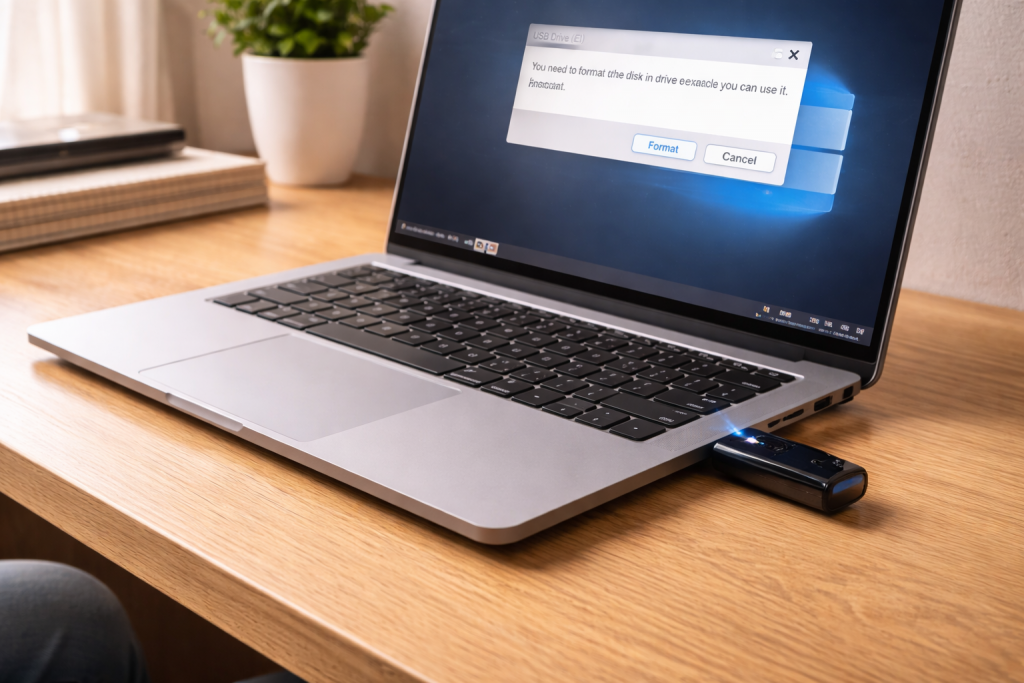
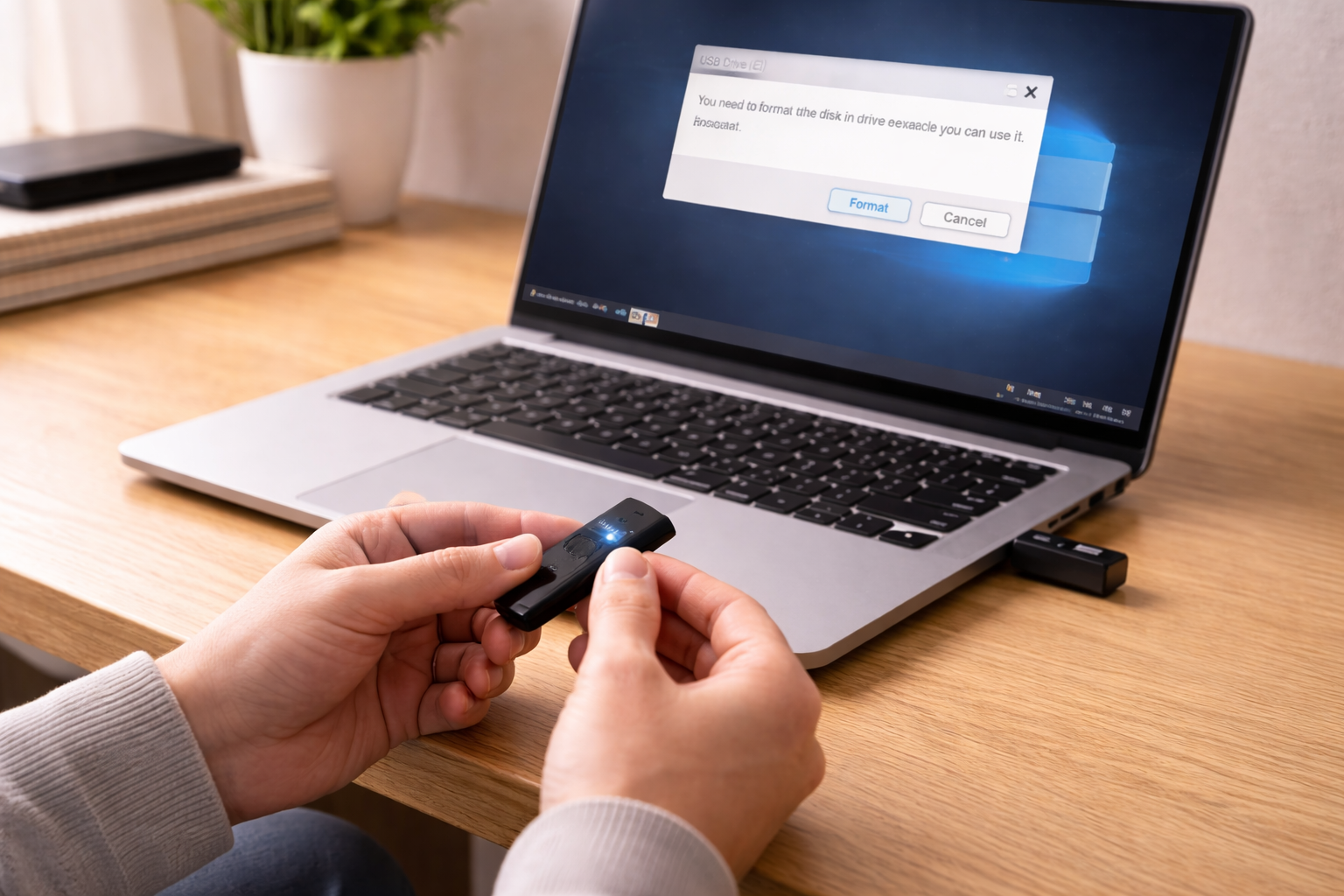
You plug in a USB flash drive and Windows pops up: “You need to format the disk in drive X: before you can use it.” On a Mac you’ll see “The disk you inserted was not readable by this computer.” The drive might still show the right capacity, the LED might blink, and yet the files are suddenly “gone”.
The trap is obvious: formatting is the one button the OS offers that definitely does something, and it’s also the one thing that can make recovery harder. Most of the time the data is still on the NAND; what’s broken is the way the computer is reading the file system metadata.
I see this most often after a drive has been yanked out of a car stereo, a smart TV, or a cheap USB hub. The device writes something small, power dips, and the file allocation tables don’t get closed cleanly. The next PC treats it as uninitialised and tries to “help”.
What the “format” prompt actually means
A USB flash drive is two things: the storage (NAND flash) and a controller that pretends to be a normal disk. Your files live in blocks on the NAND, while the file system (exFAT/FAT32/NTFS/APFS/HFS+) keeps a map of where everything is. When that map is inconsistent, the OS can’t mount the volume, so it offers to format and create a new map.
Common underlying causes:
- Unclean removal: the write cache didn’t flush, leaving the file system “dirty”.
- File system mismatch: the drive was formatted for a different OS/device (e.g., APFS on macOS; ext4 from Linux; proprietary camera formats).
- Partition table damage: the partition entry is missing or points to the wrong offset.
- Bad sectors (failing NAND): the controller can’t read key metadata blocks, so the volume looks blank.
- Fake capacity drives: the controller lies about size; once you write past the real capacity, the file system collapses. This still turns up on marketplace “bargains”.
One detail that matters: Windows’ format prompt appears for both “file system is corrupted” and “no valid file system found”. Those are very different recovery situations. If the partition is intact but the file system is dirty, repair tools can bring it back quickly. If the partition table is gone, you’re into reconstruction and file carving.
A safer order of operations (don’t make recovery worse)
Before you run any repair tool, decide what you care about: data first or drive back in service. If the files matter, treat the drive as read-only until you’ve copied what you can.
- Do not format, even “quick format”. It overwrites file system structures and can reduce what’s recoverable.
- Stop repeated plug/unplug cycles. If the controller is struggling, each reconnection can trigger more remapping and more failures.
- Use a direct USB port on the PC, not a keyboard hub or monitor port. Power stability matters more than people think.
If you’re also seeing USB dropouts, fix that first; otherwise you’ll chase phantom corruption. This is closely related to Fix USB devices randomly disconnecting.
Step-by-step: get the drive readable without formatting
The steps below are arranged failure-first: you try the least destructive checks, then move towards repairs that write to the disk.
1) Confirm it’s the drive, not the port or adapter
- Try a different USB port on the same machine (rear I/O on a desktop is usually best).
- Try a different computer if you can (Windows + macOS is ideal).
- If it’s a USB-C stick, avoid a cheap USB-C to A adaptor; I’ve watched marginal adaptors cause intermittent enumeration that looks like corruption.
If the drive disconnects and reconnects, or the capacity changes between plugs, assume hardware trouble and jump ahead to the “failing drive” section.
2) Check what the OS can still see (Windows)
On Windows 11/10:
- Right-click Start > Disk Management.
- Find the USB drive by size (be careful not to pick your internal SSD).
- Note what it shows: Healthy partition with a drive letter, RAW, Unallocated, or Unknown / Not initialised.
- Healthy + drive letter but asks to format: usually file system corruption; repair may work.
- RAW: Windows can see a partition but can’t mount the file system.
- Unallocated: partition table likely damaged (or the controller is failing).
- Not initialised: don’t initialise if you want data back; that writes to the disk.
I’ve had cases where Disk Management shows the correct partition size but labels it RAW; that’s often recoverable with a file system repair, provided the drive isn’t physically dying.
3) Check what the OS can still see (macOS)
On macOS:
- Open Disk Utility.
- Use View > Show All Devices.
- Select the physical USB device (top level), then the volume beneath it.
If the device appears but the volume won’t mount, note the format shown (exFAT, MS-DOS (FAT), APFS, etc.). If it shows as “Unknown”, you’re likely dealing with file system damage or a non-Apple format.
4) If you need the files: copy what’s readable first
If the drive mounts even briefly, copy the most important folders immediately. Don’t start with thousands of tiny files (photo thumbnails, app caches). Large, important files first. When a flash drive is on the edge, directory traversal can be what tips it over.
In practice, I’ll often copy in this order: documents, then photos, then everything else. If the drive drops mid-copy, that’s a strong hint the controller is struggling with read retries.
5) Run the least risky repair tool for your platform
Windows: CHKDSK (writes to the file system)
- Open Command Prompt as Administrator.
- Run: chkdsk X: /f (replace X with the USB drive letter).
/f fixes file system errors and will modify metadata. If you haven’t copied what you can, do that first. If CHKDSK reports the drive is RAW, it usually won’t run; that’s not a dead end, it just means Windows can’t interpret the file system well enough to repair it.
Microsoft’s own guidance on CHKDSK is worth reading if you want the exact switches and behaviour: CHKDSK options and usage.
macOS: First Aid (also writes)
- Disk Utility > select the volume.
- Click First Aid.
First Aid can repair directory structures for supported formats. If the drive was formatted for Windows (exFAT), First Aid can still help, but it’s not magic. Apple documents what Disk Utility can and can’t do here: Use Disk Utility to repair a disk on Mac.
6) If the partition is missing: attempt non-destructive reconstruction
If Disk Management shows Unallocated or macOS shows the device but no usable volume, the partition table may be damaged. At this point, avoid tools that “create a new volume” unless you’ve accepted data loss.
What tends to fail here is the assumption that the OS is wrong. Usually it isn’t. The partition entry is genuinely missing or unreadable. Recovery software can sometimes scan the raw device for file system signatures and rebuild a mountable structure, but results vary wildly depending on whether the drive is stable.
If the data is irreplaceable, this is the point where I stop experimenting and image the drive (sector-by-sector) to another disk before doing anything else. Consumer-friendly tools exist, but the key principle is the same: work on a copy, not the original.
7) When to stop and call it: signs the flash drive is failing
Flash drives don’t fail gracefully. They often work perfectly until they don’t, and then you get a mix of symptoms that look like software problems.
- Capacity shows as 0 bytes or changes between plugs.
- Copy speed collapses to a few KB/s with long pauses.
- Read errors appear during a simple file copy.
- The drive becomes read-only unexpectedly (some controllers do this to protect remaining data).
- It gets hot doing almost nothing. I’ve felt tiny metal-bodied sticks become uncomfortably warm while just listing folders.
If you see these, repairs like CHKDSK can make things worse by forcing extra writes. Prioritise recovery, then retire the drive.
Real-world situations that trigger the format prompt
Car stereos and dash cams that “own” the file system
Dash cams and head units often write continuously and don’t always unmount cleanly when the ignition cuts. The drive looks fine in the car, then Windows demands a format. I’ve seen this most often with FAT32 sticks used for looping video. The fix is usually to let the device do its own “repair” (if it has that option), then copy the files, then reformat properly on a PC.
Moving a stick between Mac and Windows with exFAT
exFAT is the usual compromise format, but it’s also sensitive to unclean removal. A Mac that sleeps mid-transfer can leave the volume in a state Windows refuses to mount. If you must share between platforms, disable “Put hard disks to sleep” on the Mac during big copies and always eject.
USB sticks used as Windows installation media
After using Media Creation Tool or similar, the partition layout can be unusual (multiple partitions, different file systems). People then plug it into a TV or printer, the device writes junk, and the next PC claims it needs formatting. If you want the stick back to normal, wipe partitions and create a single exFAT volume once you’re done—after you’ve confirmed there’s nothing you need on it.
Cheap multi-card readers and front-panel ports
Front-panel USB ports on older cases and bargain card readers can brown out under load. The drive disconnects for a split second during a write, and that’s enough. Seen most often on HP, Dell and Lenovo laptops when the port is loose and the stick can wiggle.
Common mistakes that make things worse
- Clicking “Format disk” as a reflex. Even a quick format can overwrite the structures recovery tools rely on.
- Running multiple repair tools back-to-back. Each tool makes changes; you lose the ability to tell which step caused new damage.
- Using “Initialise disk” in Disk Management when it shows “Not initialised”. That writes a new partition table.
- Assuming the drive letter means the files are safe. A drive can mount and still be failing; copy first, repair second.
- Formatting to NTFS for “reliability” on a stick used in TVs/cars. Many devices only support FAT32/exFAT and will corrupt what they don’t understand.
The most frustrating one: people keep trying different ports while Windows repeatedly pops the format prompt, and they keep dismissing it. Meanwhile, Windows is still probing the disk and the controller is still retrying reads. If the drive is marginal, that extra stress can be the difference between “some files recoverable” and “nothing mounts anywhere”.
Hardware and software choices that affect whether it comes back
Pick the right file system for how you actually use the stick
- exFAT: best for cross-platform (Windows/macOS) and large files. More fragile than people expect if you don’t eject properly.
- FAT32: widest compatibility (cameras, TVs, cars) but has a 4GB single-file limit.
- NTFS: fine for Windows-only use; many non-PC devices won’t write to it properly.
- APFS/HFS+: Mac-centric; Windows won’t read without third-party drivers.
If the stick lives in a PlayStation, TV, dash cam, or router, format it on that device when possible. Those devices tend to assume a specific cluster size and directory layout. Formatting on a PC can work, but it’s not always what the firmware expects.
Write caching and “Quick removal” on Windows
Windows often defaults removable drives to “Quick removal”, which reduces caching and makes it safer to unplug. If someone has changed the policy to “Better performance”, the stick becomes more sensitive to being pulled mid-write. If you’re troubleshooting repeated corruption on the same PC, check the device policy and keep it on quick removal unless you have a specific reason not to.
Encryption and security software
BitLocker To Go and some endpoint security tools can complicate diagnosis. A BitLocker-encrypted drive can look like random data to another OS, and users interpret that as “it needs formatting”. If the drive was encrypted, focus on getting it recognised on the original machine first. If the encryption metadata is damaged, repairs are limited.
When the stick is simply not worth saving
USB flash drives are consumables. If it has started throwing format prompts more than once, treat it as untrusted storage. I’ll still use a flaky stick for moving a non-critical file once, but I won’t keep the only copy of anything on it. If you need dependable portable storage, a small external SSD is a different class of device entirely, with better controllers and wear management. For related stability issues, Fix external hard drive disconnecting covers the same “power and link integrity” problems from another angle.
Conclusion
A USB flash drive asking to be formatted is usually the OS admitting it can’t trust the file system metadata. Sometimes that’s a simple corruption event after an unsafe removal; sometimes it’s the first visible sign the NAND is dying. The order you do things in matters: copy anything readable first, then attempt repairs, and only format once you’ve accepted the data is gone or safely backed up.
If the drive keeps dropping out, changes capacity, or crawls during reads, stop trying to “fix” it with file system tools. That’s hardware behaviour. Recover what you can, then retire it.
FAQ
Why does my USB flash drive work in my car stereo but asks to be formatted on Windows 11 afterwards?
Car stereos often cut power without unmounting the drive, which can leave FAT32/exFAT metadata in an inconsistent state. Windows then refuses to mount it and offers a format. Copy any files if it mounts intermittently, then run CHKDSK, and consider reformatting the stick in the stereo if it has a format option.
Why does my USB stick show the correct size in Disk Management but appears as RAW and wants formatting?
That usually means the partition table is readable but the file system structures inside the partition aren’t. It can be corruption from unsafe removal, or unreadable sectors where the file system metadata lives. If the data matters, try copying first; if it won’t mount, recovery software may help, but repeated write-based repairs can reduce recoverability on a failing stick.
Why does my USB flash drive only ask to be formatted on one laptop but works on another PC?
The “bad” laptop may have unstable USB power, a loose port, or a driver/controller issue that causes brief disconnects during reads. Those dropouts can make Windows think the file system is invalid. Test using a rear port (desktop) or a different port, avoid hubs, and check for random USB disconnect behaviour.
Why does my Mac say “disk not readable” after I used the USB drive on a Windows PC overnight?
If the drive was removed without ejecting, exFAT can be left dirty and macOS may refuse to mount it. Try Disk Utility First Aid on the Mac, or CHKDSK on Windows, but prioritise copying any accessible data first. Also check that the drive wasn’t reformatted to NTFS on Windows, which macOS can read but may not handle cleanly in all setups.
Does a USB flash drive still recover files if I clicked quick format by mistake?
Sometimes, yes. A quick format typically rebuilds file system metadata without overwriting every data block, so recovery tools may still find files, especially if you stopped using the drive immediately. Don’t copy new files onto it, because that’s what overwrites the old data and makes recovery far less likely.
Recommended gear on Amazon UK
- A powered hub stabilises voltage on flaky laptop ports, reducing mid-write disconnects that commonly trigger file system corruption and format prompts. Relevant examples
- A short extension lead prevents physical wobble in worn USB ports, which I often see causing brief dropouts that make a healthy drive look corrupted. See suitable options
- A capacity tester helps detect counterfeit or failing sticks that report a fake size, a classic cause of sudden RAW volumes once you write past real capacity. See suitable options
- A portable SSD is a better choice for repeated transfers and backups because the controller and wear management are typically far more robust than a basic USB stick. See suitable options







