
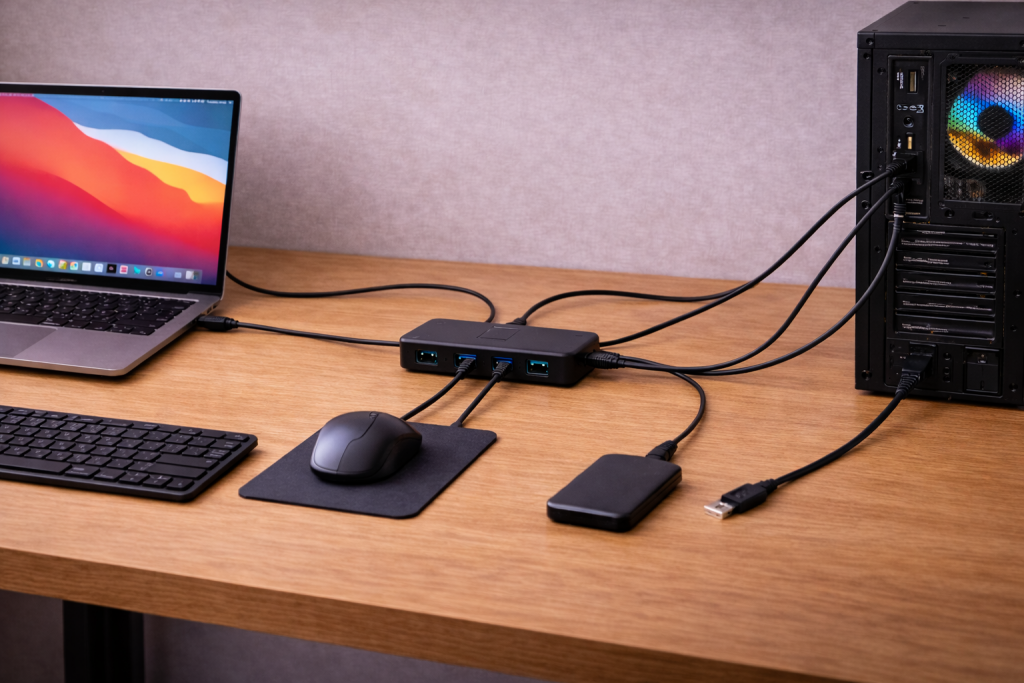
When USB keeps dropping out: what it looks like in the real world
Random USB disconnects usually show up as a mouse freezing for a second, a keyboard missing keystrokes, an external drive vanishing mid-transfer, or a webcam/audio interface cutting out during a call. Sometimes you hear the Windows disconnect sound; other times the device just stops responding until you replug it. The frustrating part is that it can look “fine” for hours, then fail repeatedly for five minutes.
In practice, the cause is nearly always one of three things: unstable power on the USB bus, a marginal cable/connector, or aggressive power-saving/driver behaviour. You can fix this without guesswork if you test in a specific order and keep one variable changing at a time.
What actually causes a USB device to disconnect
Power budget problems (especially with hubs and docks)
USB ports have a power budget. When a device briefly draws more than the port or hub can supply, the controller can reset that port and the device “disconnects”. This is common with bus-powered external SSDs, capture cards, 4G/5G dongles, RGB keyboards, and anything that spins up or ramps power under load.
This is the most common issue I see on devices sold in the UK before 2024 when people add a cheap unpowered hub to a laptop with only two USB-A ports.
- Bus-powered hub: shares one port’s power across multiple devices.
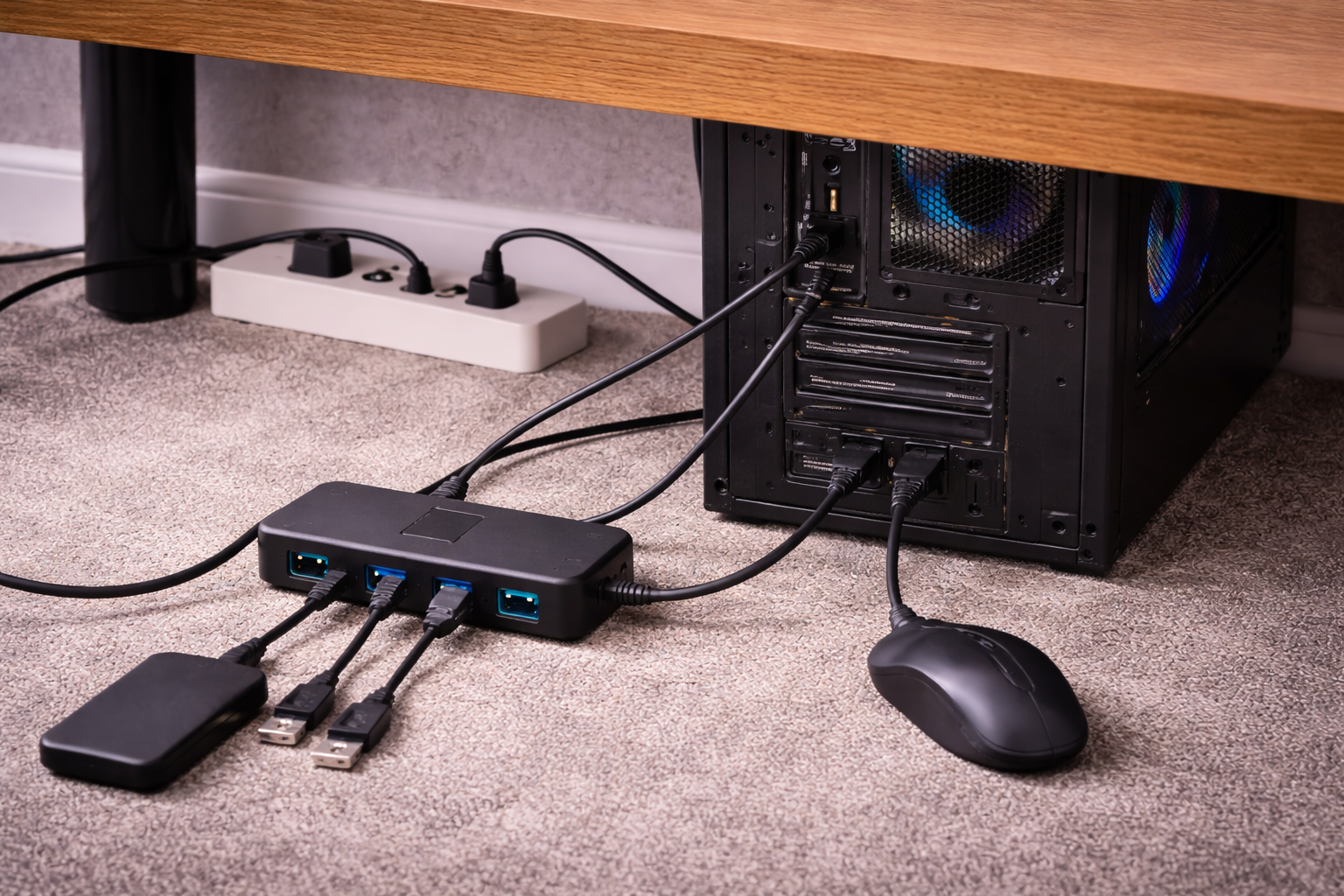
- Powered hub: has its own mains adapter, so devices don’t fight for the same limited power.
- USB-C docks: can be fine, but some models brown-out under peak load when also charging the laptop.
Cable and connector marginality
USB is sensitive to signal quality. A cable that “mostly works” can fail when you bump the desk, when the device warms up, or when the link renegotiates speed (USB 2.0 to 3.x). USB-C adds another failure mode: the plug can feel seated but not fully engage all pins, especially with tight cases or worn ports.
For external drives, a flaky cable often looks like a software issue because the drive mounts, then drops during sustained reads/writes. If you’re specifically troubleshooting storage, see Fix USB-C SSD Not Mounting on Windows 11 & macOS.
USB selective suspend, sleep states, and controller resets
Modern laptops use aggressive power management. Windows “USB selective suspend” can power down an idle device; macOS can park USB devices during sleep/standby; and some BIOS/UEFI settings change how the USB controller behaves in low-power states. If the device doesn’t wake cleanly, it can re-enumerate as if it was unplugged.
Seen most often on HP, Dell and Lenovo laptops where the default power plan is tuned for battery life rather than stable peripherals.
Driver/firmware conflicts and bandwidth contention
High-bandwidth devices (webcams, capture cards, audio interfaces) can collide on the same USB controller or hub. When bandwidth is saturated, you’ll see stutter, then resets. Firmware bugs in docks and USB controllers can also cause periodic dropouts, especially after OS updates.
If your disconnects started right after an update and the whole machine also feels unstable, it can be part of a wider issue; Fix Windows 11 Freezing Randomly After Updates is worth checking.
Fast triage: identify which class of problem you have
Before changing settings, do two quick observations. They save a lot of time.
- Does it happen only under load? (file transfers, gaming, video calls) That points to power draw, bandwidth, or heat.
- Does it happen when idle or after sleep? That points to selective suspend, sleep states, or driver wake issues.
- Is it one device or everything? One device suggests cable/device; everything suggests hub/dock/controller/power plan.
- Is it one port? A single port failing is often physical wear or a cracked solder joint on the internal header (desktops) or side-board (laptops).
Step-by-step fixes (in the order that wastes the least time)
1) Remove the hub/dock and test direct to the computer
Connect the problem device directly to a built-in port. If it becomes stable, the hub/dock is the culprit or the power budget is being exceeded.
- For USB-C laptops, try both USB-C ports if you have them; they may be on different controllers.
- On desktops, try rear motherboard ports rather than front-panel ports (front headers are more failure-prone).
- If you must use a hub, test with a powered hub and keep high-draw devices off the same hub as storage.
In practice, this step fixes the problem in about half of cases because it immediately removes power-sharing and flaky hub chipsets from the chain.
2) Swap the cable with a known-good, short cable
Use the shortest cable you have that’s designed for the job (USB 3.x cable for USB 3.x devices). Avoid “charge-only” cables and avoid very long USB-A to USB-C leads for SSDs and capture devices.
- External SSD/HDD: use a proper USB 3.1/3.2 cable; if the drive came with a cable, try that first.
- USB-C: check the connector isn’t blocked by a phone/laptop case lip.
- Wiggle test: gently move the connector at the device end; if it drops, it’s cable/port wear.
I’ve lost count of how often “random disconnects” end up being a cable that looks perfect but fails under sustained transfer.
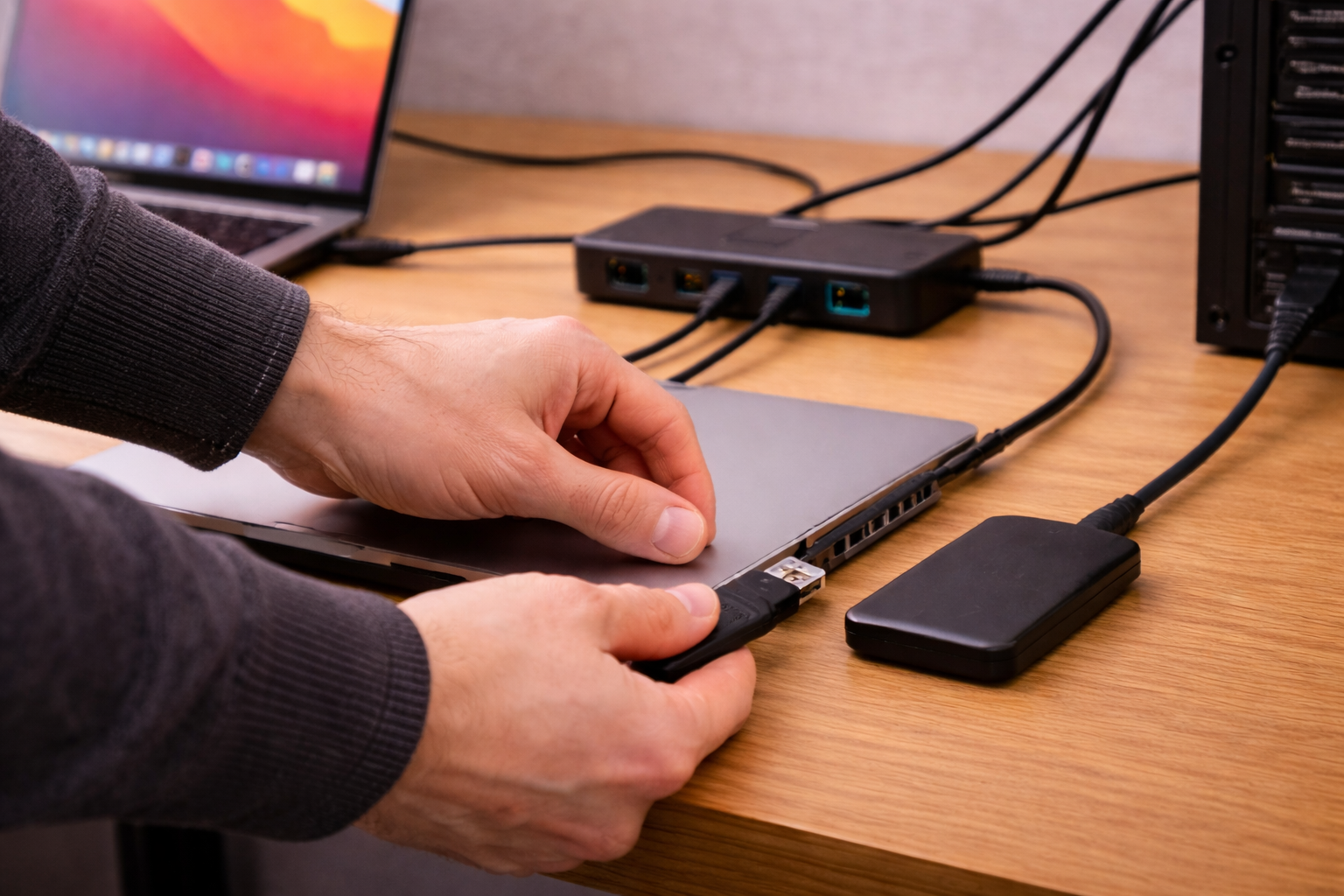
3) Separate high-power devices across ports
If you’re running multiple devices, split them across different ports/controllers. Typical high-draw or bursty devices include: bus-powered SSDs, 2.5-inch hard drives, USB Wi‑Fi adapters, capture cards, and some mechanical keyboards with passthrough.
- Put storage on its own port where possible.
- Don’t run a webcam and capture card through the same small hub.
- If a dock is charging the laptop, test with the laptop charger connected directly (or test dock without charging) to see if the dock is browning out.
4) Windows: disable USB selective suspend (targeted, not random)
On Windows 11/10, selective suspend is a frequent trigger for devices that don’t wake cleanly (audio interfaces and older USB receivers are classic). Do this first as a test; you can re-enable later if you care about battery life.
- Open Control Panel > Power Options.
- Next to your active plan, choose Change plan settings > Change advanced power settings.
- Expand USB settings > USB selective suspend setting.
- Set to Disabled (both On battery and Plugged in, if present).
- Reboot and test for at least one normal work session.
This is the most common issue I see with USB audio gear on Windows laptops used for Teams/Zoom in UK home offices.
5) Windows: stop the OS from powering down USB Root Hubs
This is separate from selective suspend and can still bite you even after changing the power plan.
- Right-click Start > Device Manager.
- Expand Universal Serial Bus controllers.
- For each USB Root Hub and Generic USB Hub entry: right-click > Properties > Power Management.
- Untick Allow the computer to turn off this device to save power.
- Restart the PC.
If you have many entries, focus on the ones that correspond to the port you’re using (you can temporarily unplug/replug and watch which entries refresh).
6) Windows: update chipset/USB controller drivers (don’t rely on Windows Update alone)
USB stability is heavily tied to chipset drivers and firmware. Windows Update often installs “good enough” drivers, but not always the most stable for your specific laptop.
- Update your laptop’s chipset drivers from the manufacturer support page (HP/Dell/Lenovo/ASUS/Acer).
- For Intel platforms, confirm you’re on a current chipset/ME package and USB controller driver set.
- After updating, fully shut down (not just restart) and power on again.
For Microsoft’s official troubleshooting flow, use Fix USB problems in Windows.
7) macOS: check power and “Allow accessories to connect” behaviour
On modern macOS versions, USB-C accessories can be blocked or delayed depending on security settings, and sleep can park devices in a way that looks like random disconnects.
- Test with the Mac on mains power (some MacBooks reduce peripheral power on battery).
- If the device disconnects after sleep, test with sleep disabled for one session to confirm the pattern.
- Try a different USB-C port; on some MacBooks, left/right ports are on different internal buses.
Apple documents the expected behaviour and compatibility checks in If an external device doesn’t connect or work on Mac.
8) Look for one-port failures (physical wear)
If only one port is problematic, treat it as hardware until proven otherwise.
- USB-A: check for looseness; if the plug droops, the port’s retention springs are worn.
- USB-C: inspect for pocket lint; a tiny amount can stop full insertion and cause intermittent contact.
- Desktop front ports: reseat the internal USB header cable if you’re comfortable opening the case.
I rarely see this on newer desktops with rear-only connections, but it’s common on laptops that have had years of daily dongle use.
9) Storage-specific: prevent link resets during heavy transfers
If the device is an external drive and it disconnects during copies, treat it as a stability problem first, not a “drive is dead” problem.
- Use a direct port, no hub.
- Use a short cable rated for USB 3.x.
- Keep the drive on a cool surface; some enclosures throttle or reset when hot.
- On Windows, avoid copying many tiny files over a flaky connection; test with one large file to reproduce consistently.
If you need a known-stable baseline cable for troubleshooting, a short 10Gbps USB-C cable is often the point where intermittent behaviour stops when cheaper leads fail.
10) Advanced: isolate bandwidth issues (webcams, capture cards, audio)
When a webcam and capture device share a hub, the bus can saturate and cause resets. The fix is usually topology, not settings.
- Put the capture card on a direct port.
- Force a webcam to 1080p instead of 4K if it’s sharing a controller with storage.
- Avoid chaining hubs (hub into hub) for real-time devices.
This often fails on budget hub chipsets that claim USB 3.0 but behave poorly under sustained isochronous traffic.
Scenarios I see repeatedly (and what fixes them)
Scenario A: “My USB mouse and keyboard disconnect together on a laptop”
This is usually a hub/dongle power issue or selective suspend. If both are on the same small hub, the hub is the first suspect. If they’re on separate ports and still drop together, it’s more likely the USB controller being power-managed.
- Test direct to the laptop ports.
- Disable selective suspend and hub power-down in Device Manager.
- Update chipset drivers from the laptop vendor.
In practice, once selective suspend is disabled, older 2.4GHz receivers stop “randomly” dropping out.
Scenario B: “External SSD disconnects only during big file copies”
This pattern screams cable quality or power draw. SSD enclosures can pull more power during sustained writes, and a marginal cable will show up exactly here.
- Swap to a short, known-good cable.
- Use a rear desktop port or a direct laptop port.
- Avoid unpowered hubs.
When I reproduce this on a bench, it’s usually stable on USB-A (with a good A-to-C cable) but flaky through a cheap USB-C hub.
Scenario C: “USB audio interface drops out after sleep or when the screen turns off”
That’s power management. Audio interfaces are sensitive to suspend/resume and sometimes don’t recover without a replug.
- Disable selective suspend.
- Disable “Allow the computer to turn off this device” on USB hubs.
- Test with sleep disabled for a day to confirm the cause.
Seen most often on Windows laptops configured for maximum battery savings out of the box.
Scenario D: “Everything disconnects when I touch the cable”
That’s physical. Either the port is worn, the connector is loose, or the cable is failing at the strain relief.
- Try a different port and cable.
- If it’s a desktop front port, move to rear ports to confirm it’s the front header/port assembly.
- If it’s a laptop USB-C port and it’s loose, plan for repair; software won’t fix intermittent contact.
Mistakes that make USB disconnects harder to diagnose
- Changing five things at once: you never learn whether it was the cable, hub, or setting.
- Assuming “it charges” means the cable is fine: data integrity is more demanding than charging.
- Using the front ports on a desktop for high-speed storage: front-panel wiring is often the weak link.
- Chaining hubs and adapters: each hop adds power loss and negotiation complexity.
- Ignoring heat: small SSD enclosures and some docks reset when warm, especially on soft furnishings.
This is the most common issue I see when people build a “one-cable desk setup” and then add just one more adapter to make it fit.
What to change (and what to avoid) when you need a stable setup
Hardware choices that reduce random disconnects
- Powered USB hub: use it for storage, webcams, audio interfaces, and anything bus-powered.
- Short, certified cables: especially for USB 3.x storage and USB-C devices.
- Direct ports for real-time devices: capture cards and audio interfaces behave better without a hub in between.
- Separate controllers where possible: on desktops, rear ports may be split across controllers; on laptops, left vs right can differ.
Software/firmware choices that reduce random disconnects
- Keep chipset drivers current: especially after major Windows updates.
- Be cautious with “USB power saving” utilities: they can re-enable settings you disabled.
- Update dock firmware: if your dock vendor provides it, it can fix periodic resets.
I rarely see persistent disconnect issues on a modern laptop once the hub is powered and the cable is known-good; the remaining cases are usually a failing port or a problematic dock.
Wrap-up: the shortest path to a reliable USB connection
Start by removing hubs/docks and swapping the cable. If that stabilises things, you’ve avoided hours of driver chasing. If it only fails after sleep or when idle, disable selective suspend and stop Windows from powering down USB hubs. If it still disconnects across multiple devices and ports, update chipset/USB drivers and consider dock firmware or a hardware fault.
USB is simple when the physical layer and power are solid. Most “random” disconnects stop being random once you test power, cable, and topology in a controlled order.
FAQ: awkward USB disconnect problems people hit at home and work
Why does my USB device stay connected on a desktop but disconnect on my Windows 11 laptop?
Laptops are much more aggressive with power management, and Windows 11 will happily suspend USB devices when it thinks they’re idle. This is the most common issue I see on UK laptops sold before 2024, especially with USB audio and older wireless receivers. Disable USB selective suspend and the “Allow the computer to turn off this device” option for USB hubs, then retest on mains power.
Why does my external SSD disconnect only when copying lots of files (but it mounts fine)?
Mounting is a light workload; sustained writes are where power draw and signal quality get tested. In real homes, not lab setups, a slightly bad USB-C cable can pass quick checks and still fail mid-transfer. Go direct to a built-in port, swap to a short USB 3.x-rated cable, and avoid unpowered hubs.
My USB devices disconnect when I plug in my phone to charge — is that normal?
It’s common on bus-powered hubs because the phone can negotiate higher current and steal budget from other devices. I see this a lot with compact USB-C hubs that have HDMI plus two USB-A ports. Move the phone to a separate port (or a wall charger), or switch to a powered hub so charging doesn’t destabilise the bus.
Why do my USB devices disconnect after sleep on macOS Sequoia, but not on my older Mac?
Newer macOS versions and newer Apple silicon models handle accessory security and sleep states differently, and some devices don’t resume cleanly. This often shows up as the device re-enumerating after wake, especially through adapters. Test with the Mac on mains power, try a different USB-C port, and avoid chaining adapters; if it’s stable without sleep, the issue is suspend/resume compatibility.
My webcam disconnects when I start a Teams call, but my keyboard is fine — what’s going on?
That points to bandwidth and hub topology rather than a general USB failure. Webcams can switch modes (higher resolution/frame rate) when an app starts, and that can overload a shared hub/controller. Put the webcam on a direct port, keep storage off the same hub, and reduce webcam resolution if it’s sharing a controller with other high-traffic devices.
Recommended gear on Amazon UK
- A powered USB hub helps when random disconnects are caused by multiple devices sharing one laptop port’s limited power budget through an unpowered hub. View Powered USB 3.0 hub on Amazon UK
- A short USB-C 10Gbps cable is the quickest way to rule out marginal signal quality when an external SSD mounts but drops during sustained transfers. View Short 10Gbps USB-C cable on Amazon UK
- A proper USB-A to USB-C USB 3.x data cable is useful when a USB-C hub is unstable and you need to test the same device directly on a reliable USB-A port. View USB-A to USB-C data cable (USB 3.x) on Amazon UK
- A USB-C dock with stable external power helps in one-cable desk setups where cheaper docks brown-out under load and reset connected peripherals. View USB-C dock with external power (PD pass-through) on Amazon UK








1 thought on “Fix USB Devices Randomly Disconnecting”