
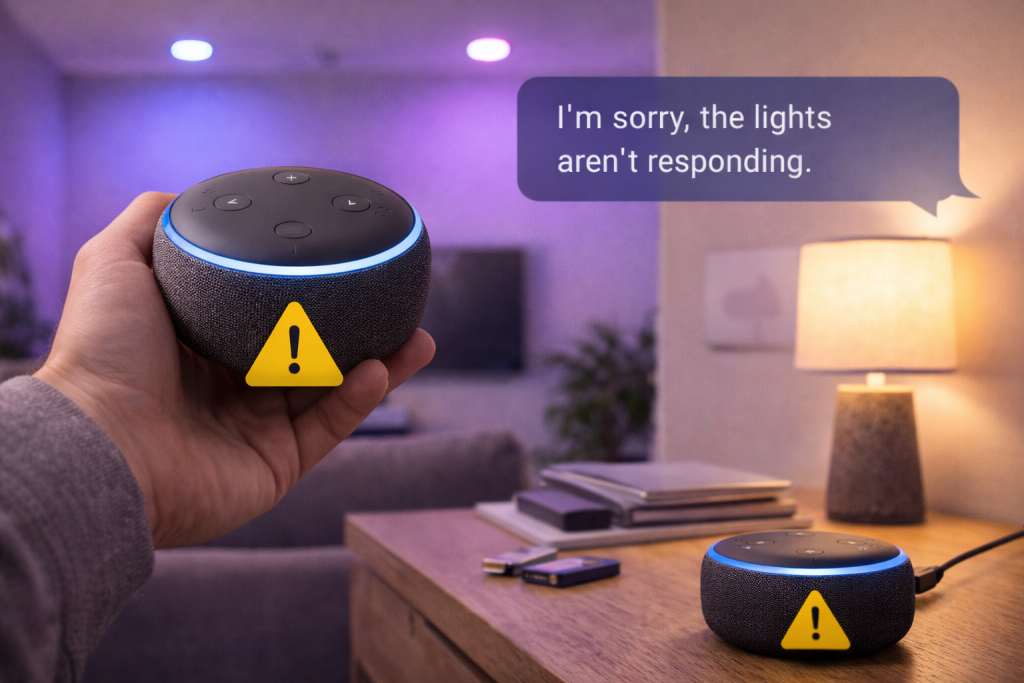
Your smart lights were fine yesterday, then Alexa suddenly starts saying “device is unresponsive”, “server is unresponsive”, or it just does nothing. Sometimes the light still works in its own app, which makes it worse: you know the bulb has power, but the voice control layer has fallen apart.
I see this most often after a router change, a broadband outage, or a “helpful” Wi‑Fi optimisation setting that quietly moved devices onto a different band. In UK homes with ISP routers (BT, Sky, Virgin), the symptoms can look random because the router is doing band steering and DHCP changes in the background.
The fix is rarely a single magic toggle. You need to work out which link in the chain is broken: Alexa cloud, your Echo, your network, the light’s hub/bridge, or the bulb itself. Once you isolate that, the repair is usually quick.
What’s actually failing when Alexa can’t control a light
Alexa controlling a light is a multi-hop transaction. When any hop fails, Alexa tends to give the same vague error, so you have to diagnose it like a network problem rather than a “bulb problem”.
- Voice to cloud: Echo hears you and sends the request to Amazon’s servers.
- Cloud to integration: Alexa calls the manufacturer integration (a Skill) or a local integration (Matter, Zigbee).
- Integration to device: Either the manufacturer cloud talks to your hub/bulb over the internet, or your Echo/hub talks locally over Zigbee/Matter/LAN.
- Device execution: Bulb/driver receives the command and switches power to LEDs.
That’s why “works in the brand app but not Alexa” usually points to an Alexa-side issue (Skill auth, device discovery, groups), while “works in Alexa app but not by voice” can be a naming/group conflict or a microphone/recognition issue. “Nothing works anywhere” is typically power, Wi‑Fi, or hub.
One practical tell: if Alexa responds instantly with “unresponsive”, it’s often local discovery or LAN routing. If it waits a few seconds then fails, it’s more often cloud-to-cloud or the device timing out.
A fault-finding order that doesn’t waste time
Start with the fastest checks that eliminate whole categories of failure. Don’t factory reset anything yet; that’s how you lose scenes, room assignments, and routines for no gain.
- Confirm the light still works at all: use the physical switch (if it has one) and the manufacturer app.
- Check whether Alexa can control anything else: a smart plug, a different light, volume on the Echo.
- Identify the connection type: Wi‑Fi bulb, Zigbee bulb (Hue/Tradfri-style), Matter over Wi‑Fi, or a proprietary hub.
- Decide if it’s one device or a whole room: single bulb failures are usually power, Wi‑Fi signal, or a stale device entry; whole-room failures are often groups, hubs, or router changes.
In practice, step 3 is where people get stuck. If you’re not sure: Wi‑Fi bulbs appear in your router’s device list; Zigbee bulbs usually don’t (they sit behind a bridge/hub). Matter devices may show up, but the key clue is that Alexa lists them as “Matter” in device details.
Step-by-step fixes (in the order I’d try them)
1) Fix the boring power problem first
Smart bulbs need constant power. If someone turned the wall switch off, Alexa will never reach it. In homes with two-way switching (common in UK hallways and landings), one switch position can cut power and it looks like “Alexa broke”.
- Turn the wall switch on and leave it on.
- If it’s a smart switch controlling dumb bulbs, check the switch has power and is online.
- If the bulb is on a dimmer, move it to a non-dimmer circuit. Many “dimmable” smart bulbs still misbehave on older trailing-edge dimmers.
I’ve lost count of the times a “network issue” turned out to be a switched-off lamp at the socket.
2) Reboot the right things (Echo, router, then hub)
Rebooting works when the failure is stale DHCP leases, mDNS discovery glitches, or a hub that’s wedged. The order matters because you want the network stable before devices rejoin.
- Unplug the Echo for 20 seconds, plug back in.
- Reboot the router (and any mesh nodes) and wait until the internet is fully back.
- If you use a bridge/hub (Hue Bridge, Tradfri hub, Aqara hub, etc.), reboot it after the router is stable.
If you’re on a mesh system, don’t just reboot the main unit. A single stuck node can trap IoT devices on an isolated segment. If you’ve had ongoing Wi‑Fi weirdness, the network-side deep dive in the UK home Wi‑Fi troubleshooting guide is the closest thing to a sanity check.
3) Check Alexa device status and the exact error
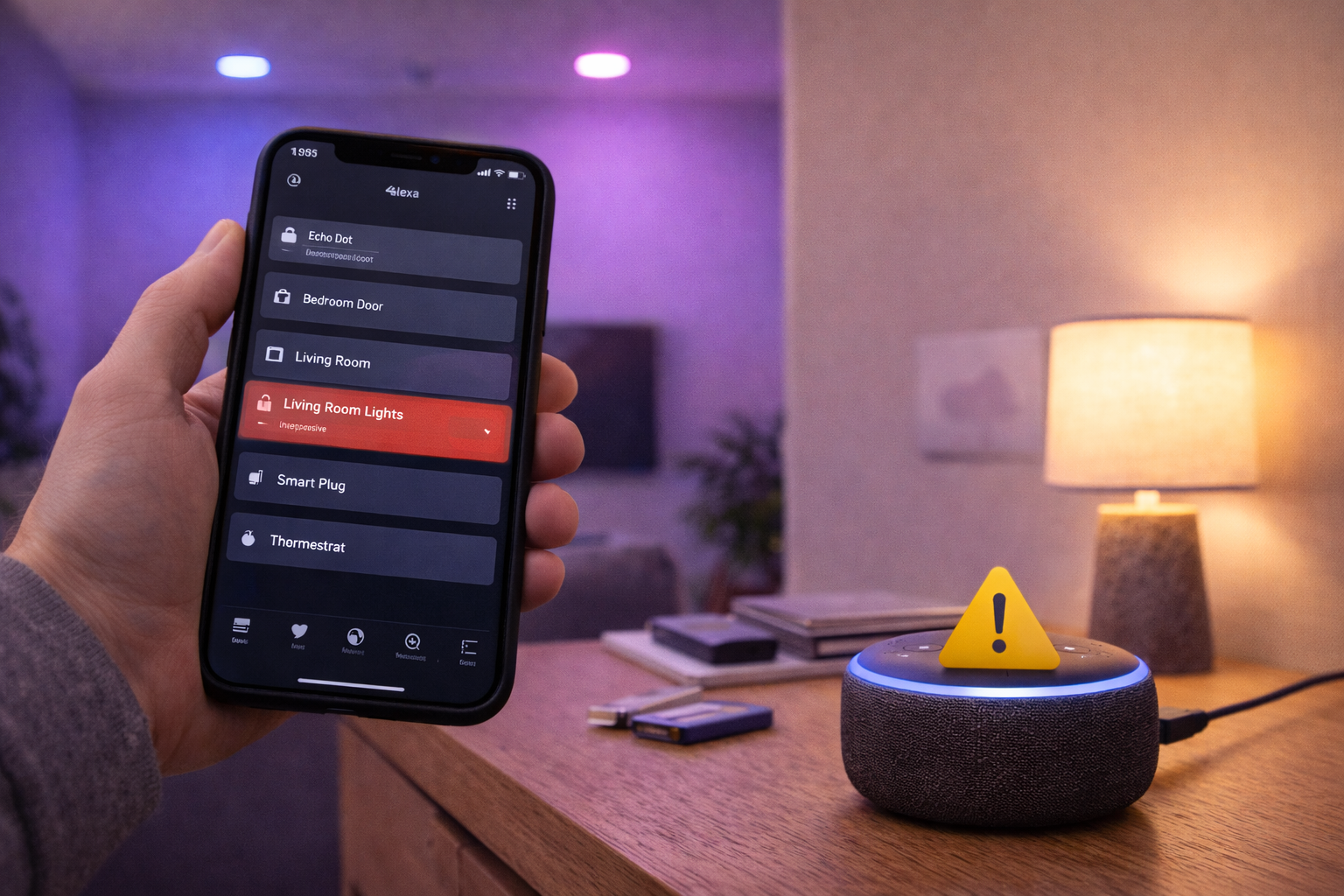
Open the Alexa app, tap the light, then the settings cog. Look for:
- “Device is unresponsive” (often network/hub reachability).
- “Server is unresponsive” (often Skill/cloud auth or manufacturer outage).
- Wrong device type (light detected as a switch can break brightness/colour controls).
If the Alexa app can toggle the light but voice can’t, it’s usually a naming conflict (two devices with similar names) or a group issue. If neither app nor voice works, treat it as connectivity.
4) Re-link the Skill (cloud-connected brands)
For Wi‑Fi bulbs that rely on a manufacturer Skill, authentication expires or breaks after password changes, app updates, or region mismatches. This is the most common issue I see on UK devices sold before 2024, especially when the brand was acquired or rebranded and the backend changed.
- In Alexa app: More > Skills & Games > Your Skills.
- Find the relevant Skill (TP-Link Kasa, Tapo, Govee, Smart Life/Tuya, etc.).
- Disable Skill, then Enable to Use and sign in again.
- Run Discover Devices.
If you have multiple accounts (common with shared flats), make sure you’re signing into the same manufacturer account that actually owns the devices.
5) Clean up duplicates and stale devices
Alexa is prone to keeping old device records after you rename a bulb in the manufacturer app, move it between homes, or migrate to a new hub. Then voice commands hit the wrong entry.
- In Alexa app: search the device name and look for duplicates.
- Delete the unresponsive duplicate, then rediscover.
- Rename with distinct, spoken-friendly names (avoid “Lamp” for three different lamps).
Avoid punctuation and avoid names that sound alike (“Hall” vs “Hole” is a real misrecognition I’ve heard in a noisy kitchen).
6) Fix room groups and “lights” group behaviour
Alexa treats “lights” inside a room group differently from other devices. If you say “turn off the lights” in the same room as an Echo, it targets the room’s light group. If your bulbs aren’t assigned properly, you’ll get partial control or the wrong lights responding.
- Alexa app: Devices > Groups.
- Open the room (e.g., Living Room).
- Confirm the Echo in that room is listed, and the correct lights are listed as Lights.
- Remove and re-add the light if it’s stuck.
When only “turn on Living Room” works but “turn on the lights” fails, this is usually the culprit.
7) Wi‑Fi bulbs: fix 2.4 GHz, band steering, and router security
Most smart bulbs are 2.4 GHz only. If your router merges 2.4 and 5 GHz under one SSID, the phone setup can succeed while the bulb later gets confused by band steering or roaming decisions.
- Separate SSIDs temporarily (e.g., Home-2G and Home-5G) and put bulbs on 2.4 GHz.
- Disable “Smart Connect”/band steering if your router offers it and bulbs keep dropping.
- Check security mode: use WPA2 or WPA2/WPA3 mixed. Some bulbs fail on WPA3-only.
- Turn off AP isolation/guest mode: IoT devices on a guest network often can’t be discovered or controlled locally.
If you changed broadband provider and kept the same SSID/password, bulbs can still fail because the new router uses different security defaults. I’ve seen Virgin Hub upgrades flip WPA3 on without making it obvious.
8) Zigbee lights: check the hub, channel, and mesh health
Zigbee bulbs (Hue, some Ikea, some Linkind, etc.) don’t care about your Wi‑Fi password, but they do care about the Zigbee mesh. If the bridge is offline, Alexa can’t reach the bulbs. If the mesh is weak, bulbs become “unresponsive” intermittently.
- Confirm the bridge/hub shows online in its own app.
- Move the hub away from the router by at least 30–50 cm to reduce 2.4 GHz interference.
- If you recently added a Wi‑Fi extender near the hub, try moving it. Extenders can be noisy on 2.4 GHz.
- Power-cycle the bridge and wait a few minutes for Zigbee routing to settle.
One odd pattern: a single bulb at the edge of the house goes unresponsive after you replace a bulb in the middle. That middle bulb may have been acting as a Zigbee router; the replacement might not. Zigbee routing is invisible until it breaks.
9) Matter lights: re-commissioning is sometimes unavoidable
Matter is improving, but when it breaks it can break stubbornly. If Alexa shows the device as Matter and it’s unresponsive, you may need to remove it and add it again, especially after router changes.
- In Alexa app, delete the Matter device.
- In the manufacturer app, remove the device from its fabric (wording varies).
- Factory reset the bulb (follow the brand’s on/off sequence).
- Add again using the Matter QR code or numeric code.
Keep your phone on 2.4 GHz during setup if the bulb is 2.4-only. Mixed-band setups cause more Matter pairing failures than people expect.
10) Update firmware and the Alexa app (only after stabilising)
Firmware updates can fix real bugs, but updating while the device is half-connected can brick the session and waste time. Once you’ve got basic control back:
- Update the bulb/bridge firmware in the manufacturer app.
- Update the Alexa app.
- Check Echo firmware is current (it usually is, but offline Echos can lag).
If you’re troubleshooting on an iPhone and the Alexa app behaves oddly (devices missing, discovery not completing), it’s worth checking Apple’s steps for force closing and updating apps at Apple Support for iPhone app troubleshooting.
Situations that change the diagnosis
“Only one light in a group fails.” That’s usually power to that fitting, a weak Zigbee route, or a Wi‑Fi signal issue at that exact spot. I’ve seen GU10 downlights in kitchens fail because the metal can acts like a tiny Faraday cage; the bulb works, but RF is marginal.
“Everything broke after changing router.” Wi‑Fi bulbs need the new SSID/password, unless you matched them exactly. Zigbee bulbs should survive, but Alexa may lose the bridge integration if the bridge got a new IP and the router blocks local discovery. If you’re using a mesh, check that the bridge is wired to the main node, not a satellite with client isolation.
“Works in the brand app on mobile data, but not on Wi‑Fi.” That points to your home network blocking something: DNS filtering, parental controls, or a router firewall feature. Some ISP routers have “advanced security” options that interfere with IoT traffic. If you’re using a custom DNS service, try reverting to the ISP DNS temporarily.
“Alexa says it turned the light on, but nothing happens.” That’s often a stale state problem: Alexa thinks the device is reachable and reports success, but the command never reached the bulb. Re-linking the Skill and deleting duplicates usually fixes it. When it doesn’t, it’s often a hub that’s online but not actually routing commands properly until rebooted.
“Only voice fails, app control works.” Check for two devices with the same name in different rooms, or a routine that intercepts the phrase. I’ve also seen Echos in open-plan rooms pick the wrong “local” group because the wrong Echo is set as the preferred speaker/device for that room.
Mistakes that keep people stuck
- Factory resetting bulbs too early: you lose scenes, schedules, and sometimes you still have the same router/Skill problem afterwards.
- Using a guest Wi‑Fi for IoT: it sounds tidy, but guest networks often block device-to-device traffic, which breaks local discovery and some hubs.
- Leaving a wall switch off “because Alexa controls it”: the bulb can’t listen if it’s unpowered.
- Renaming in three places: rename in the manufacturer app, then rediscover in Alexa, then rename in Alexa if needed. Doing it in a random order creates duplicates.
- Assuming 5 GHz is better: for bulbs, 2.4 GHz is usually the correct choice due to range and chipset support.
If you’re also seeing other devices randomly dropping off Wi‑Fi, don’t treat the lights as the problem. They’re just the first thing to complain. The network stability checks in fixing slow mesh Wi‑Fi in UK homes map closely to what breaks smart home gear.
Hardware and software details that matter more than people think
Router features: “Airtime fairness”, “802.11ax only”, and aggressive power-saving can upset cheap IoT radios. If your router has an IoT mode, it’s worth trying, but don’t assume it’s well implemented.
IPv6: Some ecosystems behave oddly on certain ISP IPv6 deployments. If you’re stuck with cloud errors that come and go, testing with IPv6 disabled on the router (temporarily) can be revealing. Don’t leave it off unless it clearly fixes the issue and you understand the trade-off.
Channel congestion: Zigbee and 2.4 GHz Wi‑Fi share spectrum. If you live in a flat with dozens of neighbouring networks, Zigbee reliability can nosedive after you change Wi‑Fi channels. Moving the Wi‑Fi channel away from Zigbee’s channel range can help, but it’s fiddly without tools.
Echo model differences: Some Echo devices include Zigbee radios; others don’t. If you replaced an Echo that was acting as a Zigbee hub with a model that isn’t, lights can “vanish” even though nothing else changed. I’ve seen this after people swap an older Echo Plus for a newer basic Echo Dot.
Account and region mismatches: UK users sometimes end up with a US-region manufacturer account (or vice versa) due to an old app install. The Skill may link, but devices don’t appear or control fails. Recreating the account in the correct region is painful, but sometimes it’s the only fix.
Phone permissions during setup: Device discovery and pairing can rely on Bluetooth and local network permissions. On Android, check the Alexa app has Nearby Devices and Location permissions where required. Google’s troubleshooting around app permissions is laid out clearly at Google Support for Android app permissions.
Conclusion
When smart lights stop responding to Alexa, the fastest route is to stop treating it as a “bulb issue” and identify the broken link: power, Wi‑Fi/LAN, hub, Skill authentication, or Alexa groups. Reboots and Skill re-linking fix a large chunk of cases, but persistent failures usually come back to 2.4 GHz Wi‑Fi behaviour, guest network isolation, or a Zigbee mesh that’s quietly fallen apart.
If you make one change, test, then move on, you’ll avoid the common trap of resetting everything and ending up with the same unresponsive device list—just with fewer routines.
FAQ
Why do my smart lights work in the manufacturer app but Alexa says “device is unresponsive” after a router change?
This usually means the manufacturer cloud can still reach the devices, but Alexa’s integration is broken or Alexa is targeting a stale device record. Re-link the relevant Skill in the Alexa app, delete any duplicate devices, then run device discovery. If the lights are Wi‑Fi bulbs and you changed SSID/security settings, you may also need to rejoin them to the new 2.4 GHz network.
Why does Alexa control my bedroom lights in the day but they fail at night when the Wi‑Fi is busy?
That pattern points to congestion or weak signal rather than a bad bulb. At night you’ll often have more streaming, more phones, and sometimes neighbours’ networks are busier too. Put bulbs on 2.4 GHz, avoid WPA3-only, and consider moving the router/mesh node or adding a wired access point rather than a cheap extender near the lights.
Why did my Hue or Zigbee bulbs stop responding to Alexa after I replaced my Echo with a newer model?
Some Echo models include a Zigbee hub and some don’t. If the old Echo was acting as the Zigbee controller and the new one isn’t, the bulbs won’t have a hub to talk to. Check whether you still have a Hue Bridge or other Zigbee hub online, and if not, you’ll need to add one or use an Echo model with Zigbee support.
Why does Alexa say it turned the light on, but the bulb stays off until I open the Alexa app?
That’s commonly a stale state or duplicate device entry problem. Alexa may be sending the command to an old device record while the app refresh forces a new state sync. Delete duplicates, re-link the Skill, and make sure the bulb name is unique. If it’s a hub-based system, reboot the hub after the router is stable.
Do smart lights still work with Alexa if I put them on a guest Wi‑Fi network for security?
Sometimes, but it’s a frequent cause of “unresponsive” devices. Guest networks often block local traffic between devices, which can break discovery and local control (and some hubs). If you want separation, use an IoT VLAN or a router feature designed for IoT isolation that still allows the Echo to reach the devices.
Recommended gear on Amazon UK
- Separating 2.4 GHz for bulbs and avoiding WPA3-only modes reduces the dropouts and discovery failures that make Alexa report lights as unresponsive. Relevant examples
- A mains-powered Zigbee device can strengthen the Zigbee mesh so edge-of-house bulbs stop falling off and timing out when Alexa sends commands. See suitable options
- Wiring the Hue Bridge or smart home hub into the main router (instead of relying on Wi‑Fi backhaul) removes a common source of intermittent hub reachability. Relevant examples
- It helps keep bridges and routers powered reliably while still letting you reboot a single hub cleanly without pulling plugs and disturbing other kit. See suitable options








1 thought on “Fix Smart Lights Not Responding to Alexa”