
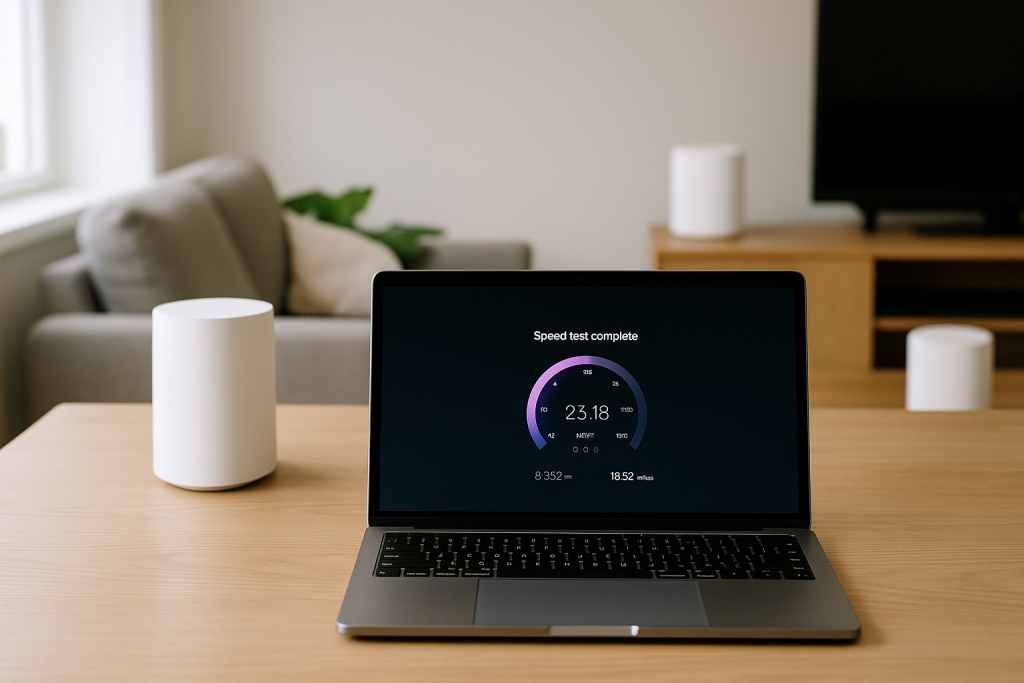
Mesh Wi‑Fi is sold as the answer to dead spots, but in a lot of UK homes it ends up slower than the basic ISP router. This guide focuses on slow speeds and unstable throughput on mesh systems, not complete dropouts or no-internet faults.
The steps below apply to common UK setups: BT, Sky, Virgin Media and smaller FTTP providers feeding mesh kits from TP‑Link Deco, Netgear Orbi, Eero, Google Nest, Asus and similar. The aim is to identify where the bottleneck really is: the ISP router, the mesh backhaul, interference, or client devices.
If your devices show full Wi‑Fi bars but no websites load at all, you are dealing with a different fault. In that case, work through our guide for Wi‑Fi connected but no internet issues on BT, Sky and Virgin routers first, then come back here once basic connectivity is stable.

Why Mesh Wi‑Fi Feels Slow Even With Fast Broadband
Before changing settings, you need to understand where speed is lost in a mesh system. Mesh adds extra hops and radio links between your ISP router and your devices, and each hop can cut throughput if it is poorly placed or misconfigured.
In a typical UK home, the main mesh node plugs into the ISP router in the hallway or under the stairs. Extra nodes sit in bedrooms or the loft. If those nodes talk to each other over Wi‑Fi instead of Ethernet, they share bandwidth between the backhaul and your devices, which is where speeds often collapse.
Older phones, laptops and smart TVs can also drag performance down. A single 2.4 GHz‑only device or a Wi‑Fi 4 client stuck on legacy rates can slow the whole radio if the mesh firmware is not handling airtime fairly.
In practice, this is the most common issue I see on mesh kits dropped into older UK homes with thick brick walls and a single phone socket in the hallway.
Step 1: Confirm It’s the Mesh, Not the Broadband Line
Start by proving that your internet connection is actually capable of the speeds you expect. If the line itself is slow or unstable, no mesh tuning will fix it.
Use this basic process:
- Check your package speed: Log into your ISP account and confirm the advertised download and upload speeds.
- Run a wired speed test: Connect a laptop directly to the ISP router with Ethernet and run a speed test. Avoid VPNs and corporate laptops with traffic shaping.
- Compare results: If the wired speed is close to your package speed, the line is fine. If it is much lower, raise it with your ISP before touching the mesh.
- Test at different times: Run tests at peak time (evening) and off‑peak. If only evenings are slow, congestion is likely outside your home.
If your wired speeds are solid but Wi‑Fi is poor, the mesh is the bottleneck and the rest of this guide applies.
Step 2: Check Mesh Node Placement and Backhaul Quality
Mesh performance lives or dies on the quality of the links between nodes. In UK houses with solid internal walls, nodes are often placed too far apart or hidden behind TVs and cupboards.
How to quickly assess node placement
- Open your mesh app and look for a signal quality or backhaul status indicator for each node.
- Any node showing “poor”, “weak” or a single bar is a problem, especially if it feeds other nodes.
- Walk to that node with a phone, stand next to it, and run a speed test over Wi‑Fi.
- If speeds next to the node are much lower than next to the main node, the backhaul link is weak.
Fixing poor backhaul links
- Move nodes into line of sight: Avoid placing nodes in cupboards, behind TVs, or on the floor. Aim for waist or chest height, with as few walls as possible between nodes.
- Shorten the distance: In older brick or stone UK houses, nodes often need to be closer than the manufacturer suggests. Try moving a node halfway between the main node and the problem room.
- Avoid stairwells and meters: Electric meters, consumer units and thick stairwell walls absorb signal heavily.
- Re‑check the app: After moving a node, wait a few minutes and check the backhaul quality again.
In practice, this step fixes the problem in about half of cases where users complain that the mesh is slower than the ISP router.
Step 3: Prefer Ethernet Backhaul Wherever Possible
Wi‑Fi backhaul is convenient but fragile. If you can run Ethernet between nodes, even partially, you remove a major source of speed loss.
Options for wired backhaul in UK homes
- Direct Ethernet runs: Best option if you can route Cat6 cable under carpets, along skirting boards or through loft spaces.
- Powerline adapters: Mixed results in UK homes with older wiring, but sometimes acceptable for one or two nodes.
- MoCA or Ethernet over coax: Rare in the UK, but useful if your home already has TV coax runs and compatible adapters.
How to switch a node to wired backhaul
- Connect an Ethernet cable from the LAN port on the main node (or ISP router, depending on your setup) to the secondary node.
- Open the mesh app and confirm that the node now shows “wired” or “Ethernet” backhaul.
- If it still shows wireless, reboot that node and wait a few minutes.
- Run a speed test next to the wired node and compare to the main node.
Switching to wired backhaul resolves problems commonly seen in long, narrow UK terraces where Wi‑Fi backhaul has to cross multiple brick walls.
Step 4: Eliminate Double NAT and Router‑on‑Router Setups
Many UK ISP routers stay in full router mode while the mesh also runs as a router. This double NAT setup can cause odd slowdowns, especially with gaming, VPNs and smart home devices.
How to spot double NAT
- If your mesh app shows “router” or “gateway” mode and your ISP box still has Wi‑Fi enabled, you probably have double NAT.
- On a device connected to the mesh, check its IP address. If it is in a different range (e.g. 192.168.68.x) than devices connected directly to the ISP router (e.g. 192.168.1.x), you have two routers.
Fix: put either the ISP router or the mesh into bridge mode
- Option 1 – Mesh in access point mode: In the mesh app, switch to “AP mode” or “bridge mode” so the ISP router handles DHCP and routing.
- Option 2 – ISP router in modem/bridge mode: On some BT, Sky and Virgin units you can enable modem mode so the mesh becomes the only router.
- Disable ISP Wi‑Fi: Whichever option you choose, turn off Wi‑Fi on the ISP box to avoid interference and confusion.
In real homes, not lab setups, cleaning up double NAT often removes weird speed dips that only show up on specific apps or consoles.
Step 5: Tune Wi‑Fi Bands, Channels and Band Steering
Mesh systems try to be automatic, but their default band steering and channel choices are not always ideal in crowded UK neighbourhoods.
Separate or keep combined SSIDs?
- Combined SSID (single network name): Easier to manage, but some older devices cling to 2.4 GHz even when 5 GHz is available.
- Separate SSIDs: Lets you force modern devices onto 5 GHz or 6 GHz, but adds complexity and can break roaming if misused.
For most UK homes, I keep a single SSID but disable aggressive band steering if the option exists, then manually move stubborn devices to a 5 GHz‑only SSID if the mesh supports a hidden or secondary network.
Manual channel selection
- Use a Wi‑Fi scanner app on your phone to see which channels nearby networks use.
- On 2.4 GHz, stick to channels 1, 6 or 11 only. Pick the least congested.
- On 5 GHz, avoid DFS channels if you see frequent disconnects; some UK devices handle DFS poorly.
- Apply changes, then test speeds in your worst‑performing room.
This often fails on budget MediaTek chipsets in cheaper phones, which sometimes ignore band steering hints and sit on noisy 2.4 GHz channels until you forget the network and reconnect.
Step 6: Check Client Device Limitations and Drivers
Sometimes the mesh is fine and the limiting factor is the device itself. This is common with older laptops, smart TVs and IoT gear.
Identify slow clients
- Run speed tests on multiple devices in the same spot next to a node.
- If one device is consistently much slower than others, the issue is local to that device.
- Check its Wi‑Fi standard: Wi‑Fi 4 (802.11n), Wi‑Fi 5 (ac), Wi‑Fi 6/6E (ax) or Wi‑Fi 7.
Fixes for laptops and desktops
- Update Wi‑Fi drivers: Use Device Manager on Windows or System Settings on macOS to update network drivers.
- Disable old power saving modes: On Windows, set the Wi‑Fi adapter power saving to “Maximum Performance”.
- Use a USB Wi‑Fi adapter: For very old laptops, a modern USB Wi‑Fi 6 adapter can be faster than the internal card.
Seen most often on HP, Dell and Lenovo laptops sold in the UK before 2020, where the bundled Wi‑Fi cards struggle with newer mesh features like 160 MHz channels and OFDMA.
Step 7: Handle 6 GHz / Wi‑Fi 6E and Wi‑Fi 7 Quirks
If you have a newer mesh kit with 6 GHz (Wi‑Fi 6E) or Wi‑Fi 7, some UK devices may not see or use the fastest bands correctly.
6 GHz not visible on laptops or phones
- Check that your device actually supports 6 GHz; many UK models do not, even in 2024.
- Ensure the mesh is set to the correct region (UK) so 6 GHz channels are legal and enabled.
- Update firmware on both the mesh and the client device.
If your laptop supports 6 GHz but the network still does not appear, follow the steps in our dedicated guide to fixing 6 GHz Wi‑Fi not appearing on UK laptops.

Wi‑Fi 7 and smart home interference
- Some early Wi‑Fi 7 mesh systems use very wide channels that can upset 2.4 GHz smart plugs and bulbs.
- If you see slow speeds plus flaky smart home behaviour, try reducing channel width on 2.4 GHz to 20 MHz and on 5 GHz to 80 MHz.
- Turn off experimental features like Multi‑Link Operation if your firmware exposes them.
On UK laptops sold before 2024, I rarely see stable Wi‑Fi 7 performance unless the latest drivers from Intel or Qualcomm are installed.
Step 8: Real‑World UK Layouts and What Usually Works
Mesh tuning is highly dependent on house layout. These are patterns that repeatedly show up in UK homes.
Long Victorian terrace with router at the front
- Place the main node near the middle of the house if possible, not buried at the front door next to the master socket.
- Use a short Ethernet run from the ISP router to the main node if you must keep the router at the front.
- Put a second node on the landing, roughly central vertically and horizontally.
- Avoid putting nodes in bay windows or behind radiators; both kill signal.
Three‑storey townhouse with thick floors
- Use one node per floor, roughly stacked vertically.
- If possible, wire the middle node back to the main node with Ethernet to stabilise the chain.
- Do not rely on a single node in the hallway to feed loft rooms through two concrete floors.
New‑build with FTTP and cupboard wiring
- If you have an ONT and structured cabling, put the main node in the central cupboard and feed other nodes via Ethernet.
- Disable Wi‑Fi on the ISP router entirely and let the mesh handle everything.
- Use smaller nodes in bedrooms rather than one big unit in the lounge.
In practice, once Ethernet is used for at least one hop in these layouts, mesh systems behave far more predictably and speed complaints drop off.
Step 9: Common Mesh Wi‑Fi Mistakes That Kill Speed
Certain configuration choices repeatedly cause slowdowns in UK homes. Avoid these unless you know exactly why you are doing them.
- Leaving ISP Wi‑Fi on: Creates overlapping networks on the same channels, confusing devices and wasting airtime.
- Hiding nodes behind TVs or in cabinets: The mesh app may still show them as “online” but throughput collapses.
- Using a single node for the whole house: Many people never plug in the extra nodes from a kit, then wonder why upstairs is slow.
- Overusing guest networks: Some mesh systems handle guest SSIDs poorly and split bandwidth inefficiently.
- Enabling every “smart” feature: QoS, parental controls and security scanning can add CPU overhead and latency on weaker mesh hardware.
In real homes, not lab setups, turning off heavy cloud security features on cheaper mesh kits often restores 10–20% of lost throughput, especially on Virgin 1 Gbps lines.
Step 10: When Hardware Is the Limitation
Sometimes the mesh kit itself is the bottleneck. Entry‑level dual‑band systems struggle with gigabit fibre and many simultaneous devices.
Signs your mesh hardware is under‑spec’d
- CPU usage in the app is constantly high, or the nodes feel hot to the touch.
- Speeds are fine with a few devices but collapse in the evening when everyone is streaming.
- Firmware updates have not improved performance after you have optimised placement and backhaul.
What to look for in a replacement mesh kit
- Tri‑band or better: A dedicated 5 GHz or 6 GHz backhaul band helps keep client traffic separate.
- Multi‑gig WAN/LAN ports: Useful if you have or plan to get gigabit or faster FTTP.
- Good UK firmware support: Regular updates and clear region settings for UK channels and power limits.
- Wi‑Fi 6 or 6E minimum: Wi‑Fi 7 is nice but not essential yet for most households.
Switching to this type of hardware resolves problems commonly seen in homes where a basic dual‑band mesh is trying to feed dozens of devices and multiple 4K streams.
Software, OS and Vendor Resources Worth Checking
Some slowdowns are caused by OS‑level settings or vendor‑specific quirks on phones and laptops. It is worth checking official documentation when you hit odd behaviour.
- For iPhone and iPad Wi‑Fi issues, Apple’s guide to troubleshooting Wi‑Fi connections on iPhone and iPad covers low‑data mode, private addresses and other settings that can throttle speeds.
- For Windows 10 and 11 laptops, Microsoft’s documentation on fixing Wi‑Fi performance and connectivity problems in Windows walks through driver, power plan and adapter configuration changes.
On Windows laptops with Intel AX210 or Killer AX1675 Wi‑Fi cards, I have seen driver updates from the vendor site make a bigger difference than anything changed on the mesh itself.
Hardware Add‑Ons That Actually Help
Once you have tuned the mesh, a few specific hardware additions can clean up edge cases without replacing the whole system.
- USB Wi‑Fi 6 adapter for older laptops: Useful when the internal card is limited to 2.4 GHz or Wi‑Fi 4 and you cannot easily replace it.
- Unmanaged gigabit switch: Handy if your main node has too few Ethernet ports for backhaul and wired devices.
- High‑quality Cat6 cable runs: Short, reliable Ethernet links between nodes are worth more than any firmware tweak.
- Reliable 2.4 GHz‑only AP for IoT: In some smart home heavy setups, a separate 2.4 GHz access point for bulbs and plugs keeps the mesh radios cleaner.
In practice, issues like this often come down to the cable itself rather than the device, so I always replace old or mystery Ethernet leads before blaming the mesh.
If you need a simple way to add wired backhaul between floors without opening walls, a pair of gigabit powerline adapters can be enough to stabilise one or two distant mesh nodes in older UK properties.
Conclusion: A Repeatable Process to Restore Mesh Wi‑Fi Speed
Fixing slow mesh Wi‑Fi in a UK home is about methodically removing bottlenecks. First prove the broadband line is fine, then clean up node placement and backhaul quality. From there, simplify the network by avoiding double NAT and disabling redundant ISP Wi‑Fi.
Once the physical layout is sound, tune bands and channels to match your local environment, then address client‑side limitations on older laptops and phones. If performance is still poor, it is usually a sign that the mesh hardware is under‑spec’d for your line speed and device count.
Work through the steps in order and test after each change. In most homes I visit, two or three targeted adjustments are enough to get mesh Wi‑Fi performing close to the wired speeds of the underlying broadband connection.
FAQ: Tricky Mesh Wi‑Fi Problems in UK Homes
Why is my mesh Wi‑Fi fast on my phone but slow on my Windows 11 laptop?
This usually comes down to driver and power settings on the laptop rather than the mesh itself. On UK laptops sold before 2022, the bundled Wi‑Fi drivers often handle modern mesh features poorly. Update the Wi‑Fi driver from the laptop or chipset vendor, then set the wireless adapter power saving to maximum performance in Windows. In practice, this step alone often doubles throughput on Intel AX‑based cards.
Why does my mesh Wi‑Fi drop to 2.4 GHz in the loft even though I have a node up there?
In many UK lofts, insulation foil, water tanks and brick chimney stacks block 5 GHz far more than 2.4 GHz. If the loft node has a weak backhaul to the rest of the mesh, devices will cling to 2.4 GHz from a downstairs node instead. Move the loft node closer to the stairwell, raise it off the floor, or wire it back with Ethernet or powerline. This is the most common issue I see in three‑storey townhouses with a single node thrown into the loft.
Why is my Virgin Media Hub faster than my new mesh system in the same room?
Virgin Hubs often have strong 5 GHz radios for short‑range performance, while entry‑level mesh kits trade peak speed for coverage. If you place the main mesh node in a worse position than the Hub, or rely on wireless backhaul through thick walls, you will see lower speeds. Put the main node where the Hub was, disable Wi‑Fi on the Hub, and ensure any extra nodes have good backhaul. If speeds are still lower, your mesh hardware may simply be weaker than the ISP router for single‑room performance.
Why does my PS5 or Xbox get poor speeds on mesh Wi‑Fi but full speed on Ethernet?
Consoles are sensitive to latency and packet loss, which show up more on wireless backhaul and double NAT setups. On UK fibre lines, I often see mesh QoS and security features throttling console traffic unintentionally. Put the console on 5 GHz only, disable any “gaming” or heavy security features on the mesh, and avoid double NAT by using bridge or AP mode correctly. If possible, a short Ethernet run from the nearest node to the console is still the most reliable fix.
Why does my mesh Wi‑Fi slow down when my neighbour upgrades their router?
When a neighbour installs a new router, it often defaults to wide 40 MHz channels on 2.4 GHz and 80 MHz on 5 GHz, overlapping with your mesh. In dense UK terraces and flats, this overlap can cut your effective throughput even if your signal bars look fine. Use a Wi‑Fi scanner to see new networks and manually move your mesh to less congested channels, sticking to 20 MHz on 2.4 GHz and 40–80 MHz on 5 GHz. In real homes, this kind of manual channel tweak is often the only way to stay ahead of nearby upgrades.
Why are my smart bulbs and plugs unstable after upgrading to a Wi‑Fi 7 mesh?
Many cheap IoT devices only understand simple 2.4 GHz networks and struggle when the same SSID is used across 2.4, 5 and 6 GHz with advanced features enabled. On UK Wi‑Fi 7 kits, I often see stability improve when 2.4 GHz is set to 20 MHz width, legacy rates are enabled, and band steering is relaxed. If problems persist, create a separate 2.4 GHz‑only SSID for smart home devices so they are isolated from the faster bands. This avoids the limitation described earlier where older chipsets drag down the main mesh radios.
Recommended gear on Amazon UK
- A gigabit powerline adapter kit helps when you need a more stable backhaul link between mesh nodes in older UK houses where running new Ethernet is not realistic. View Gigabit powerline adapter kit on Amazon UK
- A USB Wi‑Fi 6 adapter is useful when an older laptop with a weak internal card is clearly the slowest device on your otherwise fast mesh network. View USB Wi‑Fi 6 adapter on Amazon UK
- A pack of Cat6 Ethernet cables is often where unstable mesh behaviour stops, once you replace mystery or damaged leads used for wired backhaul and wired clients. View Cat6 Ethernet cable pack on Amazon UK
- An unmanaged gigabit switch helps when the main mesh node does not have enough LAN ports for both backhaul and wired devices in a central cupboard or AV rack. View Unmanaged gigabit network switch on Amazon UK
- A simple 2.4 GHz access point is useful when smart bulbs and plugs keep dragging down the main mesh radios and you want to park them on their own network. View Dedicated 2.4 GHz access point for IoT on Amazon UK








2 thoughts on “Fix Slow Wi-Fi Speeds on Mesh Systems in UK Homes”