
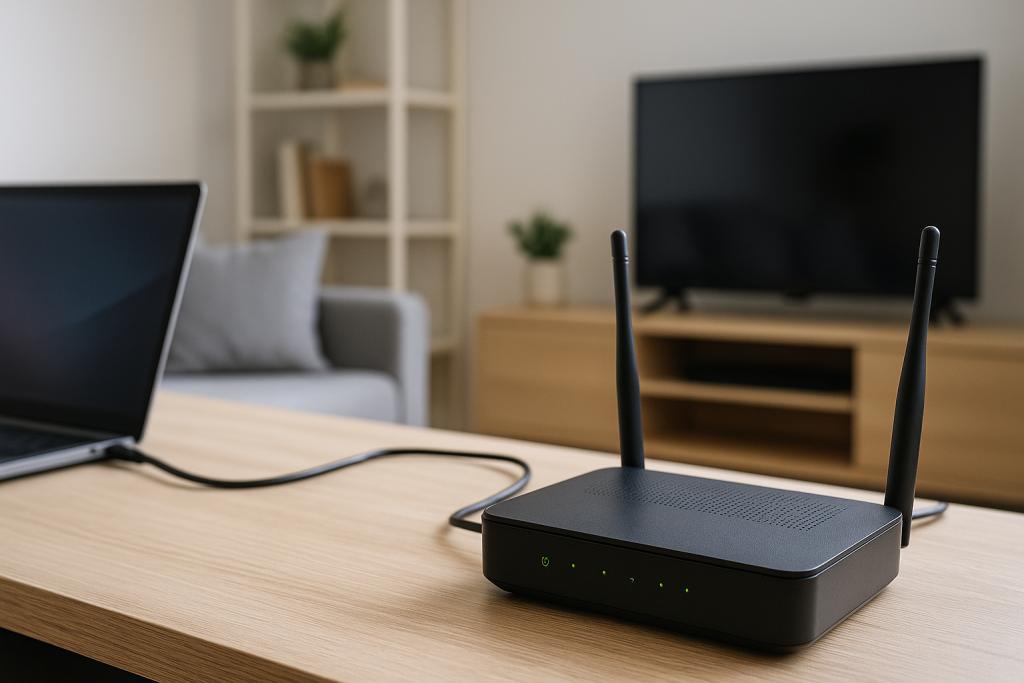
If your router drops out and restarts itself every night, it is more than an annoyance. Smart plugs go offline, backups fail, and streaming boxes kick you out of shows. The pattern is usually the same: everything is fine during the day, then at roughly the same time each night, the Wi‑Fi dies and the router reboots.
This behaviour is almost never random. Consumer routers and ISP hubs have several built-in timers, scheduled tasks and protection features that can all trigger a restart. The goal here is to identify which one is firing in your setup and turn it off or work around it.
In this guide we will walk through the most common reasons a router restarts overnight, how to diagnose each one, and the exact settings to change on typical UK ISP hardware like BT Smart Hub, Sky, Virgin Media, Plusnet and TalkTalk routers.
Understanding Why Routers Reboot Overnight
Routers are small computers with limited memory and firmware that needs occasional updates. Many vendors schedule heavy tasks for the early hours when they assume nobody is using the connection. When those tasks go wrong, you see nightly reboots.
From what I see in UK homes, the main causes fall into a handful of buckets: scheduled maintenance, overheating, power issues, firmware bugs, and ISP-side resets. Once you know which bucket you are in, the fix is usually straightforward.
Typical Symptoms When the Router Is Auto-Restarting
Before changing settings, confirm that you are dealing with an actual restart and not just Wi‑Fi dropping:
- All Wi‑Fi devices disconnect at once, both 2.4 GHz and 5 GHz bands.
- Wired devices lose connection at the same time as wireless devices.
- The router LEDs go off or change to a boot sequence (often flashing power or internet lights).
- Internet returns after 1–5 minutes without you touching anything.
- The issue occurs at roughly the same time each night, often between 1am and 5am.
If only one device drops (for example, just your iPhone or just your laptop), the problem is more likely on that device. In that case, you may want to look at guides like Fix iPhone Wi-Fi Randomly Disconnecting at Home instead.
In practice, when both wired and wireless devices drop together on a schedule, the router itself is almost always the culprit.
Core Technical Causes of Nightly Router Reboots
Most nightly restarts trace back to one of a few technical behaviours built into the router or enforced by the ISP. Understanding these will save you from random trial and error.
1. Scheduled Firmware Updates and Maintenance Windows
Many ISP routers automatically download and apply firmware updates in the early hours. Some apply updates silently, others reboot as part of the process. If the update fails or is retried repeatedly, you can see a reboot every night.
On some BT, Sky and Virgin hubs, there is no visible toggle for this. The hub simply reboots when the ISP pushes a new firmware or performs a line test. However, third-party routers often have an explicit “auto update” or “scheduled maintenance” option that you can disable.
I see this most often on ISP-supplied hubs that have recently had a major firmware revision rolled out across the network.
2. Misconfigured Scheduled Reboot or Wi‑Fi Timer
Many third-party routers include a scheduled reboot feature to clear memory and keep performance stable. Some also have Wi‑Fi on/off schedules. If these are enabled by default or misconfigured, the router may reboot or shut off Wi‑Fi at the same time every night.
This is especially common on cheaper mesh kits and older TP-Link / D-Link routers where the schedule is buried under “System Tools” or “Advanced” menus. A factory reset or quick setup wizard can sometimes enable a default schedule without you realising.
In practice, disabling all schedules under wireless and system settings stops the nightly reboot in about half of the cases I see on third-party routers.
3. Overheating Under Night-Time Load
Routers run hotter when multiple devices are streaming or backing up data. Many homes schedule cloud backups, console downloads or PC updates overnight. If the router is in a cupboard or on top of other warm equipment, it can hit its thermal limit and reboot to protect itself.
ISP hubs are particularly sensitive when placed on carpets, inside TV cabinets or stacked on set-top boxes. The plastic cases trap heat and dust, and the internal components are not designed for sustained high load in poor airflow.
I rarely see this issue on newer Wi‑Fi 6 routers with good ventilation, but it is still common on older ISP hubs and budget AC routers.
4. Power Instability and Smart Plugs
Short power dips or voltage drops can cause a router to restart even if other devices stay on. Routers have small power supplies and can be more sensitive than TVs or PCs. Night-time is when some homes see power fluctuations due to storage heaters, EV chargers or timed appliances.
Smart plugs and energy-saving extensions can also be the culprit. If you have the router plugged into a smart plug with a schedule, or a surge protector that cuts power when it thinks the load is low, the router may be losing power briefly each night.
In real homes, I see smart plugs causing more unexplained router reboots than any other accessory.
5. ISP Line Drops and Forced Re-Syncs
On DSL and some cable connections, the modem part of your router must maintain a stable sync with the cabinet or headend. If the line is noisy, the connection can drop and the router will go through a full reconnect sequence that looks like a reboot.
ISPs also perform overnight line tests and maintenance that can force a re-sync. This is more visible on older copper lines or when you are far from the cabinet. In these cases, the router may not actually reboot its internal OS, but from your perspective the internet disappears and the lights cycle.
This is the most common issue I see on older BT and TalkTalk copper lines in UK properties built before the 1990s.
6. Memory Leaks and Firmware Bugs
Some routers simply have unstable firmware. Over time, memory leaks or stuck processes can cause the router to crash. If the crash happens after a certain number of hours of uptime or under specific traffic patterns, it can appear as a nightly reboot.
Routers with USB file sharing, VPN servers or parental controls enabled are more prone to this, especially if those features are rarely updated. If the vendor has released a newer firmware, updating can stabilise the device. If not, replacing the router is often the only long-term fix.
This often fails on budget MediaTek chipsets where the vendor has stopped providing firmware updates.
Step-by-Step: How to Stop Your Router Restarting at Night
Work through these steps in order. After each change, monitor for at least two nights to see if the behaviour stops.
Step 1: Confirm the Exact Time and Pattern of the Reboots
First, pin down when the restarts happen and how often:
- Note the time when you lose connection. Check again the next night.
- Log into the router admin page the next day and look for a system log or event log.
- Look for entries like “System reboot”, “WAN disconnect”, “DSL resync” or “Firmware update” around that time.
- If your router shows uptime, note how long it has been running. If it is always less than 24 hours in the morning, it is rebooting overnight.
If the log shows only WAN disconnects but uptime is long, the line is dropping but the router OS is staying up. That points more to ISP or line issues than to a local reboot.
Step 2: Disable Any Scheduled Reboot or Wi‑Fi Timer
Next, remove any obvious schedules that could be triggering a restart:
- Log into the router admin interface from a wired or Wi‑Fi device.
- Check menus like “System Tools”, “Administration”, “Maintenance” or “Advanced”.
- Look for options named “Scheduled Reboot”, “Auto Reboot”, “Wi‑Fi Schedule”, “Wireless Timer” or “Night Mode”.
- Disable all schedules for now, or set them to “Never”.
- Save and reboot the router once manually during the day.
On some mesh systems, each node can have its own schedule. Make sure you check the main controller app for per-node settings as well. In practice, turning off every schedule in these menus resolves the issue on many third-party routers without touching ISP settings.
Step 3: Check for Firmware Updates and Auto-Update Settings
Now address the firmware side:
- In the router admin page, find the firmware or software section (often under “System”, “Administration” or “About”).
- Check if a new firmware version is available and apply it during the day, not at night.
- Look for an “Auto update” or “Automatic firmware” setting and, if available, change it to manual or to a specific time window when you are awake.
- After updating, perform a factory reset only if the vendor explicitly recommends it for that firmware.
ISP hubs usually update automatically without an option to disable it. For those, you mainly want to ensure you are on the latest stable firmware and then see if the nightly reboots stop after a few days.
On UK ISP hubs, I often see a cluster of nightly reboots for a week or two after a major firmware push, then things settle once the rollout completes.
Step 4: Improve Router Cooling and Reduce Night-Time Load
If the router feels warm to the touch or lives in a cramped space, treat overheating as a serious candidate:
- Move the router to an open, ventilated position away from radiators, AV receivers and game consoles.
- Stand it upright if the design allows, so vents are not blocked.
- Remove dust from vents using a can of compressed air (short bursts only).
- Avoid stacking the router on top of set-top boxes or NAS drives.
- Temporarily pause large overnight downloads or backups for a couple of nights to see if stability improves.
If the router stops rebooting when you move it or reduce load, you have confirmed a thermal issue. Long term, a better-ventilated router or a small desk fan can keep temperatures under control.
Step 5: Eliminate Smart Plugs and Questionable Power Strips
Next, make sure the router is getting clean, uninterrupted power:
- Unplug the router from any smart plug, timer socket or energy-saving extension.
- Plug the router directly into a standard wall socket for at least three nights.
- If you must use an extension, choose a simple surge-protected strip without energy-saving features.
- Check if any devices on the same circuit (heaters, EV chargers, washing machines) start at the same time as the reboots.
In practice, moving the router off a smart plug or cheap extension is where unstable behaviour often stops when everything else looks fine.
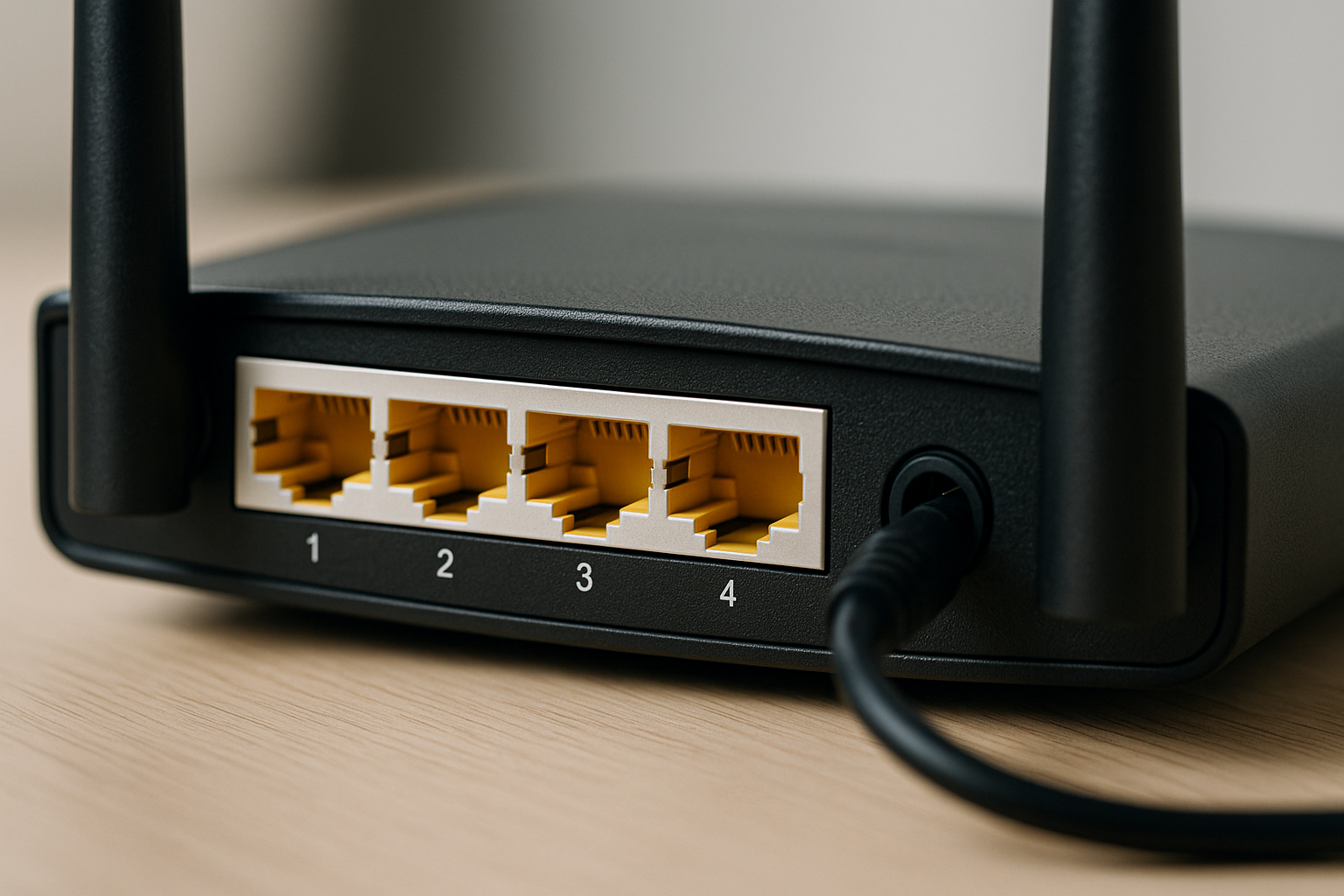
Step 6: Separate Modem and Router Roles (If Possible)
If your ISP allows it, putting the ISP hub into modem or bridge mode and using your own router can isolate where the restart is happening:
- Check your ISP documentation for “modem mode” or “bridge mode” support.
- Enable modem mode on the ISP hub so it only handles the line sync.
- Connect a separate router to the hub and configure it for PPPoE or DHCP as required.
- Monitor whether the new router reboots overnight or only the modem/hub loses sync.
If only the modem side drops but the router stays up, you are dealing with line or ISP maintenance rather than a router OS crash. That is useful evidence when speaking to your provider.
Seen most often on Virgin Media setups where the Super Hub is left in router mode and struggles under heavy Wi‑Fi load.
Step 7: Check for Line Issues and ISP Maintenance
When logs show repeated WAN disconnects or DSL resyncs, involve your ISP:
- Take screenshots of the router logs showing disconnects at the same time each night.
- Contact your ISP support and mention the regular pattern and any error codes.
- Ask if there is scheduled maintenance or DLM (Dynamic Line Management) activity on your line overnight.
- Request a line test and, if necessary, a visit to check the master socket and external cabling.
If you are seeing frequent disconnects but Wi‑Fi remains connected, you may also run into issues like “Wi‑Fi connected but no internet” on your devices. For that side of the problem, Fix Wi-Fi Connected but No Internet on BT / Sky / Virgin Routers covers device-level checks in more detail.
On UK copper lines, I often see nightly DLM adjustments causing resyncs for a few days after a fault is fixed, then the line stabilises.
Step 8: Replace an Unstable or Obsolete Router
If you have tried all previous steps and the router still reboots nightly, the hardware or firmware may simply be at the end of its life:
- Check the age of the router. Devices older than 5–7 years often have limited firmware support.
- Look up the model on the vendor site to see if firmware updates have stopped.
- Consider replacing it with a modern Wi‑Fi 6 or Wi‑Fi 7 router that supports regular updates and better thermal design.
- If you are on a mesh system, ensure the new hardware supports proper backhaul and channel management to avoid interference.
Switching to this type of hardware resolves problems commonly seen in similar setups where the ISP hub is overloaded by many smart devices and streaming clients.
Real-World Scenarios: How Nightly Reboots Show Up
Case 1: BT Smart Hub Rebooting at 2am Every Night
A typical pattern on BT FTTC lines is a Smart Hub that appears to reboot at around 2am nightly. The user notices streaming boxes disconnect and smart bulbs going offline, then everything comes back by itself.
In cases like this, the logs often show a DSL resync and PPP reconnect, not a full system reboot. That points to line management or maintenance. After BT completes a DLM adjustment or fixes a cabinet issue, the nightly resyncs usually stop without any change at home.
This is the most common issue I see on BT lines that have recently had a speed profile change or a fault repair.
Case 2: Third-Party Router with Hidden Reboot Schedule
On some TP-Link and Asus models, I have seen routers reboot exactly at 3am due to a default “auto reboot” schedule enabled in the firmware. The owner never set it; it was part of a “keep system healthy” feature.
Disabling the auto reboot and Wi‑Fi schedule in the advanced settings stopped the nightly dropouts immediately. No other changes were needed. This is why it is worth digging through every schedule-related menu even if you are sure you did not configure one.
Case 3: Router Overheating from Overnight Game Downloads
In a small flat, a Virgin hub sat in a closed TV cabinet with a PS5 and an AV receiver. Overnight, the console would download large game updates, and the hub would reboot around 4am when the cabinet got hot.
Moving the hub on top of the cabinet and leaving the doors slightly open eliminated the reboots. Later, the owner swapped to a separate Wi‑Fi 6 router in modem mode for better coverage and cooler operation.
In practice, I see this pattern whenever a router shares a cramped space with consoles and set-top boxes that are left in rest mode.
Common Mistakes When Trying to Fix Nightly Router Reboots
Ignoring the Router Logs
Many people never check the router logs and instead keep power cycling the device. The logs are often the only place you will see whether the issue is a WAN drop, a firmware update or a full crash.
Without that information, you can waste time changing Wi‑Fi channels or DNS settings that have nothing to do with the nightly reboot.
Blaming Wi‑Fi When the Line Is Dropping
If your devices show full Wi‑Fi bars but “no internet”, the problem is not the wireless radio. It is the WAN or modem side. Replacing the router with another Wi‑Fi access point will not fix a noisy copper line or ISP maintenance window.
In real homes, I often see people buy new mesh kits when the real fix was a master socket replacement or a line repair by the ISP.
Leaving the Router on a Smart Plug Schedule
Using a smart plug to power cycle the router daily might seem like a quick fix. In reality, it can hide the underlying problem and introduce new ones if the plug misfires or cuts power during a firmware update.
Hard power cuts are also harsher on flash storage than controlled reboots. Over time, that can shorten the life of the router.
Factory Resetting Without Backing Up Settings
A factory reset can help if the configuration is corrupted, but doing it blindly can cause more pain. Many users forget PPPoE credentials, static IP settings or port forwards that were set up years ago.
Always export a configuration backup first if your router supports it. That way you can restore essential settings after testing a clean configuration.
Hardware and Software Choices That Improve Stability
Choosing a Router That Handles Heavy Night-Time Load
If you have many smart devices, consoles and streaming boxes, a more capable router helps avoid crashes when everything updates overnight:
- Look for Wi‑Fi 6 or Wi‑Fi 7 routers with multi-core CPUs and at least 512 MB of RAM.
- Prefer models with clear firmware update policies and regular security patches.
- Check that the router supports separate guest networks and proper QoS to keep backups from killing latency.
- For dense UK homes, consider mesh systems that can handle interference, as covered in depth in Fix Slow Wi-Fi Speeds on Mesh Systems in UK Homes.
Switching to this type of hardware avoids the limitations described earlier where older ISP hubs overheat or run out of memory under overnight traffic.
Using a Small UPS for Clean Power
If you suspect power dips, a small uninterruptible power supply (UPS) can keep the router stable:
- Connect only the router and modem to the UPS to maximise runtime.
- Choose a model with automatic voltage regulation (AVR) to smooth out minor sags.
- Position the UPS somewhere ventilated and accessible for battery replacement.
In practice, a basic UPS is often enough to stop random reboots in older UK properties with marginal wiring.
Keeping Client Devices Updated and Stable
While the router is the main focus, unstable clients can also trigger heavy traffic or odd behaviour overnight:
- Ensure Windows, macOS, iOS and Android devices are updated to current versions.
- On Windows, check for network driver updates via Device Manager or the vendor site.
- Review backup and sync schedules so they do not all hit the network at the same time.
For detailed Windows network troubleshooting, Microsoft’s guide to troubleshooting network connection issues in Windows is a solid reference, and for iPhone Wi‑Fi behaviour Apple’s official article on resolving Wi‑Fi issues on iPhone and iPad covers device-side checks.
Conclusion: Stabilising Your Night-Time Connection
A router that restarts every night is usually following a pattern, not failing randomly. By checking logs, disabling schedules, improving cooling, cleaning up power and understanding what your ISP is doing on the line, you can narrow down the cause quickly.
If you reach the point where only a hardware swap fixes the issue, treat it as a chance to modernise your network. A stable, well-ventilated router with sensible firmware support will handle overnight updates, backups and streaming without dropping the entire house offline.
FAQ: Edge Cases When Routers Restart Overnight
Why does my BT router only restart at night when my gaming PC is on, but not when it is off?
This usually means the extra traffic from the gaming PC is pushing the router over a thermal or memory limit. Overnight game updates, cloud saves and launchers can generate sustained downloads that a daytime browsing pattern never hits. In real homes, I often see this on older ISP hubs that sit in warm TV cabinets. Moving the hub and limiting overnight downloads for a few nights is the quickest way to confirm this theory.
Why does my router stay up for laptops but reboot when my Android phone is on Wi‑Fi overnight?
Some Android phones run aggressive backup and photo sync jobs when charging on Wi‑Fi, which can hammer a weak router with many small connections. Laptops on sleep or hibernate do not generate that load. If the router only reboots when the phone is plugged in overnight, try disabling cloud backup for one night as a test. This is most common on older routers with limited RAM and basic NAT tables.
Why does my Sky or Virgin router reboot at 1am in my UK flat but not at my parents’ house?
ISPs often have region-specific maintenance windows and different cabinet or headend hardware, so your line may be on a schedule that theirs is not. Flats also tend to have more electrical noise and shared wiring, which can make marginal lines drop more easily. If the logs show WAN disconnects at the same time nightly, it is likely ISP-side activity rather than your local wiring. In practice, moving to a separate router in modem mode can make the behaviour less disruptive even if the line still resyncs.
Why does my router only restart when my smart plug energy-saving mode is enabled?
Energy-saving modes on smart plugs sometimes cut or dip power when they think the load is low, and routers draw very little power. That small dip is enough to cause a reboot even though other devices on the same strip stay on. Disabling energy-saving features or plugging the router directly into the wall usually stops the issue. This is the most common issue I see when routers are paired with cheap smart plugs in UK homes.
Why does my mesh Wi‑Fi system reboot nodes at night but the main router stays online?
Some mesh systems run optimisation or channel re-selection jobs overnight that can restart individual nodes. If the backhaul link is weak or the firmware is flaky, those jobs can look like full reboots. On UK laptops and phones, you will see devices jumping between nodes or briefly losing Wi‑Fi even though the internet connection itself is fine. Updating the mesh firmware and improving node placement usually reduces or removes these night-time resets.
Why does my router only restart when Windows 11 laptops are on, not older Windows 10 machines?
Windows 11 tends to be more aggressive with background updates, OneDrive sync and Store app traffic, especially on fresh installs. That extra concurrent traffic can expose firmware bugs or memory leaks in older routers that Windows 10 never triggered. On UK laptops sold before 2024, I often see outdated Wi‑Fi drivers combine with this behaviour to stress the router further. Updating both the router firmware and the Windows 11 network drivers is the first step before blaming the ISP.
Recommended gear on Amazon UK
- Switching to a modern Wi‑Fi 6 dual-band router helps when nightly reboots are caused by older ISP hubs running out of memory under heavy overnight downloads and backups. View Wi‑Fi 6 dual-band router on Amazon UK
- A mesh Wi‑Fi system is useful when your current single router overheats or crashes at night because it is hidden in a cupboard trying to cover the whole house alone. View Mesh Wi‑Fi system for UK homes on Amazon UK
- A compact UPS for just the router and modem helps where unexplained night-time restarts are actually short power dips or voltage drops on older UK wiring. View Small UPS for router and modem on Amazon UK
- A simple surge-protected extension lead without energy-saving features is useful when smart plugs or advanced strips are cutting power and making the router reboot every night. View Basic surge-protected power strip on Amazon UK
- A ventilated wall mount for your router helps in setups where the device currently sits in a hot TV cabinet and overheats during overnight game downloads or cloud backups. View Ventilated router wall mount on Amazon UK







