
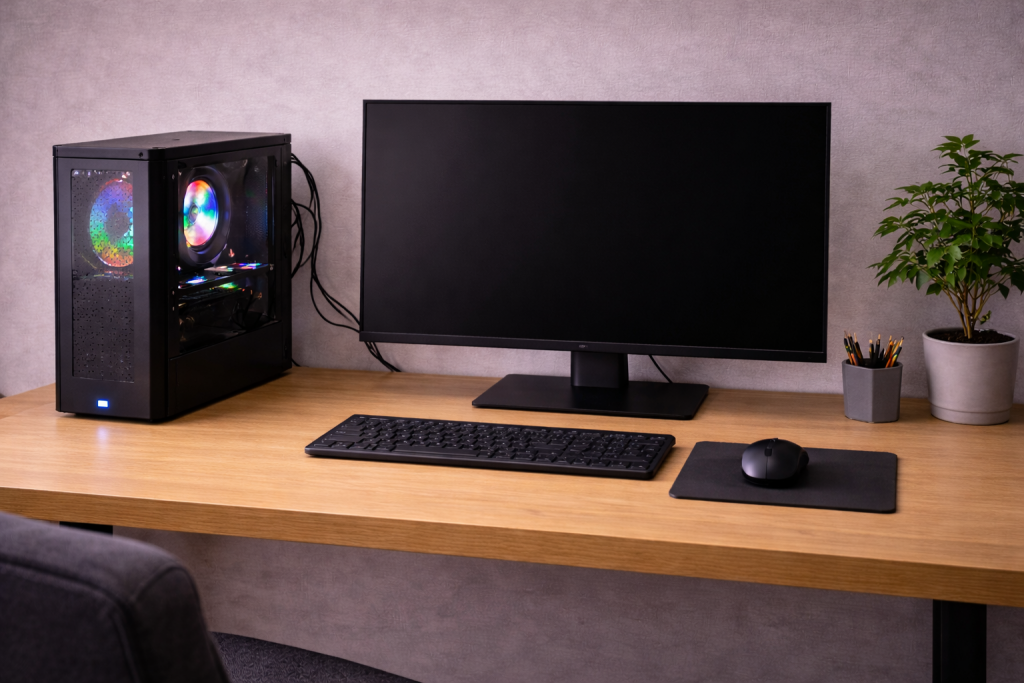
When the PC has power but the screen stays black
A PC that “turns on” with fans spinning and LEDs lit but shows no display output is usually failing before it can hand video to the monitor. That can be as simple as the wrong input on the display, or as deep as a CPU/RAM initialisation problem where the motherboard never reaches POST.
The key is to stop guessing and work from the outside in: monitor and cable, then GPU and slots, then RAM, then power and firmware. I see people jump straight to “dead GPU” when it’s actually a loose DisplayPort plug or the monitor on the wrong source.
This checklist is written for typical UK home setups: HDMI/DisplayPort monitors, mixed iGPU + dedicated GPU desktops, and the common “new build won’t display” scenario.
What “no display output” actually means (signal vs boot)
There are two different failure states that look identical from your chair: the PC is booting but you’re not seeing it, or the PC is not booting far enough to initialise video. Your job is to separate those quickly.
State A: The PC boots, but the display path is wrong
- Monitor is on the wrong input (HDMI 1 vs HDMI 2, DP vs HDMI).
- Cable/adapter is faulty or not seated.
- You’re plugged into the motherboard HDMI while the CPU has no integrated graphics.
- GPU output is fine, but the monitor can’t sync to the current mode (rare, but happens with odd refresh rates).
In practice, this is the most common issue I see on devices sold in the UK before 2024, especially when people move a PC and replug everything in a hurry.
State B: The PC never reaches POST (no video because no boot)
- RAM not seated, wrong slots, or unstable XMP/EXPO.
- GPU not seated or missing PCIe power.
- CPU power (EPS 8-pin) not connected.
- BIOS needs an update for the CPU.
- Short to case, standoff issue, or front-panel wiring confusion.
If you have a motherboard speaker, debug LEDs, or a Q-code display, they’re extremely useful here. If not, you can still diagnose with a minimal-boot approach.
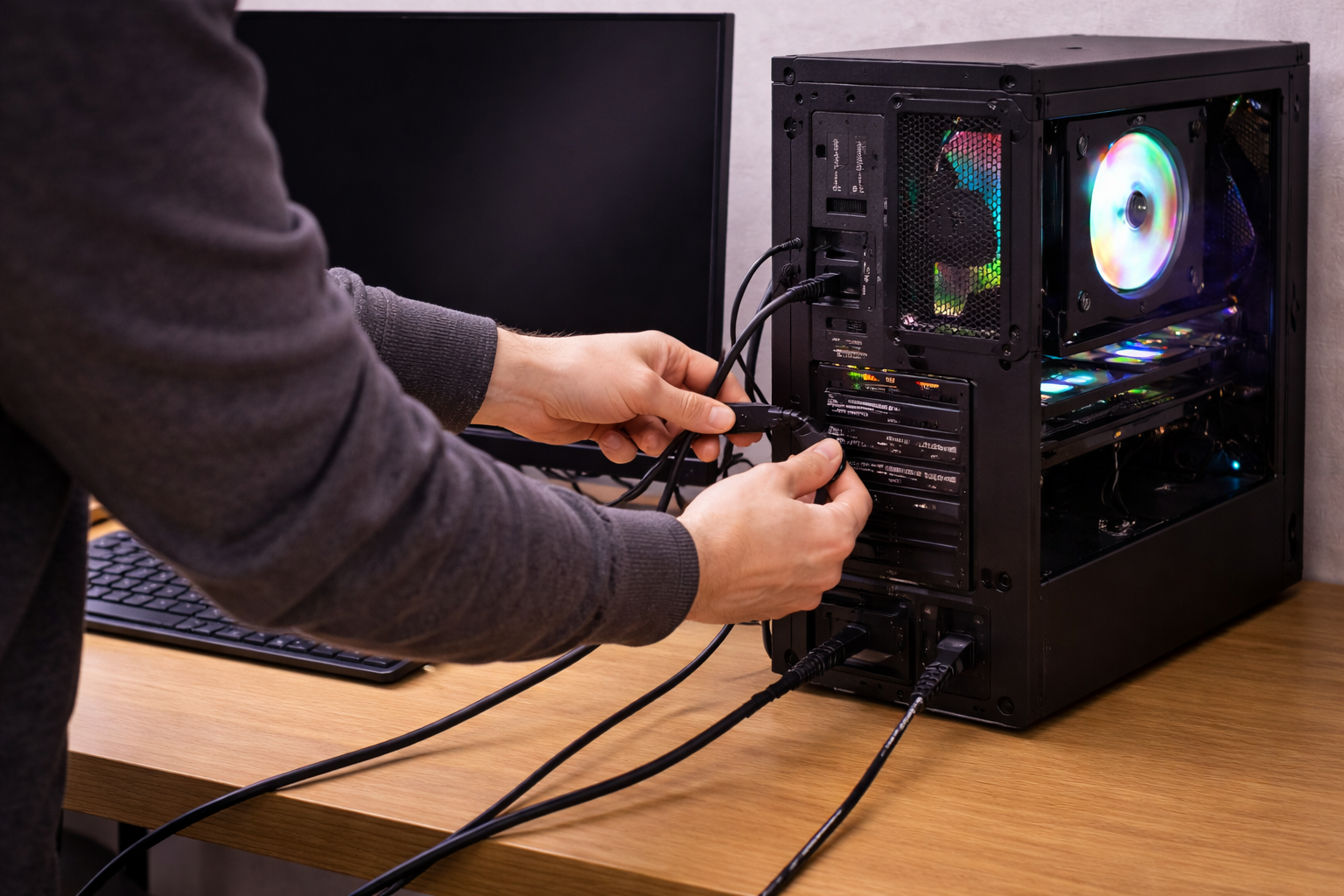
Before you open the case: quick external checks that save time
1) Confirm the monitor is actually receiving the right input
- Use the monitor’s input/source button and manually select the port you’re using.
- Power-cycle the monitor: unplug it from mains for 20 seconds, then plug back in.
- If it’s a TV, disable any “auto input switching” quirks and pick the HDMI port explicitly.
If your screen shows an on-screen menu clearly, the panel is alive; you’re chasing signal, not a dead monitor.
2) Swap the cable and avoid adapters for the test
- Try a different HDMI or DisplayPort cable you trust.
- Avoid DP-to-HDMI adapters during diagnosis; they add another failure point.
- Reseat both ends firmly; DisplayPort especially can feel “in” when it isn’t latched.
When I’m troubleshooting, I treat the cable as guilty until proven innocent. A surprising number of “no display” calls end with a cable swap.
3) Test the monitor with another device
- Plug the monitor into a laptop, console, or streaming box using the same input.
- If that works, your monitor/input is fine and the PC is the variable.
4) Check you’re plugged into the correct video output on the PC
- If you have a dedicated GPU, plug the monitor into the GPU ports, not the motherboard.
- If you’re using motherboard HDMI/DP, confirm your CPU actually has an iGPU (many Ryzen models do not).
This is the single most common “new build” mistake I see: everything is assembled correctly, but the display cable is in the wrong place.
Inside-the-case diagnostics: the shortest path to a first picture
Safety and setup
- Shut down, switch the PSU off, and unplug the mains lead.
- Press the power button once to discharge.
- Work with good light; take a quick photo of cabling before you move things.
Step 1: Look for motherboard debug LEDs / beep codes
Many boards have LEDs labelled CPU, DRAM, VGA, BOOT. If one stays lit, it tells you where POST is failing. If you have a speaker, beep codes can point to RAM or GPU immediately.
- DRAM LED: RAM seating/compatibility/XMP issue is likely.
- VGA LED: GPU seating/power/output path issue is likely.
- CPU LED: CPU power, socket seating, or BIOS support issue is likely.
Step 2: Reseat the GPU and confirm PCIe power is correct
- Remove the GPU and reinsert it firmly until the slot latch clicks.
- Confirm the PCIe power plugs are fully seated (6-pin/8-pin/12VHPWR depending on card).
- If your PSU has multiple PCIe cables, use separate cables for high-draw GPUs rather than daisy-chaining.
I’ve lost count of how many “dead GPU” reports were actually a half-seated PCIe plug, especially after a PC has been transported.
Step 3: Reseat RAM, then try one stick in the recommended slot
- Remove all RAM sticks.
- Install a single stick in the motherboard’s primary slot (often A2, but check the board manual).
- Boot and watch for any change (fans behaviour, debug LEDs, reboots).
- If no change, try the same stick in a different slot, then try the other stick alone.
In practice, this step fixes the problem in about half of cases where the PC powers but never shows a BIOS screen, particularly right after a build or upgrade.
Step 4: Clear CMOS properly (don’t just “tap” the pins)
- Use the Clear CMOS button if your board has one.
- Otherwise, move the jumper as per the manual, or remove the coin-cell battery for 5 minutes with PSU unplugged.
- After clearing, boot once with default settings (no XMP/EXPO).
A bad memory profile can stop video initialisation. Clearing CMOS removes that variable fast.
Step 5: Confirm the CPU power connectors (EPS 8-pin) are connected
Many PSUs have both PCIe 8-pin and EPS 8-pin connectors that look similar. The CPU socket on the motherboard needs EPS, and some boards want 8-pin + 4-pin or 8-pin + 8-pin for stability.
- Make sure the top-left CPU power is connected and fully seated.
- Do not force a PCIe 8-pin into an EPS socket.
Seen most often on first-time builds where the system “runs” but never reaches a display output.
Step 6: Minimal boot (“bench test”) to rule out shorts and extras
If you’re still stuck, reduce the system to the minimum required to POST:
- Motherboard + CPU + CPU cooler
- One RAM stick
- GPU (only if you don’t have iGPU)
- PSU
Disconnect everything else: extra drives, RGB hubs, USB headers, front-panel USB, and even the case fans if needed. If it boots outside the case (on the motherboard box), you likely have a standoff/short or a case wiring issue.
Firmware and platform gotchas that block first boot
BIOS support for newer CPUs (common on AMD builds)
A motherboard can power on but fail to display if the BIOS doesn’t support the CPU generation installed. This is especially common when pairing a newer Ryzen CPU with an older B550/X570 board that’s been on a shelf.
- Check the motherboard box for “Ryzen 5000 ready” / similar stickers (not perfect, but a hint).
- If your board supports BIOS Flashback, you can update without a working display.
- If not, you may need an older supported CPU to flash, or a shop to do it.
I rarely see this issue on newer platforms where boards ship with up-to-date firmware, but it still shows up in UK builds using older stock.
UEFI vs legacy and GPU compatibility
Some older GPUs or unusual display adapters behave badly with strict UEFI settings. Clearing CMOS usually resets this, but if you can reach BIOS later, ensure CSM/legacy settings match your hardware.
Memory training delays (don’t power-cycle too quickly)
On some DDR5 systems, the first boot after a CMOS clear can sit on a black screen while the board trains memory. Give it time.
- Wait 3–5 minutes on the first boot before assuming it’s dead.
- Watch debug LEDs; if they cycle, it may be training rather than stuck.
A practical troubleshooting flow (do it in this order)
- Monitor input + cable swap (fastest, no tools).
- Correct port on PC (GPU vs motherboard output).
- Power drain + reboot (PSU off, unplug, hold power 10 seconds).
- Reseat GPU + check PCIe power.
- One-stick RAM test in the recommended slot.
- Clear CMOS and boot at defaults.
- Minimal boot outside the case to rule out shorts/extras.
- BIOS update path if CPU support is suspected.
If you want a related HDMI “no signal” checklist for displays and TVs, see this HDMI no signal troubleshooting guide.
Real-world failure stories (what the symptoms usually mean)
Scenario 1: “It worked yesterday, now it powers on but no display”
This is often a cable, input selection, or a GPU that has shifted slightly in the slot. I see it a lot after cleaning, moving house, or even just rotating a desk setup.
- Start with a different cable and a different GPU output port.
- Reseat the GPU and RAM once; don’t repeatedly power-cycle between half-steps.
Scenario 2: “New GPU installed, fans spin, black screen”
The usual causes are missing PCIe power, using the wrong PSU cable, or the monitor still being plugged into the motherboard. Another common one is a DP handshake issue where HDMI works but DP doesn’t on first boot.
- Try HDMI first for initial POST, then switch to DP later.
- Confirm the GPU is the primary display device in BIOS once you can see it.
This is the most common issue I see when people upgrade mid-range systems: the GPU is fine, but the power cabling isn’t.
Scenario 3: “New build: no display, motherboard lights on”
New builds fail on basics: CPU EPS power not connected, RAM in the wrong slots, or a BIOS that doesn’t support the CPU. If you have debug LEDs, trust them and follow the first LED that stays lit.
- Do a one-stick RAM boot at stock settings.
- Clear CMOS and wait for memory training.
- Consider BIOS Flashback if CPU support is questionable.
Scenario 4: “PC boots (Windows sounds), but monitor says No Signal”
That points away from CPU/RAM and toward the display path. It can also be Windows choosing a “phantom” display output after a driver update or when a TV was previously connected.
- Try a different output on the GPU (HDMI instead of DP).
- Boot with only one display connected.
- If you can remote in, reset display settings and reinstall GPU drivers.
For Windows stability issues that can follow updates and driver changes, this Windows 11 post-update fix checklist pairs well with the steps above.
Mistakes that waste the most time
- Assuming the GPU is dead first: most “dead GPU” cases I see are power or seating.
- Using adapters during diagnosis: DP-to-HDMI and USB-C docks can hide the real issue.
- Rapid power-cycling: DDR5 training and some boards need time after CMOS clear.
- Mixing up EPS and PCIe 8-pin: they can look similar; the wrong one causes no-POST behaviour.
- Changing multiple variables at once: swap one thing, test, then move on.
Tools and parts that make this easier (and why)
Known-good cables and a simple monitor
Having one known-good HDMI cable and a basic 1080p monitor removes a lot of uncertainty. In real homes, the “nice” monitor is often the least compatible part during first boot because of DP handshakes, KVMs, or odd refresh settings.
If you need a reliable baseline cable for testing, a known-good HDMI cable is often the quickest way to remove the most common variable.
POST speaker (if your board supports it)
A £2 speaker can save hours. Beep codes immediately tell you if RAM or GPU is the problem when there’s no display.
Documentation that matters (not random forum guesses)
- Microsoft’s Windows recovery and startup repair overview is useful if you confirm the PC is booting but the display stays blank after the BIOS screen.
- NVIDIA’s driver installation and troubleshooting documentation helps when the system posts but loses display after a driver change or GPU swap.
Wrap-up: get a picture first, then optimise
When a PC turns on but has no display output, the fastest wins come from isolating the display path and forcing a minimal, default boot. Start with input and cable, confirm the correct port (GPU vs motherboard), then move inward to GPU seating/power, one-stick RAM, and a proper CMOS clear.
Once you get a BIOS screen, stop changing hardware and stabilise the configuration: default memory settings first, then enable XMP/EXPO later, and only then move to driver updates and multi-monitor setups. That sequence avoids the loop where you “fix” the display but reintroduce the fault immediately.
FAQ: edge cases people get stuck on
Why does my PC show BIOS on HDMI but stays black on DisplayPort?
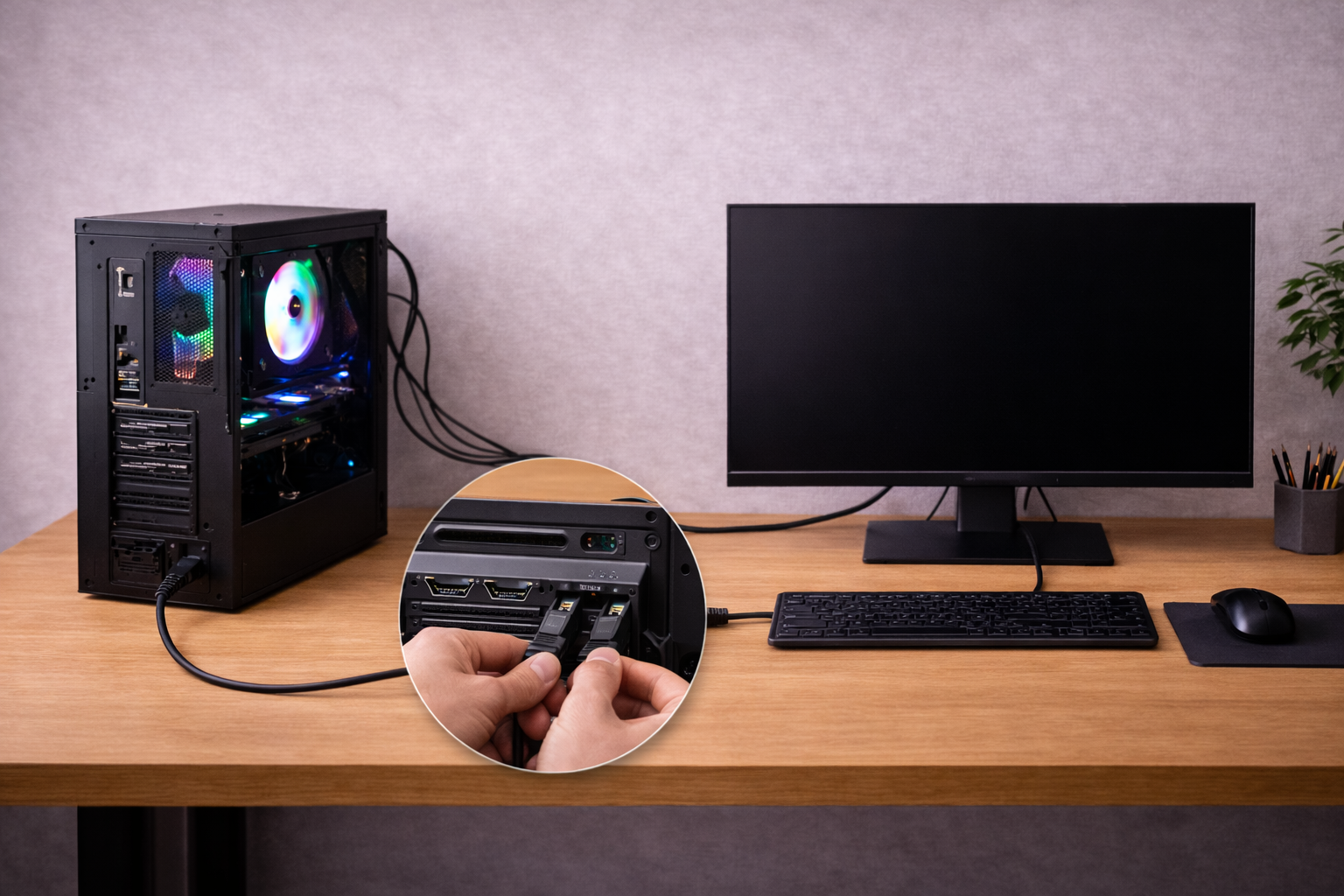
This is usually a DisplayPort handshake issue between the GPU and monitor, especially through docks, KVMs, or older DP cables. I often get first POST on HDMI, then switch to DP after updating GPU drivers and setting a normal refresh rate. In practice, swapping the DP cable fixes it more often than changing any settings.
My PC turns on but there’s no display after enabling XMP/EXPO—what happened?
You likely pushed the memory controller into an unstable training state, so the board fails before video initialises. Clear CMOS, boot at defaults, then re-enable XMP/EXPO and test stability gradually. Seen most often on DDR5 kits that are fine on paper but picky about specific motherboard BIOS versions.
Why is there no display when I plug into the motherboard HDMI on my Ryzen desktop?
Many Ryzen CPUs (common in UK prebuilt and DIY systems) do not have integrated graphics, so the motherboard video ports do nothing. You must use the dedicated GPU outputs, or use a Ryzen “G” series APU that includes an iGPU. This mistake is extremely common on first builds because the motherboard ports look like the obvious choice.
My fans spin, but the PC keeps restarting and never shows a picture—what should I check first?
Start with RAM (one stick, correct slot) and CPU power (EPS 8-pin seated). Reboot loops with no display are often DRAM training failures or a marginal power connection rather than a dead CPU. I see this a lot after people partially reseat cables without fully clicking them in.
In the UK, can a 13A extension lead or power strip cause “no display” issues?
It can, but usually indirectly: a flaky extension or overloaded strip causes brief brownouts that look like random resets, not a clean “no signal” state. For diagnosis, plug the PC and monitor directly into a wall socket and remove any smart plugs or surge strips from the chain. In real homes, unstable mains setups show up as intermittent boot behaviour rather than a consistent black screen.
Recommended gear on Amazon UK
- In practice, a known-good HDMI cable is the fastest way to rule out a flaky lead when the PC powers on but the monitor keeps showing no signal. View Known-good HDMI cable (2m) on Amazon UK
- Switching to a proper DisplayPort cable helps in the scenario where BIOS appears on HDMI but DisplayPort stays black due to handshake or cable issues. View DisplayPort 1.4 cable on Amazon UK
- A simple POST speaker helps when there’s no display output because beep codes quickly point to RAM or GPU faults during no-POST situations. View PC motherboard speaker (POST buzzer) on Amazon UK
- A PSU tester is useful when the system powers on but behaves inconsistently, letting you check basic rails before you chase GPU or motherboard faults. View ATX power supply tester on Amazon UK







