
What “HDR flicker” looks like (and what it isn’t)
OLED flickering with HDR enabled usually shows up as rapid brightness pulsing in dark scenes, flashing during menu overlays, or brief blackouts when content switches between SDR and HDR. On PCs it can look like the whole desktop “breathes” in brightness, especially when you move a window or open a game overlay.
It’s important to separate true flicker from normal OLED behaviour. OLEDs use automatic brightness limiting (ABL) and near-black compensation, so subtle changes in very dark content can look like shimmer. The problem you’re fixing here is obvious instability: repeated pulsing, flashing, or signal dropouts that only happen when HDR is on.
If the screen goes fully black for a second and then returns, treat it as a signal/handshake issue. If the image stays but the brightness pulses, treat it as a refresh-rate/VRR/dimming interaction.
Why HDR can trigger flicker on OLED panels
HDR changes the entire pipeline: the source outputs a different colour space, different electro-optical transfer function (PQ), and often a different bit depth and chroma format. That pushes HDMI bandwidth, changes the TV’s processing path, and can enable features like dynamic tone mapping that don’t run in the same way in SDR.
In practice, OLED HDR flicker usually comes from one of four buckets:
- VRR + near-black instability: variable refresh rate changes frame timing, and OLED near-black compensation can “hunt” in dark scenes.
- HDMI link instability: the cable/port can’t reliably hold 4K HDR at high refresh rates, causing brief resyncs.
- Format mismatch: 12-bit output, RGB Full/Limited mismatch, or chroma settings that push bandwidth or confuse the display.
- Processing conflicts: dynamic tone mapping, local contrast enhancers, motion interpolation, or power saving interacting with HDR.
This is the most common issue I see on devices sold in the UK before 2024 when people mix older “High Speed” HDMI leads with 4K 120Hz HDR sources.
Fast triage: identify whether it’s the source, the cable, or the TV
Before changing ten settings, do three quick checks to narrow it down.
- Does flicker happen on the TV’s built-in apps? If Netflix/Disney+ HDR flickers, it’s likely a TV setting/firmware/panel behaviour. If built-in apps are fine but HDMI sources flicker, suspect HDMI link, source settings, or VRR.
- Does it happen on one HDMI input only? If yes, it’s often that port’s mode (Enhanced/4K120) or a marginal cable run.
- Does it stop if you disable VRR or drop to 60Hz? If yes, you’re in the VRR/refresh-rate bucket rather than a broken panel.
I’ve had multiple cases where the “fix” was simply moving the console from an AVR pass-through to a direct TV port, because the receiver couldn’t hold stable 4K HDR at 120Hz.
What’s actually happening: VRR flicker vs HDMI resync
VRR flicker (brightness pulsing, mostly in dark scenes)
VRR changes refresh timing frame by frame. In near-black HDR scenes, OLED compensation and gamma tracking are extremely sensitive. When the frame rate swings (for example 48–90fps), the TV can visibly pulse brightness or show a subtle flashing in shadows.
This is seen most often on PC gaming and some console titles with unstable frame pacing. It’s not “burn-in” and it’s not a dead panel; it’s a timing/processing interaction.
HDMI resync (brief black screen, “no signal”, then returns)
If you see a one-second blackout, the HDMI link is renegotiating. HDR at 4K 120Hz can push the link close to its limit. A marginal cable, a long run, a wall plate, or an AVR/switch can cause intermittent errors that force a resync.
In real homes, not lab setups, the weakest link is usually the cable or an intermediate device like a soundbar/receiver pass-through.
Step-by-step fixes (do these in order)
Work top to bottom. After each step, test with the same HDR scene for at least 5 minutes (dark game area, HDR calibration screen, or a dim movie scene). Don’t change multiple variables at once.
1) Power-cycle properly to clear HDMI handshake state
- Turn off the TV and the source (console/PC/streaming box).
- Unplug both from mains for 60 seconds.
- Reconnect power, then connect HDMI, then power on TV first, then the source.
This sounds basic, but it clears stuck EDID/HDCP negotiation states. In practice, this step fixes the problem in about half of “it started after an update” cases.
2) Disable VRR as a diagnostic (then re-enable with constraints)
On consoles, toggle VRR off and test HDR again. On PC, disable G-SYNC/FreeSync for the display and test.
- If flicker stops: you likely have VRR near-black flicker. Keep reading for mitigation.
- If flicker continues: move to HDMI format/bandwidth steps.
When VRR is the trigger, the most reliable mitigation is to stabilise frame rate (cap fps) and avoid the low end of the VRR range where pulsing is worst.
3) Force 4K 60Hz HDR to prove bandwidth headroom
Set the source to 4K 60Hz with HDR on. If the issue disappears at 60Hz but returns at 120Hz, you’re dealing with bandwidth or signal integrity.
- PS5: set 120Hz Output to Off temporarily.
- Xbox Series X|S: set refresh to 60Hz temporarily and disable “Allow 4K” then re-enable to re-negotiate.
- Windows 11: set display refresh rate to 60Hz, then toggle HDR on.
Seen most often on long HDMI runs (5m+) and on setups using wall plates or cheap couplers.
4) Use the TV’s correct HDMI mode (Enhanced/4K120/Deep Colour)
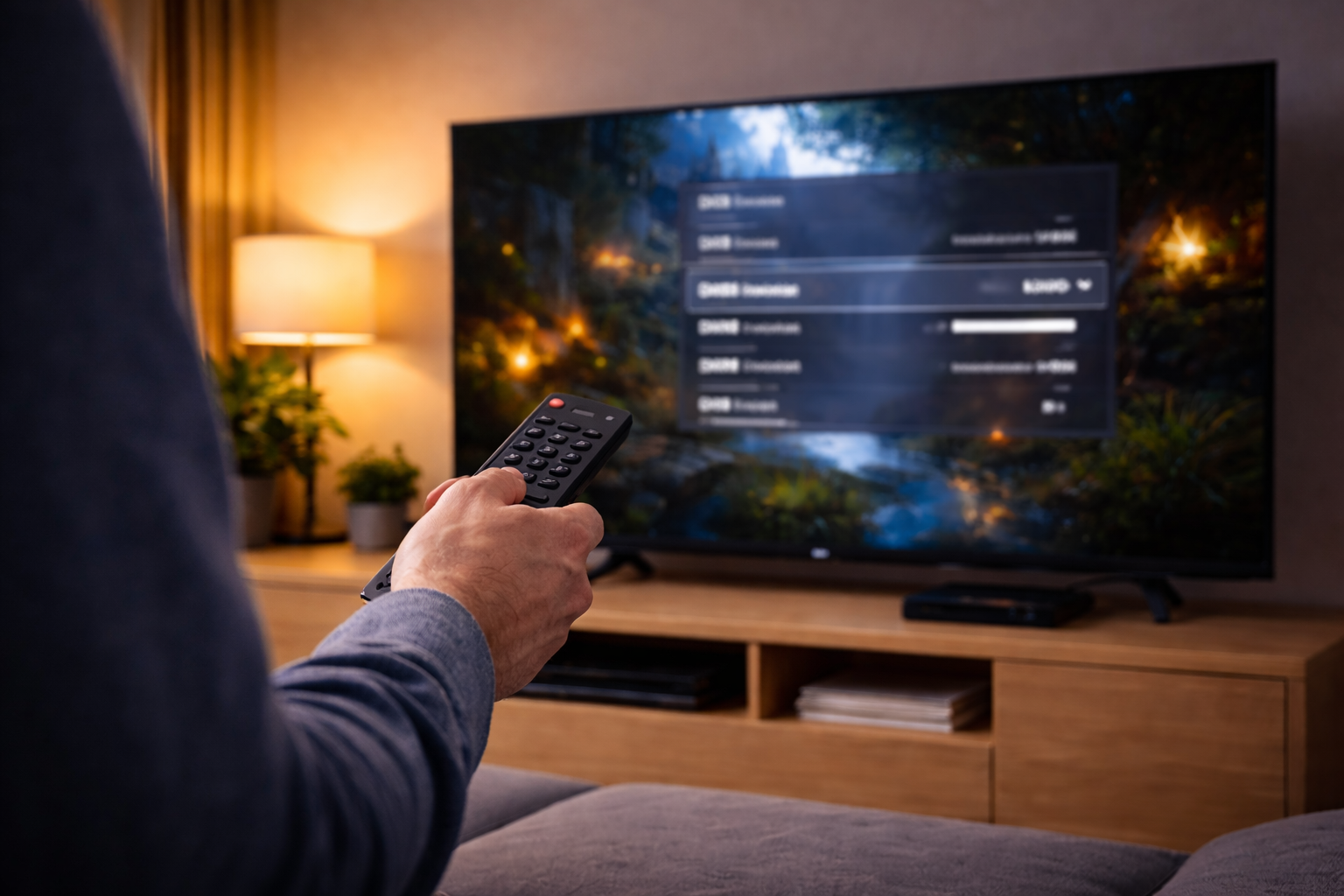
Many OLED TVs require enabling an “Enhanced” HDMI mode per port to accept full-bandwidth HDR. If this is mis-set, you can get unstable behaviour rather than a clean failure.
- Enable the port’s enhanced mode (wording varies: Enhanced, 4K Enhanced, HDMI Ultra HD Deep Colour, Input Signal Plus).
- After changing it, power-cycle the TV and source to force a fresh handshake.
If you’re unsure where your model hides this, use the manufacturer’s support pages for your exact series. For LG owners, LG TV support: enable HDMI Ultra HD Deep Colour is the right starting point.
5) Fix HDR format mismatches on PC (bit depth, chroma, RGB range)
PCs can output combinations that are technically valid but fragile over HDMI, especially at 4K 120Hz. The goal is to reduce bandwidth while keeping HDR stable.
- Try 10-bit instead of 12-bit output.
- Try YCbCr 4:2:2 at 4K 120Hz if RGB causes dropouts.
- Match RGB range: if the TV expects Limited and the GPU outputs Full (or vice versa), you can get raised blacks or odd near-black behaviour that looks like flicker.
On NVIDIA GPUs, the quickest path is to set output colour depth to 10 bpc and test both RGB and YCbCr 4:2:2. This is one of those fixes that feels “too simple” but it stops a lot of HDR instability on OLEDs.
6) Turn off dynamic tone mapping and “contrast enhancers” temporarily
Dynamic tone mapping can change brightness scene-to-scene, and when combined with VRR or unstable frame pacing it can look like flicker. For diagnosis, disable:
- Dynamic tone mapping / HDR tone mapping (set to Off or HGIG where available)
- Dynamic contrast / contrast enhancer
- Auto brightness / ambient light sensor modes
- Power saving / eco modes
If the flicker stops, re-enable features one by one. I rarely see eco modes behave well with HDR gaming because they react to UI overlays and menus.
7) Update firmware on both ends (TV and source)
HDR handshake and VRR behaviour is frequently improved in firmware. Update the TV, then update the console/streaming box, then update GPU drivers on PC.
For Windows HDR quirks, Microsoft support: HDR settings in Windows is the most reliable reference for where the toggles moved between builds.
8) Replace the HDMI cable (and remove weak links)
If youhave any of these, treat the cable path as suspect:
- 4K 120Hz HDR
- HDMI run longer than 3m
- Wall plates, couplers, capture devices, splitters
- AVR or soundbar HDMI pass-through
Use a certified Ultra High Speed HDMI cable and test source-to-TV direct. If direct works but pass-through fails, your receiver/soundbar is the limiter.
In practice, issues like this often come down to the cable itself rather than the TV or console.
9) If VRR is the culprit: stabilise frame rate and avoid the low VRR range
When VRR flicker is confirmed (brightness pulsing without blackouts), you’re managing it rather than “curing” it.
- Cap frame rate slightly below the max refresh (e.g. 117fps for 120Hz) to reduce swings.
- Use in-game V-Sync carefully; some games have poor frame pacing that makes VRR look worse.
- Prefer 60Hz HDR for titles that hover near the low end of VRR.
- Try a different HDR mode (HGIG vs Dynamic Tone Mapping) and re-test the same dark scene.
This often fails on budget MediaTek chipset devices used as HDMI switches or cheap capture boxes, because they introduce timing jitter that VRR amplifies.
Real-world setups where I see HDR flicker most
Scenario A: PS5 to OLED, flickers only in 120Hz HDR games
This is usually either VRR near-black flicker or a borderline HDMI link. The fastest isolation is: disable VRR, keep HDR on, keep 120Hz on. If flicker stops, it’s VRR. If it continues, drop to 60Hz; if that fixes it, it’s bandwidth/cable.
When it’s cable-related, swapping to a certified Ultra High Speed lead and avoiding a wall plate fixes it more often than changing TV picture settings.
Scenario B: Windows 11 PC, HDR desktop “pulses” when opening apps
This is commonly a mix of Windows HDR calibration, GPU output format, and the TV’s dynamic tone mapping. I usually start by setting 10-bit output, switching to YCbCr 4:2:2 at 4K 120Hz, and disabling dynamic contrast/tone mapping on the TV.
If you also use VRR, cap frame rate and test a fixed-refresh mode to confirm whether VRR is the trigger.
Scenario C: Apple TV / streaming box flickers when content switches SDR to HDR
That points to handshake and format switching. Match frame rate and match dynamic range settings can cause frequent mode changes; if the HDMI link is marginal, you’ll see blackouts.
Direct-to-TV testing is the quickest way to rule out a receiver or soundbar pass-through. If you need help wiring it cleanly, see connect your TV, soundbar and console the right way.
Mistakes that make OLED HDR flicker harder to fix
- Changing five settings at once: you won’t know whether VRR, tone mapping, or HDMI format was the real cause.
- Assuming “12-bit is better”: 12-bit output often forces formats that increase bandwidth or trigger unstable negotiation.
- Leaving eco/ambient modes on: they can react to HUDs and menus, which looks like HDR flicker.
- Running through an AVR without confirming 4K120 HDR support: many older receivers pass 4K HDR at 60Hz but fail at 120Hz.
- Using unknown HDMI adapters: even one coupler can be enough to tip a borderline link into resyncs.
This is the most common issue I see when people upgrade to an OLED but keep the same HDMI accessories from an older 4K 60Hz setup.
Practical tweaks that usually stabilise HDR on OLED
Once you’ve identified the bucket (VRR vs link vs processing), these are the settings I end up leaving in place most often for stability.
For console HDR gaming
- Use the TV’s game mode, then disable dynamic contrast and eco modes.
- If VRR flickers in dark scenes, try VRR off for that title or force 60Hz.
- Keep HDR calibration correct; don’t over-raise near-black just to “hide” flicker.
For PC HDR gaming
- 10-bit output, test RGB vs YCbCr 4:2:2 at 4K 120Hz.
- Cap fps and avoid big swings in frame time.
- Prefer a direct HDMI run to the TV; avoid pass-through while diagnosing.
For movies (Dolby Vision / HDR10)
- If flicker happens only during SDR/HDR switching, reduce format switching or fix the HDMI link.
- Consider calibrating HDR settings rather than stacking “enhancers”; see Calibrate Your OLED TV for HDR and Dolby Vision.
Hardware and software you may need (when settings aren’t enough)
If you’ve confirmed the issue is link stability, hardware changes are often faster than endless menu tweaks.
- Certified Ultra High Speed HDMI cable: the single most common stabiliser for 4K 120Hz HDR.
- Active optical HDMI (for long runs): if you must run 5–10m, passive copper is frequently unreliable at 4K120 HDR.
- HDMI 2.1-capable AVR/switch: if pass-through is required, the intermediate device must truly support the mode you’re using.
If you’re troubleshooting on a long run, a certified Ultra High Speed HDMI cable is the quickest way to remove doubt from the chain.
Wrap-up: the shortest path to a stable HDR picture
Start by deciding whether you’re seeing VRR near-black flicker (brightness pulsing) or HDMI resync (brief blackouts). Then isolate the chain: test built-in apps, test a different HDMI port, and test 4K 60Hz HDR.
If 60Hz is stable but 120Hz isn’t, treat it as bandwidth and remove weak links: correct HDMI port mode, certified cable, and direct connection. If VRR is the trigger, stabilise frame rate and accept that some titles and some OLED models will pulse in near-black with VRR enabled.
FAQ: OLED HDR flicker edge cases people actually hit
Why does my OLED flicker only with VRR on (PS5/Xbox/PC), especially in dark scenes?
That’s classic VRR near-black flicker: frame timing changes and the OLED’s near-black compensation can visibly pulse. I see it most on games with unstable frame pacing that hover near the low end of the VRR range. Capping fps, trying 60Hz, or disabling VRR for that title is usually the cleanest workaround.
Why does HDR flicker stop when I plug the console directly into the TV, but returns through my AVR or soundbar?
The pass-through device is often the limiter, even if it “supports HDR”. Many units handle 4K HDR at 60Hz but become unstable at 4K 120Hz, VRR, or certain chroma formats. In real homes, removing the pass-through is the fastest proof, then you can decide whether to rewire via eARC or upgrade the intermediate device.
Windows 11 HDR looks like it’s pulsing on my LG/Sony OLED—why does SDR look fine?
HDR changes the output format and the TV’s processing path, so marginal settings show up immediately. The first thing I do is force 10-bit output and test YCbCr 4:2:2 at 4K 120Hz, then disable dynamic tone mapping and eco modes on the TV. If you’re using G-SYNC/FreeSync, test with VRR off to confirm whether it’s VRR flicker rather than a signal issue.
My OLED flashes black for a second when HDR kicks in on Apple TV or a streaming box—how do I stop it?
A brief black flash during SDR-to-HDR switching can be normal, but repeated dropouts usually mean the HDMI link is resyncing. This is the most common issue I see on UK setups using older HDMI leads, wall plates, or long runs. Try a certified Ultra High Speed cable and remove couplers/switches; if it’s routed through an AVR, test direct-to-TV.
Why does HDR flicker happen only on one HDMI port on my TV?
Some ports have different bandwidth capabilities or separate “Enhanced/Deep Colour” toggles. If one port is left in a compatibility mode, HDR might work but behave erratically at higher refresh rates. Set the correct HDMI mode for that port, then power-cycle both devices to force a new handshake.
Is OLED HDR flicker a sign my panel is faulty and needs a return?
If flicker happens on built-in apps with all HDMI devices disconnected, or you see obvious instability in every mode, that’s when I start suspecting a TV-side issue. But if it only happens over HDMI, or only with VRR/120Hz, it’s usually configuration or signal integrity rather than a defective panel. I rarely see true panel faults present only when HDR is enabled on one external source.
Recommended gear on Amazon UK
- A certified Ultra High Speed HDMI cable helps when HDR flicker is actually HDMI resync at 4K 120Hz because the existing lead can’t hold a stable link. View Certified Ultra High Speed HDMI cable (2m) on Amazon UK
- An active optical HDMI 2.1 cable is the practical fix when you need a longer run to an OLED and 4K HDR works at 60Hz but drops out at 120Hz. View Active optical HDMI 2.1 cable (5m) on Amazon UK
- An HDMI 2.1 switch helps in multi-device setups where a TV has limited 4K120 ports and flicker starts when using older switches that can’t pass full-bandwidth HDR. View HDMI 2.1 switch (48Gbps) on Amazon UK
- A proper HDMI 2.1 coupler is useful when a wall plate or cheap joiner is the weak link causing intermittent black-screen resyncs during HDR mode changes. View HDMI 2.1 certified coupler/adapter on Amazon UK







