
When HDMI shows “No Signal” only after the TV turns on
If your TV powers on and immediately shows No Signal on an HDMI input that normally works, you’re dealing with a startup handshake problem. The source device (Sky box, PS5, Xbox, Apple TV, laptop, AVR, soundbar) is awake, but the TV and source fail to agree on resolution, HDCP copy protection, or input routing in the first few seconds.
This is different from a dead HDMI port. In most cases, the picture appears if you replug the cable, switch inputs, or reboot one device. That pattern is a giveaway: the hardware works, the negotiation doesn’t.
I see this most often in UK living rooms with a soundbar in the middle (eARC/ARC) and HDMI-CEC enabled on everything. One device boots slightly slower, and the chain never settles.
What’s actually failing: HDMI handshake, EDID, and HDCP at boot
HDMI isn’t just “video over a wire”. When the TV turns on, it advertises its capabilities (EDID): supported resolutions, refresh rates, HDR formats, audio formats, and sometimes VRR. The source reads that and chooses an output mode. At the same time, HDCP authentication may run (especially for streaming boxes and Sky/Virgin media content).
At power-on, three things commonly go wrong:
- EDID read fails or is delayed: the source guesses a mode the TV doesn’t accept, so you get a black screen or “No Signal”.
- HDCP authentication fails: the TV rejects protected content until the chain is re-authenticated.
- CEC routing changes the active input: the TV switches to the wrong HDMI input or the source goes to sleep because it thinks the TV is off.
Any device in the middle (soundbar, AVR, HDMI switch, capture card, splitter) can also rewrite EDID or mishandle HDCP. In practice, the more boxes between source and TV, the more likely this becomes.
Why it happens “only after power on”
Many TVs boot in stages: panel on, then HDMI subsystem initialises, then CEC/eARC services start. Some sources output video immediately, then fall back if they don’t get a valid EDID quickly. Others keep the last-known mode and only renegotiate when they detect a hot-plug event (HPD), which is why unplugging/replugging “fixes” it.
This is the most common issue I see on devices sold in the UK before 2024, especially when a soundbar is set to auto input switching and the TV has “Quick Start” enabled.
Fast checks before you change settings
Before diving into menus, confirm the symptom is really handshake-related.
- Does the picture appear if you change to another HDMI input and back? If yes, that’s a re-handshake trigger.
- Does it work if you power on the source first, then the TV? That points to boot timing and CEC.
- Does it work if you bypass the soundbar/AVR and go direct to the TV? That isolates the middle device.
- Does the TV show the device name (via CEC) but still no picture? That often means HDCP or resolution mismatch, not a dead port.
A structured fix order that avoids random unplugging
Use the steps below in order. Each step either fixes the issue or narrows the cause so you don’t waste time.
1) Force a clean HDMI re-handshake (proper power cycle)
Standby isn’t enough. You want every device to drop HDMI hot-plug and clear cached EDID/HDCP state.
- Turn off the TV, soundbar/AVR (if used), and the source device.
- Unplug power from all of them for 60 seconds.
- While unplugged, disconnect and reconnect the HDMI cable at both ends (this helps clear a marginal connection).
- Plug power back in.
- Power on in this order: TV → soundbar/AVR → source.
In practice, this step fixes the problem in about half of cases because it resets the handshake chain and boot order.
2) Confirm you’re on the correct input (and stop auto-switch fights)
When HDMI-CEC is enabled, devices can request the TV to switch inputs. If two devices wake at once (console updates, streaming box background wake, soundbar polling), the TV can land on the wrong port.
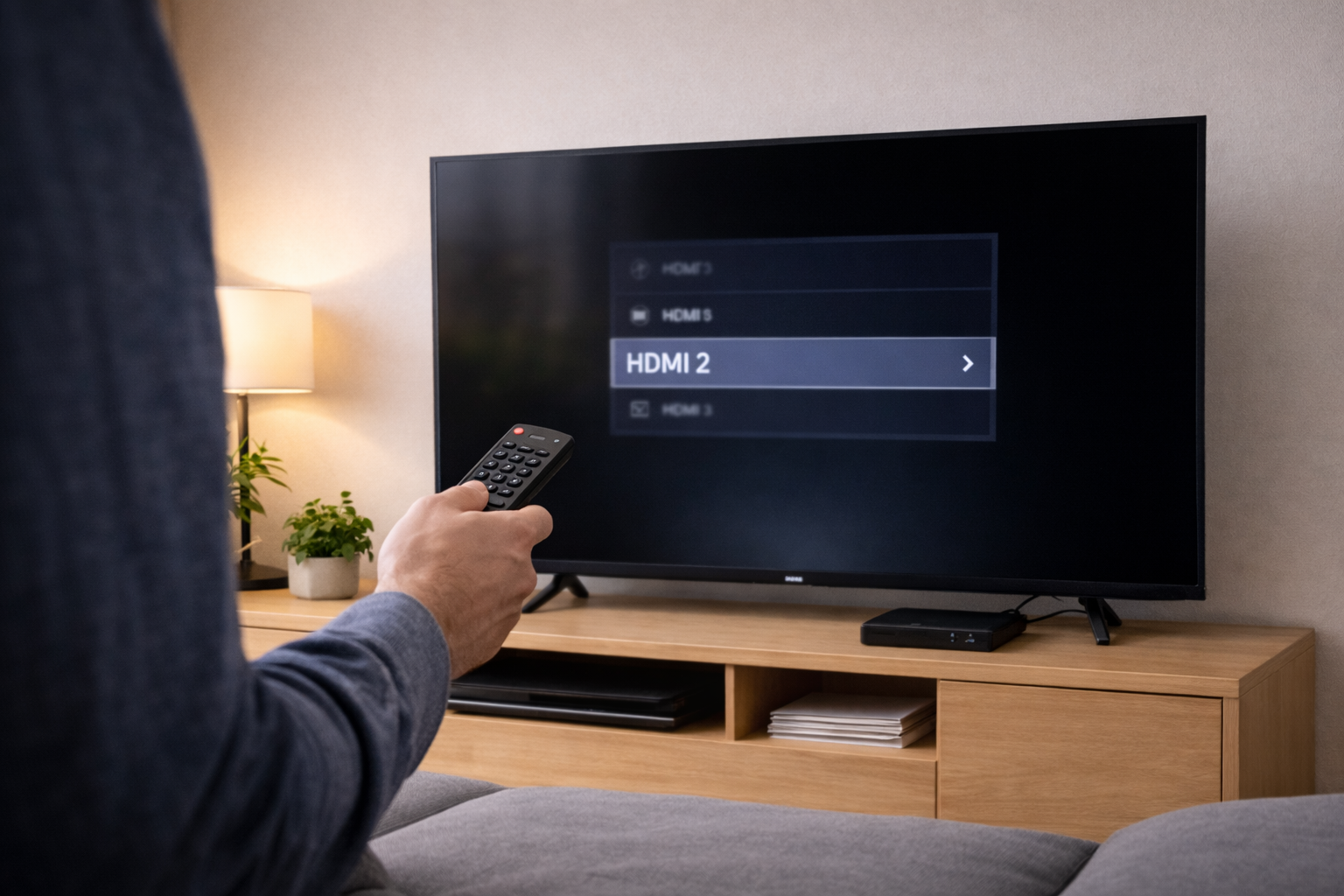
- Manually select the HDMI input using the TV remote (not the source remote).
- If your TV has an “Input Signal Plus / Enhanced / 4K” toggle per port, note which port your device is on.
- Temporarily unplug other HDMI devices and test with only one source connected.
I’ve seen this exact issue where a PS5 wakes the TV, but a Sky Q box steals focus and leaves the TV on the wrong HDMI input with “No Signal”.
3) Fix the most common root cause: the HDMI cable (especially at 4K HDR)
A cable can “work” at 1080p and fail at 4K HDR or 120Hz. At power-on, the link training is less forgiving, so marginal cables show up as intermittent no-signal.
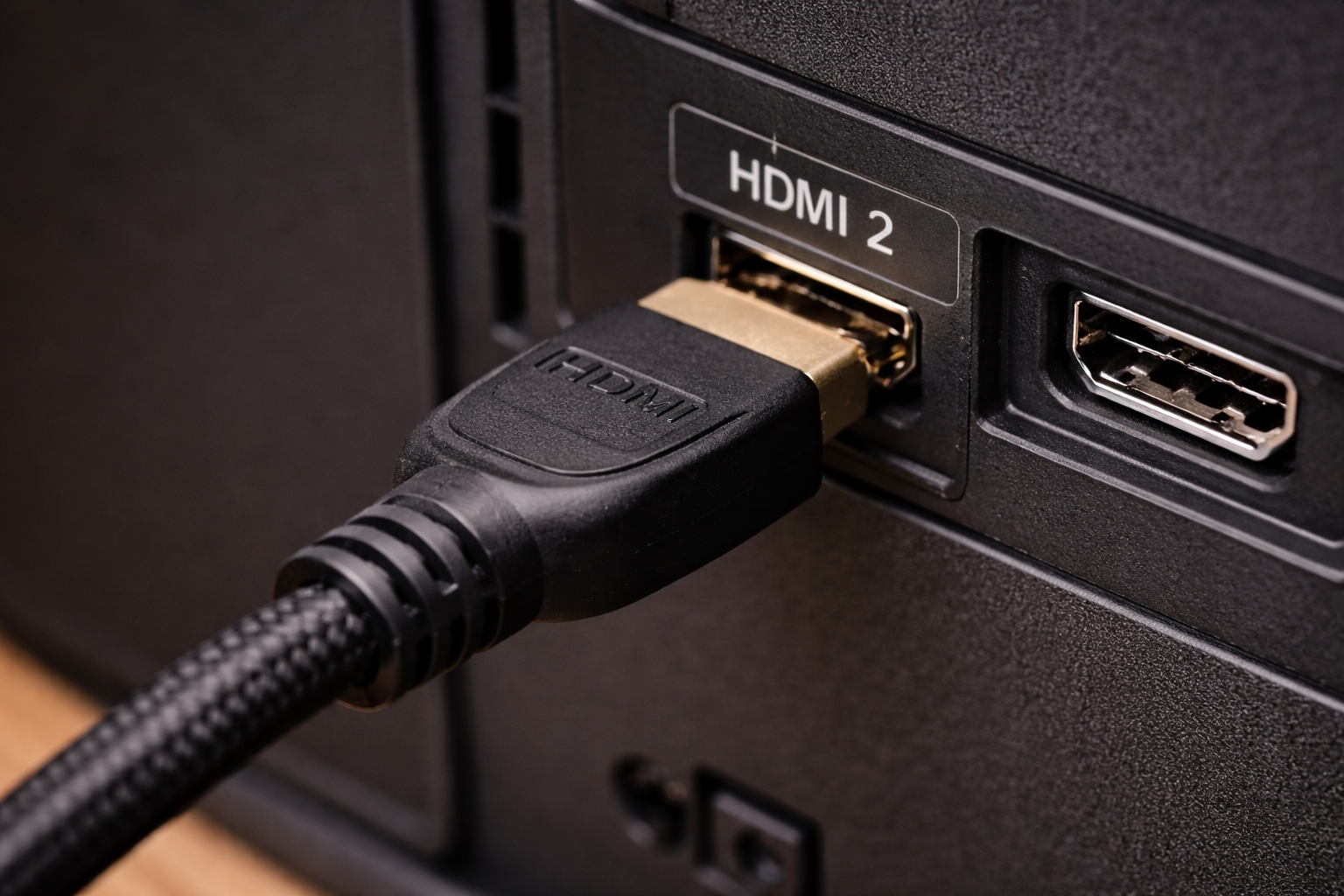
- Swap to a short, certified cable (2m or less if possible).
- Avoid ultra-thin, flat, or very long HDMI leads for 4K/120 setups.
- If the problem only happens with HDR or 120Hz enabled, treat the cable as suspect first.
If you need a known-good baseline for troubleshooting, a certified Ultra High Speed HDMI cable removes a lot of uncertainty.
4) Disable HDMI-CEC temporarily to prove (or rule out) control conflicts
CEC is branded differently: Anynet+ (Samsung), Bravia Sync (Sony), Simplink (LG), VIERA Link (Panasonic). It’s useful, but it’s also responsible for a lot of “works after I press buttons” behaviour.
- On the TV, turn off HDMI-CEC.
- On the soundbar/AVR, turn off CEC control if it has a separate toggle.
- Reboot TV and source, then test power-on behaviour.
If the issue disappears with CEC off, you can re-enable it later and selectively disable features like “Auto Power On”, “Auto Input Switching”, or “Device Control” rather than losing CEC entirely.
I rarely see this issue on newer platforms when only one device has CEC power control enabled, but it’s common when every device tries to be the “boss”.
5) Check the TV’s HDMI port mode (Standard vs Enhanced/4K/8K)
Many TVs ship with HDMI ports in a compatibility mode. If your source outputs 4K HDR, Dolby Vision, or 120Hz, the TV port may need Enhanced mode enabled. The failure mode can be confusing: the TV detects something but shows “No Signal” until you change the port setting.
- Samsung: “Input Signal Plus” per HDMI port.
- Sony: “HDMI signal format” (Standard/Enhanced/Enhanced (Dolby Vision)).
- LG: “HDMI Deep Colour” per port.
After changing the port mode, fully power cycle the TV and source again. Some devices won’t renegotiate cleanly without a reboot.
6) If a soundbar/AVR is involved: isolate eARC/ARC and the pass-through path
Soundbars and AVRs can be the handshake bottleneck because they sit between the source and TV or because eARC adds another negotiation layer. You want to identify which topology you’re using:
- Source → TV, audio back via eARC/ARC to soundbar.
- Source → soundbar/AVR, then video pass-through to TV.
For troubleshooting, the most stable path is usually Source → TV first, then eARC for audio. If you’re not sure which wiring is correct, see How to connect your TV, soundbar and console the right way.
Steps that often stabilise eARC/ARC setups:
- Set TV audio output to eARC/ARC explicitly (not Auto) and reboot.
- Disable “eARC” temporarily and test with basic ARC.
- Disable “Pass-through” audio modes temporarily and test with PCM.
- Update firmware on the soundbar/AVR (many HDMI fixes land quietly in updates).
This often fails on older HDMI 2.0 soundbars when you push 4K HDR plus advanced audio formats at the same time, especially with long cables.
7) Fix resolution/refresh mismatches (PCs and consoles)
PCs are notorious for remembering the last display mode and trying to reuse it even when the TV isn’t ready. Consoles can do similar things with 120Hz and VRR.
For Windows laptops/desktops:
- Boot the PC with the TV already on and set to the correct HDMI input.
- Press Win + Ctrl + Shift + B to reset the graphics driver if the screen is black but the PC is running.
- Use Win + P and select “Duplicate” or “Second screen only”.
- In Display settings, set 60Hz temporarily, then re-enable 120Hz/VRR after stability.
For PS5 / Xbox:
-
- Disable 120Hz output and VRR temporarily, then test cold boots.
- Turn off “HDMI Device Link” (CEC) temporarily.
- If you use a capture card or splitter, remove it and test direct to TV.
Seen most often on gaming PCs with aggressive GPU scaling settings and TVs that default to a different HDMI signal format per port.
8) Deal with HDCP-specific failures (streaming boxes, Sky, Virgin, Now TV)
If menus appear but video goes black when you start playback, or the TV flips between “No Signal” and a picture, HDCP is a prime suspect.
- Remove HDMI splitters and older switches (many break HDCP 2.2/2.3).
- Try a different HDMI port on the TV (some ports behave differently).
- Set the source to a lower output temporarily (1080p) to confirm it’s HDCP/4K related.
- Power cycle everything to force a new HDCP authentication.
For background on why protected content can fail even when the cable is fine, Dolby’s docs are a useful reference: Dolby home theatre connection and HDMI compatibility overview.
9) Update firmware (TV + source + soundbar) but do it strategically
HDMI fixes often arrive as “stability improvements” in firmware notes. Update the device that sits in the middle first (soundbar/AVR), then the TV, then the source.
- After updating, do a full power cycle (unplug for 60 seconds).
- Re-check HDMI port mode (updates sometimes reset per-port settings).
I’ve had LG and Sony TVs where a firmware update changed CEC timing enough to stop the no-signal-on-boot loop without touching cables.
10) Last resort: reset HDMI-related settings (not the whole TV)
A full factory reset is disruptive. Try targeted resets first:
- Forget/remove HDMI-CEC device list (if your TV has a device manager).
- Reset picture mode for that HDMI input (some TVs tie signal format to picture presets).
- On consoles, reset video output settings (safe mode on PlayStation; display reset on Xbox).
If you’re troubleshooting a Windows PC output, Microsoft’s display troubleshooting documentation is worth keeping handy: Microsoft’s Windows display and external monitor troubleshooting.
Situations I see repeatedly (and what fixes them)
Scenario A: TV + soundbar (eARC) + console = no signal after standby
Typical setup: PS5 into TV, soundbar on HDMI eARC, CEC enabled everywhere. After the TV wakes, it shows “No Signal” until you toggle inputs.
- Fix path: Disable CEC auto input switching on the soundbar, keep CEC power control only on the TV, and set the console to not wake the TV.
- Stability tweak: If you use 4K/120, confirm the TV port is in Enhanced mode and swap to a certified HDMI 2.1 cable.
In real homes, not lab setups, the soundbar is often the timing problem because it boots slower than the TV and steals CEC focus mid-handshake.
Scenario B: Sky Q / Virgin 360 works, but only after replugging HDMI
This is usually HDCP authentication failing at boot, or the box outputting a mode the TV port isn’t set up for.
- Fix path: Move the box to a different HDMI port, enable the TV’s Enhanced/4K mode for that port, and replace the HDMI cable.
- Confirm: Set the box to 1080p temporarily; if the issue disappears, it’s almost always a 4K/HDR handshake problem.
Scenario C: Laptop shows “connected” but TV says no signal
Common with USB-C to HDMI adapters and docks. The laptop thinks it’s outputting, but the adapter fails to train the link at boot or after sleep.
- Fix path: Wake the laptop first, then connect HDMI; set 60Hz; disable HDR; then re-enable features one at a time.
- Hardware clue: If it only fails through a dock, the dock’s HDMI chipset is often the weak link.
Seen most often on HP, Dell and Lenovo laptops where the dock firmware is old and the TV expects a clean EDID read on wake.
Mistakes that keep the problem coming back
- Assuming “No Signal” means the HDMI port is dead. If it works after an input toggle, the port is fine and the handshake is not.
- Leaving multiple HDMI-CEC power features enabled. One device should control power; otherwise you get input fights and sleep/wake loops.
- Using long HDMI runs without active cables. At 4K HDR/120Hz, marginal signal integrity shows up as boot-time failures first.
- Mixing VRR/120Hz with older AVRs/soundbars. The middle device may not pass the mode cleanly even if it “supports 4K”.
- Changing five settings at once. You’ll never know what actually fixed it, and the issue returns after the next update.
Practical upgrades that stop HDMI boot issues
You don’t always need new hardware, but certain swaps remove entire classes of handshake problems.
Use a known-good cable as your baseline
If you’re chasing intermittent no-signal, start by standardising the cable. I’ve had plenty of cases where everything else was blamed (TV firmware, console updates, soundbar) and the fix was simply replacing a borderline lead.
Prefer direct-to-TV video when eARC is available
If your TV and soundbar support eARC, running sources into the TV and sending audio back via eARC reduces the number of devices in the video handshake. That usually improves reliability, especially with consoles using 120Hz or VRR.
Replace flaky adapters and switches
USB-C to HDMI adapters, cheap HDMI switches, and older splitters are frequent culprits. If removing the adapter makes the issue vanish, don’t waste time tuning TV settings around it.
If you’re also dealing with audio oddities after you finally get a picture, How to fix Dolby Atmos not working on Apple TV or Netflix pairs well with this troubleshooting because eARC settings often overlap with HDMI stability.
Wrap-up: the shortest path to a stable HDMI picture
When HDMI shows “No Signal” right after the TV powers on, treat it as a negotiation problem first: handshake timing, CEC routing, HDCP, or an unstable cable. Do a real power cycle, simplify the chain (direct to TV), and only then start toggling CEC, port modes, and output settings.
Once you’ve found the trigger (CEC conflict, port mode, cable, middle device), lock the setup down and avoid “Auto” where it causes fights. That’s how you stop the issue returning after the next firmware update or power cut.
FAQ: awkward HDMI “no signal” edge cases
Why does my PS5 show no signal only when 120Hz or VRR is enabled on my UK TV?
This is usually an HDMI bandwidth or negotiation issue, not a broken console. 120Hz/VRR pushes the link harder, so marginal cables and older pass-through devices fail at boot. In practice, swapping to a certified Ultra High Speed cable and confirming the TV port is in Enhanced/4K/120 mode fixes it more often than changing console settings.
Why does HDMI work if I turn the TV on first, but fails if the Sky Q box wakes the TV?
That points to HDMI-CEC timing and input routing. The Sky box may wake the TV before the HDMI subsystem is fully ready, so EDID/HDCP negotiation fails and you land on “No Signal”. This is the most common issue I see when multiple devices have CEC power control enabled; disabling CEC wake on the box (or disabling auto input switching) usually stabilises it.
My LG/Samsung TV shows the device name on HDMI but still says no signal — how?
CEC device naming can work even when video negotiation fails. You can have control signals working while the video link fails due to HDCP, resolution mismatch, or port mode (Standard vs Enhanced). Try forcing 1080p output on the source and enabling the TV’s Enhanced/Deep Colour setting for that HDMI port, then power cycle.
Why does my Windows 11 laptop output to a monitor fine, but not to my TV over HDMI?
TVs are pickier about EDID, colour formats, and refresh rates than many monitors. I see this a lot with USB-C docks and adapters that behave differently on wake. Set the laptop to 60Hz SDR first, connect with the TV already on the correct input, and only then enable HDR or higher refresh rates.
Does eARC cause “no signal” on HDMI, or is it unrelated?
eARC doesn’t carry video, but it often shares CEC control and boot timing with HDMI input switching. In real setups, enabling eARC plus CEC across TV and soundbar can create a loop where devices wake each other and interrupt the video handshake. Testing with CEC off (temporarily) is the fastest way to prove whether eARC/CEC interaction is part of your problem.
My TV works direct, but fails through my AVR/soundbar HDMI pass-through — is the AVR broken?
Not necessarily. Many AVRs/soundbars pass 4K but struggle with specific combinations like Dolby Vision, 4:4:4 chroma, 120Hz, or VRR, especially at boot. Bypass it for video (source to TV) and use eARC for audio; if that’s stable, the AVR is the limitation in the chain rather than a total failure.
Recommended gear on Amazon UK
- In practice, intermittent no-signal after power-on is often a borderline cable that fails link training at 4K HDR or 120Hz, and a certified Ultra High Speed HDMI lead is the quickest way to remove that variable. View Certified Ultra High Speed HDMI cable (2m) on Amazon UK
- When the TV is far from the source, switching to an active HDMI cable helps in the long-cable scenario where the picture only appears after replugging because the signal is marginal at startup. View Active HDMI 2.1 cable (long runs) on Amazon UK
- If you’ve proven the TV ports are fine but a cheap switch causes no-signal on boot, replacing it with an HDMI 2.1 switch that handles HDCP properly usually stops the handshake loop. View HDMI 2.1 switch (HDCP 2.3 compatible) on Amazon UK
- For laptops that show connected but the TV says no signal, a more reliable USB-C to HDMI adapter helps when the existing dongle fails to negotiate the correct mode after sleep or power-on. View USB-C to HDMI 2.1 adapter on Amazon UK








3 thoughts on “Fix No Signal on HDMI After TV Power On”