
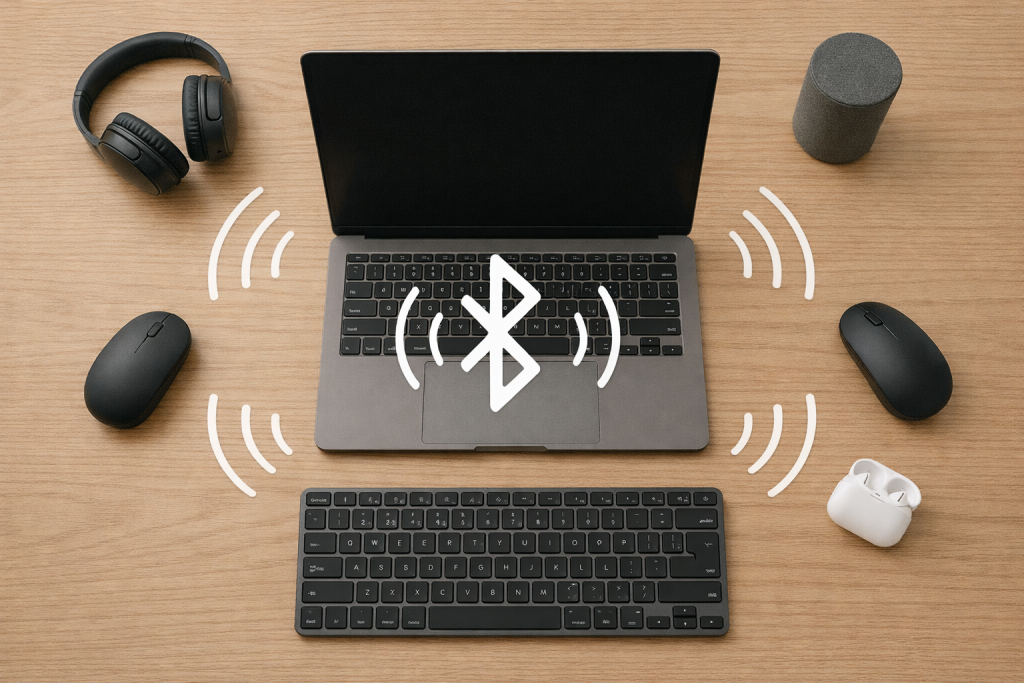
Bluetooth is designed to share the 2.4GHz band politely, but in real homes it often doesn’t feel polite. You add a second headset, a mouse, a keyboard, a controller, maybe a smartwatch, and suddenly audio stutters, the mouse lags, or devices randomly disconnect. The frustrating part is that everything can look “connected” while performance collapses.
Most interference complaints aren’t one single fault. It’s usually a mix of radio congestion (Bluetooth + Wi‑Fi + USB 3 noise), weak signal paths (human bodies, desks, TV cabinets), and a host device that can’t schedule multiple links cleanly. This is the most common issue I see on devices sold in the UK before 2024, especially when a laptop is acting as the hub for everything.
What interference actually means with Bluetooth (and why it’s worse with multiple devices)
Bluetooth shares time, not just “space”
Classic Bluetooth (BR/EDR) and Bluetooth Low Energy (BLE) both operate around 2.4GHz, but they behave differently. Either way, your host (phone, laptop, TV, console) has to allocate airtime to each connection. When you add devices, you’re not just adding “more signals”; you’re adding scheduling complexity and retransmissions when packets collide or get corrupted.
In practice, the failure mode looks like this: audio uses a steady stream, input devices need low-latency bursts, and BLE sensors chat intermittently. If the host’s Bluetooth stack or radio firmware is weak, it starts dropping or delaying packets under load.
Why 2.4GHz Wi‑Fi makes Bluetooth feel unreliable
Bluetooth uses frequency hopping to dodge interference, but it can’t dodge what’s everywhere. If your router is on a busy 2.4GHz channel (common in UK flats), Bluetooth spends more time retransmitting. That shows up as crackly audio, delayed clicks, or “connected but not responding”.
If you’re also seeing general network weirdness, it’s worth checking your Wi‑Fi environment too; this Wi‑Fi troubleshooting guide pairs well with the Bluetooth steps below.
USB 3.0 and docks: the interference source people miss
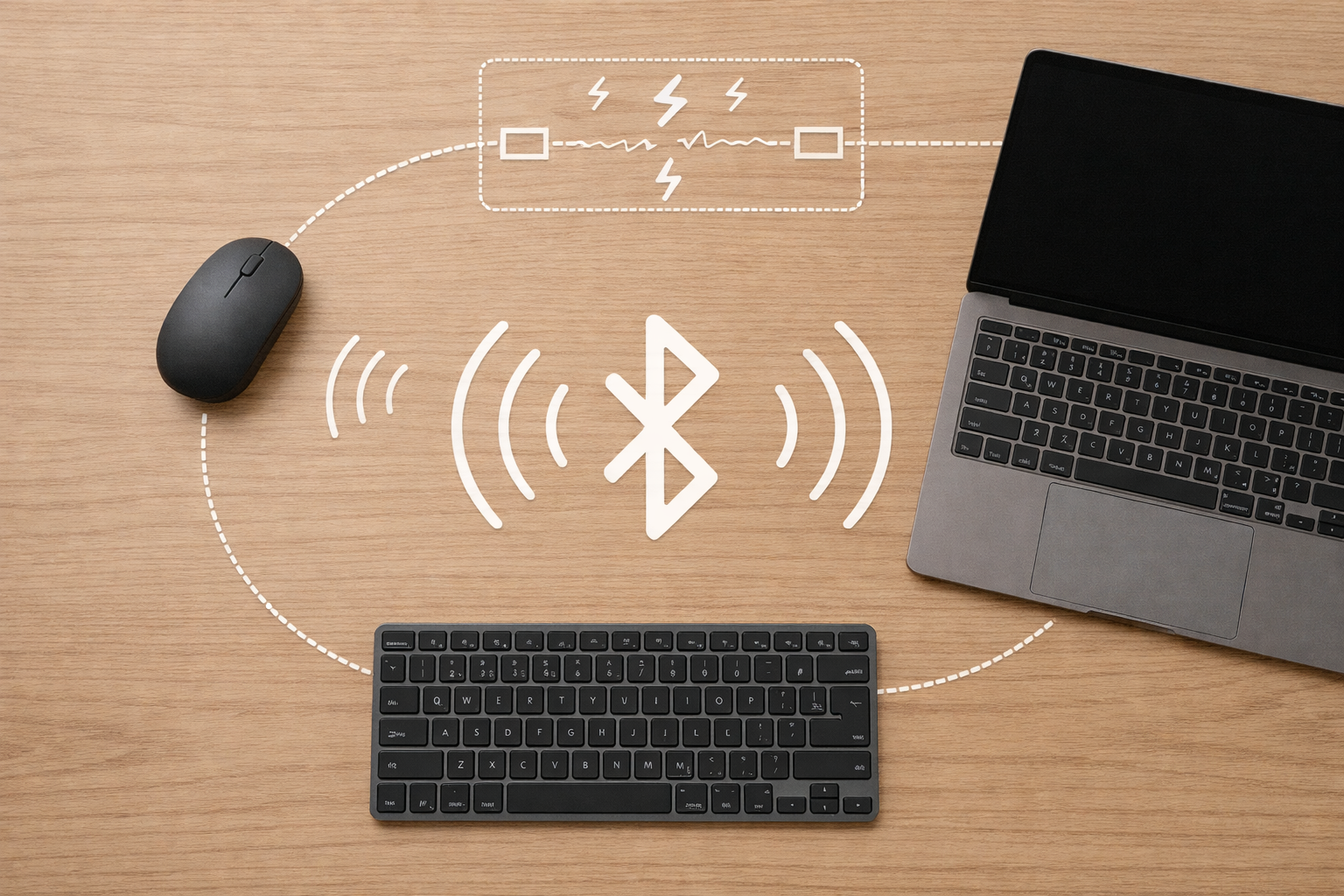
USB 3 devices (external SSDs, hubs, docks) can leak noise in the 2.4GHz range. When a Bluetooth adapter is physically close to a USB 3 port or a busy dock, you can get repeatable dropouts. I see this constantly on USB‑C laptop docks where the Bluetooth antenna is already cramped inside the chassis.
Seen most often on HP, Dell and Lenovo laptops with a dock plus a 2.4GHz mouse receiver nearby.
Multipoint headphones and “two hosts at once”
Multipoint is convenient, but it’s a common trigger for interference-like symptoms. Your headphones are effectively maintaining two relationships: two sets of timing, two sets of codec negotiations, and more chances for one host to steal focus. If your headset supports multipoint, test with it disabled (or forget one host temporarily) before you change anything else.
Pinpoint the bottleneck: is it the host, the environment, or one bad device?
Start by identifying the “hub” device
List what is connected to what. In most setups, one device is the hub that’s doing the hard work:
- Laptop hub: mouse + keyboard + earbuds + controller all paired to Windows/macOS.
- Phone hub: earbuds + watch + car + tracker all paired to iPhone/Android.
- TV hub: Bluetooth headphones paired to a TV while Wi‑Fi streaming is active.
If the hub is weak, every peripheral looks guilty. If the environment is noisy, every hub struggles.
Recognise the symptom pattern
- Audio stutter only: often codec/bitrate, distance, or 2.4GHz Wi‑Fi congestion.
- Mouse/keyboard lag only: often power saving, USB 3 noise, or a crowded Bluetooth controller.
- Random disconnects across multiple devices: often driver/firmware, multipoint conflicts, or a failing radio module.
- Works in one room but not another: signal path and reflections (TV cabinets, metal desks, radiators).
If your main pain is input lag, the fixes overlap heavily with fixing mouse or keyboard lag over Bluetooth.
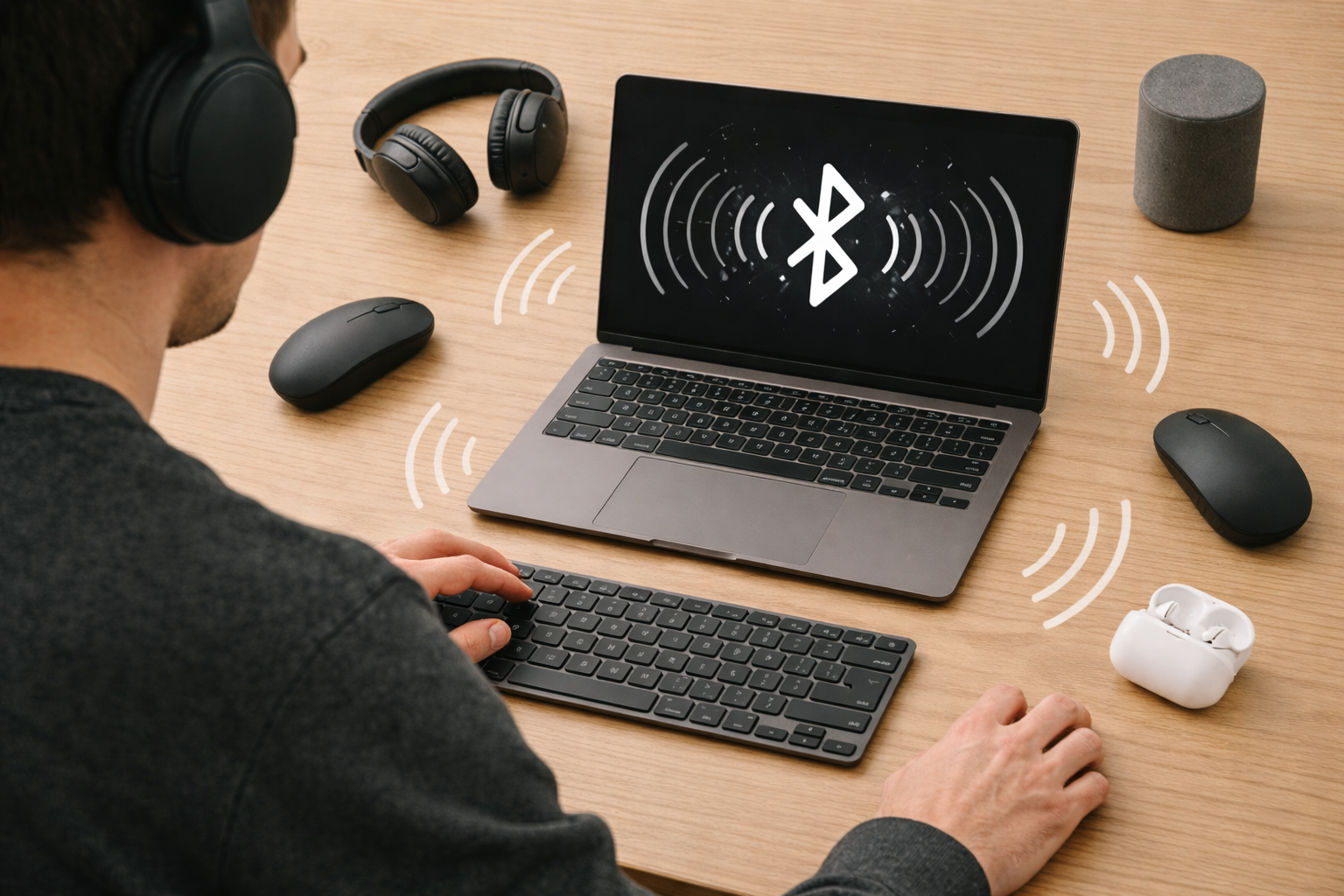
Do a quick “single-link” sanity test
Before deep changes, prove the basics:
- Turn Bluetooth off on nearby devices that might auto-connect (tablets, old phones, work laptops).
- Disconnect all Bluetooth peripherals from the hub.
- Connect one device only (preferably the one that fails most).
- Test for 5–10 minutes in the same place you normally use it.
If a single device is still unstable, you’re not dealing with “too many devices”; you’re dealing with a weak link, a driver issue, or a hostile RF environment.
Fixes that actually reduce interference (in the order I’d try them)
1) Move the hub radio out of the noise
Distance matters more than people expect at 2.4GHz. If you’re using a laptop under a desk, behind a monitor, or next to a dock, the antenna is already compromised.
- Move the hub (laptop/PC) so it has a clearer line-of-sight to the main Bluetooth device.
- Keep the hub away from USB 3 hubs/docks and external drives during testing.
- For TVs, avoid pairing with the TV if the TV is inside a cabinet; test with the TV door open or the TV pulled forward.
In practice, this step fixes the problem in about half of cases where the complaint is “it was fine until I tidied cables / added a dock”.
2) Force Wi‑Fi off 2.4GHz where possible
If your hub device is also on Wi‑Fi, you can often reduce Bluetooth collisions by moving Wi‑Fi to 5GHz or 6GHz.
- On your router, split SSIDs (separate names) for 2.4GHz and 5GHz if needed.
- Connect laptops/phones/TVs to 5GHz (or 6GHz on Wi‑Fi 6E/7) for streaming and downloads.
- Leave 2.4GHz for smart home devices that can’t do 5GHz.
On busy UK estates, 2.4GHz is often saturated, and Bluetooth gets dragged down with it even when Bluetooth itself is “working”.
3) Reduce the number of simultaneous Bluetooth audio links
Audio is the most demanding Bluetooth use case in typical homes. If you’re running multipoint headphones plus a Bluetooth speaker plus a controller, you’re pushing the scheduler hard.
- Disable multipoint temporarily (or forget one host).
- Don’t keep two audio outputs connected “just in case”.
- If your TV supports it, prefer HDMI ARC/eARC to a soundbar instead of Bluetooth audio.
If your main issue is lip-sync or delay rather than stutter, fixing Bluetooth audio delay on TVs and laptops covers the codec and latency side in more depth.
4) Update the Bluetooth stack (and know what actually matters)
For interference-like behaviour, firmware and drivers matter more than OS updates. You want the latest Bluetooth driver for your chipset and the latest firmware for the peripheral (headphones, keyboard, etc.).
- Windows: update via Windows Update, then check the laptop maker’s support page for Bluetooth/Wi‑Fi combo drivers.
- macOS: OS updates usually include Bluetooth fixes, but resets (below) often matter more.
- Android/iOS: update OS, then update the accessory firmware in its companion app (Sony Headphones Connect, Bose Music, etc.).
For Windows-specific Bluetooth troubleshooting steps, Microsoft’s Bluetooth troubleshooting in Windows documentation is the reference I keep coming back to when the UI differs between builds.
5) Reset pairings properly (don’t just “disconnect”)
When multiple devices are involved, stale pairing records cause weird priority fights. You need a clean slate on both sides.
- On the hub device, remove/forget every Bluetooth device you’re troubleshooting.
- Power off the peripherals completely (not just sleep mode).
- Put each peripheral into pairing mode and re-pair one at a time.
- Test after each pairing so you know which device reintroduces the problem.
On iPhone/iPad, Apple’s documentation on Bluetooth settings and forgetting devices is clear and matches what you’ll see on UK-region builds: Apple’s guide to using Bluetooth accessories with iPhone and iPad.
6) Stop power saving from starving Bluetooth (Windows laptops especially)
Windows can aggressively power-manage Bluetooth and the Wi‑Fi/Bluetooth combo card. Under load (video call + audio + mouse), it can look like interference but it’s actually the radio being put to sleep too often.
- In Device Manager, open your Bluetooth adapter properties and disable “Allow the computer to turn off this device to save power” (if present).
- In Power Options, test with a non-aggressive plan (Balanced is usually fine; avoid extreme battery saver modes while diagnosing).
- On some laptops, vendor utilities (Lenovo Vantage, Dell Power Manager) also affect radio power.
I rarely see this issue on newer platforms, but on UK laptops sold before 2024 it’s a repeat offender.
7) Use a better physical antenna position (USB Bluetooth adapter approach)
If you’re on a desktop PC or a laptop with consistently poor Bluetooth, moving the radio can be more effective than any setting. A small USB Bluetooth adapter on a short extension cable can get the antenna away from USB 3 noise and metal cases.
- Place the adapter on the desk, not behind the PC.
- Keep it away from external SSDs and USB 3 hubs.
- Disable the internal Bluetooth (or at least ensure Windows prefers the new adapter) to avoid conflicts.
This often fails on budget MediaTek chipsets built into low-cost laptops, where the internal antenna layout is simply poor.
Real setups where interference shows up (and what fixes it)
Scenario A: Laptop + Bluetooth earbuds + Bluetooth mouse = audio crackle when you move the mouse
This is a classic “shared airtime” problem. The mouse traffic is small, but it’s latency-sensitive and can disrupt audio if the host is struggling.
- Move Wi‑Fi to 5GHz and retest.
- Try the mouse on a 2.4GHz dongle (if it has one) and leave Bluetooth for audio.
- Disable multipoint on the earbuds and forget other paired hosts.
Tested on Intel AX210 / Killer AX1675 Wi‑Fi cards, this pattern usually improves immediately when Wi‑Fi is moved off 2.4GHz.
Scenario B: TV Bluetooth headphones stutter only when streaming
Many TVs have weak Bluetooth radios and busy internal boards. When the TV is streaming over 2.4GHz Wi‑Fi, Bluetooth has less room to breathe.
- Connect the TV to 5GHz Wi‑Fi (or Ethernet) and retest.
- Move the headphones receiver point: sit slightly closer or avoid blocking the TV with your body.
- If your soundbar supports it, use HDMI eARC instead of Bluetooth for consistent audio.
In real homes, not lab setups, simply switching the TV to Ethernet is one of the cleanest “interference fixes” because it removes a major 2.4GHz talker.
Scenario C: Desktop PC Bluetooth is fine until you plug in an external SSD
This is usually USB 3 noise plus poor antenna placement. The Bluetooth adapter is often right next to the noisiest port on the back panel.
- Move the SSD to a different port (front panel vs rear, or USB 2 if available for testing).
- Use a short USB extension cable to relocate the Bluetooth adapter.
- Keep the SSD cable physically separated from the Bluetooth adapter.
I’ve seen this look like “Bluetooth interference from other devices”, but it’s actually the PC interfering with itself.
Scenario D: Phone works, laptop doesn’t (same headphones, same room)
When a headset is stable on a phone but unstable on a laptop, the laptop’s Bluetooth stack or antenna is usually the issue. Phones tend to have better antenna tuning and fewer USB 3 noise sources nearby.
- Update the laptop’s Wi‑Fi/Bluetooth combo driver from the manufacturer.
- Disable Bluetooth power saving and retest.
- Consider a USB Bluetooth adapter placed away from the laptop chassis.
Seen most often on thin Windows laptops where the antenna is squeezed near the hinge and detunes when the lid angle changes.
Common mistakes that keep the problem alive
Leaving old devices paired everywhere
People often forget they paired the same earbuds to a work laptop months ago. When that laptop wakes up, it steals the connection and your current device behaves like it’s “interfered with”. Remove pairings you don’t actively use.
Assuming “Bluetooth 5.x” means it will handle anything
The version number doesn’t guarantee good coexistence behaviour. Antenna design, firmware quality, and the host’s scheduling matter more than the marketing label.
Stacking radios in the same physical spot
Router, mesh node, USB hub, external SSD, and your laptop all on the same shelf is a recipe for 2.4GHz misery. Spread them out. Even 30–50cm separation can change stability.
Using Bluetooth for everything when alternatives exist
For desktops, a 2.4GHz dongle mouse/keyboard often behaves better than Bluetooth under heavy audio use. For TVs, HDMI to a soundbar avoids the whole Bluetooth audio reliability problem.
Practical upgrades and configuration choices that reduce interference long-term
Prefer 5GHz/6GHz Wi‑Fi for the devices that stream
If your phone, laptop, TV, or streaming box can use 5GHz (or 6GHz), put it there. Leave 2.4GHz for smart plugs and older gear. This is the single most reliable “whole-home” change for Bluetooth stability.
Use a USB extension to reposition a Bluetooth adapter
If you’re on a PC, relocating the Bluetooth antenna away from the case and away from USB 3 ports is a straightforward fix. A short extension cable is often enough.
Where this helps most is when you have multiple active Bluetooth devices at once (headset + controller + keyboard) and the PC is physically under a desk.
Consider wired audio for the “critical path”
If you’re gaming or watching films and you can’t tolerate dropouts, Bluetooth is the wrong place to fight. Use HDMI eARC to a soundbar, or a wired headset for the session, and keep Bluetooth for convenience tasks.
One small accessory that solves a lot of desk setups
A short USB extension cable is often the difference between stable Bluetooth and constant stutter on desktop PCs, because it moves the radio away from the noisiest ports and metal shielding.
Wrap-up: a reliable way to run multiple Bluetooth devices without chaos
When multiple Bluetooth devices “interfere”, the fix is usually to reduce 2.4GHz contention and make the hub’s radio job easier. Start by isolating one device, then move Wi‑Fi off 2.4GHz, remove multipoint conflicts, and eliminate USB 3 noise. If the host radio is simply weak, relocating it with a USB adapter and extension is often the cleanest end state.
The key is to change one variable at a time and test after each change. That’s how you avoid blaming the wrong device and ending up with a pile of half-fixes.
FAQ: edge cases people hit with Bluetooth interference in UK homes
Why do my Bluetooth headphones crackle on my Windows 11 laptop but work fine on my iPhone?
This is usually the laptop’s Bluetooth driver, antenna placement, or power management rather than the headphones. On UK laptops sold before 2024, Bluetooth power saving and older combo-card drivers are common culprits. Update the manufacturer’s Wi‑Fi/Bluetooth driver, disable Bluetooth power saving, and test with Wi‑Fi forced to 5GHz.
Why does my Bluetooth mouse lag only when I’m on a Teams/Zoom call?
Video calls add constant Wi‑Fi traffic and often Bluetooth audio, which increases scheduling pressure on the radio. I see this most on laptops using one internal combo card for Wi‑Fi and Bluetooth. Move Wi‑Fi to 5GHz, keep the laptop out of battery saver modes, and consider moving the mouse off Bluetooth (2.4GHz dongle) during calls.
My LG/Samsung TV connects to Bluetooth headphones, but audio stutters when streaming BBC iPlayer—what’s going on?
Streaming apps can keep the TV’s Wi‑Fi radio busy, and if the TV is also on 2.4GHz it competes directly with Bluetooth. In real homes, switching the TV to 5GHz Wi‑Fi or Ethernet is the most consistent fix. Also check the TV isn’t inside a cabinet that blocks the Bluetooth signal path.
Why do Bluetooth dropouts start when I connect an external SSD or USB‑C dock?
USB 3 noise can sit right in the 2.4GHz range and overwhelm a nearby Bluetooth antenna. This looks like “interference from other devices” but it’s often your own dock/cable layout. Separate the Bluetooth adapter from USB 3 ports using an extension cable, and keep high-speed storage cables away from the Bluetooth radio.
Can a Wi‑Fi 7 router reduce Bluetooth interference, or is that unrelated?
It can help indirectly if it lets more of your devices run on 5GHz/6GHz so 2.4GHz is quieter. Bluetooth still lives at 2.4GHz, so the goal is reducing competition, not “upgrading Bluetooth”. I’ve found the biggest improvement comes from moving TVs/laptops/phones off 2.4GHz and leaving that band for low-demand devices.
Why does Bluetooth multipoint make my earbuds disconnect in a UK office or flat?
Multipoint increases connection management complexity and makes it easier for one host to steal focus when it wakes or reconnects. In dense 2.4GHz environments (blocks of flats, offices), the extra retries can push it over the edge. If stability matters, run single-host mode and only enable multipoint when you truly need it.
Recommended gear on Amazon UK
- A USB Bluetooth adapter helps when a desktop or older laptop radio struggles to keep multiple devices stable at once, especially after driver updates and resets don’t change the behaviour. View USB Bluetooth 5.0/5.3 adapter for PC on Amazon UK
- A short USB extension cable is the simplest way to move a Bluetooth adapter away from USB 3 noise and metal PC cases when dropouts start as soon as docks or external drives are connected. View Short USB extension cable on Amazon UK
- A basic Ethernet cable helps in the TV streaming scenario by removing 2.4GHz Wi‑Fi traffic that commonly collides with Bluetooth headphone audio. View Ethernet cable for TV or streaming box on Amazon UK
- A 2.4GHz receiver mouse helps when Bluetooth audio is the priority and you need to take mouse traffic off the Bluetooth scheduler to stop stutter during calls or streaming. View 2.4GHz dongle wireless mouse on Amazon UK








1 thought on “Fix Multiple Bluetooth Devices Causing Interference”