
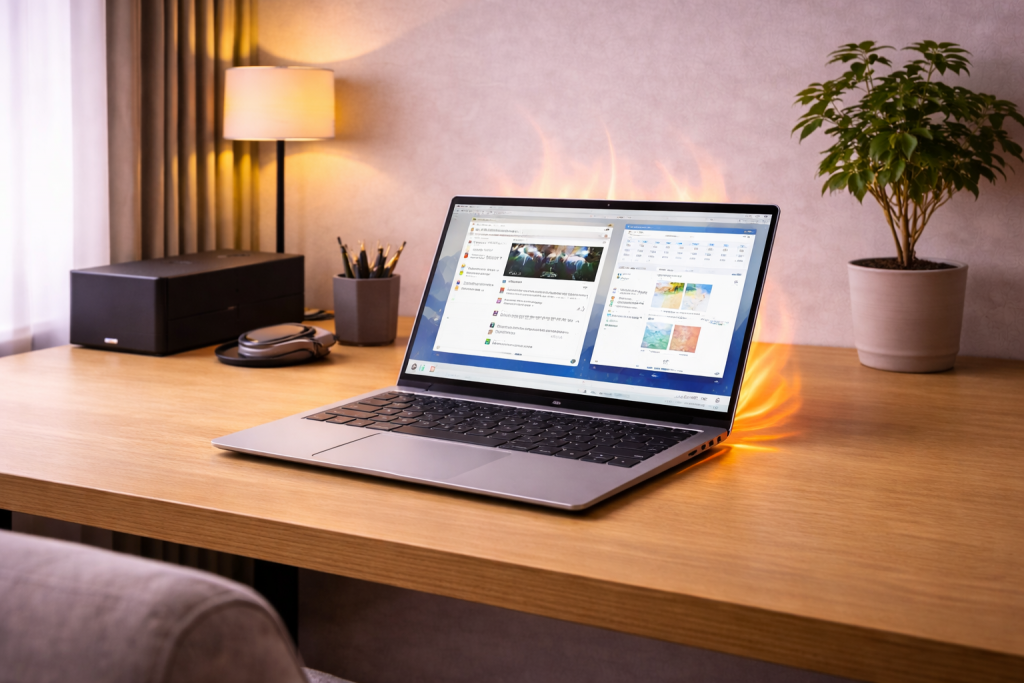
When “light use” still makes your laptop run hot
If your laptop gets hot and the fan ramps up while you’re only browsing, writing emails, or on a simple Teams/Zoom call, something is off. Light daily use should sit comfortably with low fan noise most of the time. When it doesn’t, the cause is usually either (1) hidden CPU/GPU load, (2) restricted airflow, or (3) power/firmware settings pushing the system too hard.
The goal isn’t to make the laptop “cold”. The goal is to stop unnecessary heat, stop thermal throttling, and prevent the battery and internal plastics from cooking over time.
What’s actually happening inside: heat sources and throttling
Heat comes from power draw. On modern laptops, even “idle” can be deceptive because background services, browser tabs, and driver components can keep the CPU in boost states. Many thin laptops also share heatpipes between CPU and iGPU/dGPU, so a small GPU task (video decode, external monitor, browser acceleration) can raise overall temperatures quickly.
Once the CPU package hits a thermal limit, the system reduces clock speeds (thermal throttling). You’ll notice stutters, lag when switching tabs, or the fan surging in waves. In practice, this is the most common issue I see on devices sold in the UK before 2024: the laptop is technically “fine”, but it’s running in boost too often because of power policy and background load.
Why it’s worse on sofas, beds, and lap use
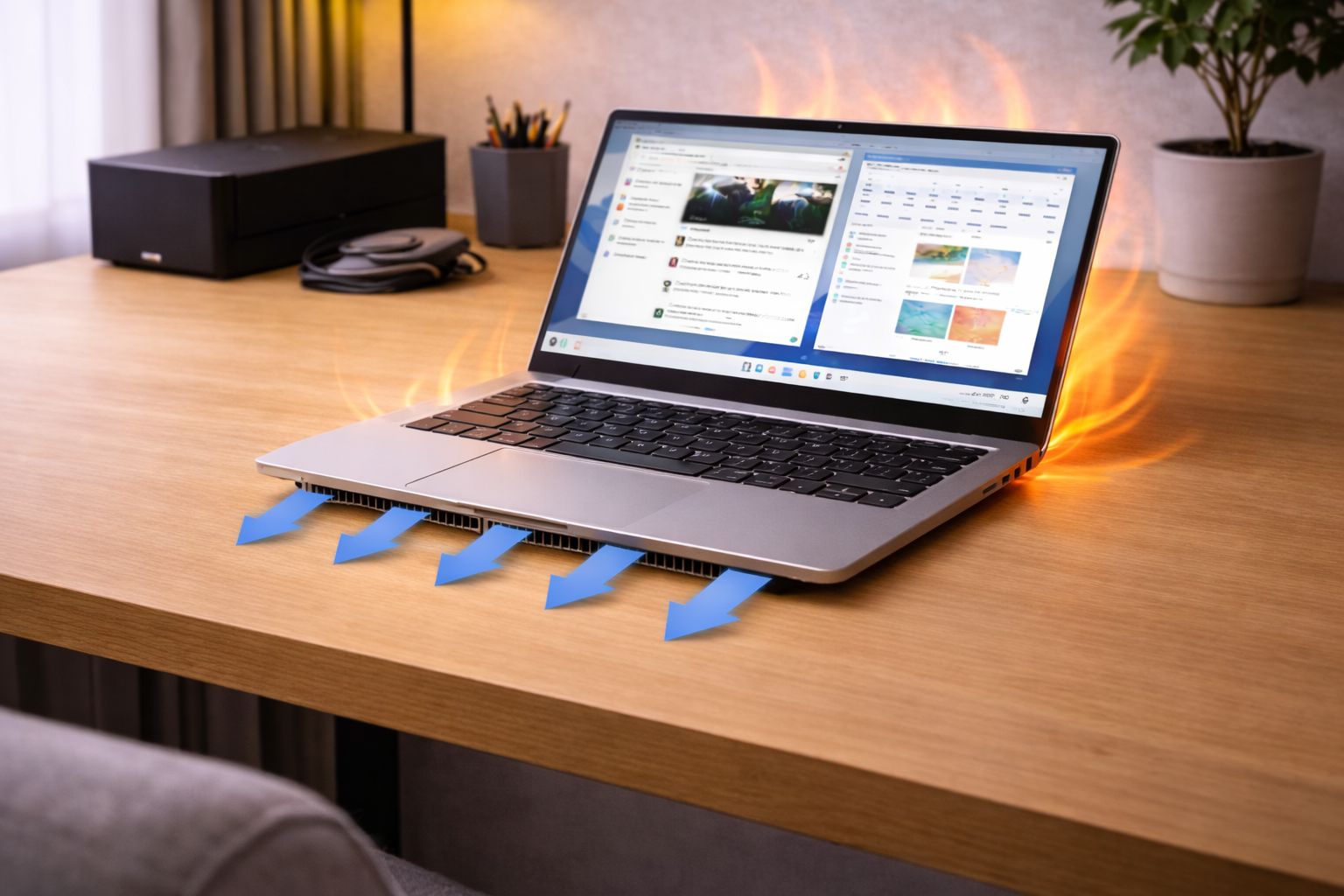
Most laptops pull cool air from the bottom and exhaust out the side or hinge area. Soft surfaces block intake vents and trap warm air around the chassis. Even a few millimetres of blockage can push the fan curve into “always on”.
Why external monitors can trigger heat during “nothing” work
Driving a 4K or high-refresh display can keep the GPU active, especially over HDMI/USB-C docks. Some laptops also force the dGPU on when an external display is connected, even if you’re only using Office and Chrome. Seen most often on HP, Dell and Lenovo laptops with mid-range NVIDIA GPUs.
Quick triage: confirm whether it’s load, airflow, or firmware
Before changing settings, identify what kind of overheating you have. You’ll fix this faster if you separate “real workload heat” from “idle heat”.
- Idle heat: fan loud at the desktop with nothing open, chassis warm near the keyboard/hinge.
- Light-load heat: fan ramps during browsing/video calls, but calms down when you close a specific app.
- Airflow heat: worse on soft surfaces, improves immediately when lifted or moved to a hard desk.
- Firmware/power heat: worse on mains power than battery, or worse after BIOS/Windows updates.
Step-by-step fixes (start here and stop when it’s stable)
1) Check what’s really using CPU/GPU (Windows 11/10)
- Press Ctrl + Shift + Esc to open Task Manager.
- On Processes, sort by CPU and watch for 60–90 seconds.
- Then sort by Power usage and GPU (if shown).
- Look for repeat offenders: browser processes, “Antimalware Service Executable”, update services, RGB utilities, OEM control centres, cloud sync tools.
If you see a process constantly above ~10–20% CPU during “doing nothing”, that’s your heat source. End the task as a test (don’t end system processes you don’t recognise). If it comes back, you’ll need to change the underlying setting or update/remove the app.
I’ve lost count of the number of “overheating” laptops that were actually a stuck update, a runaway browser tab, or an OEM telemetry service looping in the background.
2) Use a sane power mode (and stop constant CPU boost)
Windows power policy can keep the CPU boosting aggressively, which is great for benchmarks and terrible for quiet daily use.
- Go to Settings > System > Power & battery.
- Set Power mode to Balanced (or Best power efficiency on some models) for everyday work.
- If your laptop has an OEM app (Lenovo Vantage, Dell Power Manager, HP Command Center), set thermal mode to Balanced or Quiet.
If the laptop only overheats on mains power, this step often fixes the problem in about half of cases because it stops the CPU from sitting at high boost clocks for trivial tasks.
3) Cap maximum processor state (Windows) if fans are still too aggressive
This is the most reliable “make it calm down” setting for thin laptops that insist on boosting. It reduces peak performance slightly but usually makes the machine quieter and cooler in normal use.
- Open Control Panel > Power Options.
- Select your plan > Change plan settings > Change advanced power settings.
- Expand Processor power management.
- Set Maximum processor state to 99% on Plugged in.
Setting 99% disables the most aggressive turbo behaviour on many systems. If your laptop becomes sluggish, revert to 100% and rely on the OEM “Quiet/Balanced” mode instead.
4) Browser fixes: hardware acceleration and tab behaviour
Chrome/Edge can trigger heat via GPU acceleration, video decode, and misbehaving extensions. If the laptop overheats mainly during browsing, treat the browser as a suspect.
- Disable or remove heavy extensions (ad blockers with lots of filters, coupon tools, “shopping assistants”).
- In Chrome/Edge settings, toggle Use hardware acceleration when available off as a test.
- Reduce always-on tabs (web apps, dashboards, live feeds).
In real homes, not lab setups, a single broken tab (often a web app with constant refresh) can keep CPU usage just high enough to make the fan annoying all day.
5) Video call heat: stop the “always on” camera effects
Teams, Zoom, Google Meet and browser-based calls can heat up laptops because of background blur, eye contact correction, auto-framing, and noise suppression. These features are useful, but they’re constant compute.
- Turn off background blur and studio effects first.
- Lower the call resolution if the app allows it.
- If you’re on battery, use Battery saver during calls.
If you’re on a Mac and the problem is mostly during calls, see how to stop macOS from overheating during video calls.
6) Clean airflow the safe way (no disassembly required)
Dust build-up is still a top cause, especially if the laptop lives near carpets or pets. You don’t need to open the laptop to get a meaningful improvement.
- Power off the laptop completely.
- Unplug power and peripherals.
- Use short bursts of compressed air into the intake/exhaust vents (don’t hold the fan in place with tools; just use gentle bursts).
- Wipe vents and grille areas with a dry microfibre cloth.
This is the most common issue I see on devices sold in the UK before 2024 that have never been cleaned: the heatsink isn’t “blocked solid”, but it’s restricted enough that the fan curve becomes permanently loud.
7) Update BIOS/UEFI and chipset drivers (but do it deliberately)
Fan curves and power limits are often controlled by firmware. A bad BIOS release can cause constant boosting or poor fan behaviour, and a good one can fix it.
- Update via your laptop maker’s official tool (Lenovo Vantage, Dell SupportAssist, HP Support Assistant) or their support site.
- Install chipset and graphics drivers from the OEM first; only then consider Intel/NVIDIA/AMD direct packages if needed.
- After updates, reboot twice and re-check idle CPU usage.
For Windows update and driver-related instability that can masquerade as “heat problems”, Fix Windows 11 freezing randomly after updates is a useful companion read because the same update cycles often trigger both symptoms.
8) If you use a USB-C dock: confirm you’re not forcing high power draw
Docks can add heat indirectly by keeping the laptop charging at higher wattage, driving external displays, and waking devices constantly. If overheating happens only when docked:
- Test with the dock disconnected and a direct charger.
- Try a different USB-C port (some ports are routed differently internally).
- Disconnect high-power USB devices (external HDDs, capture cards) and retest.
If charging behaviour is part of the problem, see Windows power and battery settings help for the current Windows options and terminology.
9) Advanced: check GPU selection and external display routing
If you have an NVIDIA/AMD dGPU, you want light apps to use the iGPU where possible.
- Windows: Settings > System > Display > Graphics and set your browser/Teams to Power saving (iGPU) as a test.
- NVIDIA Control Panel: set Preferred graphics processor to Auto-select (or iGPU for specific apps).
- If an external monitor triggers heat, test a lower refresh rate (e.g. 60Hz) and retest.
On some laptops, the HDMI port is wired to the dGPU, so simply plugging in a monitor keeps the dGPU awake. I rarely see this issue on newer platforms with better mux switching, but it’s common on 2020–2023 designs.
Real-world fault patterns I see repeatedly
Scenario A: “It’s hot even at the desktop” after an update
Typical cause: Windows Update or Microsoft Store updates stuck in a loop, or an antivirus scan running constantly. Fix path: Task Manager identification, reboot, then let updates finish on mains power, then re-check idle CPU. If it persists, temporarily disable third-party AV and retest.
This often presents as heat first, then you notice the laptop is also slightly sluggish. That pairing is a strong clue it’s background load, not a cooling system failure.
Scenario B: “Only overheats on the charger”
Typical cause: power mode set to performance on AC, OEM thermal mode set to “Ultra performance”, or the CPU boosting hard because it’s allowed to. Fix path: switch to Balanced, set max processor state to 99% on AC, and ensure the OEM thermal profile isn’t locked to performance.
In practice, this is where unstable behaviour stops when cheaper USB-C chargers or docks are involved, because the laptop stops oscillating between charge states and boost states.
Scenario C: “Light browsing is fine, but video calls cook it”
Typical cause: camera effects, noise suppression, or browser-based calls using inefficient acceleration paths. Fix path: disable blur/effects, reduce resolution, and test the call in a different app (desktop Teams vs browser). If you’re on Windows, also check whether the iGPU driver is outdated.
Scenario D: “External monitor makes it loud all day”
Typical cause: dGPU forced on, high refresh rate, or HDR/colour pipeline keeping the GPU active. Fix path: set 60Hz, disable HDR as a test, and force the browser/Office to iGPU. If you need the monitor for work, it’s often better to accept slightly lower refresh than constant fan noise.
Mistakes that keep laptops overheating
- Using the bed/sofa as a desk: it blocks intakes and recirculates hot air.
- Assuming “warm” means “broken”: thin laptops run warm, but constant fan surging during idle is not normal.
- Installing random “driver updater” tools: they frequently cause worse power management and weird GPU behaviour.
- Blasting compressed air for too long: you can overspin fans; use short bursts.
- Ignoring the charger/dock: overheating that only happens when plugged in is usually a settings/boost issue, not dust.
This often fails on budget designs with poor venting where the intake is tiny; in those cases, you’ll rely more on power limiting and better placement than “cleaning”.
Practical add-ons and settings that help (when the basics aren’t enough)
Use a simple laptop stand to restore airflow
If your laptop lives on a desk, a small stand that lifts the rear edge can drop fan noise noticeably because it improves intake airflow. This is especially effective on models with bottom intakes and rear exhaust.
For a no-fuss airflow fix, a ventilated laptop stand is often enough to stop the “fan cycling” behaviour during browsing.
Consider a cooling pad only for specific failure states
Cooling pads help most when the laptop’s intake is on the bottom and the internal fan is already working hard. They help less on laptops that exhaust poorly or have side intakes. If your laptop is already clean and still runs hot under light use, a cooling pad can compensate for a weak chassis design, but it won’t fix runaway background CPU usage.
Use vendor diagnostics when you suspect a sensor/fan issue
If the fan is loud but the chassis doesn’t feel particularly warm, you may have a sensor reporting incorrectly or a fan curve bug. Run the OEM hardware diagnostics (HP PC Hardware Diagnostics, Dell ePSA, Lenovo diagnostics) and check for fan errors.
For Surface devices and general Windows thermal behaviour, Apple’s recommended operating temperatures and thermal behaviour overview is still a useful reference point for what “normal warm” looks like, even if you’re not on a Mac.
Wrap-up: the shortest path to a cooler, quieter laptop
Start by proving whether heat is caused by hidden load or restricted airflow. Task Manager plus a sensible power mode fixes a large chunk of “overheats during light use” cases. If it’s worse on mains power, cap boost behaviour and check OEM thermal profiles. If it’s worse on soft surfaces or when docked, treat airflow and external display routing as the primary suspects.
Once you’ve stabilised idle temperatures and fan behaviour, you’ll usually find the laptop feels faster too, because it stops bouncing in and out of thermal throttling.
FAQ: awkward overheating cases people actually run into
Why does my laptop overheat only when plugged in (UK mains), not on battery?
On many Windows laptops, “Plugged in” enables more aggressive boost and a performance thermal profile. Set Power mode to Balanced and try Maximum processor state at 99% on AC. This is the most common issue I see on UK laptops sold before 2024, especially thin Intel models that boost hard for tiny tasks.
Why is my laptop hot when I’m only using Chrome and nothing else?
Chrome can keep CPU/GPU active via extensions, hardware acceleration, or a single misbehaving tab. Sort Task Manager by CPU and Power usage, then close tabs/extensions until the fan calms down. In practice, one web app tab with constant refresh is enough to keep the fan annoying all day.
My laptop runs cool on the built-in screen, but overheats with an external monitor—why?
Many laptops route HDMI/USB-C display output through the dGPU, which keeps it awake continuously. Drop the monitor to 60Hz, disable HDR as a test, and force common apps to the iGPU in Windows Graphics settings. Seen most often on HP, Dell and Lenovo laptops where the HDMI port is wired directly to NVIDIA graphics.
Why does the fan go crazy after a Windows 11 update even at idle?
Updates can trigger indexing, Defender scans, driver reconfiguration, or a stuck update loop. Let updates finish on mains power, reboot, then re-check idle CPU in Task Manager. If you also see stutters or freezes, it’s often the same underlying update/driver mess rather than a cooling failure.
Is it safe to use compressed air on laptop vents, or will I damage the fan?
Short bursts are generally safe; the mistake is holding the nozzle down for long blasts that can overspin the fan. Power the laptop off fully and keep the air bursts brief. If the laptop is still overheating after a careful clean, the issue is usually power policy or background load rather than “more dust”.
Recommended gear on Amazon UK
- A ventilated laptop stand helps when overheating is mainly caused by restricted bottom intake airflow on desks, sofas, or beds, and the fan calms down as soon as the chassis is lifted. View Ventilated laptop stand on Amazon UK
- A USB-powered cooling pad helps in the external-monitor or docked scenarios where the internal fan is already working hard and you need extra airflow through bottom vents to avoid constant fan cycling. View USB-powered laptop cooling pad on Amazon UK
- A compressed air duster helps when the laptop runs hot at idle because dust in the vents and heatsink restricts airflow enough to keep the fan curve permanently aggressive. View Compressed air duster on Amazon UK
- A USB-C power meter helps when overheating only happens on a dock or charger, because you can confirm whether the laptop is drawing unusually high wattage during light use and isolate charging-related boost behaviour. View USB-C power meter on Amazon UK







