
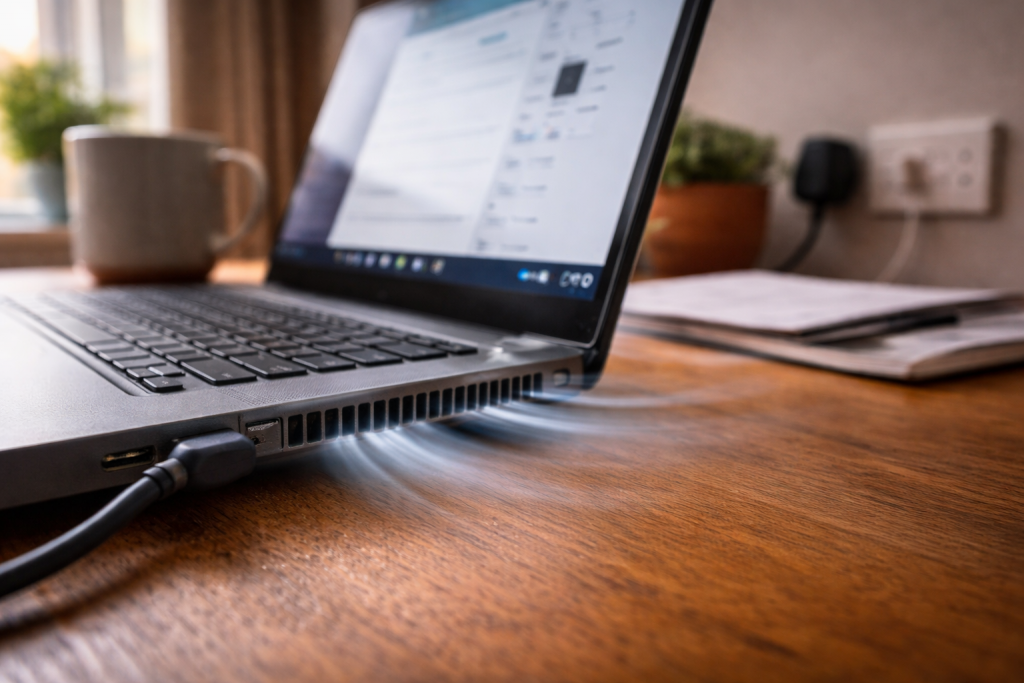
A laptop fan that never seems to calm down usually isn’t “just how it is”. It’s the machine telling you it’s either generating too much heat, failing to move heat out efficiently, or reading the temperature wrong and panicking. The annoying part is that it can happen during light use: a couple of browser tabs, email, maybe Spotify, and the fan still sounds like it’s rendering a film.
The other pattern I see a lot is the fan ramping up the moment you plug in the charger, or whenever you connect a USB-C dock. That’s not superstition. Power limits, GPU switching, and background indexing jobs often change behaviour on mains power, and the cooling system follows.
Fixing it is less about one magic setting and more about working out which of three things is failing first: airflow, workload, or control logic. Start with what’s measurable, change one variable at a time, and don’t ignore the basics like blocked vents and dust mats.
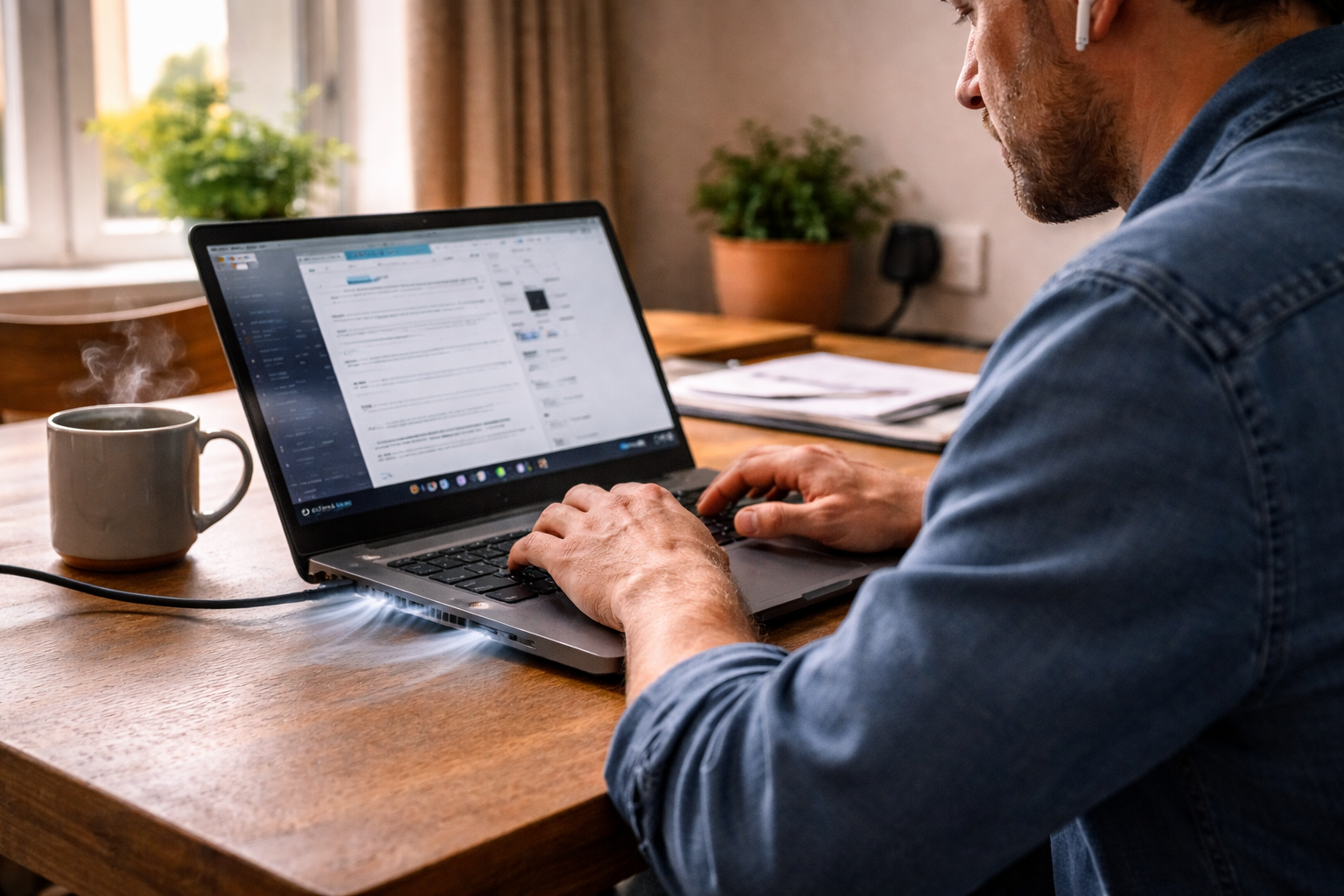
What’s actually driving the noise: heat, load, or bad control
Fans spin up for one reason: the system thinks components are approaching a temperature limit. That “system” is a mix of sensors, firmware (BIOS/UEFI or Apple’s controller), and the operating system. When any part of that chain is wrong, you get fans that run hard even when the laptop feels only mildly warm.
Three common root causes show up repeatedly:
- Real heat: CPU/GPU are genuinely hot due to sustained load, poor airflow, dried thermal paste, or a clogged heatsink.
- Phantom load: background processes keep the CPU busy, so heat rises even though you aren’t doing anything obvious.
- Control issues: firmware bugs, sensor misreads, or aggressive power profiles make the fan curve too eager.
Modern thin laptops are especially sensitive because they run close to their thermal ceiling by design. A small change in airflow (using it on a duvet, a dusty intake, a slightly loose bottom cover) can be the difference between quiet and constant roar. This is the most common issue I see on UK devices sold before 2024: they’re slim, they’re fast, and they’re unforgiving when the cooling path isn’t perfect.
A diagnostic sequence that avoids guesswork
Don’t start by installing fan-control utilities or disabling services at random. First, confirm whether the laptop is reacting to genuine heat or to a software spike.
- Check if the noise matches temperature. If the chassis near the exhaust is hot and the keyboard deck feels warm, assume heat is real. If it’s cool to the touch but the fan is screaming, suspect sensors/firmware or a stuck process.
- Confirm CPU usage at idle. On Windows, open Task Manager and sort by CPU. On macOS, use Activity Monitor. At a true idle, you want low single-digit CPU usage overall. If you’re seeing 20–60% with “nothing open”, the fan is doing its job.
- Note when it happens: only on charge, only on battery, only with an external monitor, only after waking from sleep. Those patterns point to power limits, GPU behaviour, or a driver issue.
- Listen for the type of noise. A smooth whoosh is normal airflow. A rattly buzz suggests a worn bearing or a cable brushing the fan. A pulsing ramp-up/ramp-down every few seconds often means the fan curve is too aggressive or the sensor reading is noisy.
In practice, this sequence fixes the problem in about half of cases because it stops people chasing the wrong layer. If CPU usage is high, cleaning vents won’t help. If the heatsink is clogged, killing browser tabs won’t help.
Step-by-step fixes (start safe, then go deeper)
1) Remove the obvious airflow blockers
Failure mode: the laptop is fine on a desk, loud on a bed or sofa, or loud when used on your lap. The intake is being starved.
- Use the laptop on a hard surface for 10 minutes and see if the fan settles.
- Check the underside vents for lint mats. They can form a felt layer you won’t notice until you tilt the machine into the light.
- If the exhaust is at the hinge, make sure the lid isn’t pressed against a wall or cushion.
I’ve had machines come in “overheating” that were simply being used on a throw blanket. The fan wasn’t the problem; it was the only thing still doing its job.
2) Identify the process that’s keeping the CPU awake
Failure mode: fans run hard even when the laptop feels only warm, and it happens right after boot or after an update.
- Windows: Task Manager > Processes. Sort by CPU, then by Power usage. Look for browsers, antivirus scans, Windows Update, OneDrive sync, “System” spikes, or vendor utilities.
- macOS: Activity Monitor > CPU. Look for Spotlight indexing (mds, mdworker), photo analysis, browser helper processes, or runaway menu bar apps.
- Quit the top offender and watch the fan behaviour for 2–3 minutes. Fans lag behind temperature; give it time.
If the offender is a browser, check extensions. Ad blockers and coupon extensions can hammer CPU on certain pages. If it’s video playback, confirm hardware acceleration is enabled and the graphics driver isn’t broken.
3) Fix power mode and processor limits (Windows)
Failure mode: fans are noticeably louder on mains power, or after switching to “Best performance”. The CPU is being allowed to boost aggressively.
- Settings > System > Power & battery > Power mode: set to Balanced or Best power efficiency for day-to-day work.
- Control Panel > Power Options > Change plan settings > Advanced: under Processor power management, set Maximum processor state to 99% (on mains) as a test. This disables some turbo boost behaviour and often drops fan noise immediately.
- If you use a vendor tool (Lenovo Vantage, Dell Power Manager, HP Command Center), set thermal mode to Optimised or Quiet and avoid “Ultra performance” unless you need it.
99% max CPU is a diagnostic lever, not a permanent lifestyle. If it makes the laptop quiet, you’ve proved the noise is boost-related, and you can fine-tune from there.
4) Check GPU behaviour (especially with external displays)
Failure mode: fans go loud the moment you connect an external monitor, or when a USB-C dock is attached. The discrete GPU may be waking up and staying awake.
- Windows: Settings > System > Display > Graphics. Set your browser and chat apps to Power saving (integrated GPU) and keep heavy apps on High performance only when needed.
- Disable unnecessary high refresh rates on external monitors. 144Hz on a laptop iGPU can raise idle power and heat.
- If you’re using a dock, test with the monitor connected directly to the laptop. Some docks keep the GPU active or add overhead.
Seen most often on HP, Dell and Lenovo laptops: the machine is quiet on the internal screen, then a 4K monitor arrives and the thermal budget disappears.
If your external display isn’t behaving properly over USB-C, sort that first; flaky link negotiation can cause repeated GPU resets and heat. Fix an external monitor not detected via USB-C
5) Update BIOS/UEFI and chipset drivers (Windows)
Failure mode: fans became louder after a Windows update, or after a sleep/wake cycle. Firmware fan curves and thermal tables can be wrong.
- Install the latest BIOS/UEFI from your laptop manufacturer (not from random driver sites).
- Update chipset and graphics drivers from the OEM, or directly from Intel driver and support resources / NVIDIA driver downloads if your model supports it.
- After updating, shut down fully (not restart), wait 20 seconds, then boot. Some embedded controllers only reset on a cold start.
Edge case: a BIOS update can also make fans louder if the manufacturer tightens thermal limits. If that happens, check for a newer BIOS revision, or a vendor utility that exposes “Quiet” fan profiles.
6) Reset SMC/thermal controller behaviour (MacBooks)
Failure mode: MacBook fans run high after wake, after an OS update, or when the laptop is cool. Apple’s control logic can get stuck in a high-fan state.
- On Apple silicon Macs, a full shutdown and power-on often clears odd fan behaviour.
- On Intel-based Macs, an SMC reset can help (Apple’s steps vary by model). Use Apple’s official instructions rather than guesswork.
If the fan ramps during Spotlight indexing after a major update, let it finish. I’ve watched a MacBook Air sound like a tiny vacuum for 30–60 minutes after a big macOS upgrade, then return to normal once indexing settles.
7) Clean the cooling path properly (without damaging anything)
Failure mode: fans are loud under any load, exhaust air feels weak, and the laptop is a few years old. Dust is acting like insulation.
- Power off, unplug, and if possible disable battery in BIOS (some business laptops offer this) before opening.
- If you can access the fan and heatsink fins, hold the fan blades still and use short bursts of compressed air through the heatsink fins from the exhaust side outward.
- Don’t spin the fan with air. Overspinning can damage bearings or generate back voltage.
- Reassemble carefully; a slightly mis-seated bottom cover can block intakes on some designs.
When I open a noisy laptop, the most telling sign is dust packed into the heatsink fins, not the fan itself. The fan can look clean while the fins are basically a felt radiator.
8) Consider thermal paste only when the symptoms match
Failure mode: temperatures spike quickly and fans hit maximum within seconds of load, even after cleaning. That can indicate poor thermal contact.
- Thermal paste replacement is model-specific and easy to get wrong (stripped screws, torn thermal pads, uneven mounting pressure).
- If the laptop is under warranty, don’t do it yourself.
- If you do proceed, replace paste and any damaged thermal pads with the correct thickness. Wrong pad thickness can lift the heatsink off the CPU.
This is where DIY repairs often fail. People repaste, the laptop gets worse, and the fan noise becomes constant because the CPU is now permanently heat-soaked.
Real-world patterns that change the fix
“It only happens on Teams/Zoom calls.” Video conferencing can hit CPU, GPU, and the encoder. If hardware acceleration is broken, the CPU does the heavy lifting and heat climbs. Test with the browser version vs the desktop app, and check camera effects (background blur is a known heater).
“It’s loud when charging, quiet on battery.” On many Windows laptops, the CPU power limit is higher on mains. Balanced mode plus a sensible maximum processor state often calms it down without making the machine feel sluggish.
“It started after I bought a USB-C dock.” Docks can keep the laptop in a higher power state, especially with Ethernet, multiple displays, or charging. I’ve seen docks that run warm themselves and heat the laptop’s underside if they’re stacked. Separate them physically and retest.
“It’s loud even at the login screen.” That points away from apps and towards firmware, dust blockage, or a failing fan. If it’s loud before Windows even loads, don’t waste time reinstalling software.
“It pulses up and down every few seconds.” That’s often a fan curve reacting to a temperature sensor that’s hovering around a threshold. BIOS updates sometimes fix it. Sometimes the cure is simply cleaning, because dust makes temperature swing more sharply under light load.
Common mistakes that keep the fan loud
- Using “fan booster” apps as the first move. They can mask the real issue and sometimes fight the system controller, causing more ramping.
- Blasting compressed air straight into the fan. Spinning the fan like a turbine is how bearings get noisy later.
- Assuming “warm” equals “overheating”. A laptop can feel warm and still be within normal operating limits. The fan curve might just be aggressive.
- Ignoring browser tabs. A single misbehaving tab can keep a CPU core pegged. I’ve seen it with live sports streams and certain ad networks.
- Replacing thermal paste without checking the heatsink fins. If the fins are clogged, new paste won’t help.
- Running the laptop in clamshell mode without airflow. Closed-lid use with an external monitor can trap heat on some designs, especially if the exhaust vents near the hinge.
Hardware and software factors that decide whether it’s fixable
Fan health matters. If the noise has a grinding tone or changes when you tilt the laptop, the bearing may be failing. Cleaning won’t fix a worn fan. Replacement is usually straightforward on business laptops and a pain on ultrathins.
Ambient temperature in UK homes isn’t always “cool”. A laptop that was fine in winter can become loud in a warm flat in summer, especially if it’s used on soft furniture. That’s not a defect, but it does mean you need better airflow.
Windows background tasks are real. After updates, Windows can run indexing, Defender scans, and Store updates. If the fan is loud for an hour after Patch Tuesday, check CPU usage before you start changing BIOS settings.
Battery and charging behaviour can add heat. Charging generates heat near the battery and power circuitry. If your laptop is also struggling with power delivery or battery health, it can run hotter than expected. Fix laptop battery draining when plugged in
Thermal design limits are sometimes the answer. Some thin laptops simply run fans audibly under moderate load. If everything checks out—clean fins, normal CPU usage, up-to-date firmware—your best “fix” may be a quieter power profile and a stand that improves intake airflow.
Conclusion
Constant loud fans are usually a symptom, not the fault itself. Treat it like a diagnosis: confirm whether the laptop is hot or just busy, then decide whether you’re dealing with airflow, workload, or control logic. The quickest wins tend to be power mode tuning, killing a runaway process, and cleaning blocked heatsink fins. If the noise is mechanical or it’s loud before the OS loads, stop chasing software and look at the hardware.
FAQ
Why are my laptop fans always loud after a Windows 11 update even when I only have Chrome open?
After updates, Windows often runs indexing, Defender scans, and app updates in the background. Check Task Manager for CPU usage and disk activity; if “Antimalware Service Executable”, “Windows Modules Installer”, or a browser process is high, the fan is reacting to real load. If CPU is low but fans are still loud, update BIOS/chipset drivers and do a full shutdown to reset the embedded controller.
Why does my laptop fan get much louder when I plug in the charger but it stays quiet on battery?
On mains power, many laptops raise CPU power limits and allow more turbo boost, which increases heat quickly. Set Windows power mode to Balanced, then test by setting Maximum processor state to 99% on AC power. If that calms it down, the issue is boost behaviour rather than dust or a failing fan.
Why do my fans ramp up when I connect an external monitor via USB-C dock, but not on the built-in screen?
External displays can wake the discrete GPU or push the integrated GPU harder (especially at 4K or high refresh rates), raising idle power and heat. Try lowering the monitor refresh rate, forcing everyday apps to the integrated GPU, and testing the monitor connected directly to the laptop instead of through the dock.
Why is my MacBook fan loud after waking from sleep even though the laptop feels cool?
This can happen when a background task spikes briefly after wake, or when the system controller gets stuck in a high-fan state. Check Activity Monitor for a process using CPU. If nothing stands out, shut down fully and power back on; on Intel models, an SMC reset can also help if the behaviour repeats.
Why does my laptop fan pulse up and down every few seconds when I’m just browsing at night?
Pulsing usually means the temperature is hovering around a fan-curve threshold, so the controller keeps changing speed. Dust in the heatsink fins makes temperatures swing more sharply under light load, so cleaning often helps. If the laptop is already clean, a BIOS update can smooth the fan curve on some models.
Recommended gear on Amazon UK
- Useful for clearing dust packed into heatsink fins, which often causes weak exhaust airflow and constant high fan speed even under light use. Relevant examples
- Raises the chassis and improves intake airflow, which reduces fan ramping on thin laptops that choke when used on soft furniture. Relevant examples
- Helps only when poor thermal contact is the cause, such as rapid temperature spikes to high fan speed even after the cooling fins are cleaned. Relevant examples
- Prevents stripped screws and poor reassembly, both of which can lead to blocked vents or rattles that get mistaken for ‘normal’ fan noise. See suitable options







