
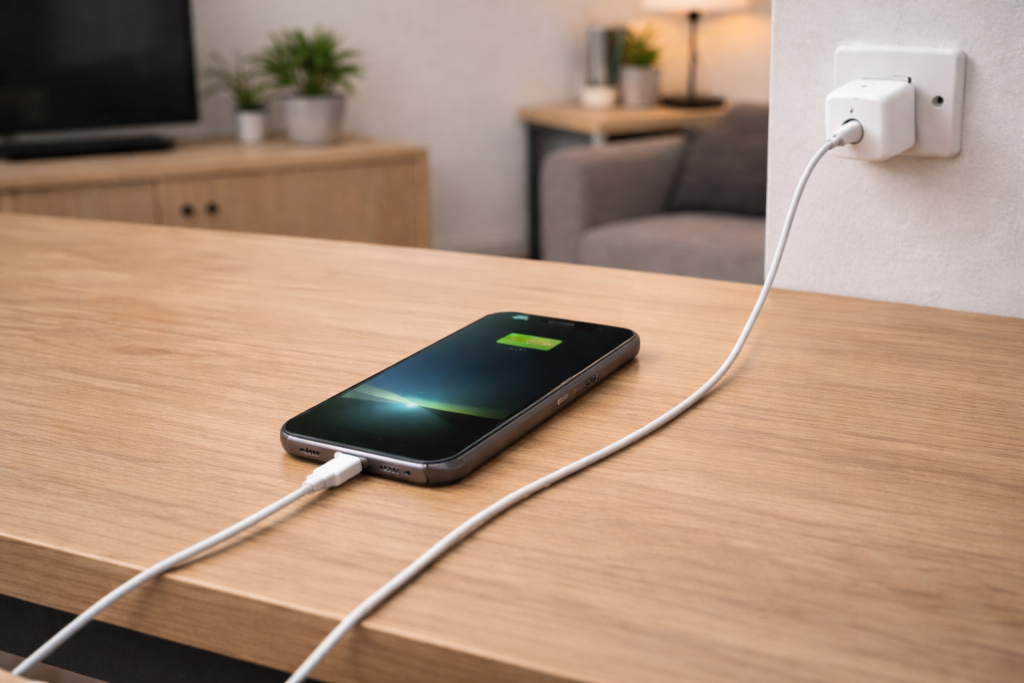
When “slow charging” starts right after an iOS update
If your iPhone started charging slowly after an iOS update, you’re not imagining it. Updates can change background activity, power management, and charging behaviour (especially overnight), and they can also expose borderline hardware issues like tired cables or weak USB ports.
The key is to separate three different symptoms that people describe as “slow charging”: the phone is actually drawing less power, the phone is charging normally but spending power at the same time, or the phone is deliberately pausing/limiting charge to protect the battery.
This article walks through a clean diagnostic path you can do at home in the UK with the chargers and sockets you already have, then finishes with the few bits of hardware that genuinely stop the problem when it keeps coming back.
What changed: iOS charging logic vs your power source
1) iOS can “hide” charging speed with background work
Right after an update, iOS often runs indexing, photo analysis, app updates, and iCloud sync. If you plug in at the same time, the battery percentage can crawl because the phone is using power while it’s receiving it.
In practice, I see this most often in the first 24 hours after a major iOS release, especially on iPhones with large photo libraries and lots of apps.
- Clue: the phone feels warm, the screen-on time is high, and charging speeds up later when the device is idle.
- What it means: the charger might be fine; the phone is just busy.
2) Optimised Battery Charging can pause at 80%
Optimised Battery Charging and Clean Energy Charging can make charging look “slow” or stuck, usually around 75–80% overnight. This is intentional: iOS holds the battery at a lower level and finishes close to when it thinks you’ll unplug.
- Clue: the lock screen says charging is on hold, or it sits at 80% for ages then finishes later.
- What it means: you’re seeing battery protection, not a fault.
3) Heat throttles charging hard (and updates can trigger heat)
iPhones reduce charging power when they’re warm. After an update, background tasks plus a thick case, a warm room, or wireless charging can push the device into thermal throttling.
This is the most common issue I see on devices sold in the UK before 2024 when people charge on a bed, sofa, or in direct sun near a window.
4) Your “fast charger” might not be fast in the way you think
Charging speed depends on the whole chain: wall adapter, cable, port, and the iPhone’s negotiated charging mode. A USB-A plug with an old 5W adapter will be slow no matter what iOS version you’re on.
- USB-C Power Delivery (PD): typically the reliable route to faster charging.
- USB-A: often capped and inconsistent across plugs, hubs, and car adapters.
- Wireless: convenient but usually slower and more heat-sensitive.
5) Port contamination and cable wear show up “after” an update by coincidence
It’s common to blame the update because the timing lines up, but many slow-charging cases end up being a cable that’s gone intermittent or lint packed into the Lightning/USB‑C port. The update just happened to be the moment you noticed the behaviour.
A diagnostic flow that actually isolates the cause
Don’t change five things at once. Do these checks in order so you can tell what fixed it.
Step 1: Confirm it’s slow charging, not high drain
- Plug in and leave the iPhone locked for 10 minutes.
- Turn on Airplane Mode for the test (this reduces background network activity).
- After 10 minutes, check if the percentage moved meaningfully.
If charging improves dramatically in Airplane Mode with the screen off, you likely have background activity or a network/app issue rather than a charger problem.
Step 2: Check Battery settings that deliberately slow charging
- Go to Settings > Battery > Battery Health & Charging.
- Toggle Optimised Battery Charging off for one night to test.
- If you see Clean Energy Charging, disable it temporarily for testing as well.
Don’t leave these off forever if you don’t need to. The goal is to see whether iOS is intentionally holding charge, not to permanently change battery care.
Apple documents the intended behaviour here: About Optimized Battery Charging on iPhone.
Step 3: Remove heat from the equation
- Take the iPhone out of a thick case for one charging session.
- Avoid charging under a pillow/duvet or on soft fabric.
- If you use MagSafe/Qi, test once with a cable instead.
- If the phone is warm, let it cool for 10–15 minutes before charging.
In real homes, not lab setups, heat is the reason wireless charging “randomly” slows down even when the charger is technically fine.
Step 4: Use a known-good wall adapter and cable (no hubs, no PCs)
For this test, remove variables:
- Plug directly into a wall socket (not a TV USB port, not a laptop, not a multi-port hub).
- Use a USB-C PD wall adapter if you have one.
- Use a different cable than your usual one.
If you’re on an iPhone 15/16 with USB‑C and you also use power banks, note that some combinations negotiate poorly; if that’s your situation, see Fix iPhone USB-C not charging from power banks.
Step 5: Inspect and clean the charging port safely
Lint in the port can prevent a solid connection, which causes repeated renegotiation and low power draw. I’ve fixed plenty of “iOS update broke charging” reports by removing compacted pocket lint.
- Power the iPhone off.
- Use a dry wooden toothpick or anti-static brush to gently lift lint out.
- Do not use metal tools, and don’t spray liquids into the port.
- Try a different cable after cleaning.
Step 6: Check for accessory warnings and charging state
- If you see “Accessory may not be supported”, treat it as a cable/adapter issue first.
- If the phone repeatedly connects/disconnects while plugged in, suspect the cable end, port debris, or a loose adapter socket.
- If charging is only slow in the car, suspect the car adapter (many are effectively 5W).
Step 7: Update iOS again (or apply the point release)
Some slow-charging complaints are tied to early builds. If you updated to a major version (for example, iOS x.0), install the latest point update (x.0.1 / x.1) before you spend money on accessories.
- Go to Settings > General > Software Update.
- Install any available update.
- Re-test charging with the same charger/cable you used in Step 4.
Step 8: Reset settings only if charging is inconsistent across known-good chargers
If charging speed varies wildly between sessions on the same reliable adapter/cable, a settings reset can clear odd power/network behaviour without wiping your data.
- Go to Settings > General > Transfer or Reset iPhone > Reset.
- Choose Reset All Settings (not “Erase All Content and Settings”).
This step fixes the problem in about half of cases where the update left behind a messy mix of network, location, and background permissions.
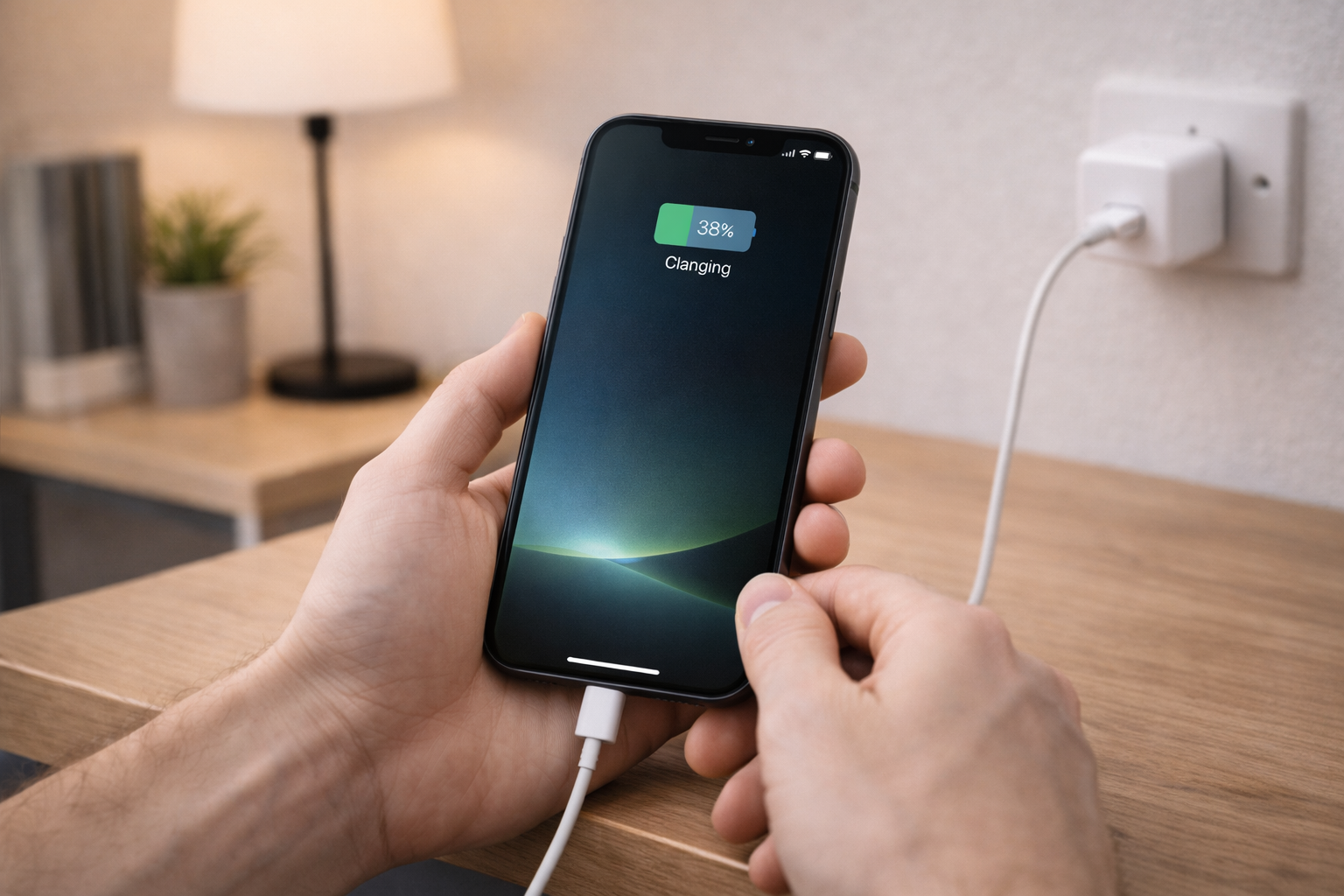
Step 9: Battery Health checks that matter (and ones that don’t)
Battery Health won’t directly tell you charging wattage, but it does explain why the last 20% feels slow. iPhones taper charging near full to protect the battery, and older batteries can exaggerate that behaviour.
- Maximum Capacity significantly reduced: expect more heat and more throttling during charging.
- Peak Performance Capability showing a warning: the phone may manage power more aggressively.
- Normal behaviour: 0–80% is faster; 80–100% is slower by design.
What “fast charging” looks like on UK setups
In the UK, the most reliable fast-charging setup is a USB‑C PD wall adapter plugged into a standard 3‑pin socket, plus a good USB‑C to USB‑C cable (iPhone 15/16) or USB‑C to Lightning (iPhone 14 and earlier).
Where people get caught out is mixing:
- Old USB-A adapters with modern cables.
- Multi-port chargers where one port is PD and the others are low output.
- Extension leads with loose sockets that cause micro-disconnects.
- Wireless pads that heat up under thick cases.
If you want a simple baseline test cable that removes a lot of variables, a USB-C to Lightning MFi-certified cable is the one I reach for on older iPhones when charging becomes unpredictable after updates.
Real-world fault patterns I see after updates
Scenario A: “It charges fine to 80%, then crawls”
This is usually Optimised Battery Charging, heat, or normal tapering near full. If it happens only overnight and finishes by morning, it’s working as intended. If it never finishes, disable Optimised Battery Charging for one night and charge in a cooler spot.
Scenario B: “It charges slowly only on my laptop/monitor USB port”
That port is likely limited to low power, or it’s sharing power with other devices. After an iOS update, the phone may be doing more background work, so the low-power port can’t keep up. Use a wall adapter for charging, and keep the laptop port for data sync.
On Windows systems, power management can also limit USB output; Microsoft covers the relevant power settings here: Fix USB-C and USB charging issues in Windows.
Scenario C: “Wireless charging got worse after iOS update”
Wireless charging is very sensitive to alignment and heat. If the update increased background activity, the phone runs warmer and throttles earlier. Test wired charging for a day; if wired is normal and wireless is slow, the pad/case/alignment is the problem, not iOS.
Scenario D: “It only slow-charges in the car”
Many car USB ports are designed for media playback, not fast charging. Even some car adapters claim high output but only deliver it on specific ports or with specific cables. If a wall adapter charges quickly but the car doesn’t, stop troubleshooting iOS and replace the car adapter/cable combo.
Scenario E: “It started after the update and also disconnects from power banks”
On USB‑C iPhones, some power banks and cables negotiate poorly and fall back to low power or cycle on/off. I rarely see this issue on newer PD-compliant power banks, but it’s common with older banks and bundled cables. The quickest confirmation is to test with a PD wall adapter; if that’s stable, your power bank setup is the weak link.
Common mistakes that waste time
- Testing with the same cable repeatedly: a cable can look perfect and still fail under load, especially near the connector strain relief.
- Charging while gaming or on a video call: the phone can draw nearly as much as it receives, so the percentage barely moves.
- Assuming “any USB-C” means fast: USB-C is a connector shape; the charging standard (PD) is what matters.
- Cleaning the port with metal: it’s easy to damage pins or short contacts.
- Using a wireless pad through a thick MagSafe-compatible case: it often works, but it runs hotter and throttles sooner.
When someone tells me “I tried everything”, it usually means they tried lots of combinations but never did a controlled test with one known-good adapter and one known-good cable.
Hardware and settings that reliably stabilise charging
Use a single-port USB-C PD wall adapter for troubleshooting
Multi-port chargers are convenient, but they add negotiation complexity and power sharing. For diagnosing slow charging, a simple single-port PD adapter removes a lot of weirdness.
Replace the cable before you replace the phone
Cables are consumables. If slow charging started after an update but you also notice you can “wiggle” the connector and change the charging state, that’s a cable or port-contact issue.
This is the most common issue I see on iPhones that live in handbags, coat pockets, and car centre consoles where the connector gets constant side-load.
Prefer wired charging when you need speed
If you need the phone to recover quickly (commute, travel day, airport), wired PD charging is more consistent than wireless. Wireless is fine for overnight top-ups, but it’s the first thing to slow down when the phone is warm.
Turn off background drains temporarily after updating
If you updated today and charging feels slow, give the phone a quiet hour on power:
- Plug into a wall adapter.
- Enable Airplane Mode.
- Leave it locked for 30–60 minutes.
If it improves, the “slow charging” was mostly the phone being busy. After that settling period, charging usually returns to normal behaviour.
Wrap-up: the fastest way to get back to normal charging
To fix iPhone charging slowly after an iOS update, start by ruling out intentional limits (Optimised/Clean Energy Charging) and heat, then do one controlled test with a known-good PD wall adapter and a different cable. If that test is fast and stable, your original cable/adapter/power source is the problem. If it’s still slow on known-good hardware, focus on settings resets, battery health, and whether the phone is running hot or busy after the update.
FAQ: edge cases people hit in UK homes and cars
Why does my iPhone charge slowly after iOS update only at 80% and above?
That’s usually a mix of normal charge tapering and Optimised Battery Charging holding at ~80%. It’s most noticeable overnight because you’re watching it sit there for hours. Disable Optimised Battery Charging for one night to confirm, then re-enable it if you want the battery-protection behaviour.
Why is my iPhone fast-charging on a wall plug but slow on my Windows laptop USB-C port?
Many laptop USB-C ports don’t provide high charging power consistently, especially when the laptop is on battery or asleep. After an iOS update, the phone may also be doing more background work, making the low-power port feel even slower. In practice, a wall PD adapter is the cleanest baseline; use the laptop port for syncing, not rapid charging.
My iPhone says it’s charging but the percentage doesn’t go up after the update — what’s happening?
Most of the time the phone is drawing power but also spending it on background tasks, heat management, or heavy app use. Lock the screen, enable Airplane Mode, and test for 10–15 minutes; if it starts climbing, the charger is probably fine. If it still doesn’t move, suspect the cable/port connection or a weak adapter.
Why did wireless charging get worse after iOS 18/19 but wired is fine?
Wireless charging slows down quickly when the phone is warm or slightly misaligned. After updates, iPhones often run hotter for a day while they index and sync, and that pushes wireless into throttling sooner. I see this constantly with thick cases and bedside pads; wired charging is the sanity check.
In the UK, do extension leads and smart plugs affect iPhone charging speed?
They can, but usually indirectly. A loose extension socket can cause tiny disconnects that drop charging into a slower mode, and some smart plugs have poor contact tension after heavy use. If charging is inconsistent, test directly in a wall socket for a day; that single change often makes the pattern obvious.
My iPhone 15 USB-C charges slowly on one cable but not another — aren’t all USB-C cables the same?
No. Some USB-C cables are built for charging at higher current and stable PD negotiation, while others are effectively “basic” cables that fall back to slower modes. This is the most common issue I see with bundled USB-C cables from older accessories; swapping to a known-good cable usually stabilises behaviour immediately.
Recommended gear on Amazon UK
- A USB-C PD wall charger helps when slow charging is caused by low-power USB-A plugs, laptop ports, or car adapters that can’t keep up after an iOS update. View USB-C PD wall charger (UK plug) on Amazon UK
- A USB-C to Lightning MFi-certified cable is the quickest fix when charging becomes inconsistent due to a worn cable that still “works” but drops into slower charging modes. View USB-C to Lightning MFi cable on Amazon UK
- A proper USB-C to USB-C PD cable helps on iPhone 15/16 when certain cables negotiate poorly with PD adapters or power banks and fall back to slow charging. View USB-C to USB-C cable (for iPhone 15/16) on Amazon UK
- A MagSafe-compatible wireless charging pad helps when wireless charging slowed after the update due to alignment drift and heat buildup on generic Qi pads. View MagSafe-compatible wireless charging pad on Amazon UK








1 thought on “Fix iPhone Charging Slowly After iOS Update”