
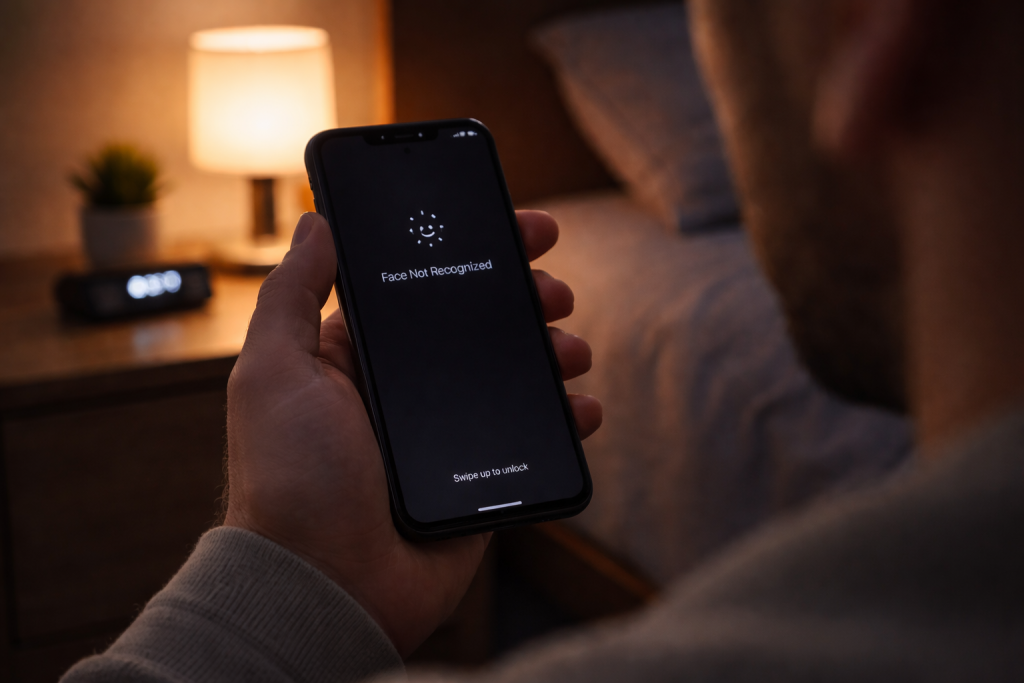
Face ID is meant to work in the dark. When it doesn’t, something is usually interfering with the TrueDepth system rather than the room being “too dim”. The pattern is familiar: it works fine outdoors, struggles in bed, fails in the car at night, or only unlocks after you tilt the phone around like you’re trying to catch a signal.
Low light failures tend to be repeatable. That’s useful, because it means you can test changes quickly and stop guessing. The aim is to work out whether you’re dealing with a simple obstruction, a training problem (your enrolled face data doesn’t match how you look at night), or a sensor/firmware issue that needs escalation.
What actually happens when Face ID “can’t see you”
Face ID doesn’t rely on ambient light the way a normal selfie camera does. The TrueDepth array projects an infrared dot pattern onto your face and reads it back with an IR camera, then fuses that with depth and 2D data to build a match. In a dark room, the phone is effectively bringing its own illumination.
So when Face ID fails in low light, it’s usually because the IR path is compromised or the match conditions have changed. The common failure modes look like this:
- IR obstruction: a screen protector cut-out, case lip, grime, or condensation partially blocks the dot projector or IR camera. It can still work in brighter conditions because the system falls back on less reliable cues, then collapses in the dark.
- Angle and distance drift: in bed or on a sofa, people hold the phone lower, closer, and at a steeper angle. The TrueDepth field of view is less forgiving than it seems.
- Night-time face mismatch: glasses off, hair down, hood up, heavy moisturiser, face mask, or a duvet shadow changes the geometry enough to push the match over the threshold.
- Attention and occlusion: “Require Attention” can fail when you’re half-looking, squinting, or the phone is below eye level. This shows up more at night because posture changes.
- Software state issues: after iOS updates, Face ID can become flaky until a reboot, a re-enrol, or a settings toggle reset. I see this most often on devices that have had multiple major iOS upgrades without a clean reset.
- Hardware degradation: a drop, water ingress, or a third-party screen replacement can misalign or damage the TrueDepth components. Low light is where marginal hardware shows its weakness first.
If Face ID fails in bright light too, treat it as a general Face ID failure. If it’s specifically worse in the dark, focus on IR obstruction, angle, and face-data mismatch first.
Fault-finding sequence that doesn’t waste your time
Run these checks in order. Each step is designed to either confirm a likely cause or rule it out quickly.
1) Confirm it’s a low-light-specific failure
- Test Face ID in bright indoor light, holding the phone at normal arm’s length, portrait orientation.
- Test again in a dark room, but keep the same distance and angle.
- Then test in the dark using your “problem posture” (lying down, phone low, close to your face).
If it only fails in the “problem posture”, you’re chasing angle/occlusion rather than a sensor fault. In practice, this step fixes the problem in about half of cases because it stops people blaming the lighting when it’s really the way the phone is being held.
2) Clean the TrueDepth area properly (not a quick wipe)
The notch/Dynamic Island area is a magnet for skin oils and pocket lint. IR is less tolerant of smears than people expect.
- Remove the case and any clip-on privacy cover.
- Use a clean microfibre cloth. If it’s greasy, slightly dampen the cloth with water and finish dry.
- Check for a screen protector edge creeping into the sensor area, especially “full cover” protectors.
- If you’ve come in from cold weather, look for condensation. Let the phone acclimatise for 10–15 minutes.
I’ve lost count of the number of “Face ID is broken” phones that were just a slightly lifted protector corner catching the IR projector.
3) Eliminate the screen protector and case as variables
Some protectors claim Face ID compatibility but still scatter IR, particularly cheaper tempered glass with a black border. Cases can also cast a shadow or physically block the sensor window if tolerances are tight.
- Test with the case off.
- If you use a protector, test immediately after removing it (yes, even if it looks fine).
If Face ID suddenly works in the dark, don’t overthink it: the optical stack was the problem. Replace with a protector that has a proper sensor cut-out rather than a painted border.
4) Check the settings that quietly sabotage night unlocks
- Go to Settings > Face ID & Passcode.
- Toggle Require Attention for Face ID off for testing. If it fixes the issue, turn it back on and adjust how you hold the phone at night.
- Toggle Face ID with a Mask off temporarily if you enabled it and the failures started afterwards. It can reduce match strictness in a way that behaves oddly for some faces in low light.
- Check Attention Aware Features. If you often unlock while not looking directly at the screen, this can be a factor.
Attention checks are a common culprit when people unlock one-handed in bed with the phone below their eyeline. The phone isn’t “blind”; it’s refusing the match because it can’t confirm you’re looking.
5) Reboot and force the TrueDepth stack to reinitialise
It’s basic, but it matters because the TrueDepth components and their calibration data are loaded at boot.
- Restart the iPhone normally.
- After restart, wait 30 seconds, then test Face ID in the dark again.
If you’ve just updated iOS, do this before anything else. I’ve seen post-update Face ID weirdness clear up after a single restart, especially on iPhone 12 and 13 models.
6) Add an Alternate Appearance (the “night face” fix)
If Face ID works in the day but fails at night, your enrolled data may not reflect how you look when you’re actually trying to unlock. Alternate Appearance is underused and often more effective than re-enrolling from scratch.
- Go to Settings > Face ID & Passcode.
- Tap Set Up an Alternate Appearance.
- Enroll in the conditions that fail: glasses off, hair down, typical bedtime angle (but still within reason), and without harsh side-light from a lamp.
Don’t try to “game” it by enrolling with your face half-covered. Face ID needs consistent geometry. If you often have a duvet up to your nose, the correct fix is changing posture, not training Face ID to accept an occluded face.
7) If it’s still flaky: reset Face ID and re-enrol carefully
Re-enrolment works best when you remove variables.
- In Settings > Face ID & Passcode, tap Reset Face ID.
- Set it up again in bright, even indoor light first.
- Hold the phone at a normal distance (roughly 25–50 cm) and rotate your head slowly during the circle prompts.
- After setup, test in low light. If it’s improved but not perfect, add Alternate Appearance for your night conditions.
Rushing enrolment is a real thing. If you whip the phone around, you can end up with a weaker model that only matches under ideal conditions.
8) Update iOS, but don’t ignore what changed
Face ID reliability can shift with iOS updates because Apple tweaks matching thresholds and attention behaviour. If your problems started after an update, check for a point release.
- Go to Settings > General > Software Update.
- Install the latest iOS version available.
Apple’s own troubleshooting steps are worth cross-checking when you suspect a software regression: Apple’s Face ID troubleshooting checklist.
9) Run the “hardware suspicion” checks
These don’t prove hardware failure, but they raise the odds.
- Face ID unavailable / “Move iPhone lower” constantly: often points to sensor alignment or obstruction.
- Works only at a very specific angle: can indicate a shifted module after a drop.
- Front camera issues too: if the selfie camera is soft, foggy, or shows artefacts, contamination or damage near the module is likely.
- Recent screen replacement: third-party displays can interfere with TrueDepth calibration. Even a good-quality panel can be fitted slightly off.
If you suspect hardware, stop repeatedly resetting Face ID. It won’t fix a damaged dot projector, and you’ll just lose a working configuration if the fault is intermittent.
Real-world situations where low light makes it look worse
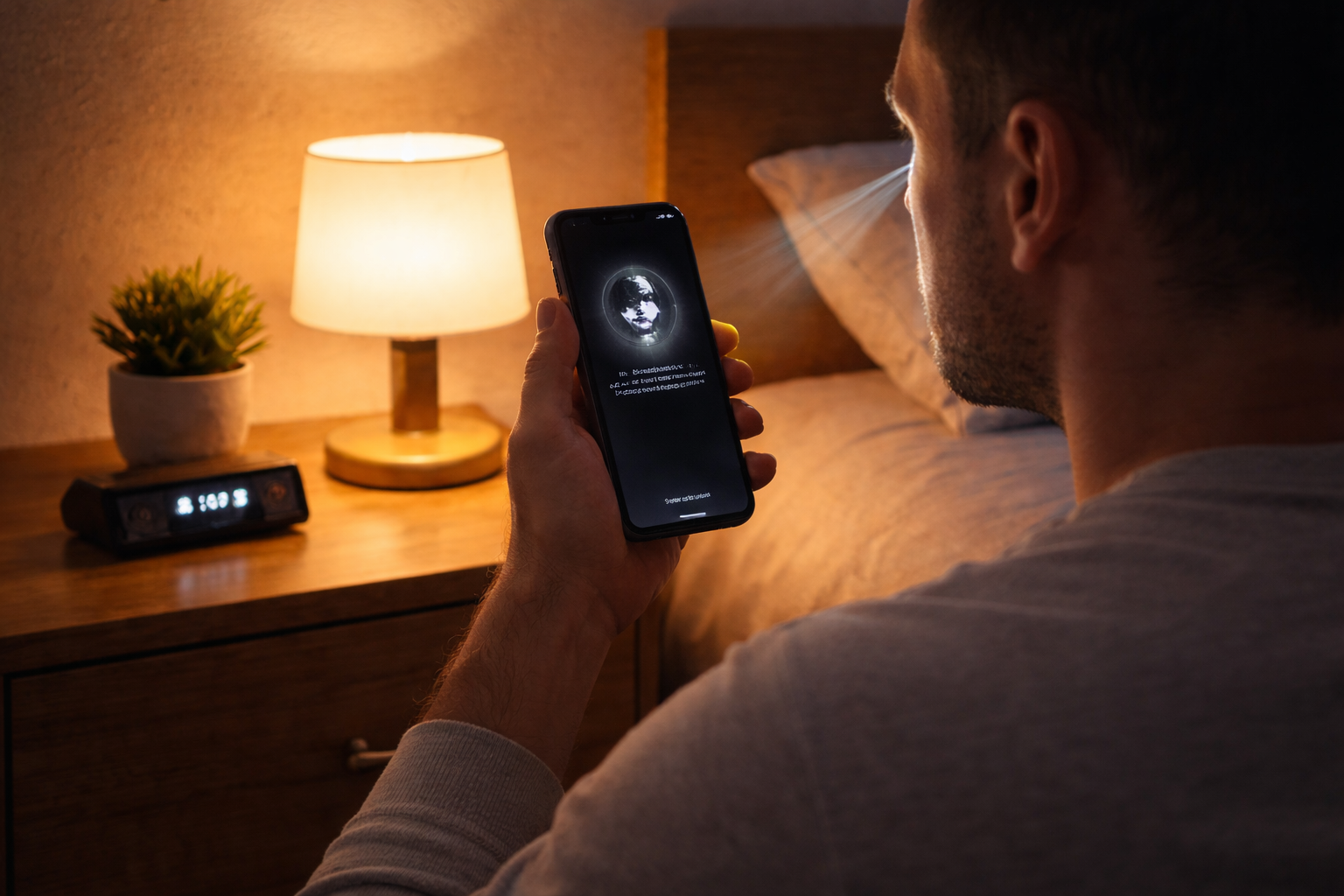
Bedtime unlock with the phone below your chin. The IR pattern hits at a steep angle, your eyes aren’t visible, and “Require Attention” blocks the match. This is the single most common scenario I see with otherwise healthy iPhones.
Car at night with dashboard lighting. Mixed lighting and reflections from glasses can confuse the attention check. If you’re trying to unlock while the phone is mounted low, the angle problem stacks on top.
After a hot shower. Steam and micro-condensation on the sensor window can be invisible until you tilt the phone. Face ID fails repeatedly, then “magically” works later. It wasn’t magic; it dried out.
Heavy moisturiser or SPF. Some products leave a reflective film that changes how IR scatters. It doesn’t always break Face ID, but it can push a borderline setup into failure at night.
Hoodies, scarves, and winter hats. In UK winters, people cover more of their face indoors than they realise. Face ID needs the nose and mouth region to be reasonably visible for consistent depth matching.
Errors that cause repeat failures
- Assuming the selfie camera is the sensor. People clean the lens area but miss the top edge where the TrueDepth components sit behind the glass.
- Using a protector with a black border. The border can intrude into the sensor area by a millimetre. That’s enough to scatter IR in low light.
- Enrolling Face ID in poor conditions. Setting up Face ID in a dark room while lying down bakes in a weak model. Enrol in good light first, then add an alternate appearance.
- Chasing “more light”. Turning on a bedside lamp often changes shadows and angles rather than helping. Face ID doesn’t need the lamp; it needs a clean optical path and a consistent pose.
- Ignoring attention settings. If you want to unlock while glancing, “Require Attention” will keep fighting you. Disabling it is a trade-off, not a free win.
When it’s software, when it’s hardware, and when it’s just physics
Software signs: Face ID became unreliable right after an iOS update; a restart improves it; failures are inconsistent; no history of drops or repairs. A reset and re-enrol usually stabilises it.
Hardware signs: the phone has been dropped; Face ID stopped abruptly; you get “Face ID is not available” messages; the front camera area shows fogging; the device has had a non-Apple screen replacement. Low light exposes marginal IR performance first, so it can look like a “night-only” issue early on.
Physics signs: it fails mostly when your face is partially covered, the phone is too close, or the angle is extreme. Face ID has limits. If you’re holding the phone 10 cm from your face at a steep angle, you’re outside the sweet spot.
If you need Apple’s official baseline for what Face ID expects and what to try before service, keep this bookmarked: How Face ID works and what to do when it fails.
Conclusion
Face ID doesn’t “need light”, but it does need a clean sensor window, a sensible angle, and face data that matches how you actually unlock your phone at night. Start by proving whether the failure is posture-related, then remove the usual blockers: grime, protectors, and attention checks. If re-enrolment and an alternate appearance don’t stabilise it, treat it as a likely hardware or repair-history problem and stop burning time on settings resets.
If you’re also dealing with other iPhone oddities after updates, Fix iPhone battery draining overnight is worth a look because background indexing and post-update glitches often show up together.
FAQ
Does Face ID work in complete darkness?
Yes, when the TrueDepth system is functioning normally. It uses infrared projection and an IR camera, so it doesn’t rely on room lighting. If it fails only in the dark, suspect obstruction, angle, or attention checks rather than “not enough light”.
Why does Face ID fail when I’m lying down in bed?
The phone is usually closer, lower, and tilted more than during daytime use. That changes the geometry and can hide your eyes, which matters if “Require Attention for Face ID” is enabled. Test with attention temporarily off to confirm, then adjust how you hold the phone.
Can a screen protector stop Face ID working at night?
Yes. Protectors with a black border or poor cut-outs can scatter or block infrared. It may still work in brighter conditions and then fail in low light, which makes it look like a lighting issue. Testing without the protector is the quickest way to prove it.
Should I set up Face ID again in low light to fix low-light failures?
No. Re-enrol in bright, even indoor light first to build a strong model, then use Alternate Appearance for your night-time look (glasses off, hair down, typical angle). Enrolling in poor conditions often produces a weaker match overall.
Face ID started failing after an iOS update. What’s the best first step?
Restart the iPhone, then test. If it’s still unreliable, check for a point update and consider resetting Face ID and re-enrolling. If the phone has a repair history or has been dropped, don’t assume it’s software just because the timing matches an update.
Recommended gear on Amazon UK
- A proper microfibre cloth removes skin oils from the TrueDepth glass without smearing, which is a common cause of low-light Face ID failures. View Microfibre cleaning cloth (lens-grade) on Amazon UK
- A protector with a real sensor cut-out avoids IR scattering from painted borders that can break Face ID reliability in the dark. View Screen protector with TrueDepth cut-out (no black border) on Amazon UK
- A case with a minimal raised edge reduces the chance of physically shading or clipping the sensor area when you unlock at steep angles. View Slim case with low front lip on Amazon UK
- Alcohol-free cleaner helps shift greasy residue that can interfere with infrared performance, especially if Face ID fails after skincare products. View Alcohol-free screen cleaning spray on Amazon UK







