
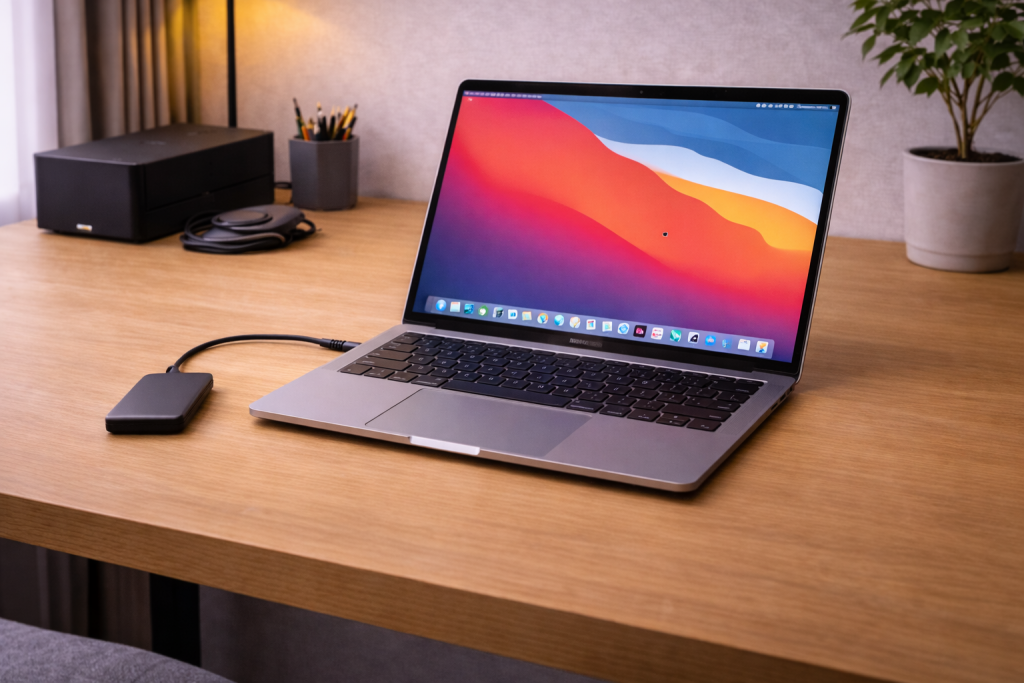
When your external SSD vanishes on a Mac
An external SSD that isn’t detected on macOS usually fails in one of three places: the physical link (cable/port/power), the USB/Thunderbolt bridge (enclosure/dock), or the filesystem layer (APFS/HFS+/exFAT/NTFS and mount rules). The symptom can look identical whether the drive is dead or simply not mounting, so the fastest path is to separate “not seen by hardware” from “seen but not mounted”.
I’ve lost count of how many “dead SSD” reports turned out to be a flaky USB‑C cable or a bus-powered hub that couldn’t keep the link stable. In practice, you can usually identify the failure state in under five minutes if you use the right macOS screens and one Terminal command.
What “not detected” actually means on macOS
macOS has multiple layers where a drive can appear or disappear:
- Electrical connection: the SSD powers up (LED, vibration, warmth) and negotiates USB/Thunderbolt.
- Device enumeration: macOS lists the device on the USB/Thunderbolt bus even if it can’t mount it.
- Disk discovery: Disk Utility shows the physical disk, even if the volume is missing or corrupted.
- Mounting: Finder shows the volume on the desktop/Locations and you can open it.
If Finder can’t see it, that doesn’t automatically mean the Mac can’t. I regularly see drives present in Disk Utility but hidden from Finder due to mount failures, encryption prompts, or filesystem incompatibility.
Quick triage: Finder vs Disk Utility vs System Information
- Finder: check Locations in the sidebar. If it appears but won’t open, you’re in “mount/permission/filesystem” territory.
- Disk Utility: open it and choose View > Show All Devices. If you only see volumes and not the physical disk, you can misdiagnose the situation.
- System Information: Apple menu > About This Mac > More Info > System Report, then check USB and Thunderbolt/USB4. If the device is listed here, the Mac is detecting it at the hardware level.
This is the most common issue I see on devices sold in the UK before 2024: the drive is detected in System Information, but it never mounts because the enclosure bridge is unstable or the filesystem is unsupported.
Core causes: cables, power, bridges, and filesystems
USB-C cables that charge but don’t carry data
USB‑C is the connector shape, not the capability. Many USB‑C cables included with chargers are power-only or unreliable for sustained data. With SSDs, that can look like: the drive powers on, then disconnects mid-enumeration, or appears for a second and vanishes.
I’ve seen this repeatedly with “free” USB‑C cables bundled with accessories. Swapping to a known-good USB‑C 10Gbps cable is often the single fastest fix.
Bus power limits (especially with hubs and iPads)
Some external SSDs and many NVMe enclosures draw more power during spin-up/initialisation than a Mac port or hub can provide consistently. Direct connection to the Mac usually works; through a hub, it fails or drops under load.
- Prefer connecting the SSD directly to the Mac first.
- If you must use a hub/dock, use one with its own power supply.
- On MacBook Air models, one port may behave better than the other if the other side is already powering peripherals.
In real homes, not lab setups, this is where intermittent “it worked yesterday” reports come from—someone added a webcam, phone charger, or HDMI adapter to the same hub.
Enclosure and bridge chip quirks (NVMe in a USB case)
If your “external SSD” is actually an NVMe drive inside a USB enclosure, the bridge chip matters. Some bridges don’t play nicely with certain Macs, certain macOS versions, or sleep/wake. The drive can be fine, but the bridge fails to re-enumerate after sleep.
I rarely see this issue on newer Thunderbolt-native drives, but it’s common with budget USB enclosures and older USB‑C hubs.
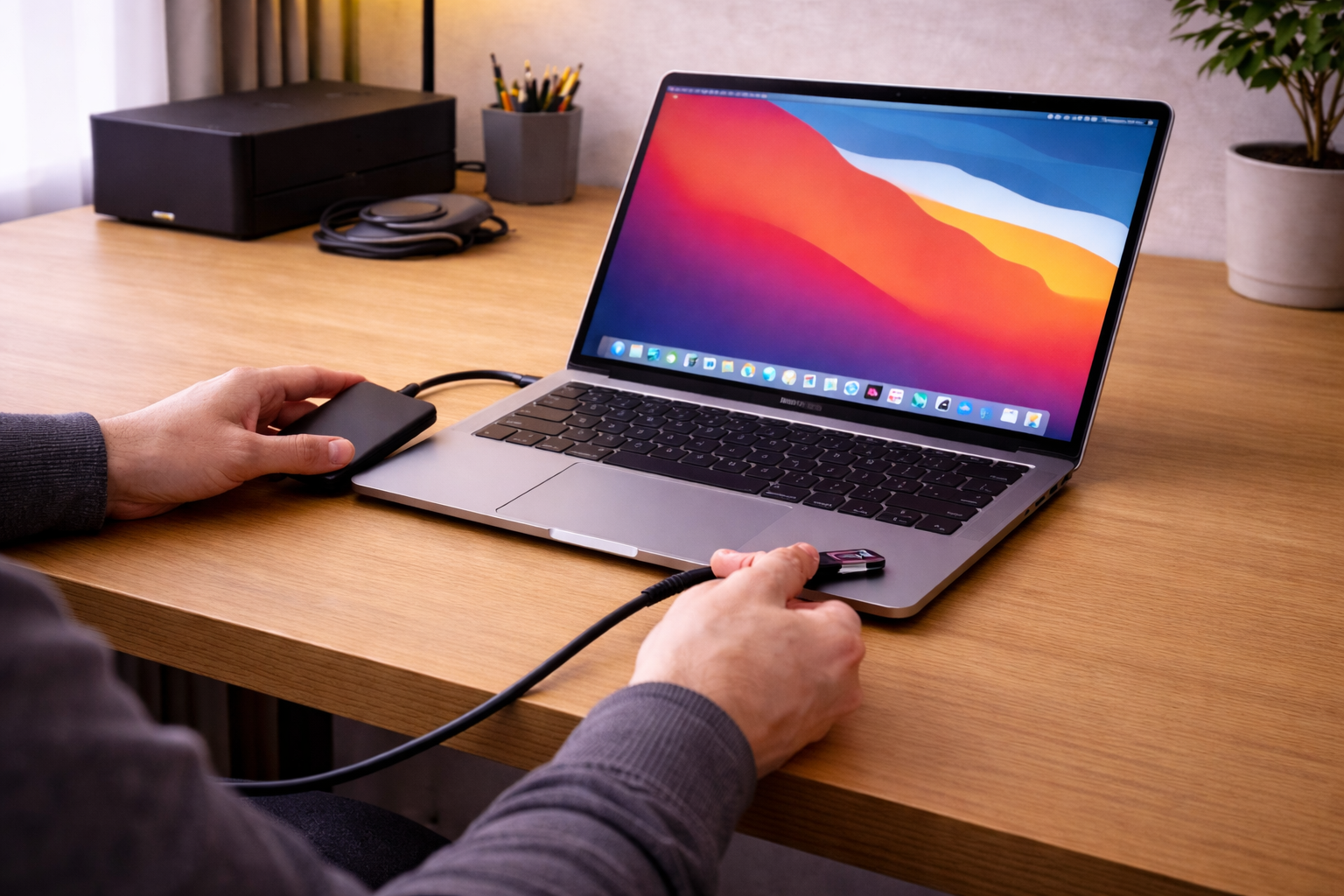
Filesystem mismatch: APFS/HFS+ vs exFAT vs NTFS
macOS can read and write APFS, HFS+, and exFAT. It can read NTFS by default but won’t write to it, and some NTFS volumes won’t mount cleanly if they were left in a “dirty” state by Windows (fast startup, unsafe removal, or BitLocker-related metadata).
- APFS: ideal for Mac-only use; supports snapshots and modern macOS features.
- exFAT: best for sharing between macOS and Windows without extra drivers; more fragile if unplugged unsafely.
- NTFS: common on Windows drives; may appear but mount read-only or fail if the volume is inconsistent.
If you also use the drive on a PC, see this USB-C SSD not mounting checklist for Windows and macOS to avoid bouncing between two half-fixes.
Step-by-step: diagnose and fix an external SSD not detected
1) Confirm the SSD is actually getting power
- Disconnect the SSD.
- Reconnect it directly to the Mac (no hub, no monitor USB ports).
- Listen/feel for activity and check any enclosure LED.
- Try a different port on the Mac.
If there’s no sign of power on multiple ports with a known-good cable, you may be looking at an enclosure failure or a dead drive. But don’t jump there yet—cables are still the usual culprit.
2) Swap the cable before you do anything else
Use a short, known-good USB‑C data cable (ideally rated for 10Gbps). If your Mac has USB‑A ports, try a USB‑A to USB‑C cable as a cross-check.
- If the SSD starts showing up reliably after a cable swap, stop troubleshooting and retire the old cable.
- If it only works at certain angles, the connector is worn or the cable is damaged.
In practice, this step fixes the problem in about half of cases I see with portable SSDs used for photo/video work.
3) Check Disk Utility the right way (Show All Devices)
- Open Disk Utility.
- Go to View > Show All Devices.
- Look for the physical disk (top-level entry), not just volumes.
Now you’re in one of these states:
- Nothing appears: likely cable/port/hub/enclosure or a hardware-level issue.
- Physical disk appears, volume missing: partition table or filesystem damage.
- Disk and volume appear but not mounted: mount failure, permissions, encryption prompt, or filesystem inconsistency.
4) Use System Information to confirm enumeration
Go to System Information and check USB or Thunderbolt/USB4. If you see the device name, vendor ID, or “Mass Storage”, the Mac is detecting it. If it’s absent here, macOS isn’t seeing the device at all.
This is where I usually decide whether to keep working on macOS settings or move to hardware isolation (different cable, different Mac, different enclosure).
5) Run a quick Terminal check (diskutil)
Open Terminal and run:
- diskutil list
If the SSD shows up as /dev/diskX, macOS can see it even if Finder can’t. If it doesn’t show up here but does show in System Information, you’re often dealing with a bridge/firmware oddity or a device that’s repeatedly disconnecting.
If the volume is present but not mounted, try:
- diskutil mountDisk /dev/diskX
Replace diskX with the number you see in diskutil list. If you get a specific error (e.g., “resource busy”, “could not mount”), that’s valuable—don’t ignore it.
6) First Aid: when it helps, and when it makes things worse
In Disk Utility, select the volume and run First Aid. If that fails, run First Aid on the container (APFS) or the physical disk as well.
- Good sign: First Aid repairs and the volume mounts.
- Bad sign: repeated I/O errors or the disk disappears mid-scan (often power/cable/bridge instability).
I’ve seen First Aid succeed only after moving the SSD off a hub and onto a direct port. If the link is unstable, repair tools can’t finish cleanly.
7) Finder settings: show external disks
Sometimes the drive is mounted but Finder is hiding it.
- Open Finder.
- Go to Finder > Settings.
- Under General, tick External disks.
- Under Sidebar, tick External disks.
This is a small fix, but I still run into it on Macs that were set up for minimal clutter.
8) macOS security prompts and blocked accessories (USB Restricted Mode)
On some setups, especially managed Macs or after major macOS upgrades, external accessories can be blocked until you approve them. If you see prompts about allowing accessories to connect, approve them and reconnect the SSD.
If you’re on a work Mac with MDM policies, you may not be able to override this yourself. Apple’s documentation is the quickest reference when the UI wording changes between macOS versions: Apple Support: allow accessories to connect to your Mac.
9) If the SSD is formatted NTFS, handle Windows fast startup properly
If the SSD was last used on Windows and now won’t mount on macOS, the volume may be marked “unclean”. This happens a lot when Windows Fast Startup is enabled or the drive was unplugged without ejecting.
- Connect the SSD back to a Windows PC.
- Run a file system check (chkdsk) and shut down fully (not hibernate).
- Then reconnect to the Mac.
Microsoft’s reference steps are here: Microsoft Support: check and repair a drive in Windows.
Seen most often on shared family drives that bounce between a Windows gaming PC and a MacBook for uni work.
10) If you need the data: don’t erase until you’ve stabilised the connection
Erasing/reformatting is only sensible once you’re sure the SSD link is stable and you’ve decided data recovery isn’t needed. If the drive disconnects randomly, fix that first (cable, direct port, powered hub, different enclosure). Otherwise you can end up with a half-written partition table that makes recovery harder.
11) Reformatting correctly (when you’re ready)
If you can see the physical disk reliably and you’re happy to wipe it:
- Disk Utility > View > Show All Devices.
- Select the physical disk.
- Click Erase.
- Choose APFS for Mac-only use, or exFAT for Mac + Windows sharing.
- Scheme: GUID Partition Map.
If you’re using the SSD for Time Machine on modern macOS, APFS is usually the cleanest choice. For camera footage shuttling between systems, exFAT is simpler but be strict about ejecting.
Real-world failure patterns I see most often
Scenario A: “It shows in Disk Utility but not in Finder”
This is typically a mount issue, not detection. The common causes are: Finder settings hiding external disks, a volume that needs First Aid, or a filesystem macOS can’t mount cleanly (often NTFS or a damaged exFAT).
- Confirm it’s mounted (Disk Utility shows “Mounted: Yes”).
- Try mounting manually with diskutil mountDisk.
- If it’s NTFS and you need write access, plan a proper cross-platform format (exFAT) or a dedicated NTFS driver.
I’ve seen this exact symptom after macOS updates where the drive mounts but the sidebar toggles were reset during migration.
Scenario B: “It connects, then disconnects every few minutes”
This is almost always physical layer instability: cable, port, hub power, or enclosure overheating. NVMe enclosures can get hot quickly, and some throttle or reset the bridge when they do.
- Try a shorter cable.
- Remove hubs and adapters.
- Test on the other side USB‑C port (MacBooks sometimes behave differently under load).
- If it’s an NVMe enclosure, test the NVMe in another enclosure if you can.
This is the point where I’ll often recommend a different enclosure rather than chasing software ghosts.
Scenario C: “Works on my MacBook, not on my iMac (or vice versa)”
Different Macs have different port controllers, power budgets, and sometimes different hub chains (especially iMacs connected through monitors). If it works on one Mac but not another:
- Compare direct-to-Mac connections on both machines.
- Avoid plugging into a display’s USB ports for testing.
- Check whether one Mac is using a USB‑C to USB‑A adapter; those can be surprisingly unreliable with SSDs.
I rarely see this when the SSD is Thunderbolt-native; it’s far more common with USB enclosures and mixed adapters.
Common mistakes that waste time (or risk data)
- Assuming “USB‑C” means fast and compatible: the cable and the enclosure decide the real behaviour.
- Running repairs while the drive is disconnecting: stabilise the link first or you can worsen corruption.
- Erasing the wrong device: in Disk Utility, always verify the physical disk name/capacity before erasing.
- Using exFAT for critical work without safe eject: exFAT is convenient but less forgiving after an unsafe removal.
- Testing through a hub and concluding the SSD is dead: direct connection is the baseline test.
In practice, the “hub test” is the trap I see most: everything looks fine until the SSD starts copying large files and the hub browns out.
Practical hardware/software swaps that stop repeat failures
Use a known-good USB-C data cable
If you only change one thing, change the cable. A proper USB‑C 10Gbps cable avoids the silent “charge-only” problem and reduces link drops during sustained transfers. If you want a simple known-good option, a USB-C 10Gbps data cable is the kind of swap that immediately clarifies whether you’re fighting the SSD or the connection.
Prefer a powered hub/dock for bus-powered NVMe enclosures
If your workflow needs multiple peripherals, a powered hub removes the “one more device broke my SSD” issue. This is usually where unstable behaviour stops when cheaper, bus-powered hubs fail.
Choose the right format for how you actually use the drive
- Mac-only: APFS, GUID Partition Map.
- Mac + Windows: exFAT, GUID Partition Map, and be strict about ejecting on both OSes.
- Windows-only but occasionally read on Mac: NTFS is fine, but expect read-only on macOS unless you add a driver.
If you’re also troubleshooting charging and USB‑C oddities across adapters and docks, this USB-C and power troubleshooting guide helps you spot the patterns faster.
Wrap-up: the fastest path to a working SSD on macOS
Start by proving whether macOS can enumerate the device (System Information, Disk Utility with “Show All Devices”, and diskutil list). If the SSD isn’t visible there, treat it as a physical link problem: cable, port, hub power, or enclosure. If it is visible but won’t mount, focus on First Aid, manual mounting, filesystem compatibility, and Windows “dirty” NTFS/exFAT states.
The key is to avoid random clicking and instead lock down the failure layer. Once you do that, the fix is usually straightforward—and you avoid wiping a drive that was only one cable swap away from working.
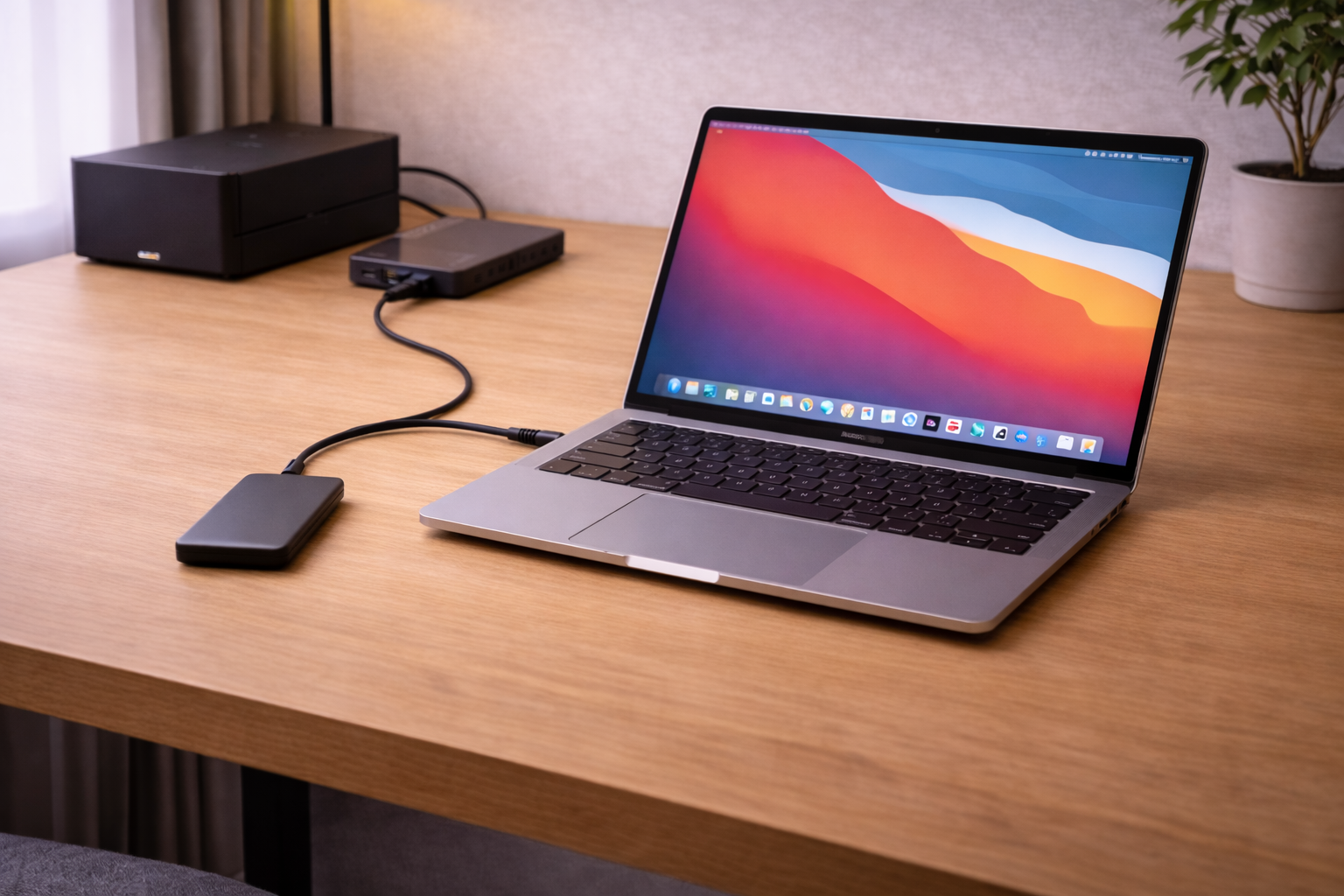
FAQ: awkward edge cases people hit in the real world
Why does my external SSD show in System Information but not in Disk Utility on macOS Sonoma/Sequoia?
This usually points to an unstable USB bridge or repeated disconnects during disk discovery. I see it most with NVMe drives in budget enclosures, especially when connected through a hub. Try a different cable and connect directly to the Mac; if it becomes stable, the enclosure or hub is the weak link.
My SSD works on Windows 11 but macOS says it can’t read the disk—what’s going on?
Most often it’s formatted NTFS or it was unplugged from Windows without a clean eject, leaving the filesystem in an “unclean” state. On UK laptops sold before 2024, Windows Fast Startup is commonly enabled and contributes to this. Run a Windows disk check, fully shut down, then reconnect to the Mac; if you need cross-platform use long-term, reformat to exFAT once your data is backed up.
Why does my SSD only fail when I plug it into my USB-C monitor or hub?
Monitor USB ports and bus-powered hubs often can’t provide stable power during SSD peak draw, so the drive resets mid-transfer. In practice, the same SSD will behave perfectly when connected directly to the Mac. Use a powered hub/dock or a direct connection for large copies and backups.
My Mac detects the SSD, but it mounts read-only—how do I fix that?
If it’s NTFS, read-only is expected on macOS without extra drivers. If it’s exFAT or APFS and still read-only, the volume may be damaged or the Mac may be enforcing permissions due to ownership settings. Run First Aid, then try mounting again; if the drive is shared between machines, unsafe removal is the common trigger I see.
Why does the SSD disappear after my Mac wakes from sleep?
This is a classic enclosure/bridge firmware behaviour, not a macOS “bug” you can toggle away. I’ve seen it repeatedly with certain USB-to-NVMe bridges that don’t re-negotiate cleanly after sleep. Workarounds are: reconnect the cable, avoid hubs, disable deep sleep for that session, or switch to a different enclosure that behaves consistently.
Recommended gear on Amazon UK
- In practice, repeated disconnects and “not detected” behaviour often comes down to a charge-only or unreliable cable, and a proper USB-C 10Gbps data cable stabilises the link during enumeration and large transfers. View USB-C 10Gbps data cable (short) on Amazon UK
- When an SSD works direct-to-Mac but fails through a hub or monitor, a powered USB-C hub with Power Delivery usually removes the bus-power limitation that causes random dropouts. View Powered USB-C hub with PD on Amazon UK
- If you need to isolate whether a specific USB-C port or cable is the issue, a reliable USB-C to USB-A adapter helps you test the same SSD on a different controller path without changing the drive. View USB-C to USB-A adapter (quality) on Amazon UK
- For NVMe drives inside external cases that vanish after sleep or disconnect under load, switching to a more stable NVMe USB-C enclosure often resolves bridge-chip resets that macOS can’t work around. View NVMe USB-C enclosure (reputable bridge chip) on Amazon UK








1 thought on “Fix External SSD Not Detected on macOS”