
Seeing “Ethernet connected” in Windows 11 but no web pages load is one of the more frustrating network faults. The cable looks fine, the icon says connected, but browsers and apps time out. This guide walks through the exact checks and fixes I use on Windows 11 PCs in UK homes and small offices.
Understanding the “Ethernet Connected, No Internet” Fault
Windows splits your connection into two parts: the link between your PC and the router, and the router’s link out to the internet. “Connected” only confirms the first part. It does not guarantee that DNS, IP settings or the ISP side are working.
When Ethernet shows as connected but you have no internet, the failure is usually in one of these areas:
- Incorrect IP or DNS configuration on the Windows 11 adapter
- Router not giving out addresses (DHCP failure)
- ISP outage or router WAN fault
- Security software or firewall blocking traffic
- Damaged or marginal Ethernet cable or port
In practice, misconfigured DNS or a stuck router DHCP service causes more of these cases than actual cable failures.
Quick Checks Before Deep Windows 11 Troubleshooting
Before changing anything in Windows, confirm the basics on your network and router. This avoids wasting time on the PC when the fault is upstream.
1. Confirm if the Internet Is Down for Everything
First, check whether other devices on the same router can reach the internet.
- Use a phone on Wi‑Fi connected to the same router and try loading a few sites.
- If possible, test another wired device (a console or another PC) on the same Ethernet port.
- If nothing can reach the internet, the problem is likely the router or ISP, not Windows 11.
This is the most common issue I see on UK broadband setups where the ISP router has locked up after a firmware push overnight.
2. Power Cycle the Router and ONT/Modem
Routers and fibre ONTs often keep the Ethernet link alive even when their WAN side is broken. A full power cycle usually clears that.
- Shut down your Windows 11 PC.
- Unplug power from the router and any separate modem or ONT.
- Wait at least 30 seconds.
- Reconnect the modem/ONT first and wait until its lights stabilise.
- Reconnect the router and wait 2–3 minutes.
- Start the PC and test again.
In practice, this step fixes the problem in about half of cases where Ethernet shows connected but DNS lookups fail.
3. Test with a Different Ethernet Cable and Port
Next, rule out a marginal cable or a bad port on the router or PC.
- Swap the Ethernet cable for another known-good Cat5e or Cat6 cable.
- Move the cable to a different LAN port on the router.
- If you use a wall socket, temporarily bypass it and connect directly to the router.
I see intermittent “connected but no internet” behaviour most often on older flat cables that have been bent sharply behind desks.
Diagnosing the Ethernet Adapter in Windows 11
Once you know the router and ISP are working for other devices, focus on the Windows 11 Ethernet adapter itself.
4. Check Network Status and Adapter Details
Use the built-in status view to see whether Windows has a valid IP address.
- Press Windows + I to open Settings.
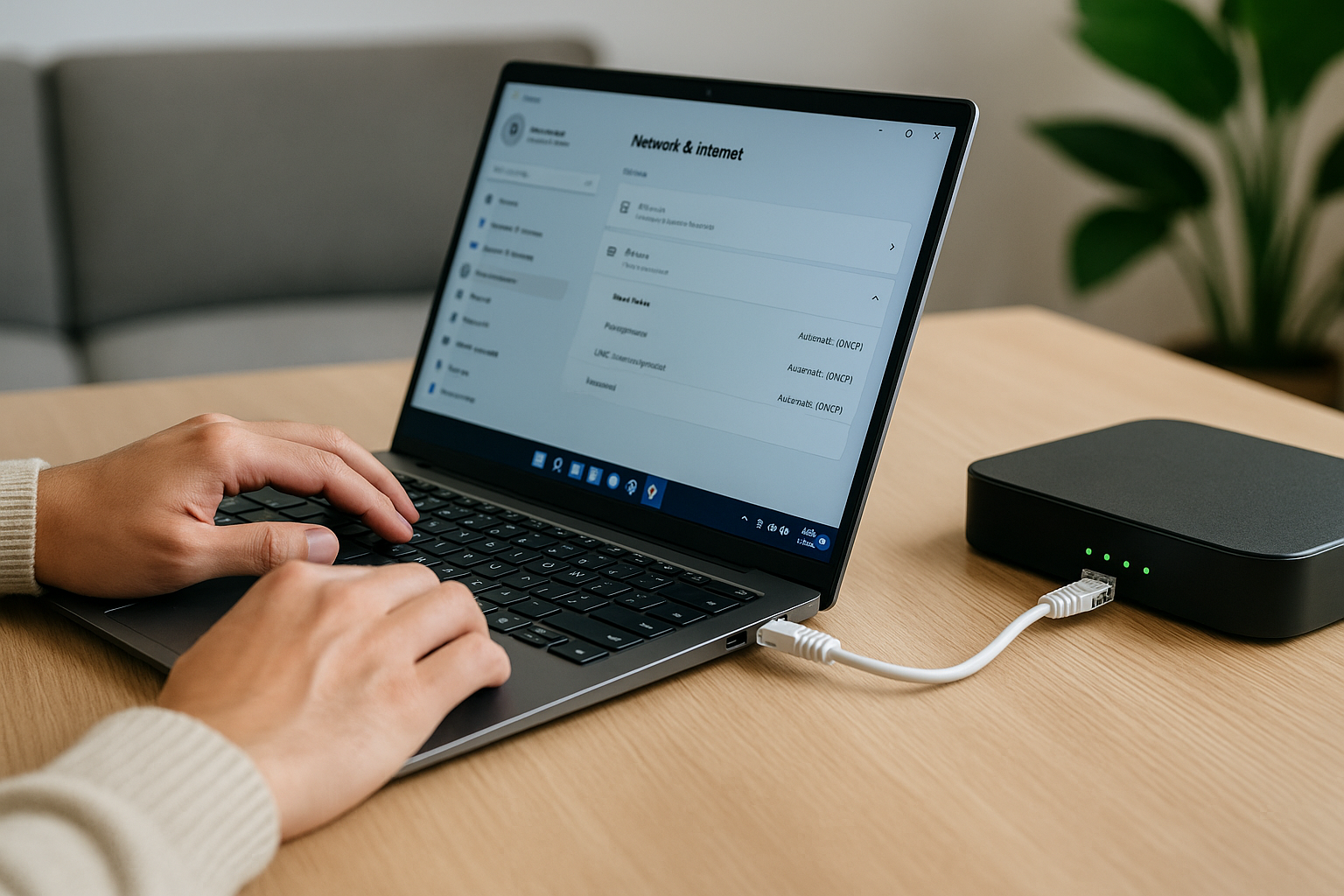
- Go to Network & internet > Ethernet.
- Check the status line. If it says No internet or Limited, click the Ethernet connection.
- Scroll down and note the IPv4 address, Default gateway and DNS servers.
If the IPv4 address starts with 169.254.x.x, Windows did not get an address from the router. That usually means DHCP is blocked or misconfigured.
On UK laptops sold before 2024, I often see this when corporate VPN clients have left behind broken virtual adapters.
5. Run the Windows 11 Network Troubleshooter
The built-in troubleshooter is basic but can reset some components automatically.
- In Settings > System > Troubleshoot > Other troubleshooters, find Network Adapter.
- Click Run.
- Select Ethernet and follow the prompts.
- Apply any fixes it suggests, then test your connection.
In practice, this only fully resolves the issue in a minority of cases, but it can quickly fix simple adapter misconfigurations.
Resetting IP and DNS on Windows 11
Misconfigured or corrupted TCP/IP and DNS settings are a frequent cause of Ethernet showing as connected but not resolving websites.
6. Flush DNS and Renew the IP Address
Use an elevated Command Prompt to clear cached DNS entries and request a fresh IP from the router.
- Right-click the Start button and select Windows Terminal (Admin) or Command Prompt (Admin).
- Run these commands one by one, pressing Enter after each:
Commands:
ipconfig /flushdnsipconfig /releaseipconfig /renew
After the commands complete, wait 10–15 seconds and test your browser again.
In practice, this step fixes stubborn “connected, no internet” issues where DNS lookups fail but pinging the router still works.
7. Reset Winsock and TCP/IP Stack
If renewing the IP does not help, reset the networking stack to its defaults.
- Open an elevated terminal again as in the previous step.
- Run the following commands:
netsh winsock resetnetsh int ip reset
- Restart your PC.
- Test the Ethernet connection once Windows 11 has fully loaded.
This often clears issues left behind by VPN clients and older antivirus suites that hook into the network stack.
8. Set Reliable DNS Servers Manually
Sometimes the router’s DNS service is flaky even when the internet link is fine. Setting DNS manually on the PC can bypass this.
- Open Settings > Network & internet > Ethernet.
- Click your Ethernet connection, then scroll to DNS server assignment.
- Click Edit and change to Manual.
- Enable IPv4 and enter public DNS servers, for example:
- Preferred DNS: 1.1.1.1
- Alternate DNS: 8.8.8.8
- Click Save and test again.
On BT and Sky routers I regularly see DNS failures where this simple change immediately restores browsing while the ISP sorts out their own DNS.
Checking Router and ISP Configuration from a Wired PC
If Windows looks healthy but you still have no internet, log into the router from the same Ethernet-connected PC to inspect its status.
9. Log into the Router and Check WAN Status
Most ISP routers expose a simple status page that shows whether the internet link is up.
- Open a browser and enter your router’s IP address (commonly
192.168.0.1or192.168.1.254on UK ISPs). - Sign in with the admin credentials printed on the router label.
- Find the Status or Internet section.
- Check whether the WAN/Internet connection shows as Connected and has an IP address.
If the WAN shows disconnected or has no IP, the fault is between the router and ISP. You can still have a “connected” Ethernet link to a router that itself has no internet.
In real homes, not lab setups, I often see this after someone has moved the ONT or VDSL modem and reconnected cables incorrectly.
10. Verify DHCP and LAN Settings on the Router
If your PC keeps getting a 169.254.x.x address, the router may not be handing out addresses correctly.
- In the router interface, look for LAN or DHCP Server settings.
- Confirm that DHCP is Enabled.
- Ensure the address range (scope) is large enough and not exhausted.
- Apply changes and reboot the router if you modify anything.
On some ISP-supplied routers, I have seen DHCP silently disable itself after a firmware update, leaving every wired device stuck with self-assigned addresses.
Driver and Adapter-Level Fixes in Windows 11
If the network stack and router both look fine, dig into the Ethernet adapter driver and power settings.
11. Update or Roll Back the Ethernet Driver
Faulty or mismatched drivers can cause a link to show as connected while dropping packets or failing to negotiate properly.
- Right-click Start and choose Device Manager.
- Expand Network adapters.
- Right-click your Ethernet adapter (e.g. Intel, Realtek) and select Properties.
- On the Driver tab, note the current version.
- Click Update Driver and choose Search automatically.
If the issue started immediately after a Windows Update, use the Roll Back Driver button instead (if available) and test again.
Seen most often on HP, Dell and Lenovo laptops, a bad OEM driver update will break Ethernet while Wi‑Fi continues to work normally.
12. Disable Power Saving on the Ethernet Adapter
Aggressive power management can partially power down the NIC, leading to odd behaviour where the link light is on but traffic is unreliable.
- In Device Manager, right-click the Ethernet adapter and choose Properties.
- Go to the Power Management tab.
- Untick Allow the computer to turn off this device to save power.
- Click OK and restart the PC.
I rarely see this issue on newer platforms, but it still appears on older desktops upgraded to Windows 11 where default power plans are too aggressive.
13. Force a Stable Link Speed and Duplex
Some routers and switches negotiate link speed poorly with certain NICs, especially at 2.5GbE. Forcing 1 Gbps Full Duplex can stabilise the connection.
- In the Ethernet adapter Properties, open the Advanced tab.
- Find Speed & Duplex in the list.
- Change from Auto Negotiation to 1.0 Gbps Full Duplex (or 100 Mbps Full Duplex if 1 Gbps is unavailable).
- Click OK and test again.
This often fails on budget MediaTek chipsets when paired with older ISP routers that struggle with multi-gig negotiation.
Security Software, VPNs and Firewall Conflicts
Security suites and VPN clients frequently insert themselves into the Windows network stack. When they misbehave, Ethernet can appear connected but all traffic is blocked.
14. Temporarily Disable Third-Party Security Suites
To test whether security software is the culprit, disable it briefly.
- Turn off real-time protection and firewall features in any third-party security suite.
- Do not uninstall yet; just disable protection for a few minutes.
- Test browsing and pinging external sites.
If everything works with the suite disabled, either reinstall it or replace it with Windows Security. In practice, I see this most often with older suites that have not been fully updated for Windows 11.
15. Remove Old VPN Adapters and Reset Firewall
VPN clients often leave behind virtual adapters and firewall rules that interfere with normal Ethernet traffic.
- Open Settings > Network & internet > Advanced network settings.
- Under Network adapters, remove any unused virtual adapters created by old VPN software.
- Uninstall any VPN clients you no longer use from Settings > Apps > Installed apps.
- Reset the Windows firewall by following Microsoft’s guide to resetting Windows 11 network and firewall settings.
On UK business laptops that have been repurposed for home use, I regularly find three or four legacy VPN adapters causing exactly this symptom.
Real-World Scenarios: Matching Symptoms to Likely Causes
Different patterns of failure point to different root causes. Matching your symptoms to these scenarios can save time.
Scenario A: Ethernet Works on Other Devices, Only One PC Fails
If other wired devices on the same router work fine, focus on the Windows 11 PC:
- Run the IP and DNS reset steps (flushdns, renew, Winsock reset).
- Check for fixed IP settings on the Ethernet adapter and revert to automatic.
- Update or roll back the Ethernet driver.
- Temporarily disable security software and VPNs.
In practice, a manually set static IP or DNS from an old office network is the culprit in many of these single-PC cases.
Scenario B: Ethernet and Wi‑Fi Both Show Connected but No Internet
When both Ethernet and Wi‑Fi say connected but nothing loads, the fault is usually beyond the PC:
- Check other devices in the house; if they also fail, suspect the router or ISP.
- Log into the router and check WAN status.
- Power cycle the router and modem/ONT.
- Contact your ISP if the WAN shows disconnected or authentication errors.
On BT, Sky and Virgin routers, this often coincides with a red or flashing status light on the front panel.
If you are also troubleshooting wireless issues on the same router, see our detailed guide to fixing Wi‑Fi connected but no internet on BT, Sky and Virgin routers.
Scenario C: Ethernet Drops Only Under Load (Gaming, Downloads)
If the connection appears fine but dies during large downloads or online games:
- Force 1 Gbps Full Duplex on the adapter as described earlier.
- Swap to a shorter, higher-quality Cat6 cable.
- Bypass any unmanaged switches and plug directly into the router.
- Check for firmware updates on your router on the manufacturer’s site.
Switching to this type of hardware resolves problems commonly seen in similar setups where cheap switches or cables buckle under sustained throughput.
Common Mistakes That Keep Ethernet “Connected but Offline”
Several recurring misconfigurations cause this issue to persist even after basic troubleshooting.
Static IPs Left Over from Old Networks
Static IP settings that worked on a previous router or office network will usually fail on a new home router.
- Go to Settings > Network & internet > Ethernet.
- Click your Ethernet connection, then Edit under IP assignment.
- Set it to Automatic (DHCP).
- Do the same for DNS server assignment unless you intentionally use custom DNS.
This is the most common issue I see on devices sold in the UK before 2024 that have moved from corporate to home use.
Using the Wrong Port on the Router
On some routers, the WAN port looks similar to the LAN ports. Plugging your PC into the WAN port will often show a link light but no internet access.
- Check the labels on the back of the router.
- Ensure your PC is connected to a LAN port, not WAN or Internet.
- If you use a mesh system or additional router, confirm which device is acting as the main router.
In real homes, I see this most when someone has rearranged equipment and plugged everything back in by guesswork.
Overlapping Subnets with Powerline or Secondary Routers
Powerline adapters and extra routers can create a second NAT layer with the same IP range, confusing Windows.
- If you use a second router as an access point, put it into bridge/AP mode.
- Ensure only one device on the network is running DHCP.
- Avoid using 192.168.0.x on one router and 192.168.0.x on another in the same chain.
On UK homes with older powerline kits, I often find a forgotten second router under a TV cabinet still handing out conflicting IPs.
Hardware and Configuration Choices That Avoid These Problems
Once you have the connection working, a few hardware and setup choices can reduce the chance of this fault returning.
Choosing Reliable Cables and Switches
Unbranded, ultra-thin Ethernet cables and very cheap switches are frequent failure points in otherwise solid networks.
- Use certified Cat5e or Cat6 cables for gigabit connections.
- Avoid excessively long runs if you do not need them.
- Use a simple unmanaged gigabit switch from a reputable brand if you need more ports.
In practice, issues like this often come down to the cable itself rather than the device.
Keeping Network Drivers and Windows Updated
Driver and OS updates often include fixes for odd network behaviour.
- Install Windows 11 quality updates regularly.
- Check your motherboard or laptop vendor’s support page for updated Ethernet drivers.
- When possible, prefer vendor-specific drivers over generic ones from Windows Update.
For more detail on Windows networking behaviour and advanced diagnostics, refer to Microsoft’s official Windows 11 networking troubleshooting documentation.
Using a USB Ethernet Adapter as a Bypass
If you suspect the built-in Ethernet port is faulty, an external USB adapter can be a quick workaround.
- Choose a USB 3.0 or USB‑C gigabit Ethernet adapter from a reputable brand.
- Plug it into a USB port directly on the PC, not through a hub if possible.
- Connect your Ethernet cable to the adapter and let Windows install drivers automatically.
This avoids the limitation described earlier in the guide where a failing onboard NIC reports a link but silently drops traffic.
Conclusion: Work Methodically from Physical Link to Windows Stack
When Ethernet shows as connected but you have no internet on Windows 11, treat the problem as a chain: cable and port, router and ISP, then Windows configuration and drivers. Do not assume the PC is at fault until you have confirmed other devices and the router status.
Working through the steps in this order—physical checks, IP/DNS resets, router diagnostics, then driver and security software checks—usually reveals the weak link. Once fixed, a stable wired connection is still the most reliable option for gaming, streaming and large downloads on Windows 11.
FAQ: Edge Cases with Windows 11 Ethernet in UK Setups
Why does Ethernet work on my Xbox but not on my Windows 11 PC on the same BT router?
Consoles like Xbox tend to use very simple DHCP and DNS behaviour, while Windows 11 respects any static IP, proxy or VPN settings you have configured. If the Xbox works but the PC does not, the router and ISP are usually fine. Check for static IPs, custom DNS and old VPN adapters on the PC. This is the most common issue I see when a gaming console is fine but a work laptop is not.
Why does my Windows 11 desktop lose internet on Ethernet when Wi‑Fi stays online in a UK flat?
When Wi‑Fi stays up but Ethernet drops, the problem is usually the cable, switch or the PC’s NIC rather than the ISP. Flats often have tight cable runs and cheap flat cables that degrade over time. Try a shorter Cat6 cable directly to the router and, if needed, a USB Ethernet adapter as a bypass. In real homes, not lab setups, this is where unstable behaviour stops when cheaper alternatives fail.
Ethernet works at my office but shows connected with no internet on my Virgin Media hub at home—why?
Office networks often use different IP ranges, VLANs and proxy settings that do not translate to a home router. If your laptop has a static IP, corporate DNS or a proxy configured, it can break when you plug into a Virgin hub. Reset the Ethernet adapter to automatic IP and DNS and remove any corporate VPN profiles you no longer use. On UK laptops sold before 2024, I see this almost every week when they are repurposed for home use.
Why does my Windows 11 PC only lose Ethernet internet when I start a VPN, but my phone VPN is fine?
Desktop VPN clients on Windows insert drivers and firewall rules into the network stack, while phone VPNs usually operate at a higher level. If Ethernet dies as soon as you start the VPN on Windows 11, the VPN is likely misconfiguring routes or DNS. Updating or reinstalling the VPN client, or switching to a different protocol, usually helps. In practice, I see this most often with older VPN clients that were originally built for Windows 10.
Can a Wi‑Fi 6 or Wi‑Fi 7 upgrade affect my Ethernet “connected but no internet” issue?
Upgrading Wi‑Fi does not directly change Ethernet, but new routers and mesh systems can introduce double NAT, overlapping subnets or misconfigured DHCP. If the issue started after installing a new Wi‑Fi 6/7 router, check that only one router is doing DHCP and that your Ethernet devices are on the same subnet as Wi‑Fi. If you are tuning a more advanced wireless setup, our Wi‑Fi 7 setup guide for UK homes covers how to avoid conflicts with existing wired networks.
Why does my Windows 11 PC show Ethernet connected but only some websites fail to load in the UK?
When only certain sites fail, the link and routing are usually fine but DNS or content filtering is interfering. ISP parental controls, custom DNS services or security suites can block specific domains while leaving others untouched. Try switching to public DNS on the PC and disabling any content filters on the router. In practice, this pattern appears a lot on UK ISP routers with default parental controls left half-configured.
Recommended gear on Amazon UK
- In practice, issues like this often come down to the cable itself rather than the device, so a short, well-made Cat6 cable is the first thing I swap in when Ethernet shows connected but has no internet. View Cat6 Ethernet cable for stable gigabit links on Amazon UK
- When the onboard Ethernet port reports a link but silently drops traffic, a simple USB 3.0 gigabit Ethernet adapter usually confirms whether the NIC hardware is the real problem. View USB 3.0 gigabit Ethernet adapter on Amazon UK
- Switching to a basic unmanaged gigabit switch resolves problems commonly seen with older ISP routers that do not have enough reliable LAN ports for multiple wired devices. View Unmanaged gigabit Ethernet switch on Amazon UK
- In homes where running a direct cable to the router is not realistic, a solid powerline Ethernet kit often avoids the flaky long cable runs that trigger intermittent connected-but-no-internet faults. View Powerline Ethernet kit for distant rooms on Amazon UK
- Replacing ageing ISP hardware with a more capable Wi‑Fi 6 router is usually where unstable behaviour stops when cheaper alternatives fail, especially when DHCP and DNS glitches keep breaking Ethernet clients. View Wi-Fi 6 router with strong DHCP and DNS handling on Amazon UK







