
When Netflix won’t trigger Dolby Vision
If Netflix is only showing HD, 4K, or “HDR” and never flips into Dolby Vision, the cause is usually boring: the wrong Netflix plan, a device that only supports HDR10, or a TV input setting that’s blocking the signal.
In UK homes I most often see this after a new soundbar/AVR install, a TV firmware update, or a switch from the TV’s built-in Netflix app to a streaming box. Dolby Vision is picky about the entire chain: app → device → HDMI → TV mode.
This article walks through a diagnostic path that works on LG, Sony, Samsung (HDR10/HDR10+ only), Panasonic, Philips, Apple TV 4K, Fire TV, Chromecast, Sky Stream and games consoles used as streamers.
How Dolby Vision on Netflix actually gets enabled
Netflix doesn’t “turn on” Dolby Vision by itself. It simply serves a Dolby Vision encode when all requirements are met, then your playback device negotiates a Dolby Vision output mode with the TV (or with an AVR/soundbar in between).
For Dolby Vision to appear, you need all of the following:
- A Dolby Vision-capable display (TV or projector) with Dolby Vision enabled for that input.
- A Netflix plan that includes 4K (Netflix calls this Premium in the UK). Without it, you can still see “HDR” on some devices in odd cases, but Dolby Vision is typically withheld.
- A supported playback device (built-in TV app, Apple TV 4K, Fire TV, Chromecast, etc.) that can output Dolby Vision.
- A compatible HDMI path if you’re using an external device: correct HDMI port, correct “enhanced” mode, and a cable that can carry the required bandwidth.
- The right title: not every Netflix title has Dolby Vision, and some only have it on certain devices.
One practical detail that trips people up: Samsung TVs do not support Dolby Vision at all. On Samsung, Netflix will top out at HDR10 (or HDR10+ on some services), so “Dolby Vision not working” is actually “Dolby Vision not supported”. I see this confusion constantly when someone upgrades from an LG OLED to a Samsung QLED and expects the same badges.
Why you might see 4K but not Dolby Vision
4K resolution and Dolby Vision are separate. It’s common to get 2160p with standard dynamic range if the TV input is set to a compatibility mode, if the device is set to 8-bit output, or if the HDMI chain can’t negotiate DV.
In practice, the fastest way to think about it is: if anything in the chain can’t do Dolby Vision, the system falls back to HDR10 or SDR without making a fuss.
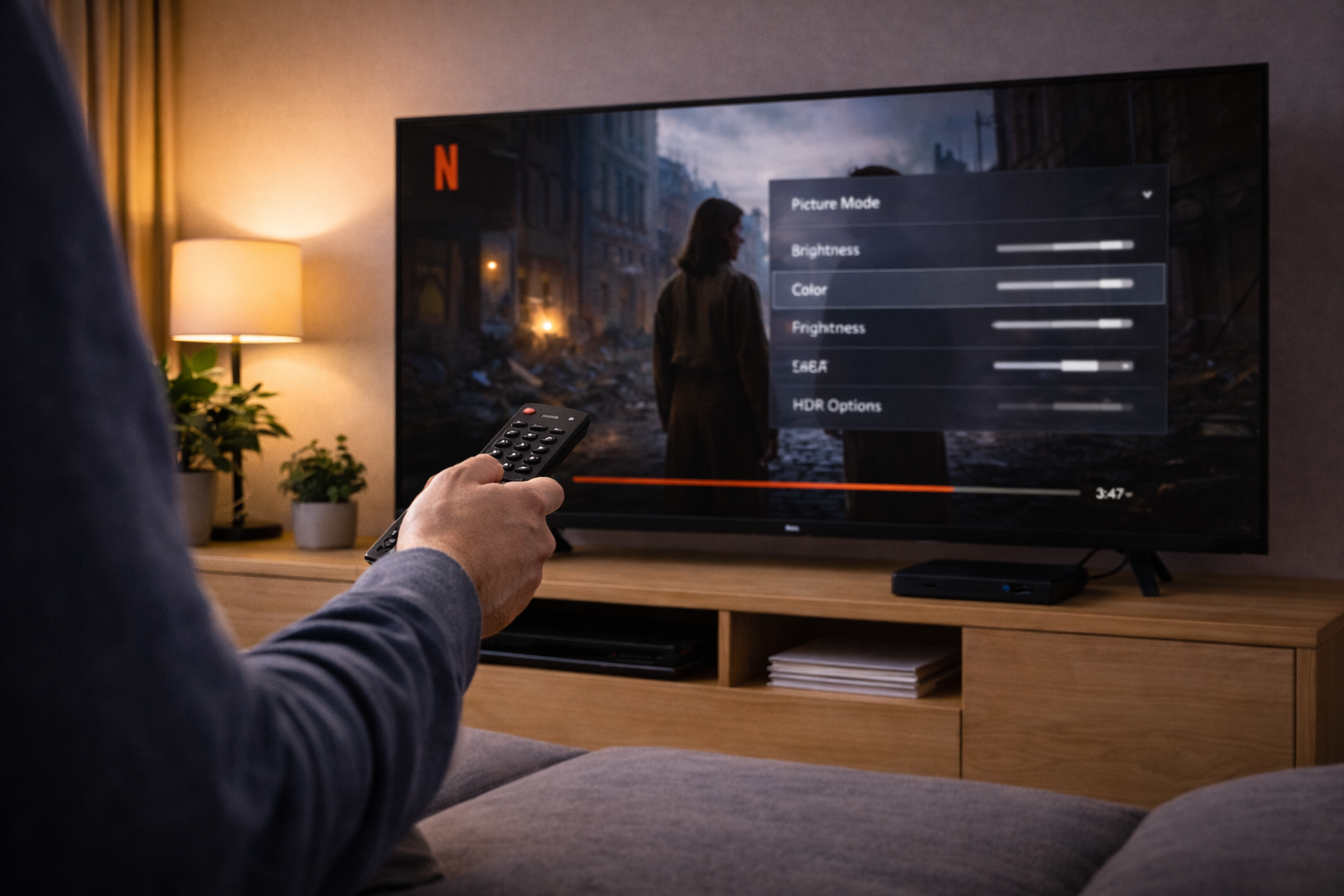
Quick checks before you change settings
1) Confirm the TV can do Dolby Vision (and it’s not Samsung)
- Check the TV model specs: look for “Dolby Vision” explicitly.
- If it’s a Samsung TV, stop here: Netflix won’t output Dolby Vision to it.
- If it’s an older budget TV, it may only support HDR10 (common on entry-level sets sold in the UK before 2020).
2) Confirm your Netflix plan includes 4K
- Open Netflix account settings and verify your plan includes Ultra HD/4K.
- If you recently changed plan, sign out of Netflix on the device and sign back in to refresh entitlements.
This is the most common issue I see on devices sold in the UK before 2024: people assume “4K TV” automatically means “4K Netflix”. It doesn’t.
3) Use a known Dolby Vision title and the right profile
- Pick a Netflix title you know has Dolby Vision (many Netflix Originals do, but not all).
- Try the main adult profile first; Kids profiles and some restricted profiles can behave differently for playback options.
- Start the title, then open the playback info/overlay (varies by device) to see if it says Dolby Vision, HDR, or SDR.
Step-by-step fixes (work through in order)
Step 1: Power-cycle the whole HDMI chain (TV, box, soundbar/AVR)
HDMI capability negotiation (EDID/HDCP) can get stuck, especially after standby. A full power reset forces a fresh handshake.
- Turn off the TV, streaming device, and soundbar/AVR.
- Unplug them from mains power for 60 seconds.
- Plug in the TV first and let it fully boot.
- Plug in the soundbar/AVR (if used), then the streaming device last.
- Open Netflix and test a Dolby Vision title.
I’ve lost count of how many “Dolby Vision disappeared overnight” cases end here, particularly with Apple TV 4K through an eARC soundbar.
Step 2: Put the device on the TV directly (bypass AVR/soundbar)
If you run Apple TV/Fire TV/Chromecast into a soundbar or AVR first, that middle device must also support Dolby Vision pass-through. Many older AVRs don’t, and some soundbars only pass DV on specific ports.
- Connect the streaming device directly to the TV with HDMI.
- Test Netflix Dolby Vision.
- If Dolby Vision works now, the AVR/soundbar or its settings are the blocker.
If you’re unsure about the correct wiring for eARC and external sources, see how to connect your TV, soundbar and console the right way.
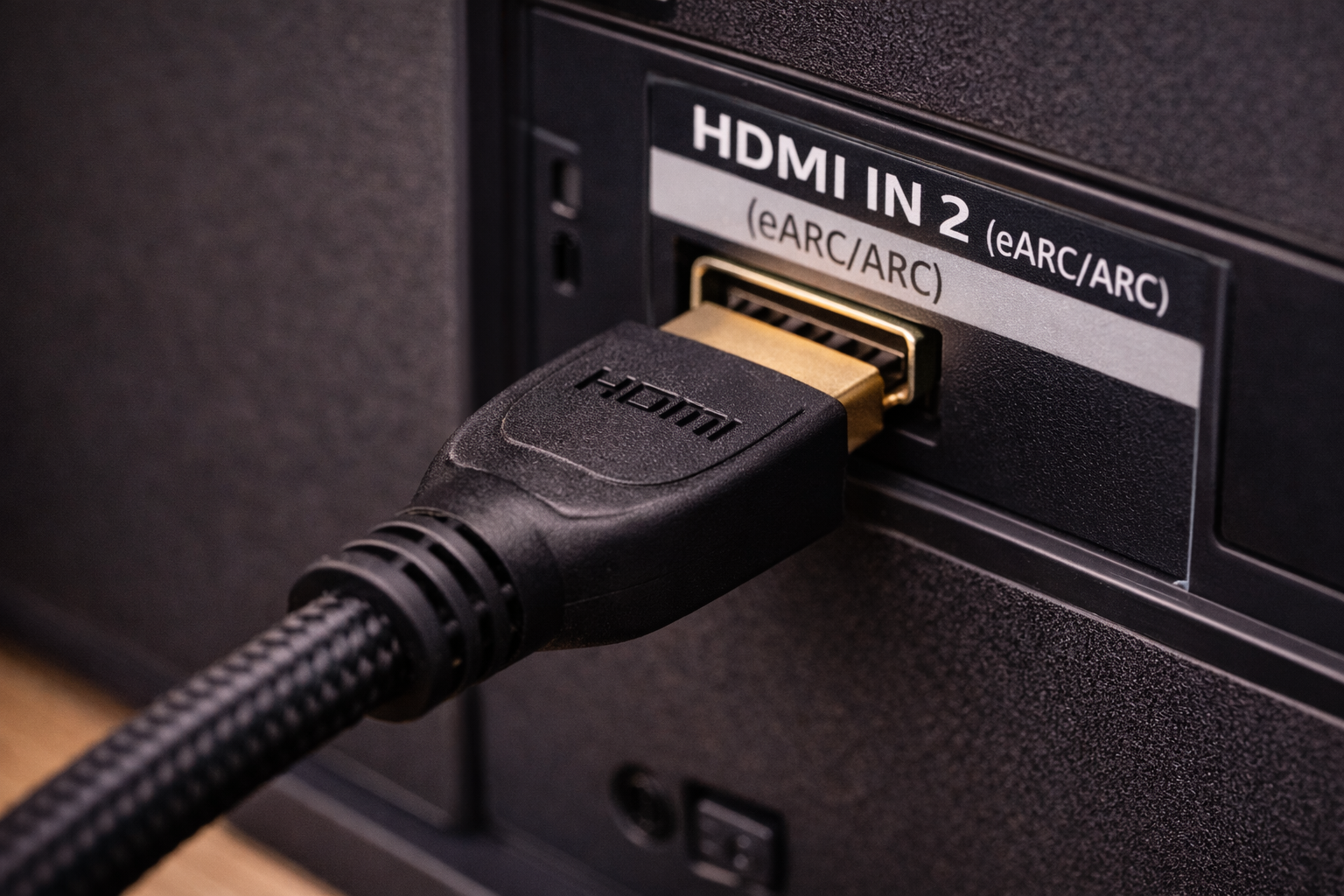
Step 3: Enable the TV’s “Enhanced HDMI” / “HDMI Deep Colour” mode
Most TVs ship with HDMI ports in a compatibility mode that limits bandwidth. Dolby Vision from external devices often requires the enhanced mode per HDMI input.
- LG: Settings → General → External Devices → HDMI Settings → HDMI Deep Colour (enable for that port).
- Sony: Settings → Channels & Inputs → External Inputs → HDMI signal format → Enhanced format (or Enhanced format (Dolby Vision) depending on model).
- Hisense/TCL/Philips: Look for “HDMI Enhanced”, “HDMI 2.0 mode”, “Input signal plus”, or similar.
On some Sony models, choosing “Enhanced format (Dolby Vision)” can reduce gaming features (like 4K120) on that port. If you share one port between a console and a streamer, you may need to pick the compromise that fits your setup.
Step 4: Check the streaming device video output settings
Auto-detection is usually correct, but when it isn’t, Dolby Vision can be silently disabled.
- Apple TV 4K: Settings → Video and Audio → Format. Try 4K Dolby Vision (if available), then enable “Match Dynamic Range” and “Match Frame Rate”.
- Fire TV: Settings → Display & Sounds → Display → Dynamic Range Settings. Set to “Adaptive”.
- Chromecast with Google TV: Settings → Display & Sound → Dynamic range & colour format. Enable Dolby Vision if the toggle exists.
- Xbox Series X|S: Settings → General → TV & display options → Video modes. Tick Dolby Vision (if supported) and ensure 4K is enabled.
- PS5: PS5 does not output Dolby Vision for Netflix in the same way as Apple TV/TV apps; expect HDR10 behaviour depending on app/device updates.
In real homes, forcing Dolby Vision “always on” can create weird colour in SDR menus and some apps. I generally prefer “match dynamic range” style settings so Dolby Vision only engages when the content is Dolby Vision.
Step 5: Replace the HDMI cable (it matters more than people think)
Dolby Vision can fail while 4K still appears to work, because the link becomes marginal at higher chroma/bit-depth modes. If you’re using a long cable, a thin cable, or an older “High Speed” cable, swap it.
- Use an Ultra High Speed HDMI cable for 4K Dolby Vision reliability.
- Keep cable runs short where possible, especially through wall plates and adapters.
- Avoid HDMI couplers unless you have to; they’re a common failure point.
In practice, issues like this often come down to the cable itself rather than the device. If you need a known-good replacement, a Ultra High Speed HDMI cable is the quickest way to remove bandwidth guesswork.
Step 6: Update firmware and the Netflix app (TV and streaming box)
Dolby Vision support is partly firmware and partly app-level. I’ve seen Netflix app updates temporarily break Dolby Vision on specific TV models until the next firmware patch lands.
- Update TV firmware (system update menu).
- Update the Netflix app (TV app store) or update the streaming device OS.
- After updating, reboot the TV and device (not just standby).
For TV-side Dolby Vision behaviour and supported modes, Dolby’s own overview is useful: Dolby Vision setup and compatibility overview.
Step 7: Check picture mode and energy saving features
Some TVs won’t engage Dolby Vision if you’re in a PC mode, a low-latency mode with restrictions, or an aggressive power saving mode.
- Disable power saving / eco mode temporarily.
- On LG, avoid forcing the HDMI input icon to “PC” for the streaming device while testing.
- On Sony, check that the HDMI signal format is set correctly for that port (this is separate from picture mode).
If Dolby Vision triggers but looks wrong (raised blacks, crushed shadow detail, odd colour), that’s a calibration/picture-mode issue rather than a Netflix issue. Calibrate your OLED TV for HDR and Dolby Vision is the clean way to fix that without breaking the signal chain.
Step 8: Rule out bandwidth and ISP quirks
Netflix adapts quality based on throughput and stability. If your connection is unstable, Netflix may stick to SDR or lower-bitrate encodes even when the TV supports Dolby Vision.
- Try Ethernet to the TV/streamer if possible.
- Reboot the router and test again.
- Disable VPNs and “internet security” filtering features temporarily.
- If you use mesh Wi‑Fi, test near the main node to rule out backhaul issues.
This often fails on budget MediaTek Wi‑Fi chipsets in older streaming sticks when the router is far away, even though the rest of the home “seems fine”. If your wider home network is flaky, start with Google’s steps for fixing streaming and buffering issues.
Real-world fault patterns I see in UK living rooms
Case 1: Dolby Vision works in the TV app, but not on Apple TV 4K
This usually points to HDMI input settings or the cable. The TV’s internal app bypasses HDMI entirely, so it can do Dolby Vision even when HDMI is stuck in standard mode.
- Enable Enhanced HDMI / HDMI Deep Colour for the specific port.
- Swap the HDMI cable.
- On Apple TV, set Format to 4K SDR and enable Match Dynamic Range (then test again).
I see this most often after someone moves the Apple TV to a different HDMI port and assumes all ports behave the same.
Case 2: Dolby Vision disappears when you add a soundbar
When a soundbar sits between the streamer and the TV, it becomes part of the Dolby Vision negotiation. If it can’t pass DV, you’ll drop to HDR10/SDR.
- Test streamer → TV direct to confirm DV works.
- If DV works direct, check whether the soundbar has a dedicated “HDMI IN (DV)” port.
- Update soundbar firmware; I’ve seen pass-through bugs fixed by updates.
In about half of cases, the “fix” is simply moving the streamer to the soundbar’s correct HDMI input and enabling the TV’s enhanced mode on the eARC/ARC port.
Case 3: You have a Samsung TV and keep searching for a Dolby Vision toggle
There isn’t one. Samsung TVs don’t support Dolby Vision, so Netflix will never show the Dolby Vision badge on that display.
- Expect HDR10 on Netflix where available.
- If you want dynamic metadata HDR on Samsung, that’s HDR10+ (supported on some services, not consistently on Netflix).
This is the cleanest “diagnosis” because no amount of settings changes will add Dolby Vision support to a non-DV TV.
Case 4: Dolby Vision works for some Netflix titles but not others
This is usually normal. Netflix licensing and encodes vary by title, region, and device. Some titles show Dolby Vision on the TV app but only HDR10 on a console app, for example.
- Test at least two known Dolby Vision titles.
- Compare the TV’s internal Netflix app vs your external streamer.
- If only one device is missing DV, focus on that device’s output settings and HDMI chain.
Mistakes that block Dolby Vision (even when everything “supports it”)
- Using the wrong HDMI port: some TVs only support full bandwidth on HDMI 3/4, or only one port is HDMI 2.1-capable.
- Enhanced mode enabled on the wrong input: you must enable it on the exact HDMI port your streamer uses.
- AVR/soundbar pass-through assumptions: “4K pass-through” doesn’t always mean Dolby Vision pass-through.
- Old HDMI cables that “worked before”: they can be fine for 4K SDR and still fail for Dolby Vision modes.
- Forcing odd colour formats: setting a streamer to a fixed output (like 4:2:2 12-bit) can break DV negotiation on some TVs.
- Confusing Dolby Atmos with Dolby Vision: audio and video capabilities are negotiated separately; you can have Atmos without DV and vice versa.
I rarely see this issue on newer platforms when people use the TV’s built-in Netflix app. External HDMI chains are where things get fragile.
What to use (and what to avoid) if you want reliable Dolby Vision
Prefer the TV’s built-in Netflix app for the simplest path
If your TV’s Netflix app supports Dolby Vision and runs smoothly, it’s the least complicated setup. No HDMI negotiation, fewer firmware layers, fewer cables.
If you use an external streamer, pick one with consistent Dolby Vision handling
- Apple TV 4K: generally stable Dolby Vision output with “Match Dynamic Range”.
- Chromecast with Google TV / Fire TV: can be fine, but I see more “DV disappeared” cases after updates or when Wi‑Fi is marginal.
- Consoles: workable, but app behaviour varies and Dolby Vision support is inconsistent compared with dedicated streamers.
Keep the HDMI path simple
- Streamer → TV direct is the most reliable for Dolby Vision.
- If you need a soundbar/AVR, ensure it explicitly supports Dolby Vision pass-through.
- Use one good cable per link; avoid adapters and wall plates while testing.
Wrap-up: the fastest route to Dolby Vision on Netflix
Start by confirming the obvious: the TV actually supports Dolby Vision (not Samsung) and your Netflix plan includes 4K. Then isolate the HDMI chain by testing the streamer directly into the TV, enabling Enhanced HDMI on that port, and swapping the cable.
Once Dolby Vision triggers reliably, you can reintroduce the soundbar/AVR and tune device settings like “Match Dynamic Range” without guessing. That order matters; it prevents you from chasing picture settings when the real problem is negotiation and bandwidth.
FAQ: Dolby Vision on Netflix edge cases (UK)
Why does Dolby Vision work on my LG TV Netflix app but not through Sky Stream?
That usually means the TV is fine and the external HDMI path is the limiter. Check the HDMI port mode (HDMI Deep Colour/Enhanced) for the Sky Stream input and swap the HDMI cable. I’ve also seen Sky Stream boxes default to conservative output modes after updates, so a reboot and re-detect of display settings can bring Dolby Vision back.
Why do I get Dolby Vision on Disney+ but Netflix only shows HDR10?
Netflix is stricter about plan entitlements and device certification, and some devices/apps expose different HDR formats per service. Confirm your Netflix plan includes 4K and test multiple Netflix Originals known to carry Dolby Vision. In practice, this is often a Netflix plan or app-version issue rather than a TV limitation.
Dolby Vision badge is gone after a TV firmware update — what actually fixes it?
Do a full power-cycle (unplug) of the TV and any connected HDMI devices to force a fresh handshake. Then re-check the HDMI signal format/enhanced mode for the port you use, because updates sometimes reset per-input settings. I see this most often on Sony sets where “Enhanced format (Dolby Vision)” quietly flips back to standard.
Why does Dolby Vision work at night but not when my VPN is on (UK)?
A VPN can change routing and throughput, and Netflix will drop to lower dynamic range when the connection becomes unstable. Disable the VPN and test again; if Dolby Vision returns, the VPN is the trigger. In real homes, not lab setups, this behaviour is common on streaming sticks that already have borderline Wi‑Fi.
My Samsung TV shows 4K HDR on Netflix — can I enable Dolby Vision somehow?
No. Samsung TVs don’t support Dolby Vision, so Netflix will never output Dolby Vision to that display. You can still get 4K HDR (HDR10) on Netflix, and you can focus on picture settings to make HDR10 look right, but Dolby Vision itself isn’t an option on Samsung hardware.
Why does Dolby Vision not work when my Apple TV goes through my older Denon/Yamaha AVR?
Many older AVRs pass 4K but not Dolby Vision, or they require a specific “enhanced” HDMI mode in the AVR settings. The quickest test is Apple TV → TV direct; if Dolby Vision works, the AVR is the bottleneck. This is a common upgrade mismatch when people keep an older AVR and add a newer Dolby Vision TV.
Recommended gear on Amazon UK
- A certified Ultra High Speed HDMI cable helps when Dolby Vision fails over HDMI even though 4K still appears, which is a common sign of a marginal link. View Ultra High Speed HDMI cable on Amazon UK
- A USB Gigabit Ethernet adapter helps in the scenario where Netflix drops to SDR/HDR because Wi‑Fi is unstable and the streamer can’t hold a consistent high-bitrate connection. View Gigabit Ethernet adapter for streaming devices on Amazon UK
- An HDMI switch that explicitly supports Dolby Vision helps when you’re forced to share one enhanced HDMI port between a console and a streamer without constantly changing TV input modes. View HDMI 2.1 switch with Dolby Vision support on Amazon UK
- A dedicated Dolby Vision-capable streaming box helps when a TV’s built-in app is unreliable or slow but you still want consistent Dolby Vision triggering without HDMI handshake quirks. View Dolby Vision-capable streaming box on Amazon UK







