
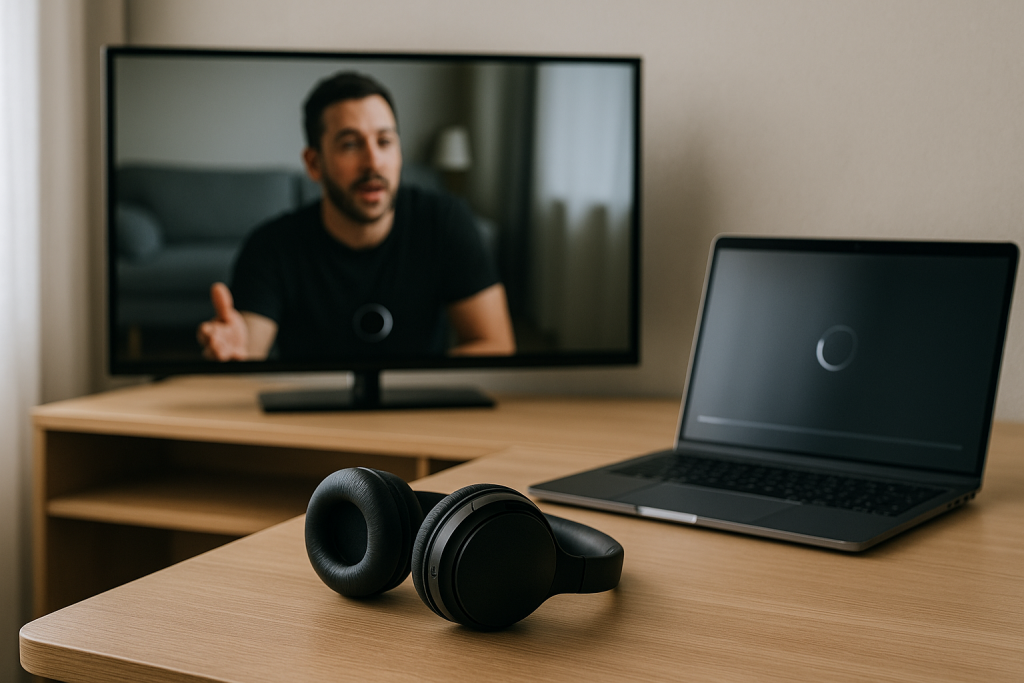
Bluetooth audio delay is when the sound arrives late compared to the picture: voices don’t match lips, gunshots land after the flash, or you feel a “double beat” when watching music performances. On TVs it’s most obvious in dialogue scenes; on laptops it’s most obvious in games and when scrubbing a timeline in a video editor.
The frustrating part is that volume and connection strength can look fine while the timing is wrong. I see this a lot in UK living rooms where the TV is doing extra video processing, and the headphones are using a higher-latency codec without anyone realising.
Where the delay actually comes from (and why it varies by device)
Bluetooth isn’t a single “speed”. Audio is encoded (codec), packetised, transmitted, buffered, decoded, then played. Each stage adds delay, and the system often adds extra buffering to avoid dropouts.
1) Codec latency (SBC vs AAC vs aptX variants)
Most TVs and Windows laptops fall back to SBC more often than people expect. SBC can be fine for music, but it’s commonly laggy for video and games. AAC can be better or worse depending on the device; Apple devices tend to handle AAC well, while some TVs implement it poorly and add buffer.
aptX Low Latency (aptX-LL) is designed to reduce delay, but it only works if both ends support it. Many modern headsets support aptX Adaptive instead, which can be low-latency in the right conditions but isn’t the same as aptX-LL and doesn’t always negotiate the way you expect.
This is the most common issue I see on devices sold in the UK before 2024: the headset supports a low-latency codec, but the TV or laptop silently uses SBC.
2) A/V sync and video processing on TVs
TVs often delay video (motion smoothing, noise reduction, frame interpolation) or delay audio (surround processing, “AI sound”, virtualisation). If the TV delays video but not audio, you get audio early; if it delays audio more than video, you get audio late. Bluetooth adds its own delay on top, so the final result can swing either way.
Game Mode usually reduces video processing and can change the sync relationship immediately. I’ve fixed “Bluetooth lag” complaints just by disabling motion smoothing and switching to Game Mode, even with the same headphones.
3) Windows audio pipeline and “helpful” enhancements
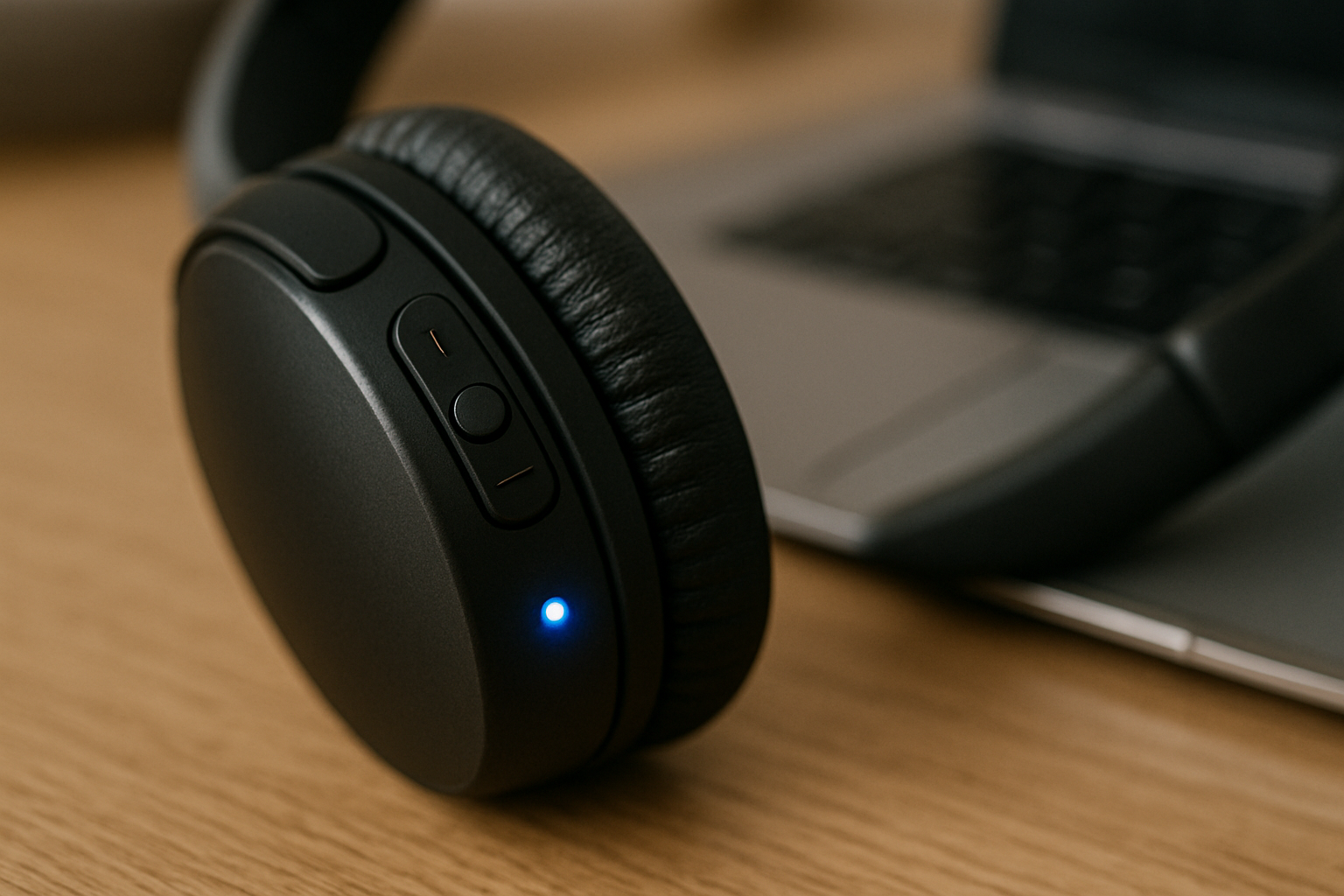
On Windows 11, enhancements, spatial audio, and communications features can add buffering or resampling. Some Bluetooth stacks also switch profiles unexpectedly (A2DP vs Hands-Free), which can change latency and quality in one step.
Seen most often on HP, Dell and Lenovo laptops where a headset mic is enabled and an app grabs it in the background.
4) Radio interference and retransmits
Bluetooth shares the 2.4GHz band with Wi‑Fi, baby monitors, and some smart home gear. Interference doesn’t just cause dropouts; it can increase buffering as the system tries to stay stable. If your audio is “late but stable”, interference can still be part of it.
If you’re also fighting unstable wireless in the same room, this complete UK home Wi‑Fi troubleshooting guide helps you reduce 2.4GHz congestion that can make Bluetooth behave worse.
Quick diagnosis: is it the TV, the laptop, or the headphones?
Before changing settings, do two short tests. You’re trying to identify whether the delay is created by the source device (TV/laptop) or by the Bluetooth link/headphones.
- Test the same headphones on a phone (play a YouTube lip-sync clip). If it’s fine on the phone but bad on the TV/laptop, the source device is the problem.
- Test a different Bluetooth audio device on the same TV/laptop. If both are delayed, the source device or its settings are the problem. If only one headset is delayed, it’s likely codec negotiation or headset firmware.
In practice, this step fixes the problem in about half of cases because it stops you chasing the wrong end of the chain.
TV fixes first: reduce processing, then correct sync
Step 1: switch the TV into a low-processing picture mode
- Enable Game Mode (or PC mode) if available.
- Disable motion interpolation (often called TruMotion, MotionFlow, Auto Motion Plus).
- Disable noise reduction, MPEG noise reduction, and “smooth gradation”.
On many sets, these options are buried per-input, so you may need to change them on the HDMI port your streamer/console uses. I rarely see this issue on newer platforms when Game Mode is correctly enabled, but it’s common on older mid-range sets with heavy default processing.
Step 2: set the TV audio output to a simple format
- Set Digital Sound Output to PCM (not Auto/Bitstream) when using Bluetooth.
- Disable virtual surround / “3D audio” modes on the TV.
- If there’s an AV Sync or Lip Sync menu, set it to 0 to start.
Some TVs add extra delay when they think they’re outputting surround formats, even if the Bluetooth device can’t use them. PCM keeps the pipeline simple.
Step 3: use the TV’s Bluetooth-specific delay slider (if it exists)
Many LG, Samsung and Sony TVs have a Bluetooth audio delay adjustment separate from general AV Sync. If you have it, use it last, after disabling processing. Otherwise you can end up compensating for a moving target.
For model-specific menus and terminology, use the manufacturer support pages like Sony TV audio output and Bluetooth settings help as a reference while you follow the steps above.
Step 4: if you’re using a soundbar, don’t mix Bluetooth paths
A common failure state is: TV sends video to the panel, audio goes to a soundbar over HDMI eARC, and then the soundbar re-transmits to headphones over Bluetooth. That’s two separate buffering stages, and it’s almost always late.
If you want headphones at night, pair the headphones directly to the TV (single Bluetooth hop) or use a dedicated transmitter (single hop). If your cabling is messy, how to connect your TV, soundbar and console the right way helps you avoid the common routing loops that create delay.
Windows laptop fixes: stop profile switching and remove extra buffering
Step 1: confirm you’re not in Hands-Free mode
When Windows uses the headset microphone, it often switches to the Hands-Free profile, which can change latency and make audio feel “off” even if the delay isn’t huge.
- Windows 11: Settings > System > Sound.
- Under Output, select your headphones (Stereo/A2DP if shown).
- Under Input, select your laptop mic (not the headset) if you don’t need the headset mic.
- Close apps that might grab the mic (Teams, Discord, browser tabs with permissions).
Seen most often on work laptops where Teams starts with Windows and silently takes the headset mic.
Step 2: turn off audio enhancements and spatial audio
- Windows 11: Settings > System > Sound > select your Bluetooth headphones.
- Disable Audio enhancements (or set enhancements to Off).
- Set Spatial sound to Off for testing.
These features can be fine on wired audio, but with Bluetooth they often add just enough buffering to make lip-sync annoying.
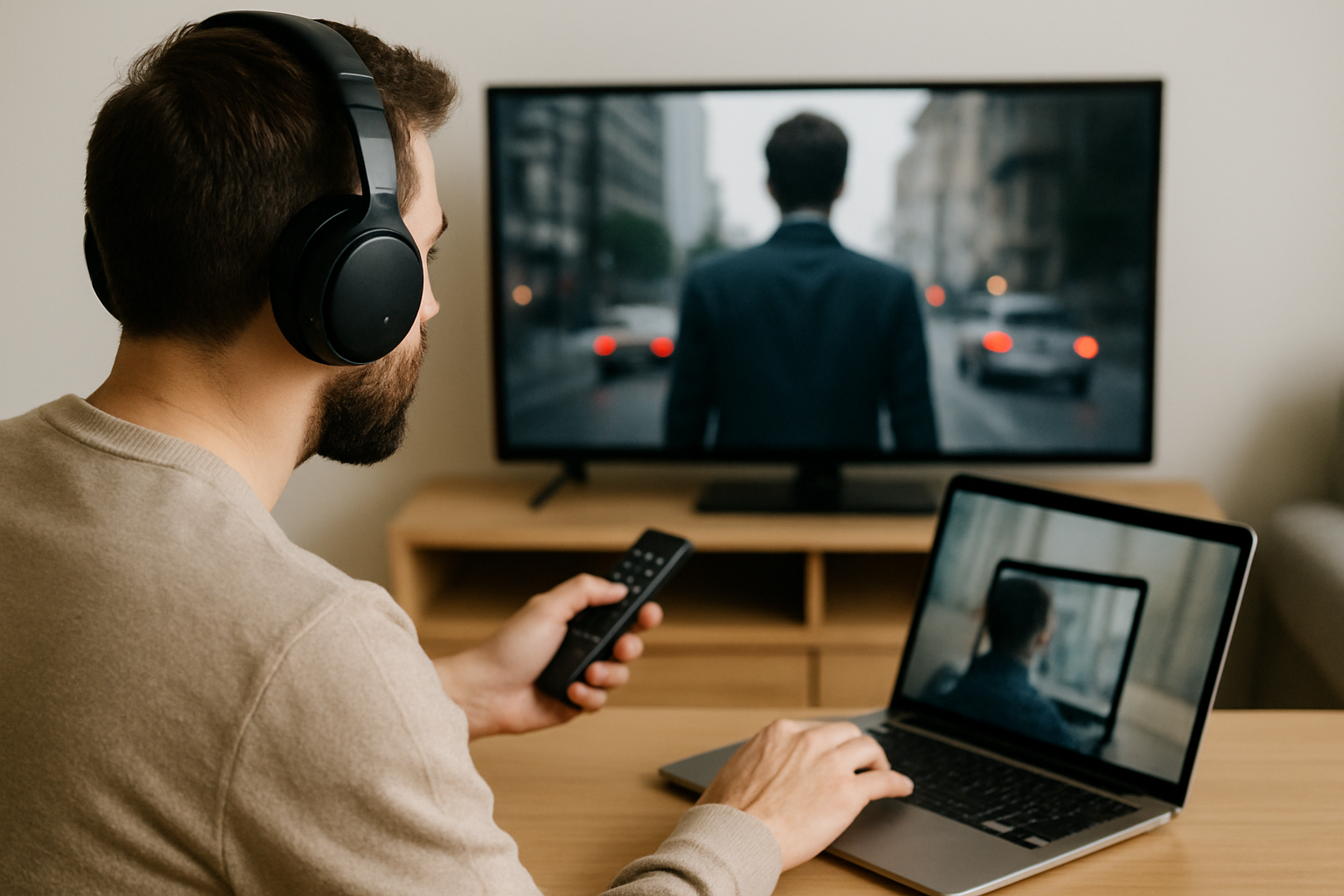
Step 3: remove and re-pair to force a new codec negotiation
- Settings > Bluetooth & devices > Devices: remove the headphones.
- Power-cycle the headphones (not just sleep mode).
- Re-pair and test again.
This sounds basic, but it’s one of the few ways to clear a “stuck” codec/profile state on Windows without digging into drivers. This often fails on budget MediaTek chipsets where the Bluetooth stack is flaky, but it’s still worth doing.
Step 4: update Bluetooth and audio drivers (not just Windows Update)
For Intel-based laptops, Bluetooth driver updates can materially change stability and buffering behaviour. Use vendor tools (Intel Driver & Support Assistant) or your laptop maker’s support page, then reboot.
If you want the official Windows steps for removing devices and re-pairing, Microsoft’s Bluetooth troubleshooting in Windows documentation is the cleanest reference.
Step 5: if you game, avoid Bluetooth for competitive timing
Even when you “fix” Bluetooth delay, it can still vary slightly with interference and buffering. For rhythm games, shooters, or anything timing-sensitive, a 2.4GHz USB dongle headset or wired audio is more consistent.
When Bluetooth on the TV is the limitation: use a dedicated transmitter
Some TVs have Bluetooth implementations that are simply high-latency, especially older models and budget sets. In those cases, you can bypass the TV’s Bluetooth stack entirely with an external transmitter connected to the TV’s audio output.
- Best-case: TV has a 3.5mm headphone output with fixed/line-level option.
- Common: TV optical (TOSLINK) output to a transmitter that supports aptX-LL or low-latency modes.
- Avoid: pairing headphones to a soundbar that is itself receiving audio over Bluetooth or doing heavy processing.
If you go this route, a low-latency Bluetooth transmitter with optical input is the clean workaround when the TV’s built-in Bluetooth can’t be tuned.
Real-world scenarios I see (and how they usually end)
Scenario A: LG/Samsung TV + Bluetooth earbuds = lip-sync is always late
Typical pattern: earbuds are fine on a phone, but late on the TV no matter what app you use. The fix is usually Game Mode + PCM output + disabling AI sound. If the TV still feels late, the built-in Bluetooth stack is the bottleneck and an external transmitter is the practical solution.
Scenario B: Windows 11 laptop is fine in YouTube, but delayed in Zoom/Teams
This is almost always profile switching. The call app grabs the headset mic, Windows flips to Hands-Free, and the audio path changes. The fix is to use the laptop mic for calls, or use a wired/USB headset for meetings and keep Bluetooth for media.
Scenario C: Delay comes and goes depending on the room
If the delay changes when you move closer to the router, or when someone starts streaming, you’re seeing interference-driven buffering. Moving the TV/console off 2.4GHz Wi‑Fi (onto 5GHz/6GHz) and keeping the router a bit away from the TV often stabilises it. In real homes, not lab setups, this is where “it’s connected but feels wrong” problems tend to live.
Mistakes that keep the delay problem alive
- Trying to fix delay with volume settings: volume levelling and night modes can add processing, but they won’t solve codec latency.
- Leaving motion smoothing on: it changes video timing and makes you chase audio sync endlessly.
- Assuming “Bluetooth 5.x” means low latency: version numbers don’t guarantee codec support or buffering behaviour.
- Using multi-hop audio: TV to soundbar to headphones is nearly always late.
- Ignoring Hands-Free mode on Windows: if the headset mic is active, you’re troubleshooting the wrong audio path.
I’ve also seen people “fix” it by adding delay in an app (like VLC) and then wonder why every other app is wrong. Fix the system path first, then use per-app offsets only as a last resort.
Hardware and software choices that reduce latency long-term
Pick the right connection for the job
- For TV watching: TV Bluetooth (if it has a delay slider) or an external low-latency transmitter.
- For gaming on laptop: wired 3.5mm/USB audio or a 2.4GHz dongle headset.
- For calls on Windows: USB headset or use laptop mic + Bluetooth headphones in stereo mode.
Keep firmware current on headphones
Headphone firmware updates sometimes change codec negotiation and buffering. If your earbuds have an app, update them before you do deep Windows or TV resets. I rarely see firmware fix a truly bad TV Bluetooth stack, but it does fix odd “suddenly worse than last month” cases.
Wrap-up: the shortest path to normal lip-sync
Start by reducing TV video/audio processing and forcing simple audio formats (PCM). On Windows, prevent Hands-Free profile switching and disable enhancements. If the TV’s Bluetooth is inherently laggy, stop fighting it and bypass it with a dedicated low-latency transmitter.
Once you’ve got stable timing, you can re-enable features one at a time (spatial audio, sound modes, motion settings) and keep the first setting that reintroduces delay turned off.
FAQ: awkward Bluetooth delay cases people actually hit
Why is Bluetooth lip-sync fine on my iPhone but delayed on my Samsung/LG TV?
Phones often handle AAC (and buffering) more cleanly than TVs, and they may be using a different codec entirely. Many TVs fall back to SBC or add extra buffer when sound modes are enabled. In practice, switching the TV to PCM and disabling AI/virtual surround is the fastest test before you assume the headphones are at fault.
Why does my Windows 11 laptop audio lag only when I join Teams or Discord?
Because the app activates the headset microphone and Windows switches to the Hands-Free profile. That profile has different buffering and can feel delayed or “phasey”. Seen most often on UK work laptops where Teams auto-starts and grabs audio devices in the background; set the input to the laptop mic and keep the headset in stereo output mode.
My TV has an AV Sync slider, but moving it doesn’t fix Bluetooth delay—why?
Some TVs apply AV Sync only to HDMI ARC/eARC or internal speakers, not to Bluetooth output. Others have a separate Bluetooth delay control hidden in Accessibility or Sound advanced menus. If there’s no Bluetooth-specific control and Game Mode + PCM doesn’t help, an external transmitter is usually the clean workaround.
Why is Bluetooth delay worse on Sky Stream / Fire TV / Apple TV than on Freeview apps?
External streamers can output different audio formats and trigger different TV processing paths. If the streamer is set to Dolby formats, the TV may add decode and processing delay before it even reaches Bluetooth. Set the streamer to PCM/stereo for testing, then reintroduce surround options only if lip-sync stays acceptable.
Can I fix Bluetooth delay by changing my Wi‑Fi router settings in a UK flat?
Sometimes, yes, but it’s indirect. If your 2.4GHz band is crowded, Bluetooth retransmits and buffering can increase, which feels like more delay and inconsistency. Moving streaming devices to 5GHz/6GHz and keeping the router away from the TV area often stabilises Bluetooth audio in real homes, especially in dense UK housing.
Why do my Bluetooth headphones disconnect and also feel delayed?
That combination usually points to interference or a weak Bluetooth radio rather than pure codec latency. Fix stability first (distance, interference, driver updates), then tackle sync. If you’re also seeing random dropouts, fix Bluetooth headphones disconnecting randomly covers the stability side that often has to be solved before latency improvements stick.
Recommended gear on Amazon UK
- A low-latency optical Bluetooth transmitter helps when a TV’s built-in Bluetooth adds unavoidable delay and you need a cleaner audio path from TOSLINK to headphones. View Optical Bluetooth transmitter (low-latency) on Amazon UK
- A USB Bluetooth adapter helps on Windows laptops where the internal Bluetooth radio or drivers cause unstable buffering and inconsistent lip-sync. View USB Bluetooth adapter for Windows on Amazon UK
- A 2.4GHz USB dongle headset helps for laptop gaming where Bluetooth latency and profile switching keep making audio timing feel slightly behind. View 2.4GHz USB dongle gaming headset on Amazon UK
- A reliable TOSLINK optical cable helps when you’re bypassing TV Bluetooth with an external transmitter and want to eliminate intermittent audio glitches that can worsen delay. View Optical (TOSLINK) cable on Amazon UK







