
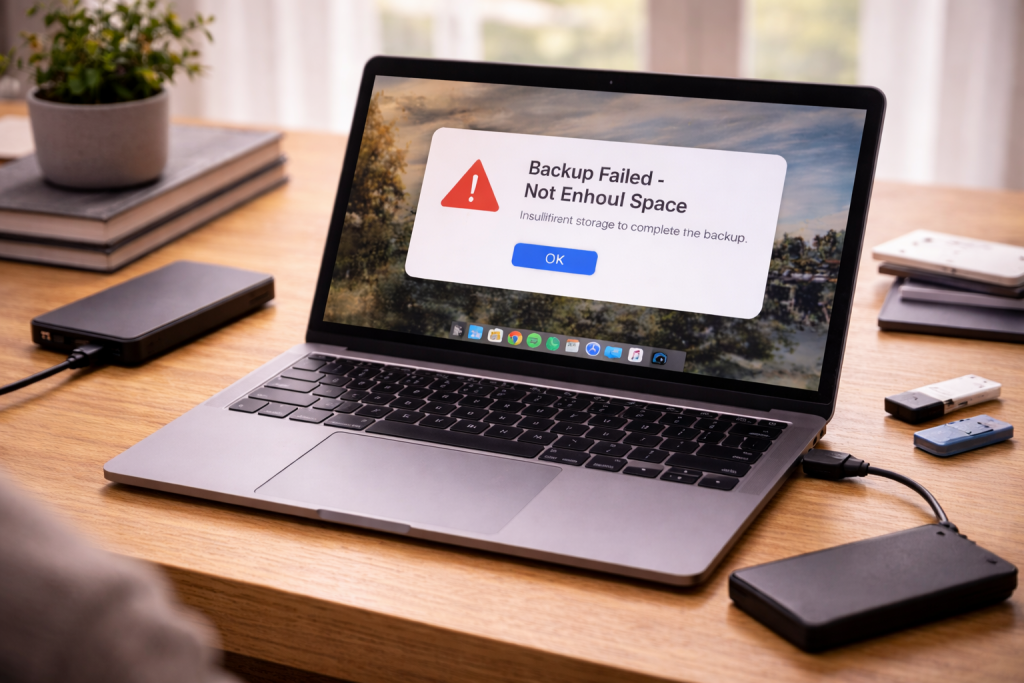
A backup that fails due to low storage is rarely a single problem. Sometimes the destination is genuinely full. Other times the backup tool is trying to create a temporary snapshot, cache, or index and it runs out of working space long before it writes the final backup.
I see this a lot on UK laptops with 256GB SSDs where Windows updates, OneDrive cache, and a few large games quietly eat the free space. On phones it’s usually photos and WhatsApp media, but the error message points at “backup storage” and sends people in the wrong direction.
The fix depends on which side is short of space: the device you’re backing up, the destination you’re backing up to, or the “in-between” space the backup process needs to stage files. Treat it like a plumbing blockage: find where the bottleneck is, then widen it.
What “low storage” actually means during a backup
Backup systems don’t just copy files. They often create a consistent point-in-time view (a snapshot), then stream data to the destination. That snapshot needs room for metadata and for changed blocks while the backup is running. If the system can’t reserve that space, the backup fails even if the destination drive looks empty.
There are three common failure points:
- Source device space is low: iPhone/iPad needs local space to prepare an iCloud backup; Windows needs room for Volume Shadow Copy (VSS); macOS needs local space for APFS snapshots.
- Destination space is low: external drive, NAS share, iCloud/Google account quota, or a Windows File History drive is full.
- Filesystem or quota limits: FAT32 file size limits, OneDrive/Google Drive quota, or a NAS user quota blocks the write even with “free space” elsewhere.
Also watch for misleading free space. On Windows, “free space” can exist but be fragmented across thin-provisioned storage, or blocked by reserved storage. On macOS, “purgeable” space may not be released quickly enough for a backup job that wants space now, not later.
Get the failure details before you start deleting things
Don’t start wiping photos until you know which storage pool is failing. Check the exact message and where it appears.
- Windows: File History errors, Windows Backup, or third-party tools often log a specific code. Check Event Viewer under Windows Logs and Applications and Services Logs for VSS or backup provider errors.
- macOS: Time Machine will usually say whether the backup disk is full, or whether it can’t create a snapshot. Console logs can show “insufficient space” tied to APFS snapshots.
- iPhone/iPad: iCloud Backup may say you need more iCloud storage, but it can also fail because the phone itself is nearly full.
- Android: Google One/Drive backups fail when Drive quota is full, or when local storage is too low for app data staging.
If you’re backing up to an external drive and it’s disconnecting mid-job, fix that first. A drive that drops out can leave partial backups and chew through space with retries. See Fix external hard drive disconnecting during backups.
Step-by-step: clear the right space without breaking your setup
Work in order. Each step is designed to confirm the bottleneck before you remove data you actually care about.
1) Confirm which side is full: device, destination, or cloud quota
- Check device free space: aim for at least 10–15% free on SSD-based systems; phones behave better with a few GB free.
- Check destination free space: external drive/NAS share should have enough for the next backup plus growth. If you’re doing an image backup, assume it wants tens of GB.
- Check cloud quota: iCloud/Google Drive/OneDrive quotas are hard stops. “Optimised storage” on the device doesn’t increase your cloud quota.
In practice, the most common mismatch is: plenty of iCloud storage, but the iPhone has under 1GB free, so the backup fails while “preparing”.
2) On Windows 10/11: fix VSS and staging space failures
Windows backups often fail because VSS can’t allocate space for shadow copies. The UI will still call it “low disk space” even when the backup target is fine.
- Free space on C:: if C: is below ~15GB free, fix that first. Remove large temporary folders, old installers, and move downloads off C:.
- Empty Recycle Bin: it sounds basic, but I still find 20–40GB sitting there on machines used for photo imports.
- Storage Sense / Temporary files: clear Windows Update cleanup and Delivery Optimisation files.
- Check VSS allocation: open an elevated Command Prompt and run vssadmin list shadowstorage. If the maximum is tiny or the used space is near the max, increase it (or clear old restore points if you accept the trade-off).
- Reduce System Restore usage: System Protection can consume a surprising chunk on small SSDs.
If you’re using OneDrive as part of your backup flow, sync issues can create duplicate caches and balloon storage. Fix cloud sync problems that cause repeated downloads can be relevant when you see multiple copies of the same folders.
For Microsoft’s own backup and storage troubleshooting references, use Microsoft Support on Windows backup and storage errors.
3) On macOS: Time Machine space and APFS snapshot problems
Time Machine failures split into two camps: the backup disk is full, or the Mac can’t create a local snapshot. The second one is the sneaky one, especially on MacBooks with smaller SSDs.
- Check Mac free space: if you’re under 10GB free, expect snapshot creation to fail intermittently.
- Check Time Machine destination: if it’s a dedicated disk, Time Machine usually manages old backups automatically, but it can get stuck when the disk has filesystem errors or the backup history is corrupted.
- Verify the disk format: modern Time Machine prefers APFS for SSDs; older HFS+ setups can behave differently. Don’t reformat unless you accept losing the existing backup history.
- Look for local snapshot buildup: if you’ve been off the backup disk for weeks, local snapshots can accumulate. macOS should thin them, but I’ve seen it lag behind when the machine is rarely rebooted.
Apple’s official notes on iCloud storage and device storage are worth checking when the error message doesn’t match what you see in Settings. Apple Support on iCloud backups and storage.
4) On iPhone/iPad: separate iCloud quota from iPhone storage
Two numbers matter: your iCloud plan capacity and the free space on the device. You can have 2TB iCloud and still fail if the phone is packed.
- Check iPhone storage: Settings > General > iPhone Storage. If you’re under 2–3GB free, create space before retrying.
- Check iCloud backup size: Settings > Apple Account > iCloud > iCloud Backup. If the backup is larger than your plan’s remaining space, you need to reduce it or increase quota.
- Trim what’s included: turn off backups for apps that can re-download data (some games, streaming apps). Keep messaging apps and photos if they’re not otherwise synced.
- Deal with Photos properly: if iCloud Photos is enabled, photo data may already be in iCloud, but the phone still needs working space for indexing and upload queues.
First-hand note: I’ve watched iPhones fail backups repeatedly because “Messages” was set to keep forever and the device had less than 1GB free. Deleting a few large video threads fixed it immediately, without touching photos.
5) On Android: Google backup failures and Drive quota
Android backups are split across Google services. Device backup, WhatsApp backup, and Google Photos can each hit different limits.
- Check Google account storage: Drive/Gmail/Photos share the same quota on most accounts.
- Check local storage: if the phone is nearly full, app backups can fail while compressing or staging data.
- WhatsApp: video-heavy chats can create a backup that grows faster than you expect. Consider excluding videos from WhatsApp backup if you’re constantly hitting limits.
- Clear app caches carefully: cache clearing can free space, but don’t wipe app data unless you’re sure it’s synced.
6) If the destination is an external drive: fix format and headroom
External drives fail backups for boring reasons: wrong format, not enough headroom, or the drive is quietly unhealthy.
- File system limits: FAT32 can’t store files over 4GB. Some backup images exceed that immediately.
- Encryption overhead: BitLocker/FileVault/encrypted sparsebundles can require extra working space.
- Headroom: keep at least 15–20% free on the destination. Once a drive is nearly full, performance drops and backup windows stretch out, which increases the chance of interruption.
- Check the cable/port: intermittent disconnects create partial backups that waste space. Seen most often on front-panel USB ports on desktop PCs and on worn USB-C hubs.
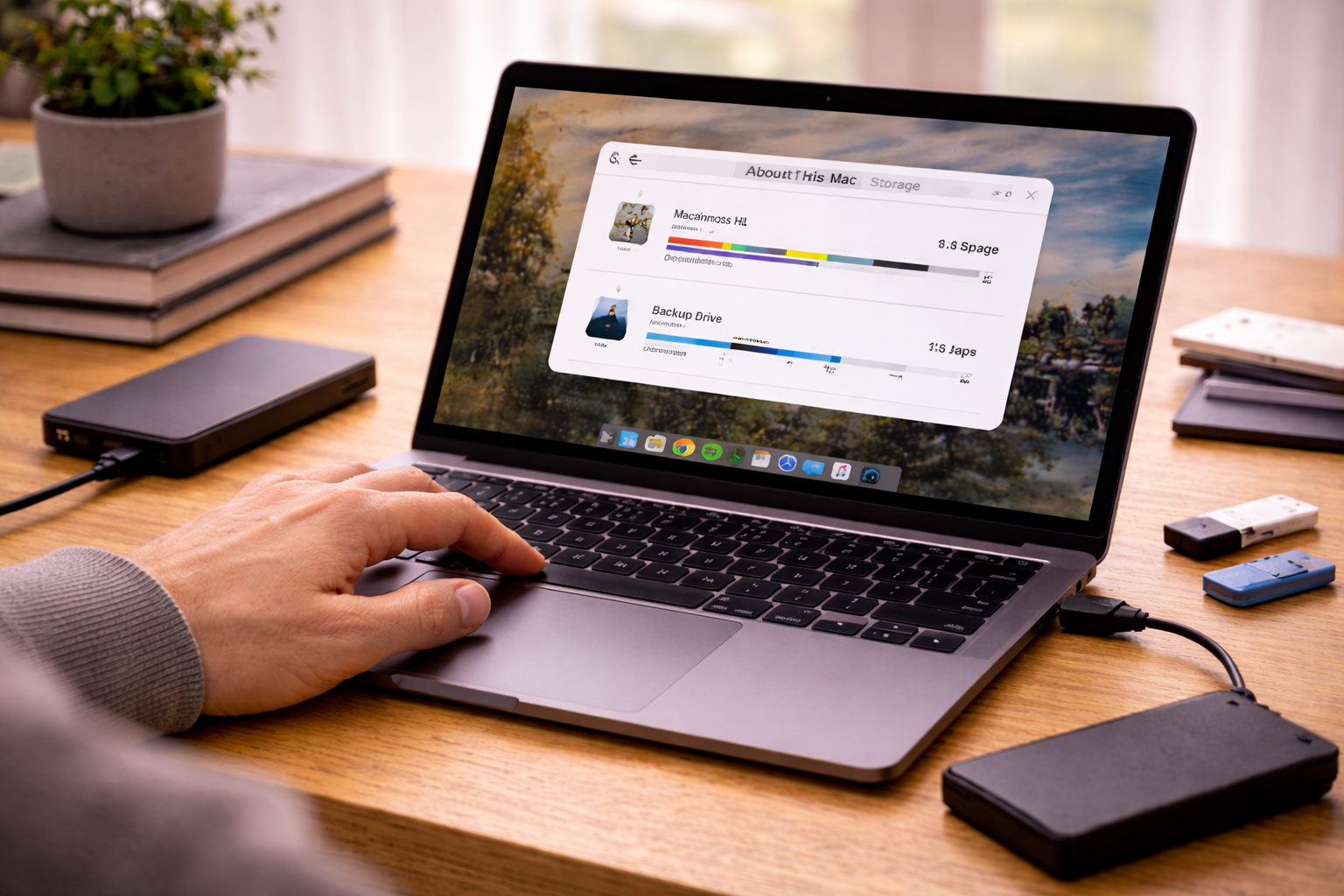
Scenarios I see in real homes (and what actually fixes them)
Windows laptop, 256GB SSD, backup to USB drive fails at 2%: the USB drive has space, but VSS can’t create a snapshot because C: has 6GB free. Clearing Windows Update cleanup and reducing System Restore usage gets the backup running again.
iPhone says “Not enough iCloud storage” but iCloud shows plenty: the phone is full. The backup fails during preparation. Offloading a few large apps and deleting downloaded Netflix/Disney+ content frees enough working space.
Time Machine says the backup disk is full even after it “deletes old backups”: the disk has directory issues or the backup bundle is bloated. A disk check (and sometimes starting a fresh backup on a newly formatted disk) is the clean fix, but you lose history.
Android backup fails only on mobile data: not strictly “low storage”, but it presents similarly when the backup retries and caches partial uploads. Switching to Wi‑Fi and clearing the Google Drive app cache can stop the loop. I’ve seen this on Samsung devices after major One UI updates.
Common mistakes that waste time (or lose data)
- Deleting the only copy: people delete local photos assuming they’re in the cloud, but the upload queue hasn’t finished. Confirm sync status before removing originals.
- Formatting the backup drive too early: if the drive contains the last good backup, keep it until the new backup completes and you’ve tested a restore.
- Assuming “optimised storage” means “safe to delete”: it reduces local storage use, but it doesn’t guarantee every item is fully uploaded and indexed.
- Backing up to the same physical disk: creating a “backup” onto a second partition of the same drive doesn’t protect you from drive failure.
- Ignoring small SSD behaviour: when SSDs get very full, write amplification and garbage collection slow everything down. Backups time out and look like storage errors.
One I still trip over: a user moves their Photos library to an external drive to free space, then Time Machine tries to back up that external drive too, doubling the required space and failing again.
Hardware and software choices that prevent repeat failures
Once you’ve got a successful backup, prevent the next failure by making the storage maths work long-term.
- Choose the right destination size: for a PC or Mac, a backup drive should be at least 2x the used space of the source if you want version history. For Time Machine, bigger is better because it keeps more snapshots.
- Prefer SSDs for frequent laptop backups: they handle being moved around and unplugged far better than spinning drives. HDDs are fine for a stationary desktop backup drive, but they’re more sensitive to knocks.
- Watch cloud quotas: Google storage is shared across services; iCloud backups can grow after iOS updates when app data expands.
- Don’t mix sync and backup blindly: OneDrive/Google Drive are sync tools first. They’re not a full system image. Keep a separate backup strategy for full recovery.
- Consider incremental/image settings: some backup tools let you cap retention, compress more aggressively, or exclude volatile folders (VM images, game libraries) that you can re-download.
If you’re backing up to a NAS, check whether it enforces per-user quotas. I’ve seen “disk full” errors with 6TB free on the box because the user share was capped at 500GB.
Conclusion
“Backup failed due to low storage” is a symptom, not a diagnosis. Identify whether the shortage is on the device, the destination, or the staging area used for snapshots and temporary files. Free space where the backup engine actually needs it, then adjust retention and destination sizing so you’re not back in the same place next month.
If you fix the space issue and the backup still fails at the same point, suspect a flaky external connection or a corrupted backup set rather than storage alone. That’s when starting a fresh backup to a known-good drive becomes the sensible move.
FAQ
Why does my iPhone iCloud backup fail overnight even though I have plenty of iCloud storage left?
Because the iPhone itself may be low on free storage. iCloud Backup needs local working space to prepare and index data before upload. If iPhone Storage is nearly full, the backup can fail during “preparing” even with lots of iCloud quota available.
Why does Windows 11 backup say low disk space when my external drive has hundreds of GB free?
Windows often needs free space on the system drive (usually C:) for VSS shadow copies and temporary staging. If C: is tight, the backup can fail immediately while the external drive remains mostly empty. Check C: free space and VSS shadow storage allocation.
Why does Time Machine fail only when my MacBook has been running for weeks without a restart?
Local snapshots and cached system data can build up over time, and macOS may not reclaim “purgeable” space quickly enough when Time Machine wants to create a new snapshot. A restart and freeing genuine disk space (not just purgeable) often changes the outcome.
Why does my Android Google backup work on Wi‑Fi but fails on mobile data with a storage error?
Retries on mobile data can leave partial uploads and cached data that makes the backup process behave like it’s out of space. Confirm Google account quota, then try Wi‑Fi, clear the Drive/Google One cache, and ensure the phone has a few GB free for staging.
Does backing up to a USB drive still fail if the drive is formatted as FAT32 and I’m backing up videos?
Yes. FAT32 can’t store single files larger than 4GB, which is common for phone videos and system image backups. Even with lots of free space, the backup can fail when it hits a large file. exFAT (cross-platform) or NTFS/APFS (platform-specific) avoids that limit.
Recommended gear on Amazon UK
- An SSD backup target reduces failures caused by vibration, slow writes, and disconnect sensitivity that commonly corrupt or stall backups on portable spinning drives. Comparable items
- A known-good cable prevents intermittent dropouts that create partial backup sets and wasted space from repeated retries, especially through hubs. Comparable items
- Extra local storage helps Android devices keep enough free internal space for staging backups and media caches without constantly hitting low-storage conditions. See suitable options
- A powered hub stabilises power delivery to external drives, reducing disconnects mid-backup that can masquerade as storage failures and leave unusable fragments. See suitable options







