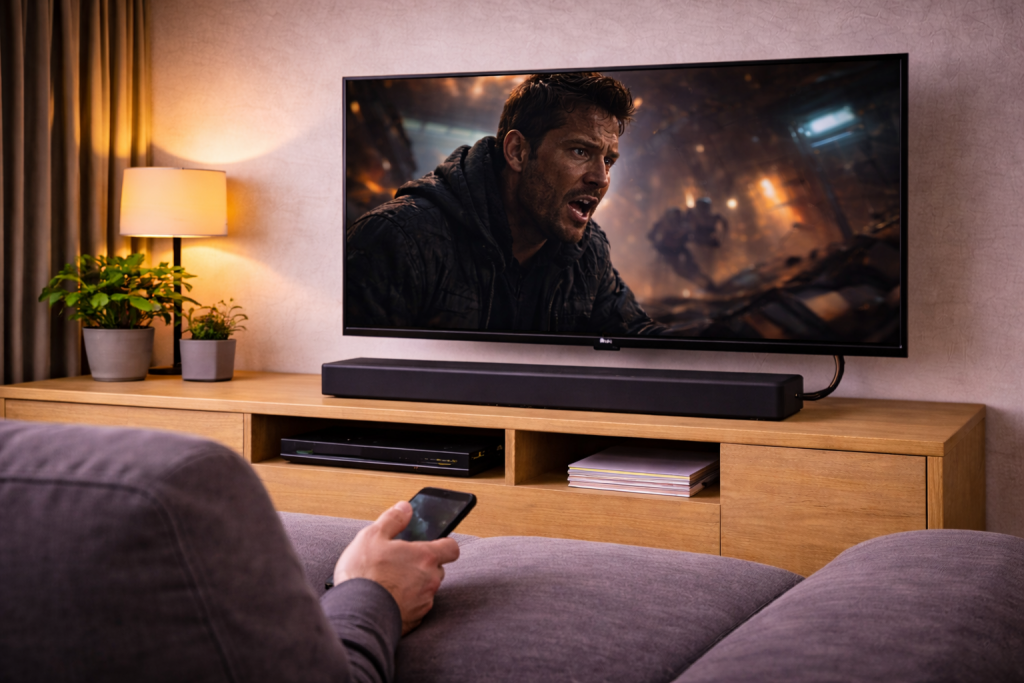
When lip sync breaks: what the delay usually looks like
Audio delay between a TV and soundbar nearly always shows up as voices landing after lips move, or gunshots and button clicks arriving late. Sometimes it’s subtle on broadcast TV but obvious on streaming apps, or it only happens when you enable Dolby Atmos. The frustrating part is that the soundbar is rarely “slow” on its own; the delay is typically created by video processing, audio format conversion, or the path the audio takes through the TV.
I see this most often in UK living rooms where the TV is doing heavy picture processing (motion smoothing, noise reduction, upscaling) while also trying to re-encode audio for ARC/eARC. If you fix the signal path first, you usually only need tiny lip sync tweaks afterwards.
Why the TV and soundbar get out of sync (the technical bit, without the fluff)
Video processing adds latency, and audio has to “wait”
Modern TVs buffer video frames to do motion interpolation, de-judder, noise reduction, dynamic tone mapping, and sometimes even subtitle rendering. That buffering adds delay to the picture. If the TV sends audio to the soundbar with less buffering than the video path, you get the classic “audio early” problem; if the TV buffers audio too (or the soundbar adds its own decoding delay), you get “audio late”.
In practice, the biggest single contributor is motion processing. Game Mode often fixes lip sync instantly because it strips out most of the video pipeline delay.
ARC vs eARC changes what formats can pass cleanly
ARC (Audio Return Channel) is bandwidth-limited. Many TVs will transcode audio when using ARC, especially if you ask for surround formats. Transcoding can add delay and can also vary by app.
eARC has higher bandwidth and better clocking. With eARC, the TV can usually pass Dolby Digital Plus/Atmos or multichannel PCM more directly, which often reduces delay and makes it consistent across sources.
If you’re not getting any audio at all over eARC/ARC, fix that first: Fix soundbar no audio via HDMI eARC. Lip sync tuning is pointless if the TV keeps falling back to optical or Bluetooth.
“Passthrough” vs “Auto” vs “PCM” is the real lip sync switch
Most TVs offer a digital audio output mode that looks harmless but decides whether the TV decodes and re-encodes audio. The names vary, but the behaviour is consistent:
- Passthrough: the TV tries to send the original bitstream to the soundbar. This usually gives the most stable sync when the soundbar supports the format.
- Auto: the TV may convert formats depending on the app/source and EDID handshake. This is where “Netflix is out of sync but Freeview is fine” comes from.
- PCM: the TV decodes to PCM. This can be very stable, but it may limit surround/Atmos depending on model and connection.
This is the most common issue I see on devices sold in the UK before 2024: the TV is set to “Auto”, and each app triggers a different audio pipeline delay.
External boxes can create a second delay point
Sky Q, Virgin TV 360, Apple TV 4K, Fire TV, Chromecast, and consoles can all output audio in multiple formats. If the box outputs Dolby Digital, the TV may pass it, convert it, or downmix it depending on ARC/eARC and settings. That means you can end up with two devices “helping” at once.
When I troubleshoot this, I pick one device to do the decoding (either the soundbar or the source box) and stop the TV from converting audio unless it has to.
Fix it methodically: a step-by-step lip sync checklist
Work through this in order. After each step, test with a scene that has clear mouth movement (news presenter, dialogue close-up) and a scene with sharp transients (menu clicks, gunshots, drum hits). Don’t rely on one app only.
Step 1: Confirm the connection path (and avoid Bluetooth for TV audio)
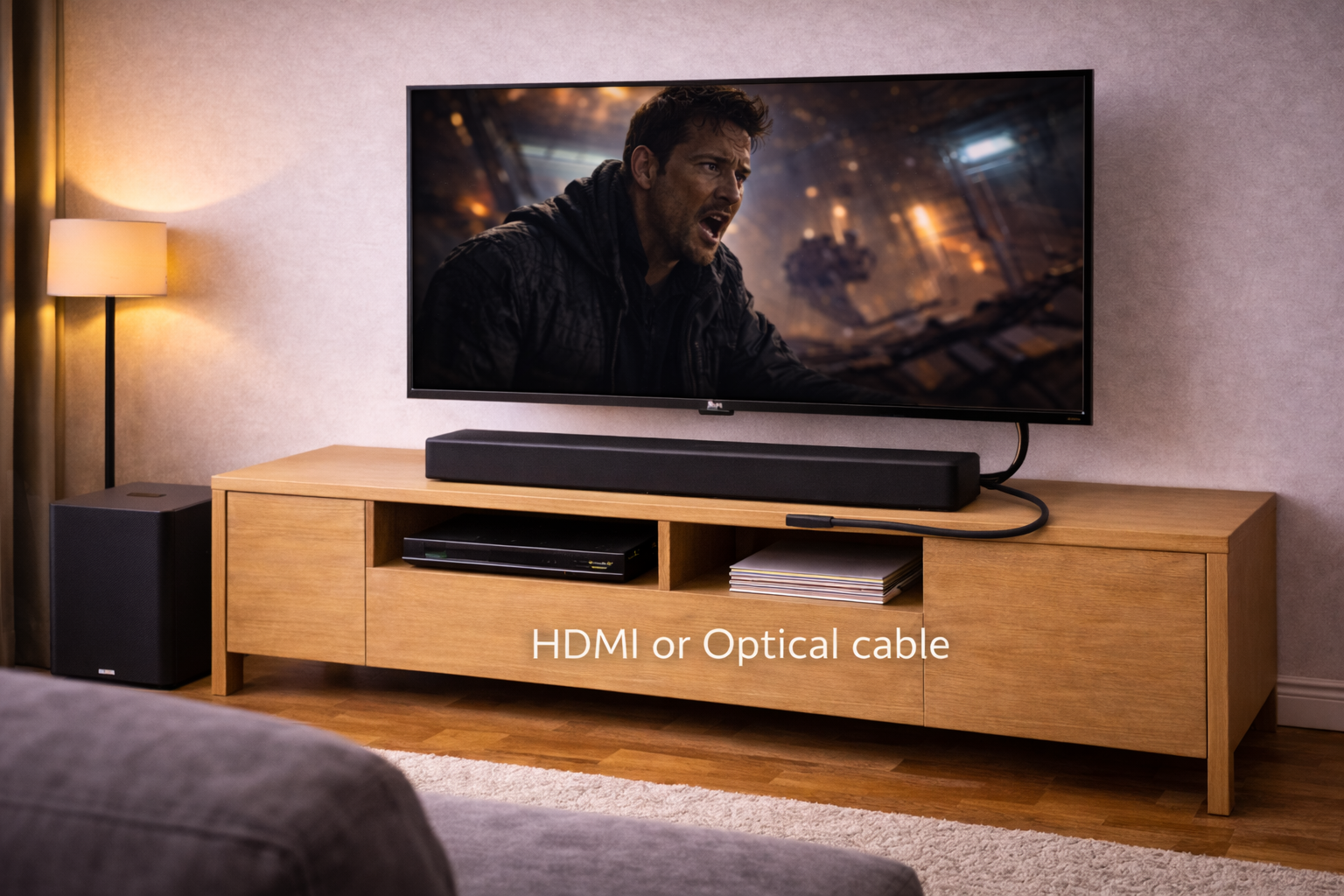
- Use HDMI eARC/ARC from the TV’s eARC/ARC port to the soundbar’s HDMI eARC/ARC port.
- If you’re using optical, expect more format limits and sometimes fixed delays; it can still be usable, but it’s harder to keep consistent.
- If you’re using Bluetooth between TV and soundbar, stop and switch to HDMI; Bluetooth adds variable latency and can drift.
If you must use Bluetooth (temporary setups, bedroom TVs), use the TV’s Bluetooth delay controls and see Fix Bluetooth audio delay on TVs and laptops. I rarely see Bluetooth stay perfectly synced across different apps for long sessions.
Step 2: Turn on the handshake features that make eARC behave
- Enable HDMI-CEC (often called Anynet+, Simplink, Bravia Sync, VIERA Link).
- Enable eARC (if both TV and soundbar support it).
- Power-cycle both devices: fully off at the plug for 30 seconds, then TV on first, soundbar second.
CEC sounds unrelated, but I’ve seen eARC fall back to ARC without it, which changes the audio pipeline and the delay.
Step 3: Set the TV’s digital audio output to Passthrough (then test PCM)
- On the TV, find Digital Sound Output / Audio Format / HDMI eARC Mode.
- Set it to Passthrough (or Bitstream passthrough).
- Test lip sync on at least two apps and one HDMI source.
- If the delay gets worse or becomes inconsistent, switch to PCM and test again.
In practice, this step fixes the problem in about half of cases because it stops the TV from re-encoding audio differently per app.
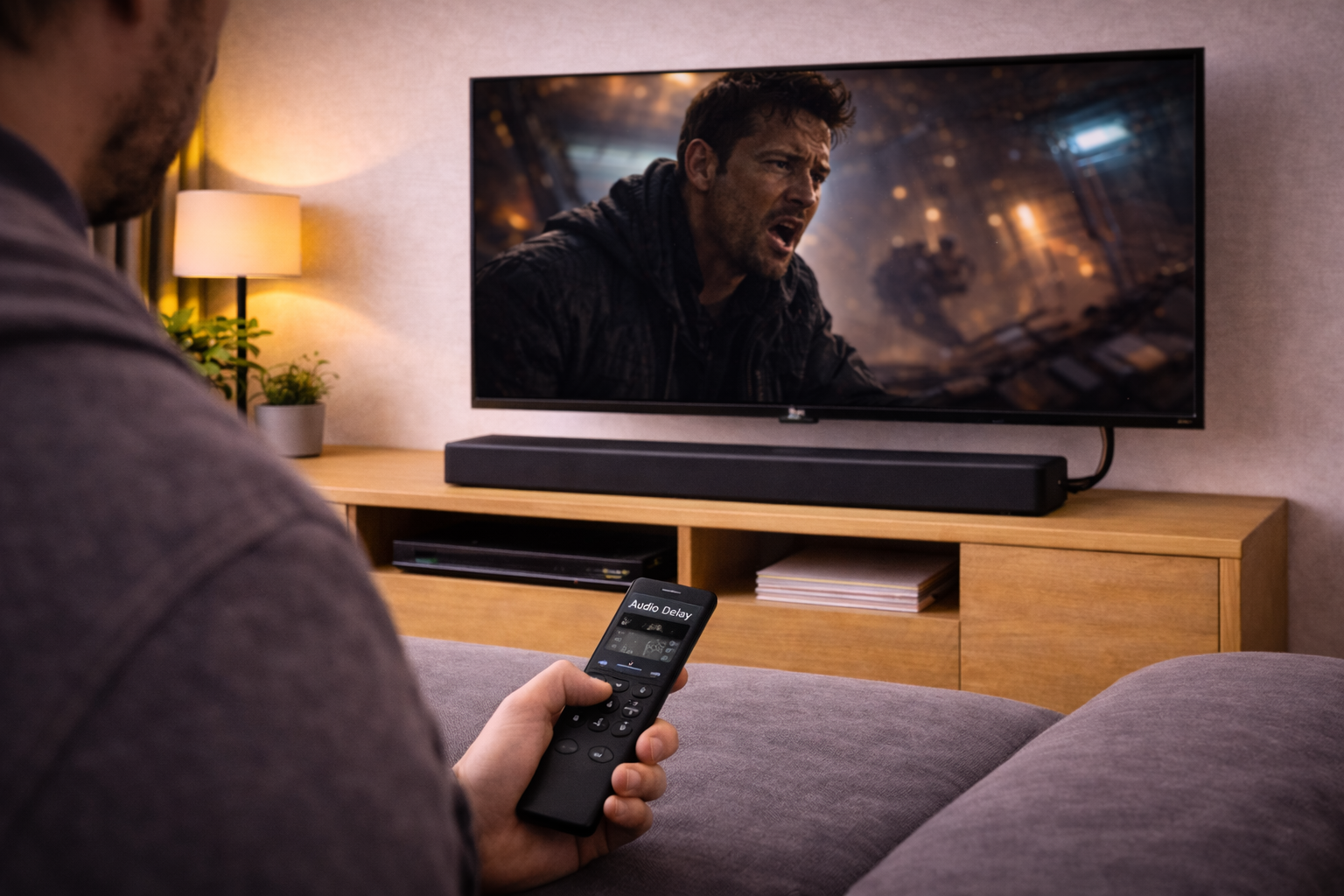
Step 4: Disable the TV features that add video latency (temporarily)
To prove the delay is video processing (not the soundbar), temporarily disable the heavy hitters:
- Motion smoothing / TruMotion / MotionFlow / Auto Motion Plus
- Noise reduction (MPEG, digital clean view)
- Reality Creation / sharpness “enhancers”
- AI picture modes and dynamic contrast
Then test again. If lip sync improves, you can re-enable features one by one until it breaks. I’ve had sets where a single motion setting adds just enough delay to be noticeable on dialogue.
Step 5: Use Game Mode as a diagnostic (even for films)
Switch the TV to Game Mode (or ALLM if it auto-switches). If the delay disappears, you’ve confirmed the TV’s video pipeline is the main cause. You don’t have to watch everything in Game Mode, but it tells you where to focus: reduce motion processing or add a small audio delay to match the video.
Step 6: Adjust lip sync in the right place (TV first, then soundbar)
Many people adjust the soundbar delay and make it worse because the TV is also applying a delay. Use this order:
- Set TV AV Sync / Lip Sync to Auto first (if available).
- Set soundbar audio delay to 0 ms initially.
- If audio is behind the video, reduce any TV delay (if it allows negative/advance, rare) or reduce processing; most controls only add delay.
- If audio is ahead of the video, add delay in the TV first; if the TV control is coarse, fine-tune on the soundbar.
On some setups, “Auto lip sync” only works reliably over eARC. Over ARC, I often end up using a manual delay of 40–120 ms depending on the TV’s picture mode.
Step 7: Fix the source device output so the TV doesn’t have to convert
If the delay only happens on one box (Apple TV, Sky, console), set that device to a stable output:
- Apple TV 4K: try changing Audio Format from Auto to Dolby Digital 5.1 (test), or keep Auto but ensure Match Content is enabled for formats.
- Sky Q / Virgin 360: try switching between Dolby Digital and Normal/PCM output and re-test.
- PS5 / Xbox: try PCM vs Bitstream and keep the TV in Game Mode for that input.
A good rule: if your soundbar supports the format, let the soundbar decode it; if the soundbar is basic, output PCM from the source and keep the TV on passthrough/PCM consistently.
Step 8: Update firmware (because eARC bugs are real)
Update the TV firmware and the soundbar firmware. eARC/CEC stacks ship with bugs, and I’ve seen updates fix random delay jumps after pause/resume or after switching apps. Do the update, then power-cycle both devices again.
For TV-specific help, use the manufacturer docs: LG TV audio settings and HDMI eARC troubleshooting and Sony BRAVIA audio output, eARC and lip sync settings.
Three real setups where audio delay keeps coming back
Scenario A: “Netflix is out of sync, but Freeview is fine”
This is usually the TV switching audio pipelines per app. Netflix commonly outputs Dolby Digital Plus (sometimes Atmos), while Freeview HD may be stereo or Dolby Digital depending on channel. Set the TV to Passthrough, enable eARC, and test PCM if Passthrough causes format negotiation issues.
I’ve also seen this when the TV’s “AI Sound” mode is enabled for apps but not for broadcast, adding processing delay only in streaming.
Scenario B: “It’s fine until I pause, then it drifts”
Pause/resume can trigger a new HDMI handshake. If CEC/eARC is flaky, the TV may re-negotiate audio format and apply a different delay. Power-cycling helps temporarily, but the durable fix is firmware updates plus simplifying the chain (TV eARC directly to soundbar, fewer HDMI switches).
If you’re routing devices through the soundbar’s HDMI input, try the opposite: plug sources into the TV and return audio via eARC. I see fewer handshake edge cases that way on mixed-brand setups.
Scenario C: “Atmos makes voices late, stereo is fine”
Atmos (often carried as Dolby Digital Plus over streaming) can add decode latency on some soundbars, and some TVs add extra buffering when bitstreaming Atmos over ARC. Enable eARC if possible, then test: Atmos on vs off, Passthrough vs PCM. If PCM fixes lip sync but you lose Atmos, you’ve found the trade-off your hardware can actually sustain.
This often fails on older budget soundbars that claim Atmos but have limited processing headroom; the delay is small but noticeable on dialogue.
Problems people accidentally create while trying to fix lip sync
- Stacking delays: adding 100 ms on the TV and 100 ms on the soundbar, then wondering why it’s worse.
- Using Bluetooth “because it’s simpler”: it’s simpler to pair, but latency is variable and can drift with interference.
- Routing through random HDMI switches: cheap switches often break CEC/eARC behaviour and cause renegotiation after pauses.
- Leaving motion smoothing on for everything: it’s the fastest way to create video latency that you then chase with audio delay sliders.
- Mixing ARC with high-bitrate expectations: ARC can’t carry everything cleanly, so the TV converts audio and introduces delay.
If you want a clean baseline wiring model (TV, soundbar, console/streamer), use How to connect your TV, soundbar and console the right way. It prevents the “three devices all converting audio” mess I keep seeing.
Hardware and settings that make lip sync easier to live with
Use a known-good HDMI cable on the eARC link
eARC is more sensitive than people expect. A marginal cable can cause intermittent renegotiation, which looks like random delay changes rather than a total dropout. Swapping the cable is a boring fix, but it’s one I do early because it removes a whole class of flaky behaviour.
In practice, issues like this often come down to the cable itself rather than the TV or soundbar.
Prefer eARC-capable soundbars if you’re juggling multiple sources
If you regularly switch between a console, a streaming box, and built-in TV apps, eARC reduces the number of times the TV has to re-encode audio. That makes lip sync more consistent. ARC can work, but it’s more dependent on the TV’s internal audio pipeline quality.
For stubborn setups: an inline audio extractor can stabilise formats
In a few homes, the TV’s ARC implementation is the weak link. An HDMI eARC audio extractor can take audio from the HDMI chain and feed the soundbar in a more predictable way. It’s not my first choice, but it’s a practical workaround when firmware updates and settings can’t stop the delay from changing per app.
One small tool that helps you set delay quickly
If you’re doing manual lip sync tuning, a simple HDMI test pattern video helps you dial in the delay without guessing. A lot of people end up chasing it by watching random scenes, which makes you over-correct.
For the eARC link itself, a Ultra High Speed HDMI cable is the quickest way to eliminate cable instability when the delay changes after pauses or input switches.
Wrap-up: the shortest path to synced audio
Start by fixing the signal path: HDMI eARC/ARC directly from TV to soundbar, with eARC and CEC enabled. Set the TV’s digital audio output to Passthrough, then test PCM if the delay varies by app. If the delay disappears in Game Mode, reduce motion processing or add a small manual audio delay to match the video.
Once the pipeline is stable, lip sync becomes a one-time adjustment rather than a weekly annoyance. When it keeps coming back after pauses or app switches, suspect handshake/cable/firmware before you keep moving delay sliders.
FAQ: awkward lip sync edge cases people hit in UK setups
Why is lip sync fine on my PS5 but delayed on built-in TV apps?
That usually means the TV is processing app video differently from HDMI inputs, or it’s using a different audio format per app (Dolby Digital Plus vs stereo). Set the TV’s digital audio output to Passthrough and disable extra picture processing for the app picture mode. I see this a lot on UK TVs where “Cinema” mode is used for apps but “Game” mode is used for consoles.
Why does audio delay only happen when Dolby Atmos is enabled on Apple TV 4K?
Atmos can change both the codec and the decode path, and some TVs add buffering when bitstreaming Atmos over ARC. Enable eARC if you can, then test Passthrough vs PCM on the TV. In real homes, not lab setups, I often end up choosing either perfect sync (PCM) or Atmos (bitstream) on older ARC-only TVs.
My soundbar has a delay setting, but it only makes audio later—how do I fix audio that’s already late?
If audio is late, adding more delay can’t help. You need to reduce video latency (Game Mode, disable motion smoothing) or stop the TV from re-encoding audio (Passthrough/PCM changes). This is the most common issue I see when people try to “fix” late audio using the soundbar slider.
Why is Freeview HD synced but Sky Q is out of sync through the same soundbar?
Sky Q may be outputting Dolby Digital while Freeview is stereo/PCM, and your TV may treat those differently over ARC/eARC. Set Sky’s audio output to a stable mode (try Normal/PCM, then Dolby Digital) and keep the TV on Passthrough. I’ve also seen Sky boxes trigger a new HDMI handshake after adverts, which changes delay if the cable or CEC is marginal.
Does optical (TOSLINK) fix lip sync better than HDMI ARC?
Optical can be more consistent because it avoids some ARC handshake quirks, but it also limits formats and can force the TV into extra conversion steps. If HDMI eARC is working properly, it’s usually the most stable long-term option. I only fall back to optical when ARC/eARC is clearly buggy on a specific TV model and firmware.
Recommended gear on Amazon UK
- An Ultra High Speed HDMI cable helps when eARC lip sync changes after pausing or switching inputs because marginal cables often trigger renegotiation rather than a clean dropout. View Ultra High Speed HDMI cable (2m) on Amazon UK
- An HDMI eARC audio extractor is useful when a TV’s ARC/eARC implementation keeps adding inconsistent delay across apps, letting you stabilise the audio path without relying on the TV’s re-encoding. View HDMI eARC audio extractor on Amazon UK
- A TOSLINK optical cable is a practical fallback when HDMI ARC handshakes are unstable on a specific TV firmware and you need consistent stereo or basic surround without format switching. View Optical TOSLINK cable on Amazon UK
- A CEC-friendly HDMI 2.1 switch helps in multi-device setups where cheap switches break ARC/eARC behaviour and cause the soundbar delay to change after input changes. View HDMI 2.1 certified switch (CEC-friendly) on Amazon UK