
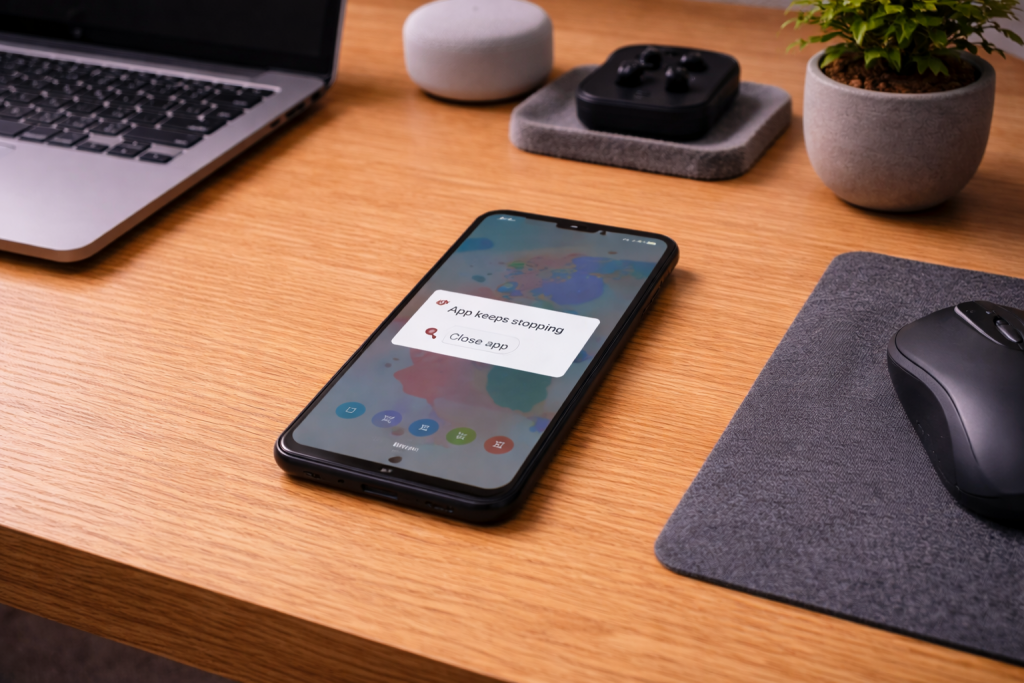
When an update breaks an app: what “crashing” usually means
After an update, an Android app can start force-closing the moment you open it, crash only when you tap a specific screen, or freeze and then disappear back to the home screen. The key detail is that the update changed one of three things: the app’s code, the app’s stored data, or the Android components the app depends on (WebView, Play services, permissions, storage access).
In day-to-day troubleshooting, most “it started after an update” crashes come down to corrupted cached data or a mismatch between the new app version and old on-device data. The fixes below are ordered to preserve your data first, then escalate to resets that may require signing in again.
What actually causes post-update crashes on Android
1) Old cache + new code = instant crash loops
Apps keep compiled resources, image caches, databases, and session tokens on your phone. When the app updates, it expects those files to match the new version. If the update changes a database schema or a cached resource format, the app can crash before it even draws the first screen.
This is the most common issue I see on devices sold in the UK before 2024, especially when the phone has been updated in-place for years without a clean reset.
2) Android System WebView and Chrome dependency failures
A lot of apps render login pages, help screens, and embedded web content using Android System WebView (or Chrome acting as the WebView provider). If WebView or Chrome updates and something goes wrong, multiple unrelated apps can start crashing at once, often right after launch or when opening a login screen.
If you notice several apps failing on the same day, treat WebView/Chrome as a prime suspect before you spend time reinstalling each app.
3) Permission model changes and “silent” denials
Android updates and app updates can change how permissions are requested (photos/media, notifications, location, nearby devices, file access). An app may assume it still has access to a folder, camera, or Bluetooth device, then crash when the OS denies it. This is common with older apps that haven’t been updated to match newer Android permission flows.
4) Storage pressure and broken app data writes
Low storage doesn’t just stop downloads. It can break database writes, logins, and background sync. Some apps handle “disk full” gracefully; others crash when they can’t create a temp file or expand a database.
In practice, once free space drops too low, you’ll see crashes during actions like exporting, attaching photos, or loading large feeds.
5) Play services / Play Store update drift
Many apps rely on Google Play services for sign-in, push notifications, location, in-app billing, SafetyNet/Play Integrity checks, and more. If Play services is outdated, partially updated, or its data is corrupted, apps can crash in ways that look like an app bug.
6) Vendor overlays and battery “optimisation” side effects
Samsung One UI, Xiaomi MIUI/HyperOS, Oppo/OnePlus, and others add background limits and app management layers. After updates, those layers sometimes reset policies, causing apps to crash when background services are killed mid-task (messaging, banking, VPNs, password managers).
I rarely see this on Google Pixel builds compared with heavily customised vendor ROMs.
Fix it methodically: a crash-after-update checklist (least destructive first)
Step 0: Confirm it’s the app, not the phone
- Restart the phone (a full reboot, not just locking/unlocking).
- Check if multiple apps crash (if yes, jump to the WebView/Chrome and Play services steps).
- Try the app on mobile data and Wi‑Fi (some “crashes” are actually network timeouts that the app handles badly).
Step 1: Force stop the app and relaunch
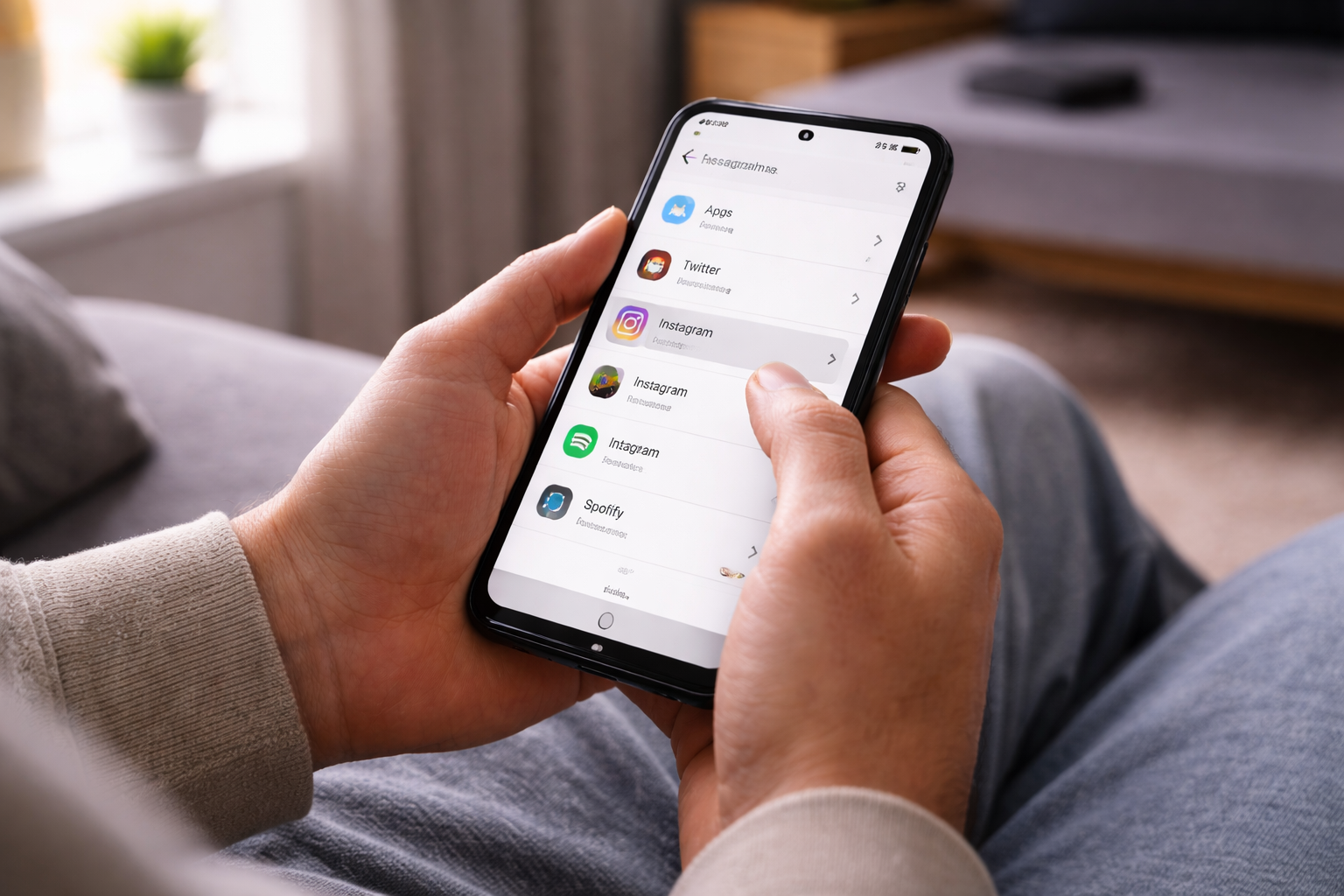
- Go to Settings > Apps > (app name).
- Tap Force stop, then open the app again.
This clears a stuck process and is worth doing before you touch storage. In practice, this step fixes the problem in about half of cases where the app is stuck in a bad state after updating in the background.
Step 2: Clear cache (not data) for the crashing app
- Settings > Apps > (app name) > Storage.
- Tap Clear cache.
- Reopen the app and retry the action that triggers the crash.
If the app now opens but crashes later, you’ve likely removed a corrupted cached asset while keeping your login and local content intact.
Step 3: Update WebView and Chrome (critical when many apps crash)
- Open Play Store and update Android System WebView (if present).
- Update Google Chrome.
- Restart the phone.
If updates aren’t available or installs look stuck, do this:
- Settings > Apps > Android System WebView (or Chrome) > tap the menu > Uninstall updates.
- Reboot, then update again from Play Store.
For background and component behaviour, Google’s documentation is the reference point: Google Play Store help for fixing app install and update issues.
Step 4: Check free storage and clear “hidden” space hogs
- Settings > Storage and check free space.
- Aim for at least 5–10GB free on most phones to avoid app write failures.
- Clear large app caches (social apps, streaming apps) and delete old downloads.
- If you use WhatsApp/Telegram, check media folders and in-app storage tools.
When storage is tight, apps that use local databases (mail, notes, browsers) are the first to become unstable after an update.
Step 5: Clear app data (expect sign-in again)
If clearing cache didn’t help, the stored data may be incompatible with the updated app version.
- Settings > Apps > (app name) > Storage
- Tap Clear storage / Clear data
- Open the app and sign in again
Do this only after you’ve confirmed you know the login details, and that the app’s data is synced to an account (common with banking, shopping, streaming). For offline-first apps (notes, audio recorders), check export/backup options first.
Step 6: Reinstall the app (and remove leftover updates)
- Uninstall the app.
- Restart the phone (this matters more than people think).
- Reinstall from Play Store.
Reinstalling forces a clean set of APK splits and resources. I’ve seen partial split installs after interrupted updates cause repeat crashes until a full uninstall/reinstall is done.
Step 7: Fix Google Play services and Play Store (when sign-in or many apps fail)
- Settings > Apps > Google Play services > Storage > Clear cache.
- Then Manage storage (if shown) > Clear all data (only if problems persist).
- Repeat for Google Play Store: clear cache, then clear data if needed.
- Restart and try updating the crashing app again.
This can break some device-to-account state temporarily (payments, sign-in prompts), but it’s often the cleanest way to stop a post-update crash that’s actually a Play services dependency failure.
Step 8: Boot into Safe mode to catch conflicts
Safe mode disables third-party apps, which helps identify whether an overlay, cleaner, antivirus, VPN, or accessibility tool is interfering.
- Press and hold the power button.
- Long-press Power off and confirm Safe mode (wording varies by brand).
- Test the crashing app.
If the app works in Safe mode, the cause is usually another app hooking into the UI (screen filters, password managers, accessibility services) or aggressive background management. This often fails on budget MediaTek chipsets when multiple “optimiser” apps are installed and fighting each other.
Step 9: Roll back the app update (only if you must)
If the app is critical and the latest version is broken on your device, you can sometimes revert:
- For system apps: Settings > Apps > (app) > Uninstall updates.
- For Play Store apps: you generally can’t roll back via Play Store; you’d need to wait for a hotfix or use an older APK from a trusted source (not recommended for banking/security apps).
In real homes, waiting 24–72 hours for a patched update is often the safest move for finance and identity apps.
Step 10: If it started after an Android OS update, check for a second patch
- Settings > System > System update (or Software update on Samsung).
- Install any follow-up patch and reboot.
Small “stability” patches often land shortly after a major Android update, and they can resolve crashes caused by vendor frameworks rather than the app itself.
Crash patterns I see in the real world (and the fix that usually works)
Scenario A: “Every app that opens a login page crashes”
This is classic WebView/Chrome provider trouble. You’ll notice it with apps that embed web content: shopping, travel, banking, and anything using OAuth sign-in screens.
- Update Android System WebView and Chrome.
- If already updated, uninstall updates for WebView/Chrome, reboot, then update again.
When this is the cause, reinstalling individual apps wastes time because the shared component is what’s broken.
Scenario B: “Only one app crashes, right after the update”
This is usually corrupted app cache/data or a bad migration step in the new version.
- Force stop, clear cache.
- If still crashing, clear storage (data) and sign in again.
- If it’s an offline app, export/backup first if possible.
On Samsung and Xiaomi phones, I also check whether battery optimisation got reset for that app after the update, because background kills can look like crashes.
Scenario C: “The app opens, then crashes when I attach a photo or file”
This points to permissions and storage access changes (Photos and Videos permission, Files access, or the system file picker). It can also be low storage.
- Check Settings > Apps > (app) > Permissions and re-allow Photos/Media.
- Free up storage and retry.
- Try attaching from a different source (Gallery vs Files) to isolate the failing picker path.
I see this a lot after Android version jumps where the media permission model changes and older apps don’t handle the new flow cleanly.
Scenario D: “Crashes only on Wi‑Fi at home, but works on mobile data”
This is often a DNS/ad-blocking/VPN interaction, or a router feature blocking a domain the updated app now uses. In UK homes, I see this most with ISP routers running parental controls or “safe browsing” filters.
- Disable VPN/ad-blocker temporarily and retest.
- Try a different DNS (Private DNS off, or set to Automatic).
- Reboot the router and phone.
If your wider setup is unstable, it’s worth checking the complete 2026 guide to fixing Wi‑Fi, internet and network issues in UK homes.
Common mistakes that keep the crash coming back
Clearing data before checking whether the app is synced
Clearing storage fixes a lot of crashes, but it can also wipe local-only content. If it’s a notes app, recorder, or offline game, look for export/backup first. I’ve had people lose local drafts because the app looked “cloud-based” but wasn’t.
Assuming “Update all” completed successfully
Play Store can silently fail updates when storage is low or when a component is stuck. If multiple apps are crashing, manually check updates for WebView, Chrome, and Play services-related components rather than trusting the batch update.
Using “cleaner” apps that delete active caches
Some cleaner/optimiser apps remove caches while apps are running, which can trigger crashes after an update when the app is already fragile. If Safe mode fixes the issue, remove cleaners first and retest before doing deeper resets.
Not rebooting between uninstall/reinstall cycles
Android can keep processes and cached compiled code around longer than you expect. A reboot between uninstall and reinstall prevents you from testing against a half-removed state. In practice, this is where stubborn crash loops finally stop.
Practical software and hardware moves that reduce future crashes
Keep WebView/Chrome and Play services current
If you disable auto-updates, you increase the chance of dependency drift where apps update but shared components don’t. If you manage updates manually, prioritise WebView/Chrome and Play Store components first.
For official Android-level troubleshooting steps, use Android Help: fix an installed Android app that isn’t working.
Use stable storage, not “nearly full” storage
Phones behave better when they have breathing room for temp files, app updates, and database compaction. If you’re constantly at the limit, crashes after updates become normal rather than rare.
- Move photos/videos off-device periodically.
- Clear offline downloads in streaming apps.
- Consider adding storage via USB‑C for backups on supported phones.
If you regularly need to offload large videos, a USB‑C flash drive is a simple way to create space without relying on cloud uploads.
Don’t stack VPNs, ad blockers, and “security” filters
One network filter is usually fine. Multiple layers often cause weird timeouts that some apps handle by crashing. If an app works on mobile data but not your home Wi‑Fi, simplify the network path first.
Wrap-up: the fastest path to a stable app again
When apps start crashing after updates on Android, start with force stop and clear cache, then move to WebView/Chrome if multiple apps are affected. If it’s only one app, clearing storage or reinstalling is usually the turning point, as long as you’ve checked the app is synced and you won’t lose local-only data.
If crashes only happen on your home Wi‑Fi, treat it as a network/DNS/VPN problem rather than an app problem. And if the issue began after a major Android OS update, check for a follow-up patch before you factory reset anything.
FAQ: awkward edge cases people hit after Android app updates
Why do apps crash only on my Samsung after an update, but work on my Pixel?
Samsung’s background management and permission prompts can behave differently after updates, especially if battery optimisation settings reset. I usually check Safe mode and then review the app’s battery setting (Unrestricted vs Optimised) and permissions. This is one of the most common patterns I see on One UI when an app relies on background services.
My banking app crashes after updating on Android 14/15, but clearing data didn’t help — what next?
For banking apps, the next suspects are Play services integrity checks, WebView/Chrome, and device security state (work profiles, rooted devices, or aggressive VPN/ad blockers). Clear cache for Google Play services, update WebView/Chrome, and temporarily disable VPNs. In practice, reinstalling alone often doesn’t fix banking crashes if Play services is the underlying dependency.
Why does the app crash only when I upload a photo from Google Photos on my phone?
This is usually a permission or file-picker path issue: the app may not handle the newer media access model cleanly. Try granting Photos and Videos permission, then upload using the Files picker instead of Photos (or vice versa). I see this most after app updates that change the upload screen but don’t fully support every picker source.
Apps crash on home Wi‑Fi but work on mobile data (UK ISP router) — is it really the update?
Often it’s not the app update; it’s that the updated app now calls different domains that your router’s parental controls, “safe browsing”, or DNS filtering blocks. Disable those features briefly, test again, and try setting Private DNS back to Automatic. In UK homes, this shows up a lot on ISP-provided routers where filtering is enabled by default.
After updating, the app opens then immediately closes with no error — how do I see what’s happening?
On many phones you can check Settings > About phone > Status for basic logs, but the practical route is to reproduce the crash in Safe mode and see if it stops. If it stops, a third-party overlay or accessibility service is involved. If it still crashes in Safe mode, clearing storage or reinstalling is the next realistic step before deeper debugging tools.
Why do crashes come back again a day later even after reinstalling?
That usually points to something reintroducing the problem: a cleaner app wiping caches, a VPN/filter interfering, or the app restoring corrupted cloud state on first sync. I’ve also seen Play Store auto-restore reapply old app data after reinstall. Turn off cleaners, test without VPN, and consider disabling auto-restore temporarily while you reinstall and sign in fresh.
Recommended gear on Amazon UK
- A USB‑C flash drive helps when app updates start crashing due to low storage, letting you offload large videos and downloads quickly without relying on cloud sync. View USB‑C flash drive (128GB+) on Amazon UK
- A USB‑C OTG adapter is useful when you need to move files off the phone to a standard USB drive to free space before reinstalling a crashing app. View USB‑C to USB‑A adapter on Amazon UK
- A reliable USB‑C charging cable helps during longer troubleshooting sessions where repeated reboots and updates drain the battery and unstable charging interrupts installs. View High-quality USB‑C charging cable on Amazon UK
- A Wi‑Fi 6 router can stabilise update downloads and reduce weird app failures that only happen on home Wi‑Fi when older ISP routers struggle with DNS and filtering features. View Wi‑Fi 6 router on Amazon UK








1 thought on “Fix Apps Crashing After Updates on Android”