
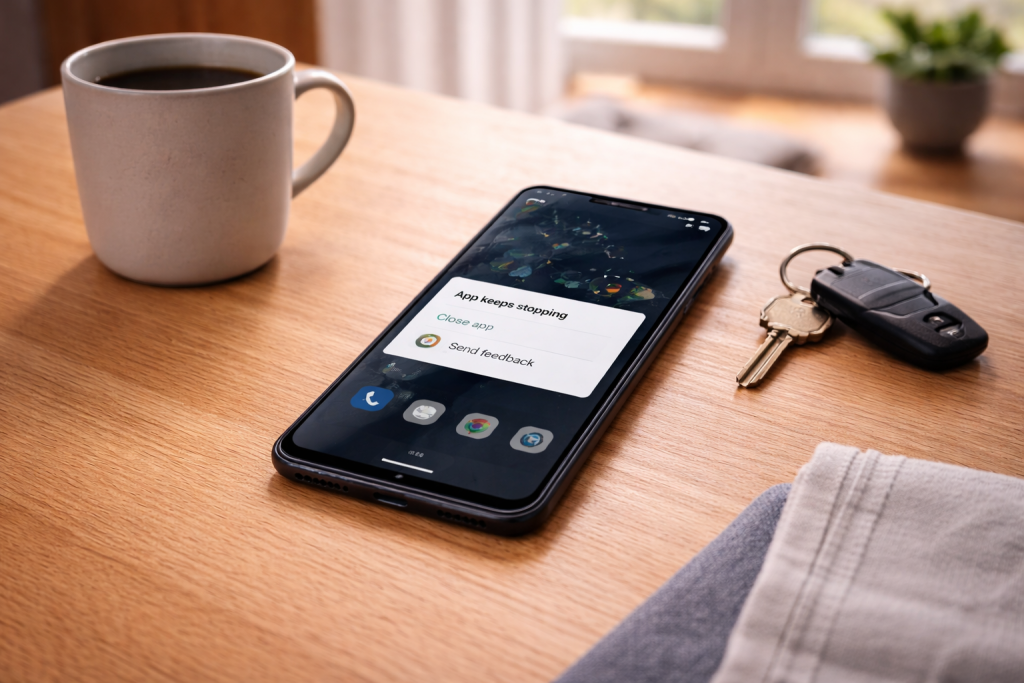
An Android update lands, everything looks normal, then your banking app or WhatsApp starts dropping back to the home screen. Sometimes it’s instant on launch. Other times it crashes only when you tap a specific button, open the camera, or try to upload a file. The timing makes it feel like the update “broke” the phone, but the usual culprit is narrower: one app update, a corrupted cache, a WebView component mismatch, or a permission that got reset.
I see this a lot on UK handsets that update overnight on Wi‑Fi, then spend the morning half-awake on mobile data with background optimisation kicking in. The user experience is the same: random crashes, missing notifications, and apps that refuse to open until you reboot. The fix is rarely one magic toggle. It’s a short sequence of checks that isolates whether you’ve got an app-level issue, a system component issue, or a storage/memory problem that the update exposed.
Before you start uninstalling everything, treat it like a diagnosis. Work from the most reversible steps (cache, WebView, permissions) to the more disruptive ones (resetting app preferences, reinstalling, safe mode, factory reset). That order matters because Android will happily rebuild caches and re-register components, but it won’t bring back your 2FA tokens if you wipe an authenticator app without planning.
What actually changes after an update (and why apps fall over)
Android updates don’t just add features. They swap out libraries, tighten permissions, change background limits, and sometimes replace core components that apps depend on. When an app crashes after an update, it’s usually one of these failure modes:
- Corrupted app cache or compiled code: after an update, Android recompiles parts of apps (ART optimisation). If that process is interrupted (low storage, reboot, battery saver), you can get repeat crashes until the app rebuilds cleanly.
- Android System WebView / Chrome mismatch: lots of apps render login pages, help screens, and payment flows using WebView. If WebView is broken or out of sync, apps crash when they try to open embedded web content. This is the most common “everything crashes at once” pattern I see.
- Permission and “restricted setting” changes: updates can reset notification permissions, file access, or background location. Some apps handle denial badly and crash when they can’t read storage or access the camera.
- Play services / Play Store update backlog: after a system update, Google Play services and the Play Store often update in the background. During that window, apps that rely on sign-in, SafetyNet/Play Integrity, or push messaging can behave unpredictably.
- Vendor overlays and battery optimisation: Samsung One UI, Xiaomi MIUI/HyperOS, and others apply aggressive background rules. After updates, those rules sometimes revert to defaults, and apps that expect background access can crash or freeze.
- Storage pressure: updates can temporarily consume several GB. If you’re down to the last 1–2GB, apps crash when they can’t write temporary files, databases, or media caches.
One practical clue: if one app crashes, it’s usually that app’s data/cache or a permission. If many unrelated apps crash, suspect WebView/Chrome, Play services, or a system-level issue.
A clean troubleshooting run that doesn’t make things worse
Follow this order. It’s designed to avoid data loss and to surface patterns (which matters more than any single step).
1) Confirm whether it’s one app or a system-wide crash
- Try three different apps: one Google app (Gmail/Maps), one third-party app (e.g. Spotify), and one vendor app (Samsung Members/Camera).
- Note when it crashes: on launch, after login, when opening a web page, when using camera, when attaching a file.
If multiple apps crash when opening login screens or in-app browsers, jump straight to the WebView/Chrome section below.
2) Restart properly (not just a quick power tap)
A restart clears stuck processes and forces some components to re-register. On many phones, a “restart” from the power menu is enough, but if the device has been up for weeks, do a full power cycle:
- Hold Power → Power off.
- Wait 20 seconds.
- Power on and leave it for 2–3 minutes before opening the crashing app.
In practice, this fixes the problem in about half of cases where the crash started immediately after an update and nothing else is obviously wrong.
3) Check storage headroom (this one is boring but decisive)
Low storage causes crashes that look “random” because the failure happens when an app tries to write a database page or temporary file.
- Go to Settings → Storage.
- If you’re under 5GB free, free space first: large videos, offline maps, downloads, and WhatsApp media are usual culprits.
I’ve had Pixels that behaved perfectly until a security update pushed them under 1GB free; then the camera, Chrome, and any app with a cache would crash on launch.
4) Update the backlog: Play Store, Play services, and system components
- Open Play Store → your profile → Manage apps & device → update everything.
- Search the Play Store for Android System WebView and Google Chrome and update both.
- Search for Google Play services and ensure it’s up to date (it may not show an “Update” button; that’s normal).
If updates are stuck on mobile data, temporarily switch to Wi‑Fi. Some UK networks are fine with large downloads, but Play Store downloads can still stall when the phone flips between 4G/5G and Wi‑Fi.
5) Fix the WebView/Chrome crash pattern (the “many apps crash” fix)
If apps crash when opening embedded web content (logins, payment pages, help pages), treat WebView as suspect.
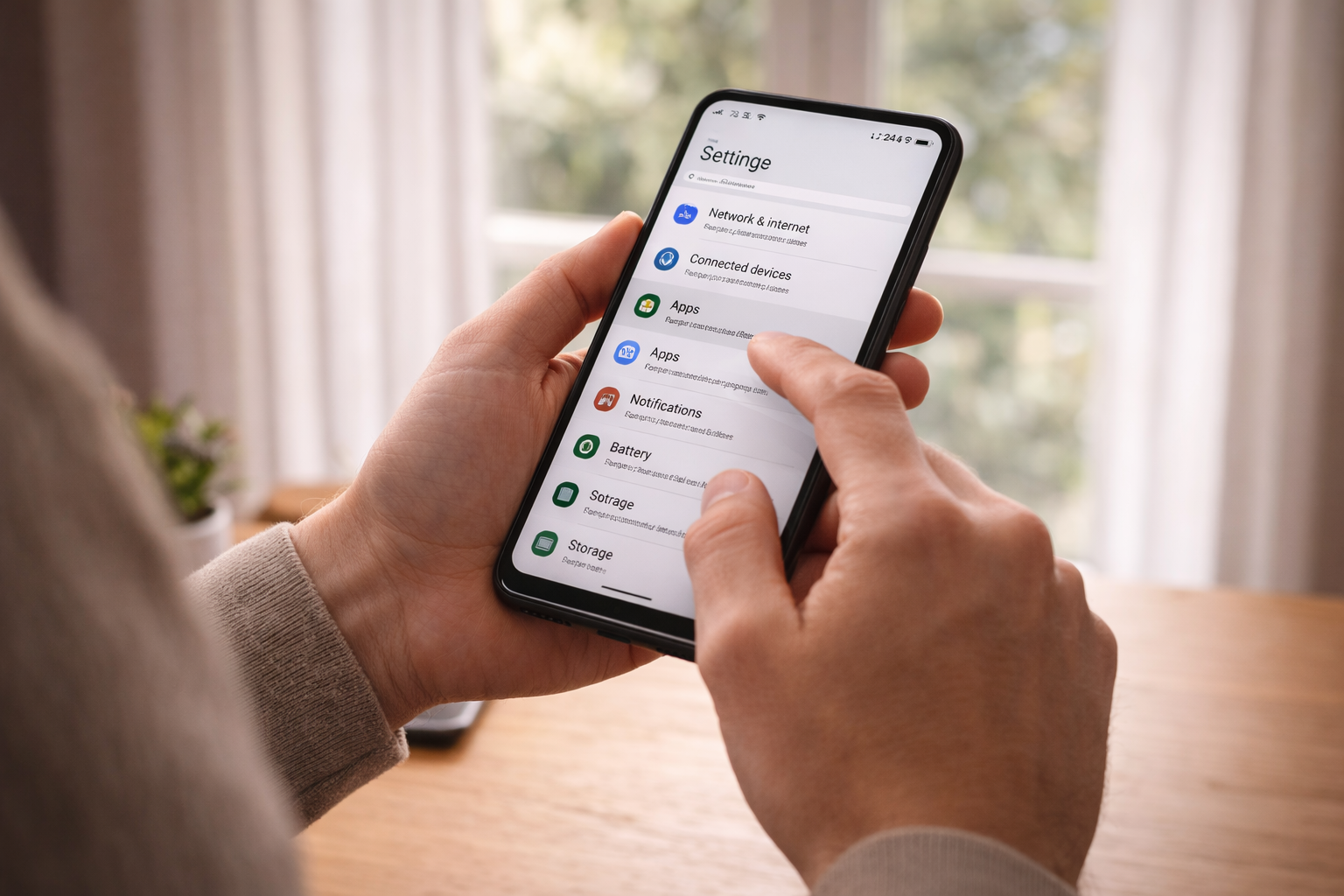
- Go to Settings → Apps.
- Find Android System WebView (or on some devices, WebView is provided by Chrome).
- Tap Storage & cache → Clear cache.
- Do the same for Google Chrome.
- Restart the phone.
If clearing cache doesn’t help, try rolling WebView back:
- Settings → Apps → Android System WebView → menu → Uninstall updates (if available), then update it again in the Play Store.
Google’s own troubleshooting notes for WebView-related crashes are worth keeping handy: Android apps crashing: WebView and Chrome fixes.
6) Clear cache and data for the specific crashing app (in the right order)
For a single app that crashes repeatedly, do this sequence. Stop when it’s fixed.
- Force stop: Settings → Apps → (app) → Force stop.
- Clear cache: Storage & cache → Clear cache.
- Open the app and test.
- If it still crashes: Storage & cache → Clear storage / Clear data.
Warning: clearing storage signs you out and can delete offline content. For banking apps, you may need to re-register the device. For authenticator apps, don’t clear data unless you’ve got recovery codes.
7) Re-check permissions and “restricted settings”
After updates, Android can quietly flip permissions back to “Ask every time” or deny background access. Some apps crash when they hit a denied permission path they didn’t expect.
- Settings → Apps → (app) → Permissions.
- Temporarily allow what the app obviously needs (Camera for camera apps, Files/Photos for upload apps, Location for maps).
- Check Notifications too; missing notifications can look like an app “not working”.
On newer Android versions, sideloaded apps can be blocked by “restricted settings”. If the crashing app was installed from outside the Play Store, check the app’s settings page for a restricted settings warning and allow it.
8) Reset app preferences (useful, but it’s a blunt tool)
This resets disabled apps, default apps, background restrictions, and permission prompts. It won’t delete your data, but it can change behaviour in ways you’ll notice (default browser, default SMS app, etc.).
- Settings → Apps → Reset app preferences (location varies by manufacturer).
I tend to use this when multiple apps misbehave after an update and the device has a history of “optimisation” tweaks.
9) Test in Safe Mode to catch launcher and overlay conflicts
If crashes happen when switching apps, opening the recent apps screen, or using chat heads/overlays, an overlay app or launcher can be the trigger.
- Hold Power → long-press Power off → Safe mode (wording varies).
- Test the crashing app in Safe Mode.
If the app behaves in Safe Mode, the problem is usually a third-party launcher, screen filter, password manager overlay, accessibility tool, or “battery saver” app. Remove or disable them one at a time.
10) Reinstall the app (but plan for logins and 2FA)
Reinstalling forces a clean package, fresh compiled code, and a new data directory. It’s often the fastest fix for a single app that won’t stop crashing.
- Uninstall the app.
- Restart the phone (yes, again).
- Install the latest version from the Play Store.
If it’s a critical app (banking, work MFA), check you can sign back in before you remove it. I’ve watched people lock themselves out because the app was their only 2FA method.
11) Check for a pending Google Play system update
Android has two update tracks: the full OS update and the Google Play system update. A mismatch can cause odd crashes, especially around security components.
- Settings → Security & privacy → Updates → Google Play system update.
- Install if available, then reboot.
Official background on Android updates and components is here: Android security and update basics.
12) Last resort: wipe cache partition (limited) or factory reset (effective, disruptive)
Modern Android doesn’t expose a “wipe cache partition” on every device, and on many phones it doesn’t do much anymore. A factory reset still works because it removes the accumulated state that updates can trip over, but it’s disruptive.
- Back up photos, messages, and app data first.
- Make sure you know your Google account password and have 2FA access.
- Settings → System → Reset options → Erase all data.
If you’re at this point because only one app crashes, don’t factory reset. Reinstalling that app or fixing WebView is almost always the better call.
Crash patterns I see in real use (and what they usually mean)
Banking apps crash right after Face/ fingerprint prompt. Often a Play Integrity/Google Play services hiccup after an update. Updating Play services and rebooting helps. If the bank app still crashes, clearing its storage forces a fresh device registration.
Apps crash only when you try to upload a photo or attach a file. That’s usually permission or a broken document provider. Check Photos/Files permissions, then clear cache for the app and for the system file picker if your device exposes it. I’ve also seen this when storage is nearly full and the app can’t create a temporary upload file.
Everything crashes when opening a login page inside the app. WebView/Chrome. Clear cache, uninstall WebView updates, then update again. This is the most common “suddenly half my apps are broken” scenario on Samsung and Pixel after a Play Store update wave.
Crashes only on mobile data, but works on Wi‑Fi. Less common, but real. VPNs, private DNS, and ad blockers can break embedded web calls and make apps look like they’re crashing. Disable VPN/private DNS temporarily and test. If the app is poorly coded, a network exception can still trigger a crash.
Crashes started after enabling battery saver or after an update reset battery rules. Some apps don’t tolerate being background-restricted mid-task. Set the app’s battery usage to “Unrestricted” temporarily and retest.
Easy-to-miss mistakes that keep the crash loop going
- Clearing data before checking WebView. If multiple apps crash, wiping one app’s data wastes time and can create new login problems.
- Reinstalling without rebooting. Android can keep stale processes around. A reboot between uninstall and reinstall avoids weird “same crash, fresh install” situations.
- Ignoring storage headroom. Clearing cache helps briefly, then the crash returns because the phone is still at 99% full.
- Assuming the OS update is the only change. Often the OS update and 20 Play Store updates land together. The app that broke may have updated too.
- Leaving “pause app activity if unused” enabled for critical apps. Android can revoke permissions and pause background work. For banking, travel, and messaging apps, that can cause failures that look like crashes.
I’ve also seen people chase a “buggy update” when the real trigger was a password manager overlay update. Safe Mode is underrated for that reason.
Device-specific quirks worth checking
Samsung (One UI): Check Auto optimise daily and battery optimisation rules. Samsung is good at “helping” apps into a restricted state after updates. Also check if RAM Plus settings changed; aggressive swapping can make heavy apps unstable on lower-memory models.
Pixel: Pixels are usually clean, but when they crash after updates it’s often WebView/Chrome or a Play system update mismatch. Also check Private DNS if you use it; a strict DNS provider can break embedded web flows.
Xiaomi/Redmi/POCO: Background restrictions are aggressive. If an app crashes when you switch away and back, set battery usage to unrestricted and allow autostart (wording varies). I’ve watched messaging apps crash simply because MIUI killed them mid-sync.
Older devices (pre-2021): Limited RAM and slower storage make post-update optimisation more fragile. If the phone is hot and sluggish right after updating, leave it on charge for 30–60 minutes with the screen off. Let it finish background compilation before you judge stability.
If your phone is also crawling after the update, that’s a related but slightly different problem; the same storage and optimisation issues apply. See Fix Android phone running slow after update.
When it’s not the app: hardware and system health checks
Crashes can be software, but hardware stress makes them show up more often.
- Overheating: If the phone is warm and apps crash under camera use or gaming, let it cool and remove thick cases temporarily. Thermal throttling can cause timeouts that poorly written apps interpret badly.
- Failing storage: Rare on modern phones, but if you see repeated “corrupted” downloads, apps failing to update, and crashes across unrelated apps, storage could be struggling. A factory reset sometimes masks it briefly; the problem returns.
- RAM pressure: If you’ve got lots of background apps and a low-RAM device, crashes can be the system killing processes. Reduce widgets, disable heavy live wallpapers, and keep fewer apps running.
- Accessibility services and overlays: Screen dimmers, blue light filters, chat bubbles, and auto-clickers hook into UI layers. After updates, those hooks can destabilise apps. Safe Mode testing is the quickest proof.
One more practical check: if the crash happens only when you rotate the phone or switch to picture-in-picture, suspect a UI overlay or a buggy launcher rather than the app itself.
Conclusion
Apps crashing after updates on Android usually comes down to a small set of repeat offenders: WebView/Chrome, corrupted app cache/data, permission resets, Play services updates, or storage pressure. Treat it like a fault-finding job. If multiple apps crash, fix the shared components first. If it’s one app, clear cache, then data, then reinstall—while keeping an eye on logins and 2FA.
If Safe Mode makes the problem disappear, stop blaming the update and start looking at overlays, launchers, and “optimiser” apps. That’s where the weirdest, most persistent crash loops tend to live.
FAQ
Why do multiple Android apps crash after an update when I open a login page or in-app browser?
This pattern nearly always points to Android System WebView or Chrome. Clear cache for both, reboot, and if needed uninstall WebView updates then update it again. Apps that embed web content can crash together when WebView is broken.
Why does my banking app crash right after the fingerprint prompt after the latest Android update?
Banking apps often depend on Google Play services and integrity checks. Update Play services and the Play Store backlog, reboot, then clear the banking app’s cache. If it still crashes, clearing the app’s storage forces a fresh device registration, but you’ll need your login and any 2FA method.
Why does an Android app crash only when I try to upload a photo after an update, but browsing works?
Uploads hit storage permissions and temporary file creation. Check the app’s Photos/Files permissions, confirm you have several GB free storage, then clear the app cache. If the crash happens inside the file picker, updating WebView/Chrome can also help.
Why do my apps stop crashing in Safe Mode but crash again in normal mode after the update?
Safe Mode disables third-party apps and overlays. If the crash disappears there, a launcher, screen filter, accessibility tool, VPN, or “battery optimiser” is interfering. Disable or uninstall those apps one at a time until the crashes stop.
Why do apps crash on mobile data but work on Wi‑Fi after an Android update?
Mobile-only crashes are often caused by VPNs, private DNS, or ad blockers breaking embedded web calls. Temporarily disable VPN and private DNS, then test. If the app is poorly coded, a network exception can trigger a crash instead of a clean error message.
Recommended gear on Amazon UK
- If your phone supports microSD, moving offline media and downloads off internal storage keeps several GB free, which reduces crash loops caused by apps failing to write temporary files. Relevant examples
- A local USB-C backup option helps when you need to reinstall or clear app data without risking losing photos, downloads, or exported authenticator recovery files. Comparable items
- Leaving the phone on stable power after an update lets Android finish background optimisation and app recompilation, which can stop post-update crashes on older or slower devices. Comparable items
- A proper data-rated cable makes it easier to copy large backups to a PC or drive when you’re forced into reinstalling apps or doing a factory reset to resolve persistent crashes. Relevant examples







