
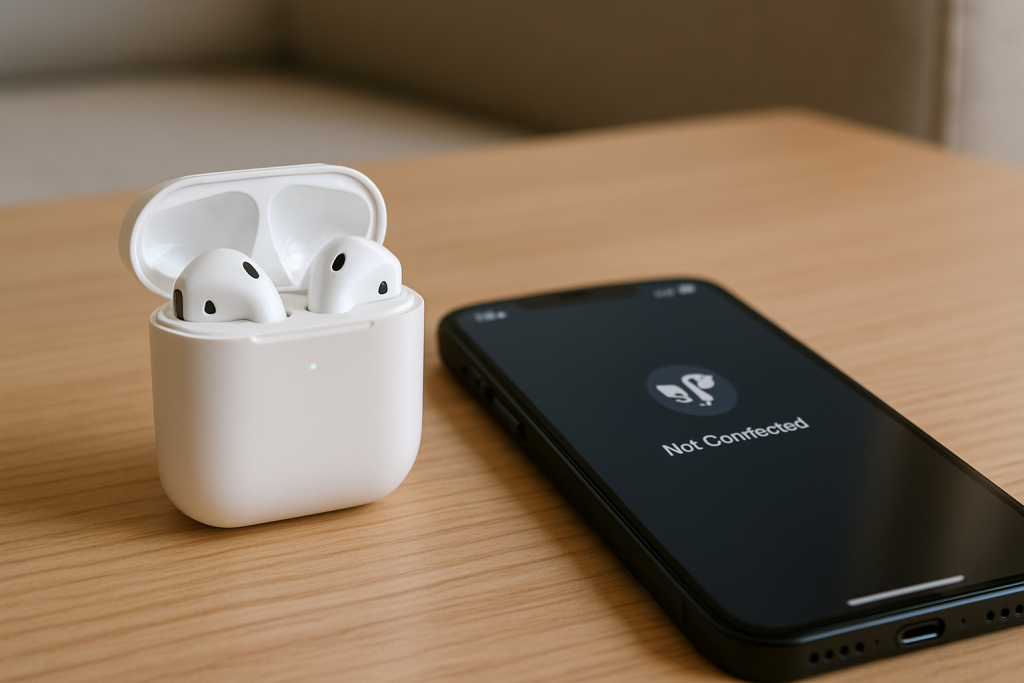
When AirPods stop connecting automatically to an iPhone, it’s rarely “Bluetooth is broken”. It’s usually one of a few specific states: the iPhone is connecting to another audio device first, the AirPods are attached to a different Apple ID, the case isn’t waking them reliably, or iOS is refusing to auto-route audio because it thinks you’re not wearing them.
The good news is you can diagnose it quickly if you work from the connection chain outward: power and wake, Bluetooth link, iCloud pairing, then audio routing. I’m going to keep this practical and focused on fixes that actually change behaviour, not just toggling settings at random.
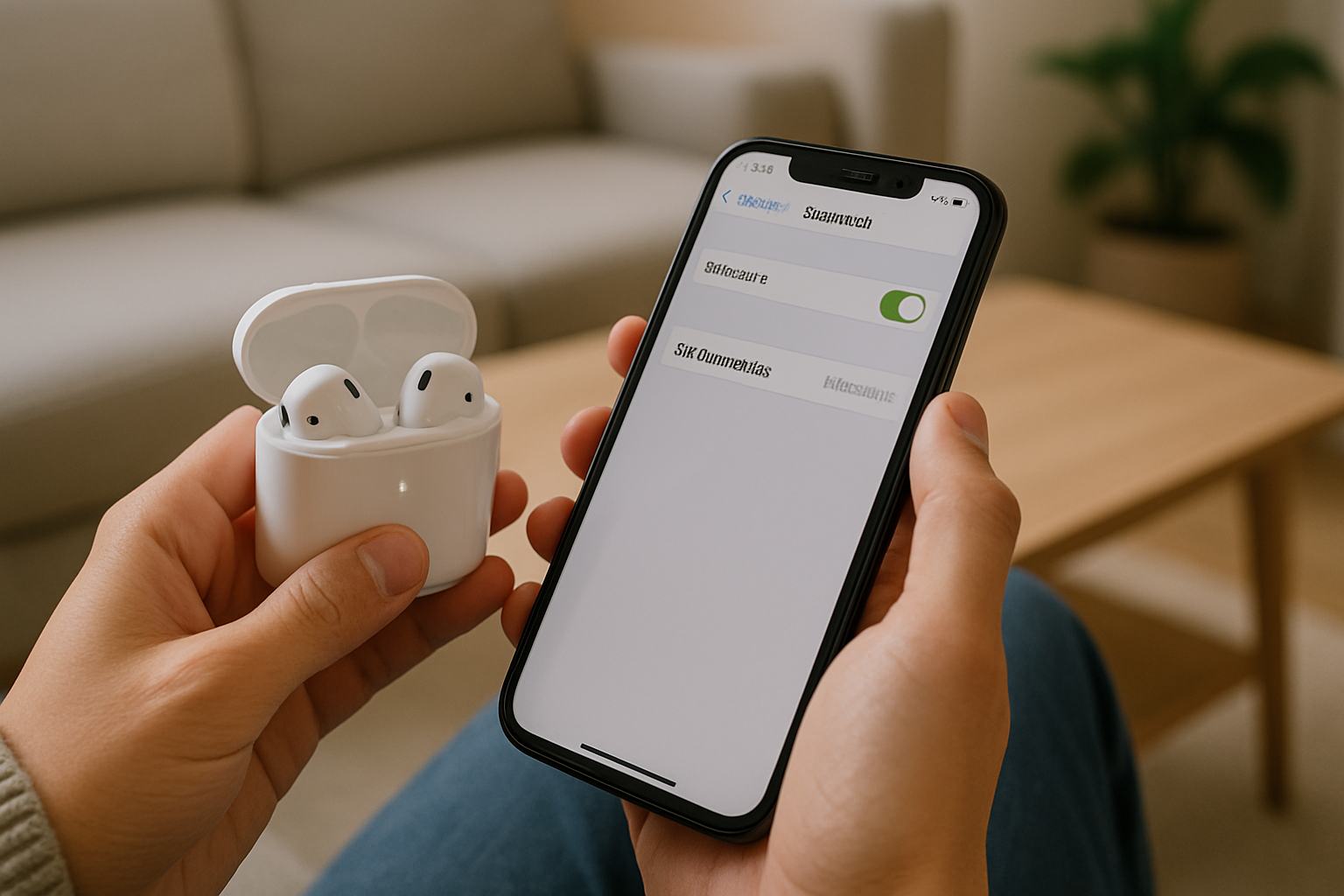
What “automatic connection” actually depends on
AirPods auto-connect is a stack of small decisions. If any layer fails, you’ll see symptoms like: AirPods show as “Not Connected” until you tap them, they connect but audio stays on speaker, or they connect to your iPad/Mac instead of your iPhone.
Under the hood, the iPhone uses Bluetooth for the link, iCloud for device association (so it knows these are your AirPods), and iOS audio routing rules (so it decides where sound should go). With AirPods Pro and newer models, in-ear detection and “Automatic Ear Detection” also influence whether iOS thinks it should route audio to them.
This is the most common issue I see on devices sold in the UK before 2024: the AirPods are technically paired, but they’re not associated cleanly to the current Apple ID after a phone upgrade or a hand-me-down setup.
Quick symptom map (so you don’t waste time)
- They never pop up when you open the case near the iPhone: likely case/battery/wake issue, or Bluetooth off, or the AirPods are paired to another device nearby.
- They connect only after you tap them in Bluetooth: usually iCloud association, “Connect to This iPhone” set to manual, or competing devices.
- They connect but audio stays on speaker: audio output selection, call audio routing, or ear detection confusion.
- They connect to iPad/Mac instead: iCloud multi-device switching behaviour, or another device is actively playing audio.
- One AirPod connects, the other doesn’t: dirty contacts, mismatched charge state, or a partial reset needed.
Start with the physical wake and charge checks
Before you touch iOS settings, confirm the AirPods are actually waking consistently. Auto-connect can’t happen if the buds don’t come online when the case opens.
- Charge the case for 15 minutes using a known-good cable/charger. Low case battery causes intermittent wake behaviour that looks like “Bluetooth issues”.
- Open the lid near the iPhone and watch for the pop-up card. If it doesn’t appear, go to Bluetooth settings and see if the AirPods show up at all.
- Inspect and clean the case contacts (inside the case where the stems sit). If one bud isn’t charging, auto-connect becomes unreliable because the pair state is inconsistent.
- Reseat both AirPods firmly in the case, close the lid for 10 seconds, then open again.
In practice, cleaning the contacts fixes the problem in about half of “only connects sometimes” cases, especially when one AirPod is often at 0–5% while the other is fine.
Check the one setting that silently disables auto-connect
iOS has a per-device option that can effectively turn auto-connect into manual connect.
- Go to Settings > Bluetooth.
- Tap the (i) next to your AirPods.
- Find Connect to This iPhone.
- Set it to Automatically.
If you don’t see this option, update iOS first (steps below). I’ve seen this setting flip to manual after certain iOS updates or after pairing the AirPods to a second phone for testing.
Force a clean Bluetooth re-handshake (without nuking everything)
Bluetooth can get stuck in a “paired but not trusted for auto-connect” state. The fastest way to break that state is to forget the device and re-pair, but do it in the right order.
- Put the AirPods in the case and close the lid.
- On iPhone: Settings > Bluetooth > tap (i) next to AirPods > Forget This Device.
- Turn Bluetooth off, wait 10 seconds, then turn it back on.
- Open the AirPods case lid near the iPhone and follow the pairing prompt.
If you’re also dealing with dropouts after they connect, the underlying causes overlap with general Bluetooth instability; see Fix Bluetooth Headphones Disconnecting on iPhone & Android for interference and codec-related checks.
Do the full AirPods reset (only if re-pairing didn’t stick)
A full reset clears more than a normal “forget and re-pair”, and it’s the right move when auto-connect fails across multiple iPhones or keeps reverting to manual behaviour.
- Put both AirPods in the case and leave the lid open.
- Press and hold the setup button on the back of the case (or the front button on USB‑C AirPods Pro 2 case) for about 15 seconds.
- Wait for the status light to flash amber, then white.
- Close the lid for 10 seconds, then open it near the iPhone and pair again.
I rarely see this fail unless the AirPods are still signed into a different Apple ID somewhere (common with used AirPods) or the case battery is weak.
Confirm iCloud/Apple ID association (the hidden deal-breaker)
AirPods behave “smart” only when iCloud knows they belong to your Apple ID. If you’ve recently changed Apple IDs, bought used AirPods, or migrated iPhones, you can end up with a Bluetooth pairing that works but doesn’t auto-switch or auto-connect properly.
- On iPhone, go to Settings and confirm you’re signed into the expected Apple Account.
- Check whether the AirPods appear under your Apple devices list (Apple Account devices). If they don’t, re-pair after a full reset.
- If the AirPods were previously owned, ensure they’re removed from the previous owner’s account; otherwise you can get inconsistent behaviour across devices.
For Apple’s official pairing and reset steps, use Apple Support: connect and set up AirPods to match your exact AirPods model and iOS version.
Fix audio routing when they connect but sound stays on iPhone
This is a different failure mode: the Bluetooth link is fine, but iOS is routing audio elsewhere. I see this a lot when people use CarPlay, a Bluetooth speaker, or Teams/Zoom on another device.
- Open Control Centre > tap the AirPlay/audio output button.
- Select your AirPods explicitly.
- Start playback again (some apps don’t re-route mid-stream).
Also check call routing:
- Settings > Accessibility > Touch > Call Audio Routing should usually be Automatic.
- If it’s set to Speaker or Bluetooth Headset, it can override what you expect during calls.
In real homes, not lab setups, this problem often shows up after using a car head unit once—iOS remembers the last “successful” route and prioritises it more than people expect.
Stop other Apple devices stealing the connection
If you have an iPad, Mac, Apple TV, or even a second iPhone signed into the same Apple ID, the AirPods can switch away from your iPhone if another device starts playing audio or wakes up first.
On the iPhone:
- Settings > Bluetooth > tap (i) next to AirPods.
- Set Connect to This iPhone to Automatically.
On the iPad/Mac (if the problem is persistent): set their equivalent option to connect only when last used, or temporarily turn Bluetooth off on the competing device to confirm the diagnosis.
I’ve seen this most often when a MacBook wakes from sleep and immediately grabs the AirPods for system sounds, which makes the iPhone look like it “won’t auto-connect”.
Update iOS and (indirectly) AirPods firmware
AirPods firmware updates are bundled and installed automatically, but they depend on iOS being current and the AirPods being able to connect and sit near thephone long enough.
- Update iOS: Settings > General > Software Update.
- To encourage firmware update: connect AirPods to iPhone, put them in the case, plug the case into power, and leave the iPhone nearby on Wi‑Fi for 20–30 minutes.
If you’re unsure whether your iPhone is running a version that supports your AirPods features properly, Apple Support: update your iPhone or iPad is the cleanest reference.
When “Automatic Ear Detection” breaks auto-connect
Ear detection is meant to help, but when sensors are dirty or you’re using certain third-party ear tips, iOS can decide you’re not wearing the AirPods and refuse to auto-route audio.
- Go to Settings > Bluetooth > (i) next to AirPods.
- Toggle Automatic Ear Detection off.
- Test auto-connect and audio routing for a day.
If turning it off fixes the issue, clean the sensors and try turning it back on later. I see this a lot on AirPods Pro after workouts—skin oils and pocket lint build up in ways people don’t notice.
Network settings reset: only for stubborn iOS Bluetooth weirdness
If the iPhone behaves oddly with multiple Bluetooth devices (not just AirPods), resetting network settings can clear corrupted Bluetooth/Wi‑Fi state. It’s disruptive because it removes saved Wi‑Fi networks.
- Settings > General > Transfer or Reset iPhone > Reset.
- Tap Reset Network Settings.
- Rejoin your Wi‑Fi and re-pair the AirPods.
In practice, this is a “last mile” fix when you’ve already done a full AirPods reset and the iPhone still won’t keep an automatic connection profile.
Real-world failure patterns I see (and what fixed them)
Scenario 1: AirPods auto-connect at home, but not outside
This usually isn’t GPS or networks; it’s competing Bluetooth devices. Outside the house you’re more likely to have a smartwatch, car kit, or portable speaker in range, and iOS may connect to the last-used audio route.
- Fix: set Connect to This iPhone to Automatically, then remove old car kits you no longer use.
- Fix: manually select AirPods once in Control Centre; iOS often “learns” the preference for that context.
I’ve had this happen repeatedly after testing multiple car adapters—until I removed the unused ones from Bluetooth, AirPods looked unreliable.
Scenario 2: AirPods connect to iPhone, then instantly switch to Mac
Macs can grab AirPods when an app plays a notification sound or when a browser tab starts audio. The iPhone then shows them as connected but won’t route audio.
- Fix: turn off Bluetooth on the Mac for 2 minutes to confirm the cause.
- Fix: on the Mac, set AirPods to connect only when last connected to that Mac.
This is one of those issues that feels random until you notice it happens right after the Mac wakes.
Scenario 3: Only one AirPod connects automatically
When one bud isn’t charging properly, the pair can’t present a stable state to iOS. You’ll see one side connect, the other lag, then the whole connection fails.
- Fix: clean the case contacts and the bottom of the stems, then fully charge the case.
- Fix: full reset after both buds reach a similar charge level.
I’ve also seen this after dropping the case—slightly bent contacts can still charge “sometimes”, which is the worst kind of fault to diagnose.
Mistakes that keep the problem coming back
- Using Control Centre Bluetooth toggle as “off”: Control Centre can disconnect temporarily but not fully disable Bluetooth. Use Settings > Bluetooth for a true off/on test.
- Forgetting the AirPods on one device only: if you have multiple Apple devices, leaving a stale pairing on another device can keep pulling the AirPods away.
- Resetting AirPods without charging first: low case battery causes the reset/pair process to fail halfway, leading to repeated “not your AirPods” prompts.
- Assuming it’s an iOS bug immediately: most repeat cases are physical wake/charge issues or the “Connect to This iPhone” setting.
If you’re also fighting general Bluetooth instability (dropouts, stutter, random disconnects), it’s worth checking the broader interference and device-priority causes in Fix Bluetooth Headphones Disconnecting Randomly.
Practical add-ons that reduce repeat failures
You don’t need extra hardware to make AirPods auto-connect, but a couple of small changes reduce the conditions that cause the issue to return.
- Use a reliable charging method: intermittent case charging leads to intermittent wake, which looks like pairing trouble. A stable charger and cable removes that variable.
- Keep the case clean: pocket lint is a real cause of “one AirPod doesn’t connect” because it prevents proper charging.
- Consider a MagSafe-style charging routine: consistent charging habits reduce low-battery edge cases. A MagSafe-compatible charging stand is an easy way to keep the phone and AirPods topped up in the same place.
I rarely see chronic auto-connect issues on AirPods that live on a charger overnight and get their contacts cleaned occasionally; most repeat problems come from low case battery and dirty contacts.
Wrap-up: the shortest path to a stable auto-connect
If you want the fastest sequence that fixes most cases: charge the case, clean contacts, set “Connect to This iPhone” to Automatically, then forget and re-pair. If it still won’t stick, do a full AirPods reset and confirm the AirPods are associated with the correct Apple ID.
Once auto-connect is working, watch for the two repeat triggers: another Apple device stealing the connection, and the case/buds not waking consistently due to charging issues.
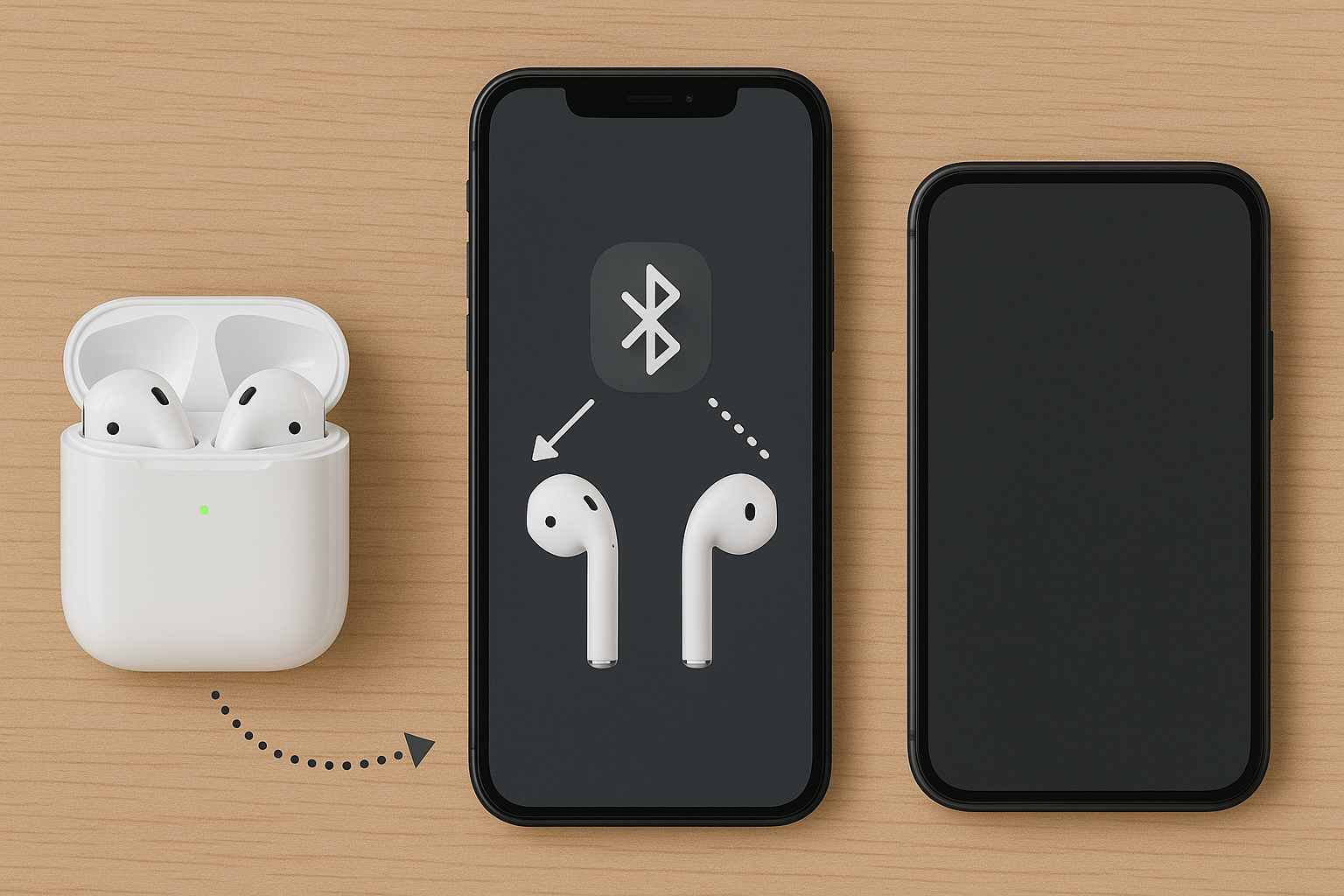
FAQ: awkward AirPods auto-connect problems people actually hit
Why do my AirPods connect automatically to my iPad but not my iPhone?
This is usually the “Connect to This iPhone” setting being set to manual on the iPhone, or the iPhone prioritising another Bluetooth route (CarPlay, a car kit, or a speaker). I fix it by setting the iPhone option to Automatically, then forgetting and re-pairing once so the preference sticks. I see this most when someone recently restored an iPhone or moved from Android back to iPhone.
Why do AirPods auto-connect for music but not for phone calls on iOS?
That’s commonly call routing, not pairing. Check Settings > Accessibility > Touch > Call Audio Routing and keep it on Automatic. In practice, this gets changed by users trying to fix speakerphone issues, then later it looks like AirPods “won’t connect” for calls.
My AirPods show “Connected” but audio plays through the iPhone speaker—what’s going on?
It’s an audio route selection problem or another device briefly taking the stream. Use Control Centre’s audio output selector and pick the AirPods explicitly, then restart playback. In real homes, this happens a lot after using a TV, Apple TV, or car Bluetooth once—iOS remembers the last successful route more aggressively than people expect.
Why won’t my AirPods connect automatically after an iPhone upgrade (UK eSIM transfer)?
The eSIM transfer isn’t the cause, but the upgrade process often leaves you with a Bluetooth pairing that isn’t cleanly tied to iCloud. Do a full AirPods reset, then pair again while signed into the correct Apple ID. This is the most common issue I see on UK iPhone upgrades where the old phone is still nearby and signed in.
AirPods connect automatically at home, but in my car they never do—why?
Your car kit is probably connecting first and becoming the default route, especially if you start the engine before opening the AirPods case. Remove unused car Bluetooth entries and set AirPods to auto-connect to the iPhone, then manually select AirPods once in Control Centre while in the car. I’ve seen some head units keep a “sticky” connection that blocks AirPods until you disconnect the car kit.
Do AirPods auto-connect work differently on iOS 17 vs iOS 18?
The basics are the same, but iOS updates can reset per-device options like “Connect to This iPhone” and can change how aggressively devices switch between iPhone/iPad/Mac. If the behaviour changed right after an update, check that setting first, then forget and re-pair. I rarely need to reset network settings unless multiple Bluetooth devices are acting strange, not just AirPods.
Recommended gear on Amazon UK
- A MagSafe-compatible charging stand helps in the common scenario where low iPhone battery and inconsistent charging routines lead to flaky Bluetooth behaviour and missed auto-connect moments. View MagSafe-compatible charging stand on Amazon UK
- A reliable USB-C wall charger helps when the AirPods case isn’t charging consistently, because unstable case power is a frequent reason the buds don’t wake and auto-connect properly. View USB-C wall charger (20W class) on Amazon UK
- A short USB-C to USB-C cable is useful when you’re isolating charging faults, since many repeat auto-connect issues come down to intermittent case charging rather than iOS settings. View Short USB-C to USB-C cable on Amazon UK
- An electronics cleaning kit helps in the one-AirPod-only or intermittent connection scenario, where dirty case contacts and sensor grime stop reliable charging and confuse in-ear detection. View Electronics cleaning kit (soft brush and wipes) on Amazon UK







