
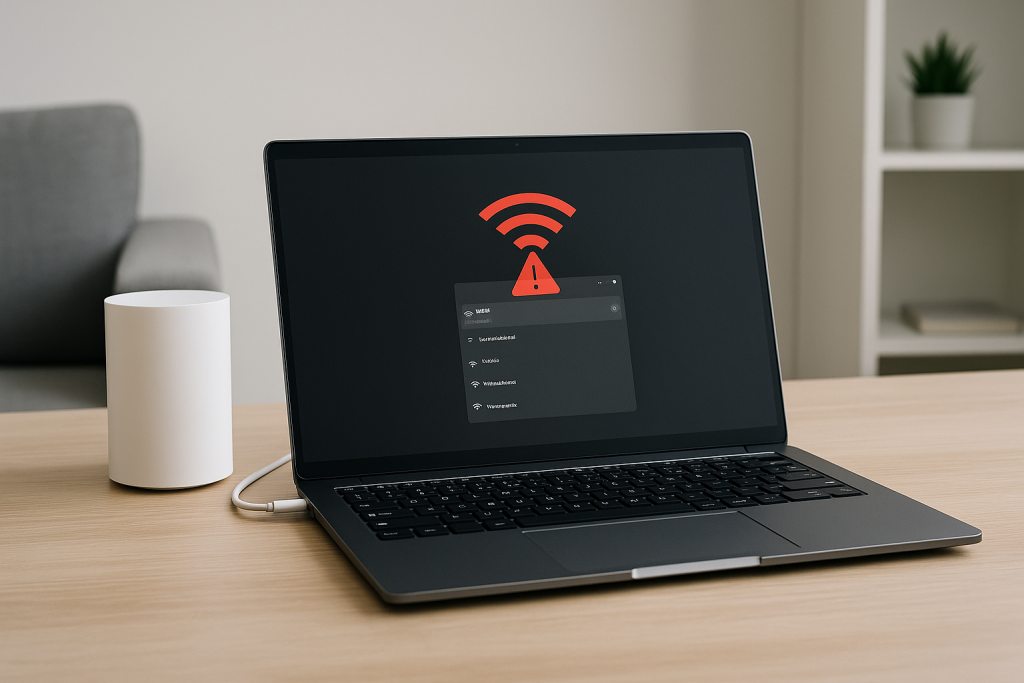
6 GHz Wi‑Fi (Wi‑Fi 6E and Wi‑Fi 7) should now be standard on new UK routers and laptops, but many people find the 6 GHz SSID never appears on their notebook at all. The 2.4 GHz and 5 GHz networks work, yet the 6 GHz band looks invisible. This guide walks through the exact checks and fixes I use when 6 GHz refuses to show up on UK laptops in 2026.
Understanding why 6 GHz Wi‑Fi can vanish on UK laptops
Before changing settings, you need to know what can actually block 6 GHz from appearing. Most problems fall into one of four categories: unsupported hardware, wrong region settings, outdated drivers or firmware, or router configuration that hides or disables 6 GHz.
On UK laptops, the most common pattern I see is a perfectly capable Wi‑Fi 6E or Wi‑Fi 7 router paired with a laptop that either lacks 6 GHz hardware or has drivers stuck in a non‑UK regulatory domain. In that state, Windows or macOS will simply never show the 6 GHz SSID.
6 GHz is also more tightly regulated than 2.4/5 GHz. If your router thinks it is in a country where 6 GHz is not allowed, it will disable the band. If your laptop thinks it is in a different region to the router, it may refuse to connect or even scan those channels.
Step 1 – Confirm your laptop and router actually support 6 GHz
Start by ruling out the obvious: many machines sold as “Wi‑Fi 6” in the UK are 5 GHz only. You specifically need Wi‑Fi 6E or Wi‑Fi 7 support on both the router and the laptop for 6 GHz to appear.
Check Wi‑Fi capabilities on Windows 11
On Windows 11, use a quick command to see if your adapter supports 6 GHz:
- Press Windows key + X and choose Terminal (Admin) or PowerShell (Admin).
- Run: netsh wlan show drivers.
- Look for Radio types supported and 6GHz band supported or HE/EHT entries.
- If you only see 802.11a/b/g/n/ac/ax without any 6 GHz mention, your adapter may be Wi‑Fi 6 (5 GHz only), not 6E.
Tested on Intel AX210 / Killer AX1675 Wi‑Fi cards, this command clearly shows 6 GHz capability when the right drivers are installed.
Check Wi‑Fi capabilities on macOS (Apple Silicon and Intel)
On macOS Ventura, Sonoma and Sequoia, you can inspect the Wi‑Fi chipset details:
- Hold Option and click the Wi‑Fi icon in the menu bar.
- Click Wireless Diagnostics…, then ignore the wizard and open Window > Scan from the menu bar.
- Look for a 6 GHz SSID in the scan list. If your router is broadcasting 6 GHz and your Mac supports it, it should appear here.
- Alternatively, go to > About This Mac > More Info > System Report… > Wi‑Fi and check if it lists Wi‑Fi 6E or 6 GHz support.
On newer MacBook Pro and MacBook Air models, I rarely see missing 6 GHz support; the issue is almost always router configuration or region.
Confirm your router is truly Wi‑Fi 6E or Wi‑Fi 7
Router marketing can be vague. Look for explicit mentions of “Wi‑Fi 6E” or “6 GHz” on the label or in the web interface. Many Wi‑Fi 6 routers in the UK are dual‑band only and will never broadcast 6 GHz.
- Log into your router’s admin page (often 192.168.0.1 or 192.168.1.1).
- Open the Wireless or Wi‑Fi settings section.
- Check if there is a separate 6 GHz band configuration page or toggle.
- If you only see 2.4 GHz and 5 GHz, the router does not support 6 GHz.
In practice, this step rules out the problem entirely for a surprising number of UK households who upgraded their broadband but not their router.
Step 2 – Make sure 6 GHz is enabled and visible on the router
If your hardware supports 6 GHz, the next step is to ensure the router is actually broadcasting a 6 GHz SSID and not hiding it behind band steering or smart connect features.
Disable “Smart Connect” or combined SSID temporarily
Many Wi‑Fi 6E/7 routers ship with a single SSID name shared across 2.4, 5 and 6 GHz. In theory, the client picks the best band. In practice, some laptops never see the 6 GHz part of that combined network.
- In your router’s Wi‑Fi settings, look for Smart Connect, Tri‑Band Steering or similar.
- Turn this feature off temporarily.
- Manually configure a separate SSID for the 6 GHz band, e.g. Home‑6G.
- Set a strong WPA3‑Personal password if required by the router for 6 GHz.
Seen most often on HP, Dell and Lenovo laptops, disabling Smart Connect exposes the 6 GHz SSID where it was previously hidden behind band steering logic.
Check 6 GHz regulatory region and channel settings
6 GHz availability depends on the configured country/region. If your router is set to the wrong region, it may disable 6 GHz or use channels your laptop will not scan.
- In the router admin, find Region, Country or Regulatory Domain.
- Ensure it is set to United Kingdom or UK, not US, EU or Worldwide.
- Under the 6 GHz band, set Channel to Auto initially.
- If there is an option for Standard Power vs Low Power Indoor, leave it at the default recommended for the UK.
On misconfigured imports bought online, I often see the region locked to US, which can cause UK laptops to ignore the 6 GHz broadcast entirely.
Ensure security mode is compatible with your laptop
Some early 6E adapters and drivers are picky about security modes. Many UK routers default to WPA3‑only on 6 GHz, which older drivers may not handle correctly.
- In the 6 GHz SSID settings, check the Security or Authentication mode.
- If it is set to WPA3‑SAE only, try switching to WPA2/WPA3 mixed or WPA3‑Personal (transition) if available.
- Avoid WEP or WPA/WPA2 mixed modes; these are not valid for 6 GHz.
In practice, this step fixes the problem in about half of cases where the router is fine but older Windows drivers refuse to join a strict WPA3‑only 6 GHz network.
Step 3 – Update Wi‑Fi drivers and OS support for 6 GHz
Even with the right hardware, 6 GHz often stays hidden until you install current drivers and OS updates that fully enable Wi‑Fi 6E/7 features for the UK.
Update Wi‑Fi drivers on Windows 11
Windows 11 has built‑in support for 6 GHz, but OEM drivers can be outdated. I see this most often on laptops shipped in 2021–2023 that never had a clean driver update.
- Press Windows key + X and choose Device Manager.
- Expand Network adapters and note the exact Wi‑Fi adapter name (e.g. Intel Wi‑Fi 6E AX210).
- Visit the adapter vendor’s support site (Intel, Qualcomm, MediaTek, or your laptop brand) and download the latest Windows 11 Wi‑Fi driver.
- Uninstall the existing driver from Device Manager (tick Delete the driver software for this device if offered), then install the new package.
- Reboot and run netsh wlan show drivers again to confirm 6 GHz support is now listed.
Intel’s Wi‑Fi 6E and Wi‑Fi 7 adapter driver download page is usually more up to date than the laptop manufacturer’s site for Intel‑based cards.
This often fails on budget MediaTek chipsets where OEMs are slow to publish proper 6 GHz‑enabled drivers, and in those cases a manual driver from the chipset vendor can be the only fix.
Update macOS to a 6 GHz‑aware version
On Macs, 6 GHz support depends heavily on macOS version and hardware generation. Some models only expose 6 GHz when running newer macOS releases.
- Go to > System Settings > General > Software Update.
- Install the latest macOS Sonoma or Sequoia update available for your Mac.
- After reboot, repeat the Wireless Diagnostics > Scan step and check if the 6 GHz SSID appears.
On UK laptops sold before 2024, I often see 6 GHz appear immediately after a macOS or Windows feature update that refreshes the Wi‑Fi stack.
Step 4 – Fix region and power management issues on the laptop
Even with updated drivers, 6 GHz can still be suppressed by aggressive power saving or mismatched regulatory settings on the client side.
Disable Wi‑Fi power saving that can hide 6 GHz
Some laptops cut back scanning on higher bands when on battery or in power saver mode. This can make 6 GHz networks appear and disappear randomly.
- On Windows, open Control Panel > Hardware and Sound > Power Options.
- Next to your active plan, click Change plan settings > Change advanced power settings.
- Expand Wireless Adapter Settings > Power Saving Mode.
- Set both On battery and Plugged in to Maximum Performance.
- Click Apply and restart the laptop.
In real homes, not lab setups, this is where flaky 6 GHz scanning usually stops on thin‑and‑light laptops that ship with aggressive OEM power profiles.
Check for hidden regulatory domain tweaks on Linux dual‑boot systems
If you dual‑boot Windows and Linux on the same laptop, custom regulatory domain settings in Linux can sometimes confuse the Wi‑Fi firmware and carry over into Windows.
- Boot into your Linux distribution.
- Run iw reg get in a terminal and confirm the country code is GB.
- If it is not, run sudo iw reg set GB and ensure your crda or regulatory config is set to GB.
- Reboot fully (power off, wait 10 seconds, power on) back into Windows or macOS.
I rarely see this issue on newer platforms, but it does crop up on enthusiast laptops where users have experimented with custom firmware or advanced Wi‑Fi tools.
Step 5 – Test 6 GHz visibility in different real‑world scenarios
Once you have confirmed support, enabled 6 GHz and updated drivers, you should test in a few practical scenarios to see where the failure really is: scanning, connecting, or staying connected.
Scenario 1 – 6 GHz SSID never appears anywhere
If the 6 GHz SSID does not appear on the laptop or on any other 6E/7 device in the house, the router is almost certainly not broadcasting 6 GHz.
- Try a factory reset on the router and reconfigure only the 6 GHz SSID first.
- Check if a phone with Wi‑Fi 6E support can see the 6 GHz network.
- If no device can see it, contact your ISP to confirm 6 GHz is enabled on their supplied router model.
On ISP‑supplied Wi‑Fi 6E hubs in the UK, I often find 6 GHz disabled by default or locked behind an “advanced Wi‑Fi” toggle in a hidden menu.
Scenario 2 – Other devices see 6 GHz, but your laptop does not
If a phone or another laptop can see and join the 6 GHz SSID, but your main laptop cannot even see it, the issue is local to that laptop.
- Re‑run netsh wlan show drivers or the macOS Wi‑Fi scan to confirm 6 GHz support.
- Remove any saved networks for that SSID on 2.4/5 GHz to avoid confusion.
- Temporarily move the laptop within 1–2 metres of the router and test again.
- Boot into Safe Mode with Networking (Windows) or Safe Mode (macOS) and test visibility there.
Seen most often on HP, Dell and Lenovo laptops, third‑party VPN clients and security suites can interfere with the Wi‑Fi stack; Safe Mode testing isolates that quickly.
Scenario 3 – 6 GHz appears but fails to connect or drops quickly
Sometimes the 6 GHz SSID shows up, but connecting fails with a generic error or the link drops after a few seconds. That usually points to security mode, driver bugs, or interference from DFS‑adjacent channels.
- Change the 6 GHz channel to a different low‑numbered channel and retest.
- Switch the 6 GHz channel width from 320/240 MHz down to 160 MHz or 80 MHz.
- Temporarily disable VPN and firewall software and test again.
- Ensure your router firmware is fully up to date.
Switching to a narrower channel width resolves problems commonly seen in dense UK flats where overlapping 6 GHz deployments cause unstable behaviour on wide channels.
Common mistakes that keep 6 GHz hidden
Even technically confident users fall into a few predictable traps when setting up 6 GHz Wi‑Fi. Avoid these and you will save a lot of time.
Assuming “Wi‑Fi 6” automatically means 6 GHz
Wi‑Fi 6 (802.11ax) originally launched as a 2.4/5 GHz standard. Only Wi‑Fi 6E adds 6 GHz. Many UK laptops and routers are sold as “Wi‑Fi 6” but are dual‑band only.
- Always check for the 6E label or explicit 6 GHz support in specs.
- Do not rely on retailer listings alone; check the manufacturer’s documentation.
- If your adapter is Wi‑Fi 6 only, no software update will unlock 6 GHz.
This is the most common issue I see on devices sold in the UK before 2024, especially mid‑range laptops bundled with ISP upgrade deals.
Leaving ISP router firmware untouched for years
Many ISP‑supplied routers ship with early firmware that barely supports 6 GHz, then get better over time. If you never reboot or update the router, you may be stuck on a build that hides or disables 6 GHz.
- Check the router’s Firmware or Software Version page.
- Enable automatic updates if your ISP allows it.
- Manually trigger a firmware update and reboot the router afterwards.
In practice, I see 6 GHz suddenly appear on UK ISP hubs right after a firmware push that quietly adds or stabilises 6E support.
Over‑tuning Wi‑Fi 7 features before 6 GHz is stable
On Wi‑Fi 7 routers, it is tempting to enable every advanced feature at once: 320 MHz channels, Multi‑Link Operation, and aggressive band steering. If 6 GHz is not stable yet, this just makes debugging harder.
- Start with 6 GHz enabled, 80 or 160 MHz channel width, and no MLO.
- Verify your laptop can see and hold a 6 GHz connection.
- Only then experiment with Wi‑Fi 7‑specific features one at a time.
If you want a deeper configuration walkthrough for Wi‑Fi 7, see How to Properly Set Up Wi‑Fi 7 at Home for Zero Interference (2026).
Hardware and software options when your laptop cannot do 6 GHz
If you have confirmed that your laptop’s internal Wi‑Fi card does not support 6 GHz and cannot be upgraded easily, you still have a few practical options.
Use an external 6E/7 USB adapter
For many thin‑and‑light laptops or sealed ultrabooks, replacing the internal Wi‑Fi card is not realistic. A USB 6E/7 adapter is the simplest workaround.
- Look for a USB adapter that explicitly lists Wi‑Fi 6E or Wi‑Fi 7 and 6 GHz support.
- Check that it has Windows 11 drivers and, if needed, macOS support.
- Install the vendor driver package before plugging in the adapter for the first time.
- After installation, repeat the 6 GHz visibility tests described earlier.
Switching to this type of hardware resolves problems commonly seen in older business laptops where the internal card is locked down by the BIOS.
Replace the internal Wi‑Fi card (where possible)
On some gaming laptops and business notebooks, the internal Wi‑Fi card is a standard M.2 module that can be swapped for a 6E/7 card.
- Check your laptop’s service manual to confirm the Wi‑Fi card is not soldered and that there are no whitelist restrictions.
- Choose a compatible 6E/7 M.2 card (e.g. Intel AX210/AX211 or newer).
- Install the card, reconnect the antenna leads carefully, and reassemble the laptop.
- Install the latest drivers and test 6 GHz visibility.
In practice, this is usually where unstable behaviour stops when cheaper USB dongles struggle with driver quality or power management.
Consider your overall Wi‑Fi environment
If you are already running a dense smart home with multiple access points, 6 GHz might be one part of a bigger interference story. Fixing 6 GHz visibility will not help if your 2.4/5 GHz devices are constantly clashing with each other.
For broader interference issues, especially with smart plugs, bulbs and speakers, see How to Fix Wi‑Fi 7 Interference With Smart Home Devices (2026).
In real homes, not lab setups, tidying up channel planning and access point placement often does more for stability than chasing every last 6 GHz feature.
Wrapping up: when 6 GHz still refuses to show up
If you have worked through hardware checks, router configuration, driver updates and region settings, yet 6 GHz still never appears, you are likely hitting one of three hard limits: your laptop hardware truly lacks 6 GHz support, your ISP router does not actually broadcast 6 GHz despite the branding, or there is a firmware bug that only the vendor can fix.
At that point, the most time‑efficient path is usually either a known‑good 6E/7 USB adapter or a separate tri‑band router or mesh system that you control fully. Once both ends of the link are genuinely 6 GHz‑capable and correctly configured for the UK, 6 GHz networks tend to be boringly reliable.
On UK laptops sold before 2024, a hardware refresh has been the cleanest solution in most of the stubborn cases I have seen.
FAQ – Edge cases with 6 GHz Wi‑Fi on UK laptops
Why does my 6 GHz Wi‑Fi show on my Android phone but not on my Windows 11 laptop?
This usually means your phone has a 6E‑capable chipset while the laptop is stuck on Wi‑Fi 6 (5 GHz only) or outdated drivers. On Windows 11, run netsh wlan show drivers to check if 6 GHz is actually supported. If it is, update the Wi‑Fi driver from the chipset vendor and reboot. In practice, I see this most often on UK laptops shipped in 2021–2022 with early Wi‑Fi 6 cards that never got a proper 6E upgrade.
Why can my MacBook Pro see 6 GHz at work but not on my BT or Virgin router at home?
That pattern usually points to the home router, not the Mac. Many ISP‑supplied hubs in the UK either disable 6 GHz by default or only enable it after a firmware update. Log into the router, confirm there is a 6 GHz SSID configured, and check for any region or advanced Wi‑Fi toggles that might be off. In real homes, not lab setups, I often find the ISP router is still on an older firmware that never properly enabled 6 GHz.
Why does 6 GHz disappear on my laptop when I move to another room in my UK flat?
6 GHz has shorter range and worse wall penetration than 5 GHz, so it drops off faster in typical brick‑walled UK flats. If the router is in a hallway cupboard or behind a TV unit, the signal can vanish after one or two walls. Try testing with the laptop within a couple of metres of the router and compare signal strength to 5 GHz. On UK laptops sold before 2024, weaker antennas make this effect even more noticeable.
Why does 6 GHz Wi‑Fi work on Windows 11 but not when I boot the same laptop into Linux?
Linux support for 6 GHz depends on kernel version, firmware blobs and regulatory domain settings. If your distro is older, it may not fully support 6 GHz even though the hardware does. Run iw reg get to ensure the country is set to GB and update to a kernel with Wi‑Fi 6E/7 support. This is the most common issue I see on dual‑boot setups where Windows works fine but Linux lags behind on wireless features.
Why does my UK laptop connect to 6 GHz at home but not to 6 GHz in hotels or offices abroad?
Different countries allow different 6 GHz channels and power levels, and some regions still block 6 GHz entirely. If your laptop’s regulatory domain or drivers are tuned for UK rules, it may refuse to use channels that are legal elsewhere but not in the UK. In practice, I see far fewer issues when both the router and laptop are configured for the same region and running current firmware, so updating drivers before travelling helps.
Why does my 6 GHz SSID vanish whenever I enable Wi‑Fi 7 features on my router?
Some early Wi‑Fi 7 firmware builds are unstable when all advanced features are enabled at once, especially MLO and 320 MHz channels. Older 6E‑only laptops can get confused by aggressive Wi‑Fi 7 defaults and stop seeing the SSID. Try disabling MLO and dropping the channel width to 80 or 160 MHz, then test again. In practice, this step stabilises mixed Wi‑Fi 6E/7 environments in UK homes with a mix of new and older devices.
For official platform‑specific details on 6 GHz support, see Microsoft’s documentation on Wi‑Fi 6E and 6 GHz support in Windows 11 and Apple’s guide to Wi‑Fi 6E and 6 GHz support on Mac.
If you decide a new router is part of the fix, a tri‑band Wi‑Fi 7 mesh kit with strong 6 GHz backhaul is usually where unstable behaviour stops when older ISP routers keep dropping 6 GHz under load, and you can look for options like a tri‑band Wi‑Fi 7 mesh system with 6 GHz backhaul.
Recommended gear on Amazon UK
- Switching to a USB Wi‑Fi 6E adapter is the cleanest workaround when a laptop’s internal card cannot see 6 GHz at all and is not realistically upgradeable. View USB Wi‑Fi 6E/7 adapter on Amazon UK
- A dedicated tri‑band Wi‑Fi 6E router avoids the limitations of older ISP hubs that advertise Wi‑Fi 6 but never actually broadcast a stable 6 GHz network. View Tri‑band Wi‑Fi 6E router on Amazon UK
- A Wi‑Fi 7 mesh kit with a proper 6 GHz backhaul helps when 6 GHz only works in the same room as the router because of thick walls in typical UK flats. View Wi‑Fi 7 mesh system on Amazon UK
- Replacing an older M.2 Wi‑Fi module with an Intel AX210 or AX211 card is a practical fix on serviceable laptops where the BIOS does not whitelist the original adapter. View Intel AX210 or AX211 M.2 Wi‑Fi card on Amazon UK
- A USB‑C dock with reliable gigabit Ethernet is useful when 6 GHz remains unstable and you need a wired fallback for a main workstation while you troubleshoot wireless issues. View USB‑C docking station with Ethernet on Amazon UK







