
Bluetooth & Wireless Audio — Quick Summary
Most Bluetooth audio problems in UK homes fall into the five buckets below. Use these anchors to jump straight to the
relevant diagnosis and the correct “Fix” page when you need step-by-step instructions.
- Random disconnects / dropouts — cutting out, reconnect loops, one earbud dropping
- Audio delay / lip-sync issues — TV dialogue out of sync, gaming feels late
- Auto-connect failures — paired but won’t connect automatically (AirPods included)
- Interference / “it’s worse in the evening” — multiple devices fighting in 2.4 GHz
- Not actually Bluetooth — streaming/Wi-Fi problems that look like audio issues
Bluetooth and wireless audio were supposed to be the easy part of modern tech: pair once, listen forever. In real homes,
it rarely works that way. Headphones disconnect at random, the TV audio is late, AirPods refuse to auto-connect, and the moment
you have a smartwatch, a controller, a laptop, and a phone in the same room, everything gets flaky.
This page is the pillar guide for the BLUETOOTH / WIRELESS AUDIO category on FixGearTech. It is designed to do two things:
- Give you a real diagnosis model (so you stop guessing), and
- Send you to the correct focused fix when you need device-specific steps.
If you want the short version: Bluetooth audio problems are usually not “broken headphones”. They are almost always one of these:
a radio environment problem (2.4 GHz congestion), a power management problem (Windows/Android being “helpful”), a stale pairing state,
or a TV/laptop audio pipeline limitation (delay). Once you know which one you have, fixing it becomes boringly predictable.
How Bluetooth audio really works (what matters, not the spec sheet)
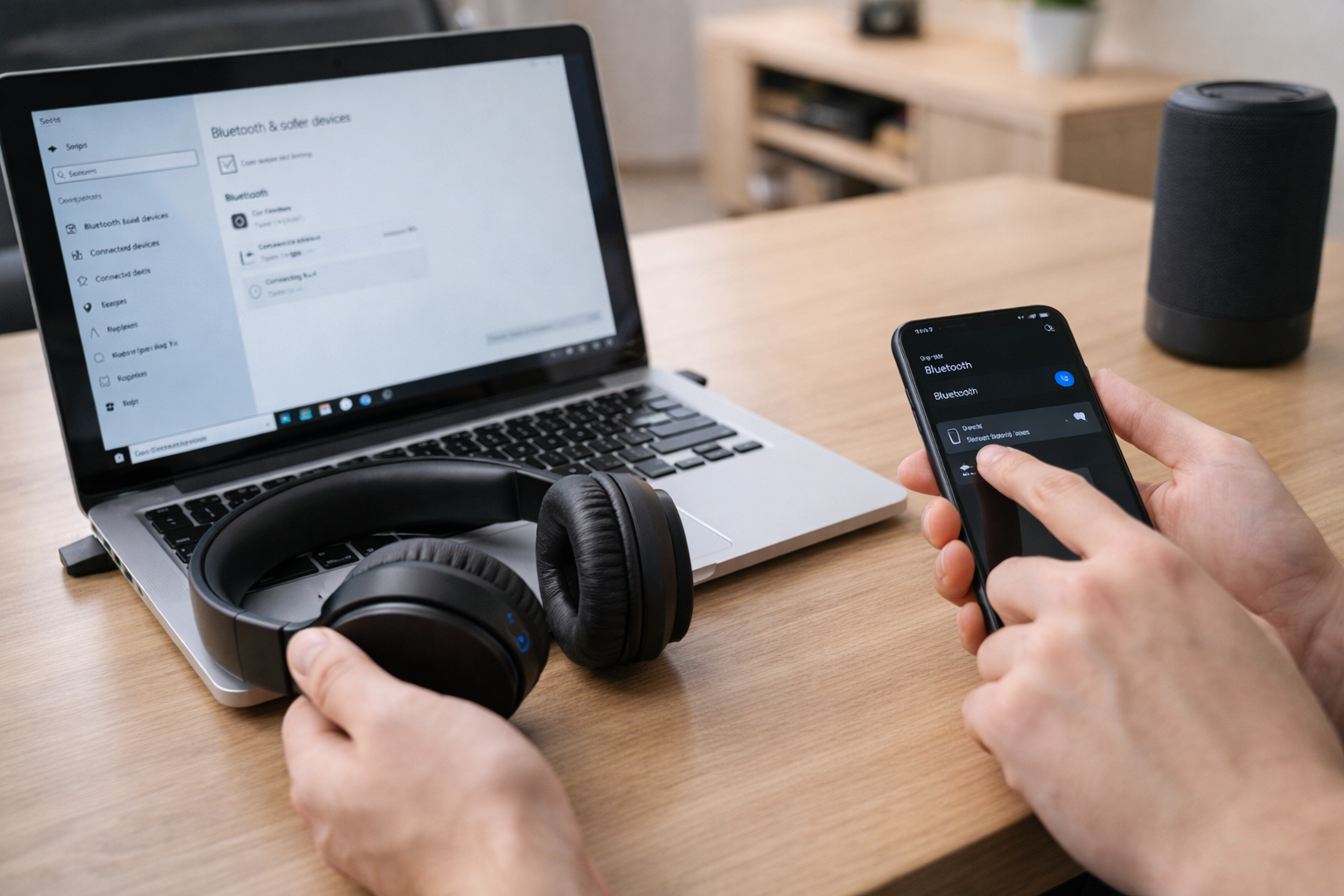
Bluetooth audio is a chain of decisions, not a single “connection”. Your devices negotiate a profile, choose a codec,
decide how much to buffer, and continuously fight for airtime in the 2.4 GHz band. That negotiation can change after:
- an operating system update,
- a firmware update in your headphones,
- adding a second device (multipoint or auto-switching),
- changes in radio noise (more Wi-Fi traffic in the evening).
Every Bluetooth audio setup is a trade-off between four competing goals:
- Latency (how delayed the sound is)
- Audio quality (how much compression is used)
- Stability (how well it survives interference)
- Battery life (how aggressively devices sleep and save power)
You cannot maximise all four. When people say “Bluetooth is rubbish”, what they’re really experiencing is the trade-off that
their devices chose in that moment, in that room, with that number of active devices.
Why the 2.4 GHz band is the root of most Bluetooth problems
Bluetooth lives in 2.4 GHz. So does Wi-Fi 2.4 GHz, loads of smart-home gear, wireless keyboards/mice, game controllers,
and plenty of cheap electronics. It’s a busy band by design.
That matters because Bluetooth audio depends on a steady stream of small packets. When the air is busy:
- packets collide and must be resent,
- your devices increase buffering to hide dropouts,
- buffering increases latency,
- if it gets bad enough, the connection drops.
This is why “it works when I’m right next to the phone, but breaks up across the room” is so common. It’s not magic.
It’s radio physics plus competition.
Why Bluetooth disconnects mainly in the evening
This is one of the most common patterns in real households: everything seems fine during the day, and then Bluetooth becomes unstable at night.
In most cases, the reason is simply that the radio environment gets crowded.
What changes in the evening (even if you didn’t change settings)
- More people are home, so more phones and tablets are active.
- Streaming is running on TVs, sticks, consoles, and laptops.
- Wi-Fi traffic rises sharply (especially on 2.4 GHz in smaller homes).
- Smartwatches, earbuds, controllers, and speakers are all connected at once.
Bluetooth doesn’t “fail” because it’s evening. It fails because the air is busier. The fix is not to “reset everything”.
The fix is to reduce 2.4 GHz contention and stop Bluetooth from trying to juggle too many endpoints.
Practical moves that actually reduce evening problems
- Move Wi-Fi clients to 5 GHz/6 GHz where possible. This frees up 2.4 GHz airtime for Bluetooth.
- Disable multipoint temporarily (headphones constantly switching are more likely to drop).
- Turn off unused Bluetooth devices (watch/tablet/controller you’re not actively using).
- Relocate the source (don’t leave a laptop behind a TV, and don’t hide a streaming box inside a cabinet).
If your problem is clearly “more devices = worse audio”, the dedicated fix page is here:
Fix Multiple Bluetooth Devices Causing Interference
Why Bluetooth works with your phone but not with your TV
This is one of the biggest sources of frustration, because it feels illogical. Your headphones are perfect on a phone,
so you assume the TV is “doing the same thing”. It isn’t.
Phones are Bluetooth-first devices
- Modern phones have strong antennas and are designed for close-range audio.
- Phones tend to prioritise Bluetooth audio stability because it’s a core feature.
- Phones have predictable audio pipelines (especially compared with TVs).
TVs are video-first devices with complicated audio pipelines
- TVs process video (motion smoothing, HDR tone mapping, etc.) and audio (enhancements) separately.
- Bluetooth is often bolted on late in the chain.
- TV Bluetooth stacks vary wildly in quality and firmware maturity.
- TV placement is often awful for radio: inside units, near metal, behind walls, surrounded by other electronics.
The result is that Bluetooth on TVs often has two problems at once: stability and latency. You can sometimes improve stability
with better placement and fewer devices, but latency is frequently a structural limitation.
If your main issue is lip-sync/delay on TV and laptops, start here:
Fix Bluetooth Audio Delay on TVs and Laptops
Random disconnects and dropouts: what they mean and how to stop them
Random disconnects can look like:
- audio cutting out for half a second, then returning,
- headphones disconnecting entirely and reconnecting,
- “connected” but no sound until you toggle Bluetooth,
- one earbud dropping while the other keeps playing.
In most real-world cases, the cause is one of three things:
- Power management (Windows/Android suspending Bluetooth or the headphone app)
- Multipoint / auto-switch conflicts (headphones trying to follow two devices)
- 2.4 GHz congestion (Wi-Fi 2.4 GHz + devices competing for airtime)
Why power management causes “random” disconnects
If disconnects happen after a few minutes, when the screen locks, or after a laptop wakes from sleep,
power saving is the prime suspect. The system decides Bluetooth is “idle” and reduces activity.
To you, it looks random. To the OS, it’s optimisation.
Why multipoint causes unstable behaviour
Multipoint is convenient when it works. When it doesn’t, it causes constant negotiation and priority fighting.
Symptoms often include: audio cutting out when another device receives a notification, or your headphones suddenly switching
to a laptop you forgot was awake.
Why congestion creates the illusion of “faulty headphones”
In a busy 2.4 GHz environment, your headphones may be fine. The issue is that the radio can’t maintain a clean stream.
You can confirm this quickly: stand 1–2 metres from the source and disable other Bluetooth devices for 5 minutes.
If it becomes stable, you’ve proven it’s environmental.
For a proper, step-by-step fix that covers the most common setups and traps, use:
Fix Bluetooth Headphones Disconnecting Randomly (2026)
Bluetooth audio delay and lip-sync: the truth (and the realistic options)
Bluetooth audio delay is not a bug you can always “fix”. Bluetooth uses buffering. Buffering creates delay.
On top of that, TVs and some laptops add processing that increases delay further.
Why delay often gets worse when the signal is unstable
When the radio environment is noisy, devices often increase buffering to prevent dropouts. That feels “better” because audio stops cutting out,
but the delay grows. People notice this as: “it was fine, then it became out of sync”.
Why TVs are the worst case
- TV video processing can add delay before audio is even sent.
- Audio enhancement modes add more delay.
- Bluetooth is applied at the end of the pipeline, after other steps.
What actually helps (and what doesn’t)
- Helps: disabling audio enhancements, using TV lip-sync controls, reducing congestion so buffering stays low.
- Sometimes helps: using a different device as the source (phone/streaming box instead of TV Bluetooth).
- Usually doesn’t: repeated forgetting/re-pairing when the underlying pipeline stays the same.
If you want concrete steps (TV settings, laptop settings, when to change the audio path), use:
Fix Bluetooth Audio Delay on TVs and Laptops
Auto-connect failures: paired but won’t connect automatically
Auto-connect problems usually show up as:
- your device is paired, but you must connect manually every time,
- it connects to the “wrong” device,
- it shows as connected but audio routes somewhere else,
- it only reconnects after toggling Bluetooth.
The core cause is almost always priority and state. Bluetooth devices remember previous states. Systems remember previous output choices.
After updates, those rules can break in subtle ways.
Why “forget and re-pair” works here more than anywhere else
Auto-connect relies on clean device records. If the record is stale, your system may try to connect using a broken state.
A clean removal and re-pair forces a fresh negotiation.
Why Apple users hit this with AirPods
AirPods add another layer: Apple’s device switching and iCloud handoff logic. That is great when it works, but it also creates situations where
AirPods keep trying to attach to a different nearby device, or refuse to switch back automatically.
If this is your issue, use:
Fix AirPods Not Connecting Automatically to iPhone
 Mouse/keyboard lag over Bluetooth: why it matters for audio troubleshooting
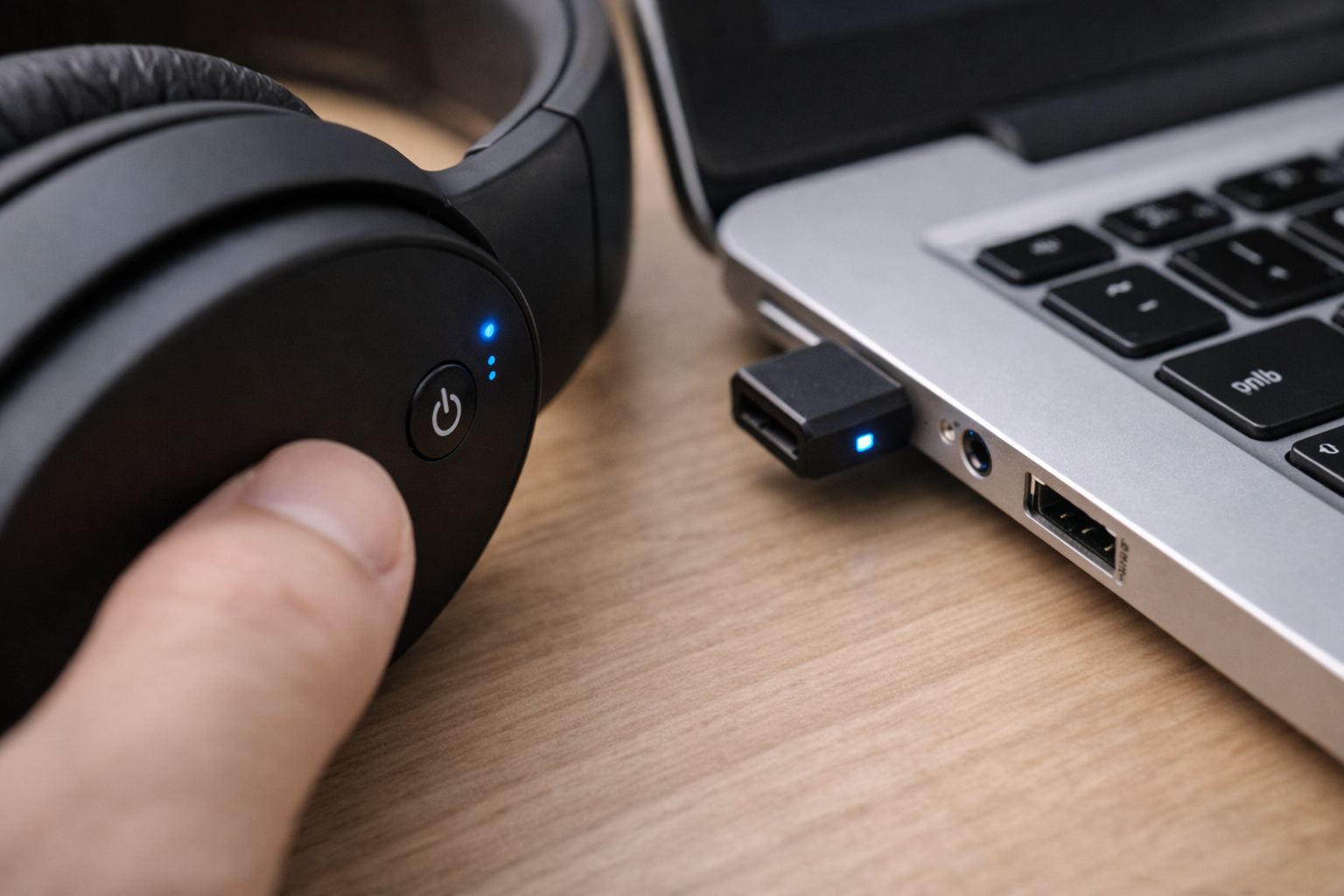
It’s not just “another Bluetooth problem”. Input lag is a diagnostic clue. If your Bluetooth mouse/keyboard lags,
it means your Bluetooth radio environment is struggling. Audio will usually be next because audio needs consistent throughput.
Common causes (that also affect audio stability)
- USB 3.0 interference near the Bluetooth antenna (docks, hubs, external drives).
- Driver/stack issues on Windows.
- Too many active Bluetooth devices fighting for airtime.
For the full fix and practical placement tips, use:
Fix Mouse or Keyboard Lag Over Bluetooth
Long-tail scenarios people search for (and what they usually mean)
“Why does Bluetooth only cut out when I walk into the kitchen?”
Walls, metal appliances, and distance matter more than you think. If the source device stays in the living room and you move away,
you’re changing both path loss and reflections. If it gets worse in specific rooms, it’s a radio path problem, not a “broken codec”.
Fix by improving placement of the source, reducing competing devices, and keeping the source out of cabinets or behind TVs.
“Why is Bluetooth fine for music but terrible for video?”
Music doesn’t reveal latency the way video does. A 150–250 ms delay can feel “fine” for music but looks awful on dialogue.
That’s why users only notice it during TV/YouTube. This is often a normal limitation of the setup.
“Why does Bluetooth get worse when my Wi-Fi is busy?”
Because Wi-Fi 2.4 GHz and Bluetooth share the same band. When your router is busy on 2.4 GHz, Bluetooth loses airtime.
Moving Wi-Fi devices to 5 GHz/6 GHz is one of the cleanest improvements you can make in many homes.
“Why do my headphones keep connecting to my laptop instead of my phone?”
Auto-connect priorities and multipoint are doing exactly what they were designed to do — just not what you want.
If a laptop wakes or a call comes in, headphones may switch. The fix is to disable multipoint during troubleshooting and reset pairings.
“Why does Bluetooth sound ‘robotic’ on calls?”
Calls typically trigger a different Bluetooth mode/profile that prioritises microphone support and stability over fidelity.
It can sound compressed. If it suddenly becomes robotic, you may be dealing with packet loss (radio congestion) or an unstable call profile.
Reducing interference and preventing power saving often helps more than codec switching.
Common user mistakes that waste time and make things worse
1) Resetting in a loop without diagnosis
Forgetting devices and re-pairing can help — but only when the root problem is a stale pairing state.
If your issue is congestion or power saving, you can re-pair 50 times and still lose audio every evening.
Do the environment test first: reduce nearby devices and stand close to the source.
2) Changing codecs blindly
People jump into developer options or app settings and toggle codecs without knowing what their devices actually support
or what the codec trade-offs are. The common result is worse stability or worse latency. If you haven’t proven the problem is codec-related,
codec switching is usually noise.
3) Fighting TV Bluetooth instead of changing the audio path
Some TVs simply have poor Bluetooth implementation, or the delay is structurally unavoidable because of the TV’s processing pipeline.
If you need reliable lip-sync, the “fix” might be: stop using Bluetooth for TV audio and use HDMI ARC/eARC, optical, or a wired route.
That is not defeat — it’s picking the correct tool.
4) Troubleshooting with too many devices active
If you troubleshoot while your watch, tablet, controller, second phone, and laptop are all connected, you will get inconsistent results.
You might “fix” it temporarily and then it breaks again when everything is active. Troubleshoot with one source and one audio device first.
5) Assuming “paired” means “healthy”
Bluetooth can look connected while the audio route is broken, or while the system is using an old device record.
That’s why a clean removal and re-pair is sometimes the only way to clear a corrupted state after updates.
When it’s not Bluetooth at all (Wi-Fi and streaming problems that look like audio issues)
A lot of “wireless audio” setups are not Bluetooth once playback starts. Examples include Chromecast, AirPlay, and many multi-room speakers.
Bluetooth may be used only for initial pairing or control, while audio streams over Wi-Fi. In that world, Wi-Fi instability looks like “audio problems”.
If audio only breaks up during streaming (Netflix/YouTube/Spotify/online radio) but local audio works fine, treat it as a network issue first.
Your starting point is the network pillar:
The Complete 2026 Guide to Fixing Wi-Fi, Internet & Network Issues in UK Homes
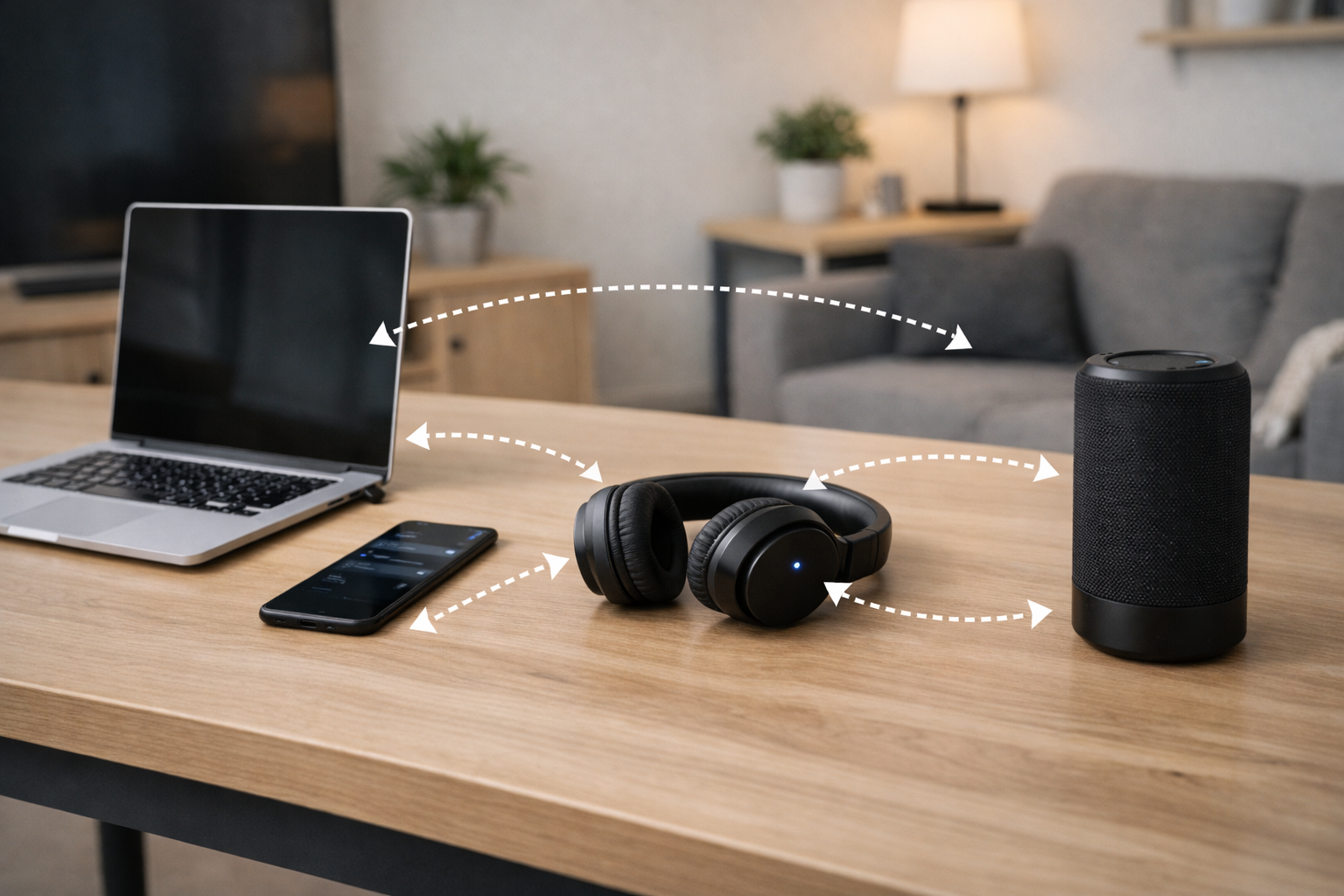
A practical troubleshooting flow you can actually follow
Phase 1: Confirm the category
- If the problem is dropouts/disconnects, go to Random disconnects.
- If the problem is delay/lip-sync, go to Audio delay.
- If the problem is it won’t reconnect automatically, go to Auto-connect.
- If it’s worse in the evening / worse with many devices, go to Interference.
- If it’s only during streaming, go to Not Bluetooth.
Phase 2: Do the 2-minute environment test (this saves the most time)
Stand 1–2 metres from the source (phone/TV/laptop). Turn off Bluetooth on nearby devices you’re not using (watch, tablet, controller, spare phone).
If the problem improves dramatically, your root cause is congestion/placement, not “settings”.
Phase 3: Do one clean pairing reset (only once, properly)
Remove the device from the source, reset/remove saved devices on the headphones (if supported), then re-pair.
If you do this repeatedly without changing anything else, you’re likely wasting time.
Phase 4: Address power saving (especially on Windows/Android)
If problems appear after inactivity, screen lock, or sleep/wake, treat it as power management. Fix that before you touch anything else.
Phase 5: Decide if Bluetooth is the wrong tool for the job
If your goal is low-latency TV audio or gaming, and you have done the environment test plus basic settings, consider changing the audio path.
A stable wired/ARC connection beats endless Bluetooth troubleshooting.
Related FixGearTech guides (use these when your symptom matches)
- Fix Bluetooth Headphones Disconnecting Randomly (2026)
- Fix Bluetooth Audio Delay on TVs and Laptops
- Fix AirPods Not Connecting Automatically to iPhone
- Fix Mouse or Keyboard Lag Over Bluetooth
- Fix Multiple Bluetooth Devices Causing Interference
Final checklist before you give up
- One source, one audio device during troubleshooting.
- Distance test: stable at 1–2 metres? If yes, it’s radio/placement/congestion.
- Disable multipoint temporarily and retest.
- One clean re-pair (don’t loop it endlessly).
- Fix power saving if issues happen after inactivity or sleep/wake.
- Move Wi-Fi clients to 5 GHz/6 GHz to free 2.4 GHz.
- Keep sources out of cabinets and away from metal/USB 3.0 hubs.
- For TV lip-sync: reduce audio processing or change the audio path if needed.
This is the central pillar for the BLUETOOTH / WIRELESS AUDIO category.
Every Bluetooth “Fix” post in this category should link back here, and this pillar should link out to the focused fixes above.







