
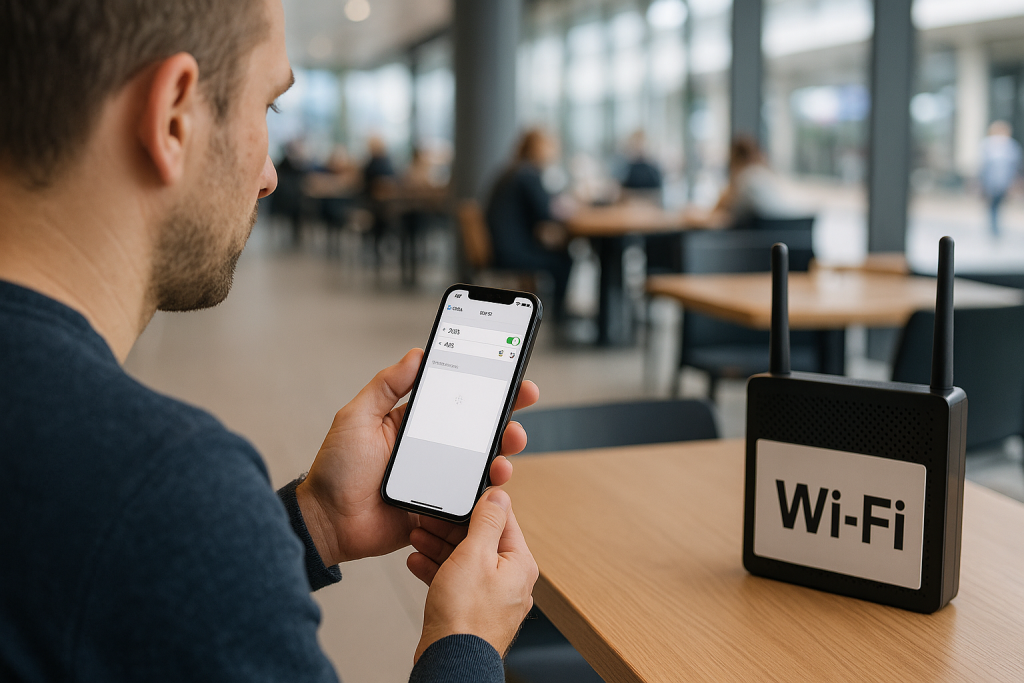
Public Wi‑Fi on iPhone should be simple: join the network, get a login or terms page, tap connect, and you’re online. When that captive portal page never appears, you’re stuck with “No Internet Connection” and no obvious error message.
This guide walks through the real causes of public Wi‑Fi login pages not loading on iPhone and the exact steps that fix it most often on UK hotel, café, train and airport networks. The steps apply to recent iOS versions (iOS 16 and newer), but most also work on older devices.

Why public Wi‑Fi login pages break on iPhone
Most public networks use a “captive portal” – a special web page that appears the first time you connect. Your iPhone detects this and opens a lightweight browser window to show the login or terms page.
When that detection fails, you see Wi‑Fi connected but no internet, and Safari or apps just spin. In practice, this is usually a mix of network quirks and iOS safety features getting in the way.
How captive portals are supposed to work
On a normal captive portal network, this is what happens under the hood:
- You join the Wi‑Fi SSID (for example, “Hotel‑Guest”).
- Your iPhone sends a quick test request to a known Apple URL.
- The router intercepts that request and redirects you to a login or terms page.
- Once you accept or log in, the router lets all your traffic through.
If any part of that chain fails, the login page never appears. I see this most often on older hotel routers that have been reconfigured many times.
Common reasons the login page never appears
On iPhone, these are the usual culprits:
- Private Wi‑Fi Address confusing the captive portal’s device tracking.
- Low Data Mode or iCloud Private Relay interfering with the test request.
- DNS overrides from a VPN, profile or previous manual settings.
- HTTPS‑only behaviour in Safari skipping the redirect.
- Router limits on number of devices or time‑limited sessions.
- Weak or unstable signal right at the edge of coverage.
In practice, the combination of Private Address and an over‑strict captive portal is the most common issue I see on iPhones in UK hotels and trains.
Quick checks before deep troubleshooting
Before changing settings, confirm the basics. This avoids chasing a software issue when the network itself is down.
1. Confirm the Wi‑Fi network is actually working
Use another device if you can:
- Connect a laptop or another phone to the same SSID.
- See if the login page appears there and if you can browse the web.
- If nothing loads on any device, the venue’s Wi‑Fi is likely down or overloaded.
If the login page appears on another device but not your iPhone, you’re dealing with an iOS‑side issue or a MAC address limit on the router.
2. Toggle Wi‑Fi and Airplane Mode
This forces your iPhone to renegotiate the connection and re‑run the captive portal check.
- Open Control Centre.
- Turn Airplane Mode on, wait 10 seconds, then turn it off.
- Alternatively, go to Settings > Wi‑Fi, turn Wi‑Fi off, wait 10 seconds, then turn it back on.
In practice, this simple reset is enough to trigger the login page again on a lot of train and café networks.
3. Forget and rejoin the public network
Old settings or a half‑broken session can block the portal.
- Go to Settings > Wi‑Fi.
- Tap the i next to the public network.
- Tap Forget This Network and confirm.
- Reconnect to the same SSID and wait up to 30 seconds for the login prompt.
I rarely see captive portals recover without a full forget/rejoin once they’ve glitched like this.
Force the captive portal page to open manually
Sometimes iOS doesn’t automatically show the login window, even though the router is trying to redirect you. You can usually trigger it manually.
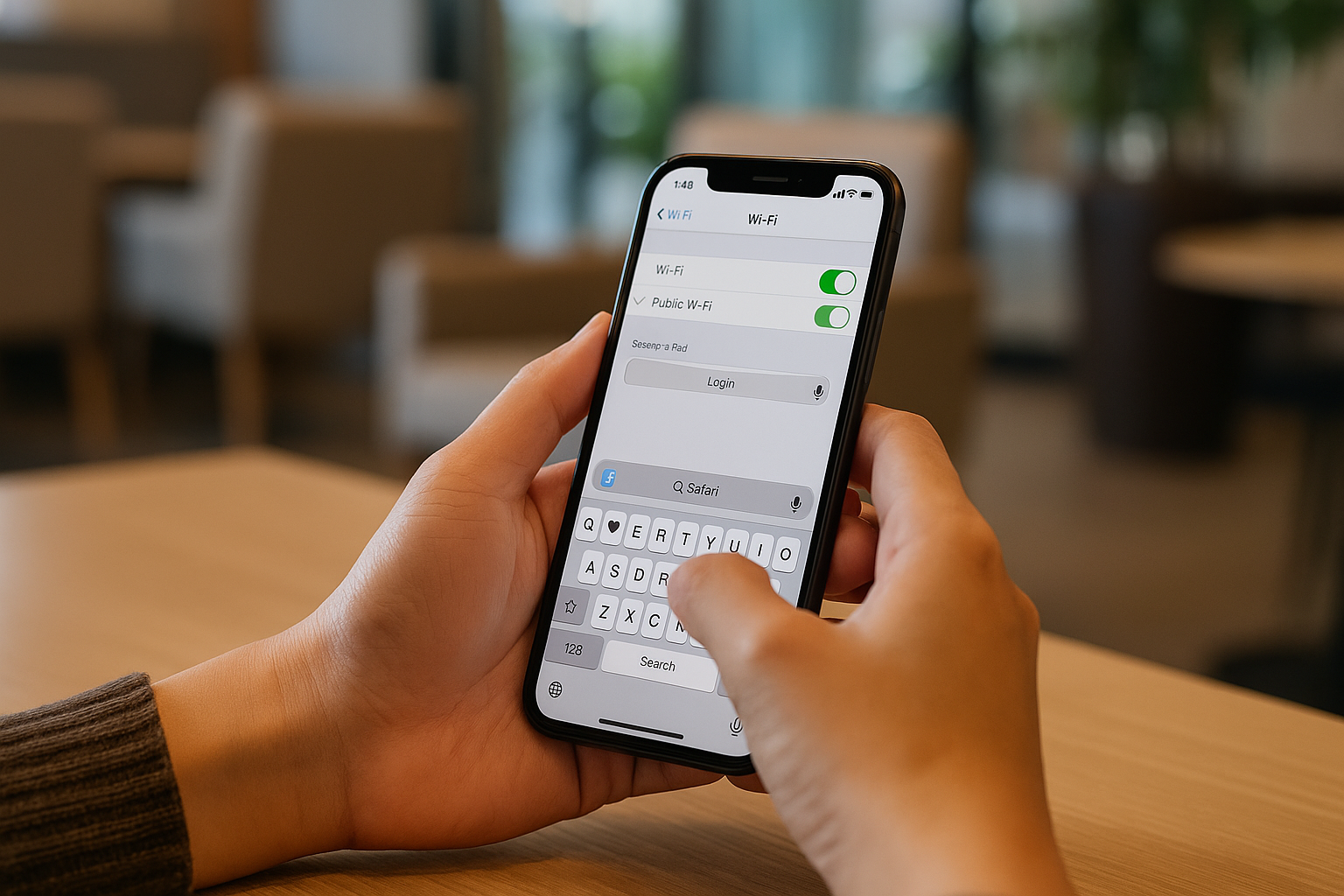
4. Use the Wi‑Fi network’s “Login” button in Settings
When iOS detects a captive portal, it often shows a subtle prompt.
- Go to Settings > Wi‑Fi.
- Tap the connected public network.
- Look for a line that says “No Internet Connection” or “Login Required”.
- If you see a “Login” button, tap it to open the captive portal.
On some UK train operators’ Wi‑Fi, this is the only reliable way to bring the page back after a drop.
5. Open a non‑HTTPS site in Safari
Captive portals work by redirecting your first web request. Modern browsers prefer HTTPS, which can block or hide that redirect.
- Connect to the public Wi‑Fi and wait a few seconds.
- Open Safari.
- In the address bar, type neverssl.com and tap Go.
- If the captive portal is working, it should intercept this and show the login page.
If neverssl.com just times out, the router may be blocking the request or your DNS is misconfigured.
6. Use the router’s default gateway IP
If the redirect still doesn’t appear, going straight to the router’s IP often works.
- Go to Settings > Wi‑Fi.
- Tap the i next to the public network.
- Note the Router IP address (common values are 192.168.0.1, 192.168.1.1, 10.0.0.1).
- Open Safari and type that IP in the address bar, then tap Go.
On older hotel setups, going directly to the router IP is often the only way to reach the captive portal reliably.
iPhone settings that silently block captive portals
Several iOS privacy and data‑saving features can confuse public Wi‑Fi systems that expect a stable device identity and unrestricted test traffic.
7. Turn off Private Wi‑Fi Address for that network
Private Address randomises your iPhone’s MAC address for privacy. Some captive portals tie access to your MAC address and break when it changes mid‑session.
- Go to Settings > Wi‑Fi.
- Tap the i next to the public network.
- Toggle Private Wi‑Fi Address off.
- Tap Forget This Network, then reconnect.
In practice, this step fixes the problem in about half of the hotel and conference centre networks I’ve tested.
8. Disable Low Data Mode on public Wi‑Fi
Low Data Mode can delay or block background checks that trigger captive portals.
- Go to Settings > Wi‑Fi.
- Tap the i next to the public network.
- Turn Low Data Mode off.
- Toggle Wi‑Fi off and on again, then retry the login.
I rarely see Low Data Mode alone cause issues, but it often makes flaky captive portals fail more often.
9. Temporarily turn off iCloud Private Relay
iCloud Private Relay routes your traffic through Apple’s relays. Some captive portals cannot handle this and never complete the login.
- Go to Settings > Your Name > iCloud.
- Tap Private Relay.
- Turn Private Relay off temporarily.
- Reconnect to the public Wi‑Fi and try to load the login page again.
Once you’re online, you can usually turn Private Relay back on without dropping the session.
10. Disable VPNs and custom DNS
VPN apps and custom DNS profiles often bypass or block captive portal redirects.
- Open Settings and look for a VPN toggle near the top.
- Turn VPN off.
- Go to Settings > General > VPN & Device Management and check for any configuration profiles that change Wi‑Fi or DNS.
- If you see a work or school profile, be aware it may enforce DNS that public Wi‑Fi doesn’t like.
On iPhones used with corporate VPNs, this is the most common reason public Wi‑Fi login pages never appear.
Network‑side limits and how to work around them
Sometimes the captive portal is working, but the venue’s router is enforcing limits that block your iPhone specifically.
11. Device or time limits on hotel and café Wi‑Fi
Many UK hotels and cafés limit the number of devices per room or voucher. If you’ve already connected a laptop and tablet, your iPhone might be refused silently.
- Disconnect other devices from the same Wi‑Fi.
- Wait a few minutes, then reconnect on your iPhone.
- If the portal appears again, you’ve hit a device limit.
In real hotel setups, I often see routers that “forget” to show an error when the device limit is reached; they just never show the portal.
12. MAC address bans and reused rooms
Some captive portals block a MAC address after repeated failed logins or abuse. If you bought a used iPhone or swapped network hardware, you might inherit a banned MAC.
- Try toggling Private Wi‑Fi Address on or off to change the MAC.
- Reconnect and see if the portal appears.
- If it still fails, ask reception or support to reset your device on their system.
This is most common on conference and campus networks that have been running the same captive portal software for years.
13. Weak signal and congested access points
If you’re at the edge of coverage, the initial portal request may never complete.
- Move closer to the access point (often in corridors or near reception).
- Watch the Wi‑Fi indicator and wait until it’s at least two bars.
- Forget and rejoin the network from that stronger position.
In busy UK train stations, I often see captive portals fail purely because hundreds of devices are hitting the same access point at once.
Deeper iPhone resets when nothing else works
If you’ve tried the portal triggers and privacy tweaks and still can’t get the login page, it’s time to reset networking on the iPhone itself.
14. Reset network settings on iPhone
This clears all Wi‑Fi networks, VPN settings and custom DNS. It does not delete your data, but you’ll need to re‑enter Wi‑Fi passwords.
- Go to Settings > General > Transfer or Reset iPhone.
- Tap <strong>Reset.
- Choose Reset Network Settings and confirm with your passcode.
- After the restart, reconnect to the public Wi‑Fi and wait for the portal.
In practice, this is where stubborn captive portal issues usually stop when all lighter fixes have failed.
15. Check for iOS updates
Occasionally, specific iOS builds have bugs with captive portal detection.
- Go to Settings > General > Software Update.
- Install any available update.
- Restart your iPhone after updating.
- Try the public Wi‑Fi again, starting with a fresh “Forget This Network”.
On devices sold in the UK before 2024, I’ve seen several minor iOS updates quietly improve captive portal behaviour.
Real‑world scenarios and what usually fixes them
Public Wi‑Fi problems tend to repeat the same patterns. Here are the ones that show up most often and the fixes that actually work.
Hotel Wi‑Fi where the login page used to work but now doesn’t
You connected earlier in the day, but after leaving the hotel and coming back, the login page never appears again.
- Forget the hotel network and reconnect from scratch.
- Turn off Private Wi‑Fi Address for that SSID, then reconnect.
- Open Safari and go to neverssl.com or the router IP.
- If it still fails, ask reception to reset your device on their system.
In real hotels, this is usually a stale session on the captive portal rather than a fault on the iPhone.
Train Wi‑Fi where the portal appears on laptop but not iPhone
Your laptop shows the train operator’s Wi‑Fi page, but your iPhone just says “No Internet Connection”.
- Disconnect the laptop from Wi‑Fi to free up a device slot.
- On iPhone, disable any VPN and Private Relay.
- Forget and rejoin the train Wi‑Fi.
- Use the Login button in Settings > Wi‑Fi if it appears.
On UK trains, I often see captive portals hard‑limit each seat or carriage to a small number of devices.
Airport Wi‑Fi that loops back to the login page repeatedly
You get the login page, accept the terms, but every site you visit just sends you back to the same page.
- Check the time and date on your iPhone are correct.
- Disable VPNs and custom DNS.
- Close all Safari tabs, then try again.
- If possible, switch to another SSID (for example, “Airport‑Guest‑5G”).
In practice, this looping behaviour is usually a captive portal bug, not something you can fully fix on the phone.
Common mistakes that keep public Wi‑Fi from working
Some habits make captive portal issues much more likely to appear and harder to diagnose.
Leaving multiple VPN apps installed and half‑configured
Even when a VPN looks “off”, background components can still intercept traffic.
- Uninstall VPN apps you no longer use.
- Check Settings > General > VPN & Device Management for leftover profiles.
- Remove old work or school profiles if you’re no longer required to use them.
On shared family iPhones, I often find three or four VPN apps installed, all fighting over network settings.
Using custom DNS everywhere
Manually set DNS (for example, 1.1.1.1 or 8.8.8.8) can bypass the DNS interception captive portals rely on.
- Go to Settings > Wi‑Fi and tap the i next to the public network.
- Under DNS, choose Automatic instead of Manual.
- Forget and rejoin the network.
In real homes, not lab setups, I see custom DNS cause more issues on public Wi‑Fi than it solves.
Assuming “Wi‑Fi connected” always means “internet working”
iOS will happily show the Wi‑Fi icon even when the network is captive or offline.
- Always check for the small “No Internet Connection” note under the SSID in Wi‑Fi settings.
- If you see it, you still need to complete the captive portal.
- Use the Login button or the manual portal triggers above.
This confusion is the most common issue I see when people think their iPhone is “broken” on hotel Wi‑Fi.
Hardware and accessory considerations
Public Wi‑Fi issues are mostly software and network configuration problems, but a few hardware‑adjacent points are worth noting.
Older iPhones and crowded 2.4 GHz networks
Older iPhones that only support 2.4 GHz can struggle on congested public Wi‑Fi. In those cases, the captive portal may time out before loading.
- If the venue offers separate 5 GHz and 2.4 GHz SSIDs, choose the 5 GHz one on newer iPhones.
- Avoid sitting right next to microwave ovens or thick concrete walls where 2.4 GHz interference is high.
- Be patient; sometimes the portal takes 30–60 seconds to appear on older hardware.
On mixed networks, I rarely see captive portals fail on 5 GHz when 2.4 GHz is saturated.
Using personal hotspots as a fallback
If the venue’s Wi‑Fi is unusable, a personal hotspot from another phone or a dedicated travel router can bypass the captive portal entirely.
- Enable Personal Hotspot on a second phone with a good 4G/5G signal.
- Connect your iPhone to that hotspot instead of the public Wi‑Fi.
- For frequent travellers, a compact travel router that logs into captive portals once and shares a private SSID can simplify things.
Switching to this type of hardware resolves problems commonly seen on older hotel and conference Wi‑Fi setups.
When to escalate to venue or Apple support
If you’ve worked through the steps above and still cannot get the login page to load, the fault is likely beyond your iPhone.
- Ask hotel or café staff if their Wi‑Fi is experiencing issues or maintenance.
- Check if other guests with iPhones have the same problem on the same network.
- If only your device is affected across multiple venues, contact Apple Support.
For persistent network issues on iOS, Apple’s documentation in Apple’s guide to connecting to Wi‑Fi and managing captive networks on iPhone is worth checking alongside this guide.
Related connectivity issues at home
If you only see Wi‑Fi problems on public networks, it’s almost always a captive portal or venue router issue. If you also see “connected, no internet” at home, your broadband router may be misbehaving.
For home setups using BT, Sky or Virgin in the UK, see our detailed guide to fixing Wi‑Fi connected but no internet on BT, Sky and Virgin routers.
Conclusion: a repeatable process for stubborn public Wi‑Fi
When a public Wi‑Fi login page won’t load on your iPhone, treat it as a sequence: confirm the network works on another device, force the captive portal to appear, relax privacy features that confuse old routers, and finally reset network settings if needed.
Most issues clear once you forget the network, disable Private Address for that SSID, and trigger the portal via neverssl.com or the router IP. When they don’t, the problem is usually a broken captive portal or strict device limit that only the venue can fix.
For broader Wi‑Fi behaviour and interference topics, Apple’s documentation in Apple’s guide to Wi‑Fi, roaming and network privacy features on iOS gives extra background on how your iPhone decides when to show captive portals.
FAQ: edge cases with public Wi‑Fi on iPhone
Why does the hotel Wi‑Fi login page load on my Android phone but not on my iPhone?
Android and iOS detect captive portals differently and hit different test URLs. Some older hotel routers are tuned to Android’s behaviour and fail to recognise newer iOS checks. On iPhone, disabling Private Wi‑Fi Address, turning off VPNs, and manually going to neverssl.com usually closes that gap. This is the most common issue I see when one person’s Android works fine on hotel Wi‑Fi while the iPhone in the same room refuses to load the portal.
Why does public Wi‑Fi work on my iPhone at home (BT hotspot) but not in UK airports?
BT Wi‑Fi hotspots and home hubs are usually newer and better maintained than some airport captive portals. Airport systems often run older software, enforce stricter device limits and can be overloaded at busy times. In real airports, I see more issues with VPNs, Private Relay and custom DNS breaking the portal than on BT’s own hotspots. Turning those features off temporarily tends to help at airports more than at home.
My iPhone on iOS 18 shows “Security Recommendation” for public Wi‑Fi – is that why the login page fails?
The “Security Recommendation” warning is about weak encryption or open networks, not directly about captive portals. However, on iOS 18 and newer, extra privacy protections on open networks can interact badly with old captive portal software. If you see the warning and the login page never appears, try disabling Private Address and Private Relay just for that network. On UK devices sold before 2024, I’ve seen this combination cause more trouble on older hotel routers.
Why does the train Wi‑Fi login page keep dropping when I move between carriages?
Many trains use separate access points per carriage, and moving between them can force your iPhone to re‑authenticate. If the captive portal isn’t designed for roaming, it may drop you back to “No Internet Connection” without showing the login again. Staying in one carriage, or reconnecting and forcing the portal via neverssl.com after you move, usually stabilises it. In practice, I rarely see seamless roaming on older UK train Wi‑Fi hardware.
Can my UK mobile network or eSIM settings stop captive portals from loading on Wi‑Fi?
Your mobile network doesn’t directly control Wi‑Fi, but carrier profiles can install VPNs or DNS settings that affect all traffic. This shows up most often on corporate eSIMs that enforce security tools. If public Wi‑Fi works fine on a basic PAYG SIM but not on your work eSIM, check for device management profiles and VPNs under Settings. In real corporate setups, those profiles are often the hidden reason captive portals never appear.
Why does my iPhone connect to public Wi‑Fi but my MacBook on the same Apple ID can’t get the login page?
Even with the same Apple ID, your iPhone and Mac use different captive portal checks and network stacks. Some venues whitelist one device type after login and then silently block others when a device limit is reached. If the iPhone works and the Mac doesn’t, try forgetting the network on both, logging in on the Mac first, then reconnecting the iPhone. Seen most often on hotel and campus networks that cap devices per room or account.
Recommended gear on Amazon UK
- A compact travel Wi‑Fi router that logs into hotel or café captive portals once and then shares a private SSID often sidesteps the repeated login failures described in this guide. View Compact travel Wi‑Fi router with captive portal support on Amazon UK
- An unlocked 4G or 5G mobile hotspot is useful when venue Wi‑Fi portals are completely broken and you need a stable alternative connection for your iPhone and laptop. View Unlocked 4G/5G mobile hotspot on Amazon UK
- A dual‑band portable Wi‑Fi extender can help when captive portals time out because your iPhone is stuck on a weak 2.4 GHz signal at the edge of hotel or conference coverage. View Dual‑band portable Wi‑Fi extender on Amazon UK
- A reliable USB‑C power bank becomes relevant when repeated reconnects and hotspot use drain your iPhone battery while you troubleshoot public Wi‑Fi issues on the move. View USB‑C power bank for phones on Amazon UK
- A Qi‑certified wireless charging pad is handy in hotels or airports where long captive portal sessions and hotspot tethering keep your iPhone on charge for extended periods. View Qi‑certified wireless charging pad on Amazon UK








1 thought on “Fix Public Wi-Fi Login Page Not Loading on iPhone”