
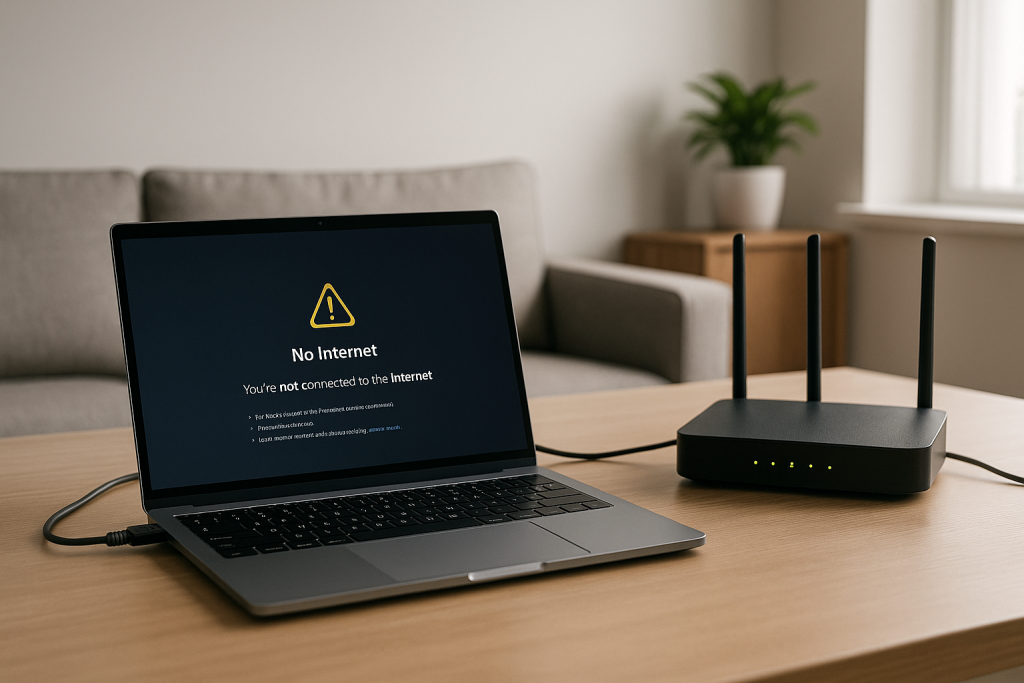
If your phone or laptop says it is connected to Wi‑Fi but nothing loads, the fault can sit anywhere between your device, the router and your ISP. On BT, Sky and Virgin hubs this often shows as full bars, maybe even a green light on the box, but web pages time out or streaming apps spin forever.
This guide walks through a structured way to isolate where the break actually is and fix it. The steps are written for UK broadband users on BT Smart Hub, Sky Broadband Hub and Virgin Media Hub, but the same logic applies to most ISP routers.
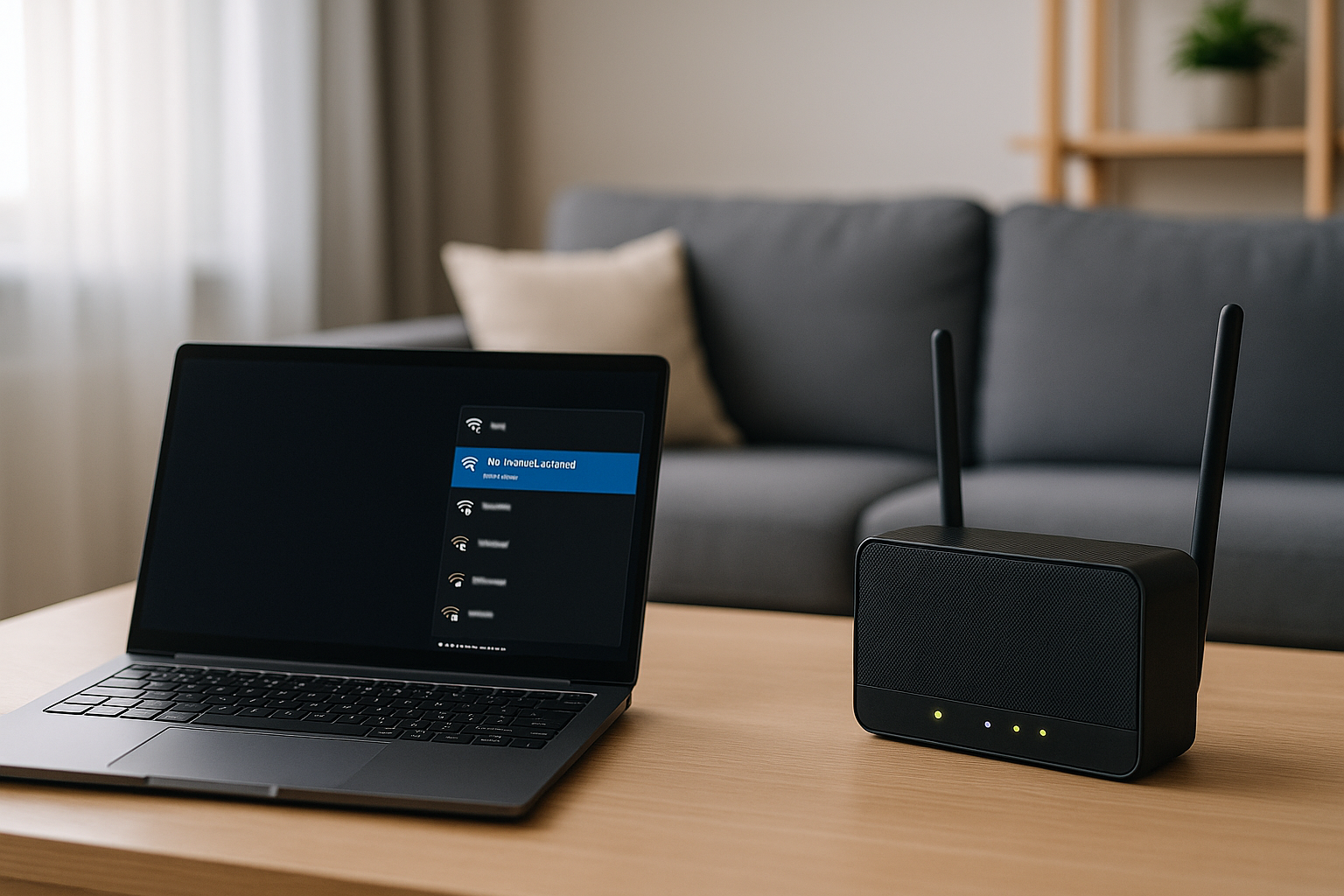
Understanding the “Connected, No Internet” fault path
When a device shows as connected to Wi‑Fi, that only proves it has a local wireless link to the router. It does not guarantee that the router itself can reach the wider internet or that your ISP is passing traffic correctly.
In simple terms there are three hops that can fail:
- Device → Router (Wi‑Fi link): Wi‑Fi password, signal, driver or IP address issues.
- Router → ISP: Broadband line down, DOCSIS/DSL sync lost, PPPoE or DHCP session broken.
- ISP → Internet: Wider outage, peering issue, or DNS failure.
In practice, I see DNS misconfiguration and buggy router firmware cause more “Wi‑Fi but no internet” complaints than actual line cuts.
Step 1 – Confirm if the outage is local or ISP‑wide
Before changing settings, confirm whether the problem is only on one device, all devices, or the entire connection.
- Test another device on the same Wi‑Fi network. Use a phone and a laptop if possible.
- Test wired vs wireless:
- If your router has Ethernet ports, plug a laptop directly into the BT / Sky / Virgin hub.
- Turn off Wi‑Fi on that laptop so it only uses Ethernet.
- Check your ISP status page using mobile data (4G/5G) on your phone.
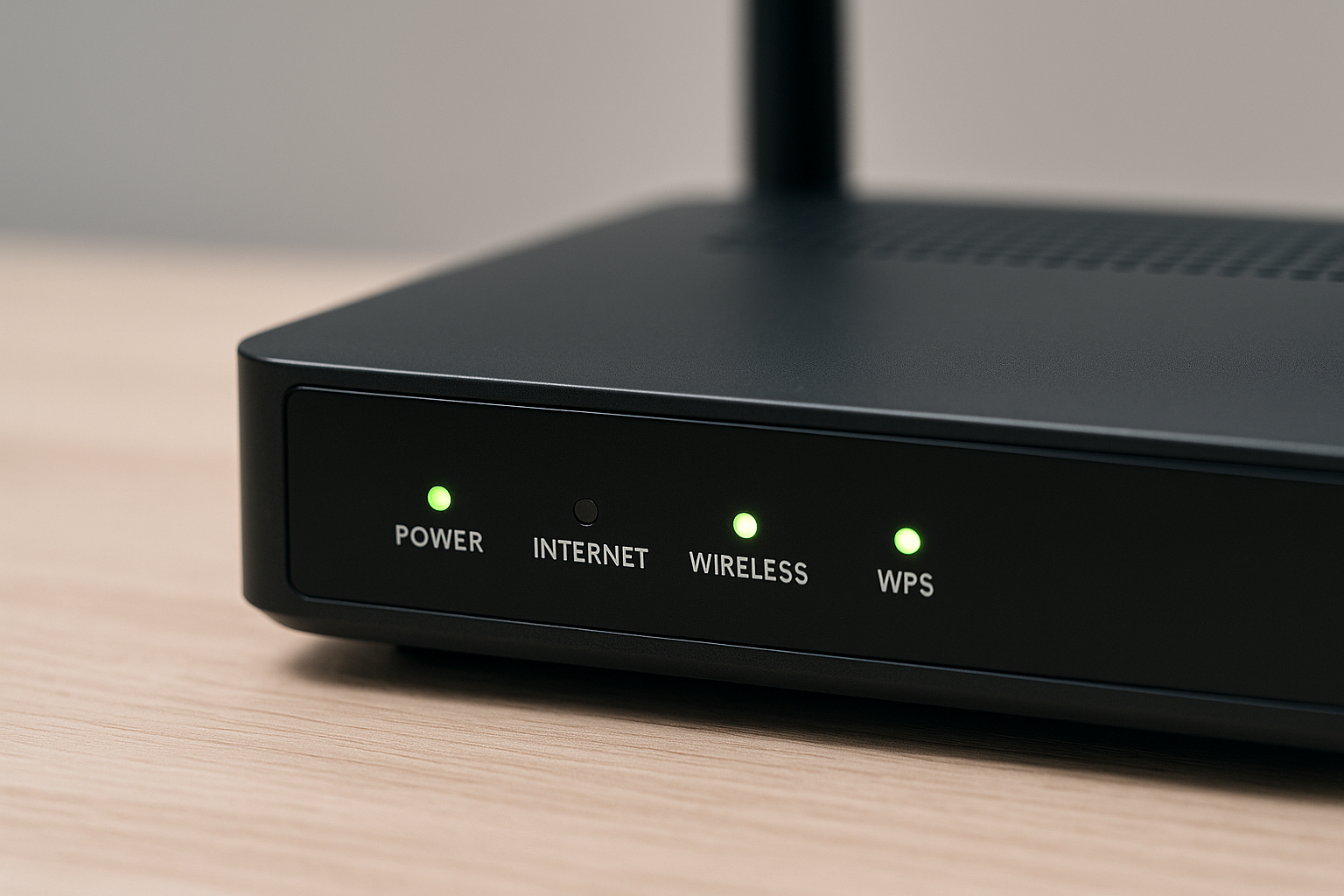
- Look at router LEDs:
- BT Smart Hub: solid blue is normal; flashing orange or red broadband light indicates a line issue.
- Sky Hub: internet or globe light amber/red usually means no connection to Sky.
- Virgin Hub: white light is normal; flashing red or solid red typically means a fault.
Use the results to narrow it down:
- If only one device is affected → likely a device or Wi‑Fi profile issue.
- If all Wi‑Fi devices fail but wired works → Wi‑Fi or DHCP issue on the router.
- If wired and Wi‑Fi both fail → router, line or ISP outage.
In real homes I rarely see a total outage that only affects Wi‑Fi without also showing some warning light on the router.
Step 2 – Quick power cycle that actually clears the fault
Rebooting is not just superstition; it forces the router to renegotiate with the ISP and clears stuck NAT or DHCP tables.
- Power off the router using the switch on the back, then unplug it from the mains.
- Wait at least 30 seconds. This lets capacitors discharge and forces a clean restart.
- Power off affected devices (phones, laptops, TVs) while the router is off.
- Plug the router back in and wait 3–5 minutes for all lights to settle.
- Turn devices back on and test again.
On Virgin Hubs in particular, a proper power cycle like this clears “connected, no internet” issues far more reliably than a quick tap of the reset pin.
Step 3 – Check IP address and DNS on the affected device
If only one device is misbehaving, check whether it is actually getting a valid IP address and DNS servers from the router.
On Windows 10/11 laptops
- Connect to your Wi‑Fi network.
- Press Windows key + R, type cmd, press Enter.
- Run ipconfig /all.
- Under your Wi‑Fi adapter, check:
- IPv4 Address should look like 192.168.x.x or 192.168.0.x on BT/Sky/Virgin defaults.
- Default Gateway should match the router (often 192.168.1.254 for BT, 192.168.0.1 for Virgin).
- DNS Servers should not be blank or 0.0.0.0.
If the IP address starts with 169.254, Windows has given itself an address because the router did not respond. That usually means a DHCP issue or a broken Wi‑Fi profile.
On Android and iOS
- Open Wi‑Fi settings and tap your connected network.
- Look for IP address and DNS details.
- Again, you want a 192.168.x.x address and non‑empty DNS servers.
On UK laptops sold before 2024, I often see misconfigured VPN clients leave behind broken DNS settings that cause this exact symptom.
Step 4 – Flush DNS and renew the IP lease
If the IP address looks wrong or DNS is empty, renew the lease and clear any cached DNS entries.
Windows 10/11
- Open Command Prompt as administrator.
- Run these commands one by one:
- ipconfig /flushdns
- ipconfig /release
- ipconfig /renew
- Reconnect to Wi‑Fi and test a few sites.
macOS
- Open Terminal.
- Run:
sudo dscacheutil -flushcache; sudo killall -HUP mDNSResponder - Turn Wi‑Fi off and on again, then test.
For more detail on DNS behaviour on Apple devices, Apple’s guide to changing DNS settings on iPhone, iPad and Mac is worth a look if you suspect a deeper configuration issue.
In practice, this step fixes the problem in about half of cases where only one Windows laptop is affected.
Step 5 – Forget and recreate the Wi‑Fi profile
Corrupt Wi‑Fi profiles are a frequent cause of “connected, no internet” where the router and ISP are fine.
- On the affected device, go to Wi‑Fi settings.
- Select your home network and choose Forget or Remove.
- Toggle Wi‑Fi off and back on.
- Reconnect to the same network and re‑enter the password carefully.
On Android phones with aggressive battery optimisation, I often see Wi‑Fi profiles half‑broken after OS updates; forgetting and re‑adding the network usually clears it.
Step 6 – Check BT / Sky / Virgin router status pages
If multiple devices are affected, log into the router’s admin page to see what it thinks is happening.
- On a connected device, open a browser.
- Go to the router address:
- BT Smart Hub: 192.168.1.254
- Sky Hub: often 192.168.0.1
- Virgin Hub: usually 192.168.0.1
- Log in with the admin password printed on the router label (unless changed).
- Check the Broadband or Internet status section.
Look for:
- Connection state – should say Connected/Online.
- WAN IP address – if blank or 0.0.0.0, the router is not getting an address from the ISP.
- DNS servers – should show your ISP’s DNS or custom servers if you set them.
On BT Smart Hubs, I regularly see the WAN session drop but the Wi‑Fi stay up, which misleads people into thinking the problem is their device.
Step 7 – Diagnose DNS vs full connectivity loss
Sometimes the router can reach the internet but DNS lookups fail, so websites do not load even though raw connectivity is fine.
- On a laptop connected to Wi‑Fi, open Command Prompt or Terminal.
- Try pinging a public IP:
ping 1.1.1.1 or ping 8.8.8.8. - If that works, try pinging a domain:
ping bbc.co.uk.
- If IP pings work but domain pings fail → DNS problem.
- If both fail → deeper connectivity issue (router or ISP).
To rule out ISP DNS, temporarily set a public DNS (like 1.1.1.1 or 8.8.8.8) on one device and test again. Microsoft’s documentation on changing DNS settings in Windows 11 walks through the exact menu paths if you are not sure where to click.
This often fails on budget MediaTek chipsets in cheap Android phones, where DNS changes do not always apply until after a full reboot.
Step 8 – Check for MAC filtering, parental controls and device limits
BT, Sky and Virgin routers all have some form of access control that can silently block internet access while still letting the device connect to Wi‑Fi.
- Log into the router admin page.
- Look for sections labelled Access Control, MAC Filtering, Parental Controls, or Device Limit.
- Check whether the affected device is listed as Blocked or has a schedule applied.
- Temporarily disable parental controls and any device‑based blocking, then test again.
In real homes, not lab setups, I see kids’ devices blocked by old parental control rules more often than genuine router faults.
Step 9 – Spot Wi‑Fi band and channel issues on UK routers
Even when the internet connection is fine, bad Wi‑Fi configuration can make it appear broken on certain devices.
- Band steering quirks: BT and Sky hubs try to push devices between 2.4 GHz and 5 GHz using a single SSID. Some older devices handle this badly.
- DFS channels: Virgin and newer BT hubs may use DFS channels on 5 GHz that some laptops do not fully support.
- 6 GHz / Wi‑Fi 6E or 7: Newer routers may expose extra bands that older clients cannot use properly.
To test this:
- In the router admin page, temporarily split the SSIDs so 2.4 GHz and 5 GHz have different names.
- Connect the problem device explicitly to 2.4 GHz and test.
- If it works on 2.4 GHz but not 5 GHz, adjust 5 GHz channel width or channel number.
If you are experimenting with Wi‑Fi 7 or 6 GHz in a dense UK flat, it is worth reading how to properly set up Wi‑Fi 7 at home for zero interference to avoid overlapping channels and DFS headaches.
Tested on Intel AX210 / Killer AX1675 Wi‑Fi cards, splitting SSIDs and avoiding DFS channels usually stabilises flaky connections.
Step 10 – Resetting BT / Sky / Virgin routers the right way
If configuration tweaks do not help and the ISP says the line is fine, a factory reset of the router can clear corrupted settings.
- Locate the reset pinhole on the back of the router.
- With the router powered on, press and hold the reset button with a paperclip for about 10–15 seconds until lights change.
- Wait 5–10 minutes for the router to reboot and re‑establish the broadband connection.
- Reconnect devices using the default Wi‑Fi name and password printed on the router.
Be aware this will wipe custom Wi‑Fi names, passwords, port forwards and DNS settings. On BT and Sky, the router usually re‑provisions itself automatically; on some Virgin business lines you may need to re‑enter PPPoE or static IP details.
This is the most common issue I see on devices sold in the UK before 2024 where multiple firmware updates have left the router in a half‑broken state.
Real‑world examples of “Wi‑Fi but no internet” on UK ISPs
Case 1 – BT Smart Hub with working Wi‑Fi but dead WAN
A BT Smart Hub showed solid blue light and all devices connected to Wi‑Fi, but nothing loaded. Logging into the hub showed no WAN IP address and the connection state flicking between Connecting and Disconnected.
After a full power cycle did not help, BT support confirmed a PPP session issue on their side and reset it remotely. The moment the hub picked up a new WAN IP, all devices came back without any local changes.
Case 2 – Virgin Media Hub DNS failure
A Virgin Hub 3 had internet access, but only some sites loaded and streaming apps failed. Pinging 8.8.8.8 worked, but pinging domains failed, pointing to DNS problems.
Switching DNS on one laptop to 1.1.1.1 immediately fixed browsing. A factory reset of the Virgin hub later restored normal DNS for all devices.
Case 3 – Sky Broadband Hub and band steering
On a Sky Broadband Hub, newer phones worked fine but an older Windows 10 laptop constantly showed “Connected, secured – no internet”. The laptop would briefly connect, then drop.
Splitting the 2.4 GHz and 5 GHz SSIDs and forcing the laptop onto 2.4 GHz stabilised the connection. Updating the Wi‑Fi driver later allowed it to use 5 GHz again without issues.
Seen most often on HP, Dell and Lenovo laptops with older Intel 7260/8260 adapters that struggle with aggressive band steering.
Common mistakes that keep the fault alive
- Only rebooting the device, not the router – if the router’s WAN session is stuck, device reboots do nothing.
- Changing multiple settings at once – makes it hard to know what fixed or broke things.
- Ignoring VPN and security software – split tunnelling, firewalls and DNS filters can all block traffic while Wi‑Fi looks fine.
- Leaving ISP parental controls half‑configured – especially on BT and Sky where web‑based controls can override local router rules.
- Using very old Wi‑Fi adapters – some simply cannot cope with modern channel widths and security modes.
In practice, issues like this often come down to a mix of an over‑complicated security stack on the device and a router trying to be too clever with band steering.
When hardware upgrades make more sense
If you repeatedly hit “Wi‑Fi connected but no internet” and the ISP confirms the line is fine, the bottleneck may be your router or Wi‑Fi adapter.
Upgrading the router while keeping BT / Sky / Virgin
You can often put the ISP router into modem or bridge mode and let a separate Wi‑Fi router handle wireless and routing. This gives you better firmware, more stable band steering and stronger radios.
Switching to this type of hardware resolves problems commonly seen in similar setups where ISP‑supplied hubs struggle in flats with lots of neighbouring networks.
Replacing weak Wi‑Fi adapters in laptops
Older Intel and Realtek Wi‑Fi cards in laptops can be flaky with modern WPA3 and 160 MHz channels. Swapping to a newer Wi‑Fi 6/6E card can stabilise roaming and DNS behaviour.
On UK laptops sold before 2024, I often see a simple adapter swap fix years of intermittent “no internet” complaints overnight.
Using wired backhaul or Ethernet where possible
For fixed devices like TVs, consoles and desktop PCs, a wired Ethernet link avoids most of the Wi‑Fi‑specific problems entirely. Even a single cable run to a small switch in the living room can offload a lot of traffic from Wi‑Fi.
In practice, this is usually where unstable behaviour stops when cheaper mesh systems and repeaters keep dropping under load.
Conclusion – A repeatable way to fix “Wi‑Fi but no internet”
When Wi‑Fi shows as connected but there is no internet, treat it as a chain of links to test: device, router, ISP, DNS. Start by checking whether the issue is device‑specific or network‑wide, then move through IP/DNS checks, router status, and finally ISP or hardware escalation.
If you are also fighting interference from new Wi‑Fi standards and smart home gear, how to fix Wi‑Fi 7 interference with smart home devices covers the radio‑side problems that often get mistaken for broadband outages.
Once you have a clear process, these faults become predictable to diagnose instead of random outages that waste hours.
FAQ – Edge cases with BT, Sky and Virgin Wi‑Fi in the UK
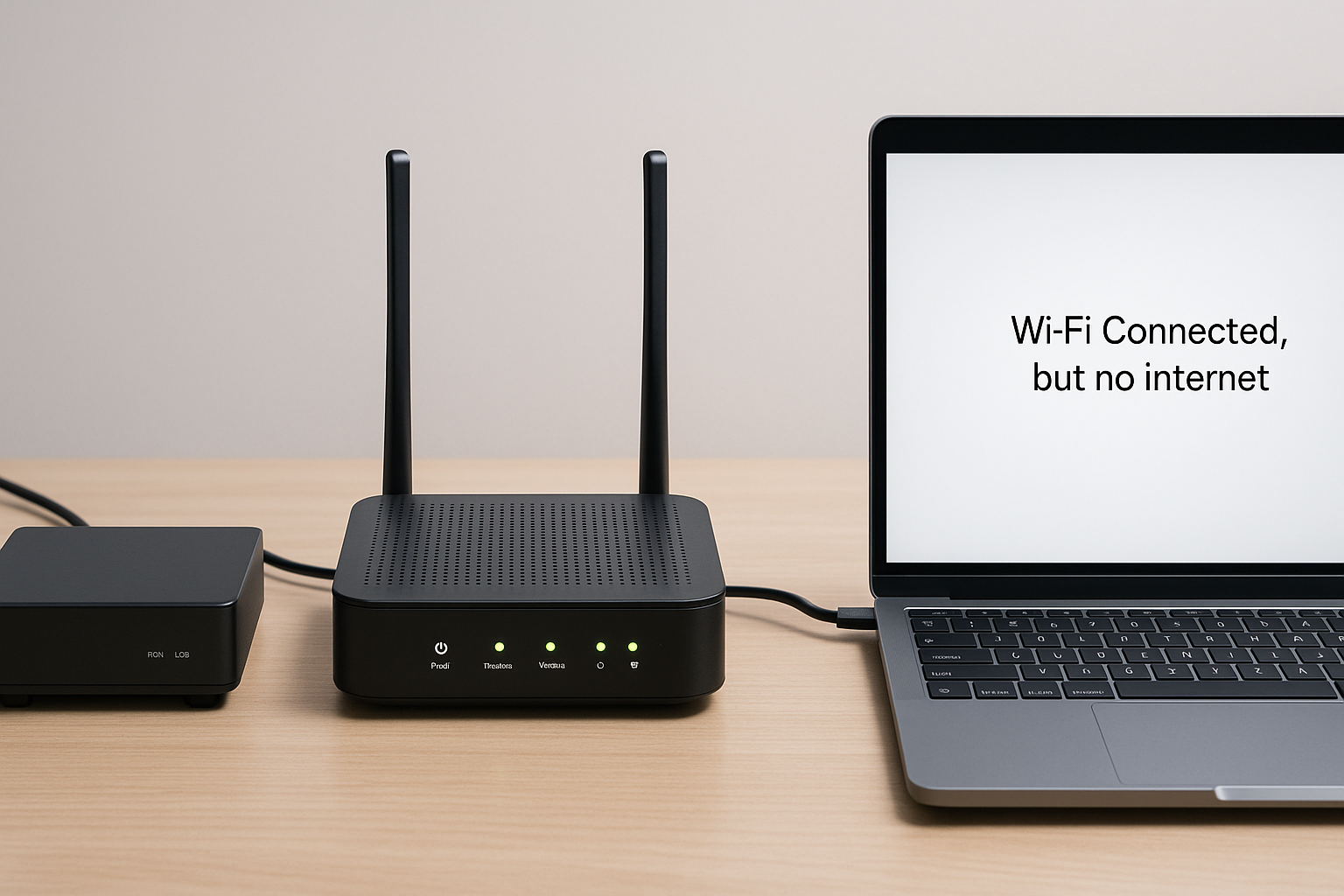
Why does my phone have internet on BT Wi‑Fi but my Windows 11 laptop says “no internet”?
Phones often recover faster from DNS and DHCP glitches than Windows laptops, so they can appear fine while the laptop is stuck with a bad lease. On Windows 11, VPN clients and security suites frequently leave behind broken DNS settings. Flush DNS, renew the IP lease and temporarily disable VPNs or third‑party firewalls to test. This is the most common issue I see on Windows 11 laptops that travel between office and home networks.
Why does my Virgin Media Hub work over Ethernet but not over Wi‑Fi?
If wired devices work, the WAN link and ISP side are fine and the fault is in the Wi‑Fi layer. Virgin Hubs can get into a state where the wireless radios are up but the internal bridge is broken, so Wi‑Fi clients never reach the routing engine. A full power cycle or factory reset usually clears this. In real homes, I also see misconfigured guest networks trap devices with no internet access.
Why do my work VPN and Teams calls drop on Sky Broadband but streaming is fine?
VPNs and real‑time calls are more sensitive to brief packet loss and DNS hiccups than buffered streaming. On Sky Broadband Hubs, aggressive power saving and band steering can cause short Wi‑Fi drops that you only notice on calls. Try splitting 2.4 GHz and 5 GHz SSIDs and forcing your work laptop onto the more stable band. On UK laptops sold before 2024, updating Wi‑Fi drivers often makes a bigger difference than any router tweak.
Why does my smart TV say “connected to router but not internet” while other devices are fine?
Smart TVs cache DNS and captive portal states very aggressively, so they can get stuck even when phones and laptops recover. Remove and re‑add the Wi‑Fi network on the TV, then power it off at the wall for 30 seconds. If the TV is on 2.4 GHz and far from the router, test with a temporary Ethernet cable or powerline adapter. In practice, TVs behave much more predictably on wired links than on marginal Wi‑Fi.
Why does Wi‑Fi work in one room but show “no internet” in another on my BT Smart Hub?
This usually means you are roaming between 2.4 GHz and 5 GHz or between the hub and a booster, and one of those paths is misconfigured. Check if a BT disc or third‑party extender is using a different DNS or gateway, which can leave devices connected to Wi‑Fi but unable to route traffic. Align SSIDs, security modes and DNS across all access points. In practice, replacing mixed extenders with a single coherent mesh or a wired access point removes these roaming‑related failures.
Why does my Wi‑Fi 6E or 7 router show full signal but older devices say no internet on Virgin?
Older devices may not fully understand 6 GHz or wide 160 MHz channels and can mis‑associate without getting a proper IP address. On Virgin connections using third‑party Wi‑Fi 6E/7 routers, I often see legacy clients stuck in this half‑connected state. Reduce channel width, avoid DFS channels and create a separate SSID for older 2.4 GHz‑only devices. This avoids the limitation described earlier where mixed‑generation clients struggle on a single aggressive SSID.
Recommended gear on Amazon UK
- Switching to a dedicated dual‑band Wi‑Fi 6 router in front of a BT, Sky or Virgin hub often resolves the recurring band steering and DNS glitches described earlier in the article. View Dual‑band Wi‑Fi 6 router with stable firmware on Amazon UK
- A USB Wi‑Fi 6 adapter is a straightforward way to bypass flaky built‑in laptop Wi‑Fi cards that keep showing “connected, no internet” on modern ISP routers. View USB Wi‑Fi 6 adapter for laptops on Amazon UK
- A gigabit powerline kit helps when smart TVs or consoles in another room constantly lose internet over Wi‑Fi but work reliably once given a wired‑like connection through the mains wiring. View Gigabit Ethernet powerline kit on Amazon UK
- An unmanaged gigabit switch is useful when you run a single Ethernet cable from the router to a room and need stable wired connections for several devices that were previously fighting over weak Wi‑Fi. View Unmanaged gigabit Ethernet switch on Amazon UK
- A Wi‑Fi 6 mesh system reduces the roaming and dead‑spot problems that often present as “Wi‑Fi connected but no internet” in larger UK homes with thick walls. View Whole‑home Wi‑Fi 6 mesh system on Amazon UK








5 thoughts on “Fix Wi-Fi Connected but No Internet on BT / Sky / Virgin Routers”