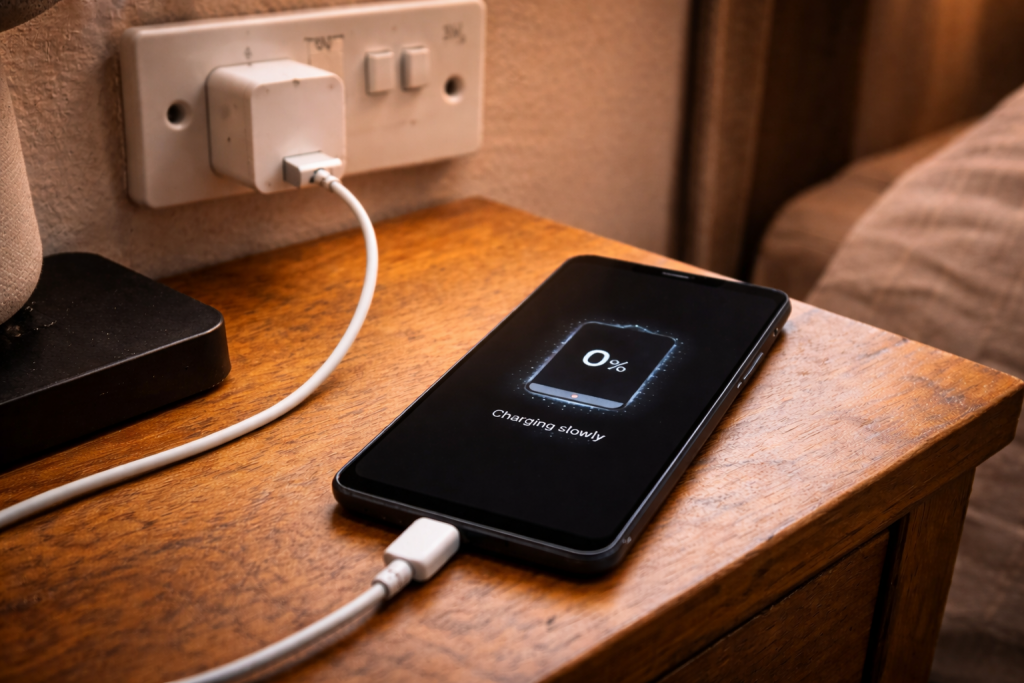
 You plug your Android in, expect the usual “Charging rapidly” message, and instead get plain “Charging” (or worse, it crawls up 1% every few minutes). The charger might be the same one that worked yesterday. The cable looks fine. Yet fast charging refuses to engage.
On modern Android phones, “fast charging” is a negotiation between the phone, the charger and the cable. If any part of that handshake looks unsafe or out-of-spec, the phone drops to a slower mode. That’s why this problem often feels random: the phone is making a decision, not simply “failing to charge”.
I see this most often after a cable swap, a car-charger change, or a software update that quietly resets a battery protection toggle. The good news is you can usually narrow it down in ten minutes if you test in the right order.
Why fast charging fails even though the phone still charges
There are several fast-charge families in the Android world, and they don’t all mix. USB Power Delivery (USB-PD) is common on Google Pixel, many Samsungs, and a lot of newer Androids. Other brands also use proprietary modes (for example, older Qualcomm Quick Charge variants, or manufacturer-specific “Super” modes). The phone will fall back to basic 5V charging if it can’t confirm the right profile.
Fast charging can be blocked by:
- Cable limitations: many USB-C cables are charge-only, worn, or not rated for higher current. Some are fine at 5V but unstable at higher loads.
- Charger profile mismatch: a charger may support fast charging, but not the profile your phone requests (or not on that port).
- Dirty or loose USB-C port: the phone can’t reliably read the CC pins, so it refuses higher power.
- Heat and battery protection: if the battery is warm, charging is throttled. This is deliberate and often invisible beyond a slower rate.
- Software gating: adaptive charging, battery protection limits, or a corrupted USB configuration can stop fast charging from triggering.
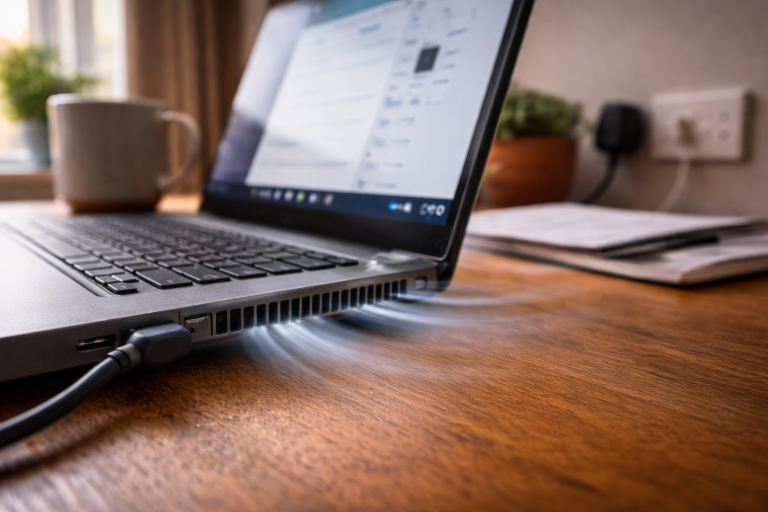
- Power source constraints: laptops, cheap extension leads with USB sockets, and some car adapters sag under load and cause the phone to step down.
One practical detail: the on-screen label isn’t consistent. Some phones only show “Fast charging” for a few seconds, then revert to “Charging” even though they’re still pulling higher wattage. If you can, verify with a USB power meter or a charging readout in the battery settings.
A fault-finding order that avoids chasing your tail
Fast charging problems are easiest when you treat the setup as three parts: power brick, cable, phone/port. Change one variable at a time. If you swap everything at once, you’ll never know what fixed it.
Work through these checks (in this order)
- Confirm you’re not hitting a battery protection feature
- Open Settings and search for Battery, Charging, Battery protection, Adaptive charging, or Optimised charging.
- Disable any feature that caps charging speed or holds at 80% temporarily, then test again.
On Pixels, adaptive charging can make the phone look “slow” overnight. On Samsungs, Battery protection modes can reduce peak charge power. I’ve watched this toggle flip back on after a major update more than once.
- Check temperature and case behaviour
- If the phone feels warm, remove the case and charge on a hard surface.
- Avoid charging under a pillow, on a sofa, or in direct sun.
- If you’ve been gaming or using the camera, let it cool for 10–15 minutes first.
In practice, heat is the silent killer of fast charging. The phone may never tell you it’s throttling; it just quietly drops wattage. If your handset also gets hot while charging, the deeper causes are covered in Fix phone overheating while charging.
- Use a known-good wall socket and remove “weak links”
- Plug directly into a wall socket, not a TV USB port, laptop, monitor, or extension lead with built-in USB.
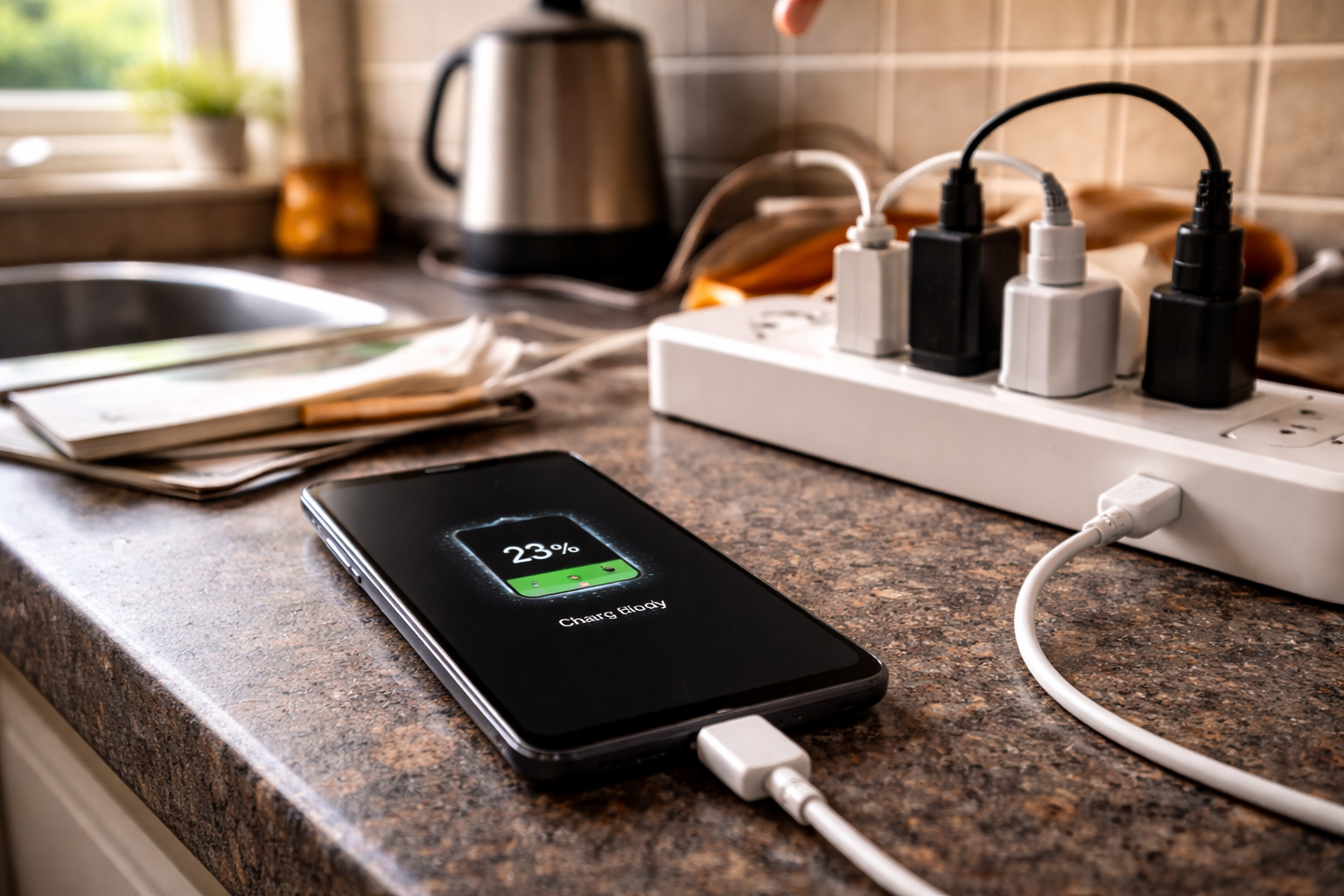
- If you’re using a multi-socket adaptor, try a different outlet. Some cheap adaptors introduce voltage drop under load.
This is the most common issue I see on UK devices sold before 2024: people rely on a bedside extension with USB ports that were never designed for modern fast-charge loads.
- Inspect and clean the USB-C port properly
- Power the phone off.
- Use a torch to look into the port. You’re checking for lint packed at the back, not just “dust”.
- Use a wooden toothpick or a plastic pick to gently lift lint out. Don’t scrape the centre tongue.
- Blow out loose debris. Avoid metal tools.
A cable can still “click” into place even when lint prevents full insertion. When that happens, the data/CC contacts can be marginal, and fast charging won’t negotiate reliably.
- Test with a different cable first (not a different charger)
- Try a short, reputable USB-C to USB-C cable.
- If your charger is USB-A, test with a different USB-A to USB-C cable too.
Cables fail in boring ways: the phone charges, but the resistance is high enough that voltage droops when current rises. The phone detects instability and backs off. I’ve had “premium-looking” braided cables do this after a few months of being bent at the plug.
- Then test a different charger with the same cable
- Prefer a USB-PD charger for USB-C phones.
- If you have a multi-port charger, try a different port; some ports share power or have different PD profiles.
Don’t assume “65W” on the label means your phone will take 65W. Phones request specific voltage/current steps. If the charger doesn’t offer the right step, you’ll get a slower fallback.
- Check the phone’s charging mode and USB settings
- When plugged in, pull down the notification shade and tap the USB notification (if present).
- Set it to Charging (or No data transfer) rather than file transfer modes.
- In Developer options, look for any USB default configuration you’ve changed and reset it to default.
This sounds minor, but I’ve seen phones stuck in odd USB states after using Android Auto or a laptop connection. A reboot often clears it.
- Reboot, then try a “cold plug-in” test
- Restart the phone.
- Leave it unlocked on the home screen.
- Plug in and watch the first 10–20 seconds for a fast-charge indicator.
The first few seconds are when negotiation happens. If it never shows fast charging at the start, you’re not getting the right handshake.
- Rule out a flaky app or background load
- Try charging in Safe mode (varies by brand; usually long-press Power off).
- Alternatively, enable Battery saver briefly and test again.
Heavy background activity doesn’t stop fast charging from activating, but it can make it look like it isn’t working because the phone is burning power as fast as it’s receiving it.
- Check for software updates and USB-related bug fixes
- Install pending system updates.
- Update Google Play system updates (in Security & privacy on many phones).
If you want the manufacturer’s baseline explanation of charging behaviour and supported chargers, start with Android help on charging and USB-C basics. For Pixel-specific charging and adaptive charging behaviour, Google Support for Pixel battery and charging is usually more precise than third-party summaries.
- Last resort: reset settings that affect power/USB
- Reset network settings (it can also reset some USB tethering states on certain builds).
- Reset app preferences if a system component is misbehaving.
- If the phone recently had a major OS upgrade and nothing else works, consider a full backup and factory reset.
A factory reset is a blunt tool, and it won’t fix a bad cable or worn port. But if fast charging died immediately after an update and you’ve proven the charger/cable are fine, it can be the cleanest way to remove a corrupted power-management state.
Situations where fast charging “works” but you never see it
Screen-on testing can mislead you. Some phones only show the fast-charge label briefly, then switch to a generic charging icon. If you’re watching percentage rather than wattage, it can look slow even at 18–25W because the battery curve isn’t linear.
High battery percentage slows down by design. From roughly 70–80% upwards, many phones taper charging to protect the battery. If you’re testing at 85%, you’re not really testing fast charging. I usually test at 20–40% because it’s where the phone is most willing to pull power.
Wireless charging adds another layer of throttling. Even “fast” wireless pads often top out well below wired fast charging, and heat throttling kicks in sooner. If your goal is speed, test wired first.
Real-world fault patterns I keep seeing
Car chargers that claim fast charging but only on one port. A lot of dual-port car adapters provide USB-PD on USB-C and a basic 5V/2.4A on USB-A. Plug into the wrong port and you’ll never trigger fast charging. I’ve also seen PD drop out when a dashcam is sharing the same adapter.
USB-C to USB-C cable fixed it, not the charger. People often use a USB-A charger with a USB-A to USB-C cable, then swap to a USB-C PD brick but keep the same old cable via an adapter. That’s a recipe for negotiation failure. A straight USB-C to USB-C cable removes several points of failure.
Port wear that only shows up under load. The phone charges slowly and disconnects if you nudge the plug. That’s not “software”. That’s a loose port or debris. In about half of cases, a careful clean restores a solid connection; the rest need a port replacement.
Aftermarket cables with missing e-marker support. For higher power levels, some cables need an e-marker chip to advertise capability. Without it, the phone/charger may cap current. You’ll still charge, just not at the top speed your phone advertises.
Easy mistakes that block fast charging
- Testing at 90–100% and concluding it’s broken. Charge tapering is normal.
- Assuming any “fast charger” works with any phone. USB-PD vs proprietary modes matter.
- Using a long cable run. Two-metre cables can be fine, but cheap long cables often cause voltage drop that triggers fallback.
- Charging while using GPS/video in a warm room. The phone protects itself by reducing charge power.
- Cleaning the port with metal. It’s easy to damage the centre tongue or short pins. If you’re not confident, don’t poke around.
- Relying on the icon alone. Some skins hide the fast-charge label after a moment.
Hardware and software details worth knowing (before you buy replacements)
USB-PD profiles and PPS. Many newer phones benefit from PPS (Programmable Power Supply), which allows finer voltage control and can improve sustained charging without overheating. A PD charger without PPS may still fast charge, but not at the phone’s maximum.
Samsung “Super Fast Charging” is picky. On a lot of Samsung models, “Super Fast Charging” requires a PD-PPS charger and a good USB-C cable. If you only get “Fast charging”, that’s often a charger capability issue, not a fault.
Battery health can change behaviour. As batteries age, internal resistance rises. The phone may reduce charging power earlier to keep temperatures in check. You won’t necessarily get a battery warning; you’ll just notice it no longer holds peak wattage for long.
Moisture detection and port protection. If the phone thinks the port is wet (even from condensation), it may disable fast charging or block charging entirely. Let it dry naturally. Don’t use heat guns; I’ve seen that warp ports and make the problem permanent.
Power banks are not all equal. A power bank might advertise 20W, but only on USB-C, and only when the bank is above a certain charge level. Some also disable PD when multiple outputs are used.
When to suspect the phone itself. If you’ve proven two known-good chargers and two known-good cables, cleaned the port, tested at a cool temperature, and fast charging still never triggers, the likely culprits are a worn USB-C port, a failing charge controller, or (less common) a damaged battery temperature sensor. At that point, software resets rarely help.
Conclusion
Fast charging not activating is usually the phone refusing a higher-power mode because it can’t trust the connection, the charger profile, or the temperature. Start by removing variables: wall socket, then cable, then charger, then the phone’s port and settings. If you can make fast charging appear even once with a different cable, you’ve already narrowed the fault to something cheap and replaceable.
If the phone only slow-charges when it’s warm, treat that as normal protection and focus on heat sources: thick cases, charging on soft surfaces, and heavy use while plugged in. If it never fast-charges on any known-good setup, the port is the next honest suspect.
FAQ
Why does my Android fast charge at work but only slow charge overnight on my bedside plug?
Bedside setups often involve extension leads with built-in USB sockets or older adaptors that sag under load. Your phone detects unstable voltage/current and drops to basic charging. Test with a direct wall socket and a known-good USB-PD charger, and avoid multi-socket adaptors with cheap USB outputs.
Why did fast charging stop working after an Android update even though the same charger still works?
Updates can re-enable adaptive charging or battery protection modes, and they can also leave USB services in a weird state until a reboot. Check Battery/Charging settings for protection toggles, restart the phone, then test with the screen on at 20–40% battery so you can see the initial fast-charge negotiation.
Does fast charging still work if I’m using Android Auto in the car with the screen on and maps running?
It can, but heat and power draw often cancel it out. Navigation, bright screen and warm cabin temperatures push the phone into thermal throttling, which reduces charge power. Use a vent mount for cooling, remove thick cases, and try a USB-PD car charger on the correct port (usually USB-C).
Why does my phone say “Charging” not “Fast charging” but the battery still goes up quickly?
Some Android skins only show the fast-charge label briefly, then revert to a generic status even while drawing higher wattage. If the percentage climbs quickly from 20–60% and the phone stays reasonably cool, it may still be fast charging. A USB power meter is the most reliable way to confirm.
Why does fast charging only fail with one specific USB-C cable even though that cable charges other devices?
Fast charging is more sensitive to cable resistance and to correct USB-C signalling on the CC pins. A cable can handle basic 5V charging for earbuds or a tablet but fail negotiation or voltage stability at higher loads on a phone. Swap to a short, reputable USB-C to USB-C cable rated for higher current.
Recommended gear on Amazon UK
- A PD-PPS charger matches the profiles many newer Android phones use for their top charging speeds, avoiding the common “charges but won’t fast charge” mismatch. Comparable items
- A properly rated e-marked cable reduces voltage drop and negotiation failures that make phones fall back to slow charging. Relevant examples
- A power meter shows real-time volts and watts so you can confirm whether fast charging is actually active even when the phone’s icon is vague. Relevant examples
- Plastic picks let you remove compacted pocket lint that stops the plug seating fully, a frequent cause of fast-charge negotiation failing. Relevant examples