

You plug your iPhone in, it charges normally, then it just… parks itself at 80%. The lightning bolt stays on, the phone says it’s charging, but the percentage refuses to move. If you’re trying to leave the house, it feels like the battery is being held hostage.
Most of the time, nothing is “broken”. iOS is deliberately pausing the last 20% to reduce battery wear, or the phone is throttling charge because it’s warm. The tricky bit is that the same symptom can also be caused by a weak charger, a cable that only negotiates low power, a dirty port, or a software state where the phone thinks it’s protecting itself.
The job is to work out which one you’re seeing on your device, on your charger, in your room, on that specific day. The fixes are different, and guessing wastes time.
What “stuck at 80%” actually means on an iPhone
There are three common behaviours that all look like “it won’t go past 80%”, but they’re not the same fault.
- Optimised Battery Charging / Charge Limit behaviour: iOS learns your routine and pauses at around 80% so it can finish closer to when you usually unplug. On newer iPhones, you can also set a hard charge limit (for example 80%).
- Temperature management: if the battery is warm (wireless charging on a duvet, in a car cradle in sunlight, fast charging in a warm room), iOS slows or pauses charging around the higher percentages. I see this constantly with MagSafe stands on bedside tables.
- Power delivery limits: the phone is charging, but only at a low rate, and background use cancels it out. It can sit at 80% for ages because the net gain is near zero.
Before changing settings, check what iOS is telling you. Go to Settings > Battery and look for a message such as Charging on hold due to iPhone temperature or a note about Optimised Battery Charging. That message is more useful than the percentage.
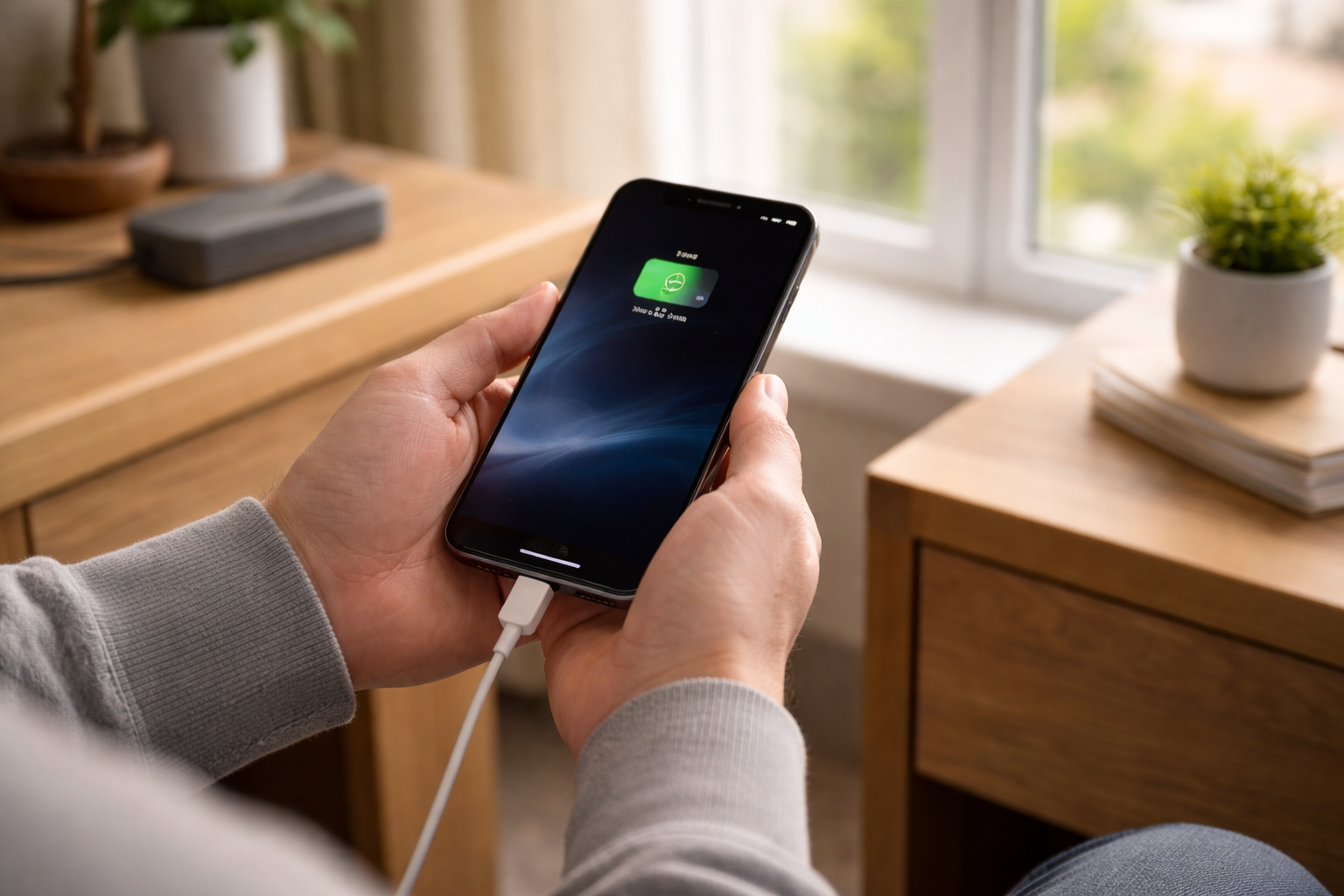
Battery protection features that intentionally stop at 80%
Apple has gradually added more battery health controls. Depending on your model and iOS version, you may have one or more of these:
- Optimised Battery Charging: delays charging past ~80% when it predicts you won’t need 100% yet.
- Clean Energy Charging: can shift charging times to periods with lower carbon intensity. In the UK, it’s not always obvious when it’s active, but it can contribute to “why didn’t it finish overnight?” behaviour.
- Charge Limit (80/85/90/95/100): on supported models, this can cap charging at a chosen percentage. If it’s set to 80%, your phone is doing exactly what you asked.
If you want Apple’s own wording on these features, use Apple Support on Optimised Battery Charging and charge limits. It’s worth reading once, because it explains why the phone can appear inconsistent day to day.
Get to a diagnosis quickly (before you change anything)
When I’m checking a phone on a bench, I do three quick tests. They tell you whether you’re dealing with software policy, heat, or power.
- Swap the power source: move from a multi-socket extension with USB ports to a known-good wall charger. If the behaviour changes immediately, it’s not an iOS “routine” feature.
- Change the charging method: if you were wireless charging, plug in a cable. If you were wired, try MagSafe/wireless. Heat and power negotiation behave differently.
- Check temperature: if the phone feels warm around the camera area or the back centre, assume thermal throttling until proven otherwise. Taking the case off for 10 minutes often changes the outcome.
If it only stops at 80% overnight, but happily hits 100% in the afternoon, that’s classic Optimised Battery Charging. If it stops at 80% when you’re using the phone while charging, that’s usually power limits or heat.
Step-by-step fixes (start with the least disruptive)
1) Confirm you haven’t set a charge cap
On supported iPhones, a charge limit can be set deliberately. It’s easy to forget you enabled it during a “save battery health” phase.
- Go to Settings > Battery > Charging (wording varies by iOS version).
- Look for Charge Limit and confirm it’s not set to 80%.
- If you want full charges, set it to 100%.
If you don’t see Charge Limit at all, skip this and move on.
2) Temporarily override Optimised Battery Charging
If the phone is pausing at 80% because it thinks you won’t need a full charge yet, you can usually force it to finish.
- When it’s paused, open the Lock Screen and tap the charging status (or check the Battery widget).
- If you see an option like Charge to Full Now, use it.
- Alternatively, toggle Optimised Battery Charging off in Settings > Battery > Battery Health & Charging, test for a day, then decide whether to turn it back on.
In practice, this step fixes the “stops at 80% overnight” complaint in about half of cases, because the phone was behaving as designed.
3) Eliminate heat as the limiting factor
Heat is the silent culprit. The iPhone will protect the battery long before it shows a temperature warning.
- Remove the case for one full charge cycle, especially thick silicone or leather cases.
- Stop charging on soft surfaces (bed, sofa, carpet). Use a hard table.
- Avoid fast charging while gaming or on video calls. If you need to use the phone, accept a slower charger for that session.
- Wireless charging: re-seat the phone so the coil aligns properly. Misalignment wastes power as heat.
A pattern I see a lot: MagSafe stand + Always-On Display + warm bedroom = a phone that sits at 80–85% until 5am, then finishes right before the alarm. That’s not a fault, it’s thermal and scheduling stacked together.
4) Prove your charger and cable can actually deliver enough power
“It says charging” doesn’t mean “it’s charging quickly enough to climb”. A tired cable can still pass data and trickle power, but fail under higher current.
- Try a different USB-C to USB-C cable (for USB-C iPhones) or USB-C to Lightning cable (for Lightning iPhones).
- Try a different wall adapter. For most recent iPhones, a 20W USB-C PD charger is a sensible baseline.
- Avoid the USB ports on routers, TVs, and older extension leads. They often top out at 5W–7.5W.
If you’re using a power bank and it behaves oddly with an iPhone, it’s often down to how the bank negotiates USB Power Delivery. There’s a separate deep-dive here: Power bank charges other devices but not iPhone: fixes.
5) Clean the port properly (without damaging it)
Lint in the port is boring, but it causes real charging weirdness. The cable “clicks” in but doesn’t seat fully, so charging is unstable and heat rises.
- Power the phone off.
- Use a wooden toothpick or a non-metal pick to lift compacted lint from the bottom of the port.
- Do not use metal pins. It’s easy to damage the contacts or short something.
- Blow out debris (compressed air is fine if used gently and at an angle).
If you’ve ever had to “hold the cable at a certain angle”, assume the port is either packed with debris or physically worn.
6) Reset the charging negotiation state
Sometimes the phone and charger get stuck in a low-power handshake. You’ll see it most with USB-C hubs, car chargers, and multi-port bricks.
- Unplug the cable from both the phone and the charger.
- Power-cycle the charger if it’s a smart plug/extension with USB ports (unplug from mains for 10 seconds).
- Restart the iPhone.
- Plug the charger into the wall first, then connect the cable to the phone.
This looks too simple, but I’ve watched it fix “stuck at 80%” on a desk setup where the charger was sharing power between multiple devices.
7) Check iOS battery health signals (and don’t overread them)
Go to Settings > Battery > Battery Health & Charging.
- Maximum Capacity: if it’s significantly reduced, the phone may heat faster and spend more time throttling.
- Peak Performance Capability: if it shows performance management has been applied, the battery has had trouble delivering power under load. Charging behaviour can become less predictable.
A worn battery doesn’t usually cause a hard stop at exactly 80%. It causes slow charging, heat, and sudden drops. If you’re seeing a clean, repeatable 80% plateau, it’s more often software policy than battery failure.
Real-world situations where 80% is a symptom, not the problem
Overnight charging that never reaches 100%
If you wake up and it’s still at 80–85%, check whether it finished later than you expected. Optimised Battery Charging can decide your “wake time” based on alarms, location patterns, and usage. If your routine changes (shift work, travel, weekends), it guesses wrong.
I’ve seen this after people change from a 7am alarm to no alarm at all. The phone stops having a clear target, so it plays it safe and holds at 80% longer.
Charging in the car where it stalls at 80%
Car USB ports are often low power, and some vehicles aggressively manage power when the engine stops. Add sat-nav, music streaming, and a warm dashboard, and 80% becomes a ceiling.
- Test with a proper 12V USB-C PD adapter rather than the car’s built-in USB.
- Move the phone out of direct sunlight.
- If using wireless CarPlay with a wireless charger, try wired charging for a day to compare heat.
MagSafe stand on a bedside table that “holds” at 80%
MagSafe is convenient, but it’s also a heater if alignment is off or the stand has poor airflow. If the phone is warm to the touch, it may pause at 80% until it cools.
This is the most common issue I see with third-party magnetic stands sold in the UK before 2024: they hold the phone slightly off-centre, so the charger works harder than it should.
Work-from-home desk setups with hubs and monitors
USB-C monitors and docks can charge an iPhone, but the power profile can be odd, especially if the monitor is also powering other peripherals. The iPhone may repeatedly renegotiate power and settle into a low rate.
If you want a broader set of charging diagnostics that apply to chargers, cables, and USB-C power behaviour, this is a useful reference: Charging, USB-C and power problems: UK edition.
Common missteps that keep the problem alive
- Assuming 80% means the battery is failing: it often means the phone is protecting the battery.
- Changing five settings at once: you lose the ability to tell what fixed it. Toggle one thing, test one charge cycle.
- Using a “fast charger” with a bargain cable: the charger can be fine, the cable can be the bottleneck.
- Charging under a pillow or duvet: it will heat-soak and throttle. The phone may never finish.
- Cleaning the port with metal: it can turn a minor issue into a repair.
The one I see most: people swap to wireless charging to “avoid cable issues”, then accidentally introduce a heat issue that looks like a charging fault.
Hardware and software factors that change the outcome
iOS version and battery feature rollouts
Battery features shift between iOS releases, and Apple sometimes adjusts thresholds. If the behaviour started right after an update, don’t assume it’s a bug, but do treat it as a change in policy.
- Check for a minor update (for example, 17.x to 17.y). Battery management tweaks often land there.
- If you use beta iOS, expect charging logic to be less predictable. I’ve had betas hold at 80% with no message, then behave normally after the next build.
For Apple’s official troubleshooting flow when charging is inconsistent, use Apple Support steps for iPhone charging issues. It’s conservative, but it covers the basics Apple will ask about if you book a repair.
Wireless charging standards and why some pads behave badly
Qi chargers vary wildly. Some run hot, some have poor coil alignment, and some are simply underpowered. MagSafe-certified chargers tend to behave more consistently, but even then, a thick case or a metal ring accessory can cause extra heat and throttling.
- If the phone stops at 80% only on one specific pad, treat the pad as suspect.
- If it stops at 80% on every wireless charger but not on cable, heat is the likely mechanism.
Battery age and internal resistance
As batteries age, internal resistance rises. That means more heat during charging, especially above 70–80% where charging naturally slows. The phone can hit its thermal limit sooner and pause more often.
If your iPhone is older and you’re seeing 80% plateaus plus random shutdowns under load, that’s when a battery replacement becomes a practical fix rather than a “nice to have”.
When it’s time to stop troubleshooting
If you’ve tested with a known-good charger and cable, cleaned the port, disabled charge limits, and the phone still refuses to go past 80% across multiple charge cycles, treat it as a system issue.
- Back up the phone.
- Update iOS.
- If the problem persists, contact Apple or an authorised service provider. A failing temperature sensor or charging IC can present as conservative charging behaviour.
I don’t see hardware faults often with this symptom, but when they happen, they’re usually consistent across chargers and show no useful on-screen message.
Conclusion
An iPhone that stops at 80% is usually doing battery preservation, reacting to heat, or stuck on a low-power charging setup. The fastest route to a fix is to separate “policy” from “power” from “temperature” with a couple of controlled tests, then change one variable at a time.
If it only happens overnight, look hard at Optimised Battery Charging and your routine. If it happens during use or on wireless chargers, assume heat. If it happens on one charger or one cable, assume power negotiation or a physical connection problem.
FAQ
Why does my iPhone stop charging at 80% overnight but reaches 100% if I plug it in during the day?
That pattern matches Optimised Battery Charging. Overnight, iOS predicts when you’ll unplug and holds around 80% to reduce time spent at full charge. During the day, when it can’t predict a long idle window, it often charges straight through.
Why does my iPhone get stuck at 80% on a MagSafe stand in bed but charges normally with a cable at my desk?
Wireless charging generates more heat, and charging on soft bedding traps that heat. Once the battery warms up, iOS slows or pauses charging around the higher percentages. A wired charge at a desk usually runs cooler and maintains a steadier power level.
My iPhone says it’s charging but it sits at 80% while I’m on FaceTime and using 5G — what’s going on?
FaceTime plus 5G can draw enough power that a weak charger or cable can’t create a net gain, especially above 80% where charging naturally tapers. Swap to a higher-watt USB-C PD charger and a known-good cable, or stop heavy use while it finishes.
Why did my iPhone start stopping at 80% after an iOS update even though I didn’t change any settings?
Updates can adjust battery management behaviour, and some releases expose new charging options on supported models. Check for a Charge Limit setting and review Battery Health & Charging options. Also watch for temperature messages, as updated thermal thresholds can change when charging pauses.
Why does my iPhone only stop at 80% when I charge it from my car’s USB port but not from a wall plug at home?
Many car USB ports provide low power and may reduce output when the engine stops. Add heat from sunlight and navigation use, and the phone will slow or pause charging. A proper 12V USB-C PD car adapter usually fixes it.
Recommended gear on Amazon UK
- A proper USB-C PD adapter removes low-power charging limits that can leave an iPhone hovering at 80% when background use cancels out the charge rate. Relevant examples
- A certified cable helps avoid flaky power negotiation and voltage drop that can make charging appear to stall at higher percentages. See suitable options
- A good USB-C cable prevents the phone falling back to a low-power profile, which is a common reason charging slows to a crawl above 80%. Relevant examples
- A MagSafe-certified charger tends to align the coil properly and run cooler, reducing thermal throttling that pauses charging around 80%. Relevant examples
- A PD car adapter bypasses weak in-car USB ports, which often can’t supply enough stable power to push an iPhone past 80% during navigation and streaming. Comparable items







