
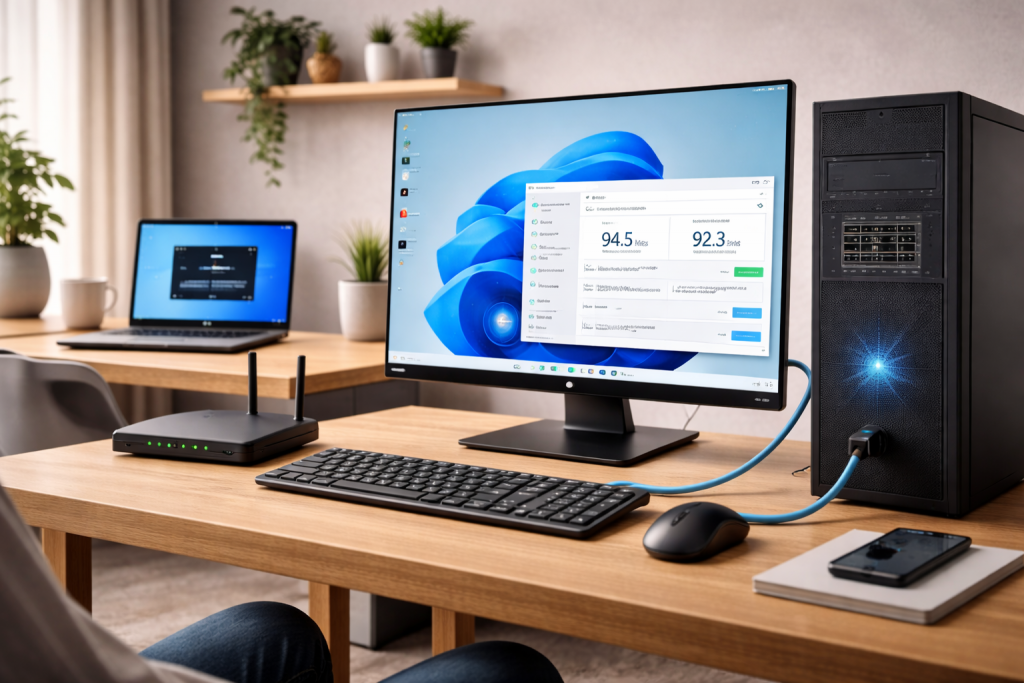
You plug in Ethernet because you want the boring, reliable option. Then Windows 11 reports a wired connection, yet downloads crawl while Wi‑Fi on the same machine (or phone) flies. It’s a particularly annoying failure because it feels “impossible” — Ethernet should win by default.
Most of the time, nothing mystical is happening. The wired link has quietly negotiated a low speed (100 Mbps, 10 Mbps, or half‑duplex), a USB adapter is bottlenecking, or a driver/offload feature is misbehaving. I’ve also seen UK ISP routers ship with one port set differently from the others, so the “wrong” LAN port becomes the slow one.
Before you change ten settings, treat it like a physical layer problem until proven otherwise. A single damaged pair in a cable can still give you a link light and internet access, while forcing the connection down to 100 Mbps. That’s how you end up with Ethernet that “works” but loses to Wi‑Fi.
What’s actually going wrong when wired is slower
Wi‑Fi speed tests often look better because they’re measuring peak throughput to a nearby router over a good radio link. Ethernet speed is more binary: if the link negotiates at 1.0 Gbps (or 2.5 Gbps), it’s usually consistent; if it negotiates at 100 Mbps, you’ve capped your ceiling before Windows even gets involved.
On Windows 11, the common failure modes fall into a few buckets:
- Link speed negotiation drops to 100/10 Mbps due to cable faults, poor terminations, or a marginal router/switch port.
- Duplex mismatch (rare on modern kit, but still happens with forced settings, older switches, or powerline adapters). This causes retransmits and ugly real‑world throughput.
- USB Ethernet adapter limits (USB 2.0 tops out around 480 Mbps theoretical; real throughput can be far lower). Some cheap adapters also run hot and throttle.
- Driver or offload features (Large Send Offload, Energy Efficient Ethernet, interrupt moderation) interacting badly with a specific NIC/router combo. Seen most often on HP, Dell and Lenovo laptops with certain Realtek NICs.
- Power saving putting the NIC into a low-power state or causing micro-dropouts that murder TCP throughput.
- Router-side constraints like QoS rules, “green” Ethernet, or a LAN port that’s actually only 100 Mbps on some ISP hubs.
One more subtle point: if you’re comparing Wi‑Fi to Ethernet while a VPN is enabled, you may be measuring different routes or MTU behaviour. A VPN can punish one interface more than the other depending on how Windows prioritises adapters. If you suspect that, park the VPN for testing and come back to it later. If VPNs are involved, Fix VPN breaking internet on Windows 11 is worth keeping handy.
Get the facts first: confirm link speed, duplex and errors
Don’t start with registry tweaks. Start by proving what the wired link negotiated and whether it’s erroring.
- Check Windows link speed: Settings > Network & internet > Ethernet. Look for Link speed. If it says 100 Mbps (or 10 Mbps), you’ve found the reason Ethernet “loses”.
- Check adapter status quickly: Press Start, type Control Panel > Network and Internet > Network Connections. Double-click Ethernet and read Speed.
- Check for packet errors: Open PowerShell and run:
Get-NetAdapterStatistics -Name “Ethernet”
Look for rising ReceivedDiscarded, ReceivedErrors, OutboundDiscarded. A few over hours can be normal; rapidly increasing counters during a speed test usually means a physical/duplex problem.
In practice, when I see 100 Mbps link speed on a “gigabit” setup, it’s the cable more often than the PC. Not always — but often enough that swapping the cable is the fastest win.
Fixes that actually move the needle (in the right order)
1) Eliminate the cable and port as the bottleneck
- Swap the Ethernet cable with a known-good Cat5e or Cat6 cable. Avoid flat “decorative” cables for testing; they’re fine when good, but they’re also the ones I see kinked and internally damaged.
- Move to a different LAN port on the router/switch. If you’re on an ISP hub, try ports 1–4; some models have one port behaving differently due to configuration or a failing PHY.
- Bypass extras: remove powerline adapters, wall plates, couplers, and cheap switches. Plug the PC directly into the router for one test.
- Check the port capability: some older routers and mesh nodes have 100 Mbps LAN ports. If your Wi‑Fi is on a fast mesh node but your Ethernet is plugged into a 100 Mbps satellite, Wi‑Fi will win and it’s not Windows’ fault.
If the link speed jumps from 100 Mbps to 1.0 Gbps after a cable/port change, stop there. You’ve fixed the root cause. Don’t “optimise” settings that were never the problem.
2) Force a clean renegotiation and reset the network stack
- Disable/enable the adapter: Control Panel > Network Connections > right-click Ethernet > Disable, then Enable.
- Power-cycle the router (properly): turn it off, wait 20 seconds, turn it back on. A soft reboot can leave a flaky port state behind.
- Reset Windows networking: Settings > Network & internet > Advanced network settings > Network reset. Reboot afterwards.
This doesn’t fix a bad cable, but it does clear oddities like stale profiles, virtual adapters, and broken bindings. I’ve seen it resolve “Ethernet stuck at 100 Mbps” after a dock hot-swap, where Windows simply refused to renegotiate until the stack was reset.
3) Check Speed & Duplex (and don’t guess)
Auto-negotiation should be left alone on modern networks. The exception is when something has been forced incorrectly.
- Device Manager > Network adapters > your Ethernet adapter > Properties.
- Go to Advanced tab > find Speed & Duplex.
- Set it to Auto Negotiation first. Apply, then unplug/replug the cable.
- If it’s already Auto and you’re stuck at 100 Mbps, try 1.0 Gbps Full Duplex as a test. If the link drops entirely, that’s a strong hint the cable/port can’t sustain gigabit.
Don’t leave it forced unless you have a reason. Forced settings can mask the real fault and create intermittent issues later.
4) Turn off the “clever” power features that throttle wired performance
Energy saving on Ethernet is meant to be invisible. On some combinations of NIC driver + router port, it isn’t. This is the most common “Ethernet is weirdly slow but link speed is 1 Gbps” case I see on UK laptops sold before 2024.
- Device Manager > Network adapters > your Ethernet adapter > Properties.
- Power Management tab: untick Allow the computer to turn off this device to save power.
- Advanced tab: look for Energy Efficient Ethernet (EEE) and set to Disabled.
- If present, disable Green Ethernet as well.
Re-test with a speed test and a real download (Steam, Microsoft Store, or a large file from a known fast source). Some issues only show up under sustained load.
5) Update (or roll back) the NIC driver the right way
Windows Update often installs a “good enough” driver. For Ethernet oddities, “good enough” can be the problem.
- Device Manager > Network adapters > your Ethernet adapter > Properties > Driver.
- Note the driver provider and version.
- Try Update driver first, but don’t stop there if nothing changes.
- Install the latest driver from the PC maker (Dell/HP/Lenovo) or the chipset vendor (Intel/Realtek). Intel’s own guidance and downloads are typically clearer: Intel Ethernet driver downloads and support.
- If the problem started after a driver update, use Roll Back Driver (if available) and retest.
I’ve had Realtek 2.5GbE adapters behave perfectly on one driver branch and fall apart on another, with no other changes. If your slowdown began “overnight”, treat the driver as suspect.
6) Disable problematic offloads (selectively)
Offloads reduce CPU load by letting the NIC handle parts of packet processing. When they misbehave, throughput tanks or latency spikes. Don’t disable everything blindly; change one thing, test, then move on.
- Large Send Offload v2 (IPv4/IPv6): disable and test.
- Receive Side Scaling (RSS): usually keep enabled, but test if you’re seeing odd CPU spikes.
- Interrupt Moderation: disabling can improve latency but may reduce throughput on some systems; test both ways.
These are in Device Manager > Network adapters > Properties > Advanced. If you lose performance, revert. The goal is to identify the one setting that’s broken on your hardware, not to create a “tweaked” adapter nobody can support later.
7) Rule out MTU and VPN weirdness
When Ethernet is slower than Wi‑Fi only with a VPN, or only on certain sites, MTU/fragmentation can be the culprit. Wi‑Fi and Ethernet can end up with different effective MTUs depending on drivers and virtual adapters.
- Temporarily disconnect the VPN and retest Ethernet speed.
- If the VPN is the trigger, check whether the VPN app has an MTU setting or “use TCP” fallback.
- On Windows, you can inspect MTU with PowerShell:
netsh interface ipv4 show subinterfaces
If you see an unusually low MTU on Ethernet compared to Wi‑Fi, something has modified it. Resetting the network stack (earlier step) often clears it. For Microsoft’s own network reset and adapter troubleshooting references, Microsoft support for Windows network troubleshooting is the canonical source.
Scenarios I see in UK homes (and what they point to)
Ethernet is exactly ~90–95 Mbps, Wi‑Fi is 200–500 Mbps. That’s classic 100 Mbps negotiation. Cable, wall plate, or a 100 Mbps port somewhere. If you’re using a mesh system, check whether the node you’re plugged into has gigabit LAN.
Ethernet starts fast, then collapses after 5–10 minutes. Often a USB Ethernet adapter overheating, or a dock doing something odd with power management. I’ve watched a cheap USB 3.0 dongle get too hot to touch and drop throughput to a crawl while still “connected”. Swap adapter/dock to confirm.
Ethernet is slow only on one laptop, but other devices are fine. Driver branch, offload features, or a damaged RJ45 port on the laptop. Wiggle tests matter here: if touching the plug changes speed or causes link renegotiation, the port is worn.
Ethernet is slow only in the evening. That’s usually not Ethernet at all — it’s ISP congestion. Wi‑Fi appears “faster” because you tested it at a different moment, or because the Wi‑Fi device used a different server in the speed test. Use the same test server and run back-to-back comparisons.
Ethernet is slower than Wi‑Fi on a gaming PC with a 2.5GbE port. I’ve seen this when the router is gigabit-only and the PC is negotiating strangely through a cheap switch. Locking to 1.0 Gbps full duplex as a test can expose a flaky intermediate device.
Errors that waste time (and sometimes make it worse)
- Assuming “connected” means “healthy”. A link light doesn’t tell you whether you’re at 10/100/1000, or whether you’re retransmitting constantly.
- Buying a new router before swapping the cable. If the PC negotiates at 100 Mbps, the router can be perfect and you’ll still be stuck.
- Forcing duplex settings permanently. It can stabilise a bad link temporarily, then bite you later when you change switches or move house.
- Testing with one speed test site. Some servers are slow, some routes are congested. Use at least two, and repeat once.
- Comparing Wi‑Fi on 6 GHz to Ethernet through powerline. Powerline is not “wired Ethernet speed”; it’s a radio system running over mains wiring with its own noise problems.
If you’re troubleshooting broader home network oddities (dropouts, mesh backhaul issues, ISP hub quirks), The Complete 2026 Guide to Fixing Wi‑Fi, Internet & Network Issues in UK Homes pairs well with the Ethernet-specific checks above.
Hardware and software details that genuinely matter
USB 2.0 vs USB 3.x ports: A gigabit Ethernet adapter plugged into a USB 2.0 port will often top out well below gigabit. On some laptops, the left-side port is USB 2.0 (or shares bandwidth internally) while the right-side is USB 3.x. I still see this catch people out on budget models.
Docks and dongles: USB-C docks can be excellent, but they add layers: USB controller, dock firmware, NIC chipset, driver. If Ethernet is slow only when docked, test the same cable directly into the laptop’s RJ45 (if it has one) or with a different adapter.
2.5GbE and “multi-gig” negotiation: A 2.5GbE NIC talking to a gigabit router should fall back cleanly to 1 Gbps. If it doesn’t, update the NIC driver and check EEE/Green Ethernet settings. Some routers also have buggy multi-gig implementations on specific ports.
Router LAN port limits: A surprising number of ISP-provided hubs and older mesh nodes have mixed port speeds. If one port is 100 Mbps, it will look exactly like a Windows problem until you move the cable.
Windows 11 features: Virtualisation (Hyper-V), WSL, and some VPN clients install filter drivers. These can affect throughput if they’re broken or outdated. If Ethernet speed returns after a network reset but degrades again after reinstalling a VPN, you’ve found the interaction.
Conclusion
When Ethernet is slower than Wi‑Fi on Windows 11, the fix is usually boring: the wired link negotiated at 100 Mbps, the cable is marginal, or a USB adapter/dock is the choke point. Prove the link speed first, then work outward: cable, router port, adapter settings, power features, and finally drivers and offloads.
If you only take one habit from this: don’t trust “connected”. Trust link speed, error counters, and repeatable tests.
FAQ
Why is my Ethernet slower than Wi‑Fi on Windows 11 after a driver update last night?
That pattern usually points to a NIC driver change or a filter driver (VPN/security software) update. Check the Ethernet link speed first; if it’s still 1.0 Gbps, try rolling back the Ethernet driver in Device Manager and disable Energy Efficient Ethernet and Large Send Offload to test. If link speed dropped to 100 Mbps, treat it as a cable/port negotiation issue rather than a driver-only problem.
Why does Ethernet cap at 100 Mbps on Windows 11 when my router and plan are gigabit?
A 100 Mbps cap almost always means the Ethernet link negotiated at Fast Ethernet due to a damaged cable pair, a poor wall socket/patch panel, or a 100 Mbps port somewhere in the chain (including a mesh node). Swap to a known-good Cat5e/Cat6 cable and try a different router LAN port, then re-check the reported link speed in Windows.
Why is Ethernet slower than Wi‑Fi only when I use a USB‑C dock on my Windows 11 laptop?
Docks add extra hardware layers and power management behaviour. Common causes are the dock’s Ethernet chipset driver, the dock overheating, or the dock negotiating at 100 Mbps due to its cable/port. Test with a different USB port, disable NIC power saving and EEE, and try a different adapter to isolate whether the dock is the bottleneck.
Why does my Windows 11 Ethernet speed drop after 10 minutes but Wi‑Fi stays stable?
That’s often thermal throttling on a cheap USB Ethernet adapter, or a power-saving feature putting the NIC into a low-power state under sustained traffic. Disable “Allow the computer to turn off this device to save power” and EEE/Green Ethernet, then retest. If it only happens with a specific dongle, replace the adapter.
Does Ethernet still run at full speed on Windows 11 if a VPN is enabled, or can it slow only the wired connection?
A VPN can slow one interface more than another due to routing priority, MTU differences, or buggy filter drivers. Test Ethernet with the VPN disconnected to confirm the relationship. If the VPN is the trigger, check for MTU settings in the VPN client and consider updating or reinstalling the VPN network components.
Recommended gear on Amazon UK
- A known-good Cat6 cable is the quickest way to rule out a damaged pair causing 100 Mbps negotiation while still showing a normal connection. Comparable items
- A better USB 3.x adapter helps when a cheap dongle overheats or when a laptop’s built-in NIC driver is unstable under sustained load. Comparable items
- A dock with solid firmware and driver support avoids the common dock-specific slowdowns caused by flaky Ethernet chipsets and aggressive power saving. Comparable items
- A simple gigabit switch is useful for isolating a suspect router LAN port and confirming whether the PC can hold a stable 1.0 Gbps link. See suitable options







