
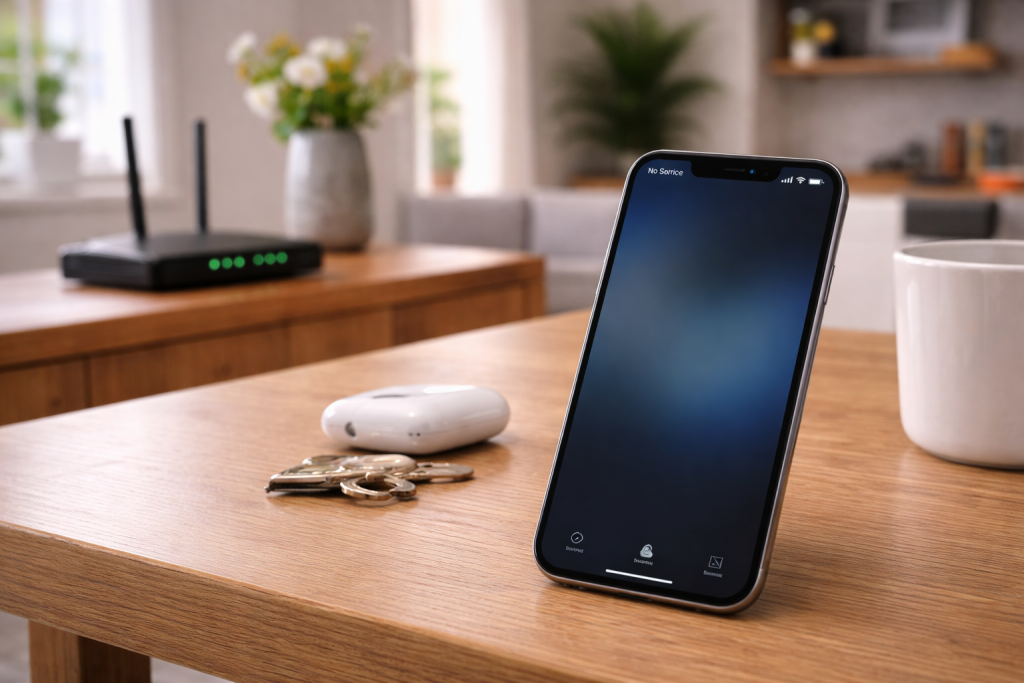
Wi‑Fi Calling on iPhone usually fails in a very specific way: you’ve got solid Wi‑Fi, apps load instantly, but calls won’t place, drop after a few seconds, or the phone stubbornly clings to one bar of 4G/5G instead of switching to Wi‑Fi. In UK homes this often shows up in older brick terraces, flats with foil-backed insulation, or anywhere the indoor signal is marginal.
The confusing part is that nothing looks “broken”. The Wi‑Fi icon is there. iMessage works. Even FaceTime Audio might work. Yet the iPhone won’t show “Wi‑Fi Call” in the status area, or it flashes briefly and disappears. That usually means the carrier registration over Wi‑Fi isn’t completing, not that your broadband is down.
I see this most often after an iOS update or a SIM/eSIM change, when the phone’s carrier profile and emergency address registration get out of sync. The fix is rarely one magic toggle; it’s a chain of small checks that either allow the Wi‑Fi tunnel to form, or prove your network is blocking it.
What Wi‑Fi Calling is actually doing (and what tends to break)
On an iPhone, Wi‑Fi Calling is not “calling over the internet” in the casual sense. It’s the phone creating a secure connection back to your mobile network’s IMS (IP Multimedia Subsystem). Your router and ISP still matter because the phone needs to pass specific traffic types cleanly, and it needs stable DNS and time sync to complete registration.
When it fails, it usually fails at one of these points:
- Carrier provisioning: your line isn’t enabled for Wi‑Fi Calling, or the carrier profile on the iPhone is stale.
- E911/Emergency address registration: UK networks still require an address for emergency services routing. If the prompt never completes, Wi‑Fi Calling may stay disabled.
- Wi‑Fi network policy: captive portals, “guest” isolation, or router firewalls can block the IPSec/IKE traffic used by Wi‑Fi Calling.
- VPN/Private Relay: some tunnels and privacy layers interfere with the carrier’s registration path.
- Wi‑Fi instability: jitter and roaming between access points can drop the IMS registration even when browsing looks fine.
One practical tell: if SMS works but calls don’t, you’re not looking at a general Wi‑Fi problem. You’re looking at IMS registration failing or being blocked.
Fixes that work in the real order (not the “toggle everything” approach)
1) Confirm your iPhone and plan actually support Wi‑Fi Calling
Start with the boring check because it saves time. Go to Settings > Mobile Service > Wi‑Fi Calling. If the option is missing entirely, it’s usually one of these:
- The carrier doesn’t support Wi‑Fi Calling on that plan/SIM type.
- The iPhone is on an unsupported carrier bundle (common after moving a SIM between phones).
- Restrictions from a corporate/MDM profile.
If the toggle exists but won’t stay on, treat it as a provisioning/registration issue and keep going.
2) Force a carrier settings refresh (this fixes “it worked yesterday” cases)
Carrier settings updates are silent, and they can get stuck. Do this:
- Connect to Wi‑Fi.
- Go to Settings > General > About.
- Wait on that screen for 30–60 seconds.
- If a prompt appears for a carrier update, accept it.
In practice, this step fixes the problem in about half of cases where Wi‑Fi Calling disappeared after an iOS update.
If you want Apple’s official wording for the feature and requirements, use Apple’s Wi‑Fi Calling support page.
3) Re-run emergency address registration (UK networks are picky here)
When you enable Wi‑Fi Calling, UK carriers typically ask for an emergency address. If that process was interrupted (poor signal, VPN on, Wi‑Fi portal), the toggle can look enabled but the service never registers.
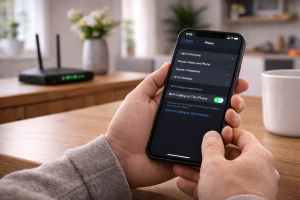
- Go to Settings > Mobile Service > Wi‑Fi Calling.
- Toggle Wi‑Fi Calling on This iPhone off.
- Restart the iPhone.
- Toggle it back on and complete any address prompts.
If you don’t get the prompt but Wi‑Fi Calling still won’t register, the address may be stuck server-side. That’s a carrier support job, not an iPhone setting.
4) Check the status indicator the right way
People look for the wrong sign. Depending on model and iOS version, you may see “Wi‑Fi Call” in the status area, or it may only show inside Control Centre or the Phone app call screen.
- Turn on Airplane Mode, then turn Wi‑Fi back on.
- Wait 30–90 seconds.
- Try calling voicemail (a simple test that avoids contact routing quirks).
If calls work in Airplane Mode with Wi‑Fi on, Wi‑Fi Calling is genuinely active. If they fail, you’ve removed the mobile network from the equation and exposed a Wi‑Fi/registration block.
5) Eliminate VPN, iCloud Private Relay, and “security” DNS apps temporarily
Wi‑Fi Calling needs clean routing and predictable DNS. I’ve watched iPhones sit forever on “Enabling…” while a VPN was connected, even though everything else looked normal.
- Disable any VPN: Settings > VPN (or Settings > General > VPN & Device Management).
- If you use iCloud+ Private Relay: Settings > [your name] > iCloud > Private Relay (toggle off for testing).
- If you run an ad-blocking DNS profile/app, pause it for 10 minutes.
If Wi‑Fi Calling starts working immediately after disabling one of these, you’ve found the conflict. The long-term fix is usually split tunnelling (if your VPN supports it) or changing the DNS filtering mode.
6) Fix the Wi‑Fi network, not the iPhone: router settings that block Wi‑Fi Calling
Wi‑Fi Calling commonly uses IPSec (IKEv2) with NAT traversal. Some routers and ISP “security” features interfere. The iPhone can’t negotiate around a router that drops the traffic.
On your router, check for and adjust:
- Guest Wi‑Fi isolation: avoid guest networks for Wi‑Fi Calling tests. They often block VPN-like traffic.
- IPv6 quirks: if your ISP/router has broken IPv6, Wi‑Fi Calling can flap. Temporarily disable IPv6 to test.
- SIP ALG / VoIP helpers: disable SIP ALG. It’s meant for VoIP phones and can mangle traffic.
- Firewall “high” modes: try a standard/default firewall profile rather than “strict”.
- DNS filtering: family filters can block carrier domains used for IMS registration.
If you’re already fighting broader Wi‑Fi instability at home (random drops, sticky roaming, weak 5GHz coverage), fix that first. The complete UK Wi‑Fi troubleshooting guide is the right place to start when the network itself is unreliable.
7) Do a targeted network reset (and know what it will break)
If the iPhone has a corrupted Wi‑Fi profile or stale IMS parameters, resetting network settings often clears it. It also wipes saved Wi‑Fi passwords and VPN profiles, so do it when you can rejoin networks.
- Go to Settings > General > Transfer or Reset iPhone > Reset.
- Tap Reset Network Settings.
- Rejoin your Wi‑Fi and re-enable Wi‑Fi Calling.
This is the most common issue I see on UK devices sold before 2024 that have been through multiple SIM swaps and iOS major upgrades.
8) Update iOS, but don’t assume “latest” means “clean”
Wi‑Fi Calling depends on modem firmware and carrier bundles, both delivered through iOS updates. Check Settings > General > Software Update. Install any update available.
If you updated recently and the problem began immediately after, don’t roll back (you can’t, realistically). Instead, focus on carrier settings refresh, address re-registration, and network reset. Those are the levers that change behaviour without downgrading iOS.
9) Test on a different Wi‑Fi network to separate “router” from “carrier”
A quick isolation test saves hours:
- Try Wi‑Fi Calling on a different broadband line (friend’s house) or a phone hotspot.
- If it works elsewhere, your home router/ISP path is the issue.
- If it fails everywhere, it’s provisioning, SIM/eSIM, or the iPhone.
Hotspot testing is especially revealing because it changes the NAT and firewall behaviour completely. I’ve seen Wi‑Fi Calling fail on certain mesh systems but work instantly when the iPhone is connected via a basic 4G hotspot.
Situations that look like Wi‑Fi Calling failure (but aren’t)
Weak mobile signal can prevent initial registration
Some networks want a brief mobile signal handshake before they’ll allow Wi‑Fi Calling to register, especially after a SIM change. If you’re in a total not-spot, take the iPhone somewhere with usable signal, enable Wi‑Fi Calling, complete the prompts, then return home.
Dual SIM behaviour: the “wrong line” is trying to register
On iPhones with two lines (eSIM + physical SIM, or dual eSIM), Wi‑Fi Calling can be enabled per line. Check:
- Settings > Mobile Service and tap each plan.
- Enable Wi‑Fi Calling on the line you actually use for calls.
- Confirm Default Voice Line is set correctly.
I’ve had devices on my bench where Wi‑Fi Calling was enabled… on the data-only travel eSIM. Calls still failed, naturally.
Calling works, but incoming calls don’t ring
If outgoing calls work over Wi‑Fi but incoming calls go straight to voicemail, suspect registration dropouts caused by Wi‑Fi sleep/roaming. Check:
- Low Power Mode (can make background networking more aggressive).
- Mesh Wi‑Fi roaming: the phone may bounce between nodes.
- Router band steering: some setups push the iPhone between 2.4GHz and 5GHz.
Stabilising the Wi‑Fi connection (or temporarily locking the iPhone to one band via router settings) often fixes the “incoming calls don’t ring” symptom.
Common failure patterns on UK networks (what I see in the field)
EE: works on mobile, won’t switch to Wi‑Fi at home
Often a router policy issue. EE Wi‑Fi Calling is sensitive to strict firewall settings and some DNS filtering. Testing on a hotspot is the fastest way to confirm. If it works on hotspot but not home broadband, focus on SIP ALG, IPv6 oddities, and guest network isolation.
O2: Wi‑Fi Calling toggle on, but no “Wi‑Fi Call” indicator
This frequently comes down to provisioning not completing, especially after moving from physical SIM to eSIM. Toggling off/on and redoing the emergency address prompt helps. If the prompt never appears, you’re likely stuck at the account level and need O2 to reset Wi‑Fi Calling on the line.
Vodafone: drops calls after 10–30 seconds
That pattern screams NAT or IPSec instability. I’ve seen it on certain ISP routers where the NAT table is aggressive or where “DoS protection” misclassifies the tunnel. A different router (even temporarily) is a clean test.
Three: Wi‑Fi Calling works, but only on some Wi‑Fi networks
Three tends to expose captive portal problems. Hotel Wi‑Fi, workplace Wi‑Fi, and some public hotspots block the traffic needed for Wi‑Fi Calling. If it works at home but not elsewhere, it’s not your iPhone.
Mistakes that waste time
- Assuming good Wi‑Fi speed means Wi‑Fi Calling will work: speed tests don’t show blocked IPSec or broken DNS.
- Testing on guest Wi‑Fi: guest networks are designed to restrict traffic. Use the main SSID.
- Leaving VPN on “just for a minute”: even if the VPN is stable, the carrier may reject registration from that IP range.
- Ignoring the emergency address prompt: dismissing it can leave Wi‑Fi Calling half-enabled.
- Changing ten router settings at once: you lose the ability to identify the actual blocker.
One I still see: people reset the whole iPhone before trying a different Wi‑Fi network. That’s backwards. Prove whether the problem follows the phone or stays with the router.
Device, SIM and software details that matter more than people expect
eSIM migrations can leave the line in a weird state
Moving to eSIM is normally smooth, but Wi‑Fi Calling is one of the features that can fail silently afterwards. If you migrated recently and Wi‑Fi Calling hasn’t worked since, ask your carrier to re-provision Wi‑Fi Calling on the line. You can do every iPhone-side step correctly and still be blocked upstream.
Carrier bundle version and “About” screen behaviour
If Settings > General > About never triggers a carrier update prompt, it doesn’t prove you’re current. It only means there isn’t an update being offered at that moment. Still, waiting on that screen is worthwhile because it’s one of the few user-accessible ways to force the check.
Wi‑Fi 6/6E and mesh systems: great throughput, messy roaming
Wi‑Fi Calling hates unstable roaming. A mesh that’s tuned for speed can still cause brief drops as the iPhone moves around the house. If calls drop when you walk upstairs, that’s not a carrier issue. It’s roaming or band steering.
If you’re also seeing the iPhone disconnect from Wi‑Fi entirely, fix that first: Fix iPhone Wi‑Fi randomly disconnecting at home.
Workplace Wi‑Fi and Microsoft/enterprise networks
Corporate Wi‑Fi often blocks VPN-like traffic by design. If Wi‑Fi Calling fails only at work, you’re probably not allowed to fix it yourself. The network team would need to permit the required traffic. For background on how Windows and enterprise networks treat VPN-style tunnels, Microsoft’s support documentation is a useful reference point when you’re explaining the issue to IT.
Conclusion
When Wi‑Fi Calling won’t work on an iPhone in the UK, the failure is usually either provisioning (carrier settings, emergency address, SIM/eSIM state) or the Wi‑Fi path blocking the tunnel (guest isolation, SIP ALG, strict firewalling, broken IPv6, VPN/Relay). The fastest route is to force a carrier settings refresh, re-run the Wi‑Fi Calling registration, then test on a different Wi‑Fi network to decide whether you’re dealing with the phone or the router.
If it works on a hotspot but not on your home broadband, stop poking iOS settings and fix the network edge. If it fails everywhere, push the carrier to re-provision Wi‑Fi Calling on the line, especially after an eSIM migration.
FAQ
Why does Wi‑Fi Calling work on my iPhone at home but fail on hotel Wi‑Fi with a login page?
Hotel Wi‑Fi often uses a captive portal and restrictive firewall rules that block IPSec/IKE traffic. Your iPhone may connect for browsing but still be unable to register Wi‑Fi Calling. Test after completing the portal login, and if it still fails, it’s likely blocked by the hotel network with no iPhone-side fix.
Why did Wi‑Fi Calling stop working on my iPhone right after switching from a physical SIM to eSIM on a UK network?
eSIM migrations can leave Wi‑Fi Calling provisioning in a half-enabled state on the carrier side. Toggling Wi‑Fi Calling off/on and restarting can re-trigger registration, but if the emergency address prompt never appears or it won’t stay registered, your carrier usually needs to reset Wi‑Fi Calling on the line.
Does Wi‑Fi Calling still work if I keep a VPN connected all the time on my iPhone?
Sometimes, but it’s a common conflict. A VPN can change routing and DNS in ways that prevent IMS registration, even when browsing works. Disable the VPN to test; if Wi‑Fi Calling immediately registers, you’ll need split tunnelling or a different VPN/DNS setup.
Why can I make Wi‑Fi Calling calls, but incoming calls go straight to voicemail overnight when my iPhone is on Wi‑Fi?
That pattern points to Wi‑Fi Calling registration dropping while the phone is idle, often due to Wi‑Fi sleep behaviour, mesh roaming, or band steering. Try disabling Low Power Mode, stabilising the Wi‑Fi connection (single access point test), and avoiding guest networks. If it only happens on one router, the router is the culprit.
Why does my iPhone show Wi‑Fi Calling enabled, but it never displays “Wi‑Fi Call” and calls still use 4G/5G?
The toggle can be on while registration fails. Carrier settings may be stale, the emergency address registration may not have completed, or the Wi‑Fi network may be blocking the tunnel. Force a carrier settings refresh in Settings > General > About, re-enable Wi‑Fi Calling, then test in Airplane Mode with Wi‑Fi on to confirm whether Wi‑Fi Calling is actually active.
Recommended gear on Amazon UK
- A router that lets you disable SIP ALG and properly manage IPv6 avoids the NAT and firewall quirks that commonly break iPhone Wi‑Fi Calling registration. See suitable options
- Ethernet backhaul reduces roaming instability and jitter between nodes, which helps prevent Wi‑Fi Calling dropping incoming calls when you move around the house. Comparable items
- Adding a simple switch can make it easier to wire access points or mesh nodes for backhaul, removing the Wi‑Fi hop that often destabilises Wi‑Fi Calling. See suitable options
- Channel congestion and interference can look like a carrier problem; checking signal quality and overlap helps you fix the Wi‑Fi layer that Wi‑Fi Calling depends on. See suitable options







