
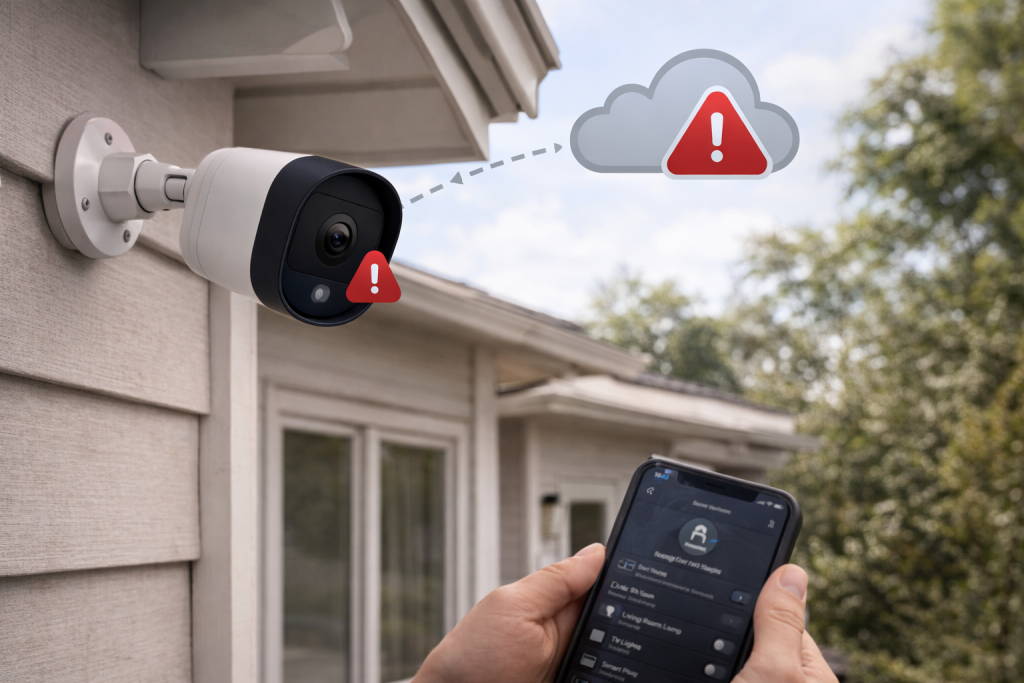
A security camera that records locally but refuses to upload to the cloud is one of those faults that looks “obviously Wi‑Fi” until you start checking the details. You’ll still get live view, maybe even motion alerts, yet the timeline stays empty or clips never appear. In UK homes this often shows up after a router swap, a broadband outage, or a phone app update that quietly changes permissions.
The failure usually isn’t a single broken thing. Cloud upload depends on time being correct, the camera reaching specific servers over specific ports, the account being in good standing, and the upstream connection staying stable long enough to push video. If any one part is flaky, the camera will look fine on the surface while the cloud side fails.
I’ve also seen the opposite: the camera is genuinely offline, but the app caches the last status and keeps showing a thumbnail as if everything’s normal. Treat the app as a hint, not proof.
What actually breaks when cloud upload stops
Cloud upload is a chain: camera firmware and clock → local network (Wi‑Fi/Ethernet) → router DNS/NAT/firewall → ISP uplink → vendor cloud → your account plan and retention settings. The camera doesn’t “upload to the internet” in a generic way; it establishes outbound sessions to vendor endpoints, often over TLS, sometimes with additional UDP paths for media transport.
Common failure points I see in the field:
- Time drift or wrong timezone breaks certificate validation or causes clips to be indexed incorrectly. The camera may record, but the cloud rejects or misfiles uploads.
- DNS issues where the router hands out a DNS server that’s slow, filtered, or intermittently failing. The camera can’t resolve the upload hostnames reliably.
- NAT/Firewall quirks after changing routers (especially “secure” modes) that block outbound UDP or aggressive session timeouts that kill long uploads.
- Upstream instability on broadband: short dropouts won’t always kill live view, but they will corrupt or stall clip uploads.
- Account/plan state (expired subscription, payment failure, region mismatch) where the device stays paired but cloud recording is disabled.
- Local storage pressure on cameras that spool to internal/SD first, then upload. If the buffer fills or the SD card errors, uploads stop even though motion detection still fires.
One detail that catches people out: many cameras prioritise live view responsiveness over background upload. If your Wi‑Fi is marginal, you’ll still be able to open the stream, but the camera will keep dropping the background transfer.
Pinpoint the fault with a disciplined check order
Don’t start by factory resetting. That’s the fastest way to lose logs, break pairing, and end up troubleshooting two problems at once. Work from the outside in: cloud status → internet uplink → router behaviour → camera network → camera storage/firmware.
1) Confirm it’s a cloud problem, not an app display problem
- Check the camera’s timeline/recordings from a second device (tablet, partner’s phone) on a different network if possible (mobile data).
- Log out and back into the camera app. Cached sessions can show stale status.
- If the vendor offers a web portal, use it. If web shows no clips either, you’re dealing with upload, not UI.
I’ve had iPhones show “Uploading…” forever while the same account on Android showed clips arriving normally. That’s not magic; it’s usually an app permission or background refresh issue on the phone.
2) Check subscription/retention settings before touching the network
- Open the camera’s plan/recording settings and confirm cloud recording is enabled for that device.
- Look for “trial ended”, “payment failed”, or “storage full” messages.
- Confirm the camera is assigned to the correct home/location in the app (some ecosystems separate homes, and cloud plans attach to one).
If you recently changed region settings or migrated accounts, the camera can remain visible but lose cloud entitlements.
3) Power cycle properly (camera and network)
- Unplug the camera for 30 seconds. If it has a battery, remove it if the design allows, or use the reboot option in-app.
- Reboot the router. If you use an ONT (common with full fibre), reboot that too.
- Wait for broadband to fully re-establish before powering the camera back up.
In practice, this step fixes the problem in about half of cases when the root cause is a stuck network session or a camera process that’s wedged.
4) Verify upstream upload capacity and stability (not just speed)
- Run a speed test on a phone connected to the same Wi‑Fi band as the camera. Pay attention to upload, not download.
- If you’re on FTTC/VDSL, upload can be low and sensitive to line noise. A camera trying to push multiple clips can stall.
- Check if uploads fail at specific times (evenings). Congestion can show up as jitter and packet loss rather than a low headline speed.
If you can, temporarily connect the camera to a phone hotspot. If cloud uploads start working on hotspot, you’ve proved the camera and account are fine and your home network/ISP path is the issue.
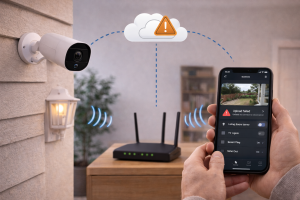
5) Fix the most common Wi‑Fi causes: band, signal, and roaming
- 2.4GHz vs 5GHz: many cameras are 2.4GHz-only. If your router uses a single SSID for both bands, band steering can cause repeated re-association. Create a dedicated 2.4GHz SSID for IoT if your router supports it.
- Mesh roaming: cameras often cling to a distant node with weak signal. Force the camera to rejoin near the closest node (power it up near that node, then move it back).
- Signal quality: one bar can still stream live video in bursts, but uploads need sustained throughput. If the camera is outdoors behind brick, assume the link is worse than the app suggests.
This is the most common issue I see on UK devices sold before 2024: they cope with live view on marginal 2.4GHz, but cloud upload quietly fails when retries pile up.
6) Check router DNS and try a known-good DNS provider
- In the router settings, change DNS to a reliable public resolver (or your ISP’s if you’ve set something unusual).
- Reboot the router after changing DNS so clients renew settings.
- If your router supports it, disable “DNS proxy” features that intercept queries.
DNS faults are sneaky because everything else “works”. The camera may resolve the live-view endpoint but fail on the recording upload hostnames.
For Google Wi‑Fi/Nest WiFi DNS behaviour and troubleshooting, the official reference is Google Wi‑Fi and Nest WiFi DNS and network troubleshooting.
7) Look for router features that break IoT uploads
- AP/client isolation: can block device discovery and sometimes breaks cloud handshakes in ecosystems that use local pairing.
- “IoT network” or guest network: useful, but some vendors require the phone and camera to be on the same LAN for setup and periodic re-auth.
- Firewall “High” / “Block unknown services”: can block outbound UDP used for media transport or keep-alives.
- VPN on router: if you route all traffic through a VPN, some camera clouds will reject the connection or rate-limit it.
- IPv6: occasionally causes partial connectivity. If your router has buggy IPv6, try disabling IPv6 temporarily to test.
If you’re using a “smart” ISP router, I’ve seen security modes turn on after firmware updates and start blocking outbound sessions that look like continuous streaming.
8) Ensure the camera’s time and firmware are sane
- Check the camera’s timezone and daylight saving settings in the app.
- Trigger a manual time sync if the vendor offers it, or reboot to force NTP sync.
- Update camera firmware and the mobile app. If the app updated recently, update the camera too—mismatches can cause token/auth issues.
Apple HomeKit Secure Video setups are particularly sensitive to account state and time sync across devices. If you’re using HKSV, Apple’s own troubleshooting pages are the cleanest baseline: Apple support for HomeKit and Home app camera recording issues.
9) If the camera uses an SD card as a buffer, treat the card as guilty until proven otherwise
- Power down the camera and reseat the SD card.
- If the app shows SD errors, back up what you can and reformat the card in the camera (not on a PC).
- Swap in a known-good high-endurance microSD. Standard cards can fail early in 24/7 write workloads.
When an SD card starts throwing write errors, some cameras keep detecting motion but stop generating uploadable clips because the pre-buffer can’t be written cleanly.
If you need a deeper SD-card-specific workflow, see Fix SD card not recognised by camera.
10) Re-auth the camera without factory resetting (where possible)
- Look for “Reconnect Wi‑Fi”, “Refresh connection”, or “Re-register device” options in the app.
- If the vendor supports it, remove the camera from the home and add it back without wiping settings (some ecosystems keep device identity).
- Only factory reset if the camera cannot obtain a cloud token or remains stuck “offline” despite stable Wi‑Fi.
Factory resets fix pairing problems, but they don’t fix upstream packet loss, DNS failures, or blocked ports. If you reset too early, you’ll just have an unpaired camera that still can’t upload.
Situations that change the diagnosis
Router replaced, same Wi‑Fi name and password, uploads stopped
This looks like it should “just work”, but it often doesn’t. The camera reconnects, yet the cloud token is tied to the old network identity or the new router handles NAT differently. I’ve seen this most with routers that default to WPA3 mixed mode.
- Set Wi‑Fi security to WPA2-Personal temporarily (or WPA2/WPA3 mixed if the camera supports it).
- Disable “Protected Management Frames” if the router exposes it and the camera is older.
- Check if the new router created a separate IoT/guest SSID and the camera ended up there.
Uploads work on mobile hotspot but not on home broadband
That’s a strong sign of router/ISP path issues. Don’t ignore it and keep poking the camera.
- Try different DNS on the router.
- Disable router VPN, ad-blocking, “family filter”, and any security filtering temporarily.
- If you’re on CGNAT (some alt-nets and mobile broadband), outbound should still work, but certain vendor services behave badly. Ask your ISP if you’re behind CGNAT and whether they can offer a public IPv4 option.
Only night-time clips fail, daytime uploads are fine
Night mode increases bitrate (IR noise, more motion from insects, headlights). The camera generates larger clips and the upload queue grows. On a marginal uplink, the queue never clears.
- Lower recording quality for cloud clips (if the vendor allows separate cloud quality).
- Reduce motion sensitivity or set activity zones to avoid constant triggers.
- Check for IR reflection (spider webs, nearby walls) causing continuous motion events.
I’ve stood in front of cameras where the “motion” was just IR bounce off a white soffit. The owner swore it was the cloud service. It wasn’t.
Multiple cameras stopped uploading at the same time
Assume network or account first.
- Check vendor status pages (outages happen).
- Reboot router/ONT.
- Confirm the account is logged in and the plan is active.
If only one camera fails while others upload, focus on that camera’s Wi‑Fi signal, storage, and firmware.
Errors that waste time (and why they don’t help)
- Resetting the camera repeatedly without changing anything else. If the router is blocking the traffic, the camera will fail again after a clean setup.
- Assuming “live view works” means the network is fine. Live view can run over a different path than clip upload, and it tolerates brief dropouts.
- Leaving the camera on a mesh node at the edge of coverage. The app may show “connected”, but the link is retransmitting constantly.
- Using a random microSD card from a drawer. High write workloads kill cheap cards quickly, and the failure mode is often silent.
- Testing on a phone next to the router and concluding Wi‑Fi is strong. The camera is usually mounted in the worst RF spot: brick, metal, outdoor housing, and distance.
If you’re also seeing other smart devices dropping off, your camera problem may be a symptom. The network-side checks in The complete 2026 guide to fixing Wi‑Fi and network issues in UK homes map well to camera reliability.
Device and platform details that matter more than people expect
Battery cameras vs wired cameras
Battery cameras often upload less aggressively to save power. Some only upload on motion events, some batch uploads, and some pause uploads when the battery is low or the temperature is outside range. If uploads fail when it’s cold, check whether the camera is throttling or shutting down the radio.
Wired cameras are simpler, but they can still brown-out if the PSU is marginal. I’ve seen “cloud upload failures” that were actually voltage drop on a long cable: the camera stayed alive, but the Wi‑Fi radio kept resetting under load.
2.4GHz congestion in UK terraces and flats
2.4GHz is crowded. In dense housing, the camera may be fighting neighbours’ routers, baby monitors, and cheap wireless doorbells. You can’t fix the neighbourhood, but you can reduce your own chaos:
- Lock 2.4GHz channel to 1, 6, or 11 (try each for a day; don’t use “auto” if it keeps hopping).
- Reduce channel width to 20MHz for stability.
- Move the access point higher and away from TVs, soundbars, and metal cabinets.
When I’m diagnosing this on-site, the giveaway is uploads that fail in bursts: a few clips arrive, then nothing for 20 minutes, then a flood.
App permissions and background behaviour on phones
Phone settings don’t stop the camera uploading, but they can make it look broken: delayed notifications, missing thumbnails, or a timeline that only updates when you open the app.
- Allow background refresh for the camera app.
- Disable battery optimisation for the app on Android.
- Ensure the app can use mobile data if you’re testing away from home.
If the camera uploads fine but your phone doesn’t show clips promptly, you’re chasing the wrong layer.
When to involve the ISP (and what to ask)
If hotspot works and home broadband doesn’t, and you’ve already tested DNS and disabled filtering, it’s reasonable to suspect ISP-level filtering or routing issues.
- Ask whether family safety or web safe filtering is enabled on your line/account.
- Ask if you’re behind CGNAT and whether a public IPv4 option exists.
- Report the vendor domains/IPs if the ISP wants examples (the camera vendor support pages often list them).
Be specific: “camera can live view but cannot upload clips; works on hotspot; fails on home broadband” gets taken more seriously than “my camera is broken”.
Closing checks that usually settle it
Once you’ve stabilised Wi‑Fi, verified DNS, and confirmed the plan is active, give the camera a clean test window. Trigger a single motion event, wait two minutes, then check the cloud timeline from mobile data. If it appears, keep the camera under observation for a day before declaring victory. Intermittent faults tend to come back at the same time each evening.
If nothing changes after all network and account checks, then a factory reset becomes justified. At that point you’re trying to clear corrupted credentials or a firmware state that won’t recover. If it still won’t upload after a reset on a known-good network (hotspot), treat it as a device fault and push the vendor for replacement.
FAQ
Why does my security camera live stream fine but cloud recordings never upload after a router change?
Live view can use a different transport and tolerates brief dropouts, while clip upload needs stable sessions and correct DNS. After a router change, band steering, WPA3 settings, or new firewall defaults often break the upload path. Try a dedicated 2.4GHz SSID, set Wi‑Fi security to WPA2 temporarily, and change router DNS to a reliable resolver.
Why do my camera clips upload on mobile hotspot but fail on my home Wi‑Fi in the evening?
That pattern points to your home network or ISP path, not the camera. Evening congestion can cause packet loss and jitter that stalls uploads, and router filtering (family safety, ad-blocking, VPN) can interfere with vendor endpoints. Disable filtering features for a test, try different DNS, and check your upload stability rather than download speed.
Why does my outdoor camera stop uploading to the cloud only at night when IR night vision is on?
Night footage is often higher bitrate and triggers more motion events (insects, headlights, IR reflections), which increases upload load. If your uplink is marginal or Wi‑Fi is weak outdoors, the upload queue backs up and clips never arrive. Reduce motion sensitivity, fix IR reflections, and improve signal at the camera location.
Why did my security camera cloud upload stop after a firmware update even though Wi‑Fi shows connected?
Firmware updates can change TLS requirements, time sync behaviour, or how the camera renews cloud tokens. If the camera clock is wrong or DNS is flaky, the device can appear connected but fail authentication to the cloud. Reboot the camera and router, confirm timezone/time sync, then update both the camera firmware and the mobile app to matching current versions.
Does cloud recording still work if my camera SD card is failing or nearly full?
On many models, the SD card acts as a buffer before upload. If the card is throwing write errors or the camera can’t maintain its local spool, it may stop generating uploadable clips while still detecting motion. Reseat the card, reformat in-camera, or swap to a high-endurance microSD to test.
Recommended gear on Amazon UK
- A high-endurance card reduces silent write errors that stop cameras from spooling clips locally before they upload to the cloud. See suitable options
- Improving signal quality at the mounting point prevents the stop-start throughput that lets live view work but causes cloud uploads to stall. Comparable items
- A correctly rated PSU avoids brown-outs that reset the camera’s radio under load, a common cause of intermittent upload failures on wired models. Relevant examples
- A wired link removes 2.4GHz congestion and roaming issues, which are frequent reasons cloud uploads fail in dense UK Wi‑Fi environments. Relevant examples







