
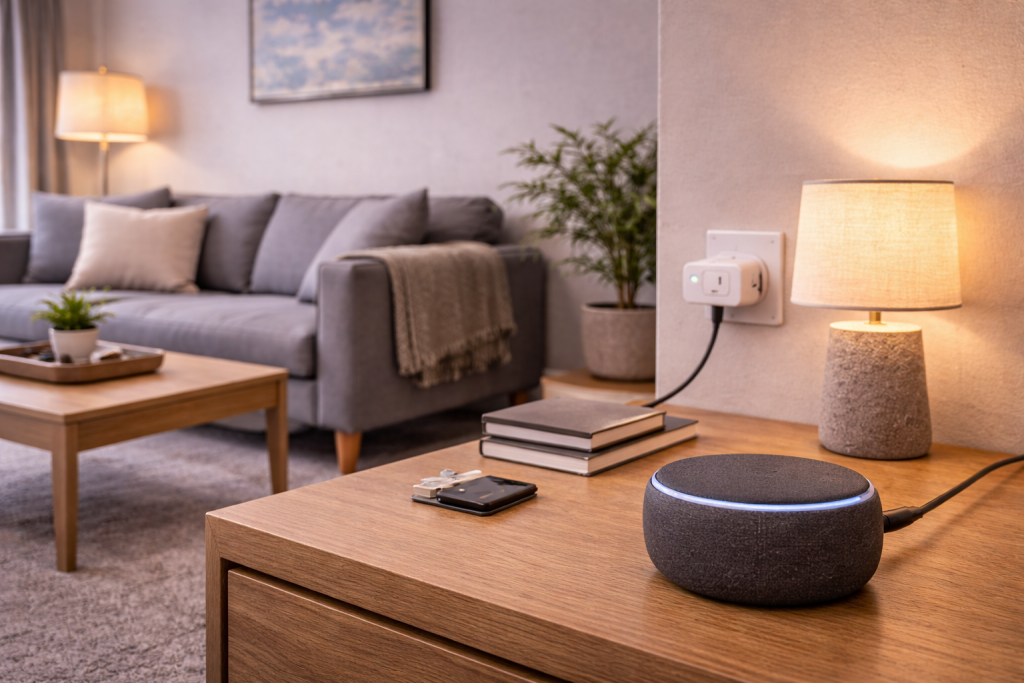
A smart home scene that refuses to trigger is one of those problems that feels random until you look at the chain of dependencies. You tap “Goodnight” and half the lights ignore it. Or a motion-triggered scene works all day, then fails after midnight. Most of the time nothing is actually “broken” — the automation is failing a condition, a device is unreachable for a few seconds, or the platform has quietly lost permission to control something.
I see this a lot in UK homes where the router is doing double duty (ISP hub plus mesh), and the smart home is spread across Wi‑Fi, Zigbee, Thread and Bluetooth. Scenes look simple, but they’re usually a bundle of commands sent to multiple devices, often via different bridges. One weak link and the whole thing appears dead.
The fastest way to fix it is to stop treating the scene as one object and instead test each part: trigger, conditions, controller, transport (Wi‑Fi/Zigbee/Thread), then the target devices. Once you do that, the failure usually shows itself.
What actually breaks when a scene won’t run
A scene/automation has four moving parts: a trigger (time, sensor, geofence, voice), optional conditions (only if someone is home, only after sunset), an execution engine (Alexa routines, Google Home automations, HomeKit automations, SmartThings, Home Assistant), and the devices being controlled.
When it fails, it’s rarely the “scene” itself. Common technical failure points:
- Trigger never fires: time zone drift, location permission revoked, sensor not reporting, voice intent not matching.
- Trigger fires but conditions block it: presence shows “away”, phone in Low Power Mode, “only at night” window mis-set, sunrise/sunset wrong.
- Execution engine can’t reach devices: hub offline, cloud outage, local network split (2.4GHz vs 5GHz isolation), IPv6 quirks, DNS filtering.
- Commands sent but devices ignore them: device firmware bug, rate limiting, Zigbee mesh weak, Thread border router missing, Bluetooth device out of range.
One detail that catches people: many platforms mark a scene as “ran” even if half the devices didn’t comply. The log (if available) will show success, because the platform successfully sent commands. That’s why you need to test reachability and device state, not just whether the automation fired.
Pinpoint the failure with a controlled test
Before changing settings, force the problem into a repeatable pattern. If you can’t reproduce it, you’ll end up “fixing” it by accident and it will return next week.
- Run the scene manually from the app. If manual run fails, the trigger is not your main issue.
- Run a single-device version of the scene (one light, one plug). If that works, the failure is either a specific device or the scene is too heavy/fast for the platform.
- Change the trigger temporarily: swap motion for a button press, or time for a manual shortcut. If it works with a different trigger, focus on the original trigger path.
- Check device control outside the scene: toggle the same devices individually. If individual control is flaky, scenes will be flaky too.
In practice, this step fixes the problem in about half of cases because it reveals a single device that’s intermittently offline, and everything else is fine.
Step-by-step fixes that don’t waste time
1) Confirm the controller account and home are correct
Scenes often “disappear” into the wrong home/structure after app reinstalls or account switching.
- Open the smart home app and verify you’re in the correct Home (HomeKit), Household (Google), or Profile (Alexa).
- If multiple people manage the home, confirm the scene wasn’t created under someone else’s account and shared incompletely.
- On iOS, check the active iCloud account matches the Home owner for HomeKit automations.
I’ve watched a HomeKit automation “fail” for an hour because the iPhone had switched to a secondary iCloud account used for App Store purchases. Everything looked normal until you opened Home settings.
2) Fix the trigger first (time, sensor, location, voice)
Time-based scenes fail when time zone, daylight saving, or hub time is wrong.
- Re-save the automation time without changing it (forces a refresh).
- If the platform supports it, switch from “sunset” to a fixed time for one day to test reliability.
- Check the hub/controller device has correct time and region (UK) and isn’t stuck on a VPN exit node abroad.
Sensor-triggered scenes fail when the sensor reports late or not at all.
- Open the sensor in the app and watch live updates. If the “last updated” time is stale, you’re chasing a connectivity problem, not an automation problem.
- Replace the sensor battery even if it claims 40–60%. Some Zigbee sensors get unreliable well before “low”.
- Move the sensor temporarily closer to the hub/bridge to see if it becomes consistent.
Location/geofence scenes fail when phone permissions or background refresh are restricted.
- On iPhone: ensure Location is set to Always for the relevant app, and Precise Location is enabled where required.
- On Android: disable battery optimisation for the smart home app and Google Play services where applicable.
- Test by leaving Wi‑Fi on; some geofences behave differently when the phone drops to mobile data.
Voice-triggered scenes fail when the phrase matches multiple routines or devices.
- Rename the scene to something that doesn’t overlap with a device name (avoid “Kitchen”, “Lights”, “TV”).
- Check for duplicate routines with the same phrase.
- If you use multiple assistants, avoid identical scene names across platforms.
3) Remove conditions that silently block execution
Conditions are the classic “it works sometimes” culprit. Presence, time windows, and device-state conditions can all block a run without making noise.
- Temporarily remove all conditions and retest.
- If it starts working, add conditions back one at a time.
- Pay attention to “Only when someone is home” rules. Presence is often wrong when phones are in power saving modes or when household members share a single login.
This is the most common issue I see on UK devices sold before 2024: presence-based automations tied to a single phone, then the household changes phones or disables background activity and nothing triggers reliably again.
4) Check the hub/bridge path (HomePod/Apple TV, Echo, Nest, SmartThings)
If your platform uses a hub, scenes depend on it being online and on the same network segment as the devices.
- Reboot the hub/controller (not just the app). For HomeKit, restart the active home hub (HomePod/Apple TV). For Alexa/Google, reboot the speaker/display if it’s acting as a controller for local devices.
- Confirm the hub is on the same Wi‑Fi as the devices it controls. Guest networks and “isolation” settings break local discovery.
- If you have multiple potential controllers (two HomePods, Apple TV plus HomePod), check which one is active and whether it has a weak Wi‑Fi signal.
On a bench test, I’ve seen HomeKit automations fail only when the active hub flips to a HomePod mini at the far end of the house. The automation engine was fine; the hub’s Wi‑Fi wasn’t.
5) Fix network splits that make devices look “online” but unreachable
Scenes are sensitive to brief dropouts. A device can show as online in its own app (cloud path) while being unreachable locally (LAN path), which breaks cross-platform scenes.
- Unify SSIDs carefully: if you run separate 2.4GHz and 5GHz names, make sure your phone and hub are on the same one during setup. Many IoT devices are 2.4GHz-only.
- Disable AP isolation on the Wi‑Fi network used by smart devices.
- Check mesh backhaul: if a mesh node is on a weak wireless backhaul, Zigbee/Thread bridges connected to it can become intermittently unreachable.
- DNS filtering: Pi-hole/ad blockers can block device cloud endpoints, causing routines to stall. Temporarily bypass DNS filtering to test.
If your wider network is unstable, it’s worth fixing that first. Wi‑Fi and network fixes for UK homes covers the usual ISP hub and mesh pitfalls without guesswork.
6) Slow the scene down (rate limits and device queues)
Some platforms and bridges don’t like being hit with ten commands at once. You’ll see partial execution: a couple of lights change, the rest ignore it.
- Add short delays (1–3 seconds) between groups of actions if your platform supports it.
- Split one big scene into two: “Goodnight – Lights” and “Goodnight – Locks/Heating”. Trigger the second from the first if possible.
- Avoid mixing cloud-only devices with local devices in the same critical automation. If the cloud device stalls, the platform may stop processing the rest.
Seen most often with budget Wi‑Fi bulbs and plugs that share a single vendor cloud. The scene “runs”, but the vendor API throttles and half the commands never land.
7) Re-authorise integrations after updates
After app updates, password changes, or enabling 2FA, integrations can keep stale tokens. The automation still exists, but it can’t control the target service.
- In Alexa/Google Home, remove and re-link the relevant skill/service.
- For HomeKit bridges (Hue, Aqara, etc.), reboot the bridge and confirm it still shows as connected in Home.
- If you changed your router, confirm the bridge didn’t pick up a new IP and get blocked by firewall rules.
For Apple-specific permission and Home hub behaviour, Apple’s Home support pages are the quickest way to confirm what the platform expects. Use Apple Home and HomeKit support to cross-check settings without relying on forum folklore.
8) Validate device health: firmware, power, and radio mesh
If one device is the weak link, scenes will look unreliable even though the platform is behaving correctly.
- Firmware: update the bridge and the end devices. If a new firmware coincides with failures, roll back isn’t usually possible, so isolate the device from critical scenes.
- Power: smart plugs behind extension leads and switched sockets are a quiet killer. If someone turns the wall switch off, the scene can’t reach the device.
- Zigbee mesh: ensure you have enough mains-powered Zigbee routers (plugs, in-wall modules) to carry traffic. Battery sensors don’t route.
- Thread: if you rely on Thread devices, confirm you have a working border router (some ecosystems need a specific hub model).
If your scene controls smart lights via Alexa and they’re not responding reliably even outside scenes, fix that first. Fix smart lights not responding to Alexa is the same problem, just without the automation layer masking it.
Real-world failure patterns I see in UK homes
“It only fails overnight.” Often a router scheduled reboot, ISP maintenance window, or a mesh node doing an automatic channel change. If your scene runs at 01:00–04:00 and fails, check router logs and disable scheduled restarts temporarily.
“It works when I press the button, not when motion triggers it.” Motion sensors can be chatty or slow depending on protocol. Zigbee motion sensors sometimes report “motion” but not “clear” reliably when the mesh is weak, so your automation never re-arms. Moving a single Zigbee plug to act as a router near the sensor can change behaviour immediately.
“It stopped after I changed broadband provider.” New ISP hubs (and some mesh kits) default to client isolation, aggressive band steering, or IPv6 settings that break older IoT devices. I’ve had Vodafone and Sky hubs behave perfectly for phones and laptops while quietly dropping multicast discovery that smart home controllers rely on.
“Only one brand of device ignores the scene.” That’s usually cloud latency or an expired integration token. If the vendor’s own app is slow at the same time, the scene is just exposing it.
Common mistakes that keep scenes broken
- Rebuilding the scene before checking the trigger. If presence is wrong, rebuilding the scene gives you the same failure with a fresh name.
- Assuming ‘online’ means reachable. Cloud status can be green while local control is dead, especially with DNS filtering or network segmentation.
- Mixing guest Wi‑Fi and main Wi‑Fi. A hub on the main network can’t reliably discover devices on guest Wi‑Fi.
- Overloading one scene. Ten actions across three ecosystems is asking for partial execution. Split it.
- Renaming devices without checking routines. Some platforms keep references by name; others by ID. Either way, renames can create duplicates and ambiguous voice triggers.
I’ve also seen people chase phantom bugs caused by a single switched socket. The plug was “offline” every evening because someone turned off the wall switch to save standby power. Scenes can’t fix that.
Hardware and software details that matter more than people think
Router features: Band steering, “smart connect”, and automatic channel selection can destabilise 2.4GHz IoT devices. If scenes fail at random times, lock 2.4GHz to a sensible channel (1, 6, or 11) and reduce channel width to 20MHz.
IPv6: Some smart home stacks behave oddly when IPv6 is enabled but poorly implemented by the ISP router. If you see devices alternating between reachable and unreachable, test with IPv6 disabled for a day. Don’t leave it off permanently unless it clearly fixes the issue.
Phone OS power management: Presence and geofence triggers depend on background services. Android battery optimisation and iOS Focus/Low Power Mode can delay location updates. Microsoft’s and Google’s support docs are useful for confirming what “allowed” looks like on a current build. Use Google Home and Android automation support when you need the platform-specific permission checklist.
Matter and multi-admin setups: Matter devices can be shared across ecosystems, but the “controller of record” still matters. If you commissioned a device in one app and later added it elsewhere, scenes can fail if the original controller is offline or the fabric is misconfigured. If a Matter device is the only one failing, remove it from all controllers and recommission cleanly.
Bridges vs direct Wi‑Fi: Hue-style bridged lighting tends to be more reliable for scenes than cheap Wi‑Fi bulbs, because the bridge handles local traffic and retries. If you’re building scenes that must run every time (security lighting, morning routines), protocol choice matters.
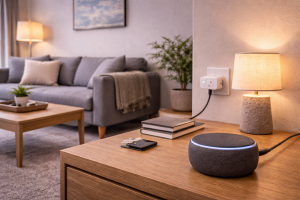
Conclusion
When scenes don’t trigger, treat it like a signal path problem: confirm the trigger fires, strip conditions, verify the controller/hub is stable, then chase network splits and the one device that’s intermittently unreachable. Once you’ve isolated the failing link, the fix is usually straightforward — re-authorise an integration, stabilise Wi‑Fi, strengthen a Zigbee mesh, or slow the scene down so bridges can keep up.
If you only change one thing, make it this: build a minimal test automation that you can run on demand. It turns a “random” smart home into something you can actually diagnose.
FAQ
Why do my HomeKit scenes run manually but automations don’t trigger after an iOS update overnight?
Manual runs prove device control still works, so the failure is usually the trigger path: Home hub selection changed, location permissions reset, or a condition is blocking execution. Check which Home hub is active, reboot it, then temporarily remove conditions (presence/time window) and re-save the automation.
Why does my Alexa routine only trigger some lights but not all when I say the phrase in the evening?
That pattern points to rate limiting or a flaky subset of devices. Test by controlling the failing lights individually in Alexa; if they lag, fix connectivity first. If individual control is fine, add short delays between actions or split the routine into smaller chunks so commands aren’t fired simultaneously.
Why do my Google Home automations stop working when my phone is on battery saver or low power mode?
Battery saver modes restrict background location and network activity, which breaks presence and geofence triggers. Disable battery optimisation for Google Home and related services, and ensure location permission is set to allow background access. As a test, switch the automation to a time trigger and see if it becomes reliable.
Why does my motion sensor trigger work in daylight but fail at night when the house is quiet?
At night, the issue is often not “darkness” but radio conditions: fewer devices active, a mesh route changes, or the sensor is marginal on signal and misses reports. Replace the battery, move a mains-powered Zigbee router device closer, and watch the sensor’s last-updated timestamp to confirm it’s reporting consistently.
Does a smart home scene still work if my broadband drops for a few minutes but my Wi‑Fi stays on?
It depends on whether the scene is processed locally or via the cloud. Many Wi‑Fi devices and voice assistants rely on cloud execution, so the scene may not run even though Wi‑Fi is up. Local systems (some HomeKit and hub-based Zigbee setups) can keep working, but mixed scenes often fail because one cloud-dependent device stalls the chain.
Recommended gear on Amazon UK
- A mains-powered Zigbee plug strengthens the mesh and often fixes motion sensors or bulbs that miss scene commands due to weak routing. See suitable options
- Scenes fail when the network splits or mesh nodes have weak backhaul; a mesh kit that supports wired backhaul stabilises hub-to-device reachability. See suitable options
- Thread devices can look fine individually but fail in automations if there’s no reliable border router, so adding a proper border router removes that bottleneck. See suitable options
- Sensors with borderline battery levels often report inconsistently, which stops triggers from firing even though the app still shows the sensor as present. Relevant examples







