
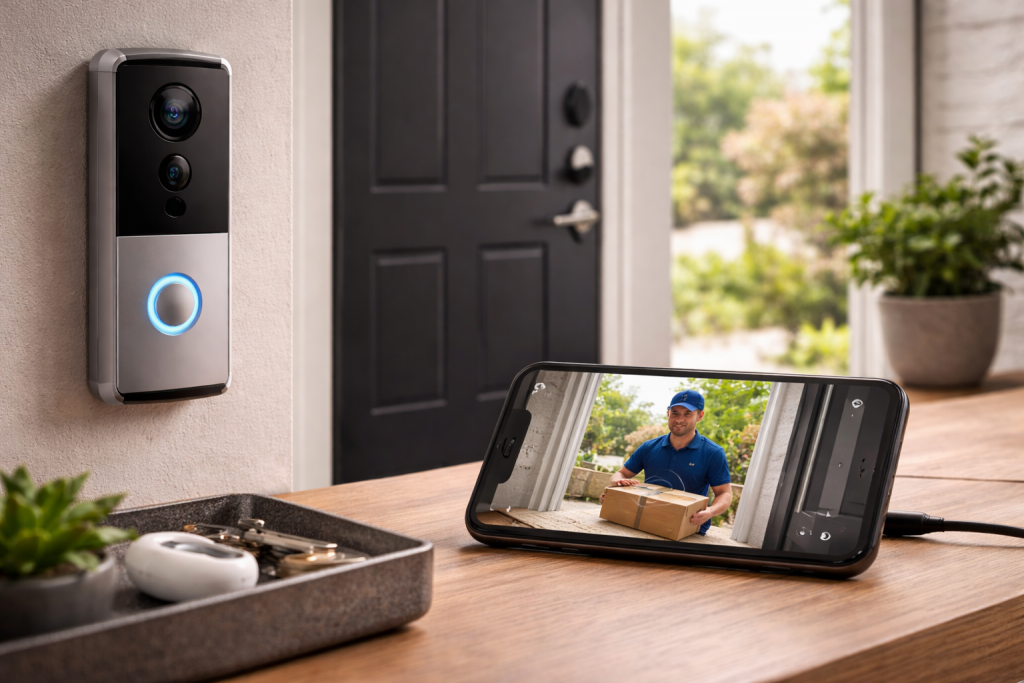
Smart doorbell lag is the kind of fault that makes you doubt the whole point of having one. Someone presses the button, you get the notification late, then the live view spins for a few seconds and you end up talking over the delivery driver’s shoulder as they walk away. Sometimes it’s only a second or two. Other times it’s 10–20 seconds and the conversation is basically impossible.
The awkward part is that the doorbell itself often isn’t “broken”. Lag is usually a chain reaction: Wi‑Fi airtime congestion, weak upstream bandwidth, a router doing too much “helpful” filtering, or a doorbell running marginal power so it throttles or drops frames. I’ve also seen perfectly good installs ruined by a single setting like using a 2.4GHz band with a crowded channel next to a neighbour’s mesh node.
Doorbells are unforgiving because they need low-latency uplink from the edge of your property, often through brick, foil-backed insulation, or a metal door frame. If your phone is on 5GHz in the lounge and the doorbell is clinging to 2.4GHz outside, you’re already dealing with two different radio environments before the app even starts negotiating video.
What “lag” actually is on a smart doorbell
People describe three different problems as “delay”, and they don’t share the same fix.
- Notification delay: the press/motion happens, but the phone alert arrives late. This is often push notification delivery, phone power saving, or cloud queueing.
- Live view startup delay: you tap the alert and the app takes ages to show video. This is usually Wi‑Fi quality, DNS, NAT traversal, or the doorbell waking up.
- Two-way audio lag: video appears, but audio is out of sync or talkback is delayed. This can be poor uplink, buffer bloat on the router, or the doorbell switching bitrate aggressively.
Doorbells typically send video upstream to the vendor’s servers (even if you’re at home), then your phone pulls it back down. That round trip means your upload matters as much as your download. In UK homes on VDSL or busy cable segments, upstream is the first thing to collapse when someone starts a cloud backup or a console update.
If your doorbell supports local streaming or a local hub, it can reduce dependence on the cloud, but most consumer setups still traverse the internet for authentication and relay. When that relay path is slow, everything feels slow.
Get the basics right before chasing obscure settings
Start by identifying which delay you have. Don’t change five things at once; doorbells are sensitive enough that you’ll lose the thread.
- Time the notification: press the button and count seconds until the phone buzzes.
- Time live view: from tapping the alert to first frame of video.
- Check audio: speak a short phrase and listen for when it plays back at the doorbell (if your model provides feedback) or watch lip-sync if someone is at the door.
Also check whether the lag happens only on mobile data, only on home Wi‑Fi, or both. If it’s only on home Wi‑Fi, you’re dealing with local network quality. If it’s bad everywhere, it’s more likely doorbell power/firmware, cloud service congestion, or phone app behaviour.
A fault-finding run that usually exposes the culprit
Run these steps in order. Stop when the lag is clearly improved; you’re trying to isolate the bottleneck, not “optimise” everything.
1) Prove the doorbell’s Wi‑Fi signal is the weak link
Doorbells are mounted in the worst RF spot: outside wall, low height, surrounded by masonry. A phone test inside the hallway is not the same thing.
- Stand outside by the doorbell with your phone on the same Wi‑Fi band the doorbell uses (usually 2.4GHz).
- Run a quick speed test and, more importantly, watch for jitter and upload consistency.
- Move one metre left/right and repeat. If results swing wildly, the door area is a multipath mess.
In practice, this step explains the problem in about half of cases. The doorbell isn’t “slow”; it’s retransmitting packets because the link is marginal.
2) Force a clean 2.4GHz connection (and make it less crowded)
Most doorbells are 2.4GHz-only. Even dual-band models often behave better on 2.4GHz because it penetrates walls. The failure mode is a congested channel with lots of retries.
- Split SSIDs temporarily (2.4GHz and 5GHz named differently) so you can see what the doorbell is actually using.
- Set 2.4GHz channel width to 20MHz. 40MHz on 2.4GHz is asking for interference in UK streets.
- Pick channel 1, 6, or 11 (whichever is least busy). Auto channel often chooses badly after a reboot.
If you’re on a mesh system, don’t assume the nearest node is the best. I’ve seen doorbells cling to a distant node because the nearer one is on a noisy backhaul channel. If your mesh allows it, bind the doorbell to the closest node.
3) Fix upstream congestion (bufferbloat) before anything else
Two-way audio delay and “rubber band” video are classic bufferbloat symptoms: the router queues packets for too long when upload is busy. Doorbells suffer because they need small, frequent packets delivered on time.
- While someone streams video from the doorbell, start an upload on another device (cloud photo sync is enough).
- If the doorbell becomes unusable, your uplink queue is the problem.
- Enable QoS / Smart Queue Management (names vary) and set your WAN speeds slightly below your real line rate.
Some ISP routers hide these controls. If you can’t enable SQM/QoS, you can still reduce the pain by limiting heavy uploads during peak times or moving backups to overnight.
4) Check the doorbell’s power, not just “is it on?”
Battery doorbells often enter aggressive power-saving states. Wired doorbells can still be underpowered if the transformer is marginal or the chime kit is miswired. The lag shows up as slow wake, low frame rate, or repeated reconnects.
- Battery models: check battery health and temperature. Cold UK nights can make a battery look “fine” but sag under load.
- Wired models: confirm transformer rating matches the doorbell spec (voltage and VA). A transformer that’s “close enough” can still cause brownouts during IR night mode.
- Night vision: if lag is worse at night, suspect power headroom. IR LEDs increase draw.
This is the most common issue I see on UK installs where an older doorbell transformer was reused without checking VA rating.
5) Reduce the doorbell’s workload (bitrate, HDR, pre-roll)
Higher resolution isn’t free. If your uplink is limited or Wi‑Fi is unstable, 2K/4K modes can increase buffering and delay.
- Drop from 2K/4K to 1080p and retest live view startup time.
- Disable HDR if your model offers it; HDR processing can add latency on some chipsets.
- Reduce motion zones and sensitivity if you’re getting constant triggers (each event can compete with live view).
- If there’s a “pre-roll” or “advanced pre-buffer” option, test with it off. It can increase startup delay when the connection is weak.
Don’t treat this as a permanent downgrade yet. Use it as a diagnostic: if lowering quality fixes lag, the network/power path is the real constraint.
6) Stop your phone from sabotaging notifications
Notification delay is often the phone, not the doorbell. iOS and Android both throttle background activity when they think an app is “not important”. Doorbell apps then fetch the event late, or the push arrives but the app can’t wake quickly enough to open live view.
- iPhone: allow notifications, enable background app refresh for the doorbell app, and check Focus modes. Apple’s own steps for notification behaviour are worth following: Check iPhone notification and Focus settings.
- Android: disable battery optimisation for the doorbell app, allow background data, and allow auto-start if your handset has it. Google’s guidance on background restrictions can help you find the right menu: Manage Android app battery and background limits.
- Wi‑Fi assist / adaptive connectivity: if your phone keeps hopping between Wi‑Fi and mobile data at the doorstep, live view can stall while the session renegotiates.
I’ve watched this happen on a Pixel where “Adaptive Connectivity” decided the home Wi‑Fi was weak near the front door and silently moved the app to mobile data mid-stream.
7) Eliminate DNS and router “security” features that break real-time streams
Some routers add latency by inspecting traffic or forcing DNS filtering. Doorbells use a mix of UDP/TCP, STUN/TURN, and vendor endpoints that don’t always play nicely with strict filtering.
- Temporarily disable “AI Protection”, “HomeShield”, “Secure DNS”, or similar features and retest.
- If you run a Pi-hole or custom DNS, test with standard ISP DNS for an hour.
- Check if your router has SIP ALG and disable it. It’s meant for VoIP and can interfere with NAT traversal for some devices.
If disabling these features fixes the lag, re-enable them one by one. You’re looking for the specific culprit, not a permanently less secure network.
8) Re-pair the doorbell after changing Wi‑Fi (don’t just “reconnect”)
Doorbells can cache old network parameters. After you change channels, split SSIDs, or move to a new router, a doorbell may connect but behave poorly.
- Remove the doorbell from the app (if the vendor recommends it).
- Factory reset the doorbell.
- Re-add it on the final Wi‑Fi settings you intend to keep.
Yes, it’s annoying. But I’ve seen doorbells keep trying to use old roaming hints and end up with long reconnect times after every sleep cycle.
9) If you use a chime or hub, test without it
Some ecosystems route events through a hub/chime for local alerts, then mirror to the cloud. If the hub is on a weak Wi‑Fi link or is overloaded, it can add delay.
- Disable the chime/hub integration temporarily and test app-only alerts.
- If the hub is Ethernet-capable, wire it. That single change often stabilises event delivery.
Situations that produce lag in the real world
Lag only at night usually points to IR mode increasing power draw or the camera switching to a noisier, higher-bitrate scene. If the transformer is borderline, the doorbell can dip voltage and the Wi‑Fi radio becomes flaky. I’ve had one on a Victorian terrace where daytime was fine, then at night it would take 8–10 seconds to answer because the unit was rebooting quietly.
Lag only when you’re at home sounds backwards, but it’s common. Your home Wi‑Fi is busy, your router is doing parental controls, and your phone is on Wi‑Fi with poor signal near the front door. On mobile data, the phone has a cleaner path to the cloud, so it feels faster.
Lag only when someone presses the button, not on motion can be a wake/sleep behaviour. Some doorbells keep the motion pipeline warm but fully sleep the talkback session. If button presses are slow but motion clips are fine, focus on power saving settings, firmware, and live view startup rather than raw Wi‑Fi speed.
Lag spikes at the same time each evening is usually upstream congestion: cloud backups, CCTV uploads, or a console update. If you’ve got a mesh system, it can also be a node doing its own channel optimisation at a fixed time. Your doorbell doesn’t need much bandwidth, but it needs consistent latency.
Errors that waste time (and sometimes make it worse)
- Testing Wi‑Fi from the sofa and assuming the doorbell sees the same signal. It doesn’t. Outside walls and door frames change everything.
- Chasing download speed while ignoring upload. Doorbells are upload-heavy during live view.
- Leaving 2.4GHz on 40MHz because it looks “faster”. In dense UK housing, it usually increases retries and latency.
- Adding another mesh node near the door without checking backhaul quality. A poorly placed node can create more contention and make roaming worse.
- Assuming “wired” means stable. A wired doorbell with a weak transformer behaves like a device with a dying battery.
If you’ve been rebooting everything daily, stop for a moment and look for patterns. Reboots can hide the real fault by temporarily clearing queues and forcing a better channel selection.
Hardware and software choices that affect latency
Router capability matters more than people expect. ISP routers can be fine for browsing, then fall apart under real-time traffic when the household is busy. If your router can’t do SQM/QoS properly, doorbell talkback is one of the first things to feel “laggy”. If you’re already fighting slow mesh performance, the approach in Fix slow Wi‑Fi speeds on mesh systems in UK homes maps closely to doorbell stability too.
Mesh placement is not cosmetic. A node in the hallway might look tidy, but if it’s behind a radiator, next to the consumer unit, or tucked under the stairs, it can be RF poison. I’ve moved a node 60cm away from a metal fuse box and watched doorbell live view go from stuttering to instant.
Doorbell firmware and app versions can introduce delay. If lag started after an update, don’t assume it’s your network. Vendors sometimes change encoding defaults or event handling. If your app has a “beta” channel, avoid it for doorbells unless you enjoy surprise regressions.
Phone OS updates can change background behaviour. iOS and Android both adjust how aggressively they suspend apps. If notifications are late but live view is fine once opened, look at the phone first. For wider home network instability (random disconnects, roaming weirdness), The Complete 2026 Guide to fixing Wi‑Fi and network issues in UK homes is the closest match to what I end up doing on-site.
Local recording can help, but it’s not magic. An SD card or local hub reduces reliance on cloud clip upload, but live view still needs a clean path. If your doorbell supports RTSP/local streaming, it can be faster on LAN, but only if your Wi‑Fi link is stable at the door.
Conclusion
Smart doorbell lag is almost always a latency problem, not a bandwidth problem. The doorbell is sitting at the edge of your Wi‑Fi coverage, pushing video upstream, and relying on your phone to wake instantly when an event arrives. Fixes that look unrelated—2.4GHz channel width, upstream queue management, transformer VA rating—tend to be the ones that actually change the experience.
Work from the outside in: prove the Wi‑Fi quality at the door, protect the uplink from bufferbloat, then deal with phone background restrictions and any router “security” features that slow real-time traffic. Once the basics are solid, higher resolution and extra features stop feeling like a gamble.
FAQ
Why is my smart doorbell notification delayed on iPhone but instant on my partner’s Android?
This is usually iOS background behaviour: Focus modes, notification delivery settings, or the app being deprioritised in the background. Check notification permissions, Background App Refresh, and whether Low Power Mode is on. If the alert arrives but live view takes ages to open, that’s more likely Wi‑Fi at the door or upstream congestion than iOS itself.
Why does my doorbell live view load fast on mobile data but lag badly on my home Wi‑Fi?
Your home Wi‑Fi near the front door is often weaker than you think, and your router may be congested or queueing upload traffic. Mobile data can provide a cleaner path to the vendor’s servers. Test Wi‑Fi performance while standing next to the doorbell, then address 2.4GHz channel congestion and bufferbloat/QoS on the router.
Why does my smart doorbell only lag at night when the infrared night vision turns on?
Night mode increases power draw and can change the video bitrate/processing load. If your transformer is borderline or the battery is cold and sagging, the doorbell can throttle, reconnect, or buffer more aggressively. If the lag correlates with IR switching, treat it as a power headroom problem first, then look at Wi‑Fi stability.
Why is two-way audio delayed on my doorbell even though the video looks smooth?
Audio is more sensitive to latency and jitter than video, and many systems buffer audio to avoid dropouts. Bufferbloat on your uplink is a common cause: the video stream keeps going, but audio packets arrive late. Enable SQM/QoS if available, and avoid saturating upload with backups or large sends during busy hours.
Why did my smart doorbell start lagging after I changed router or switched to a mesh system?
Doorbells can cling to a poor node, end up on a congested 2.4GHz channel, or inherit new DNS/security filtering that slows NAT traversal. After network changes, it often helps to factory reset and re-pair the doorbell on the final SSID, then set 2.4GHz to 20MHz and choose a clean channel.
Recommended gear on Amazon UK
- A mesh with proper node placement and wired backhaul reduces retries and roaming weirdness at the front door, which is a common cause of slow live view startup. Relevant examples
- If night vision or button presses trigger lag or reboots, a correctly rated transformer fixes voltage sag that makes the Wi‑Fi radio and encoder unstable. See suitable options
- An access point positioned closer to the doorbell can stabilise the 2.4GHz link through brick and metalwork, cutting buffering and talkback delay. Comparable items
- SQM/QoS keeps latency under control when uploads are busy, which is exactly when doorbell audio and live view tend to become unusable. Comparable items







