
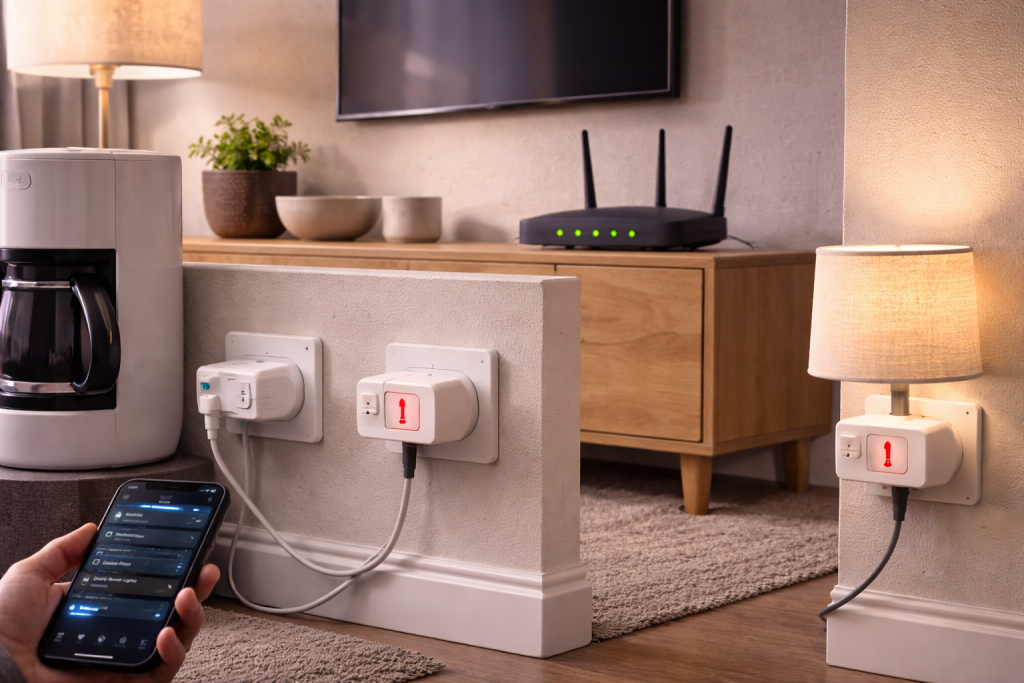
A smart plug that keeps going offline is usually doing exactly what it was designed to do: protect itself when it can’t maintain a stable connection or power state. The annoying part is that the failure looks random. One minute it responds instantly in Alexa or Google Home, the next it’s “unreachable”, then it comes back by itself.
In UK homes, the pattern is often the same: the plug sits at the edge of 2.4GHz coverage, the router quietly reshuffles channels overnight, or a mesh system decides the plug should roam (it shouldn’t). Add power-saving features, DHCP lease churn, and occasionally a flaky plug PSU, and you get repeated dropouts that feel like a cloud problem.
The quickest wins come from treating it like a network device first and a “smart home gadget” second. When I’m diagnosing these, I’m not looking at voice assistants at all to start with. I’m looking for a stable 2.4GHz link, consistent IP addressing, and a router that isn’t trying to be clever.
What’s actually happening when a smart plug “goes offline”
Most consumer smart plugs use 2.4GHz Wi‑Fi only. They connect to your router, obtain an IP address via DHCP, then maintain a persistent connection to the vendor’s cloud (or to your local hub, depending on the ecosystem). “Offline” usually means one of three things:
- Wi‑Fi link dropped: weak signal, interference, or roaming decisions cause the plug to disconnect and fail to rejoin cleanly.
- IP layer broke: the plug is still on Wi‑Fi but lost its IP lease, got a new IP, or can’t reach the gateway/DNS reliably.
- Application layer broke: the plug has network access but its cloud session is dead, time is wrong, or the vendor service/app is glitching.
The reason it repeats is that the underlying trigger repeats: nightly router maintenance, mesh optimisation, microwave interference at dinner time, or a marginal power supply that dips under load. This is the most common issue I see on UK devices sold before 2024: they’re fine on a simple router, then fall apart on “smart” mesh features.
One more detail that matters: many plugs have tiny antennas and low transmit power. A phone can show “two bars” and still work; the plug in the same socket may not. If the plug is behind a fridge, near a boiler cupboard, or in a metal-backed extension, it’s effectively in a Faraday cage.
Stabilise it: a troubleshooting run that matches how these fail
Don’t start by deleting and re-adding the plug. That often masks the real issue for a day and then it’s back. Start with the checks that change the network conditions.
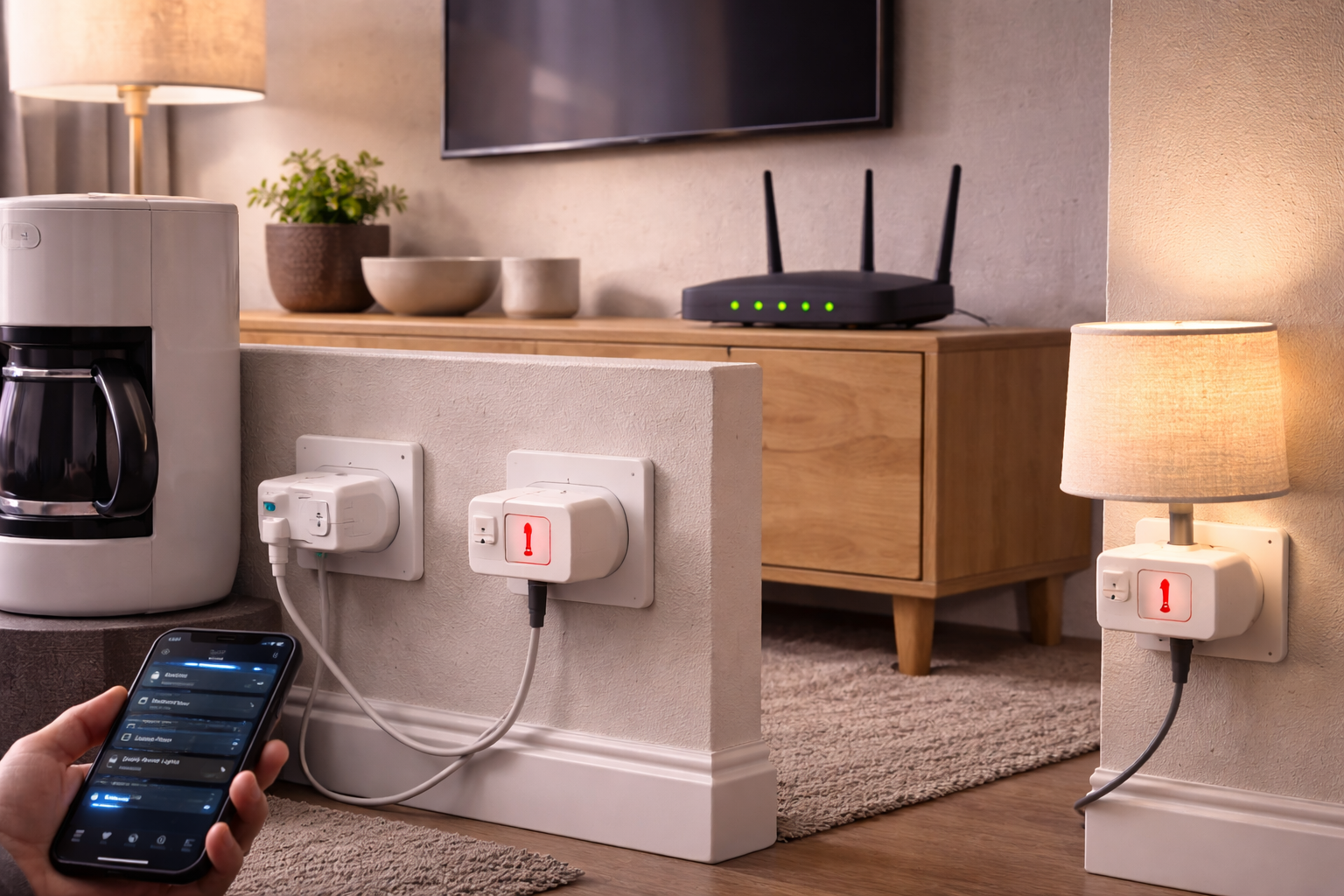
1) Confirm it’s on 2.4GHz and not being “helped” by band steering
Band steering (single SSID for 2.4GHz and 5GHz) is convenient for phones and laptops. Smart plugs often hate it. They can’t see 5GHz, and some routers confuse them during association.
- In your router/mesh app, check whether 2.4GHz and 5GHz share the same SSID.
- If possible, create a dedicated 2.4GHz SSID (even temporarily) and move the plug to it.
- Disable “smart connect”, “band steering”, or “Wi‑Fi optimisation” while testing.
In practice, this step fixes the problem in about half of cases where the plug drops offline but comes back after a power cycle.
2) Check signal quality where the plug actually lives
Don’t trust the signal reading from the hallway. Stand next to the plug with your phone and check 2.4GHz signal strength. If your phone keeps hopping to 5GHz, force it onto 2.4GHz for the test (some routers let you temporarily pause 5GHz; some phones let you “forget” 5GHz).
- If the plug is in a double socket behind a TV unit, pull it out and test it in a nearby socket in open air.
- If it stays online in the open but drops behind furniture, you’ve found the cause.
- Move a mesh node closer, or reposition the router higher and away from thick walls.
I’ve seen plugs behave perfectly on a kitchen worktop, then drop every evening once pushed back behind a microwave. 2.4GHz penetrates better than 5GHz, but it’s not magic.
3) Stop the router from changing the rules overnight
Repeated offline events at roughly the same time (often 2–4am) usually point to router maintenance: channel changes, mesh re-optimisation, or scheduled reboots.
- Look for a scheduled reboot setting and disable it while testing.
- Turn off “auto channel” on 2.4GHz and set a fixed channel (1, 6, or 11).
- Set channel width to 20MHz on 2.4GHz. Avoid 40MHz on crowded UK estates and flats.
If you’re on a mesh system, also disable any setting that mentions “client steering”, “fast roaming”, or “802.11k/v/r” for IoT. Those features are great for phones; they’re a frequent cause of IoT dropouts.
4) Eliminate DHCP churn and IP conflicts
A plug that “goes offline” but still shows as connected in the router client list is often stuck at the IP layer. The router gave it an address, then later gave that address to someone else, or the plug didn’t renew its lease properly.
- In the router, find the plug in the client list and note its MAC address.
- Create a DHCP reservation (static lease) for that MAC so it always gets the same IP.
- Increase DHCP lease time (e.g., from hours to days) if your router allows it.
When this is the culprit, the plug tends to fail after a router restart, a power cut, or after you add a new device to the network. UK power blips are enough to reshuffle everything.
5) Fix DNS and time issues that break cloud sessions
Some plugs are surprisingly sensitive to DNS failures. If your router’s DNS relay is flaky, the plug can’t resolve the vendor endpoint and marks itself offline even though Wi‑Fi is fine.
- Set your router’s DNS to a known stable provider (or your ISP’s) rather than “automatic” if you suspect issues.
- Ensure the router’s time/NTP is correct; wrong time can break TLS connections.
- If you use ad-blocking DNS or filtering, whitelist the smart plug vendor domains temporarily.
If you’re using Google Home and seeing odd “device offline” behaviour that doesn’t match the router logs, it’s worth checking Google’s own troubleshooting notes for device connectivity patterns: Google Home device offline troubleshooting.
6) Power matters: brownouts, noisy loads, and extension leads
Smart plugs are power devices sitting on mains. If the plug is powering a load with a big inrush (fan heater, dehumidifier, older fridge), the internal supply can dip. The relay may stay closed, but the Wi‑Fi module resets. That looks like “offline” while the appliance keeps running.
- Test the plug with a low, steady load (lamp) for 24 hours.
- Avoid plugging the smart plug into a cheap multiway extension with a neon switch and surge components; some introduce noise.
- If the plug is controlling a high-draw appliance, check the plug’s rated current and the appliance’s startup load.
I’ve had a 13A-rated plug drop offline repeatedly when controlling a dehumidifier that was technically “within spec” on paper. Swapping to a better-quality plug with a stronger PSU stopped the resets.
7) Firmware and app: update, then don’t keep re-pairing
Firmware bugs do exist, especially around reconnect logic after a Wi‑Fi drop. Update the plug firmware and the vendor app, but avoid the trap of repeatedly deleting and re-adding the device.
- Update firmware while the plug is close to the router (strong signal reduces update failures).
- After updating, power-cycle the plug once and leave it alone for a day.
- If you use Alexa/Google/HomeKit integrations, re-link the service only after the plug is stable in its own app.
If your smart home control is via Apple Home and you’re seeing “No Response” after network changes, Apple’s network requirements and accessory behaviour notes are often more useful than vendor FAQs: Apple Home accessories and Wi‑Fi requirements.
Real-world patterns that point to the root cause
Only one plug drops offline, others are fine. That’s almost always location, interference, or a marginal unit. Swap sockets with a known-good plug. If the problem follows the socket/location, it’s RF or power quality. If it follows the plug, it’s the plug.
Everything IoT drops at once, phones stay connected. That’s usually 2.4GHz channel congestion, router firmware, or a mesh steering feature. Phones recover quickly and hide the problem. IoT devices often don’t.
Offline after a router reboot or power cut. Look at DHCP reservations and SSID changes. I see this a lot on ISP routers where the 2.4GHz SSID silently reverts after a firmware push.
Offline when the plug is controlling a heater, kettle, or compressor. Suspect power dips and EMI. Test with a lamp. If it stabilises, you need a different control method or a higher-quality plug designed for inductive loads.
Offline only in the evening. Neighbour Wi‑Fi congestion and interference ramps up. Locking 2.4GHz to channel 1/6/11 and 20MHz width tends to calm it down. In flats, “auto” channel can make things worse because it keeps reacting.
Common self-inflicted problems (easy to miss)
- Using the same SSID/password but changing security mode. Some plugs won’t reconnect if you switch WPA2 to WPA3-only. Use WPA2 or WPA2/WPA3 mixed mode for IoT.
- Hidden SSIDs. Many IoT devices fail to reconnect to hidden networks after a drop.
- Guest network isolation. If the plug is on a guest SSID with client isolation, your phone/assistant may not reach it locally, causing “offline” symptoms.
- Mesh node too close. It sounds backwards, but a plug can get confused when two nodes are equally strong and it keeps bouncing. A small reposition can stop the ping-pong.
- Re-pairing during instability. If the network is the issue, re-pairing just creates new tokens and sometimes duplicates in Alexa/Google Home.
One thing I keep seeing: people rename the Wi‑Fi network to “fix it”, then wonder why half the smart home disappears. If you must change SSID, plan to reconfigure every 2.4GHz IoT device.
Hardware and software choices that affect reliability
ISP routers vs third-party routers. Some ISP hubs do fine, but many are aggressive with band steering and “smart” features you can’t fully control. If you’re already using a mesh, put the ISP hub into modem mode (where supported) and let one system handle routing.
Mesh systems and IoT networks. A dedicated IoT SSID on 2.4GHz is the cleanest setup. If your mesh supports an “IoT network” mode, use it, but check whether it enables client isolation (that can break local control).
Thread/Zigbee alternatives. If you’re repeatedly fighting Wi‑Fi, consider moving critical plugs to Zigbee or Thread. They’re not immune to interference, but they avoid the worst 2.4GHz Wi‑Fi edge cases and don’t rely on DHCP. The trade-off is you need a hub/border router.
Electrical environment. UK ring mains and extension leads can be electrically noisy, especially with cheap USB chargers and dimmers. If the plug is near a bank of chargers, try moving those to a different socket. I’ve watched a plug stabilise immediately after removing a bargain USB-C charger that was spraying interference.
Assistant ecosystems. If the plug is stable in its vendor app but “offline” in Alexa, the integration is the weak link. For Alexa-specific symptoms, the workflow overlaps with smart lighting issues: Fix smart devices not responding to Alexa.
Router firmware. Don’t ignore it. A router update can fix multicast handling, DHCP bugs, or 2.4GHz stability. It can also introduce regressions. If the timing matches a firmware push, consider rolling back (if possible) or changing the Wi‑Fi settings to reduce complexity.
Conclusion
Smart plugs don’t go offline “for no reason”. It’s usually a repeatable failure: unstable 2.4GHz conditions, mesh steering, DHCP churn, or power noise from the load. The fastest route to a stable setup is boring: fixed 2.4GHz settings, a dedicated SSID where possible, DHCP reservations, and keeping the plug out of electrically and RF-hostile corners.
If you’ve done the network and power checks and one plug still drops while others stay solid, treat it as a hardware fault. Some units have weak radios or power supplies from day one. Swapping it is often less painful than trying to engineer around a marginal device.
FAQ
Why does my smart plug work all day but go offline every night around 3am on my UK broadband router?
That timing usually matches scheduled maintenance: router auto-reboots, Wi‑Fi channel re-selection, or mesh optimisation. Disable scheduled reboots, lock 2.4GHz to channel 1/6/11 with 20MHz width, and turn off client steering/fast roaming for IoT.
Why does my smart plug show as connected to Wi‑Fi but the app says it’s offline after a power cut?
After a power cut, DHCP leases and IP assignments can reshuffle. The plug may reconnect but end up with a different IP or a broken gateway/DNS path. Set a DHCP reservation for the plug’s MAC address and check the router’s DNS settings.
Why does my smart plug only go offline when it’s powering a dehumidifier or fan heater?
High inrush loads and inductive motors can cause brief voltage dips or electrical noise that resets the plug’s Wi‑Fi module. Test the plug with a lamp for 24 hours; if it stays stable, use a better-quality plug rated for tougher loads or avoid controlling that appliance with a Wi‑Fi plug.
Why do my smart plugs keep dropping offline on a mesh Wi‑Fi system even though my phone has full signal?
Phones roam and recover quickly; many plugs don’t handle roaming decisions well. Disable band steering/client steering, create a dedicated 2.4GHz SSID for IoT, and avoid placing mesh nodes so close that the plug sees two equally strong access points.
Why does my smart plug stop responding after I changed my Wi‑Fi to WPA3-only or hid the network name?
Many plugs can’t reconnect reliably to WPA3-only networks or hidden SSIDs. Switch to WPA2 or WPA2/WPA3 mixed mode and broadcast the SSID. Then reboot the plug and, only if needed, reconfigure it in the vendor app.
Recommended gear on Amazon UK
- A dedicated 2.4GHz SSID near the plug avoids band steering and improves signal stability where small IoT radios struggle. See suitable options
- Zigbee plugs sidestep Wi‑Fi roaming and DHCP issues entirely, which helps when repeated offline events are caused by mesh steering or crowded 2.4GHz channels. Relevant examples
- Cleaner power can reduce resets when the plug is on a noisy extension lead or sharing sockets with cheap chargers and inductive appliances. Relevant examples
- An IoT-focused 2.4GHz network with controllable roaming and channel width reduces the ‘optimisation’ behaviours that commonly knock plugs offline. Relevant examples







