
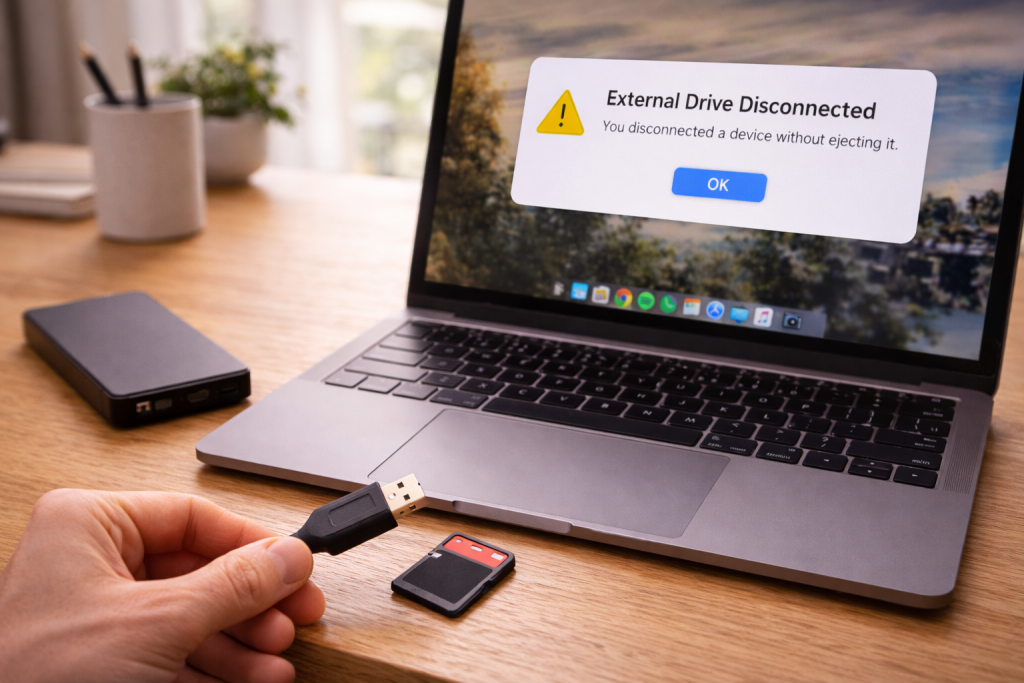
An external hard drive that disconnects mid-transfer is rarely “random”. It’s usually power dipping, a flaky cable, a USB controller falling asleep, or the drive firmware throwing a reset when it hits a bad sector. The annoying part is that the drive often reconnects fast enough to look like nothing happened—until you try copying a large folder and it fails again.
On UK laptops in particular, I see this when people plug a bus-powered 2.5-inch HDD into a USB-C dongle, then wonder why it drops out when the laptop is on battery. The drive is asking for a steady 5V supply; the port, hub, or cable can’t keep it stable under load.
Before you do anything risky, assume the drive may be failing. If the data matters, prioritise getting a stable connection long enough to copy it off. “Fixing” the disconnects can come after.
What’s actually happening when a drive “disconnects”
When an external drive disappears, one of three layers usually breaks first: power, USB link, or storage I/O. The symptoms look similar, but the fixes are different.
- Power drop: The drive spins down or the USB-SATA bridge resets. You’ll often hear a click, spin-down, or the LED flicker. Bus-powered HDDs are the most sensitive.
- USB link reset: The drive stays powered but the USB connection renegotiates. Windows may play the disconnect sound; macOS may throw an “improperly ejected” warning. This is common with marginal USB-C cables, hubs, and front-panel PC ports.
- I/O stall: The drive stays connected but stops responding during reads/writes, then the OS times out and drops it. This is where bad sectors, SMR drives under heavy writes, or a struggling enclosure bridge show up.
Windows logs this as disk/controller resets (often Event ID 129/153) and sometimes “The device was reset” messages. macOS tends to be blunter: it complains about ejection and may remount the volume.
If the disconnect happens only during large transfers, that’s a clue. Sustained writes pull more power and generate more heat, and they also stress the USB bridge and file system far more than opening a few photos.
Stabilise the connection first (data comes before diagnosis)
If you’re seeing repeated disconnects, treat the drive as unstable until proven otherwise. The goal is to create the most forgiving setup possible so you can copy important files off.
- Use a direct port: Plug the drive straight into the laptop/PC. Avoid docks, monitors with USB ports, and keyboard hubs for now.
- Prefer USB-A over cheap USB-C adapters: If your laptop has USB-A, use it. Many low-cost USB-C dongles are fine for mice and memory sticks but fall over with spinning drives.
- Keep the laptop on mains power: Battery power modes can reduce USB power budget and make sleep states more aggressive.
- Copy in smaller chunks: Large single transfers are more likely to hit a weak spot. Copy folders in batches.
- Stop background disk-heavy apps: Backup tools, cloud sync, and antivirus scans can create extra I/O and tip an unstable drive over the edge. If you’re also seeing USB devices drop, Fix USB devices randomly disconnecting overlaps with this problem.
I’ve had drives that would disconnect every 10 minutes through a hub, but run for hours when plugged directly into a rear motherboard port. That doesn’t mean the drive is healthy; it means the margin is thin.
Fault-finding sequence that doesn’t waste your time
Start with the parts most likely to fail and easiest to swap. Don’t jump straight to formatting or registry tweaks.
1) Swap the cable (and be picky about what “swap” means)
USB cables fail constantly, and not always visibly. With USB 3.x, a cable can “work” at low speed and still drop at SuperSpeed when the shielding or connectors are marginal.
- Use a short cable (ideally under 1m).
- Avoid “charge-only” USB-C cables; they can negotiate power but not stable data.
- If it’s a micro-B USB 3.0 drive (the wide connector), check for looseness. Those sockets wear.
This is the most common issue I see on UK external HDDs sold before 2024: the included cable gets bent at the connector and becomes intermittent under movement.
2) Remove the hub/dock from the chain
USB hubs add two failure points: power distribution and signal integrity. Even good hubs can struggle if they’re bus-powered and you attach a spinning drive.
- If you must use a hub, make it a powered hub with its own mains adapter.
- Don’t run the drive through a monitor’s USB ports while also using the monitor as a USB-C display dock. Those setups can be fine, but they’re not the place to debug disconnects.
3) Try a different port (and know which ports share bandwidth)
On desktops, front-panel USB ports are more error-prone than rear I/O ports because of internal cabling. On laptops, ports may share a controller; one flaky port can drag the whole bus down.
- Desktop: test a rear motherboard port first.
- Laptop: test both sides if available; some models split controllers left/right.
- If you have USB 2.0 ports, test one briefly. If it becomes stable at USB 2.0 speeds, you’re looking at a USB 3.x signal issue (cable, port, hub, or enclosure bridge).
4) Windows: stop USB power saving from cutting the link
Windows can suspend USB devices aggressively, especially on laptops. The failure mode is classic: the drive disconnects after a few minutes idle, or during a long copy when the controller decides it can downshift power.
- Device Manager > expand Universal Serial Bus controllers.
- Open each USB Root Hub / Generic USB Hub entry (names vary).
- On Power Management, untick Allow the computer to turn off this device to save power.
- Also check Disk drives > your external drive > Policies. If you’re seeing disconnects, leave write caching at default; enabling aggressive caching can make a bad link look worse.
Then check Power Options and set USB selective suspend to Disabled for the active plan. Microsoft’s own notes on USB power behaviour are worth reading when you’re chasing repeated resets: USB power management and selective suspend in Windows.
Seen most often on HP, Dell and Lenovo laptops where “modern standby” is enabled and the machine is frequently on battery.
5) macOS: check Energy settings and how the drive is formatted
macOS generally handles USB storage well, but it will still drop a device if the bridge stops responding. Two practical checks:
- System Settings > Battery / Energy Saver: disable aggressive sleep while testing. If the Mac sleeps disks, some enclosures don’t wake cleanly.
- Disk Utility: run First Aid on the volume. File system corruption can cause repeated I/O retries that look like disconnects.
If the drive is used between Windows and Mac, exFAT is common—and it’s also where I see the messiest corruption after an unsafe unplug. Apple’s own guidance on safely ejecting and handling external storage is relevant when you’re seeing “disk not ejected properly” repeatedly: How to safely eject external storage on Mac.
6) Check the drive’s health (without hammering it)
SMART health data is the quickest reality check. If the drive has reallocated sectors climbing, or pending sectors that won’t clear, disconnects during reads are expected.
- Windows: use a reputable SMART tool and look for Reallocated Sector Count, Current Pending Sector, and UDMA CRC Error Count. A high CRC error count often points to cable/connection rather than the platters.
- macOS: Disk Utility shows limited SMART info for externals; third-party tools may be needed depending on the bridge chipset.
In practice, when I see CRC errors rising while the drive is otherwise healthy, swapping the cable fixes the problem in about half of cases. When pending sectors rise, the drive is usually on borrowed time.
7) Run file system checks (carefully)
File system repairs can help if the disconnects are a consequence of I/O timeouts caused by corruption. They can also stress a failing drive. If the data isn’t backed up, copy it off first.
- Windows (NTFS): run chkdsk /f on the volume. Avoid /r initially; it forces a surface scan and can take ages on a weak drive.
- exFAT: Windows can still run checks, but exFAT repairs are less forgiving. If it keeps corrupting, treat that as a symptom (unsafe ejects, power dips, or a failing drive).
- macOS (APFS/HFS+): Disk Utility First Aid is the first step.
Situations where the disconnects have a specific cause
Bus-powered 2.5-inch HDDs on USB-C iPads, tablets, and phones
Some people test the drive on a phone/tablet and conclude it’s “fine”, then it disconnects on a laptop—or the other way round. Mobile devices often can’t supply enough current for a spinning HDD without a powered hub. If it works for a minute then drops when you start copying, that’s classic power budget behaviour.
I’ve seen this with iPad USB-C setups where the drive mounts, you browse folders, then it vanishes as soon as you start a large export.
Gaming consoles and TVs recording to USB drives
Console USB ports can be fussy about power and sleep. If the console enters rest mode, some drives don’t wake cleanly and the file system gets marked dirty. The next time it mounts, the console may reformat or refuse it. If you’re using a drive for recordings, a powered external SSD is usually more stable than a bus-powered HDD.
Windows 11 laptops dropping drives only on battery
If the drive is stable on mains and flaky on battery, don’t waste time on formatting. Go straight to power plans, USB selective suspend, and vendor utilities that enforce “eco” USB behaviour. Some OEM tools override Windows settings.
Drives that disconnect only when they get warm
Enclosures with poor ventilation can overheat the USB-SATA bridge long before the drive itself hits a dangerous temperature. The pattern is consistent: it runs fine for 5–20 minutes, then starts dropping, and behaves again after cooling.
One quick test is to place the enclosure on a hard surface with airflow and repeat the same transfer. If it lasts longer, heat is in the mix. It’s not a proper fix, but it tells you where to look.
Errors that waste hours (and sometimes make things worse)
- Formatting to “fix” disconnects: formatting doesn’t stabilise a bad USB link or power issue. It just removes your data and hides the real fault for a while.
- Using the longest cable you can find: long USB 3.x runs are fragile. If you need distance, use an active/repeater solution designed for it.
- Assuming a new hub is automatically better: plenty of USB-C hubs prioritise video outputs and charging, not clean high-current USB-A ports for storage.
- Ignoring unsafe ejects: repeated “improperly ejected” events are not harmless. They increase file system damage, especially on exFAT.
- Running full surface scans on a failing drive: tools that read every sector can push a marginal drive into permanent failure. If the drive is clicking or dropping constantly, focus on recovery first.
Most people only notice the problem when copying photos or a Steam library. By then, the drive has often been disconnecting quietly for weeks during backups, leaving partial files behind.
Hardware and software choices that change reliability
Enclosure bridge chipsets and UASP quirks
Many external drives are standard SATA drives behind a USB-SATA bridge. Some bridges behave badly with UASP (USB Attached SCSI Protocol), especially with certain controllers. The symptom can be repeated resets under heavy queue depth (lots of small files, or multiple apps accessing the drive).
If you’ve moved a bare drive into a third-party enclosure and the disconnects started, suspect the enclosure first. I’ve swapped enclosures on “failing” drives and watched them become stable immediately.
SMR hard drives under sustained writes
Shingled Magnetic Recording (SMR) drives can stall badly on long writes once their cache fills. That usually looks like the copy speed collapsing to near-zero, then Windows reporting the device is not responding. It doesn’t always cause a full disconnect, but it can trigger timeouts on weaker USB bridges.
If the drive is a budget high-capacity model and the problem appears during big backups, SMR behaviour is a plausible contributor. It’s not a defect; it’s a limitation that becomes visible over USB.
File system choice for mixed Windows/Mac use
- NTFS: solid on Windows; macOS write support is limited without extra software. Good if the drive is Windows-only.
- APFS: best for Mac-only usage; Windows won’t read it without third-party tools.
- exFAT: convenient cross-platform, but more sensitive to unsafe removal and power loss. If you’re seeing repeated corruption, consider splitting: one drive per OS, or use network transfer for cross-platform workflows.
When the “fix” is replacing the drive
If SMART shows deteriorating sectors, or the drive disconnects even with a known-good cable directly into a stable port, replacement stops being optional. A drive that resets under read load is not trustworthy for backups. If you need a Mac-specific angle for detection and stability checks, Fix external SSD not detected on macOS covers several macOS storage behaviours that also apply to HDDs.
Conclusion
External hard drive disconnects are usually a weak link in the chain: cable, hub, port power, or aggressive sleep settings. Start by making the connection boring—direct port, short cable, mains power—then work upwards into OS power management and disk health checks.
If the drive only fails under load, don’t dismiss that as “just Windows being Windows”. Load is when marginal power, heat, and bad sectors show themselves. Stabilise long enough to copy your data, then decide whether the enclosure, cable, or the drive itself deserves the blame.
FAQ
Why does my external hard drive stay connected for browsing but disconnect when I copy a large folder on Windows 11?
Large copies increase sustained power draw and I/O load. That exposes marginal USB-C dongles, weak cables, and USB selective suspend behaviour. Test with a short known-good cable directly into the laptop, keep the laptop on mains, and disable USB selective suspend. If it still drops, check SMART for pending/reallocated sectors because read retries can trigger timeouts that look like disconnects.
Why does my Seagate/WD portable drive disconnect only when my laptop is on battery power in a café?
Battery modes often reduce USB power budget and make controller sleep states more aggressive. That combination is rough on bus-powered 2.5-inch HDDs. Use mains power to confirm the pattern, then adjust Windows power plan settings (USB selective suspend, hub power management). If you must run on battery, avoid hubs and consider a powered hub or a self-powered desktop drive.
Why does my external drive keep saying “disk not ejected properly” on my Mac after it wakes from sleep overnight?
Some enclosures don’t handle sleep/wake cleanly and the USB-SATA bridge stops responding briefly, so macOS treats it as an unsafe removal. Disable disk sleep while testing, run Disk Utility First Aid, and try a different cable/port. If it’s formatted exFAT and used with Windows too, repeated unsafe ejects can also corrupt the file system and make the behaviour worse.
Why does my external hard drive disconnect when plugged into a USB hub but work when plugged directly into the PC?
Hubs can be short on power (especially bus-powered hubs) and can introduce signal issues at USB 3.x speeds. A spinning HDD is a worst-case device for a cheap hub. Use a powered hub with its own adapter, or connect the drive directly to a rear motherboard port on a desktop. If the hub is part of a USB-C dock, test without the dock to isolate it.
Why does my external drive disconnect and reconnect repeatedly after a Windows update even though it used to be stable?
Updates can change USB controller drivers, power policies, or re-enable selective suspend defaults. Check Device Manager power management settings for USB hubs, review your active power plan, and look in Event Viewer for disk/controller resets. If the drive is older, the update may simply have reduced tolerance for a marginal cable or enclosure bridge that was already close to failing.
Recommended gear on Amazon UK
- A powered hub removes the power-budget problem that causes bus-powered hard drives to reset or drop when a laptop port or dock can’t supply stable current. Comparable items
- A short, well-shielded cable reduces USB 3.x signal errors and intermittent disconnects caused by worn Micro-B connectors and long cable runs. See suitable options
- A solid USB-C adapter avoids the common failure where cheap dongles negotiate power but drop the data link during sustained transfers. Comparable items
- Swapping the enclosure can fix repeated resets caused by a flaky USB-SATA bridge, especially when the bare drive itself is healthy. Relevant examples








1 thought on “Fix External Hard Drive Disconnecting”