
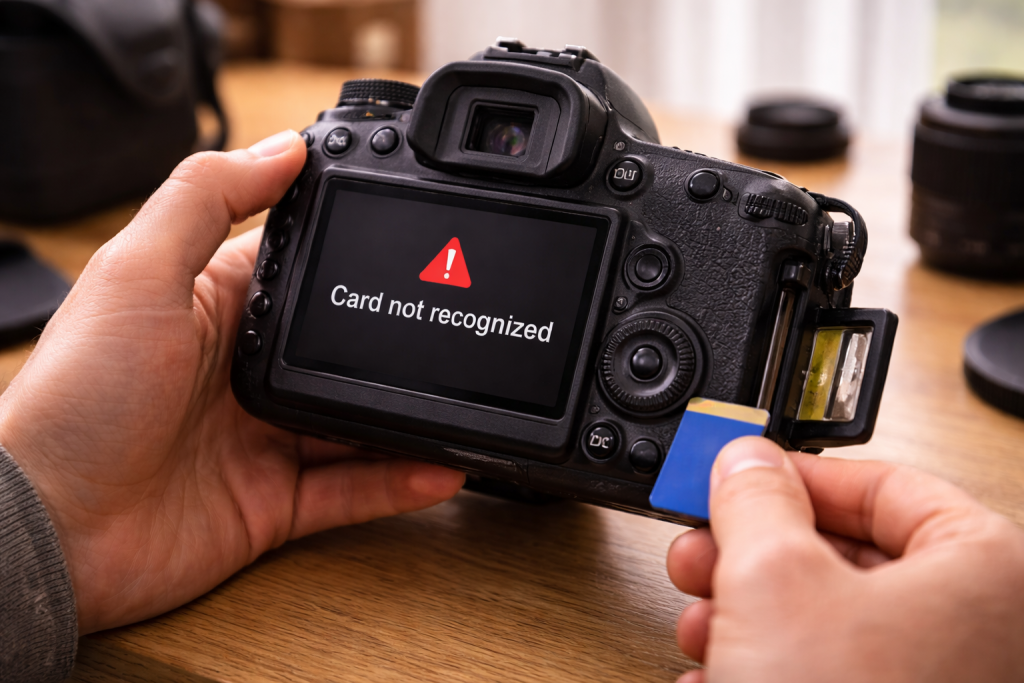
You slot the SD card in, close the door, and the camera either says “No card”, “Card error”, or just refuses to shoot. It’s worse when you’re out on a job or halfway through a day trip and the only spare card is in a drawer at home.
Most of the time the card isn’t “dead” in the dramatic sense. Cameras are picky: file system, partition layout, speed class, and even slightly dirty contacts can be enough to make a perfectly good card look invisible. I’ve also seen cards that work fine in a laptop reader but fail in-camera because the camera’s controller is less tolerant of borderline signal quality.
Before you start formatting anything, treat this as a data-recovery situation. If there are photos you care about, your first goal is to stop making the card worse.
What “not recognised” usually means at the electrical and file-system level
When a camera “doesn’t see” an SD card, one of three things is happening:
- Physical detection fails: the card-detect switch in the slot isn’t being triggered, the pins aren’t making contact, or the card isn’t seated properly. The camera behaves as if the slot is empty.
- Card initialisation fails: the camera detects something but can’t negotiate with the card (timing, voltage, bus mode, UHS compatibility). You’ll often see “Card error” quickly after insertion.
- Mounting fails: the camera can talk to the card but can’t mount the volume because the file system/partition layout is wrong or corrupted. This is where you see “Format card?” prompts, or it shows capacity as 0.
SD cards also have a write-protect tab (on full-size SD adapters) that can confuse troubleshooting. The tab doesn’t electronically lock the card; it just toggles a switch in the adapter. Some camera slots are sensitive to that switch being half-engaged, which can cause odd behaviour like intermittent recognition.
One more gotcha: many cameras are conservative about what they support. Older bodies may not support SDXC (64GB+) at all, or they may support it only after a firmware update. I still see this on UK-sold entry-level DSLRs from the early 2010s that were bundled with small SDHC cards.
A failure-first troubleshooting run that doesn’t trash your photos
Work through this in order. The early steps are about avoiding irreversible actions.
1) Stop writing to the card and check the obvious mechanical failures
- Power the camera off before inserting/removing the card. Hot-swapping can glitch the controller on some models.
- Remove the battery for 30 seconds (or power down fully on cameras with internal batteries). This clears a surprising number of “stuck” card states. In practice, this step fixes the problem in about half of cases where the camera suddenly stopped recognising a previously working card.
- Inspect the card: cracks, delamination, bent corners, or a label peeling up can stop full insertion.
- Check the slot door: some cameras won’t initialise the card unless the door microswitch is fully engaged.
- If you’re using a microSD in an SD adapter, stop. Test with a full-size SD card if the camera supports it. Adapters add another failure point.
If the camera still says “No card” and you’re confident the door is closed and the card is fully seated, you’re likely in the physical-detection bucket.
2) Clean contacts properly (and avoid the common “fix” that makes it worse)
SD contacts oxidise and pick up skin oils. Cameras are less forgiving than PC readers because the slot pins are smaller and the insertion force is lower.
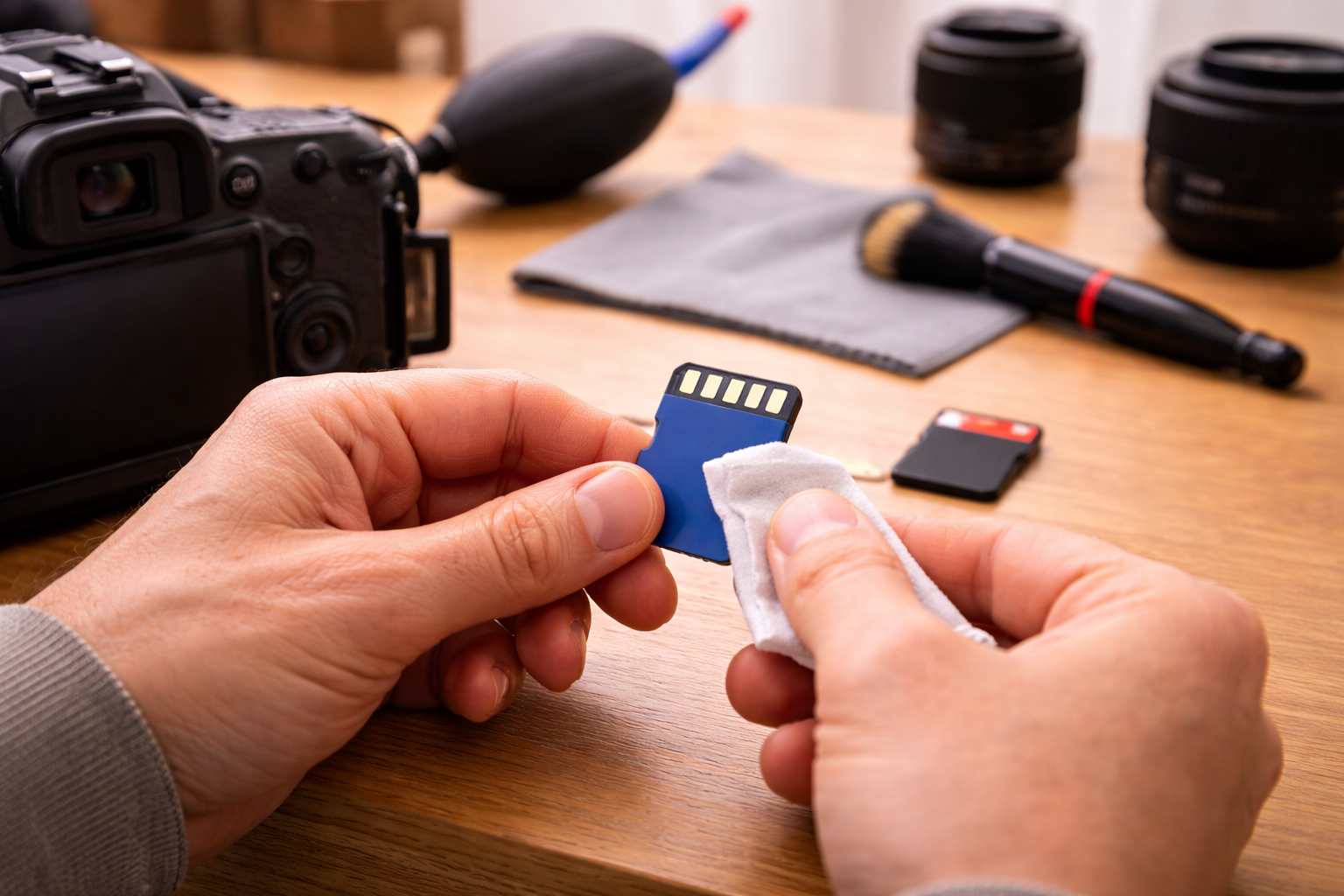
- Use a dry microfibre cloth to wipe the gold contacts on the card.
- If it’s stubborn, use a tiny amount of 90%+ isopropyl alcohol on the cloth, not poured onto the card.
- Let it dry fully before reinserting.
Avoid pencil erasers. I’ve seen them leave abrasive residue that ends up inside the slot, and then every card becomes “unreliable” until the slot is cleaned professionally.
If you suspect slot contamination, don’t poke around with paper or metal. The pins bend easily. If you have access to a hand blower, a few controlled puffs can help, but don’t use canned air at odd angles; it can drive debris deeper.
3) Test the card outside the camera (without changing it)
The goal is to find out whether the card is readable at all, and whether it’s reporting sane capacity.
- Use a known-good USB SD reader (not a cheap no-name one that only supports older standards).
- On Windows, check whether it appears in File Explorer and also in Disk Management.
- On macOS, check Disk Utility and whether it mounts.
If the card doesn’t show up anywhere, you’re likely dealing with a dead controller or severe physical damage. If it shows up but asks to be formatted, that’s a mounting/file-system problem and recovery may still be possible.
For OS-level checks and safe handling, the vendor-neutral steps in Microsoft’s storage troubleshooting guidance are useful, especially around Disk Management visibility versus file system mounting.
4) Confirm the camera actually supports the card type and size
SD branding is confusing, but the compatibility rules are strict:
- SD: up to 2GB (rare now)
- SDHC: 4GB–32GB (typically FAT32)
- SDXC: 64GB–2TB (typically exFAT)
If you’ve put a 128GB SDXC card into a camera that only supports SDHC, it may show “No card” or “Card error” rather than a helpful message. This is one of the most common issues I see on older compact cameras that were fine with 16GB cards for years.
Also check the bus and speed expectations. Some older cameras behave badly with certain UHS-II cards (the ones with a second row of contacts). They should fall back to UHS-I, but I’ve seen edge cases where a specific card model is flaky in a specific body.
5) If the card is readable on a computer, back it up before you do anything else
If the card mounts on a PC/Mac, copy the entire DCIM folder (and any other folders) to local storage. Don’t cherry-pick files; corruption often affects directory structures and you want a full snapshot.
- Copy to an internal drive first, then to a second location if the photos matter.
- If copying fails partway through, stop repeated attempts. Repeated reads can push a failing card over the edge.
If you use iPhone/iPad workflows, it’s worth knowing that iOS can be picky about external storage formats too; Apple’s notes on supported formats can help you avoid formatting into something your devices won’t read later: Apple’s guidance on external storage and file formats.
6) Reformat the card in the camera (only after backup)
Formatting on a computer often creates partition layouts cameras dislike. Cameras expect a simple, single partition with the right allocation unit size and a clean directory structure.
- Insert the card.
- Use the camera’s Format option (sometimes under Setup/Tools).
- If the camera offers Low-level format, use it only if a normal format fails. Low-level formats take longer and are harder on a marginal card.
If the camera can’t format it (or refuses to recognise it long enough), format on a computer as a controlled test, then try again in-camera:
- For 32GB and under: FAT32 is usually safest.
- For 64GB and over: exFAT is standard for SDXC.
Be aware: some older cameras can read exFAT only after a firmware update, and some can’t at all. If you’re trying to use a large card in an older body, a smaller SDHC card is often the practical fix.
7) Update camera firmware when the symptoms match a compatibility issue
Firmware updates can add SDXC/exFAT support, improve UHS compatibility, and fix card initialisation bugs. The pattern I look for is: the card works in other devices, the camera recognises some cards but not this one, and the failure is immediate on insertion.
- Check the camera’s current firmware version in the menu.
- Compare with the latest on the manufacturer’s support site.
- Follow the vendor’s update procedure exactly, including battery level requirements.
If you’re in the middle of a shoot, don’t do firmware updates on location unless you have a second body. Updates are usually safe, but the failure mode is catastrophic when something goes wrong.
8) Rule out a failing card with a proper integrity test
Some counterfeit or failing cards report the right capacity but can’t actually store data reliably. The camera may “see” the card, then throw errors during writing, or it may refuse to mount after a few sessions.
- On Windows, use a reputable capacity/integrity tester to write and verify the full card.
- On macOS/Linux, similar tools exist, but the key is a full write/verify, not a quick check.
If verification fails, retire the card. Don’t keep it as an “emergency spare”. Those are the ones that ruin a day out.
Real-world patterns that point to the real cause
It worked yesterday, now it’s “No card”. This is often contact-related or a slot detect switch issue. I’ve had cameras on the bench where simply reseating the card a few times and cleaning the contacts restored normal operation, but the underlying cause was a slightly bent pin in the slot that only made contact at certain angles.
Card works in laptop, not in camera. That usually means the laptop reader is more tolerant, or the camera is stricter about partition layout. I’ve also seen this when a card was formatted as GPT instead of MBR; many cameras expect MBR-style partitioning.
Camera asks to format every time. That’s classic file system corruption or a card that’s starting to fail. If it keeps happening after an in-camera format, treat the card as unreliable. This shows up a lot after the camera battery dies mid-write.
Only one specific card fails, others are fine. Think compatibility (UHS-II oddities, SDXC on an SDHC-era body) or a counterfeit card. If it’s a new purchase and the print/packaging looks slightly off, I don’t waste time: I test it immediately.
Common missteps that make SD card problems harder to fix
- Formatting on a computer first because it’s “easier”. It’s also the fastest way to create a layout the camera hates.
- Using the same card across multiple cameras without formatting in between. Different brands create different folder structures and metadata files; most cameras cope, but some get weird.
- Ignoring the adapter write-protect tab. A half-slid tab can cause intermittent behaviour that looks like corruption.
- Continuing to shoot after the first error. If the camera throws a write error, stop. That’s how you turn a recoverable directory issue into a mess.
- Assuming “bigger is better”. Large SDXC cards are convenient, but they increase the blast radius when something goes wrong.
Card choice, readers, and camera slot quirks that matter more than people think
UHS speed classes (U1/U3, V30/V60/V90) affect write performance, but they also affect how close to the edge the camera runs. A camera that writes 4K video near the card’s sustained limit will expose marginal cards quickly. If your issue appears only when recording video, not when taking photos, that’s a strong hint.
UHS-II cards in UHS-I cameras should be fine, but the physical second row of contacts can collect grime and confuse people into thinking the card is “damaged”. The camera only uses the first row. Still, I’ve seen a few bodies that are fussy with certain UHS-II models; swapping to a good UHS-I card is a quick sanity check.
Dual-slot cameras add another variable: some models won’t shoot if the secondary slot is set as overflow/backup and the second card is missing or unreadable. Check the recording settings, not just the error message. I’ve watched people chase a “bad card” for ten minutes when the real issue was the camera set to “Record to both” with one slot empty.
Card readers can be the culprit. A USB reader that only supports SDHC may misread SDXC cards, or it may appear to work but corrupt transfers. Seen most often with older bundled readers and cheap multi-slot hubs.
Computer OS behaviour matters too. Windows may prompt to “Scan and fix” a card; doing that can change directory structures in ways the camera doesn’t like. If you need to repair a file system, back up first, then repair, then reformat in-camera.
If you’re also dealing with a Mac not seeing storage reliably, the workflow overlaps with external drive detection problems; the same principles apply around cables/readers and file system mounting. The diagnostic mindset in Fix External SSD Not Detected on macOS transfers well to SD cards via readers.
Conclusion
When a camera won’t recognise an SD card, treat it as either a physical detection problem, a card initialisation problem, or a file-system mounting problem. Start by protecting your data: stop writing, test the card in a known-good reader, and back up anything you can read. Only then move to formatting, and when you do, format in the camera so the partitioning and file system match what the firmware expects.
If the card repeatedly drops out, asks to be formatted again, or fails integrity testing, retire it. SD cards are consumables, and the failure mode is always inconvenient.
FAQ
Why does my SD card work in my laptop but my Canon camera says “No card” after I formatted it on Windows 11?
Windows formatting can create a partition layout or file system settings your camera doesn’t like (and some tools default to GPT). Copy off any data you need, then format the card in the camera. If the camera can’t format it, reformat on the PC to a single partition (FAT32 for 32GB and under, exFAT for 64GB+), then try the in-camera format again.
Why does my Sony camera only stop recognising the SD card after recording 4K video for a few minutes?
That pattern points to sustained write speed or a marginal card. The camera can mount the card, but once it hits continuous high-bitrate writing, errors appear and the card may drop out. Try a card with an appropriate video class (often V30 or higher depending on bitrate), and avoid microSD-in-adapter setups for 4K.
My camera keeps asking to format the SD card every time I turn it on—why does it happen after the battery died mid-shoot?
A power loss during writing commonly corrupts the file system or directory entries. Back up what you can using a computer reader first. After recovery, do an in-camera format. If it repeats after a clean format, the card may be failing and should be replaced.
Why does a 128GB SDXC card fail in my older Nikon DSLR but a 16GB card works fine in the same slot?
Many older cameras support SDHC (up to 32GB, typically FAT32) but not SDXC (64GB+, typically exFAT), or they need a firmware update for SDXC/exFAT. Check the camera’s manual/specs and firmware version. If SDXC isn’t supported, stick to 32GB SDHC cards.
Does using a microSD card with an SD adapter cause “card error” problems in cameras, especially outdoors in the cold?
It can. The adapter adds another set of contacts and a mechanical switch for write-protect detection, both of which can be sensitive to vibration, temperature changes, and slight misalignment. For reliability—particularly in cold conditions—use a full-size SD card from a reputable brand.
Recommended gear on Amazon UK
- A V30-rated UHS-I card reduces 4K recording drop-outs and write errors that often show up as intermittent “Card error” after a few minutes of video. See suitable options
- A 32GB SDHC card avoids SDXC/exFAT compatibility limits that make older bodies report “No card” with 64GB+ media. See suitable options
- A proper UHS-II reader helps you distinguish a camera-slot problem from a card problem and prevents flaky transfers caused by older SDHC-only readers. Comparable items
- Cleaning the SD card’s gold contacts with high-purity IPA removes oils and oxidation that commonly cause cameras to behave as if the card isn’t inserted. See suitable options








1 thought on “Fix SD Card Not Recognised by Camera”