
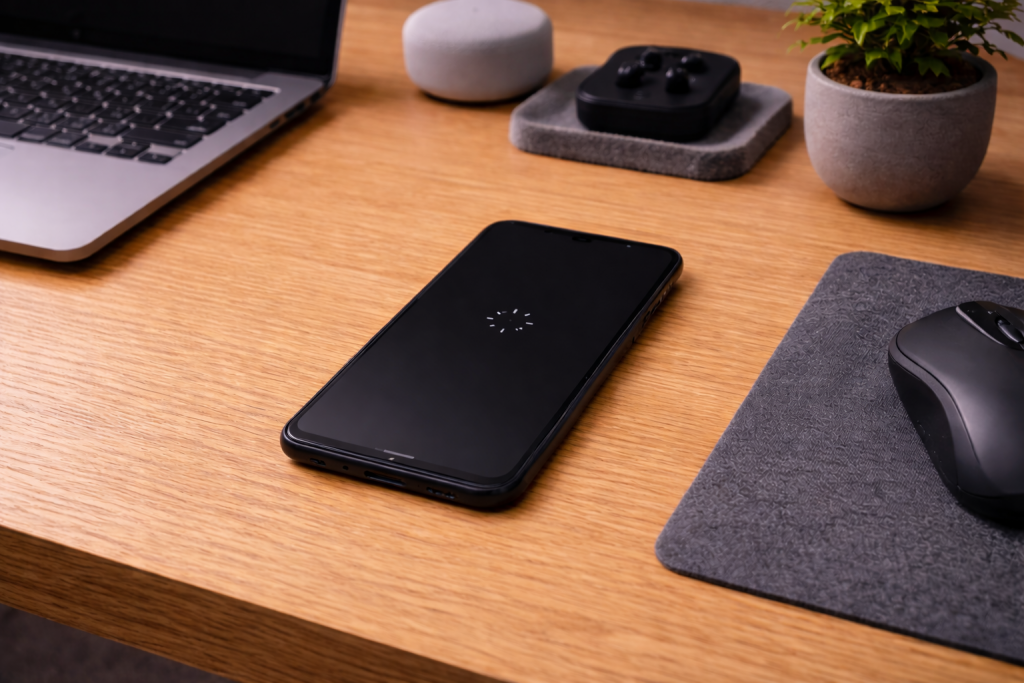
An iPhone that boots to the Apple logo and then sits on a spinning loading wheel is rarely “just slow”. Most of the time it’s stuck in a loop: iOS is trying to finish a task (an update, a restore, a database rebuild, an app migration) and failing at the same point every time.
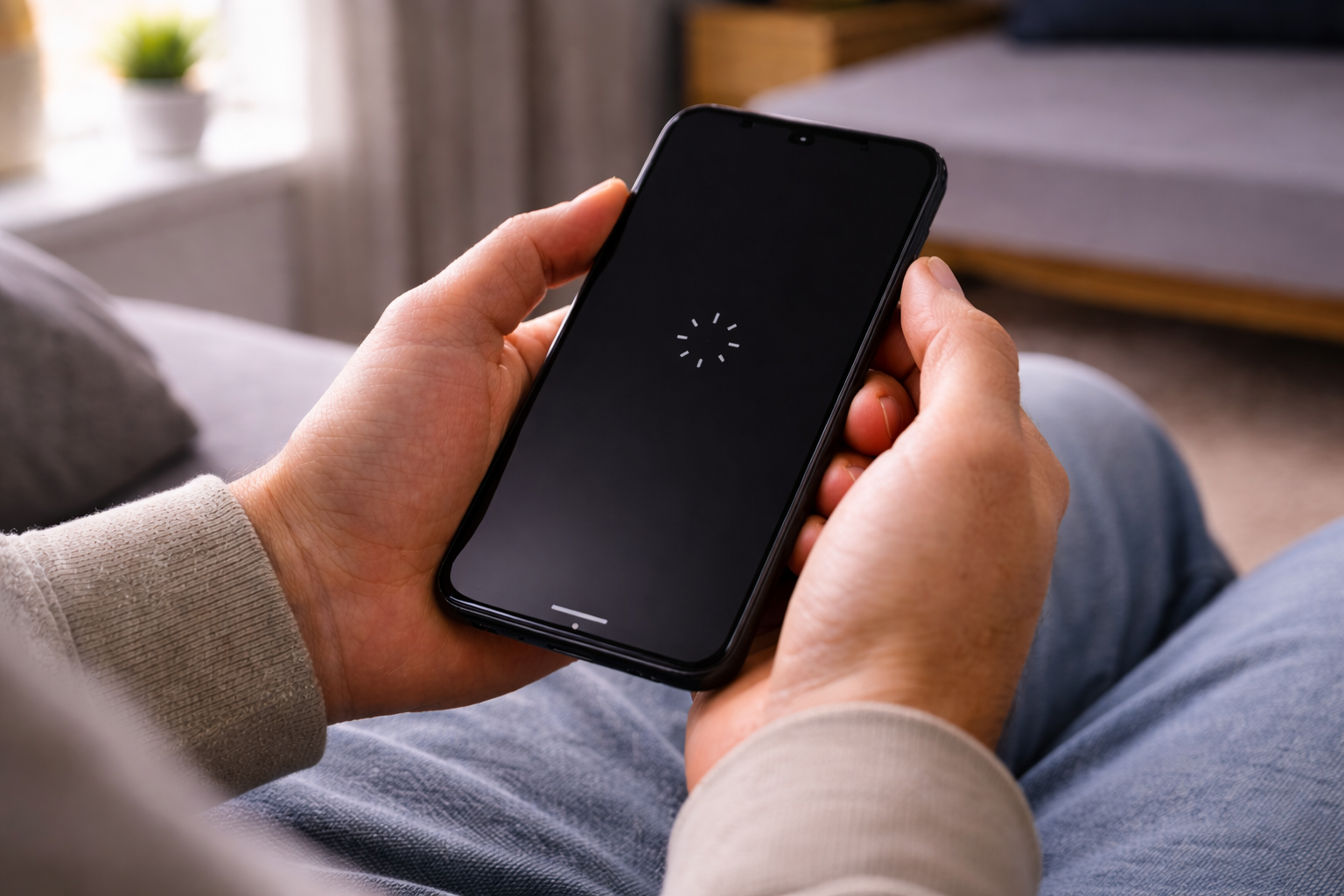
The frustrating bit is that the phone can look alive. The wheel spins, the screen stays on, and it might even get warm. But it won’t reach the Home Screen, so you can’t check storage, uninstall a bad app, or back anything up. If you’ve got photos that aren’t in iCloud, you need to treat this like a data-recovery situation, not a casual reboot.
I see this most often right after an iOS update that was started on low battery, or after a storage-heavy event like restoring from iCloud, moving a big photo library, or filling the phone to the last few hundred megabytes.
What the spinning wheel usually means (and what it doesn’t)
The spinning wheel during boot is iOS loading services and verifying system state. When it never finishes, one of a few subsystems is typically failing:
- Update finalisation failure: iOS downloaded and began installing, then hit a verification or migration problem.
- Storage pressure: the phone is effectively out of working space. iOS needs free space to rebuild indexes, decrypt caches, and migrate databases.
- Corrupt system cache or database: Photos, Messages, or Spotlight indexing can wedge the boot process if a database is damaged.
- Hardware instability: less common, but a failing NAND (storage) or power issue can cause repeated boot stalls.
What it doesn’t usually mean is “bad Wi‑Fi” or “a single app is frozen”. Apps don’t load until after SpringBoard comes up; if you can’t reach the lock screen or Home Screen, you’re dealing with system-level boot.
One more nuance: if you see the wheel after unlocking (not during boot), that’s a different problem (often iCloud sync, a stuck restore, or a background migration). The steps below still apply, but the odds of saving data without a full restore are better.
Before you touch anything: decide if data matters
If you have a recent iCloud backup or you’re confident everything important is synced (Photos in iCloud Photos, Messages in iCloud, WhatsApp backed up), you can be more aggressive. If you’re not sure, assume you need to preserve data.
- Best-case for data: the phone eventually boots after a force restart, or it can be updated via a computer without erasing.
- Worst-case for data: a restore (erase) is required, or the storage hardware is failing.
In practice, the “update without erase” route fixes the problem in about half of cases when the wheel appeared after an iOS update.
Stabilise power and stop making it worse
Boot loops get nastier when the phone browns out mid-process. Give it stable power before you do anything else.
- Plug into a wall charger, not a laptop port or a cheap car adaptor.
- Leave it for 20–30 minutes even if the screen shows the wheel. Some devices will only progress once the battery is above a threshold.
- If the phone is hot, remove the case and let it cool for 10 minutes while still connected to power.
I’ve had iPhones that looked “stuck” simply because they were trying to complete a post-update migration while thermally throttled inside a thick case.
Step-by-step: get past the spinning wheel safely
Work top to bottom. Don’t skip straight to erase unless you’ve already accepted the data loss.
1) Force restart (model-specific)
A normal restart isn’t possible when iOS hasn’t finished booting. A force restart cuts power to the OS and can break a loop caused by a hung service.
- iPhone 8, SE (2nd/3rd gen), iPhone X and later: press Volume Up (quick), press Volume Down (quick), then hold the Side button until the Apple logo appears.
- iPhone 7 / 7 Plus: hold Side button + Volume Down until the Apple logo appears.
- iPhone 6s / SE (1st gen): hold Home + Power until the Apple logo appears.
If it returns to the wheel again, note how long it takes. A consistent stall time (for example, always 2 minutes) often points to the same migration step failing repeatedly.
2) Try a computer “Update” first (keeps data if it works)
This is the most important fork in the road. Using Finder (Mac) or Apple Devices/iTunes (Windows), you can push a fresh copy of iOS over the top without erasing. If it succeeds, your data usually remains intact.
- On a Mac with macOS Catalina or later, open Finder.
- On Windows, use Apple Devices (newer) or iTunes (older setups).
- Connect the iPhone with a reliable cable.
- Put the iPhone into Recovery Mode (steps below), then choose Update when prompted.
Apple’s official recovery mode and update/restore flow is documented here: Apple’s steps for Recovery Mode and updating/restoring iPhone.
What fails here: the update downloads but errors out near the end, or the phone drops connection. If you see repeated error codes, don’t keep hammering “Update” without changing something (cable, port, computer, security software).
3) Enter Recovery Mode (the right way)
Recovery Mode is not DFU. It’s the standard “something went wrong, connect to a computer” state. You need it for the update attempt above.
- iPhone 8 and later: connect to computer, then press Volume Up (quick), Volume Down (quick), then hold Side button until you see the recovery screen (cable/computer icon), not the Apple logo.
- iPhone 7/7 Plus: connect, then hold Side + Volume Down until recovery screen appears.
- iPhone 6s and earlier: connect, then hold Home + Power until recovery screen appears.
If you only ever get the Apple logo and then the wheel, keep holding until the recovery screen appears. Timing is fiddly; I often see people release too early because they think the Apple logo means it worked.
4) If “Update” fails, decide between DFU and Restore
If the computer update fails, you’re left with two realistic options:
- DFU restore: deeper reinstall, more likely to succeed, but it’s still a restore (erase).
- Standard restore: simpler, also erases.
DFU (Device Firmware Update) mode bypasses parts of iOS and can recover devices that won’t take a normal update. It’s also the point where you should stop if data is critical and you don’t have a backup; professional recovery may be the only path, and even that is not guaranteed.
5) DFU mode (when the phone won’t take an update)
DFU steps vary by model and are easy to mess up. The symptom of success is a black screen while the computer detects an iPhone in recovery/restore state.
- iPhone 8 and later (Face ID models included):
- Connect to computer.
- Press Volume Up (quick), Volume Down (quick).
- Hold Side button until screen goes black.
- Immediately hold Volume Down while still holding Side for ~5 seconds.
- Release Side, keep holding Volume Down for ~10 seconds.
- iPhone 7/7 Plus:
- Hold Side + Volume Down for ~8 seconds.
- Release Side, keep holding Volume Down for ~10 seconds.
- iPhone 6s and earlier:
- Hold Home + Power for ~8 seconds.
- Release Power, keep holding Home for ~10 seconds.
If you see the Apple logo, you missed DFU and need to try again. If the computer detects DFU, it will offer a restore. That restore wipes the device.
6) When a restore is the only way forward
A restore is blunt, but it’s often the only way to get a reliable phone back when the system partition is inconsistent. Expect to sign in with your Apple ID afterwards and deal with Activation Lock.
- Use Finder/Apple Devices/iTunes and choose Restore.
- After restore, set up as new or restore from iCloud/computer backup.
If the restore fails repeatedly with different cables/computers, start thinking hardware (storage or baseband) rather than “software glitch”.
Real-world situations that trigger the spinning wheel
After an iOS update started on 10–20% battery. The phone reboots mid-install, then can’t complete migration. I’ve seen this a lot on commuter trains where people kick off an update and lose power halfway through.
After restoring from iCloud with limited free storage. The restore pulls down apps and data, then iOS tries to rebuild indexes. If you were already near full, the device can wedge at boot because it can’t allocate temporary space.
After a failed storage clean-up. Deleting thousands of photos/videos, then immediately rebooting, can leave Photos and Spotlight mid-reindex. Usually it resolves, but occasionally it loops.
After a third-party repair or battery swap. Not because the battery is “incompatible”, but because a marginal power connection or a weak cell can dip voltage during boot. The wheel is just where you notice it.
Common missteps that waste time (or cost data)
- Repeated force restarts back-to-back: if the phone is actually progressing slowly (post-update migration), you keep resetting the clock. Give it a proper window on power before you intervene again.
- Using a flaky cable: intermittent USB causes update/restore failures that look like iOS corruption. If you’ve got one cable that “usually works”, that’s the one that fails during a firmware push.
- Updating via a USB hub: hubs and front-panel PC ports are common culprits. Plug directly into the computer.
- Assuming iCloud has everything: iCloud Photos might be off, or set to “Optimise iPhone Storage” with originals not fully uploaded. If you’re unsure, treat the phone as the only copy.
- Ignoring storage as the root cause: people focus on the wheel as a boot problem, but the underlying issue is often “0 bytes free”. Unfortunately you can’t check that while stuck.
On Windows machines in particular, I’ve watched security suites interfere with the Apple driver stack during restore. If restores fail at the same percentage, try a different PC or temporarily disable third-party security tools.
Software and hardware factors that change the diagnosis
Storage health and capacity. Older iPhones with 64GB (and heavy WhatsApp/Photos usage) hit the wall more often. When the device is full, iOS has less room for temporary files during updates. If you get the phone back, keep at least 5–10GB free for stability.
Windows vs Mac restore reliability. Both work, but Windows setups vary wildly. Driver issues, USB controller quirks, and outdated iTunes installs can derail a restore. Microsoft’s own USB troubleshooting is worth checking if the iPhone drops connection mid-restore: Microsoft USB connection troubleshooting.
Face ID models and button timing. Recovery/DFU timing is less forgiving on newer iPhones. If you’re repeatedly landing back on the Apple logo, slow down and follow the sequence precisely rather than pressing harder.
Signs of hardware trouble. If the iPhone gets to the wheel, reboots, then repeats with no change, and restores fail with errors across multiple computers, suspect storage or logic board faults. Another tell: the phone is detected, then disconnects randomly even when untouched.
Battery behaviour. A weak battery can still show “enough” charge but sag under load during boot. If you notice the phone only loops when not plugged in, that’s a clue. I’ve had devices that would complete an update only when connected to a higher-wattage charger.
After you recover: prevent a repeat
- Back up before updates: iCloud backup on Wi‑Fi overnight is the least painful option.
- Don’t update when storage is tight: clear space first, then reboot once, then update.
- Use stable power: update while charging from the mains.
- Keep a known-good cable: especially if you rely on Windows for restores.
If your iPhone is back but you’re now fighting other post-update oddities (heat, background activity, battery drain), it’s often the same underlying theme: iOS is rebuilding caches and indexes. This overlaps with the behaviour covered in Fix iPhone Battery Draining Overnight.
Conclusion
The spinning loading wheel is iOS telling you it can’t complete a boot-time task. The safest path is: stabilise power, force restart once, then attempt a computer Update via Recovery Mode before you consider any erase. When that fails, DFU/restore becomes a practical necessity, and at that point you’re choosing between getting a working phone today and preserving data that may not be backed up.
If you hit repeated restore failures across different cables and computers, stop blaming iOS. That’s where hardware starts to look guilty, and it’s better to get the device assessed than to loop through the same steps until the storage finally gives up.
FAQ
Why is my iPhone stuck on the spinning wheel after an iOS update finished overnight while charging?
Overnight updates can fail during the post-install migration (apps, Photos, Spotlight indexing). If the phone was low on free storage or the update was interrupted, it can loop at the wheel. Try a force restart once, then use a computer and choose Update in Recovery Mode to reinstall iOS without erasing if possible.
My iPhone shows the Apple logo then a spinning wheel for 5 minutes and restarts — why does it keep looping at the same point?
A consistent loop timing usually means iOS is failing at the same boot step each time, often a corrupted database or a failed update finalisation. The next escalation is Recovery Mode and a computer Update. If Update fails repeatedly, a restore (erase) or hardware fault becomes likely.
Does the iPhone spinning wheel problem still happen if I have loads of free iCloud storage but my phone storage is nearly full?
Yes. iCloud storage doesn’t replace local working space during boot and updates. iOS needs free on-device storage to unpack update files and rebuild indexes. A nearly full iPhone can get stuck even if iCloud has plenty of capacity.
Why does my iPhone only get past the spinning wheel when it’s plugged into a wall charger but not on battery?
That pattern points to power stability. A weak battery or a poor internal power connection can dip voltage during boot, causing resets. Keeping it on a stable wall charger may let it complete an update, but if it only works on power long-term, the battery or power circuitry needs attention.
My iPhone is stuck on the spinning wheel and Finder/iTunes won’t detect it — what should I try on a Windows PC?
Use a different USB port (directly on the PC, not a hub), swap the cable, and try Apple Devices or iTunes with the latest updates. If the phone won’t enumerate reliably, you may need to enter Recovery Mode again with careful timing. If it still won’t stay connected, the issue can be USB/driver-related or hardware instability on the iPhone.
Recommended gear on Amazon UK
- A reliable data cable prevents mid-restore disconnects, which is a common reason Recovery Mode updates fail and the phone drops back to the spinning wheel. Relevant examples
- On many UK laptops with only USB‑C ports, a solid adaptor avoids flaky hub behaviour that can interrupt an iOS update or restore. Comparable items
- Stable mains power reduces boot-loop resets during post-update migration, especially when a weak battery sags under load. See suitable options
- Lint in the port can cause intermittent data connection even when charging seems fine, leading to failed restores and repeated recovery attempts. Relevant examples







