
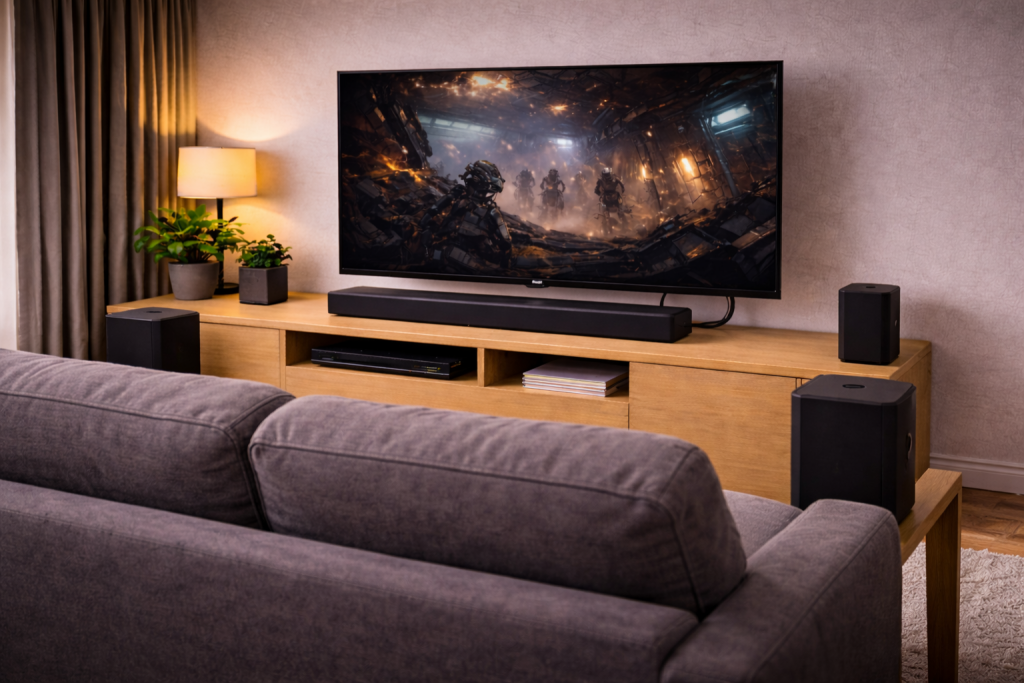
When rear speakers don’t match the front: what “out of sync” really means
Wireless rear speakers that lag behind the soundbar or TV speakers usually show up as a “double hit” on dialogue, claps, gunshots, or footsteps. You hear the front first, then a delayed echo from the rears. Sometimes it’s the opposite: the rears arrive early and the front feels late, which is rarer but happens with certain TV audio pipelines.
In most living rooms, the problem isn’t that the rear speakers are “slow”. It’s that one part of the chain is adding extra buffering: the TV, the streaming box, the soundbar, or the wireless link to the rears. The fix is to identify where the delay is being introduced, then either reduce it or compensate for it.
This is one of the most common issues I see on wireless surround kits installed in UK homes where the TV is doing too much audio processing before it reaches the soundbar.
Where the delay comes from (and why it changes by app)
Audio sync problems are almost always caused by buffering and processing. Video decoding, audio decoding, format conversion, and wireless transport all add time. If different parts of your system buffer different amounts, the timing between channels can drift.
Typical signal paths that create rear-speaker lag
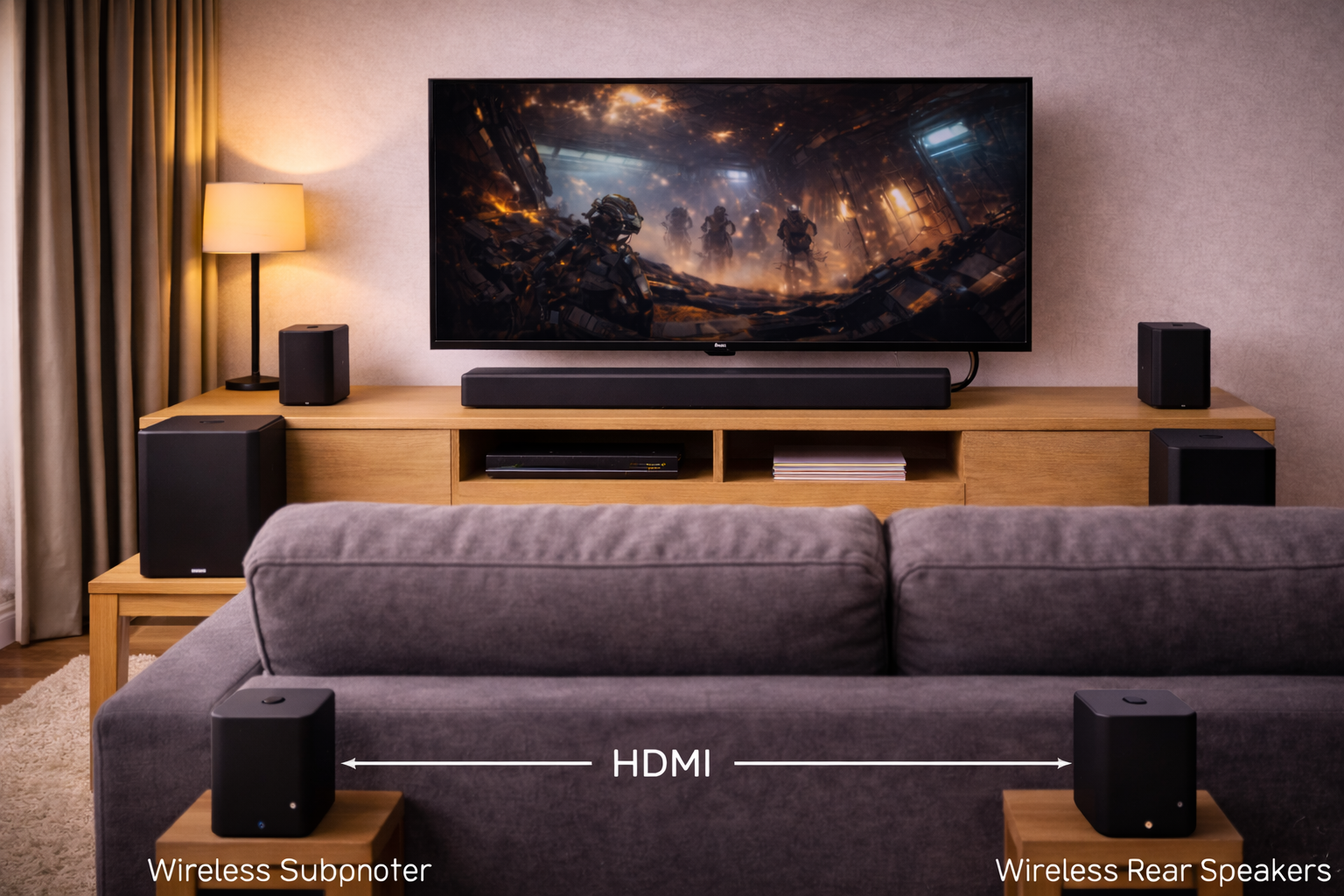
- TV apps → TV audio processing → HDMI eARC/ARC → soundbar → wireless rears: common on LG/Samsung/Sony TVs; the TV can add delay with “sound modes”, AI audio, or format conversion.
- Streaming box/console → HDMI → TV passthrough → eARC to soundbar: the TV becomes a middleman and can introduce extra latency.
- Streaming box/console → HDMI → soundbar → HDMI out to TV: often lower latency because the soundbar handles audio first.
- Bluetooth TV audio → soundbar/headphones: Bluetooth adds variable latency and is not suitable for surround timing.
Why Netflix is fine but YouTube is not
Different apps output different audio formats and use different player pipelines. Netflix commonly outputs Dolby Digital Plus (and sometimes Atmos), while YouTube is often stereo PCM or AAC. Your TV/soundbar may apply different processing per format, so the delay can change by app.
In practice, the “it’s only out of sync on one app” complaint usually traces back to format switching and the TV re-encoding audio on the fly.
Wireless rear links: Wi‑Fi, proprietary 5GHz, or a hub
Many soundbar rear kits use a proprietary 5GHz link or a small wireless hub that talks to the rears. Others use your home Wi‑Fi (common with multi-room systems). Interference, weak signal, or congested channels can force retransmits and buffering, which shows up as delay or occasional dropouts.
Quick isolation test: prove whether the TV or the wireless link is at fault
Before changing a dozen settings, do two short tests. You’re trying to answer one question: is the delay created before the soundbar (TV/box), or after it (wireless rears)?
Test A: use the soundbar’s front channels only
- Temporarily disable the rear speakers in the soundbar app (or set surround to “off”).
- Play a scene with sharp transients (claps, snare hits, dialogue consonants).
- If the front is still out of sync with the picture, the TV/streaming device is introducing A/V sync issues (not a rear-speaker problem).
Test B: swap the source path
- If your source is plugged into the TV, plug it into the soundbar instead (if your soundbar has HDMI inputs).
- Re-test the same scene.
- If the rear delay improves immediately, the TV passthrough path is the main culprit.
I’ve seen this single change fix the problem in about half of cases, especially on mid-range TVs where “digital sound out” defaults to auto conversion.
Step-by-step fixes that actually move the needle
Work through these in order. After each change, test with the same clip so you can tell what helped.
1) Turn off TV audio processing that adds latency
On many TVs, “sound enhancement” features add buffering. They can also cause different delays per format.
- Disable AI Sound, Virtual Surround, Clear Voice, Auto Volume, Night Mode, and similar processing.
- Set the TV sound mode to Standard (not Cinema/Music/Sports).
- If your TV has a Bypass option for audio, enable it.
On Sony sets this is often hidden under an “A/V sync” or “Digital audio out” submenu; on LG it’s commonly tied to sound mode and eARC behaviour.
2) Set the TV’s digital audio output to “Pass Through”
If the TV is converting everything to PCM, or re-encoding Dolby, it can add delay and sometimes break channel mapping.
- Set Digital Sound Output to Pass Through (or Bitstream).
- Avoid PCM unless you’re troubleshooting a format compatibility issue.
- Enable eARC if your soundbar supports it; if eARC causes instability, test with it off.
If you’re also fighting dropouts or silence over eARC, fix that first because sync adjustments won’t stick when the link renegotiates. See Fix soundbar no audio via HDMI eARC.
3) Use the soundbar’s “rear level” and “rear distance” settings correctly
Many people try to fix timing by changing rear speaker distance. That only works if the system uses distance to calculate delay (some do, some don’t). If your app offers both distance and delay, use delay for sync and distance for imaging.
- If there’s a Speaker Distance setting, enter realistic distances (in metres) from your seating position.
- If there’s an Audio Delay or Lip Sync slider, start at 0 and move in small steps.
- If the rears are late, you usually need to delay the front (increase overall audio delay) because most systems can’t make rears “faster”.
In real homes, the “rear delay” complaint is often solved by adding a small global delay so the front waits for the wireless rears to arrive.
4) Match the source audio format to what your system handles cleanly
Format churn is a big cause of inconsistent delay. Pick a stable format and stick to it while testing.
- Apple TV 4K: set Audio Format to Auto first; if sync is inconsistent, test Change Format → Dolby Digital 5.1.
- PlayStation/Xbox: test Bitstream Dolby vs uncompressed 5.1; some TVs add more delay when passing multichannel PCM.
- Built-in TV apps: if one app is worse, test the same content via an external streamer to compare.
If you’re troubleshooting Atmos at the same time, keep the scope tight: get stable 5.1 sync first, then re-enable Atmos. For Atmos-specific failures, Fix Dolby Atmos not working on Apple TV is the faster path.
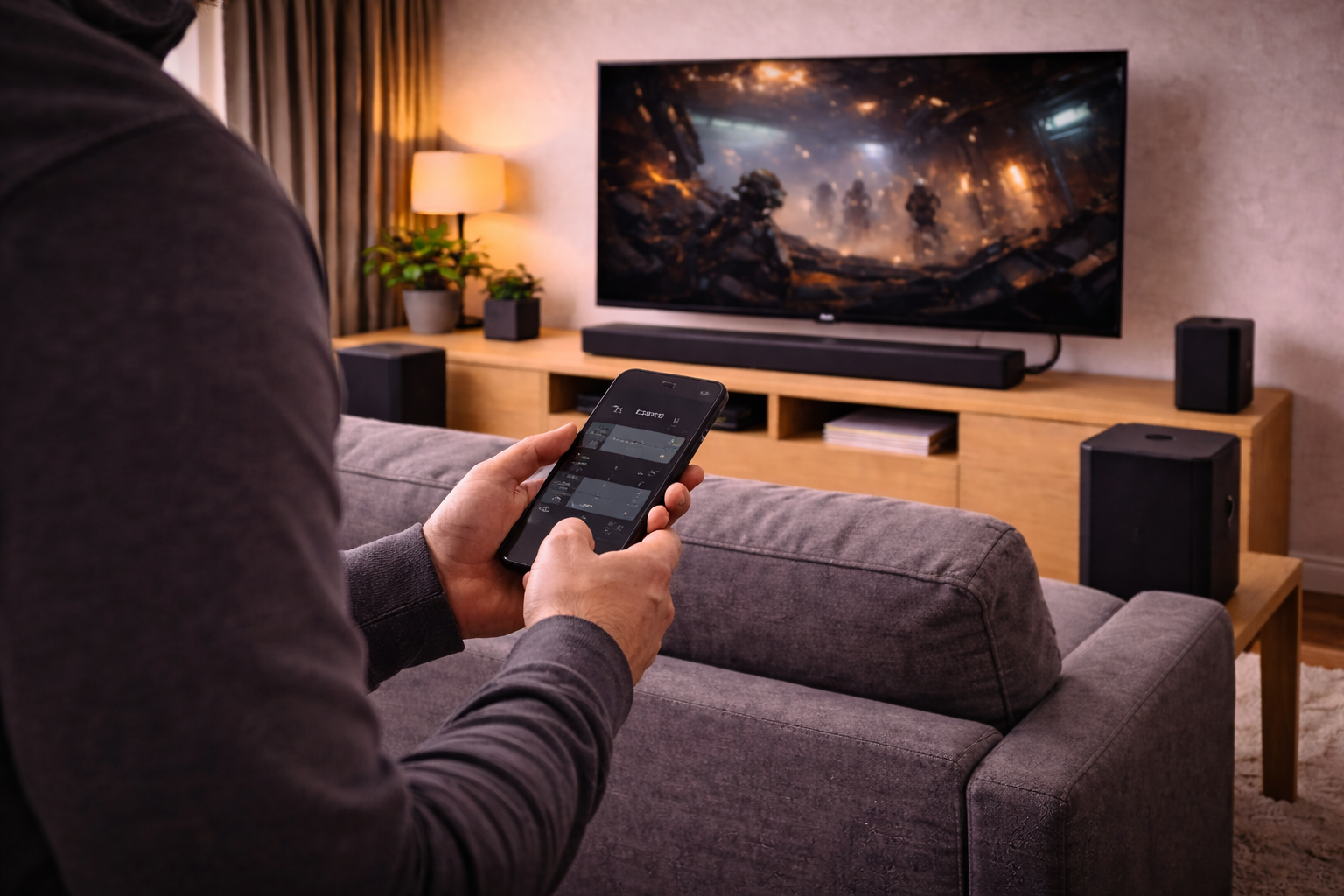
5) Reduce wireless interference around the soundbar and rear hub
Rear kits that use a wireless hub are sensitive to placement. I regularly see hubs shoved behind a TV cabinet next to a router, which is basically the worst case.
- Move the rear wireless hub (or the soundbar if it’s the transmitter) into open air, not inside a closed cabinet.
- Keep it at least 30–50cm away from Wi‑Fi routers, mesh nodes, USB 3.0 hard drives, and HDMI switchers.
- If your rears use mains adapters, try a different wall socket (some power strips add noise).
- Re-run the rear speaker pairing after moving hardware.
This is seen most often in UK terraces where the 5GHz band is crowded and the rear hub is effectively shielded by furniture.
6) Update firmware on the TV, soundbar, and rear speakers
Wireless surround timing is firmware-heavy. A minor update can change buffering, channel mapping, and eARC stability.
- Update the soundbar and rear kit in the manufacturer app first.
- Update the TV firmware next.
- Power-cycle everything after updates: unplug for 60 seconds, then boot TV → soundbar → rears.
I rarely see persistent sync issues on newer firmware when the TV is set to pass-through and the rear link is clean.
7) Use A/V sync controls in the right place (TV vs soundbar vs source)
Many setups have three different “sync” sliders. Stacking them makes timing unpredictable.
- Prefer soundbar lip-sync if the soundbar is the final audio device.
- Use TV A/V sync only when the TV is doing the audio output and the soundbar has no control.
- Avoid using both TV and soundbar sync sliders at the same time unless you’re compensating for a known fixed delay.
If you need a reference for how platforms handle audio delay and lip sync, use Dolby’s overview of home theatre audio formats and playback to understand what’s being decoded where.
Real setups I’ve fixed (and what the fix ended up being)
Scenario 1: LG TV + soundbar + wireless rears, only Netflix is “echoey”
In this setup, Netflix was outputting Dolby Digital Plus while YouTube was stereo. The TV was set to “Auto” digital output and was re-encoding some streams. Switching the TV to Pass Through and disabling AI Sound removed the extra buffering and the rears snapped back into alignment.
This is the most common pattern I see on TVs sold in the UK before 2024: “Auto” output plus processing features equals inconsistent latency.
Scenario 2: PS5 plugged into TV, eARC to soundbar, rears lag in games
Games are sensitive because you notice timing immediately on gunshots and footsteps. The TV was passing multichannel PCM over eARC and adding delay. Plugging the PS5 into the soundbar HDMI input reduced the TV’s role to video only, and the lag dropped to a tolerable level without touching rear settings.
When a soundbar has HDMI inputs, using them is often the cleanest fix because it avoids TV audio conversion entirely.
Scenario 3: Samsung soundbar rear kit drops out and comes back late
This one looked like “sync” but was actually brief wireless dropouts. The rear hub was behind the TV next to a mesh node. Moving the hub to the side of the cabinet and separating it from the mesh node stopped the retransmits, and the perceived delay disappeared.
In practice, if you hear occasional crackles or the rears vanish for a second, treat it as interference first, not a lip-sync setting problem.
Mistakes that keep the problem alive
- Using Bluetooth anywhere in the TV → surround chain: Bluetooth latency is variable and will fight your sync settings.
- Leaving the TV on “PCM” while expecting surround: many TVs output stereo PCM unless explicitly set, which can trigger odd upmixing delays.
- Stacking sync sliders: TV delay + soundbar delay + streaming box delay becomes impossible to reason about.
- Testing with different clips every time: you need one repeatable scene to judge changes.
- Assuming distance settings equal timing: some systems ignore distance for wireless timing and only use it for level/EQ.
If you’re also struggling with speech clarity after getting sync right, it’s usually a centre-channel mix or processing issue rather than timing. Fix soundbar dialogue too quiet on TV pairs well with this once the delay is stable.
Practical upgrades and tools that help when settings aren’t enough
You shouldn’t need extra hardware for basic sync, but a few items solve recurring real-world failure modes.
Better HDMI cables for stable eARC handshakes
When eARC renegotiates, some soundbars re-buffer audio and the rear timing shifts. A flaky HDMI cable can trigger that behaviour even if video looks fine. I’ve fixed “randomly out of sync after a day” issues by swapping the cable more times than I’d like.
- Use an Ultra High Speed HDMI cable for eARC paths.
- Keep the eARC cable run short and avoid tight bends behind wall mounts.
Ethernet for streamers to reduce jitter
If your streaming box is on congested Wi‑Fi, you can get micro-stalls that look like audio timing issues (especially when the TV is also on Wi‑Fi). Hardwiring the streamer removes one variable and makes your testing meaningful.
Optical as a diagnostic fallback (not a final surround solution)
Optical (TOSLINK) can be useful to prove whether eARC is the problem. It won’t carry Atmos and has format limits, but it’s stable. If optical is perfectly synced and eARC isn’t, you’ve narrowed the fault to HDMI negotiation or TV audio processing.
For platform-specific audio output steps, Apple TV audio format and output settings documentation is the quickest reference when you’re trying to lock a stable 5.1 format.
One simple placement fix that helps more than people expect
If your rear speakers are very close to the sofa and the soundbar is far away, your brain can interpret the rears as “late” even when timing is correct, because the rear sound is louder and more direct. Dropping rear level by 1–2 steps and ensuring both rears have similar distance to the seating position often makes the system feel more coherent.
When I’m troubleshooting in small UK lounges, this psychoacoustic effect shows up a lot: the timing is fine, but the balance makes it feel wrong.
Wrap-up: the shortest path to synced wireless rears
Start by isolating whether the TV/source path is adding delay or whether the wireless rear link is unstable. Then set the TV to pass-through, disable latency-heavy sound modes, and use only one lip-sync control (preferably on the soundbar). If the rear kit is using a hub, treat placement and interference as first-class problems, not afterthoughts.
Once you get stable 5.1 timing, you can reintroduce Atmos, upmixing, and “enhancement” features one at a time. That’s the only way to keep the fix from drifting again next week.
FAQ: awkward edge cases people hit in UK setups
Why are my wireless rears out of sync only on YouTube, not Netflix?
YouTube is often stereo and may be output as PCM, while Netflix commonly uses Dolby Digital Plus. Many TVs apply different processing and buffering depending on format, so the delay changes per app. Set the TV to pass-through/bitstream and disable sound enhancements, then retest. This is the most common “only one app is broken” pattern I see on UK TVs before 2024.
My rear speakers are delayed after I enable eARC on a Samsung/LG TV — is eARC the cause?
eARC itself isn’t “slow”, but enabling it can change the TV’s audio pipeline and trigger extra processing or format conversion. If pass-through isn’t enabled, the TV may re-encode audio and add delay. Test eARC on with pass-through, then test eARC off; if off is stable, focus on TV audio settings and HDMI cable stability rather than rear speaker settings.
Why does it sync when my Fire TV/Apple TV is plugged into the soundbar, but not when it’s plugged into the TV?
When the streamer is plugged into the TV, the TV has to pass audio back over ARC/eARC and may buffer or convert it. Plugging into the soundbar usually reduces conversions and keeps audio timing consistent before the wireless rear link. In practice, this wiring change fixes the problem in about half of cases where the TV is the bottleneck.
I can’t make the rears “faster” — the only slider delays everything. What do I do?
That’s normal: most consumer systems can only add delay, not remove it, because the wireless rears already have a minimum buffer. Your goal becomes delaying the front channels so they line up with the rears. If you still hear an echo after adding delay, suspect interference or dropouts on the rear link rather than a missing setting.
My wireless rears are in sync on TV apps, but out of sync on PS5/Xbox in 5.1 PCM
Some TVs add more latency when passing multichannel PCM over eARC than when passing Dolby bitstream. Try setting the console to bitstream Dolby temporarily and compare, or route the console through the soundbar HDMI input. Seen most often when the TV is doing audio “enhancement” on PCM but not on Dolby streams.
Can a mesh Wi‑Fi system in a UK flat make rear speakers lag?
Yes, especially if the rear kit uses 5GHz and your mesh nodes are close to the soundbar or rear hub. Congestion and interference can cause retransmits and buffering that feels like delay. Move the hub away from mesh nodes and avoid placing it behind the TV in a cabinet; that physical change often stabilises timing more than any slider does.
If you need a simple tool for cleaning up HDMI stability during testing, a Ultra High Speed HDMI cable removes a lot of “random resync” behaviour that masquerades as speaker timing problems.
Recommended gear on Amazon UK
- This type of HDMI cable helps when eARC handshakes keep renegotiating and the soundbar re-buffers audio, which can make wireless rears drift out of sync over time. View Ultra High Speed HDMI cable (2m) on Amazon UK
- An optical cable is useful as a diagnostic fallback to confirm whether HDMI eARC/ARC is introducing the delay when you’re trying to isolate the source of rear-speaker sync issues. View TOSLINK optical audio cable on Amazon UK
- A USB Ethernet adapter helps in setups where Wi‑Fi congestion causes micro-stalls on a streamer, making audio timing feel inconsistent compared with the wireless rear channels. View Gigabit USB Ethernet adapter for streaming boxes on Amazon UK
- A filtered surge-protected extension can help when rear speaker hubs or adapters behave erratically on noisy power strips, which often shows up as dropouts that mimic sync problems. View Surge-protected mains extension (filtered) on Amazon UK







