
When the phone says it’s charging, but the number won’t move
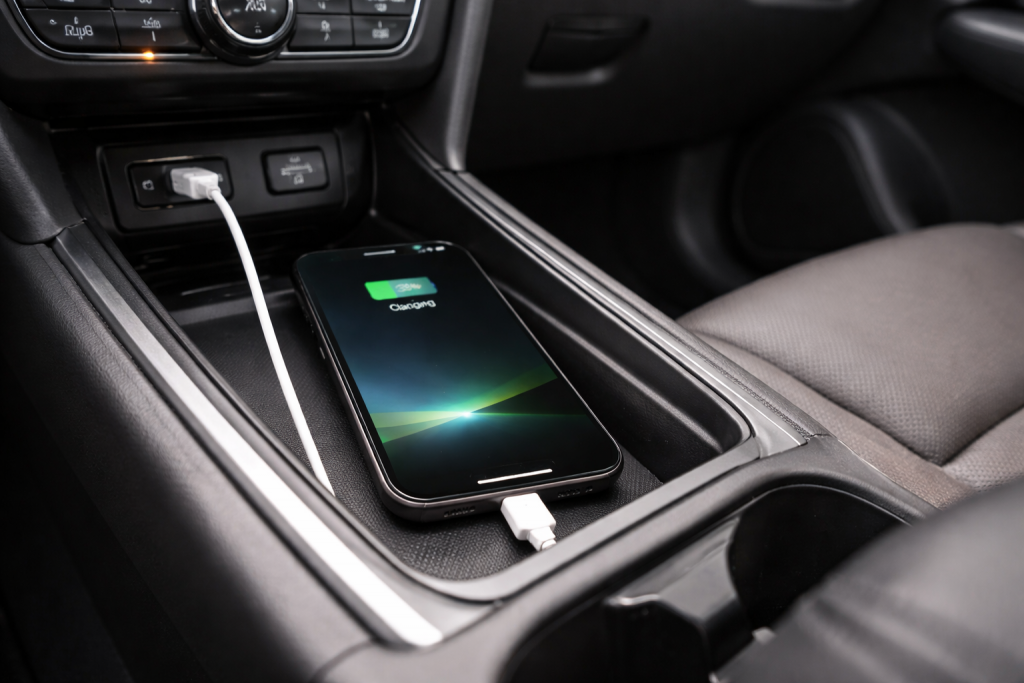
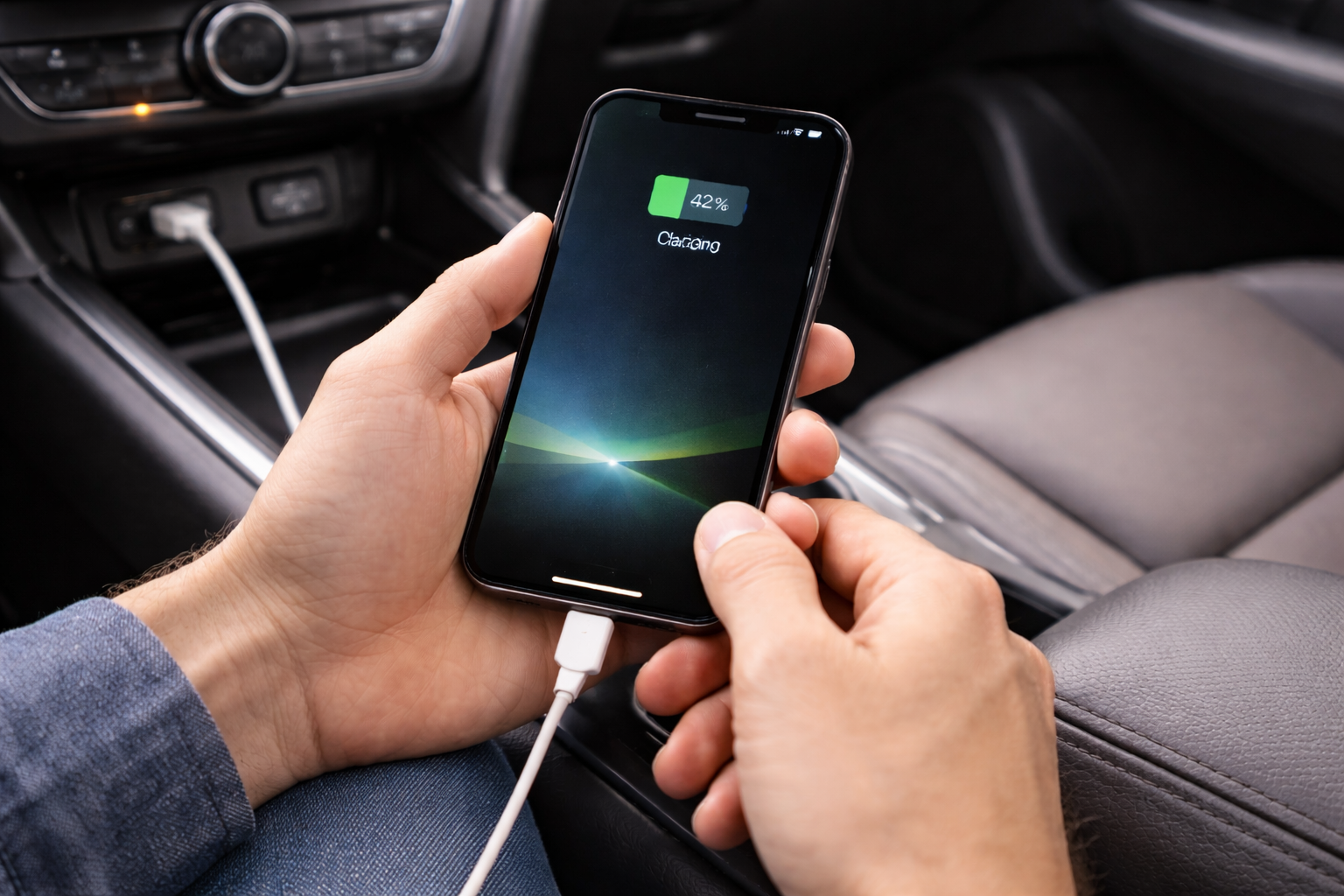
You plug your phone in, you see the charging icon, maybe even “fast charging”, but the battery percentage stays stuck. Sometimes it even drops while plugged in. This is one of those problems that looks like a battery failure, but in practice it’s usually a power-delivery mismatch, a dirty port, heat throttling, or the phone using more power than it’s receiving.
The key is to separate three different states: charging negotiated (icon appears), power actually delivered (watts into the phone), and percentage reporting (the number you see). You can fix most cases without replacing the battery, but you need to test in a controlled way.
What’s actually happening: watts in vs watts out vs percentage reporting
Battery percentage is not a live “fuel gauge” reading. It’s an estimate based on voltage, current, temperature, and a model of the battery’s behaviour. If the phone is hot, the system may reduce charging current heavily. If the phone is under load (navigation, hotspot, gaming, camera), it can consume as much or more than the charger supplies, so the percentage doesn’t rise.
On modern iPhones and Android phones, the charger and phone negotiate a charging profile. If that negotiation fails, you can still get the charging icon but at a low fallback rate (often 2.5–5W). That’s enough to show “charging” but not enough to increase percentage during use.
This is the most common issue I see on devices sold in the UK before 2024: a perfectly fine phone paired with a cable/plug combination that silently falls back to slow charging.
Why it can drop while plugged in
- High screen brightness + 5G + GPS can exceed slow charging input.
- Wireless charging is less efficient and more heat-limited, so it can stall at higher percentages.
- Power bank “auto-off” behaviour can pulse power and confuse the phone’s charging state.
- Damaged cable/port pins can allow basic charging but not the higher-current mode.
Why it can be stuck at a specific percentage (often 80%)
Many phones intentionally pause or slow charging near 80% to reduce battery wear. On iPhone this is Optimised Battery Charging; on Android it’s often “Protect battery” or a manufacturer-specific limit. If you’re expecting a fast climb from 80% to 100%, you may be fighting a feature rather than a fault.
About Optimized Battery Charging on iPhone is worth checking if your iPhone repeatedly stalls around 80% overnight.
Fast diagnosis: prove whether the phone is receiving real power
Before changing settings, do one controlled test. You want the phone cool, idle, and on a known-good charger. If the percentage rises in this state, the phone and battery are usually fine and the issue is load, heat, or negotiation.
- Let the phone cool for 10–15 minutes off charge (case off if it runs hot).
- Enable Airplane mode and turn the screen off.
- Plug into a wall charger (not a laptop USB port, not a car USB, not a monitor).
- Wait 10 minutes and check if the percentage increases by at least 1–2%.
In practice, this step fixes the problem in about half of cases because it exposes a “charging under load” situation rather than a charging failure.
Targeted fixes in the order that actually saves time
1) Swap the cable first (even if it “works”)
A worn USB-C or Lightning cable can still carry enough power to show the charging icon while failing at higher current. The giveaway is a cable that only charges reliably in one orientation, or only if you hold it at an angle.
- Try a different cable you trust (ideally the one that fast-charges another device).
- Avoid very long cables for this test; voltage drop is real at higher currents.
- If you’re using USB-C to USB-A, test USB-C to USB-C as well (many phones negotiate better over C-to-C).
If you’ve had weird behaviour with USB-C power banks, the negotiation angle matters a lot; see Fix iPhone USB-C not charging from power banks for the common compatibility patterns.
2) Clean the port properly (lint is the silent killer)
Pocket lint compacts at the back of the port and stops the plug seating fully. You still get a connection, but the high-current pins can be intermittent. I’ve lost count of the “battery is dying” phones that were fixed by removing a felt-like plug of lint.
- Power the phone off.
- Use a wooden toothpick or plastic pick (not metal).
- Gently scrape the back wall of the port and pull debris out in small pieces.
- Inspect the plug: it should click in firmly and sit flush.
If the port feels loose or the cable falls out easily, that’s often physical wear rather than dirt, and you’ll likely need a repair.
3) Stop using a laptop/TV/monitor USB port for charging
USB ports on laptops, TVs, and monitors often provide low power (2.5W–7.5W) unless they explicitly support USB Power Delivery at higher wattage. That’s enough to show charging but not enough to increase percentage during normal use.
I see this constantly with desk setups: the phone is plugged into a monitor for “tidy cables”, then the user wonders why it never climbs. If you’re troubleshooting power delivery through hubs and docks, Fix laptop not charging via USB-C dock (UK models) explains the same negotiation failure modes that also affect phones.
4) Confirm the charger supports the right fast-charging standard
Not all “fast chargers” are fast for all phones. Many Android phones want USB Power Delivery (USB-PD) and sometimes PPS (Programmable Power Supply). Some older plugs only do Qualcomm Quick Charge over USB-A, which may not be used by your phone. iPhones generally fast-charge over USB-PD with a USB-C to Lightning (or USB-C to USB-C on USB-C iPhones).
- If your phone supports USB-PD, use a USB-C PD wall charger and a USB-C cable.
- If your phone supports PPS (common on Samsung), a PD-PPS charger usually stabilises charging under load.
- Avoid “multi-port” chargers for testing; some share power aggressively between ports.
When the wrong standard is in play, you’ll often see the phone “charging” but it behaves like a trickle charger.
5) Deal with heat: charging slows down when the phone is warm
Heat is a hard limiter. If the phone is warm to the touch, charging current is reduced to protect the battery. Wireless charging is especially prone to this because it generates heat in the coil and wastes power.
- Remove the case for charging if it traps heat.
- Avoid charging on a bed/sofa where heat can’t dissipate.
- Don’t run navigation, hotspot, or gaming while trying to recover battery quickly.
- If you must use the phone, lower brightness and switch to 4G temporarily.
I rarely see “stuck percentage” complaints on newer phones when they’re charged cool on a wired PD charger; heat is usually the difference between normal and frustrating behaviour.
6) Check for battery protection features that cap charging
Look for settings that intentionally pause charging:
- iPhone: Optimised Battery Charging (can hold at ~80% until it predicts you’ll need it).
- Samsung/Android: Protect battery / Battery protection (often caps at 80% or 85%).
- Adaptive charging: may slow charging overnight or when it detects a long plug-in period.
On Android, the exact menu differs by brand and OS version; Fix charging problems on Android devices is the quickest reference when the setting names don’t match your phone.
7) Rule out a software “stuck percentage” reading
Sometimes the phone is charging, but the percentage display lags or sticks until a recalculation event. You’ll notice this when the phone suddenly jumps several percent after a restart.
-
- Restart the phone (a full reboot, not just screen off/on).
- Update the OS if you’re multiple versions behind (battery reporting bugs do happen).
- Try charging while powered off for 20–30 minutes.
In real-world troubleshooting, a reboot plus a different charger is the fastest way to separate “reporting glitch” from “power delivery problem”.
8) Identify “charging under load” apps and services
If the phone only fails to gain percentage when you’re using it, you need to reduce the load or increase input power. Common culprits are video calls, camera use, hotspot, and poor signal areas where the modem works harder.
- Check Battery usage for the last 1–2 hours and look for a single app dominating.
- Disable hotspot while charging (it’s a big constant drain).
- If you’re in a weak-signal spot, switch to Airplane mode for 10 minutes to “catch up”.
This is seen a lot on commuter routes in the UK where the phone clings to 5G in patchy coverage and burns power while the charger is only supplying a low negotiated rate.
Step-by-step: a reliable troubleshooting flow you can do at home
Use this order. It avoids changing five things at once and never knowing what fixed it.
- Baseline test: cool phone, Airplane mode, screen off, wall charger, 10 minutes.
- Cable swap: test a second cable (preferably USB-C to USB-C).
- Charger swap: test a different wall plug (PD if possible).
- Port clean: remove lint and confirm the plug seats fully.
- Heat control: case off, wired charging, avoid wireless for the test.
- Settings check: battery protection/optimised charging caps.
- Load check: stop hotspot/navigation; retest.
- Battery health check: if it still won’t rise when idle, suspect battery/port hardware.
Real-world failure patterns (and what usually fixes them)
Scenario A: “It charges in the car, but not at home”
This is often a charger standard mismatch. Many car chargers output a stable 12W+ on USB-A, while a cheap home plug might be a low-quality 5W unit or a multi-port charger that shares power. Swap to a known USB-PD wall charger and a short cable, then retest with the phone idle.
I’ve seen this exact pattern with iPhones where the car charger is effectively doing the heavy lifting and the home setup is just a trickle.
Scenario B: “It says fast charging, but the percentage still doesn’t move”
“Fast charging” is not a guarantee of net gain if the phone is consuming power heavily. Video calls, camera recording, and hotspot can flatten the curve. The fix is either reduce load (screen brightness, radios) or increase input stability (PD/PPS charger, better cable), plus manage heat.
In practice, switching from wireless to wired charging resolves this more often than people expect, because it cuts heat and improves efficiency immediately.
Scenario C: “Wireless charging shows the icon, but it never gets past 70–80%”
Wireless pads are sensitive to alignment and case thickness, and they run hotter. If the phone warms up, it will throttle and hover. Try removing the case, repositioning carefully, and charging from a lower starting percentage. If you need predictable charging, use wired for the last 30%.
Scenario D: “Power bank works for my friend’s phone but not mine”
Power banks vary wildly in USB-PD profiles and cable quality. Some banks negotiate poorly with certain phones, especially when USB-C is involved. If you see connect/disconnect loops or “charging” with no increase, test a different cable and a different bank, and avoid pass-through charging while testing.
This often fails on budget power banks that only implement a narrow set of PD profiles.
Mistakes that keep you stuck in the same loop
- Testing with the phone in use: you can’t judge charging performance while streaming video at full brightness.
- Assuming the icon means adequate power: it only means the phone detected some input.
- Cleaning the port with metal: it’s easy to damage pins or short contacts.
- Using a “random” cable from a drawer: many are charge-only, damaged, or out of spec.
- Ignoring heat: if the phone is warm, you’re not testing charging, you’re testing thermal throttling.
- Charging from a TV/console USB: these ports are designed for accessories, not fast charging.
Hardware and software choices that prevent the issue coming back
Use a known-good PD charger and a short, robust cable
If you want the simplest “it just works” setup, use a USB-C Power Delivery wall charger and a decent USB-C cable. For many Android phones (especially Samsung), a PD-PPS charger reduces weird slowdowns because the phone can request voltage/current more precisely.
When I’m trying to eliminate variables quickly, I use a single-port PD charger and a short cable because it removes most negotiation and voltage-drop problems.
If you need a reliable baseline cable for testing, a USB-C to USB-C PD-rated cable is the type that stops intermittent “charging but not increasing” behaviour caused by worn conductors.
Prefer wired charging when you need recovery, wireless when you need convenience
Wireless is fine for topping up, but it’s the first thing I remove from the equation when diagnosing. If you regularly charge while using the phone, wired charging is more predictable and less heat-limited.
Keep battery protection features on, but understand their behaviour
Battery protection is usually worth keeping enabled, especially if you leave the phone plugged in for long periods. Just recognise the symptoms: a “stuck” 80–85% is often intentional. If you need 100% for travel, disable the limit temporarily and re-enable it later.
Wrap-up: the quickest path to a real fix
When a phone shows charging but the percentage doesn’t increase, treat it like a power budget problem first, not a battery replacement. Prove charging with a cool, idle baseline test. Then swap cable, swap charger, clean the port, and remove heat and load from the equation.
If it still won’t gain percentage while idle on a known-good wall charger, that’s when battery health or port hardware becomes the likely culprit. At that point, a repair shop can confirm with proper current measurements, but most users never need to go that far.
FAQ: awkward edge cases people actually run into
Why does my phone charge from a wall plug but not from my laptop USB-C port?
Many laptop USB-C ports don’t output high power unless they support specific USB-PD source modes, and some only provide minimal current for accessories. The phone may show charging but only at a trickle rate. I see this a lot on UK laptops sold before 2024 where USB-C is present but not designed as a high-power charging source.
My iPhone sits at 80% for hours on iOS—how do I stop that?
That behaviour is usually Optimised Battery Charging or a charging limit feature, not a fault. If you’re charging overnight, iOS may hold at ~80% and finish closer to your usual wake time. If you need it to reach 100% immediately, disable the optimisation temporarily and retest with the phone cool and on a PD charger.
Why does it charge normally when switched off, but not when I’m using it?
That’s classic “watts out > watts in”. With the phone on, the screen, modem, and apps can consume more than a slow charger supplies, so the percentage stalls. In practice, moving from a low-power USB port to a proper PD wall charger fixes this more often than any setting change.
My Samsung shows “super fast charging” but the battery still drops in the car—what gives?
Some car chargers advertise fast charging but share power between ports or overheat and throttle. Also, navigation plus bright screen plus weak signal can overwhelm the input even if the label says fast. Try a single-port PD-PPS car charger, a short cable, and reduce screen brightness; this is where unstable behaviour stops when cheaper adapters fail.
Why does wireless charging work with no case, but not with my case on?
Cases can misalign the coil and trap heat, which forces the phone to throttle charging. You’ll still see the charging icon, but net gain can be near zero. I see this most with thicker cases and magnetic accessories where alignment is slightly off-centre.
Recommended gear on Amazon UK
- A USB-C Power Delivery wall charger helps when the phone shows charging but never gains percentage because it avoids low-power fallback modes common with laptop, TV, and cheap multi-port adapters. View USB-C Power Delivery wall charger (single port) on Amazon UK
- A short PD-rated USB-C to USB-C cable helps when a worn or long cable shows the charging icon but can’t sustain higher current without voltage drop. View USB-C to USB-C PD-rated cable (1m) on Amazon UK
- A PD-PPS charger helps in the scenario where Android phones claim fast charging but stall under load, because PPS negotiation is usually where unstable charging behaviour disappears. View USB-C PD-PPS charger for Samsung and Android on Amazon UK
- A USB-C inline power meter helps when you need to confirm whether the phone is actually receiving meaningful watts versus just displaying a charging symbol. View USB power meter (USB-C inline tester) on Amazon UK







