
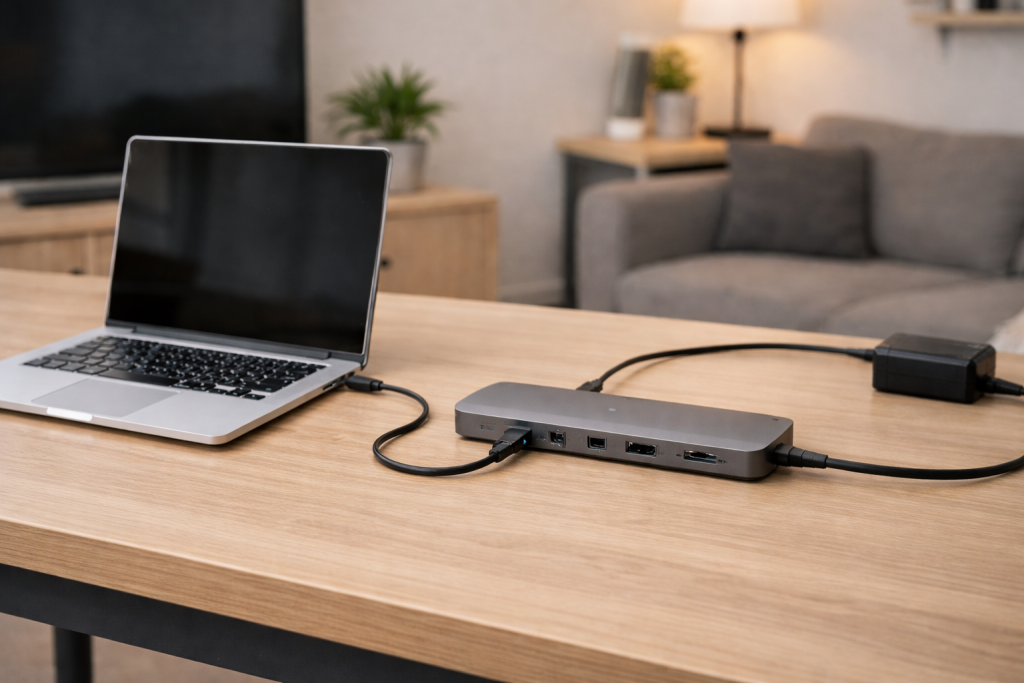
A USB-C dock can run your monitor, Ethernet and USB devices perfectly, yet your laptop battery still drains or shows “plugged in, not charging”. That mismatch is confusing because it feels like the dock is working. In reality, video/data and charging are separate negotiations over USB-C, and one can succeed while the other fails.
This article focuses on UK-sold laptops and common docks used with Windows 11, macOS and business machines from Dell, HP and Lenovo. I’ll keep it diagnostic: identify the failure state, then test in an order that avoids guesswork.
What has to go right for USB-C dock charging to work
Charging through a dock relies on USB Power Delivery (USB PD). The dock either passes power from a USB-C charger (common on travel hubs) or contains its own PSU (common on desktop docks). Your laptop and dock then negotiate a voltage/current “contract” (for example 20V at 3.25A for 65W).
If the contract can’t be agreed, the laptop may fall back to a low-power profile (often 5V/1.5A or 5V/3A) which is enough to run a phone but not a laptop under load. That’s why you’ll see the battery slowly dropping during video calls even though the dock is connected.
Three common failure modes
- Insufficient wattage: the dock/charger can’t supply what the laptop expects, so it refuses to charge or charges only when asleep.
- Bad PD path: the “host” USB-C cable or dock port can’t carry the required current, or the dock’s PD controller is glitching.
- Policy/firmware blocks: BIOS settings, vendor utilities, or outdated dock firmware prevent charging even though the hardware is capable.
This is the most common issue I see on devices sold in the UK before 2024: users assume any USB-C port is a charging port, but many are data-only or have limited PD input support.
USB-C vs Thunderbolt vs USB4: why it matters
Thunderbolt 3/4 and USB4 ports usually support charging, but not always on every port. Some laptops only accept charging on the left-side port, or only on the port closest to the hinge. On several HP and Lenovo models I’ve handled, the “front” USB-C port will run a dock for display but won’t accept PD input reliably.
Also, some docks reserve bandwidth or power budget depending on what’s connected (high-refresh monitors, Ethernet, multiple SSDs). That can expose borderline power setups where charging works until you plug in one more device.
Start by identifying your exact symptom
Before changing anything, note what you actually see. Different symptoms point to different layers (hardware negotiation vs OS reporting vs battery health).
- No charging icon at all: laptop doesn’t detect PD input from the dock.
- “Plugged in, not charging” (Windows): PD is detected but charging is blocked or the system thinks it’s unsafe/insufficient.
- Charges only when asleep: power is borderline; under load the laptop draws more than the dock supplies.
- Charges, but very slowly: laptop fell back to a low-wattage PD profile.
- Works on one laptop but not another: compatibility/firmware/required wattage differs.
A clean troubleshooting order that avoids rabbit holes
Work through these steps in order. Don’t change five things at once; USB-C charging problems are often one weak link, and you want to isolate it.
1) Confirm the laptop can charge over USB-C (and which port)
- Look for a charging icon next to the USB-C port, or check the laptop manual/spec sheet.
- If there are multiple USB-C ports, test each one with the dock.
- If you have the original laptop charger, plug it directly into the same USB-C port (no dock). If direct charging fails, the dock isn’t the primary suspect.
Seen most often on HP, Dell and Lenovo laptops: only one USB-C port supports PD input, and the other is for data/display only.
2) Check the dock’s power design (bus-powered vs powered dock)
- Bus-powered hub: it relies on a USB-C charger connected to the hub (or sometimes no charger at all). These commonly top out at 60W or less.
- Powered dock: it has its own PSU (often 90–180W) and can supply 65W/90W/100W to the laptop.
If your dock is bus-powered and you’re using a phone-style 20–30W USB-C charger, the laptop may never charge. In practice, this step fixes the problem in about half of cases because the “dock” is fine; the charger feeding it is not.
3) Validate wattage requirements (realistic, not optimistic)
As a rule of thumb:
- Ultrabooks (13–14 inch): usually fine on 45–65W.
- 15–16 inch productivity laptops: often need 65–100W to charge while in use.
- Gaming/workstation models: may accept USB-C charging but only for light use; many will refuse or throttle charging under load.
If your laptop shipped with a 90W/135W/170W barrel charger, expect USB-C dock charging to be limited. You might get “plugged in” but still lose battery during meetings. I rarely see this issue on newer platforms that ship with 100W USB-C chargers, but it’s common on older mixed-charger designs.
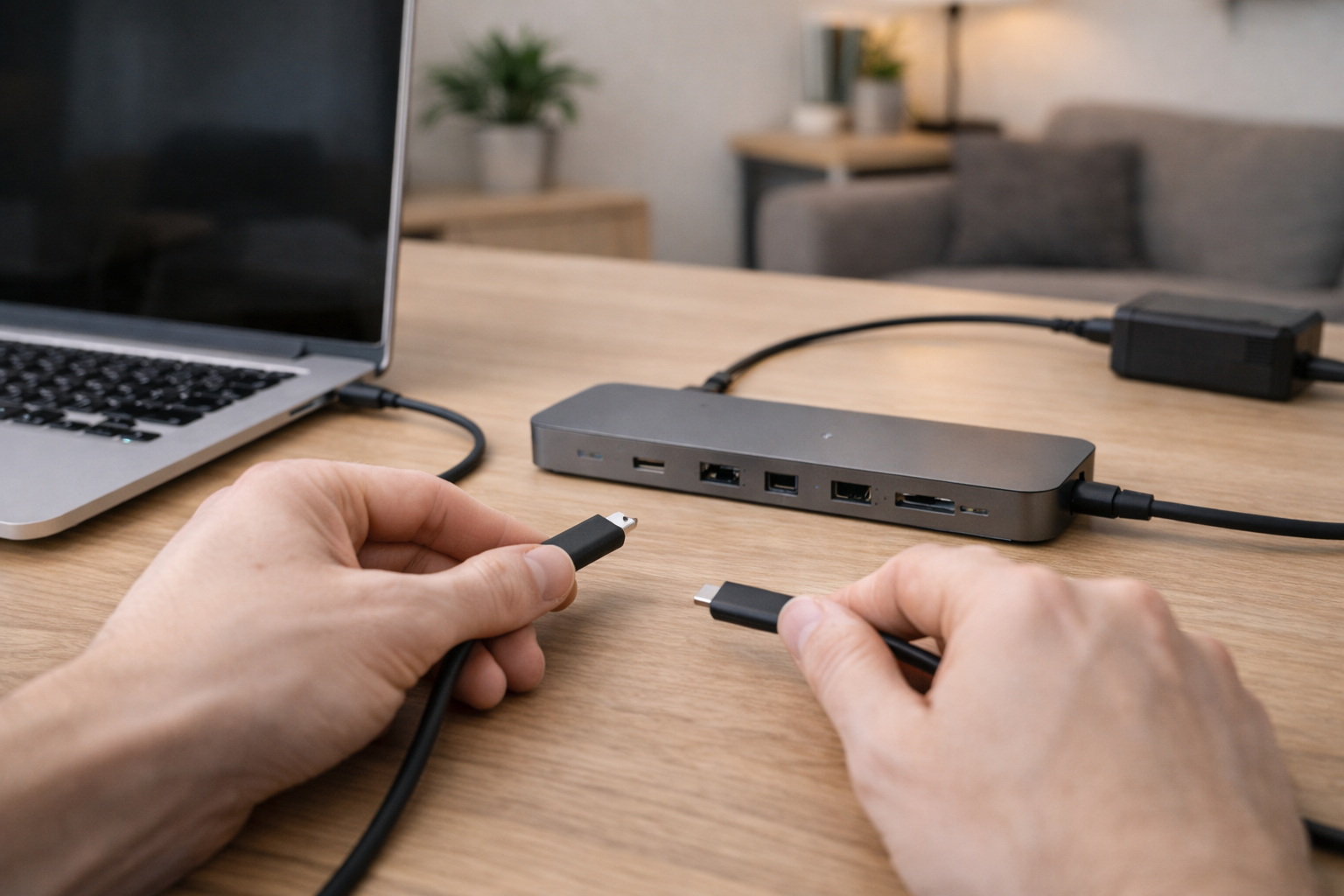
4) Swap the host USB-C cable (the most overlooked part)
The cable between dock and laptop is not “just a cable”. For charging, you want an e-marked USB-C cable rated for 100W (5A). For Thunderbolt docks, use the supplied Thunderbolt cable where possible.
- Replace the host cable with a known 100W/Thunderbolt-rated cable.
- Avoid long USB-C cables during testing (keep it 0.8m or shorter).
- If the dock has a captive cable, test a different dock or test direct charging to rule out the laptop port.
This is the most common “it charges my phone but not my laptop” fix I do in real homes, not lab setups.
5) Remove high-draw peripherals and retest
Some docks dynamically manage power and can behave badly when close to their limits. For a clean test:
- Disconnect external SSDs, USB hard drives, capture cards and phone charging cables from the dock.
- Disconnect the monitor(s) and leave only the dock connected to the laptop.
- Check whether the laptop starts charging.
If charging returns, add devices back one at a time. I’ve seen USB-powered speakers and RGB keyboards cause enough instability on cheaper hubs that PD negotiation drops and never recovers until you unplug everything.
6) Power-cycle the dock properly (not just unplugging USB-C)
Many docks keep their PD controller in a weird state until they fully discharge.
- Unplug the USB-C cable from the laptop.
- Unplug the dock’s PSU (or USB-C charger feeding the hub).
- Disconnect monitors and USB devices.
- Wait 60 seconds.
- Reconnect PSU first, then the dock-to-laptop cable, then peripherals.
On UK desks with extension leads and monitor power bricks, I see partial power states all the time; a full power-cycle is often the only way to reset a dock that’s stuck negotiating the wrong PD profile.
7) Windows 11 checks: battery reporting vs actual charging
Windows can misreport charging when the PD contract is unstable. Do these quick checks:
- Open Settings > System > Power & battery and watch whether the battery percentage increases over 5–10 minutes.
- Reboot once with the dock connected (fast startup can preserve a bad state).
- If you use vendor tools (Dell Power Manager, Lenovo Vantage, HP Support Assistant), check for battery charge thresholds (e.g. “stop charging at 80%”).
If you suspect Windows power management is interfering, Windows battery and power troubleshooting is the quickest official reference to align settings with expected behaviour.
8) macOS checks: power source and port behaviour
On MacBooks, click the battery icon and confirm the power source. If it says “Power Source: Power Adapter” but the battery doesn’t rise, you’re likely on a low-wattage contract.
- Try a different USB-C port on the MacBook (left vs right can matter depending on model and dock layout).
- Shut down fully (not sleep), then boot with the dock connected.
- Test with a direct Apple USB-C charger to confirm the Mac’s port is healthy.
For Apple-specific charging behaviour and alerts, Apple’s guide to USB-C power adapters and charging is the most useful baseline.
9) Update dock firmware and laptop BIOS/UEFI
Dock firmware updates are boring, but they fix real PD negotiation bugs. If your dock is from Dell/HP/Lenovo/CalDigit/Anker/Belkin, check the manufacturer’s updater tool. Then update your laptop BIOS/UEFI and USB-C/Thunderbolt drivers.
- Update dock firmware next.
- Re-test with a simple setup (dock + laptop only).
- Update laptop BIOS first if it includes USB-C PD or Thunderbolt fixes.
I’ve had docks that would only deliver 15W until a firmware update, then immediately negotiate 65W without changing anything else. This often shows up after a Windows feature update or when moving the dock between different laptops.
10) Check for “charge-through” limitations on travel hubs
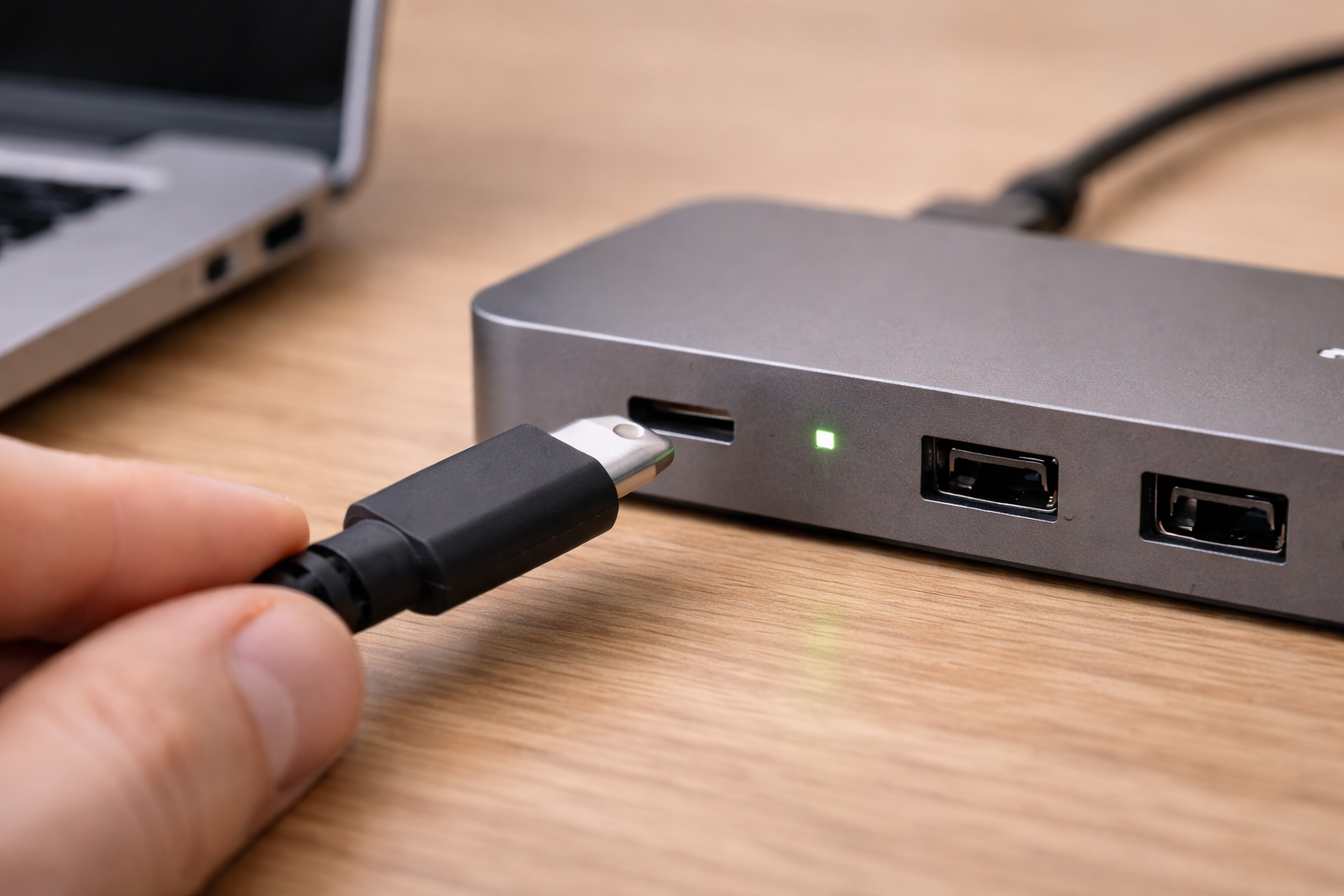
Many compact USB-C hubs advertise “100W PD” but only pass 85W to the laptop (keeping 15W for the hub). Some pass even less when HDMI is active. If you’re using a 65W charger into a hub that reserves power, the laptop may see only 45–50W.
If your laptop needs 65W to hold steady under load, that gap explains “charging only when idle”. This is where switching to a powered dock or a higher-wattage charger stops the slow drain.
Scenarios I see on UK desks (and what actually fixes them)
Scenario A: Dell XPS/Latitude shows “plugged in” but battery drops during Teams
Typical setup: 4K monitor over HDMI/DisplayPort, Ethernet, webcam, and a bus-powered hub with a 65W USB-C charger. The laptop negotiates a lower profile once the CPU ramps up and the monitor is active.
- Fix path: replace the hub with a powered dock that can supply 90–100W, or use a 100W charger into a hub that truly passes through close to 100W.
- Quick confirmation: unplug the monitor from the hub; if charging starts, you’re power-budget limited.
Seen most often on Dell and Lenovo business laptops where the system will prioritise stability and refuse marginal charging contracts.
Scenario B: Lenovo ThinkPad charges on the right USB-C port, not the left
This looks like a dock fault, but it’s usually port design. Some models route PD input through one controller and the other port through a different path intended for data/display.
- Fix path: use the correct charging port consistently; label the cable if needed.
- Extra step: update BIOS/Thunderbolt firmware; I’ve seen port behaviour improve after updates.
This is the most common issue I see on devices sold in the UK before 2024 that have two USB-C ports but only one is “full function” for charging.
Scenario C: HP laptop refuses to charge via dock unless you use the OEM charger
HP systems can be picky about PD profiles and may warn about “non-HP adapter” or silently limit charging. With some docks, the PD contract is valid but not the exact profile the laptop prefers.
- Fix path: try a different PD charger (100W) or a dock known to supply the expected profile; update BIOS and disable any “adapter warning” settings if available.
- Reality check: some models will never charge at full speed over generic USB-C under load.
I rarely see this on newer HP models that ship with USB-C chargers, but it’s common on mixed fleets where older machines used barrel chargers.
Scenario D: Dock charges a MacBook but not a Windows laptop (same cable)
MacBooks are often happy with 60–96W USB-C charging. Many Windows laptops (especially 15–16 inch) expect 90–100W to charge while active, and some will reject lower-wattage sources more aggressively.
- Fix path: confirm the Windows laptop’s required wattage, then match the dock’s output to it.
- Test: put the Windows laptop to sleep; if it charges then, you’re simply underpowered when awake.
Common mistakes that waste time
- Assuming any USB-C cable supports laptop charging: many are 3A-only and will cap at 60W or behave inconsistently.
- Testing with the monitor connected first: start with dock + laptop only, then add devices.
- Mixing chargers: a 45W phone/tablet charger can power the dock electronics but won’t sustain a laptop.
- Ignoring charge thresholds: “Battery conservation” modes make it look broken when it’s working as configured.
- Using the wrong USB-C port on the laptop: especially on business models with multiple USB-C connectors.
In practice, the cable and wattage account for most failures; firmware and OS settings are the next layer, and actual hardware faults are last.
What I recommend once you’ve isolated the cause
Use a known-good 100W USB-C cable for the dock-to-laptop link
If your troubleshooting points to intermittent negotiation (charging comes and goes, or only works at certain angles), replace the host cable first. A 5A e-marked cable removes a whole class of “mystery” behaviour.
If you also use USB-C storage through the dock, keep in mind that flaky USB-C paths can show up as drive disconnects too; Fix USB-C SSD Not Mounting on Windows 11 & macOS pairs well with this problem because the root cause is often the same physical link.
Match dock output to laptop class (65W vs 90–100W)
For 13–14 inch laptops, a 65W dock is usually fine. For 15–16 inch machines, I aim for a dock that can deliver 90–100W to the host. If you’re running dual monitors and multiple USB devices, a powered dock is simply more stable than a travel hub.
Prefer a powered dock for permanent desks
On a fixed desk setup, powered docks reduce edge cases: fewer renegotiations, fewer brownouts when devices spin up, and less sensitivity to which peripherals are attached. This is usually where unstable behaviour stops when cheaper alternatives fail.
Keep a small USB-C power meter for quick confirmation (optional)
If you troubleshoot docks often, a USB-C PD power meter lets you see whether you’re getting 5V, 9V, 15V or 20V and roughly how many watts. It turns “it should be charging” into a clear yes/no.
For a simple tool that helps confirm whether the dock is actually negotiating the wattage you expect, a USB-C PD power meter saves a lot of back-and-forth.
Wrap-up: the fastest path to a reliable charging dock setup
When a laptop won’t charge via a USB-C dock, treat it like a chain: laptop port capability, dock power design, charger wattage, host cable rating, then firmware and OS policies. Start with the simplest configuration and add devices back only after charging is stable.
If you do only two things, make them these: verify the dock can supply the wattage your laptop needs while in use, and replace the dock-to-laptop cable with a known 100W/Thunderbolt-rated one. Those two steps resolve the majority of UK desk setups I’m asked to fix.
FAQ: awkward edge cases people hit with USB-C docks
Why does my USB-C dock charge my MacBook but not my Windows 11 laptop?
Most often it’s wattage expectations. Many MacBooks will accept and charge reasonably on 60–96W, while a 15–16 inch Windows laptop may need 90–100W to charge during normal use. On UK laptops sold before 2024, I regularly see “plugged in” with slow battery drain because the dock is only delivering 45–65W once the hub reserves its share. Test by putting the Windows laptop to sleep; if it charges then, you’re underpowered when awake.
Why does it say “plugged in, not charging” when I’m using a USB-C dock?
This usually means the laptop detects a power source but is refusing to charge due to a low-wattage or unstable PD contract, or because a battery threshold is enabled. Vendor utilities (Lenovo Vantage, Dell Power Manager, HP tools) commonly set 80% limits that look like a fault. In practice, swapping the host USB-C cable and confirming the dock can supply 90–100W fixes this more often than changing Windows settings.
My dock charges only when the laptop is asleep — what does that indicate?
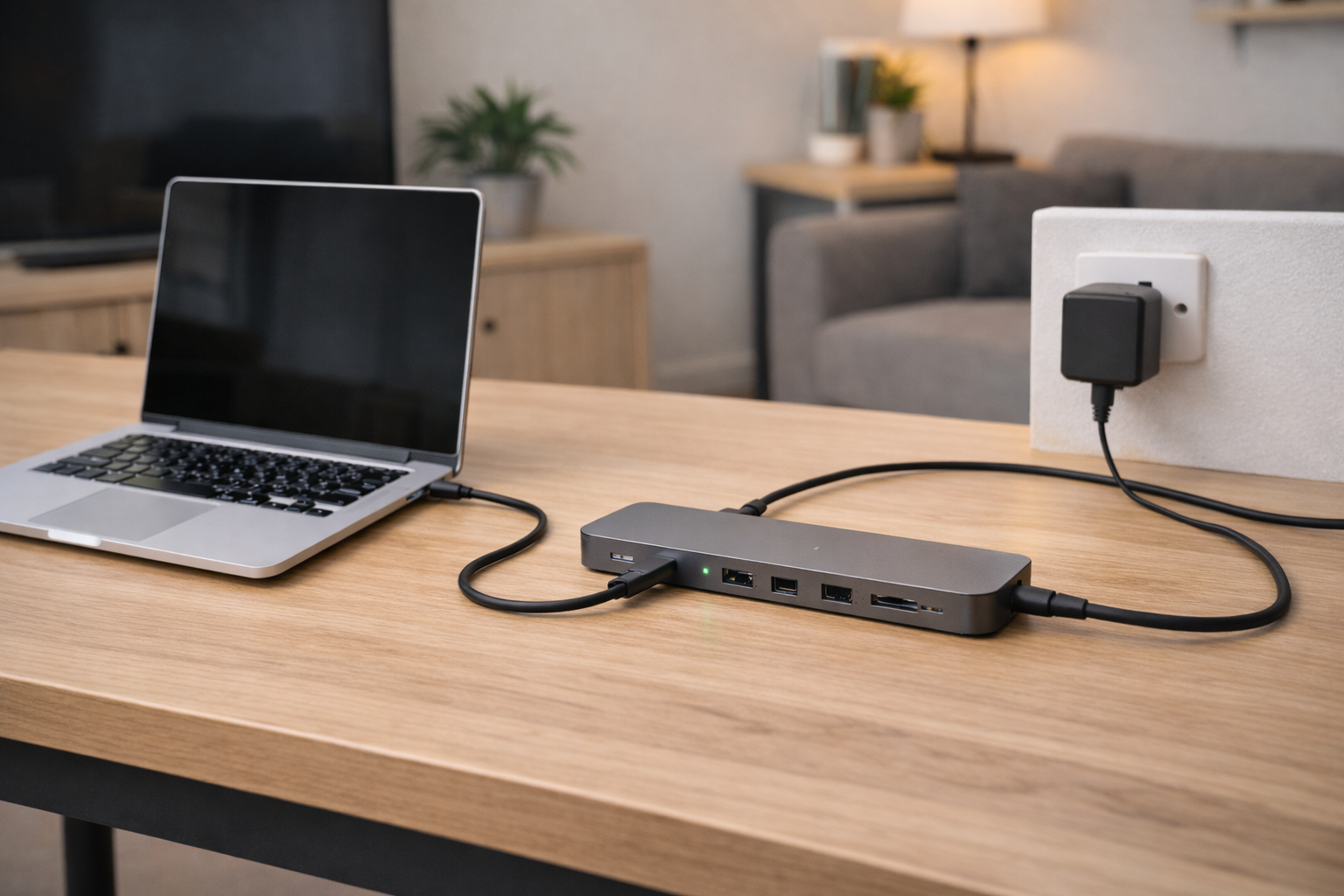
That pattern nearly always points to insufficient power under load. When the laptop is awake, it may draw more than the dock can supply, so the battery still drops; when asleep, the draw falls and charging resumes. I see this a lot with travel hubs that claim “100W PD” but pass less to the laptop once HDMI is active. The clean fix is a powered dock or a higher-wattage PD source that the hub can actually pass through.
Why does charging work on one USB-C port but not the other on the same laptop?
Not all USB-C ports are wired the same internally. One may support PD input and the other may be data/display-focused, even if both look identical. Seen most often on HP, Dell and Lenovo laptops: the “correct” charging port is consistent, but people swap sides depending on desk layout. If you want a permanent fix, route the dock cable to the known charging port and update BIOS/Thunderbolt firmware to reduce port quirks.
Can a Thunderbolt 4 dock still fail to charge a laptop?
Yes. Thunderbolt describes data/video capability, not guaranteed charging wattage. A TB4 dock might supply 60–90W, and some laptops will refuse to charge if they detect it’s below their preferred adapter class. In real homes, the failure is often the cable (non-Thunderbolt cable used with a TB dock) or a dock firmware bug that drops the PD contract until you fully power-cycle the dock.
Recommended gear on Amazon UK
- In practice, intermittent dock charging is often the host cable failing to carry stable 5A current, and a 100W e-marked USB-C cable removes that weak link in the setup. View 100W (5A) e-marked USB-C to USB-C cable on Amazon UK
- When a laptop charges only while asleep or drains during meetings, a powered dock that can deliver 90–100W to the host usually resolves the power-budget limitation described earlier. View Powered USB-C/Thunderbolt dock with 90–100W host charging on Amazon UK
- If you’re using a travel hub with charge-through, a 100W USB-C PD charger helps when the hub reserves part of the wattage and the laptop otherwise falls back to slow charging. View 100W USB-C PD wall charger (UK plug) on Amazon UK
- A USB-C PD power meter is useful when you need to confirm whether the dock is negotiating 5V, 9V, 15V or 20V and why the laptop reports plugged in but won’t charge. View USB-C PD power meter on Amazon UK







