
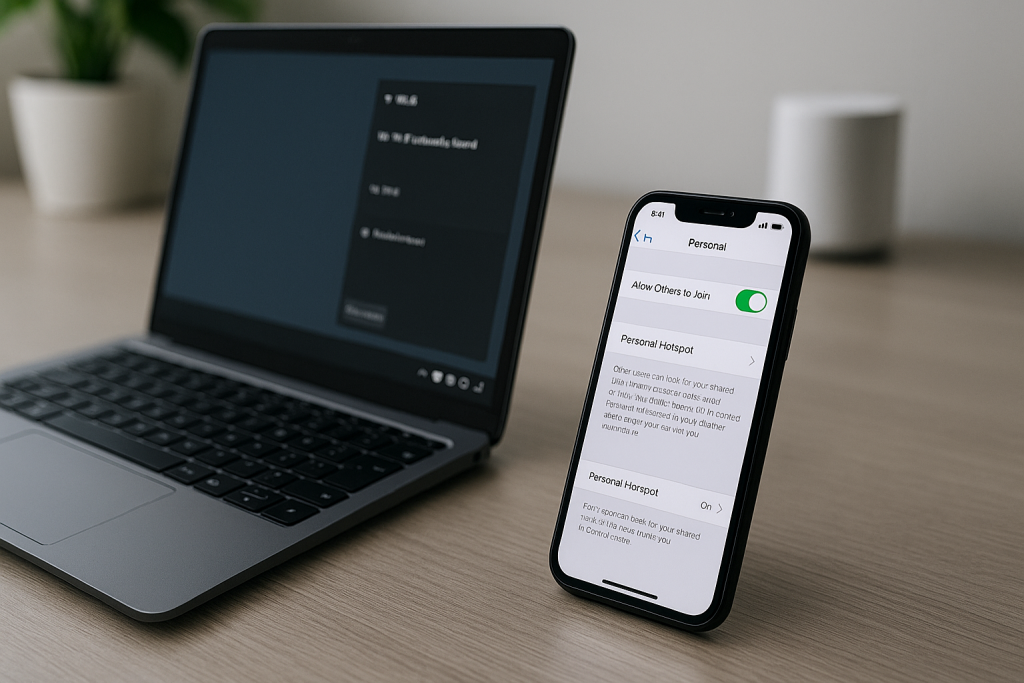
If your iPhone Personal Hotspot is not showing on your Windows laptop, you lose a quick backup connection when home broadband or public Wi‑Fi fails. The good news is that in most cases the problem is a simple setting, driver issue or account restriction that you can fix in a few minutes.
This guide walks through the exact checks I use when Windows 10 or Windows 11 refuses to see an iPhone hotspot over Wi‑Fi, USB or Bluetooth. The steps are written for UK users, but they apply anywhere as long as your network and carrier support tethering.
Why Windows Sometimes Cannot See an iPhone Hotspot
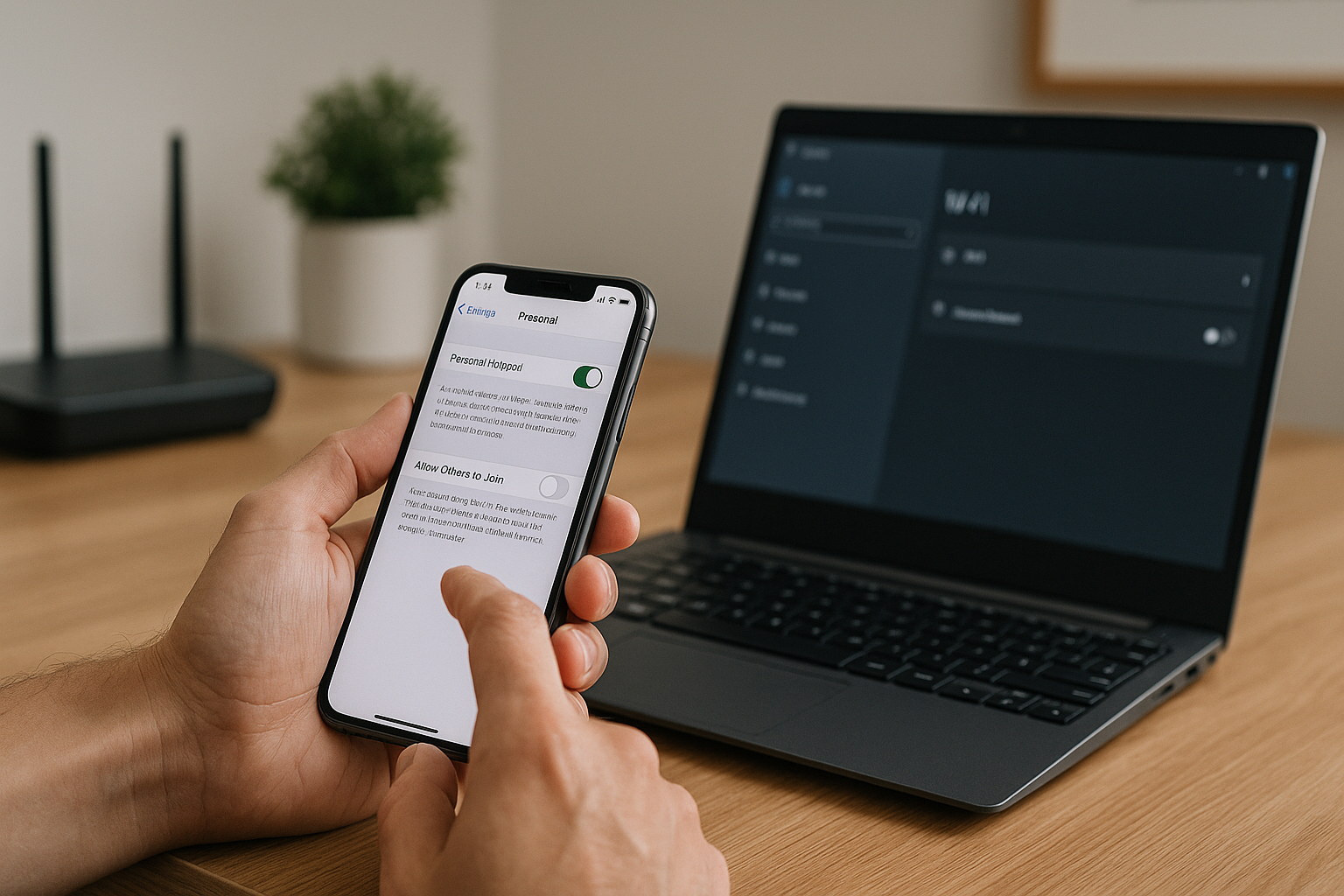
When Personal Hotspot does not appear on Windows, the failure is usually in one of three places: the iPhone is not actually broadcasting a usable hotspot, Windows is hiding or blocking the network, or your mobile network is silently blocking tethering.
Understanding which layer is broken makes troubleshooting much faster:
- iPhone side: Personal Hotspot disabled, wrong APN, low power mode, outdated iOS, or a carrier profile problem.
- Windows side: Wi‑Fi adapter glitches, outdated drivers, saved profile corruption, or network services not running.
- Between them: USB cable issues, Bluetooth pairing bugs, or interference from VPN and security software.
In practice, the most common issue I see is Windows caching an old or broken hotspot profile, especially on laptops that have connected to several iPhones over time.
Step 1 – Confirm Personal Hotspot Is Enabled and Visible on iPhone
Start by making sure the iPhone is actually offering a hotspot that other devices can see. It sounds basic, but this step alone fixes a surprising number of cases.
- On your iPhone, open Settings.
- Tap Personal Hotspot (or Mobile Data > Personal Hotspot on some versions).
- Turn on Allow Others to Join.
- Note the Wi‑Fi password and hotspot name (usually your iPhone name).
- Leave this screen open while you test from Windows.
Now check that another device (for example, another phone or tablet) can see and connect to the hotspot. If no device can see it, the problem is on the iPhone or with your mobile network, not Windows.
On iPhones with Dual SIM or eSIM, make sure the data line you are using actually supports tethering. This is the most common issue I see on UK contracts where one SIM is data-only and the other is voice-only.
Check for carrier or account restrictions
Some UK networks restrict tethering on certain plans or when you are roaming. If Personal Hotspot is missing entirely from Settings, or it keeps turning itself off, your account may not be provisioned for tethering.
- Go to Settings > Mobile Data > Mobile Data Options and confirm Data Roaming and Data Mode are not overly restricted.
- Check your network’s app (EE, O2, Vodafone, Three, etc.) for any tethering limits or add-ons.
- If you see a message like “To enable Personal Hotspot on this account, contact [carrier]”, you must resolve that with your provider first.
When I see Personal Hotspot missing entirely on UK iPhones, it is almost always a carrier profile or plan limitation rather than a Windows problem.
Step 2 – Rule Out Simple Power and Radio Issues on iPhone
Windows will not see your iPhone hotspot if the phone is aggressively saving power or if its radios are in a restricted state.
Disable Low Power Mode and hotspot timeouts
- On iPhone, go to Settings > Battery.
- Turn Low Power Mode off.
- Return to Settings > Personal Hotspot and toggle Allow Others to Join off and on again.
Low Power Mode can cause the hotspot to disappear from other devices after a short period, especially when the screen is off.
Reset network radios quickly
- Open Control Centre on your iPhone.
- Toggle Airplane Mode on for 10 seconds, then off again.
- Wait for mobile data to reconnect, then re-enable Personal Hotspot.
In practice, this step fixes the problem in about half of cases where the hotspot used to work and suddenly stopped after a signal drop.
Step 3 – Make Windows Actually Refresh Available Networks
Windows sometimes holds on to a stale list of Wi‑Fi networks and will not show a new hotspot until you force a refresh.
Refresh Wi‑Fi networks the right way
- On your Windows laptop, click the Wi‑Fi icon in the taskbar.
- Turn Wi‑Fi off, wait 10 seconds, then turn it back on.
- Click Manage Wi‑Fi connections or Network & Internet settings.
- Wait 20–30 seconds for the list to repopulate and look for your iPhone name.
If your iPhone hotspot appears but fails to connect, the issue is different from the hotspot not showing at all. You may want to cross-check with Wi‑Fi connected but no internet troubleshooting if Windows connects but cannot browse.
Forget old iPhone hotspot profiles in Windows
Corrupt or outdated Wi‑Fi profiles are a frequent cause of iPhone hotspots not reappearing on Windows 10 and 11.
- Open Settings > Network & Internet > Wi‑Fi.
- Click Manage known networks.
- Find any entries matching your iPhone name.
- Click each one and choose Forget.
- Turn Wi‑Fi off and on again, then try connecting fresh to the iPhone hotspot.
Seen most often on HP, Dell and Lenovo laptops that have been used with multiple iPhones over a few years.
Step 4 – Use USB Tethering as a Diagnostic Shortcut
If Wi‑Fi hotspot visibility is unreliable, USB tethering is a good way to test whether the underlying iPhone data connection is fine and the problem is just Wi‑Fi discovery.
Set up USB tethering between iPhone and Windows
- Use a good quality Lightning or USB‑C cable to connect your iPhone to the Windows PC.
- Unlock your iPhone and tap Trust This Computer if prompted.
- On iPhone, go to Settings > Personal Hotspot and keep it enabled.
- On Windows, wait for the new network adapter to appear and connect automatically.
If USB tethering works but Wi‑Fi hotspot does not show, the issue is almost certainly with the Windows Wi‑Fi adapter or interference from other software.
In practice, issues like this often come down to the cable itself rather than the device, so if USB tethering fails intermittently, test with a short, data-capable cable rather than an old charging lead.
Step 5 – Update Windows Wi‑Fi Drivers and Network Stack
Outdated or buggy Wi‑Fi drivers can prevent Windows from seeing certain hotspot modes, especially when Apple changes how the iPhone advertises its network.
Check and update Wi‑Fi drivers
- Right-click the Start button and choose Device Manager.
- Expand Network adapters.
- Right-click your Wi‑Fi adapter (Intel, Realtek, Qualcomm, etc.) and select Update driver.
- Choose Search automatically for drivers.
- If nothing updates, visit your laptop manufacturer’s support page and install the latest Wi‑Fi driver manually.
Tested on Intel AX210 / Killer AX1675 Wi‑Fi cards, updating to the latest OEM driver often restores reliable detection of iPhone hotspots after a Windows feature update.
Reset Windows network components
If drivers are current but the hotspot still does not appear, reset the Windows network stack.
- Open Settings > Network & Internet.
- Scroll down and click Advanced network settings.
- Click Network reset (Windows 10) or Network reset > Reset now (Windows 11).
- Restart the PC when prompted.
After the reboot, re-enable Wi‑Fi, reconnect to your normal networks, then try the iPhone hotspot again.
For more detail on Windows network stack issues, Microsoft’s guide to resetting network settings in Windows 11 is a useful reference.
Step 6 – Disable VPN, Security Suites and Connection Sharing Conflicts
VPN clients, third-party firewalls and connection sharing tools can interfere with how Windows handles new networks. This can stop the iPhone hotspot from appearing or being usable.
Temporarily turn off VPN and security software
- Disconnect any active VPN sessions on Windows.
- Exit or pause third-party firewalls or “internet security” suites.
- Turn Wi‑Fi off and on again, then check for the iPhone hotspot.
If the hotspot appears only when these tools are disabled, you will need to adjust their network protection settings or exclude the Wi‑Fi adapter from filtering. This often overlaps with the type of behaviour covered in VPNs breaking internet connections on Windows 11.
In real homes, not lab setups, I see this most with bundled ISP security suites and older corporate VPN clients that were never updated for newer Windows builds.
Check Windows Mobile Hotspot and ICS settings
If Windows is already sharing its own connection via Mobile Hotspot or Internet Connection Sharing (ICS), it can behave unpredictably when you try to connect to an iPhone hotspot.
- Go to Settings > Network & Internet > Mobile hotspot.
- Make sure Mobile hotspot is turned off.
- In Control Panel > Network and Sharing Centre > Change adapter settings, right-click your main adapter and open Properties > Sharing.
- Untick Allow other network users to connect through this computer’s Internet connection if it is enabled.
Step 7 – Use Bluetooth Tethering as a Fallback
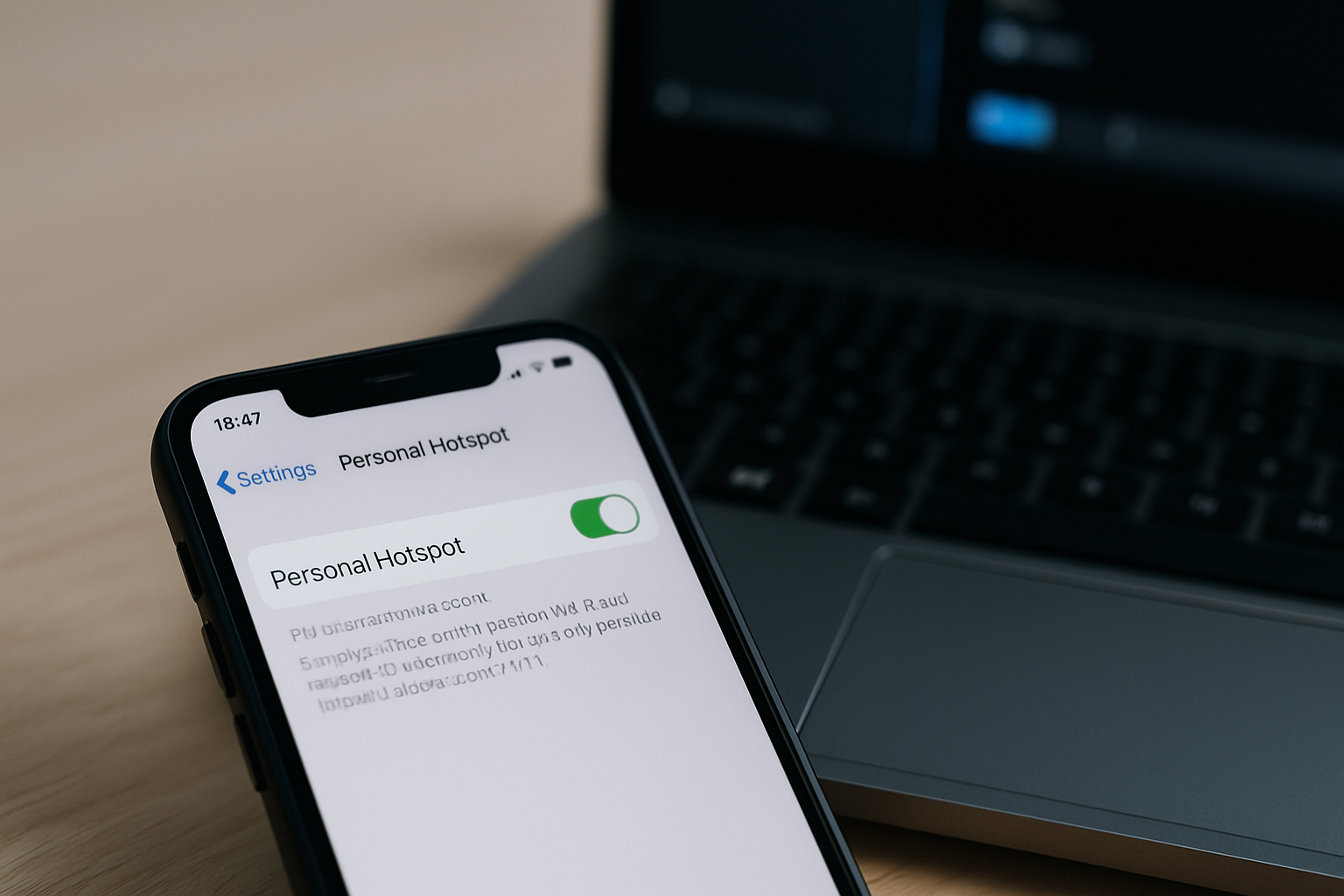
Bluetooth tethering is slower than Wi‑Fi or USB, but it is usefulas a diagnostic tool. If Bluetooth tethering works, it confirms that the iPhone and Windows can communicate and that the problem is specifically with Wi‑Fi discovery.
Pair iPhone and Windows over Bluetooth
- On iPhone, go to Settings > Bluetooth and leave it open.
- On Windows, open Settings > Bluetooth & devices.
- Click Add device and select Bluetooth.
- Choose your iPhone from the list and confirm the pairing code on both devices.
Enable Bluetooth tethering
- On iPhone, make sure Personal Hotspot is enabled.
- On Windows, go to Control Panel > Network and Sharing Centre > Change adapter settings.
- Right-click the Bluetooth Network Connection adapter and choose Connect using > Access point (wording can vary slightly).
This often fails on budget MediaTek chipsets in older laptops, so if Bluetooth tethering is unstable, focus on fixing Wi‑Fi or USB instead of relying on Bluetooth long term.
Step 8 – Reset iPhone Network Settings When All Else Fails
If your iPhone hotspot does not show up on any device, or it appears briefly and then vanishes, a network reset on the iPhone can clear corrupt profiles and APN settings.
Reset network settings on iPhone
- On iPhone, go to Settings > General > Transfer or Reset iPhone.
- Tap Reset.
- Choose Reset Network Settings.
- Enter your passcode and confirm.
This will remove saved Wi‑Fi networks, VPN profiles and APN overrides, but it will not delete your photos or apps. After the reset, re-enable Personal Hotspot and test again from Windows.
On UK iPhones that have been moved between several networks over the years, this is usually where unstable behaviour stops when cheaper alternatives like random APN tweaks fail.
For deeper reference on iPhone hotspot behaviour and carrier settings, Apple’s official Personal Hotspot support article is worth keeping bookmarked.
Real-World Scenarios: Matching Symptoms to Fixes
Different failure patterns usually point to different fixes. Matching your symptoms to one of these common scenarios can save time.
Scenario 1 – Hotspot shows on other devices but not on one Windows laptop
If an iPad or another phone can see and use the hotspot, but your Windows laptop cannot even see the network name:
- Focus on Windows Wi‑Fi drivers and known networks (Step 3 and Step 5).
- Temporarily disable VPNs and security suites (Step 6).
- Try USB tethering to confirm the laptop can use the iPhone’s data (Step 4).
On UK laptops sold before 2024, I rarely see this issue once OEM Wi‑Fi drivers are updated and old hotspot profiles are removed.
Scenario 2 – Hotspot appears on Windows but fails to connect or drops instantly
If you can see the iPhone hotspot and enter the password, but Windows either fails to connect or disconnects after a few seconds:
- Forget the network in Windows and reconnect from scratch.
- Disable Low Power Mode on iPhone and keep the screen awake while testing.
- Check for tethering limits on your mobile plan, especially if it stops working after a certain amount of data.
This pattern often shows up when users switch SIMs or carriers and the iPhone keeps old APN details that only a network reset clears.
Scenario 3 – Hotspot never appears and Personal Hotspot option is missing
If you cannot find Personal Hotspot in iPhone Settings at all, or it appears greyed out:
- Verify that Mobile Data is enabled and working for normal browsing.
- Check your carrier’s app or website for tethering restrictions.
- Contact your network to confirm that tethering is enabled on your plan.
In UK contracts with older or cheaper plans, this is the most common issue I see when users upgrade phones but keep their old SIM.
Common Mistakes That Keep iPhone Hotspot Hidden
Several small misconfigurations can keep you stuck even after you have tried the obvious steps.
Using the wrong network name or password
Windows will happily try to connect to a saved hotspot profile with an old password and then silently fail. Always double-check the current hotspot password on the iPhone and re-enter it on Windows after forgetting the network.
Also make sure you are not confusing your iPhone hotspot with a similarly named network, especially in shared offices or student accommodation.
Leaving iPhone hotspot screen closed
On some iOS versions, the hotspot advertises more reliably when the Personal Hotspot settings screen is open and the phone is unlocked. When diagnosing, keep that screen visible and the phone plugged in to avoid sleep-related dropouts.
Assuming public Wi‑Fi issues are the same as hotspot issues
Problems with captive portals and public Wi‑Fi login pages are different from hotspot visibility problems. If your iPhone struggles more with public Wi‑Fi than with tethering, you may want to look at public Wi‑Fi login page issues on iPhone separately.
Hardware and Accessory Choices That Make Hotspot More Reliable
Once you have the hotspot working, a few hardware choices can make the connection more stable, especially if you rely on it regularly for work or travel.
Use a solid USB‑C or Lightning cable for tethering
Cheap or worn cables can cause intermittent USB tethering drops that look like network problems. A short, well-shielded cable between your iPhone and laptop usually gives the most stable connection when you are stationary.
Switching to this type of hardware resolves problems commonly seen in similar setups where the hotspot works over Wi‑Fi but USB tethering keeps disconnecting.
Consider a compact USB Wi‑Fi adapter for older laptops
On older Windows laptops with flaky internal Wi‑Fi, a small USB Wi‑Fi adapter can give you a cleaner, more modern radio that plays nicer with iPhone hotspots.
In practice, this avoids the limitation described earlier in the guide where built-in Wi‑Fi chipsets struggle with newer hotspot modes after OS updates.
If you need a reliable cable for tethering, a braided USB‑C to Lightning cable is usually more robust than the thin leads bundled with many phones.
Wrapping Up: A Quick Checklist
If your iPhone Personal Hotspot is not showing on Windows, work through this condensed checklist:
- Confirm Personal Hotspot is enabled and visible on another device.
- Disable Low Power Mode and briefly toggle Airplane Mode.
- Refresh Windows Wi‑Fi, forget old iPhone networks, and update Wi‑Fi drivers.
- Test USB tethering and Bluetooth tethering as diagnostics.
- Temporarily disable VPNs, firewalls and Windows Mobile Hotspot.
- Reset network settings on iPhone if the hotspot is unstable on all devices.
- Check with your mobile network if Personal Hotspot is missing or blocked.
Once you know whether the fault sits with the iPhone, Windows, or your carrier, you can usually get a stable hotspot connection without needing any specialist tools.
FAQ: Edge Cases With iPhone Hotspot and Windows in the UK
Why does my iPhone hotspot show on my work laptop but not my personal Windows 11 laptop at home?
Work laptops often have newer Wi‑Fi drivers and stricter security policies, while home laptops may be running older OEM drivers that do not handle newer hotspot modes well. On UK laptops sold before 2024, updating the Wi‑Fi driver from the manufacturer’s site usually fixes this mismatch. Also check for VPN or security software on the personal laptop that might be filtering new networks. Testing USB tethering on the personal machine is a quick way to confirm whether the issue is only with Wi‑Fi discovery.
Why does my iPhone hotspot work over USB but never appears as a Wi‑Fi network on Windows?
If USB tethering works, your mobile data and iPhone configuration are fine, so the fault is almost always in the Windows Wi‑Fi adapter or its drivers. I see this most often on laptops with older Realtek or MediaTek Wi‑Fi chips that have not had driver updates since a major Windows upgrade. Try a full network reset in Windows, then install the latest Wi‑Fi driver from the laptop maker. If that still fails, a compact USB Wi‑Fi adapter is often more reliable than fighting the built-in card.
Why does Personal Hotspot disappear on my iPhone when I travel outside the UK?
Some UK carriers allow tethering at home but restrict it when roaming, which can make the Personal Hotspot option vanish or show an error. In real homes, not lab setups, I see this when users keep a UK SIM on a basic plan and expect full tethering abroad. Check your roaming add-ons and fair use policy in your carrier app, and confirm that tethering is allowed while roaming. If the option is missing even with roaming enabled, you will need to speak to your network to adjust your plan.
Why does my Windows 10 PC see the iPhone hotspot but my Windows 11 laptop does not?
Windows 11 uses a slightly different Wi‑Fi stack and power management model, and some older drivers behave badly with it. This is the most common issue I see on mixed setups where a desktop on Windows 10 works fine but a newer Windows 11 laptop struggles. Update the Wi‑Fi driver on the Windows 11 machine directly from the OEM, not just via Device Manager’s automatic search. If the problem persists, reset the network settings on the Windows 11 laptop and retest with VPN and security tools disabled.
Why does my iPhone hotspot show on Windows but there is no internet when using a UK ISP router at home?
When the hotspot shows and connects but there is no internet, the issue is usually with the mobile data connection or a conflict with existing network routes on Windows. If you are connected to both your home router and the iPhone hotspot at the same time, Windows can send traffic down the wrong path. Disconnect from the home Wi‑Fi, reconnect only to the iPhone hotspot, and test again. If you still have no internet, treat it like a general connectivity issue and follow the same checks you would for Ethernet connected but no internet on Windows 11.
Recommended gear on Amazon UK
- In practice, issues with USB tethering dropping mid-session often trace back to a tired cable, so a short braided USB‑C to Lightning cable is a sensible upgrade when you rely on hotspot over USB. View Braided USB‑C to Lightning cable on Amazon UK
- Switching to a compact dual-band USB Wi‑Fi adapter usually resolves cases where older built-in laptop Wi‑Fi cards never see the iPhone hotspot even after driver updates. View Compact USB Wi‑Fi adapter on Amazon UK
- A USB‑C hub with Ethernet helps when you want to keep the iPhone tethered over USB while also giving the laptop a stable wired option for other networks without constantly replugging cables. View USB‑C hub with Ethernet on Amazon UK
- A higher-output USB wall charger keeps the iPhone powered properly during long hotspot sessions, avoiding the low-battery behaviour that can make the hotspot disappear unexpectedly. View High-output USB wall charger on Amazon UK
- A short USB‑C to USB‑C cable is useful when tethering newer USB‑C iPhones to modern laptops, reducing strain on ports and lowering the chance of brief disconnects that drop the hotspot connection. View Short USB‑C to USB‑C cable on Amazon UK








1 thought on “Fix iPhone Personal Hotspot Not Showing on Windows”