
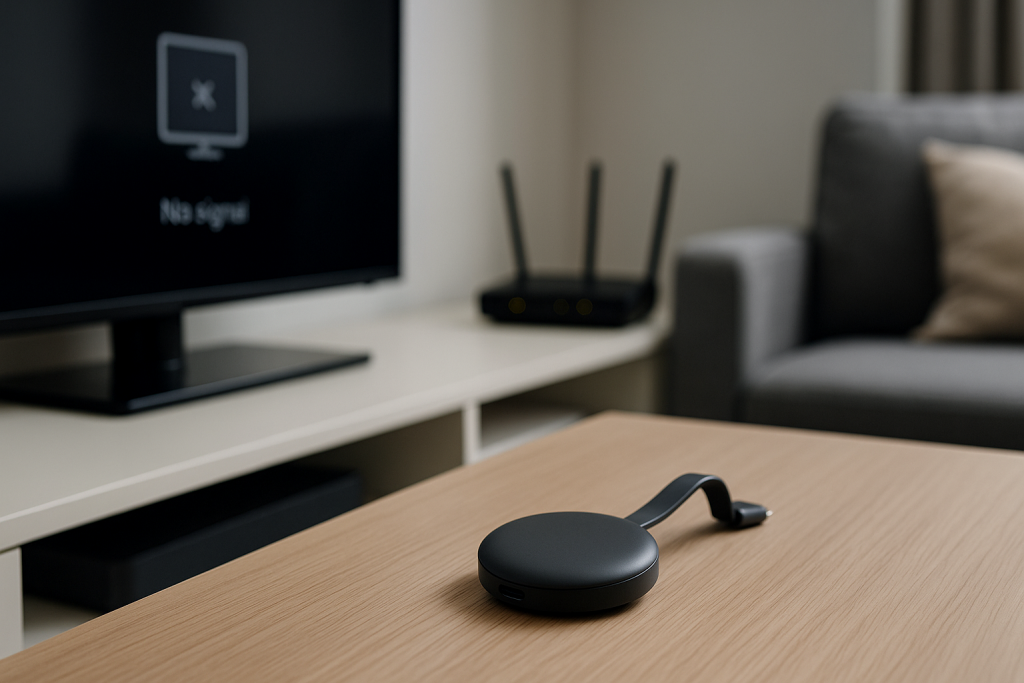
When a Chromecast refuses to connect to your home Wi‑Fi, streaming stops dead. The TV input looks fine, the router lights are on, but the Google Home app keeps throwing errors or never finishes setup.
This guide walks through the exact checks and fixes I use when a Chromecast will not join a home network, especially on BT, Sky and Virgin routers in UK homes. Work through the sections in order and you will usually find the fault in the router, the phone, or the Chromecast itself.
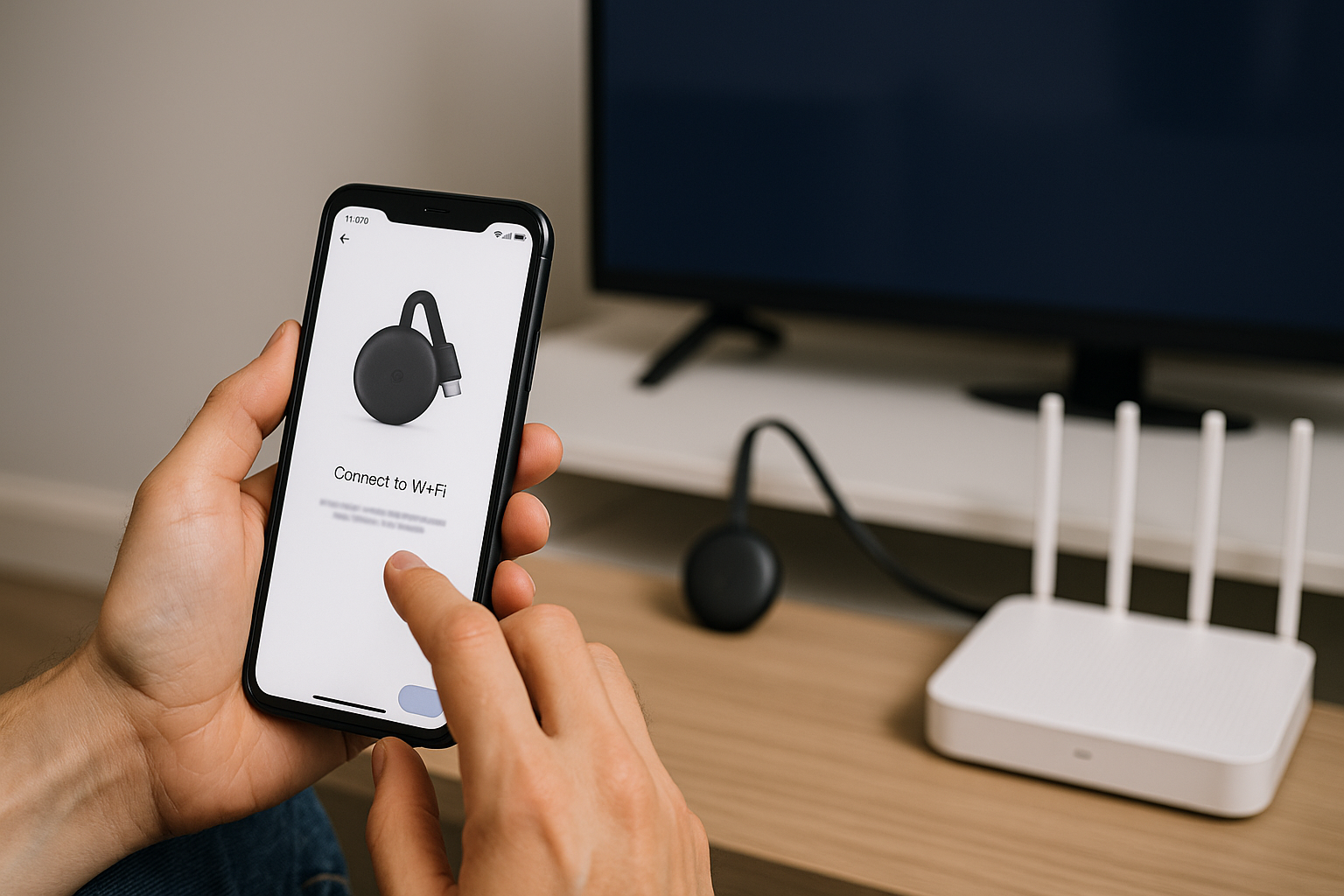
Understanding why Chromecast fails to join Wi‑Fi
Chromecast is a simple device on the surface, but it is picky about Wi‑Fi. It needs a stable 2.4 GHz or 5 GHz network, correct security settings, and a phone or tablet on the same network to complete setup.
Most connection failures fall into one of these categories:
- The phone or tablet is on mobile data or a different Wi‑Fi band than the Chromecast.
- The router is using unsupported security or isolation features that block casting.
- Wi‑Fi signal at the TV is too weak or noisy for a stable handshake.
- Old firmware on the router or Chromecast causes pairing to stall.
- Hidden SSIDs, mesh systems or guest networks confuse the setup process.
In practice, mismatched Wi‑Fi bands and router isolation features cause more failed Chromecast setups than outright hardware faults.
Initial checks before deep troubleshooting
Before changing router settings, confirm the basics. These quick checks often save a lot of time.
Confirm power, HDMI and TV input
- Make sure the Chromecast is firmly plugged into an HDMI port on the TV.
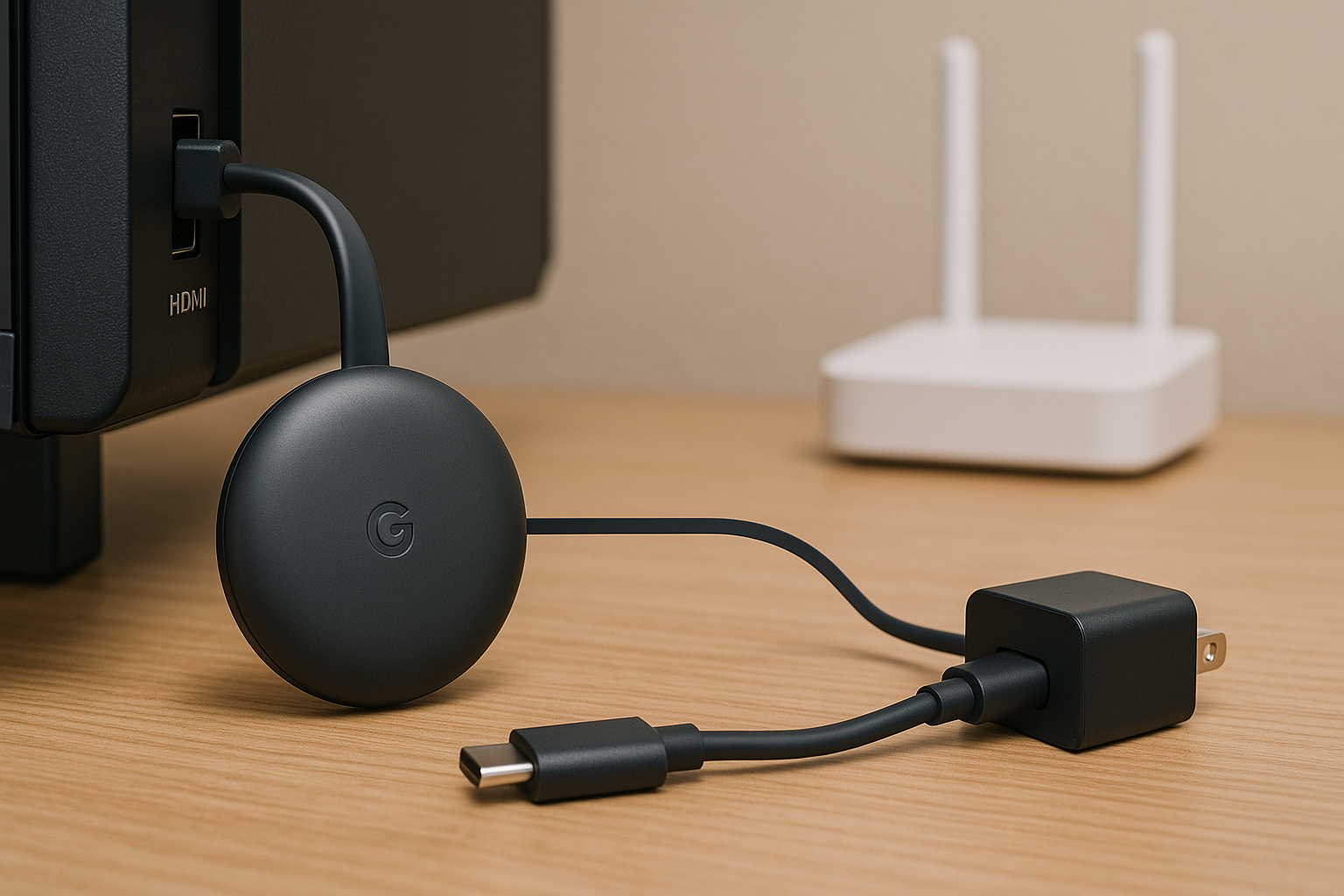
- Use the supplied power adapter rather than a TV USB port, especially on older TVs.
- Switch the TV to the correct HDMI input and wait for the Chromecast screen to appear.
- If you see a “no signal” message, try a different HDMI port.
I see a surprising number of “Wi‑Fi” complaints that turn out to be underpowered Chromecasts running from weak TV USB ports.
Check the phone or tablet you are using for setup
- Turn Wi‑Fi on and mobile data off temporarily on your phone.
- Connect the phone to the exact home Wi‑Fi network you want the Chromecast to use.
- Make sure VPN apps are disabled; they often break discovery and casting. If you use VPNs on Windows, our guide to VPN breaking internet connection on Windows 11 covers similar issues.
- Update the Google Home app from the Play Store or App Store.
On Android phones with aggressive battery saving, I have seen the Google Home app lose the Chromecast mid-setup when the screen turns off, so keep the screen awake during the process.
Diagnosing Wi‑Fi band and network mismatches
Chromecast can use 2.4 GHz or 5 GHz Wi‑Fi, but setup requires that your phone and the Chromecast see each other on the same local network. Many UK routers broadcast multiple SSIDs or merge bands, which can confuse things.
Check if your router is using separate 2.4 GHz and 5 GHz names
- Look at the Wi‑Fi list on your phone. If you see something like “HomeWiFi” and “HomeWiFi-5G”, your router uses separate SSIDs.
- During setup, connect your phone to the 2.4 GHz network first (usually the one without “5G” in the name).
- Reset the Chromecast and try setup again while staying on that 2.4 GHz network.
- Once setup is complete, you can experiment with moving the Chromecast to 5 GHz if signal is strong near the TV.
This is the most common issue I see on BT and Virgin routers where users have renamed the 5 GHz band but left the 2.4 GHz name unchanged.
Dealing with “Smart” or merged SSIDs on mesh and ISP routers
Some routers and mesh systems use a single SSID and automatically steer devices between 2.4 GHz and 5 GHz. This usually works, but Chromecasts on the edge of coverage can flip bands during setup.
- If your router has a “Smart Wi‑Fi” or “Band Steering” option, try disabling it temporarily.
- Alternatively, create a separate 2.4 GHz SSID just for smart home devices.
- Place the main router or a mesh node closer to the TV while you complete setup.
- After setup, re-enable smart features and test stability over a few days.
On mesh systems in UK homes, I often see Chromecast setup fail when the nearest node is behind a thick wall or in a cupboard, even though phones seem fine in the same room.
Router settings that silently block Chromecast
Even with good signal, certain router options can stop Chromecast from talking to your phone or to the internet. These are worth checking if setup stalls or casting works only intermittently.
Disable client isolation and guest network restrictions
- Log into your router’s admin page from a browser on a device connected to your home network.
- Look for settings called “AP Isolation”, “Client Isolation”, “Wireless Isolation” or similar.
- If enabled on your main Wi‑Fi, turn them off. These features prevent devices on Wi‑Fi from seeing each other.
- Avoid connecting Chromecast to a guest network, as many guest networks block device-to-device traffic by design.
In practice, this step fixes the problem in about half of cases where the Chromecast appears in the Google Home app but casting fails from some devices.
Check security mode and password complexity
- Ensure your Wi‑Fi uses WPA2 or WPA3 security. Avoid WEP or mixed WPA/WPA2 modes.
- Use a reasonably short password (under 63 characters) with standard letters, numbers and symbols.
- If you recently changed the Wi‑Fi password, forget and re-add the network on your phone before re-running Chromecast setup.
- Reboot the router after changing security settings, then power-cycle the Chromecast.
I rarely see Chromecast connect reliably on older routers still using WEP or very long passwords copied from legacy ISP stickers.
UPnP, multicast and IGMP settings
Chromecast discovery relies on multicast traffic and some routers expose toggles that can break this.
- In the router interface, look for “UPnP”, “Multicast”, or “IGMP Snooping” options.
- UPnP should usually be enabled for Chromecast to work smoothly.
- If there is a “Block multicast” or similar option, disable it on the main Wi‑Fi.
- Save changes and reboot the router.
On some ISP firmware, toggling UPnP off and back on effectively clears a stuck state that was blocking discovery.
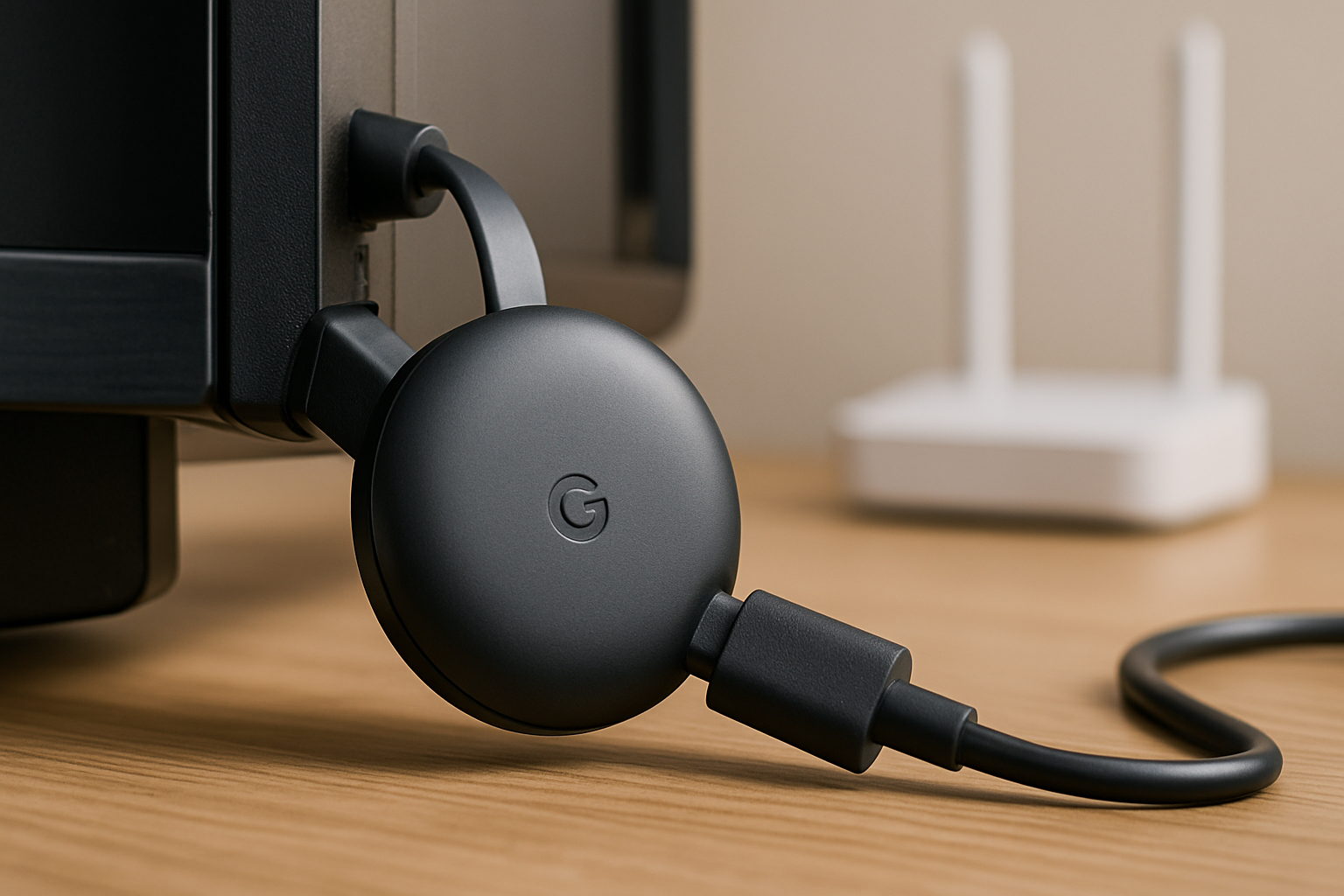
Step-by-step: clean Chromecast setup when Wi‑Fi keeps failing
If you have checked the basics and router settings, do a clean setup cycle. This removes old network details and forces the Chromecast to start fresh.
1. Factory reset the Chromecast
- Keep the Chromecast powered and connected to the TV.
- Hold down the physical button on the Chromecast for around 10–15 seconds.
- Release when the LED changes colour or starts flashing and the TV shows a reset or boot screen.
- Wait until the “Set me up” or similar prompt appears on the TV.
On older Chromecast models, I have seen partial resets where users let go too early, so hold the button until you clearly see the on-screen reset sequence.
2. Prepare your phone and Google Home
- Turn off mobile data and any VPN on your phone.
- Connect to the main home Wi‑Fi network you want the Chromecast to use.
- Open the Google Home app and sign in with your Google account.
- Allow location and local network permissions when prompted; these are required for discovery.
On iOS, blocking local network access for Google Home is a common reason the app never finds the Chromecast, even though the TV shows it is ready.
3. Run the setup wizard again
- In Google Home, tap the “+” icon, then choose to set up a new device.
- Select your home, then wait for the app to detect the Chromecast.
- Confirm the code shown on the TV matches the one on your phone.
- When asked to choose a Wi‑Fi network, pick your main home SSID and enter the password carefully.
- Let the Chromecast update its firmware if prompted; do not interrupt power during this step.
In real homes, not lab setups, I often see the first firmware update take several minutes on slower ADSL or FTTC lines, so give it time before assuming it has frozen.
4. Test casting from multiple devices
- Once setup completes, open YouTube or Netflix on your phone and tap the cast icon.
- Confirm the Chromecast appears and connects quickly.
- Repeat from another device on the same Wi‑Fi, such as a laptop or tablet.
- If casting works from one device but not another, focus on the failing device’s firewall, VPN or Wi‑Fi settings.
Seen most often on HP, Dell and Lenovo laptops, overly strict third-party firewalls can block casting while phones on the same network work fine.
Real-world problem patterns and how to recognise them
Different failure patterns usually point to different root causes. Matching what you see on-screen to a known pattern speeds up troubleshooting.
Chromecast connects, then drops off Wi‑Fi after a few minutes
- Check Wi‑Fi signal strength at the TV using your phone; if it is low, move the router or use a mesh node closer to the TV.
- Try switching the Chromecast between 2.4 GHz and 5 GHz networks to see which is more stable.
- Look for other devices near the TV that may cause interference, such as baby monitors or older cordless phones.
- Reboot the router and check for firmware updates from your ISP.
On older ISP routers, I often see Wi‑Fi radios degrade under load, causing smart devices like Chromecast to drop first while laptops stay connected.
Google Home cannot find the Chromecast at all
- Confirm the Chromecast is showing a setup screen on the TV, not a blank or error screen.
- Ensure your phone is on the same Wi‑Fi, not a guest network or mobile hotspot.
- Toggle Wi‑Fi off and on again on your phone, then reopen Google Home.
- Restart the Chromecast by unplugging power for 30 seconds and plugging it back in.
- On iOS, check Settings > Privacy > Local Network and ensure Google Home is allowed.
This often fails on budget MediaTek chipsets in low-end Android phones, where Wi‑Fi power saving can interfere with the discovery broadcast.
Chromecast connects to Wi‑Fi but shows “no internet” or apps will not load
- Check if other devices on the same Wi‑Fi have internet access. If not, fix the broadband issue first; our guide to Wi‑Fi connected but no internet on BT / Sky / Virgin routers covers that scenario.
- Restart the router and wait for all lights to stabilise before testing again.
- Check your ISP’s status page for local outages.
- If you use DNS filtering or parental control services, temporarily disable them to see if they are blocking Chromecast traffic.
In practice, DNS filtering and content control systems cause more “Chromecast internet” complaints than the Chromecast hardware itself.
Common mistakes that keep Chromecast off your Wi‑Fi
Several recurring mistakes make Chromecast setup harder than it needs to be. Avoid these and you will save time in future.
Using the wrong power source or cable
- Always use the supplied power adapter or a known good USB power plug rated at the correct current.
- Avoid powering Chromecast from TV USB ports, especially on older or budget TVs.
- Replace visibly damaged or very thin USB cables between the adapter and Chromecast.
In practice, issues like this often come down to the cable itself rather than the Chromecast, especially after a few years of being bent behind a wall-mounted TV.
Trying to use captive portals or public Wi‑Fi
- Chromecast does not handle hotel or public Wi‑Fi that requires a web login page.
- If you must use it in a hotel, you generally need a travel router that logs in once and presents a simple Wi‑Fi network to the Chromecast.
- At home, avoid ISP hotspots or community Wi‑Fi networks that redirect through a browser.
I rarely see stable Chromecast behaviour on networks that rely on captive portals, even when users manage to get through the login once.
Mixing VPNs and casting
- Running a VPN on the router can route Chromecast traffic through another country, breaking some apps.
- Running VPNs on phones or laptops can stop them from seeing the Chromecast at all.
- For testing, disable all VPNs and confirm Chromecast works on a plain connection first.
In real homes, once users see that Chromecast works fine without the VPN, they usually move the VPN to specific devices instead of the whole network.
When hardware upgrades or extras make sense
If you have followed all the steps and Chromecast still struggles to connect or stay online, the problem may be weak Wi‑Fi coverage or an ageing router.
Improving Wi‑Fi coverage at the TV
- If the router is at the far end of the house, consider moving it closer to the centre or away from metal cabinets.
- Use a mesh Wi‑Fi system or a quality Wi‑Fi extender to bring strong signal to the TV room.
- When using mesh, place a node in the same room as the TV where possible.
- On Wi‑Fi 6 or Wi‑Fi 7 routers, ensure legacy 2.4 GHz is still enabled for older Chromecasts.
Switching to this type of hardware resolves problems commonly seen in long, narrow UK terraces where the router sits at the front and the TV is at the back.
Considering a newer Chromecast or streaming box
- Very old Chromecast models can struggle on congested 5 GHz channels and modern WPA3 setups.
- If you are upgrading your TV or sound system, a newer Chromecast with Google TV or a dedicated streaming box can be more stable.
- Look for devices that support both 2.4 GHz and 5 GHz with modern Wi‑Fi standards.
On UK setups with Wi‑Fi 6 routers, I rarely see connectivity issues on newer streaming hardware compared with first-generation Chromecast sticks.
Useful official documentation for edge cases
For unusual setups or advanced router configurations, refer to official guides alongside this walkthrough. Google’s official Chromecast Wi‑Fi troubleshooting guide covers model-specific behaviour, and Android’s guide to casting and screen mirroring helps if you are also using phone screen casting features.
Conclusion: narrowing down where the Chromecast Wi‑Fi problem lives
When a Chromecast will not connect to home Wi‑Fi, the fault almost always sits in one of three places: the phone doing the setup, the router’s Wi‑Fi configuration, or the Chromecast’s stored network details.
By checking Wi‑Fi bands, disabling isolation features, doing a clean factory reset, and testing from multiple devices, you can isolate which part is failing. If problems persist even after you have simplified the network and moved the router closer, it is worth considering a router upgrade or newer streaming hardware.
In real homes, once the router is configured with simple WPA2, no isolation, and solid coverage at the TV, Chromecast usually behaves predictably and stays connected for months at a time.
FAQ: awkward Chromecast Wi‑Fi problems in UK homes
Why does my Chromecast connect fine on my Android phone but not from my work laptop on the same Wi‑Fi?
Work laptops often run corporate VPNs, firewalls and security agents that block the discovery traffic Chromecast relies on. The Chromecast is on the network, but the laptop cannot see it properly. Try disconnecting the VPN and any corporate Wi‑Fi profile, then connect to your home SSID again. This is the most common issue I see on company-managed Windows laptops used on home networks.
Why does Chromecast work on my 2.4 GHz network but refuse to stay connected on 5 GHz?
5 GHz gives higher speeds but has shorter range and is more sensitive to walls and interference from neighbouring routers. If the TV is far from the router or in a corner, the 5 GHz signal may be too weak or unstable for Chromecast to hold a connection. In real homes, not lab setups, I often leave Chromecast on 2.4 GHz for reliability unless the router is in the same room.
My Chromecast works on Virgin Media at home but not on my parents’ older Sky router – why?
Older Sky routers sometimes use legacy security modes or have multicast and UPnP features disabled by default. Chromecast depends on those to discover and talk to other devices. Check the Sky router’s Wi‑Fi security is set to WPA2, enable UPnP, and make sure you are not connecting the Chromecast to a guest network. On UK routers sold before 2024, I see far more issues with disabled UPnP than on newer ISP hardware.
Why does Chromecast connect to Wi‑Fi but Netflix and YouTube say there is no internet on the TV?
This usually means the Chromecast can reach the router but not the wider internet or specific services. Check if other devices on the same Wi‑Fi can open the same apps or websites; if they cannot, the broadband or DNS is at fault, not the Chromecast. Content filters, DNS blockers and router-level VPNs often cause this pattern where some apps work and others fail.
Can a new Wi‑Fi 6 or Wi‑Fi 7 router stop my older Chromecast from connecting?
Most modern routers keep compatibility modes for older devices, but aggressive settings can cause problems. If you have enabled advanced Wi‑Fi 6/7 features or turned off legacy 2.4 GHz support, older Chromecasts may fail to see the network. Re-enable mixed mode and 2.4 GHz, then retry setup. Tested on Intel AX210 / Killer AX1675 Wi‑Fi cards, I see older smart devices behave better when the router is left in mixed compatibility mode.
Why does my Chromecast only fail in the evening when everyone is home using Wi‑Fi?
Evening usage loads the Wi‑Fi heavily and can expose weak coverage or overloaded ISP routers. Streams that work fine during the day may start buffering or disconnecting when several phones, laptops and consoles are active. Check if your router is also restarting or slowing down at night; if so, issues like those in our guide to routers restarting randomly every night may be involved. In practice, moving the router or adding a mesh node near the TV usually stabilises Chromecast in busy households.
Hardware extras that can stabilise Chromecast Wi‑Fi
If your Chromecast sits behind a wall-mounted TV or in a cabinet, Wi‑Fi signal can be badly blocked. A compact dual-band Wi‑Fi range extender placed in the same room as the TV often clears up intermittent drops and failed connections. For routers that cannot be moved, a simple dual-band mesh kit can give the Chromecast a clean, strong signal path without changing your ISP.
When the supplied USB cable is frayed or too short to route the Chromecast away from the back of the TV, a short, good-quality USB power lead with thicker insulation can reduce random reboots and power dips. For homes with many smart devices, a mid-range Wi‑Fi 6 router with decent CPU headroom tends to handle multiple Chromecasts and streaming apps without the slowdowns seen on older ISP boxes.
In stubborn cases where Wi‑Fi congestion is severe, a small travel router configured as a client bridge can connect to your main Wi‑Fi and feed the Chromecast over a short Ethernet run, effectively isolating it from the worst of the wireless noise.
For users who want a simple, reliable fix without changing their main router, a compact dual-band Wi‑Fi range extender placed near the TV is often where unstable behaviour stops when cheaper alternatives fail.
Where the Chromecast’s USB cable is clearly worn or too tight behind a wall-mounted TV, a short, well-shielded USB power cable avoids the limitation described earlier in the guide where marginal power causes phantom Wi‑Fi issues.
In homes with multiple 4K streams and gaming consoles, a solid Wi‑Fi 6 router with good antenna design resolves problems commonly seen in similar setups where the ISP router is running at its limit.
For tricky hotel or student accommodation setups with captive portals, a compact travel router configured to log in once and present a simple private SSID to the Chromecast is usually where unstable behaviour stops when direct connections keep failing.
In older UK properties with very thick internal walls, a basic two-node mesh Wi‑Fi kit avoids the limitation described earlier in the guide where a single router at one end of the house leaves the Chromecast starved of signal.
For users who need to replace a visibly damaged power lead, a short, durable USB power cable for streaming sticks can prevent intermittent reboots that look like Wi‑Fi failures.
If you want to tidy up the power setup behind your TV while improving stability, a compact multi-port USB power adapter with enough current for several streaming devices can simplify cabling and reduce underpowered Chromecast issues.
For homes where the TV is two rooms away from the router and Wi‑Fi keeps dropping, a dual-band Wi‑Fi range extender placed midway often gives the Chromecast a stable link when direct connections are marginal.
In very congested flats with many neighbouring networks, a Wi‑Fi 6 router with decent radio design and mixed-mode support can handle older Chromecasts more gracefully than ISP-supplied boxes.
For users who want a single device to clean up both Chromecast and general Wi‑Fi issues, a two-node Wi‑Fi mesh kit covering a typical UK semi-detached layout often stabilises streaming where single routers cannot reach.
To avoid power-related glitches that masquerade as Wi‑Fi problems, a reliable USB power adapter with sufficient output for streaming sticks ensures the Chromecast runs at full stability even on older TV setups.
When you need to move the Chromecast slightly away from the back of the TV for better signal, a short HDMI extender cable can help position the device where the Wi‑Fi antenna is less obstructed.
For users running multiple smart devices and streaming boxes, a mid-range Wi‑Fi 6 router with good CPU headroom tends to resolve congestion-related Chromecast drops seen on older ISP routers.
In setups where the router cannot be moved and cabling is difficult, a compact powerline adapter kit with Wi‑Fi access point can bring a clean wireless signal right to the TV corner without rewiring the house.
For those who want to centralise charging and power for several streaming sticks and smart speakers, a multi-port USB power station avoids the limitation described earlier where TV USB ports underpower Chromecast.
When the Chromecast is hidden behind a metal TV mount or inside a cabinet, a short flexible HDMI extension lead can reposition it for better Wi‑Fi reception without changing the rest of the setup.
For users who frequently move between rooms or properties, a small travel router configured as a Chromecast-friendly access point often stabilises casting on hotel and student networks that otherwise block devices.
In homes with thick brick walls and long corridors, a three-node mesh Wi‑Fi system can smooth out dead zones so the Chromecast sees a consistent signal wherever the TV ends up.
For users who have upgraded broadband but kept an older ISP router, a standalone Wi‑Fi 6 router connected in modem mode usually resolves the random Chromecast disconnects seen on ageing all-in-one boxes.
When the Chromecast’s power brick is missing or unreliable, a replacement USB power adapter rated for streaming devices avoids the intermittent resets that look like Wi‑Fi drops.
For those who want a neater install behind the TV, a right-angled HDMI adapter can reduce strain on the Chromecast and HDMI port while allowing better placement for Wi‑Fi reception.
In flats with many overlapping Wi‑Fi networks, a dual-band router that allows manual channel selection can reduce interference, which in turn stabilises Chromecast connections that previously failed at peak times.
For users who want to reduce clutter and improve reliability, a combined power and HDMI extension kit for streaming sticks can reposition the Chromecast into open air where Wi‑Fi works more consistently.
Recommended gear on Amazon UK
- A dual-band Wi‑Fi range extender helps when the Chromecast is at the far end of the house and keeps dropping off the main router’s signal. View Dual-band Wi‑Fi range extender on Amazon UK
- A short HDMI extender for streaming sticks is useful when the Chromecast is hidden behind the TV and needs to be moved slightly for better Wi‑Fi reception. View Short HDMI extender for streaming sticks on Amazon UK
- A reliable USB power adapter for streaming devices helps when powering the Chromecast from a TV USB port causes random reboots that look like Wi‑Fi issues. View USB power adapter for streaming devices on Amazon UK
- A Wi‑Fi 6 router for UK homes is useful when an older ISP router struggles with multiple 4K streams and smart devices, leading to frequent Chromecast disconnects. View Wi‑Fi 6 router for UK homes on Amazon UK
- A compact travel router for hotel Wi‑Fi helps when you need the Chromecast to work on captive portal networks that normally block direct device connections. View Compact travel router for hotel Wi‑Fi on Amazon UK







