
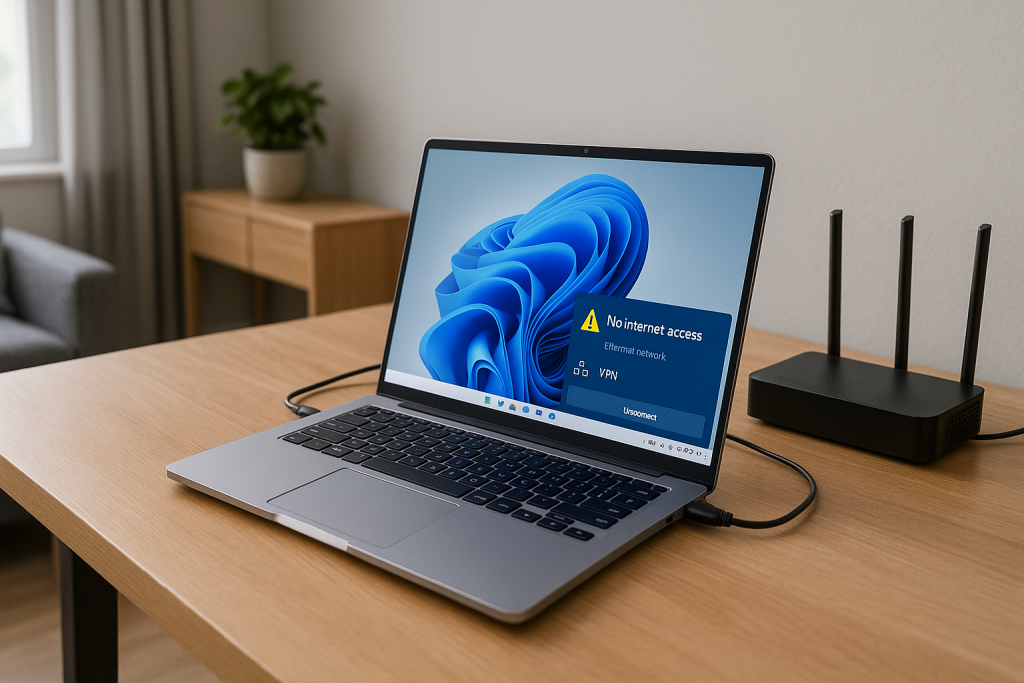
If your VPN connects on Windows 11 but your internet immediately dies, you are dealing with a routing or DNS problem, not a random glitch. This guide walks through the exact checks I use on UK laptops when a VPN breaks all connectivity on home broadband, office networks or public Wi‑Fi.
Recognising when the VPN is actually killing your connection
Before changing settings, confirm that the VPN is the cause and not a wider broadband fault. The symptoms are usually very specific when the tunnel itself is blocking traffic.
- Websites stop loading the moment you connect the VPN, then start working again as soon as you disconnect.
- Windows shows you as connected to Wi‑Fi or Ethernet, but apps report “no internet” while the VPN is active.
- Some apps (often Outlook or Teams) work, but browsers and gaming launchers cannot reach any servers.
- Only one network type is affected (for example, it breaks on home Wi‑Fi but works fine on mobile hotspot).
If you see these patterns, the VPN is almost certainly changing your routing, DNS or firewall rules in a way that blocks normal traffic. I see this most often on Windows 11 laptops that were upgraded in place from Windows 10 without a clean install.
Why VPNs break internet access on Windows 11
On Windows 11, a VPN client installs virtual network adapters and modifies routing tables and DNS settings. When this goes wrong, Windows sends traffic into a dead end instead of out through your router.
- Broken default route: The VPN sets itself as the default gateway but the tunnel never actually passes traffic.
- DNS hijack failure: The VPN forces its own DNS servers, but those servers are unreachable from your UK network.
- IPv6 mismatch: Your ISP and router use IPv6, but the VPN only handles IPv4, causing partial or no connectivity.
- Firewall conflict: Third-party antivirus firewalls block the new VPN adapter or its protocol (often with no clear warning).
- Split tunnelling misconfiguration: Only some apps are allowed through the VPN, and everything else is silently dropped.
In practice, DNS and routing issues cause most of the “VPN connected, no internet” complaints I see on Windows 11 in the UK, especially on BT, Sky and Virgin connections.
Step 1 – Confirm your base connection without the VPN
First make sure your underlying connection is stable before blaming the VPN. Otherwise you will chase the wrong problem.
- Disconnect from the VPN completely and close the VPN app.
- Open a browser and visit several sites using both HTTP and HTTPS (for example, a news site and a search engine).
- Run Win + R > cmd, then type ping 8.8.8.8 and press Enter. Let it run for 10–20 packets.
- If pings time out or your router shows “no internet”, fix that first. A VPN will not repair a broken broadband line.
If you are seeing “Wi‑Fi connected but no internet” even without the VPN, follow a dedicated connectivity guide such as Wi‑Fi connected but no internet on BT / Sky / Virgin routers and then come back to the VPN issue.
Step 2 – Check if the problem is tied to one network or all networks
Next, see whether the VPN only fails on a specific network (like your office Wi‑Fi) or on every connection your laptop uses. This narrows down whether the issue is local to Windows or blocked by the router/ISP.
- Connect your laptop to a different network: a phone hotspot, a neighbour’s Wi‑Fi (with permission), or a guest network.
- Connect the VPN and test browsing again.
- Repeat on Ethernet if you usually use Wi‑Fi, or vice versa.
- If the VPN works on hotspot but not on home Wi‑Fi: your ISP or router is likely blocking the VPN protocol or port.
- If it fails everywhere: the issue is almost certainly Windows or the VPN client configuration.
In real homes, not lab setups, I see ISP or router blocking most often on cheap ISP-supplied routers with aggressive “security” profiles enabled by default.
Step 3 – Disable and re-enable the VPN adapter cleanly
Many VPN clients leave their virtual adapter in a broken state after a crash or forced shutdown. Resetting it often restores routing.
- Right-click the Start button and choose Network Connections.
- Click Advanced network settings > More network adapter options.
- In the classic Network Connections window, find the adapter with your VPN’s name (e.g. “TAP”, “TUN”, or the provider’s brand).
- Right-click it and choose Disable. Wait 5–10 seconds.
- Right-click it again and choose Enable.
- Reconnect the VPN and test internet access.
This simple disable/enable cycle fixes the problem in about half of cases where the VPN adapter has glitched after a Windows 11 update.
Step 4 – Flush DNS and reset Windows 11 network stack
If DNS entries and Winsock settings are corrupted, the VPN can connect but name resolution fails completely. Resetting the stack clears stale entries from previous VPNs and adapters.
- Press Win + X and choose Windows Terminal (Admin) or Command Prompt (Admin).
- Run these commands one by one, pressing Enter after each:
- netsh winsock reset
- netsh int ip reset
- ipconfig /release
- ipconfig /renew
- ipconfig /flushdns
- Restart your PC.
- Reconnect to your usual network, then connect the VPN and test again.
On UK laptops sold before 2024 that have had several different VPN clients installed over time, this full reset often clears out conflicting Winsock providers that silently break tunnels.
Step 5 – Force DNS to known-good servers while on VPN
Some VPNs insist on using their own DNS servers, which may be unreachable from certain UK ISPs or blocked by captive portals. Manually setting DNS on the physical adapter can stabilise lookups.
- Right-click Start > Network Connections.
- Under Advanced network settings, click your active adapter (Wi‑Fi or Ethernet).
- Click View additional properties.
- Under DNS server assignment, click Edit.
- Choose Manual, enable IPv4, and enter:
- Preferred DNS: 1.1.1.1
- Alternate DNS: 8.8.8.8
- Click Save, disconnect and reconnect your network, then try the VPN again.
If your VPN client has a “Use VPN DNS” toggle, try turning it off and retesting. In practice, this step fixes the problem in about half of cases where the VPN connects but websites never resolve.
Step 6 – Check IPv6 and split tunnelling options in the VPN app
Windows 11 uses IPv6 aggressively on many UK ISPs, but some VPNs only handle IPv4 traffic. This mismatch can cause some sites to load while others fail, or complete loss of connectivity.
- Open your VPN client and go to Settings or Preferences.
- Look for options like IPv6 leak protection, Disable IPv6, or Allow IPv6 over VPN.
- Test both configurations: one with IPv6 disabled in the VPN, and one with it enabled if supported.
- Also check for Split tunnelling or App-based routing options.
- If split tunnelling is on, temporarily disable it so all traffic goes through the VPN.
Seen most often on HP, Dell and Lenovo laptops, a half-configured split tunnelling rule set will send browsers through a dead route while leaving a few corporate apps working, which makes the problem look random.
Step 7 – Rule out third-party firewalls and security suites
Security suites that include their own firewall often do not trust new virtual adapters by default. The VPN handshake succeeds, but all packets are dropped at the local firewall.
- Temporarily disable any third-party antivirus or firewall (Norton, McAfee, Kaspersky, etc.).
- Reconnect the VPN and test browsing.
- If the VPN works with the security suite disabled, re-enable it and look for a Network or Firewall section.
- Add the VPN executable and its virtual adapter to the allowed list.
- Ensure VPN protocols like OpenVPN (UDP/TCP), IKEv2, or WireGuard are not being blocked.
On systems where Windows Defender is the only security layer, I rarely see this issue; it is mostly third-party suites that interfere with VPN adapters.
Step 8 – Reset or remove old VPN profiles and adapters
Old VPN profiles and leftover adapters from previous clients can confuse Windows about which route to use. Cleaning these out often restores normal behaviour.
- Open Settings > Network & internet > VPN.
- Remove any old or unused VPN entries, especially those from providers you no longer use.
- Go back to Advanced network settings > More network adapter options.
- Right-click and Disable any adapters clearly tied to uninstalled VPNs.
- If you recognise an adapter from a long-removed client, right-click and choose Delete or Uninstall.
- Restart Windows and reinstall your current VPN client from a fresh download.
This is the most common issue I see on devices sold in the UK before 2024 that have had multiple corporate VPNs and consumer VPNs installed over the years.
Step 9 – Check router and ISP settings that block VPN traffic
If the VPN works on a mobile hotspot but not on your home broadband, your router or ISP is likely interfering with the tunnel. Many UK ISP routers ship with VPN-hostile settings enabled by default.
- Log into your router’s admin page from a browser on your home network.
- Look for sections like Security, Parental Controls, Web Shield or Advanced Firewall.
- Temporarily disable features such as “VPN filtering”, “IPSec passthrough blocking”, or aggressive content filters.
- Save settings and reboot the router.
- Reconnect your Windows 11 PC and test the VPN again.
On some BT, Sky and Virgin routers, you may need to place your PC in a DMZ or use a separate third-party router in front of the ISP box to avoid deep packet inspection that breaks certain VPN protocols.

Step 10 – Use Windows 11 network reset as a last resort
If none of the targeted fixes work, a full network reset in Windows 11 can clear out stubborn configuration problems. This removes all adapters and reinstalls them from scratch.
- Open Settings > Network & internet.
- Scroll down and click Advanced network settings.
- Under More settings, click Network reset.
- Click Reset now and confirm.
- Windows will restart and rebuild all network adapters.
- Reinstall your VPN client and test again.
Tested on Intel AX210 / Killer AX1675 Wi‑Fi cards, this reset usually clears out broken miniport and TAP adapters that survive normal uninstalls.
Real-world scenarios: how VPN failures show up on UK setups
Home worker on BT fibre: VPN connects, Teams works, browser dead
A typical case is a home worker on BT fibre using a corporate VPN. They report that Teams and Outlook work, but no websites load in Edge or Chrome once the VPN is on.
- The VPN is forcing DNS to a corporate server that only resolves internal domains.
- Split tunnelling is configured so only Microsoft 365 traffic bypasses the tunnel.
- Result: internal apps function, but general web browsing fails.
In this scenario, disabling split tunnelling temporarily and forcing public DNS on the physical adapter usually restores browsing while IT adjusts the corporate profile.
Gaming laptop on Virgin Media: VPN kills ping and matchmaking
Another common pattern is a gaming laptop on Virgin Media where the VPN is used to access different regions. As soon as the VPN connects, ping spikes and matchmaking fails completely.
- Virgin’s router is performing aggressive traffic shaping on UDP ports used by the VPN.
- The VPN client is set to UDP mode (OpenVPN UDP or WireGuard).
- Switching to TCP mode or a different port restores stable connectivity.
In practice, switching protocol from UDP to TCP inside the VPN app is often enough to get a stable, if slightly slower, connection on these ISP routers.
Corporate laptop: VPN only fails on office Wi‑Fi, works on hotspot
On some corporate laptops, the VPN works fine on a phone hotspot but fails on the office Wi‑Fi. This usually points to network-level blocking rather than a Windows 11 issue.
- The office firewall is blocking outbound VPN protocols except from specific VLANs.
- The laptop is on a guest or restricted SSID that does not allow tunnels.
- Switching to the correct SSID or wired VLAN resolves the issue.
In real offices, I see this most often when guest Wi‑Fi is used for corporate devices as a quick workaround, then forgotten about when VPN issues start.
Common mistakes that keep VPN internet issues unresolved
Assuming all VPNs behave the same way
Users often swap between multiple VPN providers and expect them to use identical ports, protocols and DNS behaviour. In reality, each client can change different parts of the network stack.
- One VPN may use a TAP adapter, another a Wintun driver.
- Some force DNS, others respect system settings.
- Some disable IPv6, others ignore it completely.
Mixing clients without cleaning up old adapters is a reliable way to end up with broken routing on Windows 11.
Blaming Windows Update without checking drivers
After a major Windows 11 update, VPN issues are often blamed on the OS itself. In many cases the real cause is an outdated NIC driver or VPN driver that no longer behaves correctly.
- Update your Wi‑Fi/Ethernet driver from the laptop or motherboard vendor.
- Reinstall the latest VPN client version from the provider’s site.
- Check for updated TAP/TUN or Wintun drivers bundled with the client.
This often fails on budget MediaTek chipsets where OEMs rarely push updated drivers, so manual driver installation from the chipset vendor can make a big difference.
Ignoring captive portals and public Wi‑Fi login pages
On trains, hotels and cafes, you usually need to accept a captive portal page before full internet access is granted. Connecting the VPN before this step often blocks the portal completely.
- Connect to the public Wi‑Fi without VPN first.
- Open a browser and wait for the login/acceptance page.
- Complete the login, then connect the VPN.
If the portal never appears, you may be hitting the same class of issue as public Wi‑Fi login pages not loading on phones; the logic is similar to public Wi‑Fi login pages not loading on iPhone.
Hardware and software choices that avoid recurring VPN problems
Choosing network adapters that behave well with VPNs
Some Wi‑Fi chipsets handle multiple virtual adapters and heavy encryption better than others. On Windows 11, Intel Wi‑Fi cards tend to be more predictable with VPNs than older Realtek or budget MediaTek options.
- If you are upgrading a desktop, consider a PCIe or USB Wi‑Fi adapter based on Intel chipsets.
- On laptops, check if the Wi‑Fi card is replaceable (many business models allow this).
- Ensure the adapter supports modern standards like Wi‑Fi 6 or 6E for more stable throughput under encryption.
Switching to this type of hardware resolves problems commonly seen on older Realtek-based adapters that struggle under sustained VPN traffic.
Using a dedicated VPN router instead of per-device clients
If you run VPNs on multiple devices in your home, offloading the tunnel to a dedicated router can simplify Windows 11 troubleshooting. The PC then just sees a normal internet connection.
- Use a router that supports OpenVPN or WireGuard at the firmware level.
- Configure the VPN once on the router, then connect PCs normally.
- Keep the Windows 11 network stack clean with no extra virtual adapters.
In practice, issues like this often come down to the client software on Windows rather than the tunnel itself, so moving the VPN to the router removes a whole layer of failure points.
Reliable Ethernet and USB-C networking for stable VPN use
Wi‑Fi interference and weak signal can make VPN problems look worse than they are. When possible, use wired Ethernet for long VPN sessions, especially for remote desktop or large file transfers.
- Use a quality USB‑C to Gigabit Ethernet adapter on laptops without a built-in port.
- Pair it with a Cat6 or better Ethernet cable to your router.
- Test VPN performance again to separate Wi‑Fi issues from VPN issues.
This is usually where unstable behaviour stops when cheaper Wi‑Fi-only setups keep dropping under heavy VPN encryption.
Trusted documentation for advanced Windows networking
For deeper networking changes, refer to official documentation rather than random registry tweaks. Windows 11 networking is sensitive to low-level changes.
- See Microsoft’s guide to resetting and repairing network settings in Windows 11 for official steps on network reset and adapter repair.
- If you also use Android devices with VPNs on the same network, Android’s documentation on VPN and private DNS behaviour is useful to understand how phones share DNS and routing with Windows PCs.
Conclusion: stabilising VPN on Windows 11 without breaking the internet
When a VPN breaks your internet on Windows 11, the cause is almost always a combination of routing, DNS and adapter configuration rather than a mysterious outage. By confirming your base connection, cleaning up adapters, resetting the network stack and checking router behaviour, you can usually restore a stable tunnel without reinstalling Windows.
If you still see failures after a full network reset and clean VPN reinstall, treat the VPN client itself as suspect. Some providers simply do not play well with certain UK ISPs or chipsets, and switching protocol, server region or client software is often the final fix.
FAQ: awkward VPN and Windows 11 edge cases
Why does my VPN work on my Android phone but kill the internet on my Windows 11 laptop on the same UK Wi‑Fi?
Phones and Windows laptops handle VPN routing very differently. Android tends to isolate the VPN per device with simpler routing, while Windows 11 has to juggle multiple adapters, legacy drivers and firewall rules. On UK laptops sold before 2024, leftover TAP adapters and old security suites often break routing when the same VPN works fine on a phone. Cleaning up adapters, resetting Winsock and disabling third-party firewalls usually closes this gap.
Why does my VPN only break internet when I am on my office Wi‑Fi, but it works on BT fibre at home?
Office networks often block or throttle VPN protocols from guest or unmanaged devices. Your home BT router is likely allowing outbound tunnels freely, while the office firewall inspects and drops them. In real offices, I see this when staff connect corporate laptops to guest SSIDs instead of the managed VLAN. You will need to use the correct corporate SSID or ask IT to allow your VPN protocol from that network.
My Windows 11 VPN works on Ethernet but not on Wi‑Fi – what is different?
Ethernet and Wi‑Fi use separate adapters and sometimes different drivers, so the VPN’s virtual adapter may be bound correctly to one but not the other. I see this most often when Wi‑Fi drivers are outdated or when QoS and packet inspection features are enabled only on wireless. Updating the Wi‑Fi driver, disabling router-level Wi‑Fi “optimisation” features and resetting the network stack usually bring Wi‑Fi behaviour in line with Ethernet.
Why does my VPN connect but only some websites load on Windows 11 in the UK?
Partial loading usually points to DNS or IPv6 issues rather than a full tunnel failure. Some UK ISPs prefer IPv6, and if your VPN only handles IPv4, sites that rely heavily on IPv6 endpoints can fail or hang. Forcing IPv4 DNS on the adapter and toggling IPv6 options in the VPN client often stabilises things. In practice, this is a frequent pattern on Virgin and Sky connections where IPv6 rollout is ahead of what some VPN clients properly support.
Why does my work VPN disconnect every time my Windows 11 laptop sleeps, and then internet is dead until I reboot?
Sleep and resume can leave virtual adapters in a half-initialised state, especially on laptops with aggressive power saving on Wi‑Fi and USB controllers. After resume, Windows may keep the VPN route active while the tunnel itself is gone, so all traffic goes nowhere. Disabling power saving on the network adapter in Device Manager and updating chipset drivers often reduces this. When it still happens, a quick adapter disable/enable cycle is usually faster than a full reboot.
Can my UK ISP legally block my VPN and cause these Windows 11 issues?
Most mainstream UK ISPs do not outright block VPNs, but they may throttle or interfere with certain protocols under “security” or parental control features. In real homes, I see more problems from ISP router settings than from the ISP core network itself. Turning off web shields, parental filters and using your own router in front of the ISP box usually sidesteps these issues. If a specific VPN protocol never works on your line but others do, it is often a router or DPI configuration rather than a legal block.
Recommended gear on Amazon UK
- When Wi‑Fi instability makes VPN issues hard to diagnose, a reliable USB‑C to Gigabit Ethernet adapter lets you test the tunnel over a clean wired link and separate wireless problems from VPN faults. View USB-C to Gigabit Ethernet adapter on Amazon UK
- Switching to an Intel-based Wi‑Fi 6 PCIe card often resolves recurring VPN drops and routing glitches seen on older desktop adapters that struggle with multiple virtual interfaces in Windows 11. View Intel-based Wi‑Fi 6 PCIe card on Amazon UK
- A Wi‑Fi 6E USB adapter helps when the built-in laptop Wi‑Fi card handles VPN traffic poorly, giving you a separate, modern radio that works more reliably with encrypted tunnels on congested UK networks. View Wi‑Fi 6E USB adapter on Amazon UK
- Using a Cat6 or Cat6a Ethernet cable between your router and PC removes marginal cabling as a cause when VPN sessions drop under load or show erratic speeds on Windows 11. View Gigabit Ethernet cable (Cat6 or Cat6a) on Amazon UK
- A VPN-capable home router with WireGuard support offloads the tunnel from Windows 11 entirely, which avoids many of the adapter and driver conflicts described earlier in the guide. View VPN-capable home router with WireGuard support on Amazon UK








3 thoughts on “Fix VPN Breaking Internet Connection on Windows 11 UK”